Video to Video AI: Make New Videos from Your Clips
Attach up to three video clips, add images and audio, and describe the video you want. The AI follows your footage for motion, camera move and timing, an image for how a character or product looks, and a track for rhythm, then generates something new: a new style, world or character.
Powered by leading AI video models
Edit with the leading video models that read a clip as a reference, with no API keys, no setup and no switching tools.


Video to video AI that starts from real movement
Text-to-video has to guess how things should move. Starting from a clip gives the AI the movement, the camera move and the timing to follow, so the new video moves more like you intended.
Models that read video
Video to video needs a model that can take a clip as a reference. Only those models appear here, so every option you see can work from your footage.
Models that edit video

Seedance 2.5
Takes clips up to 30 seconds as references, with image and audio references in the same edit.

MiniMax H3
Edits clips up to 15 seconds and outputs at up to 2K resolution.
Direct by showing
Act out the move on your phone, film a toy, or reuse an old take. The AI follows that motion and builds the new shot around it.
Original video
Prompt
Edited video
One clip, many worlds
Turn the same walk into a black-and-white noir street, a painted storybook and a snowy village. Each version saves as a new video next to your original.
Combine clips, images and audio in one generation
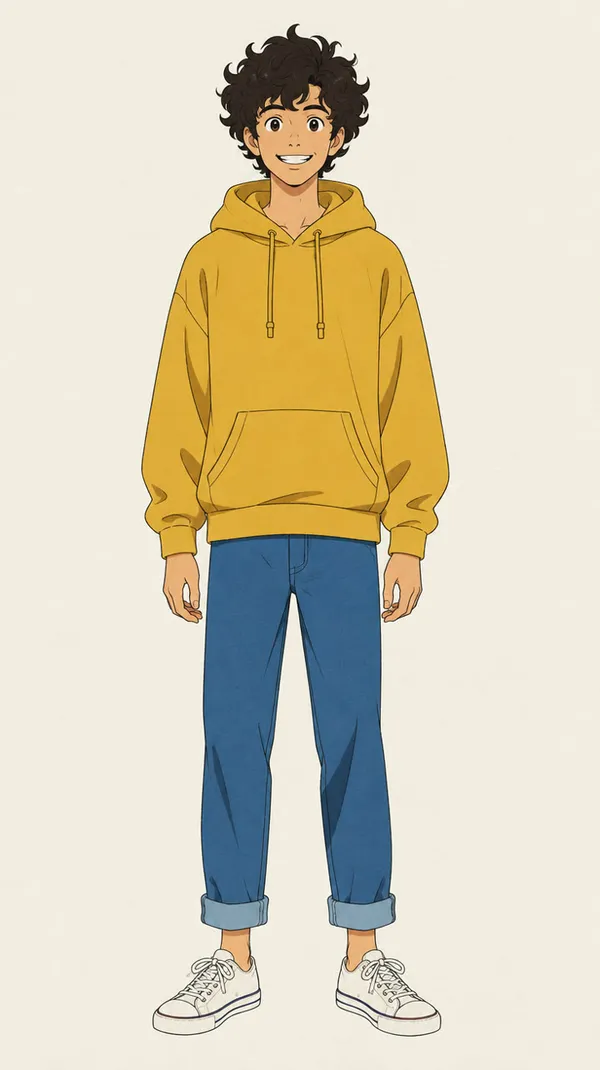
You're not limited to one reference. Attach up to three video clips, up to three audio tracks and reference images, and give each one a job: a clip for the motion, a photo for the character, a track for the rhythm. Here, a living-room dance, a hand-drawn character design and a funk track became one new animated video of the character dancing, with the track as its soundtrack. Clips can add up to 15 seconds in total and each track can run up to 15 seconds, or 30 seconds on some models.
What you can turn a video into
One source clip can go in very different directions. These are the five people use most.
For filmmakers, creators and brands
Previs, pitches and campaigns from clips you already have
Big ideas usually need a shoot before anyone can see them. A rough clip and a sentence get you a watchable version first.
Test shots before the shoot
Film a rough version with a friend and a phone, then turn it into the look you plan to shoot, before you book a crew.
Reuse footage you already own
Old takes, b-roll and product clips can become new campaign material. Keep the motion that worked and give the clip a new setting, season or style.
Keep motion consistent across versions
One source clip gives every version the same timing and camera move, so a series of cuts for different markets or platforms feels like one campaign.
How to use video to video AI
Three steps from the clip you have to the video you imagined.
1. Add your references
Open Create video and click a video you've made, or upload a clip. Add up to two more clips, plus images or audio, if you want them to guide the result.
2. Describe what it should become
Type the new style, world or character: "a zebra on the savanna," "an astronaut on the moon." Short prompts work; detail adds control.
3. Pick a model and generate
Choose from the available models that support videos as references and generate. The result arrives as a new video, and your source clip stays as it was.
Motion transfer
Give your movement to a new character
Record yourself, a friend or a stand-in doing the action. Then describe the character who should perform it. The AI follows the pose, rhythm and camera of your clip and builds the new character into it, so a hallway dance can become a dance by an animated red panda.
Motion transfer works best with a clear, well-lit performance and a simple background. The more readable the movement in your clip, the closer the new character follows it.
Use it for:
- Character videos for social channels
- Mascot and brand character animation
- Previs with stand-ins before casting
- Game and pitch trailers built from acted-out moves.
Scene swap
Move a whole video into a new world
Keep the walk, the camera move and the timing, and replace everything around them. A parking garage can become a crowded spice market; a hallway can become a forest path.
Describe the new place the way a location scout would: the surfaces, the light, the time of day, what fills the background. The AI rebuilds the scene and keeps your subject moving through it.
Scene swaps are useful for:
- Showing one product or person in several locations
- Testing locations before you travel to them
- Turning plain footage into story scenes
- Adapting one clip for different markets.
Footage upgrade
Turn rough footage into a polished shot
A shaky phone clip on a messy counter can become a clean product shot with studio light and a better set. Describe the finished look and the AI rebuilds the scene while following your camera move and the action.
Footage upgrades work well for:
- Product videos shot on a phone
- Food and drink clips for menus and ads
- Social content that needs a premium look
- Rough concept clips you want to show a client.
Treat the result as a strong new version rather than a restored original: it's generated from your clip, so details like labels and small text are worth checking before you publish.
Example prompts to try
Name what the clip should become, in plain words. Each tab shows one prompt and the video it made from the source. Copy it, change the details, and run it on your own clip.
Explore more AI video tools
Frequently Asked Questions
Video to video AI generates a new video from an existing one. Your clip guides the motion, camera move and timing, and your prompt decides what changes. It's popular with social media teams turning one clip into several posts, marketers testing campaign looks, and creators building consistent characters into video series.
You don't need editing or animation skills. If you can film the movement and describe the result in a sentence, you can make the new video.
Text to video invents the motion from your words. Video to video takes it from your clip, so the result usually follows the movement, pacing and camera move you filmed much more closely. Use text to video when you have nothing to film, and video to video when the way something moves matters.
Both happen in the same Create video tool, so you can generate a clip from text and then use it as the source for a video to video pass.
Up to three video clips and up to three audio tracks per generation, plus reference images (how many depends on the model). Clips can add up to 15 seconds in total and each track can run up to 15 seconds, or 30 seconds on some models. Combine them by role: one clip for the motion, another for the camera move or style, a photo for a character's look, a track for the timing.
Yes. You can upload clips from your phone or camera, videos made with other AI tools, or clips you generated on getimg.ai. Use footage you own or have the rights to use.
The result is a new video. Your source clip stays in your library as it was, so you can run several directions from the same footage and compare them.
Yes. Design the character first, for example with the AI character generator, then attach that image together with your clip and describe the swap. The AI uses the image for the character's look and your clip for the movement, so you get the same performance from a character you designed.
Your clips have the motion. Give them a new world.
Combine clips, images and audio, describe what the video should become, and get a new video guided by all of them. Your originals stay as they were, so you can try one direction after another.