Generate images, video and audio in Claude, ChatGPT and Cursor
The getimg.ai MCP server connects your AI assistant to the latest image, video and audio models, so it can create and edit visuals, clips, music and voiceovers on request.
- 1
In Claude, open Customize → Connectors, click + Add and choose Add custom connector
- 2
Name it getimg, paste the server URL, leave the advanced OAuth fields empty and click Add
- 3
Click Connect and sign in to getimg to pick the team whose credits it should use
Sign in with your getimg account. No API key, and results land in your library.
Works with your favourite AI agent
Whether you use Claude, ChatGPT or Claude Code, ask for an image, a video or a cutout and get it back in the same conversation.
Make four Instagram ad variations for our oat-milk cold brew can. Matte sage-green can, bright summer palette, product centered, 4:5.
Called generate_image on getimg
4 images
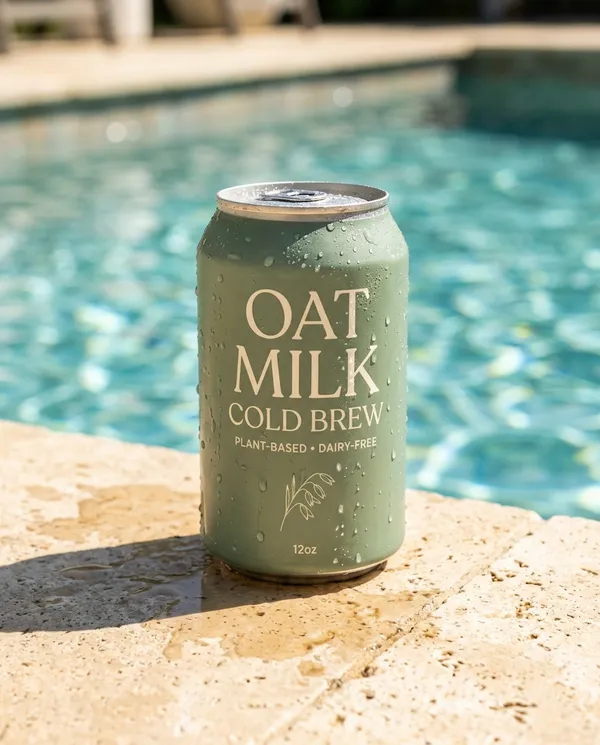
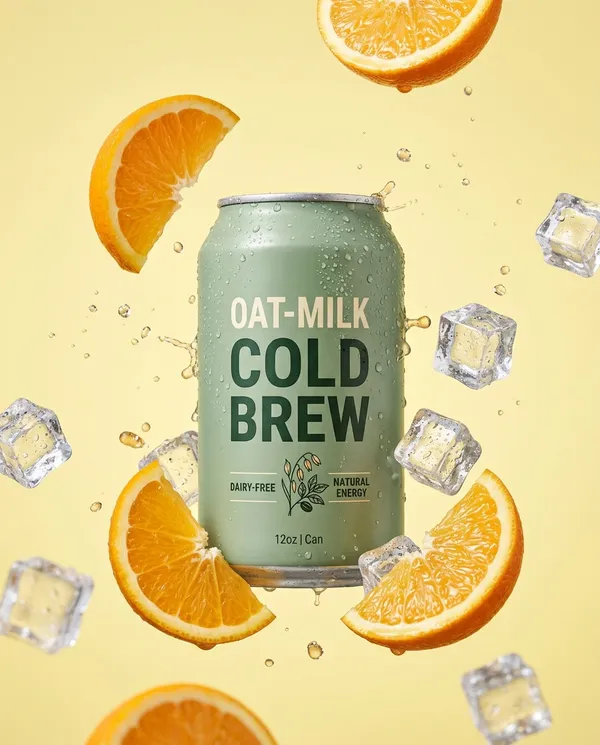
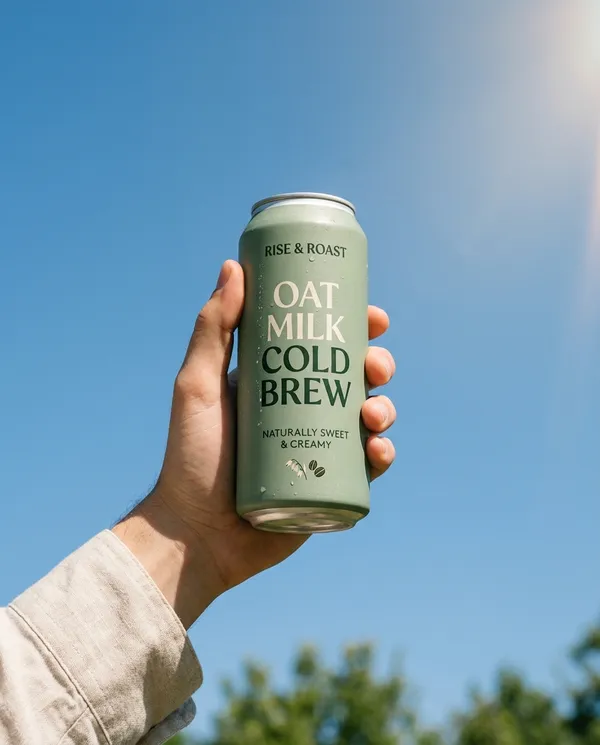
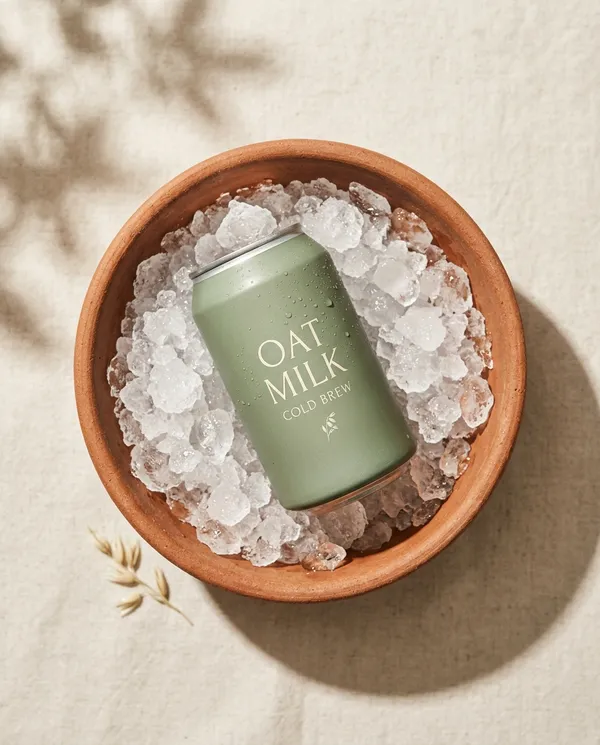
Here are four directions: poolside, citrus splash, held against the sky, and top-down on ice. Want me to animate one?
The latest image and video models in one connection
You get the same model lineup as the getimg.ai app, with no extra accounts or keys. By default, getimg.ai picks the model for each request. Name a specific one, and your assistant will use it.


What you can ask for
Your assistant can take a job from the first draft to the final edit, calling the right getimg.ai tool for each step.
Generate images
From a text prompt or your own references, with up to six prompts running at once.
Generate video
From text or a still, with start and end frames plus image, video and audio references.
Music, speech and sound effects
Songs, voiceovers and sound effects from a plain description of the mood or voice.
Edit and upscale
Remove backgrounds, relight, upscale images and video, and resize to popular aspect ratios.
Preset Actions for common jobs
Headshots, product orbits, stickers, photo restoration and UGC videos, with no prompt to write.
Your library, in the chat
Find earlier results and reuse them as references. New work saves to your getimg.ai library.
Frequently Asked Questions
What is an MCP server?
MCP (Model Context Protocol) is an open standard that lets AI assistants use outside tools. An MCP server exposes those tools to the assistant. The getimg.ai MCP server adds image, video and audio generation, editing and your getimg.ai library to any client that supports MCP, so you can create media without leaving the chat.
Can Claude generate images and videos?
Claude doesn't come with its own image or video model. Once you connect the getimg.ai MCP server, it can generate images, videos, music, voiceovers and sound effects, edit your photos and show the results in the conversation. The same works in Claude Code, so assets can go straight into your project files.
How do I add the getimg.ai MCP server to Claude, ChatGPT or Cursor?
Add https://getimg.ai/mcp as a custom connector or MCP server in your client, then sign in to getimg.ai when the client asks. In Claude Code, run claude mcp add --transport http getimg https://getimg.ai/mcp. The installer at the top of this page has step-by-step instructions for each client.
Which AI apps does it work with?
Any client that supports remote MCP servers over Streamable HTTP with OAuth sign-in. That includes Claude on the web and desktop, Claude Code, ChatGPT, Cursor, Codex and Hermes Agent.
Why use it in ChatGPT if ChatGPT already makes images?
ChatGPT uses OpenAI's own image model. Through getimg.ai you can also reach image models from other leading labs, plus video, music, voiceovers, upscaling and background removal. Everything you make is saved to your getimg.ai library, so you can pick it up later in the app or in another assistant.
Do I need an API key?
No. When you connect, your client opens getimg.ai and you sign in with your account. You choose which team to connect on the approval screen, and the connection uses that team's credits and library. To switch teams, disconnect and connect again.
Is the getimg.ai MCP server free?
Connecting costs nothing. Each generation spends credits from the team you connected, at the same rates as in the getimg.ai app. See plans and credits, or ask your assistant to check your balance.
Which models can I use?
Every image, video and audio model available in the getimg.ai app, updated as new models are added. Leave the choice to automatic selection, or name a model in your prompt. Ask your assistant to list the getimg.ai models to see the current options and their prices.
Can I edit my own photos or use them as references?
Yes. Share a public link, reuse anything from your getimg.ai library, or upload files in clients that support it. From there you can remove the background, relight, upscale, resize, animate the image or use it as a reference for new generations.
Where are my generations saved?
In your getimg.ai library, exactly like work made in the app. Links in the chat expire after 24 hours, but the files stay in your library.
Can I use the results commercially?
Paid getimg.ai plans include commercial rights, and they apply to work made through the MCP server the same way as in the app, subject to our terms and applicable third-party rights.
What is the difference between the MCP server and the getimg.ai API?
The MCP server is for creating from an AI assistant, signed in as you. The getimg.ai API is for developers building generation into their own apps, with API keys and a stable, versioned contract.
Turn your AI assistant into a creative studio
Create a getimg.ai account, connect the MCP server once, and ask for your first image, video or track.
Start creating now