Video to Anime AI: Turn Your Clips into Anime Scenes
Upload a clip and name the anime look you want. The AI redraws people, skies and streets as cel-shaded characters and painted backgrounds, while closely following the movement, the camera and the timing of your footage. Your original stays as it was.
Powered by leading AI video models
Edit with the leading video models that read a clip as a reference, with no API keys, no setup and no switching tools.


A video to anime converter that draws the whole scene
An anime filter usually changes the face and leaves the room behind it looking like a photo. Here the AI redraws everything in the shot, so the people get cel shading and the street, the sky and the light turn into painted anime background art.
Models that read video
Anime restyles need a model that can take your clip as a reference. Only those appear here, so any option you pick works from your footage.
Models that edit video

Seedance 2.5
Takes clips up to 30 seconds as references, with image and audio references in the same edit.

MiniMax H3
Edits clips up to 15 seconds and outputs at up to 2K resolution.
Characters and backgrounds
Faces, hair and clothes become clean line art, and the window, the rain and the street outside become a painted anime background behind them.
Original video
Prompt
Edited video
One clip, many anime eras
Turn the same hiking clip into retro 80s cel anime, a modern TV look and soft shojo. Each version saves as a new video next to your original.
Match an anime look from a picture
Every anime has its own palette and line work. To hit a specific look, attach a still in that style with your clip: the AI takes its colors, its light and the way its backgrounds are painted. Here, a walk up a residential street took on the warm, hand-painted look of a 90s anime background. One generation can combine up to three clips and up to three audio tracks with your images.
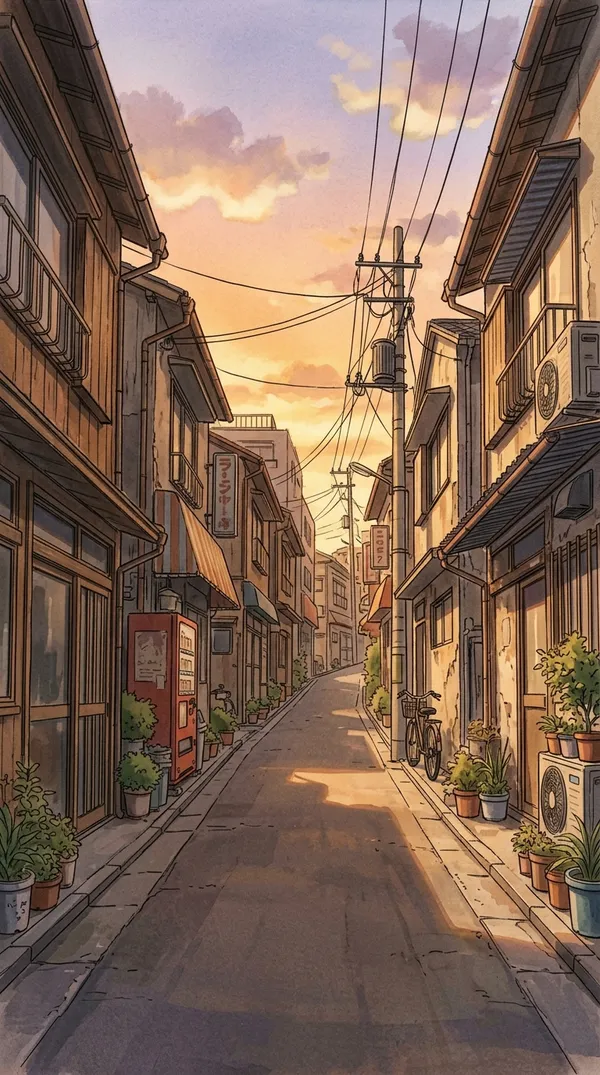
Anime styles you can ask for
"Anime" covers many looks. Name the one you want and the AI follows it. Each of these started as an ordinary clip and a one-line prompt.
For creators, streamers and storytellers
Your own anime, starring your footage
You don't need to draw a single character. Your clip already has the moves, the timing and the camera.
Try several anime looks
Run one clip as 90s cel anime, shojo and a sports series, compare them side by side, and keep the look that suits your channel.
Post anime versions of real moments
Dances, trips and everyday moments come back as anime scenes your followers recognize, starring the same people, places and timing as the original.
Keep a series in one anime style
Reuse the same style prompt or reference still for every clip, so episodes filmed on different days still look like one anime with one art direction.
How to turn a video into anime
Three steps from a real clip to an anime scene.
1. Open your video
Open Create video and click a video you've made, or upload your clip. If you have a still in the anime style you want, attach it as well.
2. Name the anime style
Type the look: "a hand-drawn anime scene," "90s cel anime with film grain." Mention the light or the season for a closer match.
3. Pick a model and generate
Choose from the available models that support videos as references and generate. The new version arrives as a new clip, and your original stays as it was.
Creators
Turn your dance videos into anime music videos
A dance in your bedroom can come back as a bright anime music video. The AI closely follows your moves, your outfit and your timing while it redraws you and the room in clean line art.
Full-body clips with clear movement and good light usually give the cleanest results. Name the anime look you have in mind, from bright pop to soft and painterly.
Useful for:
- TikTok, Reels and Shorts
- Anime music videos
- Dance and trend challenges
- Fan edits of your own footage.
Streamers
Give your streams and selfie videos an anime look
A selfie clip can become a clean anime version of you, with the same hair, the same gestures and the same expressions. Use it for intros, clips and channel trailers.
Describe your hair color and outfit if they matter, so your anime version stays recognizable from video to video.
Anime versions help:
- Stream intros and highlight clips
- Channel trailers and banners in motion
- Short-form posts between streams
- Avatar tests before a full model.
Storytellers
Shoot a scene, get it back as anime
A night walk filmed on a phone can become a moody anime scene with glowing streetlights and deep blue shadows. The AI follows the walk and the camera move closely while it redraws the city around it.
Anime restyles work well for:
- Music videos and visualizers
- Short films and story scenes
- Pitch clips for anime ideas
- Openings, recaps and trailers.
Fast movement, small faces and crowded scenes are where restyles work hardest. If a face looks off, rerun with a closer shot or a clearer description of the style.
Anime prompts to try
Name the anime look in plain words. Each tab shows one prompt and the clip it made. Copy it, change the details, and run it on your own footage.
Explore more AI video tools
Frequently Asked Questions
Add the clip as a video reference in Create video, name the anime style or attach a still in that style, and generate. It's popular with social media teams turning trend clips into anime, marketers testing anime-style ads, and creators who also want cartoon, comic and watercolor looks from the same clips.
You don't need to draw or animate. If you can name the anime look, you can turn your clip into it.
90s cel anime, slice-of-life, sports anime, shojo, hand-painted anime film looks, moody night scenes and more. Name a decade, a genre or a mood, and the AI follows it.
For a very specific look, attach a still in that style. It's usually easier than describing the palette and the line work.
Usually, yes. The AI aims to keep your hair, clothes, gestures and expressions while it redraws you in anime style. Mention your hair color or outfit in the prompt to keep them consistent across several clips. Your clips can add up to 15 seconds in total, or 30 seconds on some models.
The AI follows the motion, the camera and the timing of your clip closely. The result is a new video generated from your footage, so small details like hand positions or background objects can differ from the original.
Your original stays in your library as it was, so you can try several anime styles and compare them.
Yes. For still images, the anime generator turns a photo or a prompt into anime art. You can then animate the result or use it as a style reference for a clip.
Film it live. Watch it as anime.
Open your clip, name the anime style or attach a still in that style, and get an anime version that closely follows your shot. Your original stays as it was, so you can try one look after another.