AI Social Media Content Generator for Posts, Reels & Videos
Create social posts, short-form video, carousel visuals, voiceovers, and supporting audio, then adapt one creative direction across the formats your channels need.
Leading image and video models in one workspace.
Use Auto mode for automatic model selection, or choose a model manually when you need a specific strength.


Where getimg.ai Fits in Social Content Production
Keep Content Production Moving
Social teams often need more formats, more timely assets, and more creative variations than a traditional production schedule can deliver quickly. getimg.ai speeds up exploration, selection and adaptation, so the calendar keeps moving while larger productions run in parallel.
Prompt
Variation A
Variation B
Use Different Models for Different Content Types
Use Auto mode for automatic model selection, or choose manually when you need a specific strength such as typography, realism, editing, longer video, native audio, or reference controls. The asset type, visual style, motion and required resolution decide the model, not the platform you post to.
Auto selection

Google
Image models with strong typography, realistic detail, and precise editing.

ByteDance
Video models with cinematic motion, expressive characters, and longer clips.
Adapt One Direction to Each Channel
Different channels often require different formats, pacing, framing, copy density, and creative variations. Start from one approved direction, then adapt it to the context of each channel instead of briefing every placement from scratch.


From One Social Idea to Multiple Formats
1. Start from one social idea
Describe the post you want in plain language: the product, the moment, the mood, and the channel it is for. Short descriptions work, and you do not need prompt syntax to get a usable first result.
2. Generate the first creative direction
Create a feed visual, a Story frame, a carousel cover or a Reel opener. Keep the version that matches the brief and refine that one, instead of starting again from zero.
3. Adapt it into the formats your channels need
Resize the approved direction for other placements, animate it into short-form video, add a voiceover or a music bed, and build the variations the calendar needs from the same starting point.
One Idea, Multiple Social Assets
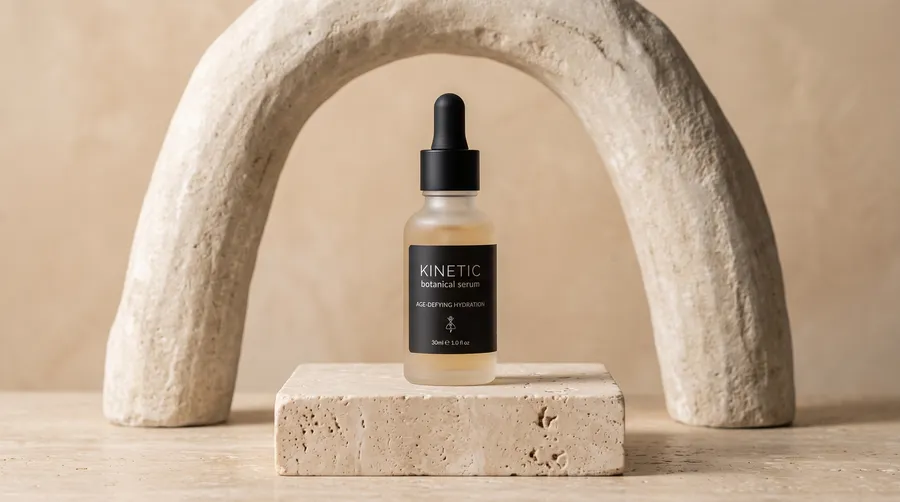
The brief: new iced coffee flavor launch, warm summer aesthetic, pastel orange palette, playful tone. Every asset below came out of that one brief. The 4:5 feed visual was generated first, then used as the reference for the rest, so the product, palette and lighting stay recognizable across formats. Each card is the same size, so what changes between tabs is the shape of the asset itself.
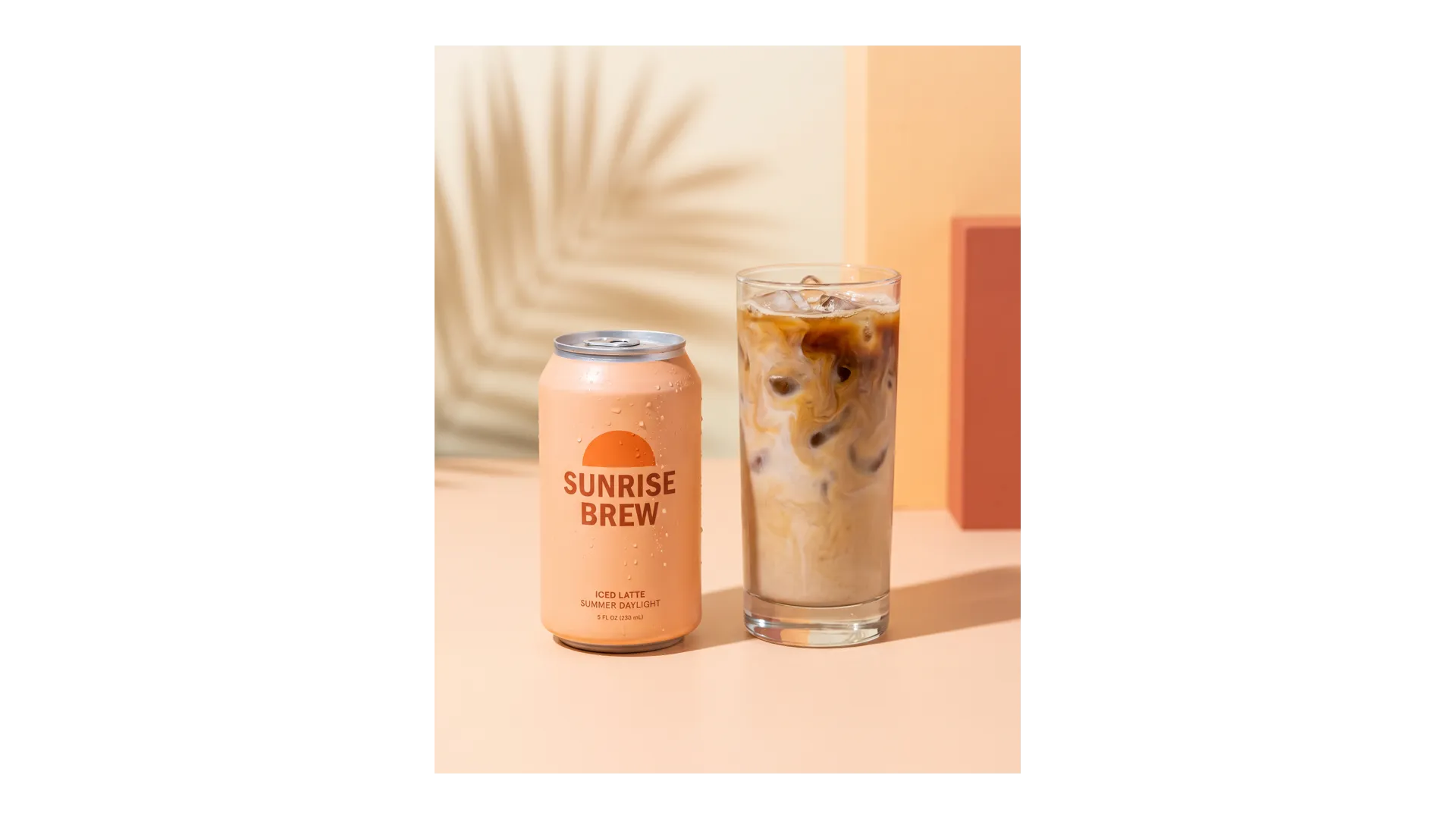
Adapt One Creative Direction for Every Placement
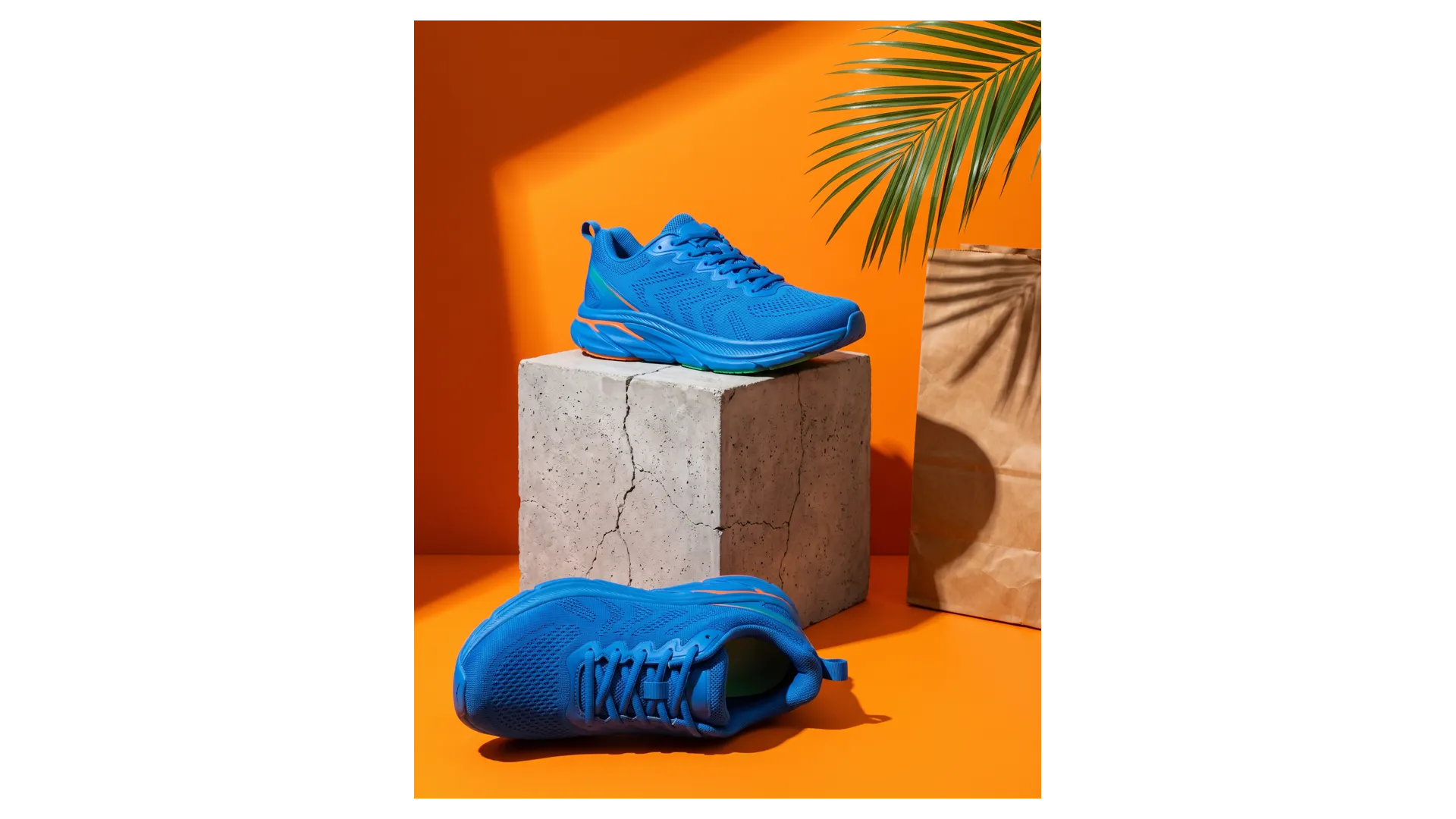
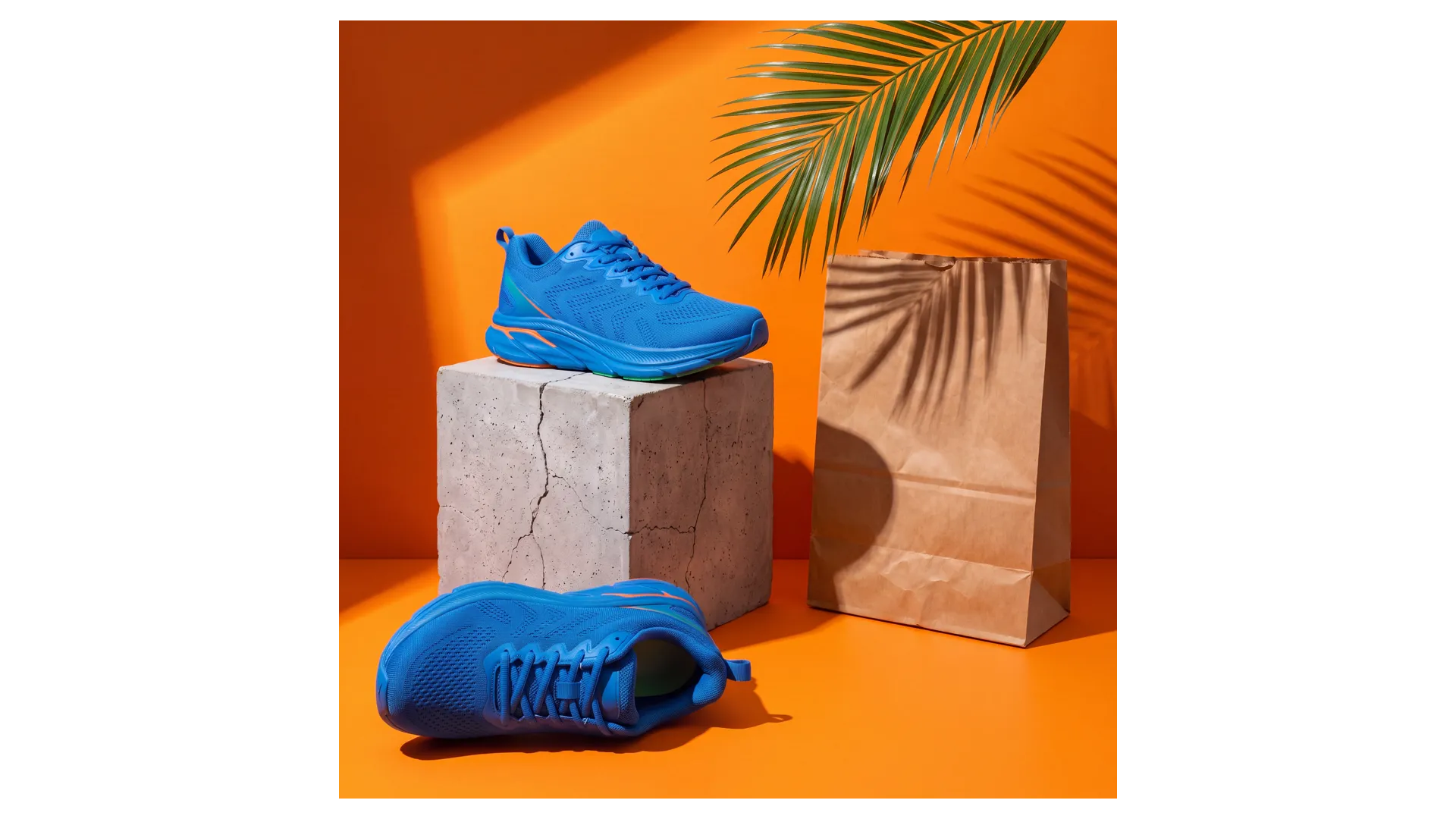
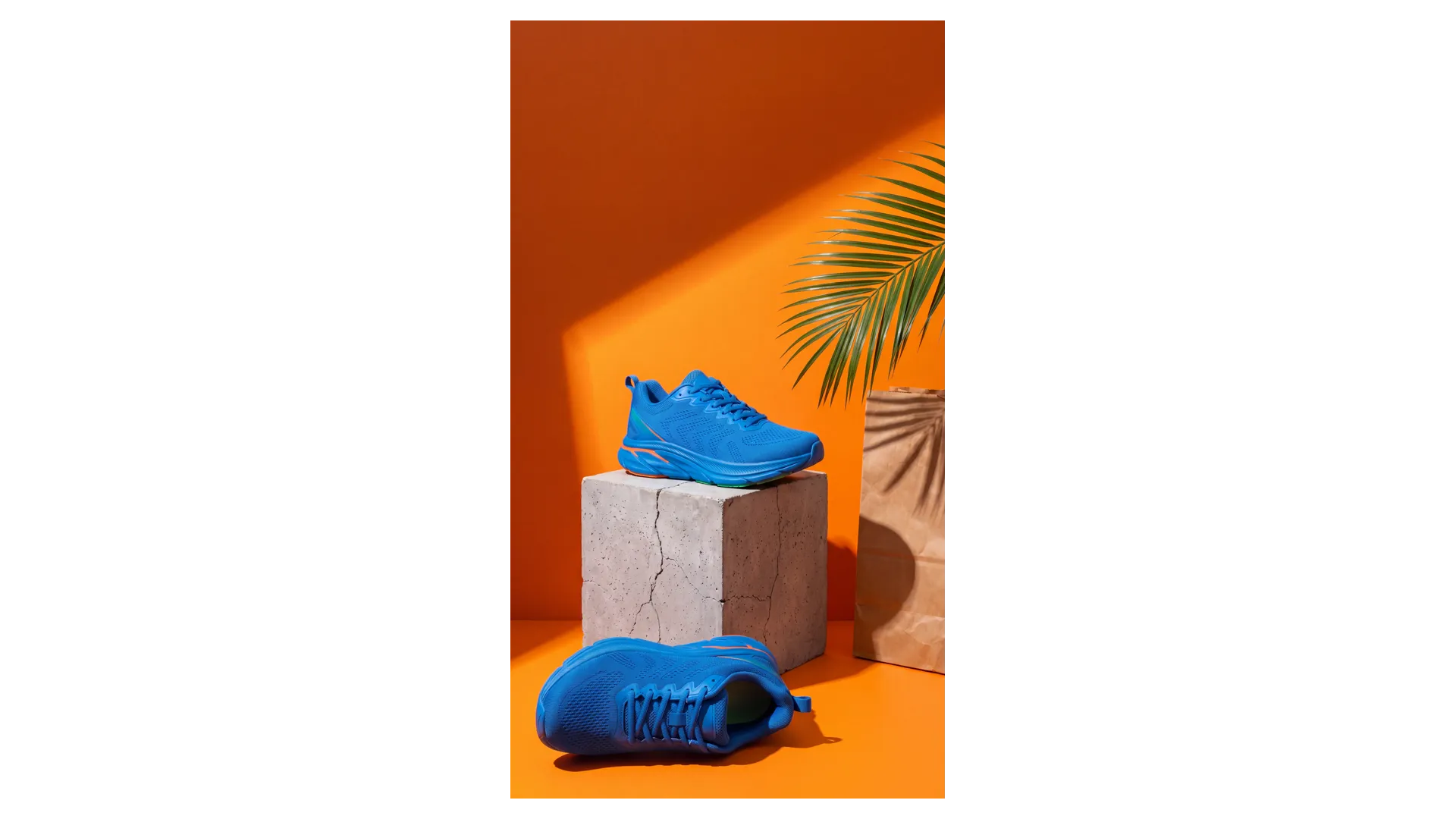
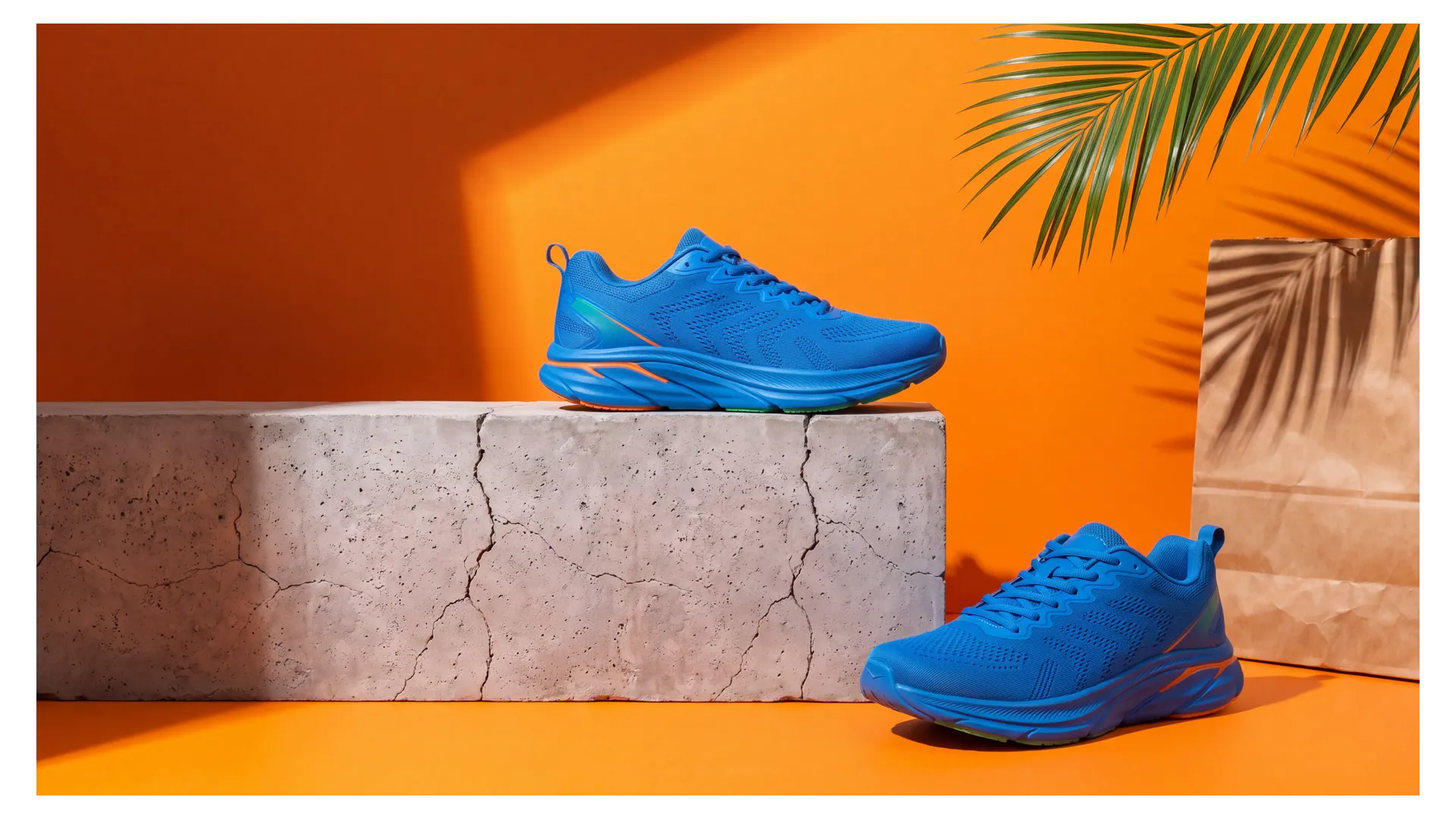
One approved visual, four placements. Every version below started from the same 4:5 product image and was adapted to a new ratio rather than briefed and shot again. Each card is the same size, so what changes is the shape of the asset itself: the plinth, the props and the backdrop get reorganized for every placement, and the product stays the hero.
We have left pixel dimensions off this page on purpose. Platform specs change often, and a landing page is the wrong place to keep them current. Work in ratios, then export at whatever size the placement asks for on the day.
Smart Resize or Outpainting?
Both turn one asset into another ratio, and they do it differently. Use Smart Resize when you want the composition reorganized for the new shape. Use Outpainting when the source has to stay exactly as it is and you only need more canvas around it.
All three panels below come from the same square candle visual: the 1:1 source, then that same image taken to 9:16 two different ways. Smart Resize rebuilt the scene for a vertical frame and moved the ledge and the window. Outpainting left that original square untouched and filled in new canvas above and below it.



Create Multiple Visual Hooks
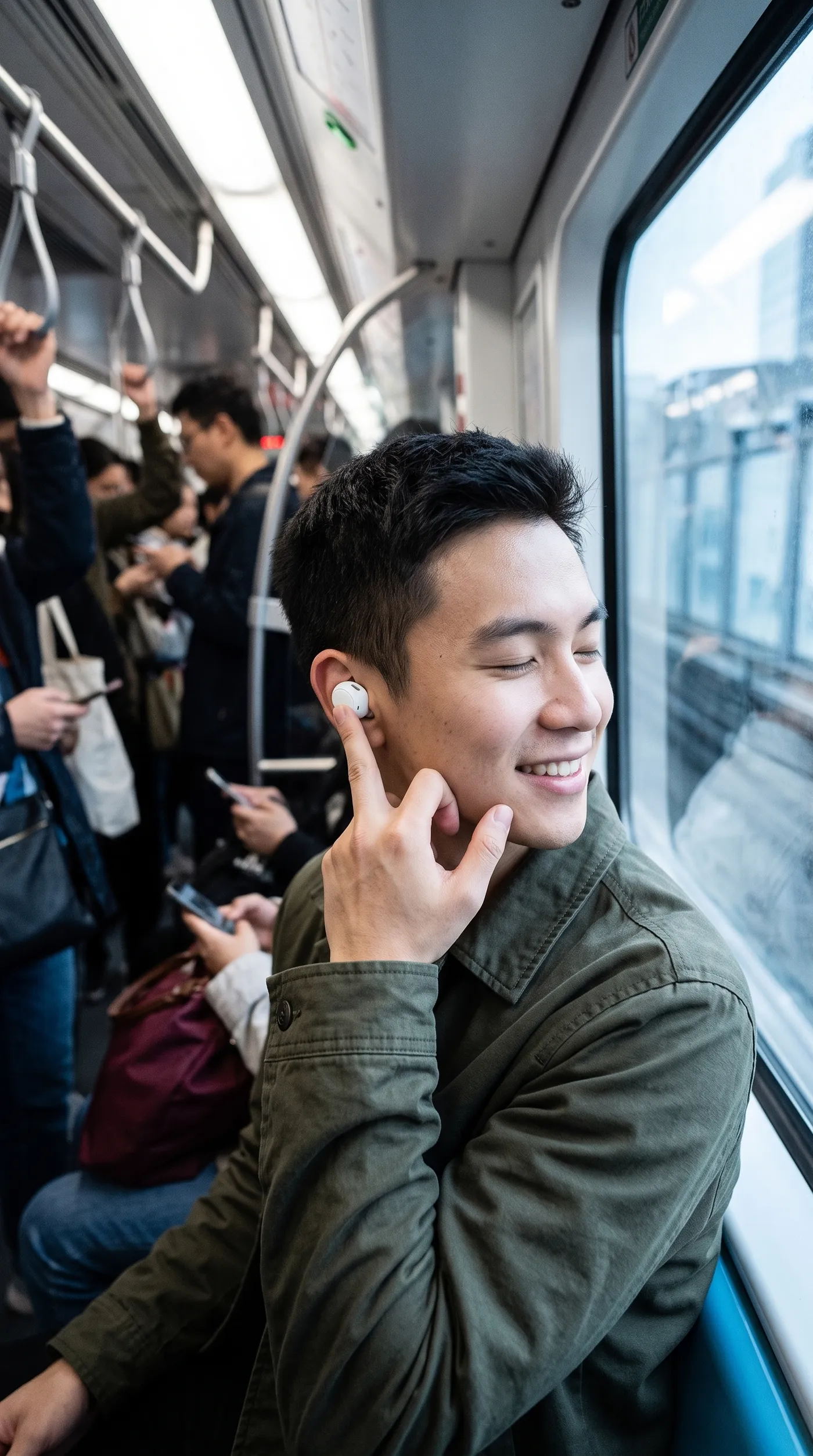
A short-form video rarely gets judged on the whole clip. The first one to three seconds do most of the work, and the only honest way to find the opener that lands is to make several and watch what the platform reports back.
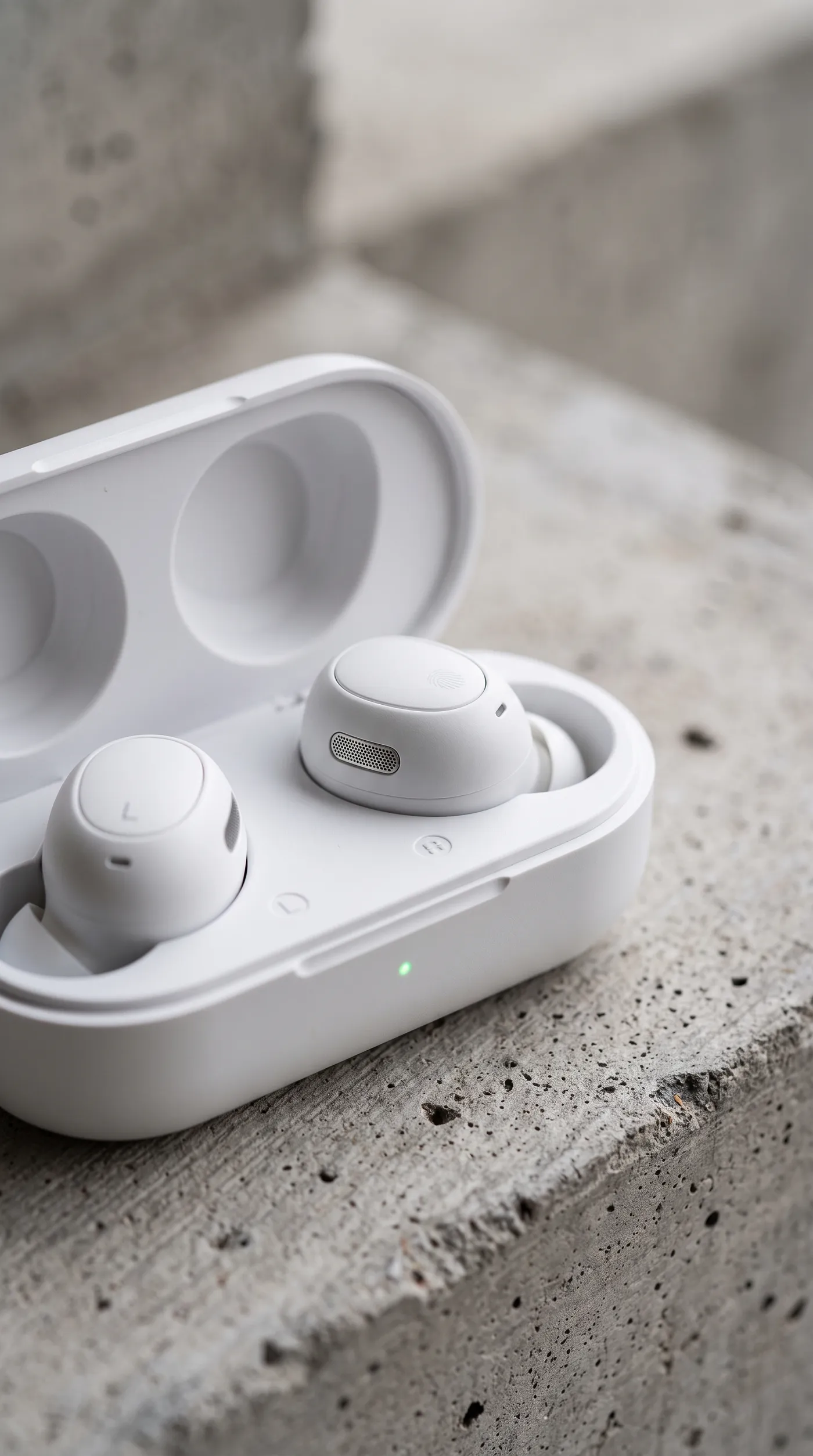
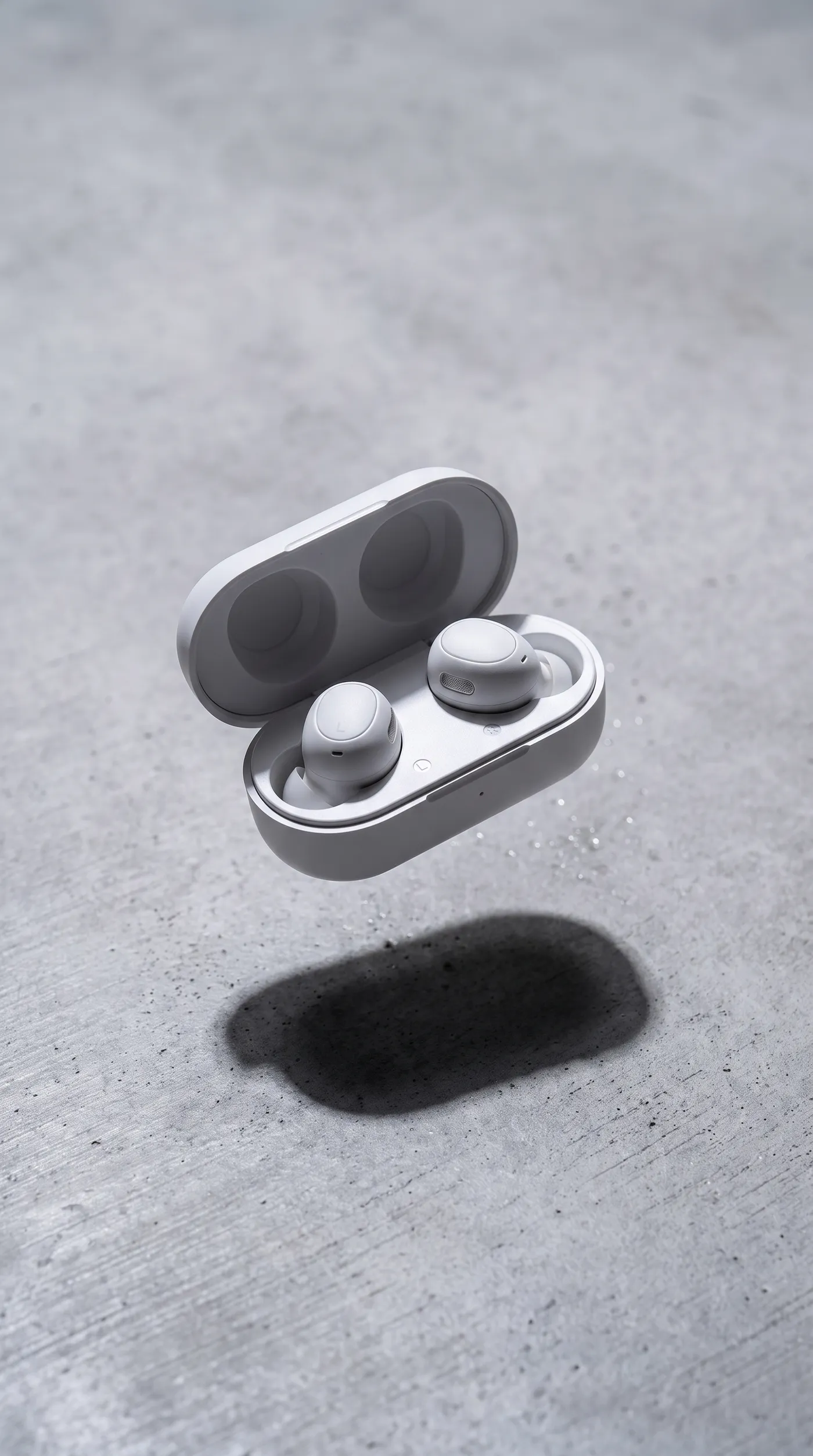
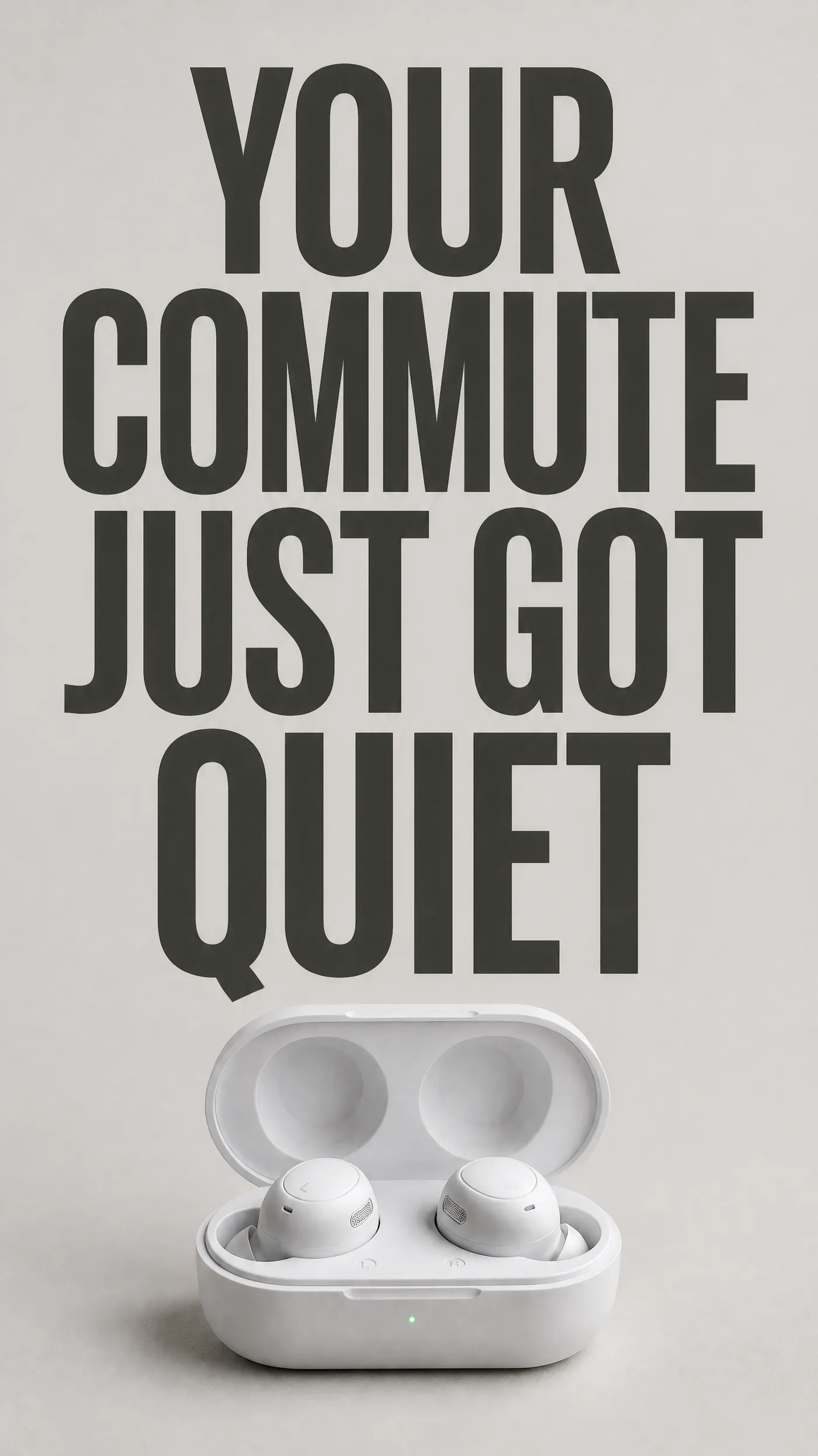
These four openings came from the same Reel brief for a pair of wireless earbuds: a product close-up, an unexpected moment of motion, a large text-led frame, and a human reaction. Generate the set, publish the variations, then read your own platform analytics. We can give you more to test. We cannot tell you which one will win.
What Social Teams Create With getimg.ai
Turn Existing Assets Into More Social Content
Not every social workflow starts with text to image. More often it starts with something you already have: a campaign hero, a product photo, a post that performed well. Attach it as a reference and build the next asset from it.
The example here began as a wide hotel campaign visual. We attached it as a reference, described the change, and got a text-led social cut back with the same terrace, light and palette. From there the chain continues: resize for another placement, edit details, animate it, add a voiceover or a music bed.


wide social cut of the same terrace, headline 'STAY LONGER' set in the open sky with a generous margin
Reuse Brand References Across Social Images
Save recurring products, people, styles, palettes or lighting directions as Elements, then call them by name in future image prompts. Reusing the same Elements can help maintain a more recognizable visual direction across posts and series.
Elements work in image generation and in video models that accept reference images, so the same product can carry from posts into clips. The three posts here came from one saved product reference, placed in three different settings.



Build Recurring Visual Series
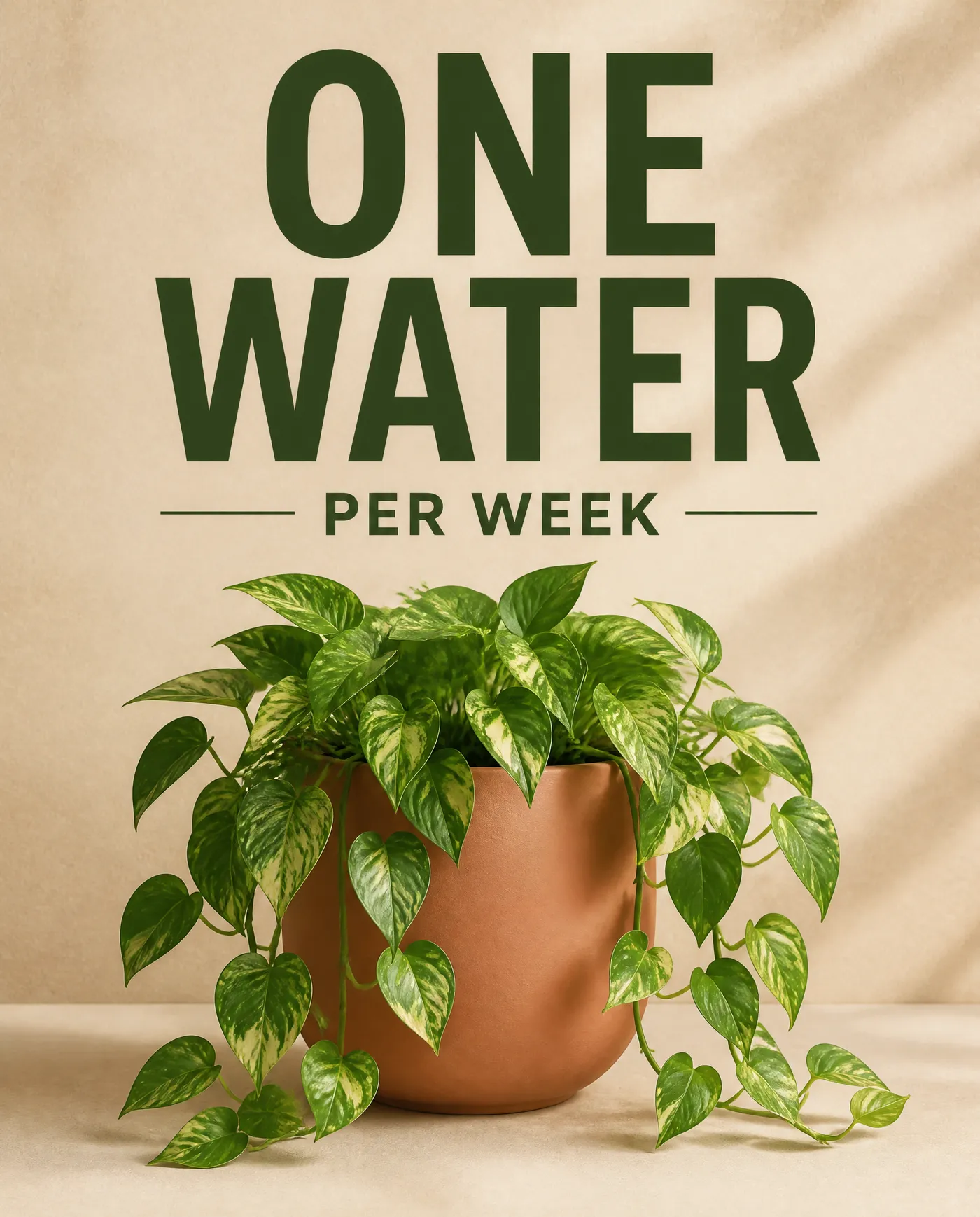
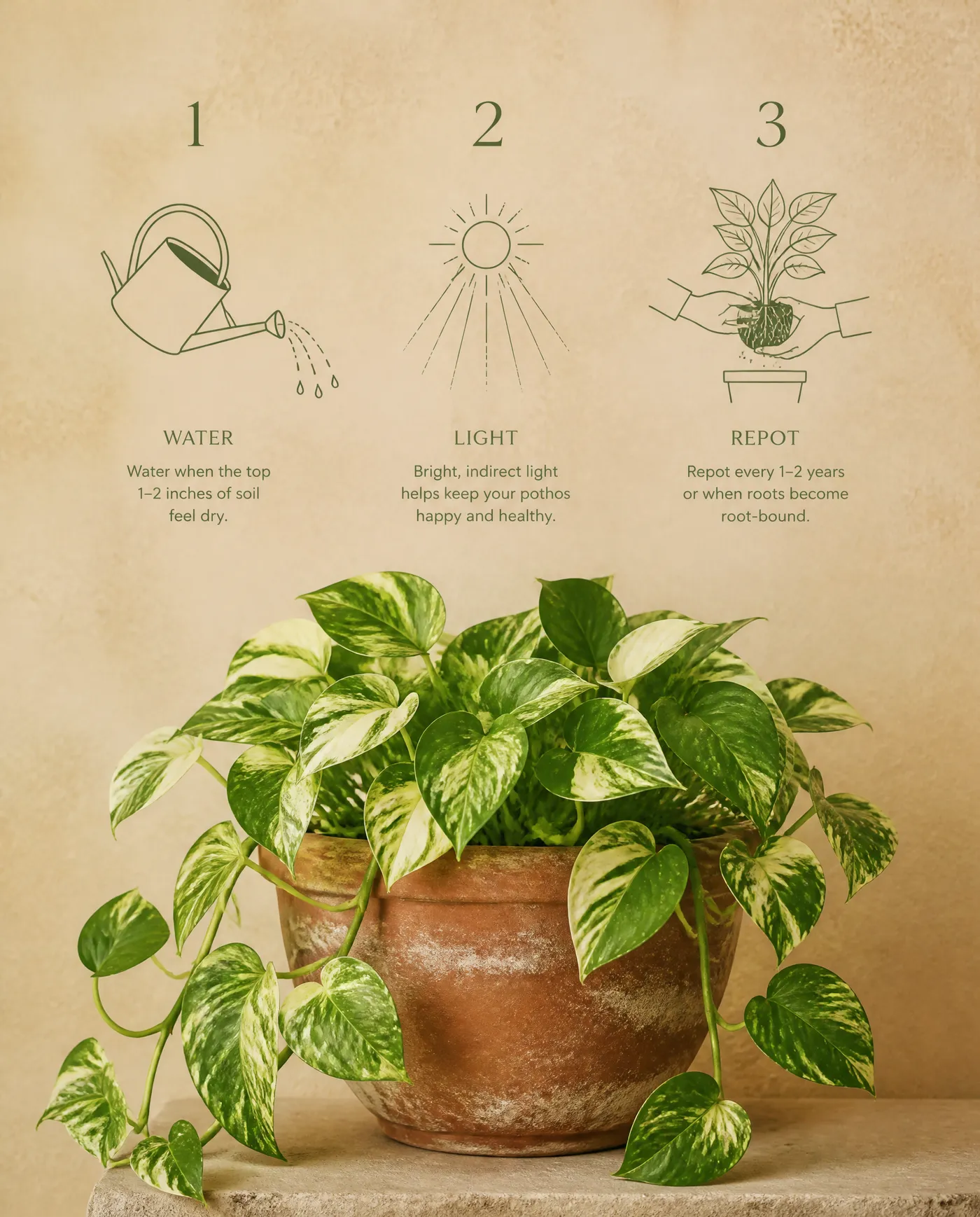
Carousels and recurring formats are some of the most useful things a social team can standardize. This is a six-slide carousel built from one plant-care direction: a cover, a leaf detail, a stat slide, a care explainer, a tip, and a closing call to action.
- every slide is a separate generation, so one can be reworked without redoing the set,
- Elements, palette, composition cues and typography direction carry across the series,
- continuity still needs a review across all the slides together, not just the cover.
Build the series once, then reuse the structure for the next launch, the next drop and the next explainer.




Create Voiceovers for Reels, Tutorials and Faceless Content
Turn a script into speech using an available preset voice. Press play on the clip here: the visual is generated, and so is the narration over it. The script was three sentences with inline cues, and those cues are what shape the delivery.
Reuse the same selected voice across a series so a recurring format sounds like one narrator. Scripts work across languages and tone can change line by line. Review pronunciation of names, numbers and brand terms before publishing, and listen back to the full take rather than trusting the first generation.
Generate Music for Social Video
Create music from a prompt for Reels, Shorts, product clips, slideshows, or branded social videos. Set the length and the number of variations, then pick the take that fits the cut.
Paid plans include commercial usage rights for eligible generated content under our terms. Platform moderation and third-party rights still apply, so check the policies of the channel you are publishing to.
Reuse similar genre, instrumentation, tempo and mood directions to create related music variations across a content series.
tracking shot following a skateboarder past a poster wall at golden hour, upbeat electronic music
Explore Ideas Before the Full Production Handoff
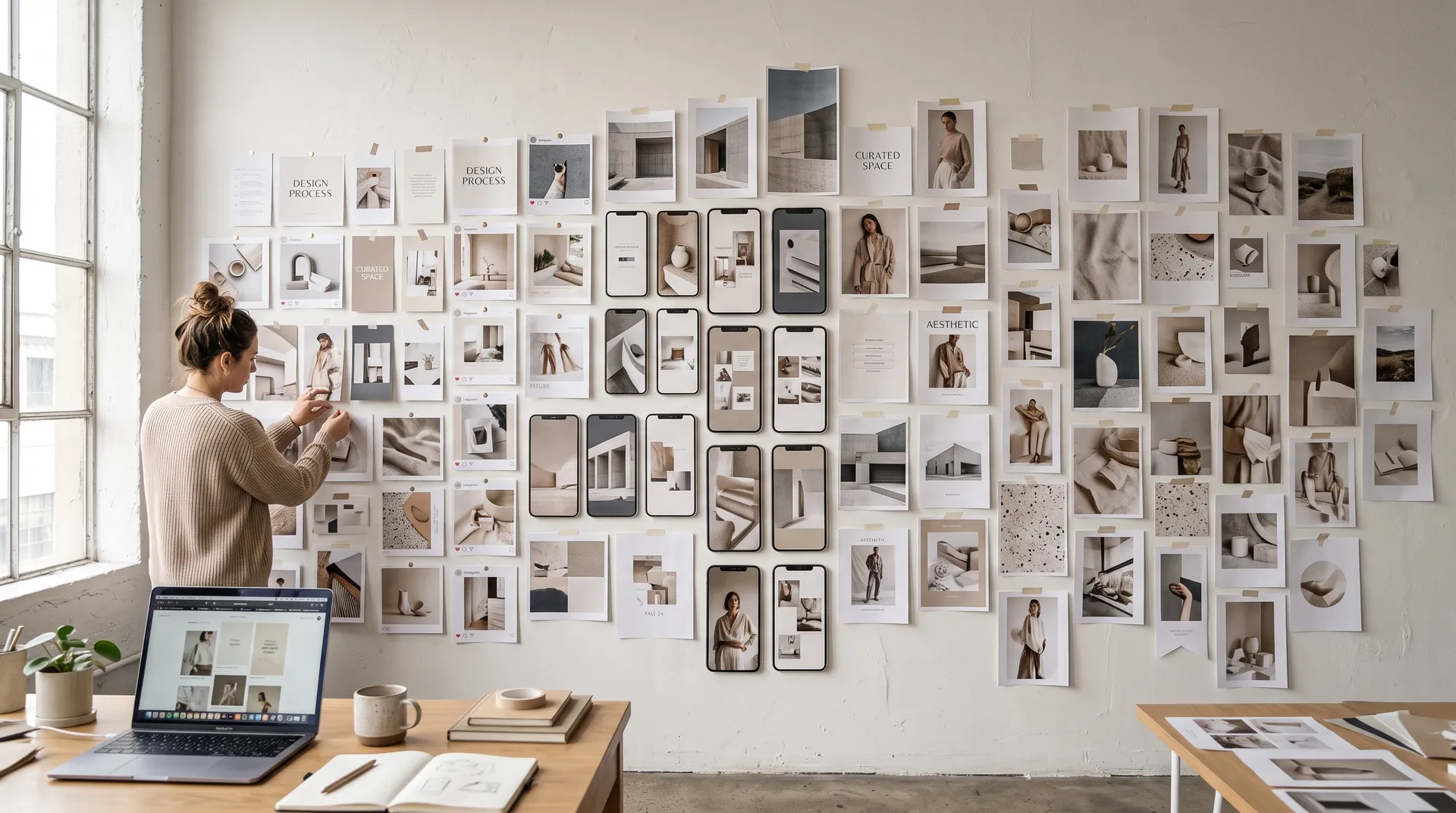
A social manager or strategist can put a rough visual direction together before anyone opens a design file. Not to replace the designer or the editor, but to give them something concrete to work from. A brief that arrives with reference frames, a palette and a format list is a far better starting point than a paragraph of description, and the production work starts closer to the final answer.
Reduce the Number of AI Production Tools in the Workflow
Generate images and video, edit visual assets, resize, upscale, remove backgrounds, and create supporting audio inside one workspace. Keep scheduling, publishing, analytics and community management in the tools built for those tasks.
The goal is not to replace your whole stack. It is to stop moving a single asset between four separate AI tools, each with its own export, its own subscription and its own version of your brand. One session, one library, a full set of assets.
-1920x1080.webp)
What getimg.ai Helps With and What It Doesn't Replace
getimg.ai is a creative production platform for social media, not a social media management platform. Here is where the line sits.
What getimg.ai helps with
Creative production
Generate images and video from prompts, references and existing assets.
Variants and formats
Create variations and adapt one direction across ratios and placements.
Visual editing
Edit, resize, upscale and remove backgrounds in the same workspace.
Audio production
Generate music, speech and sound effects to go with the visuals.
What it does not replace
- Scheduling and publishing
- Social analytics and reporting
- Community management
- Social listening
- Paid media buying
Keep Social Assets Organized as a Team
Shared Team spaces, folders and Elements keep social assets organized per account, campaign or channel, so iterations, variations and final files stay in one place instead of scattered across drives and chat threads.
Everyone on the same Team works from the same generations, the same saved references and the same folder structure. Explore Teams for how shared spaces, members and folders work.

Frequently Asked Questions
Start from the output you need to produce, not from the model list. For most social teams that means image and video generation in one place, vertical and feed formats, editing and resizing, brand references you can reuse, short-form video controls, audio, team organization, and clear commercial terms.
Measured against that list, getimg.ai covers generation, editing, format adaptation and supporting audio in one workspace. Auto mode selects a model per task, or you can choose one manually when you need a specific strength such as typography, realism, longer video or native audio.
Elements let you save recurring products, people, styles and palettes and call them by name in image prompts, and folders keep assets organized by account, campaign or channel.
And if you are working with others, you can create a shared Team space that keeps iterations, variations and final files in one place instead of scattered across drives and chat threads.
getimg.ai is a creative production platform that brings leading image and video models together in one workspace. You can generate images, create video from text or from a still, generate music and speech, and keep a consistent visual direction across what you make, without switching between separate tools.
For social specifically, it covers the production side of the job: take one post idea, generate the first creative direction, adapt it into the formats your channels need, and build the variations a content calendar asks for. Scheduling, publishing and analytics stay in the tools built for those jobs.
Yes. You can generate vertical short-form video from a text prompt, or animate an image you already have.
Available duration, first and last frame controls, reference images, resolution and native audio all depend on the selected video model. For Reels and similar vertical placements, 9:16 is a common starting format.
Yes. Generate music from a prompt for Reels, Shorts, product clips and slideshows, and turn a script into a voiceover for narration, tutorials and faceless content. Paid plans include commercial usage rights for eligible generated content under our terms. Platform moderation and third-party rights still apply.
Yes, for images. Save a recurring product, person, style, palette or lighting direction as an Element, or as a consistent AI character, give it a name, and call that name in future image prompts.
Elements work in image generation and in video models that accept reference images. On other video models, consistency comes from first or last frame. Reuse improves continuity, but review the output rather than assuming an identical result every time.
No advanced prompting skills are required. Describe what you want the way you would explain a post idea to a colleague: the product, the moment, the mood, and the placement it is for.
If the first output is not right, adjust the description and generate again, or attach the closest result as a reference and describe the change instead of starting over.
No. getimg.ai is a creative production platform for social media content, not a social media management platform.
It covers creative production: generating images and video, creating variations, editing and resizing visuals, adapting formats across placements, and producing supporting audio.
It does not replace scheduling and publishing, social analytics, community management, social listening or paid media buying. Keep those in the tools built for them.
Paid plans include commercial usage rights for eligible generated content under our terms, which covers organic posts, paid social, sponsored partnerships, client deliverables and other marketing materials. Uploaded brand assets, third-party intellectual property, trademarks, music rights, likenesses and platform policies still need to be considered before publication.
Yes. Take an approved visual and adapt it to other ratios with Smart Resize, which regenerates the image at the new aspect ratio, or with Outpainting, which keeps the original and extends the canvas outward. From the same starting asset you can also edit details, or animate the still into a short clip.
Yes, on video models that accept reference images, such as Seedance 2.0, Kling O3, Google Veo 3.1, and Wan 3.0. Add the Element to the video prompt the same way you would for an image. On models that only take a first or last frame, generate a consistent image with Elements first, then use that image as the first frame of the clip.
No. Native audio depends on the model you select. On supported models you can describe dialogue, ambience, music or sound effects in the same prompt and get them back with the clip. For silent models, or for footage you already have, generate music, speech or sound effects separately and add them in the edit.
Yes. Generate each slide as its own asset and hold the series together by reusing the same Elements, palette, composition cues and typography direction. Because every slide is a separate generation, continuity needs a review across the full set before publishing, not just on the cover.
No. No generative tool can guarantee reach, watch time, engagement or algorithmic recommendation. What it can do is help you produce more options: several hooks for the same brief, variations of an approved direction, and a version for each placement. Which one performs is a question for your platform analytics.
Plan less. Post more.
Start from one idea, generate the first creative direction, and adapt it into the formats your channels need. Images, short-form video, voiceovers and music in one workspace.