Video to Cartoon Converter: Redraw Any Clip in a New Style
Pick a clip and name a look: a 2D cartoon, a comic book, a watercolor storybook or a pencil sketch. The AI redraws your footage in that style while closely following the movement, the camera and the timing. Your original stays as it was.
Powered by leading AI video models
Edit with the leading video models that read a clip as a reference, with no API keys, no setup and no switching tools.


A video to cartoon converter built on your motion
Most video filters lay a texture over the footage, so the result still looks like the original with an effect on top. Here the AI redraws the whole clip in the style you ask for, so people, light and backgrounds look drawn.
Models that read video
A restyle needs a model that can take your clip as a reference. Only those appear here, so any option you pick works from your footage.
Models that edit video

Seedance 2.5
Takes clips up to 30 seconds as references, with image and audio references in the same edit.

MiniMax H3
Edits clips up to 15 seconds and outputs at up to 2K resolution.
Same moves, new look
The AI closely follows the motion, the camera and the timing of your clip while it redraws people, objects and backgrounds in the style you named.
Original video
Prompt
Edited video
One clip, many styles
Make the same kitchen dance as a comic book, a watercolor storybook and a flat 2D cartoon. Every version saves as a new video next to your original.
Match a style from a picture
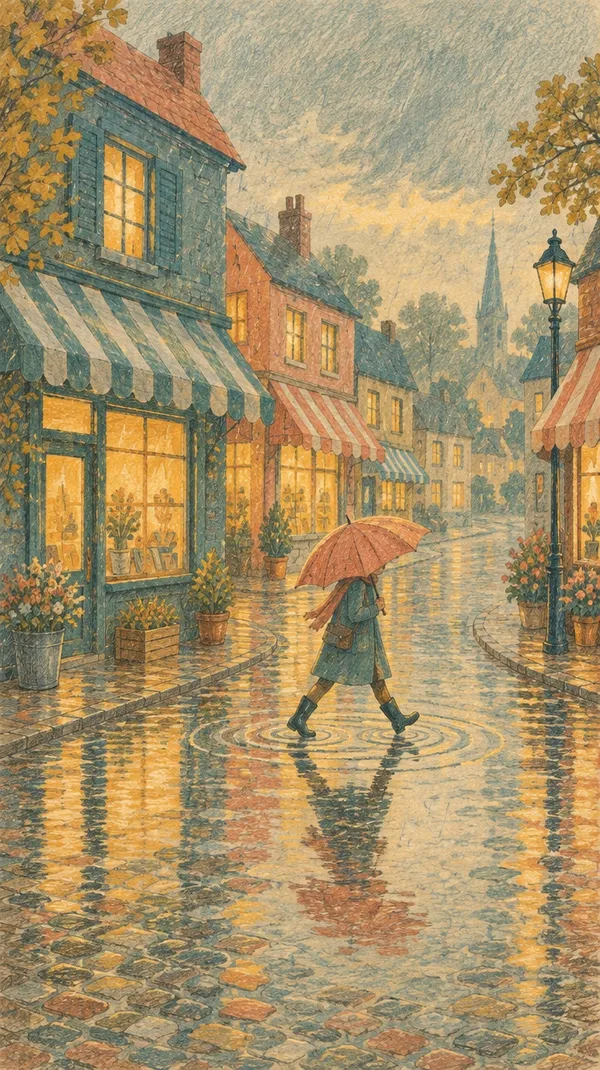
When a style is hard to put into words, show it. Attach an illustration you like together with your clip and ask for that look: the AI redraws the video with its colors, lines and texture. Here, a woman walking in the rain took on the gouache and colored-pencil look of a reference picture. One generation can combine up to three clips and up to three audio tracks with your images.
Styles you can turn a video into
Cartoon is only the start. Each of these started as an ordinary clip and a one-line prompt.
For creators, brands and storytellers
Animation without an animation budget
Drawing a clip by hand takes days. A described style takes one generation.
Test a look before you commit
Try cartoon, comic and watercolor versions of the same clip side by side, then pick the style your audience reacts to before you plan a bigger project.
Stand out in a busy feed
A drawn version of a familiar format catches the eye in a feed full of live footage, and it still shows the same moment, product or person.
Keep a series in one style
Use the same style prompt or reference picture for every episode, so a whole series looks drawn by one artist even when it was filmed in different places.
How to turn a video into a cartoon
Three steps from live footage to a drawn version.
1. Open your video
Open Create video and click a video you've made, or upload your clip. If you have a picture in the style you want, attach it as well.
2. Name the style
Type the look you want: "a flat 2D cartoon," "a comic book with halftone dots." Add the colors or the mood for a closer match.
3. Pick a model and generate
Choose from the available models that support videos as references and generate. The new version arrives as a new clip, and your original stays as it was.
Creators
Turn your videos into cartoons
An unboxing, a vlog moment or a reaction clip can come back as a bold cartoon. The AI closely follows your gestures, your expressions and your timing while it redraws you and the room around you.
Clips with clear movement and good light usually give the cleanest results. Name the line weight and the colors you want, from thick bold outlines to soft pastels.
Useful for:
- TikTok, Reels and Shorts
- Unboxing and reaction videos
- Channel intros and outros
- Memes and recurring series.
Brands
Make cartoon versions of your product videos
A product clip shot on a kitchen counter can become a flat 2D cartoon ad. The AI closely follows the pour, the hands and the camera while it redraws the product and the scene in a simple, bright style.
Ask for flat colors and simple shapes so the product stays easy to recognize, and name its colors if they matter for the brand.
Cartoon versions help:
- Social ads that need to stop the scroll
- Explainer and launch videos
- Campaigns aimed at younger audiences
- Variations for A/B tests from one shoot.
Storytellers
Turn a story into a picture book in motion
A grandfather telling a story by the fire can become a page from a watercolor storybook. The AI follows his gestures, his smile and the flicker of the fire closely while it paints the room around him.
Restyles work well for:
- Family videos and keepsakes
- Children's stories and readings
- Pitch and mood clips for animation ideas
- Intros, recaps and trailers.
Fast movement, small faces and crowded scenes are where restyles work hardest. If a detail looks off, rerun with a shorter clip or a clearer description of the style.
Example prompts to try
Name the style in plain words. Each tab shows one prompt and the clip it made. Copy it, change the details, and run it on your own footage.
Explore more AI video tools
Frequently Asked Questions
Add the clip as a video reference in Create video, name the style or attach a picture of it, and generate. It's popular with social media teams turning trend clips into cartoons, marketers making cartoon versions of ads, and e-commerce teams giving product clips a drawn look.
You don't need to draw or animate. If you can describe the style, you can turn your clip into it.
2D cartoons, 1950s mid-century cartoons, comic books, watercolor, storybook, pencil sketches, linocut, cut paper, pixel art and more. Name a decade, a technique or a mood, and the AI follows it.
For a very specific look, attach a picture in that style. It's usually easier than describing every line and color.
Yes. Attach the picture as an image reference with your clip and ask for its style. One generation can combine up to three clips and up to three audio tracks with your images. Your clips can add up to 15 seconds in total, or 30 seconds on some models.
The AI follows the motion, the camera and the timing of your clip closely. The result is a new video generated from your footage, so small details like hand positions or background objects can differ from the original.
Your original stays in your library as it was, so you can try several styles and compare them.
Yes. The same steps work for anime: you can turn a video into anime in styles from 90s cel shading to sports anime and soft, hand-painted film looks.
Film it live. Get it drawn.
Open your clip, name the style or attach a picture of it, and get a drawn version that closely follows your shot. Your original stays as it was, so you can try one style after another.