Turn any photo into a sticker
Pick a style and download a clean, ready-to-use sticker. Or start one from a text prompt.
Add a selfie, a pet, a product, or your mascot, choose a style from kawaii to pixel art, and getimg.ai hands back a die-cut sticker with the background already removed. Prefer to start from words? Describe the sticker in Create image and refine it prompt by prompt.
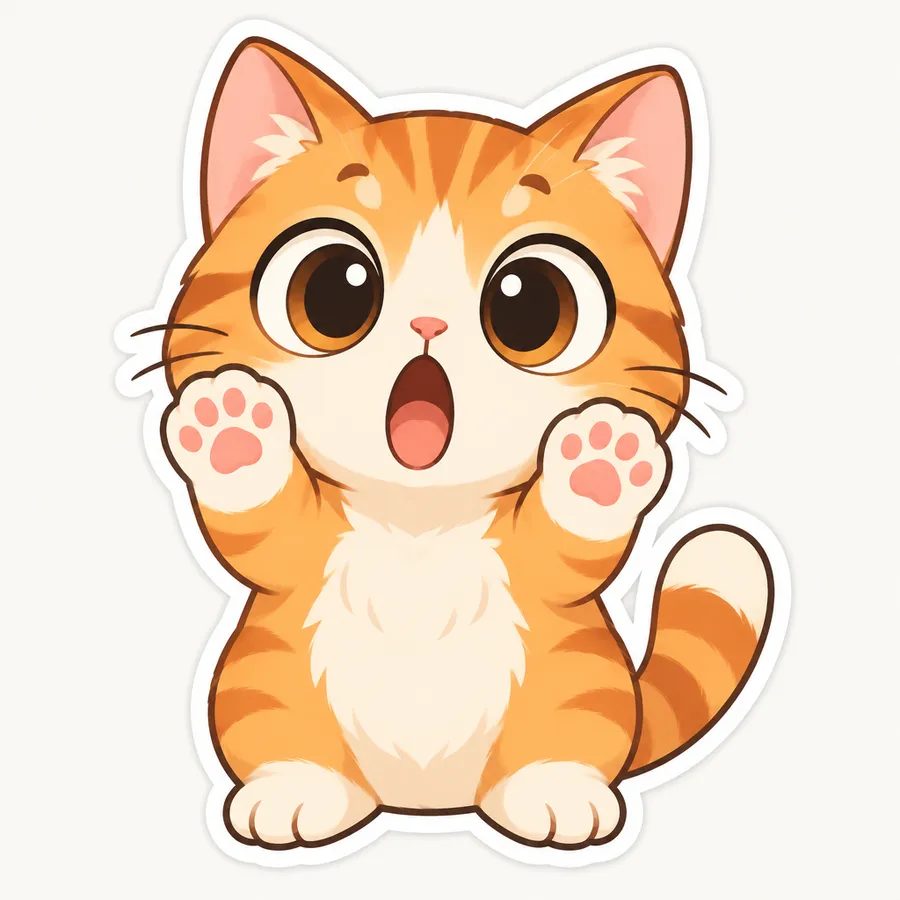
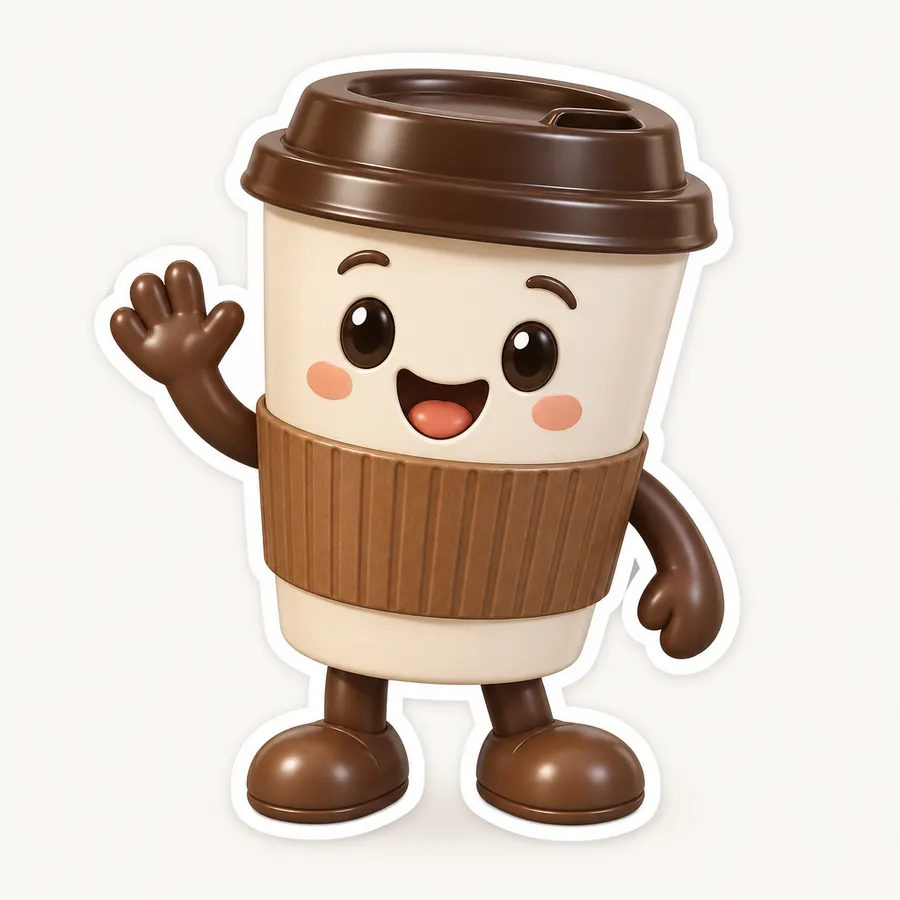
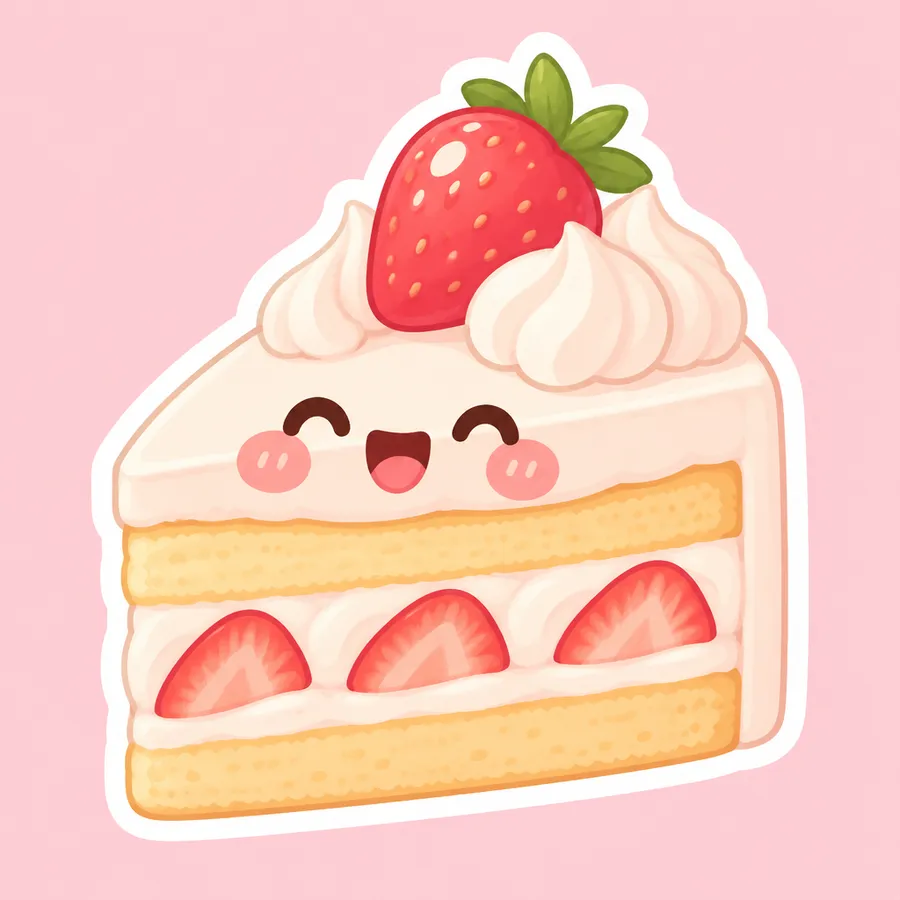
Photo to sticker
From a photo to a finished sticker
Start with one clear photo. Pick up to six styles, from kawaii to pixel art, and the Sticker maker returns your subject as a die-cut sticker in each, with the background already removed. No prompt to write, nothing to clean up. Compare the styles and keep what reads best at small sizes.
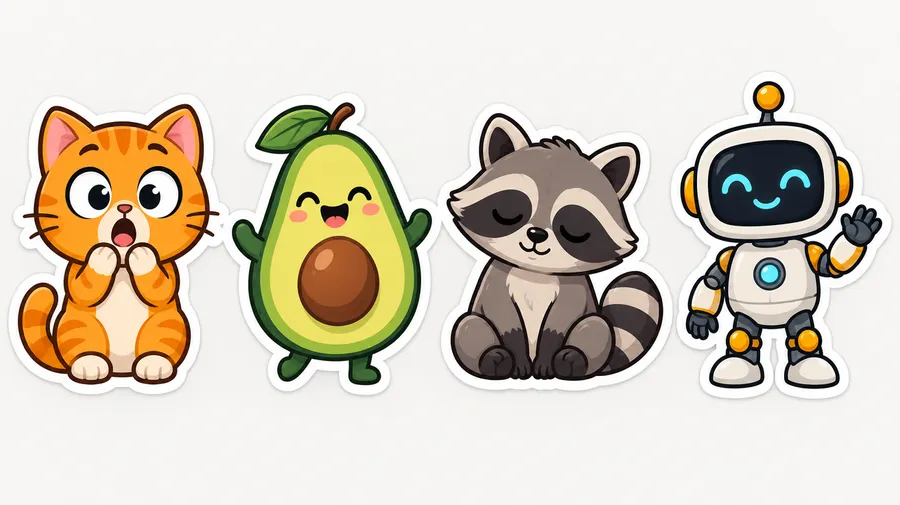
Text and editing
Start from a prompt, or edit what you have
Create image is the open-ended route. Describe a sticker in plain words, generate up to 16 at a time, and refine the best one with follow-up prompts. Already have a sticker? Bring it back to change the style, swap the expression, or adjust the colors.
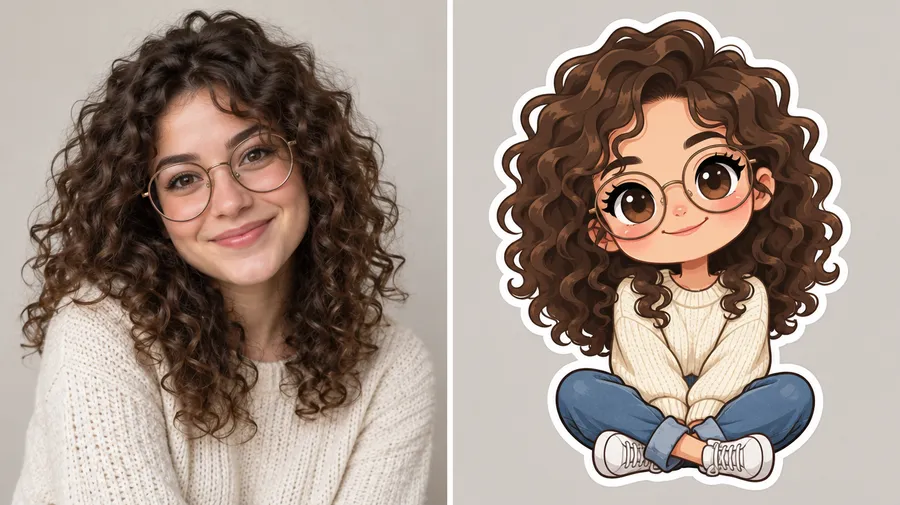
Turn yourself or your pet into a sticker
Personal stickers start with one clear photo. Add a selfie, your pet, or a product shot, pick a style, and download the result. A close, well-lit subject that fills the frame reads best, and bolder cartoon or chibi styles can round off small facial details.
Selfie stickers
Add a well-lit selfie and pick a few styles, from chibi to flat cartoon to 3D. Compare them and keep the one that reads best at small sizes.
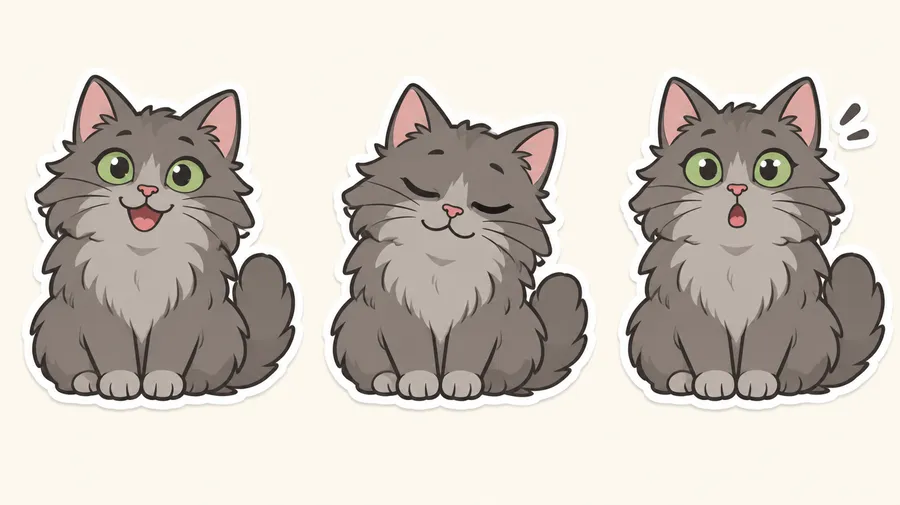
Pet stickers
Add a clear photo of your cat, dog, or other pet and pick a style. Try a couple of styles on the same photo to see which one fits best.
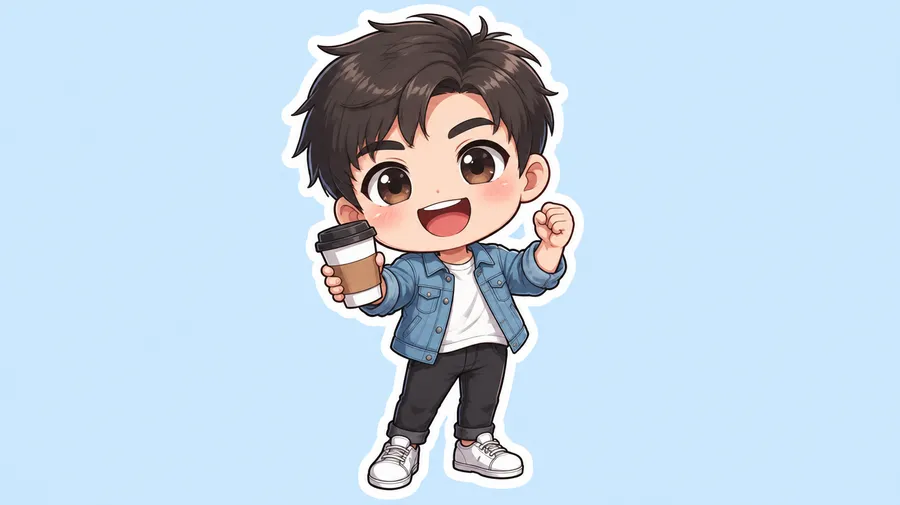
Mascot and product stickers
Mascots, products, and campaign stickers all work the same way. Add the photo, pick a style, then build a matching set in Create image.
Transparent background, handled for you
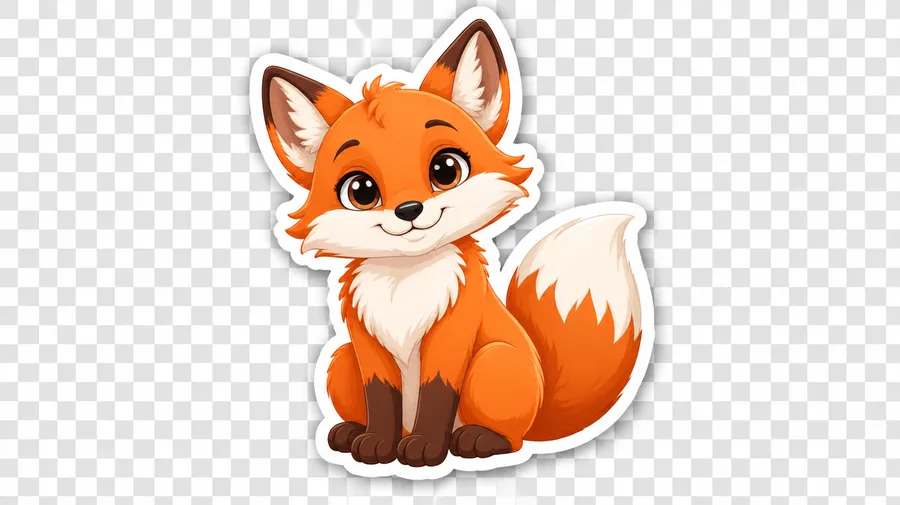
Every sticker comes out cut from its background, so you get a clean graphic that drops straight into a chat, a post, a mockup, or a print layout. If you edit a sticker in Create image and it picks up a background, Background Remover clears it, while AI Resizer and Upscaler set the size.
Sticker packs
Build a matching sticker pack
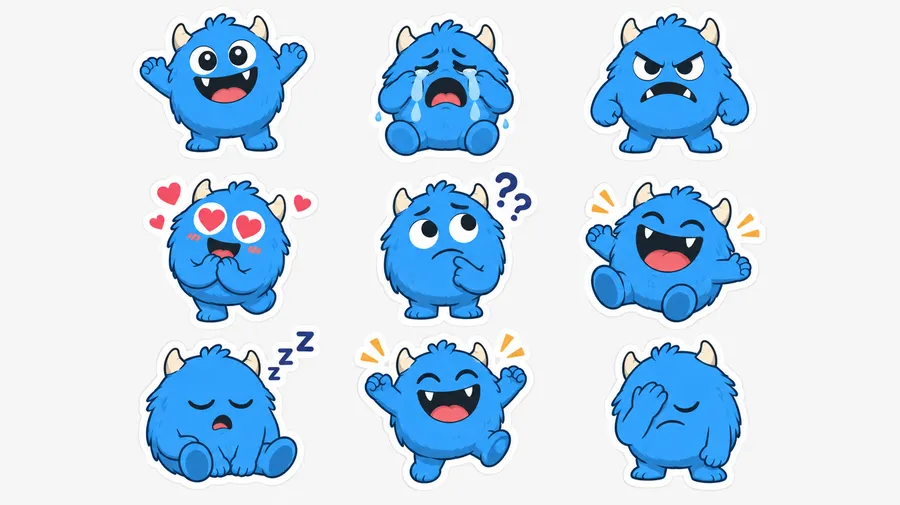
Create your character once and save it as an Element, whether that's a Person, Animal, Product, or Object. Bring it back for each sticker and swap the expression: happy, crying, celebrating, facepalm, and the rest of the set. See the Elements guide for how saved Elements carry across generations.
Explore sticker styles
The fastest way to control the look is to name the style in your prompt. Every one of these works as prompt language.
Illustrated
Drawn looks, from soft and rounded to bold and graphic.
Kawaii: soft shapes, pastel palette, oversized eyes, gentle expressions.
Chibi: small body, large head, exaggerated emotion. See Chibi Maker for the character step.
Flat cartoon: clean fills, limited palette, strong silhouette.
Hand-drawn: visible linework, slight irregularity, sketchbook feel.
Minimal line art: single-weight outline, almost no fill.
AI sticker prompt examples
A reliable sticker prompt names the subject, its expression, the style, the colors, and the outline, plus any text you want on it. More patterns live in the AI Image Generation Prompt Book.
From text
Start with nothing but a description.
"cute orange cat reaction sticker, shocked expression with huge eyes and raised paws, bold cartoon style, thick white outline, simple silhouette, warm orange palette, plain background"
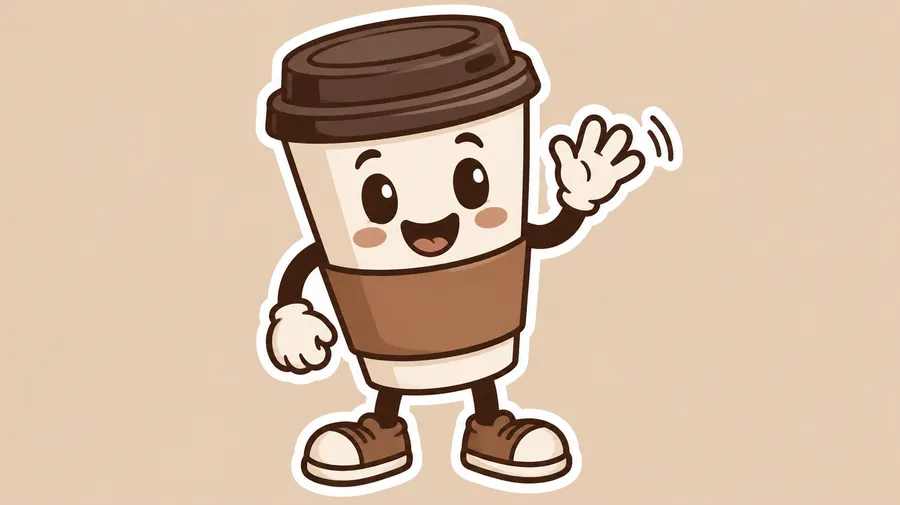
"friendly coffee-shop mascot sticker, smiling takeaway cup character waving, flat vector-inspired illustration, brown and cream palette, thick white sticker outline, clean centered composition"
"kawaii strawberry cake sticker, blushing face, pastel pink and cream palette, soft rounded shapes, thick white outline, plain background"
"retro gaming controller sticker, glossy 3D render, purple and teal palette, bold outline, compact silhouette, plain background"
Get a cleaner, sharper sticker
Stickers usually show up small, so the ones that hold up have a single clear subject and a bold shape. Keep refining a result with prompts in the Image Editor.
Digital stickers, chat apps, and print
Three different things get called a sticker. Knowing which one you need tells you what to do after you generate the art.
Three kinds of sticker
The difference that matters before you download anything.
Sticker artwork: the image itself, made to look like a sticker. This is what getimg.ai creates.
Transparent digital sticker: the same art with the background removed, ready to place in posts and layouts.
Print-ready sticker file: artwork prepped for a printer, which can mean set dimensions, higher resolution, bleed, and a cut line.
Make your first sticker today
Add a photo, pick a style, and download it ready to use.
Frequently Asked Questions
The fastest way is the Sticker maker: add a photo, pick a style, and download a die-cut sticker with the background already removed. For more control, use Create image, where you describe the sticker or start from a reference photo, generate a batch, and refine the one you like. A good first prompt: "cute cartoon cat sticker, big eyes, surprised face, thick white outline, plain background".
Yes. Add your photo to the Sticker maker, pick a style, and it returns a die-cut sticker with the background already removed. For more control, bring the result into Create image to restyle it, change the expression, or adjust the colors.
Add a clear, well-lit selfie and pick a style, from cartoon to chibi to kawaii to 3D. A reference keeps your likeness close, though bolder cartoon and chibi styles can round off small facial details.
Add a clear photo of your cat, dog, or other pet, then generate different expressions or styles from the same shot. Save your pet as an Animal Element to reuse it across more stickers.
Yes. The Sticker maker returns each sticker with the background already removed, so you can download it as a transparent PNG straight away. If you restyle or edit a sticker in Create image and it picks up a background, use Background Remover to clear it. A transparent PNG is a digital sticker. Getting it print-ready or app-ready takes a bit more prep.
Save your character as a Person, Animal, Product, or Object Element, then bring it back while you change the expression or pose for each sticker. Style and Color Palette Elements keep the look and colors consistent across the set. Details and proportions can still shift a little between generations.
Put the words in quotation marks and say where they go, like: sleepy raccoon sticker with the exact words 'NEED COFFEE', chunky rounded letters below the character. Short words come out most reliably, so check the spelling before you export.
Yes. Make the art here, then prep it for the app. Each one sets its own sizes, formats, and file limits: Telegram wants one side at 512 px as PNG or WEBP, and Discord wants PNG at 320 by 320 px up to 512 KB. Generate the sticker, then resize and export to the current spec.
getimg.ai makes high-resolution sticker art for print. A print shop may also want exact dimensions, higher resolution, bleed, safe margins, and a cut line. Prep the downloaded file to that shop's spec.
getimg.ai draws die-cut-style artwork and transparent stickers. If your printer or cutter needs a specific cut path, bleed, or template, prep the downloaded file to match.
Not yet. The sticker workflow makes static art. Animated formats for apps like Telegram or Discord need a separate animation and export step.
Yes. Reuse a Product, Style, or Color Palette Element to keep new stickers on brand across a campaign. AI guidance isn't exact brand enforcement, so check your logos, colors, and type before you publish.
Yes. Every paid plan includes full commercial rights on what you make, subject to our terms and applicable third-party rights. Plans start at $8/month for Entry, with 3,000 credits.
Stickers are bigger standalone graphics with a full character, a heavy outline, and room for text. Emoji stay readable much smaller. Want a tiny reaction graphic instead? Try the AI Emoji Maker.