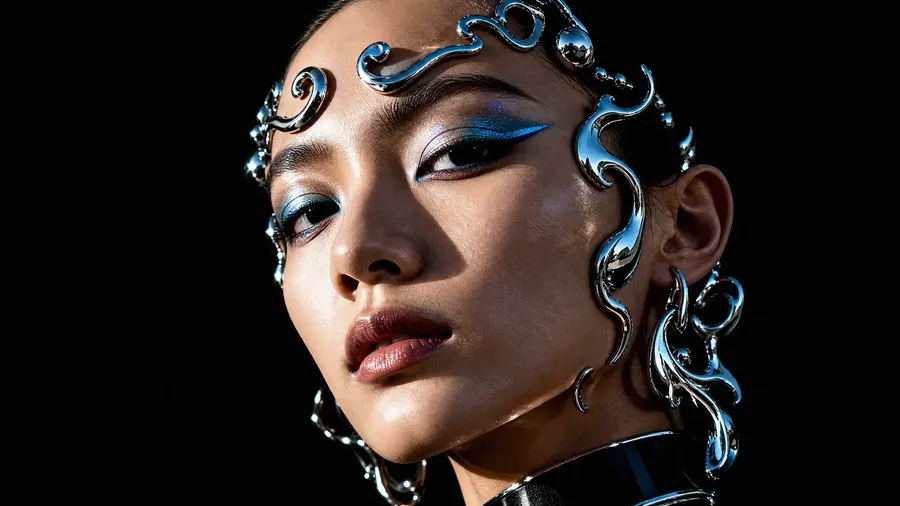
Text to Image AI Generator: Create Images from Prompts
Turn a text prompt into portraits, product visuals, illustrations, concept art, and more. Use Auto mode to select a suitable image model for your prompt, or choose a model yourself when you want more control.
Leading Text-to-Image Models in One Workspace
Auto mode selects a model suited to your prompt, or pick one yourself.


How to Generate an Image from Text
Four steps, all of them text. No upload, no canvas, no setup.
1. Write the prompt
Open Create image on getimg.ai and describe what you want in plain language. No special syntax. Work through subject, environment, composition, medium and light, and leave out the layers you genuinely do not care about.
2. Choose Auto or pick a model
Auto mode selects a model suited to your prompt and sharpens the wording for you. Switch to manual when you already know the job needs a particular strength, like typography or a specific lighting look.
3. Set the ratio and batch size
Pick the shape the image has to be, then choose how many to generate at once: 1, 2, 4, 8, or 16. More variations on the first run means less guessing about whether the prompt or the model is the problem.
4. Generate, compare, refine
Often the first batch already has your image. Export it at full resolution and move on. When it does not, pick the closest result and change one thing: tightening the composition or naming the light moves the output further than rewriting the whole description.
How to Write a Text-to-Image Prompt
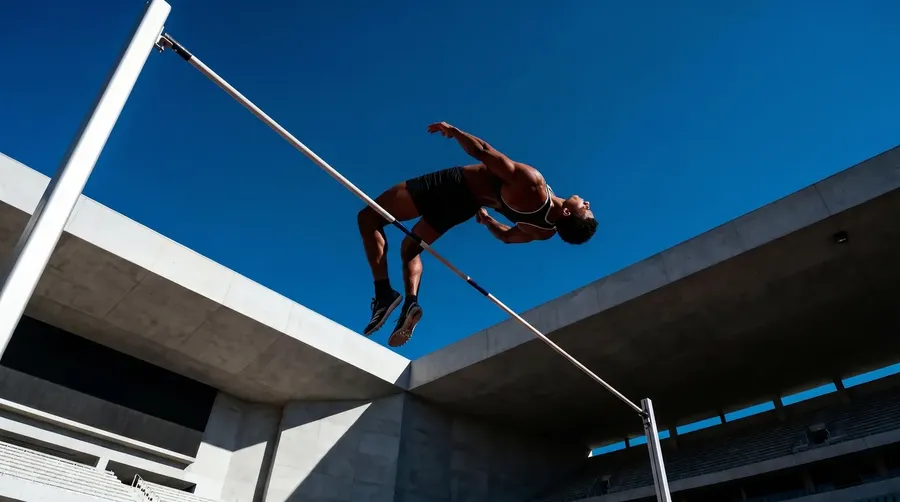
Most prompts underperform for the same reason: they name a subject and stop. Anything you leave out, the model fills in from the averages of its training data. Work through these six layers, add the details that matter for your shot, and leave out the ones you genuinely do not care about.
Watch One Prompt Get Specific
Same model, same settings, four prompts. Each step adds one layer and nothing else. It is the fastest way to see what a model does with the parts of a description you leave blank.
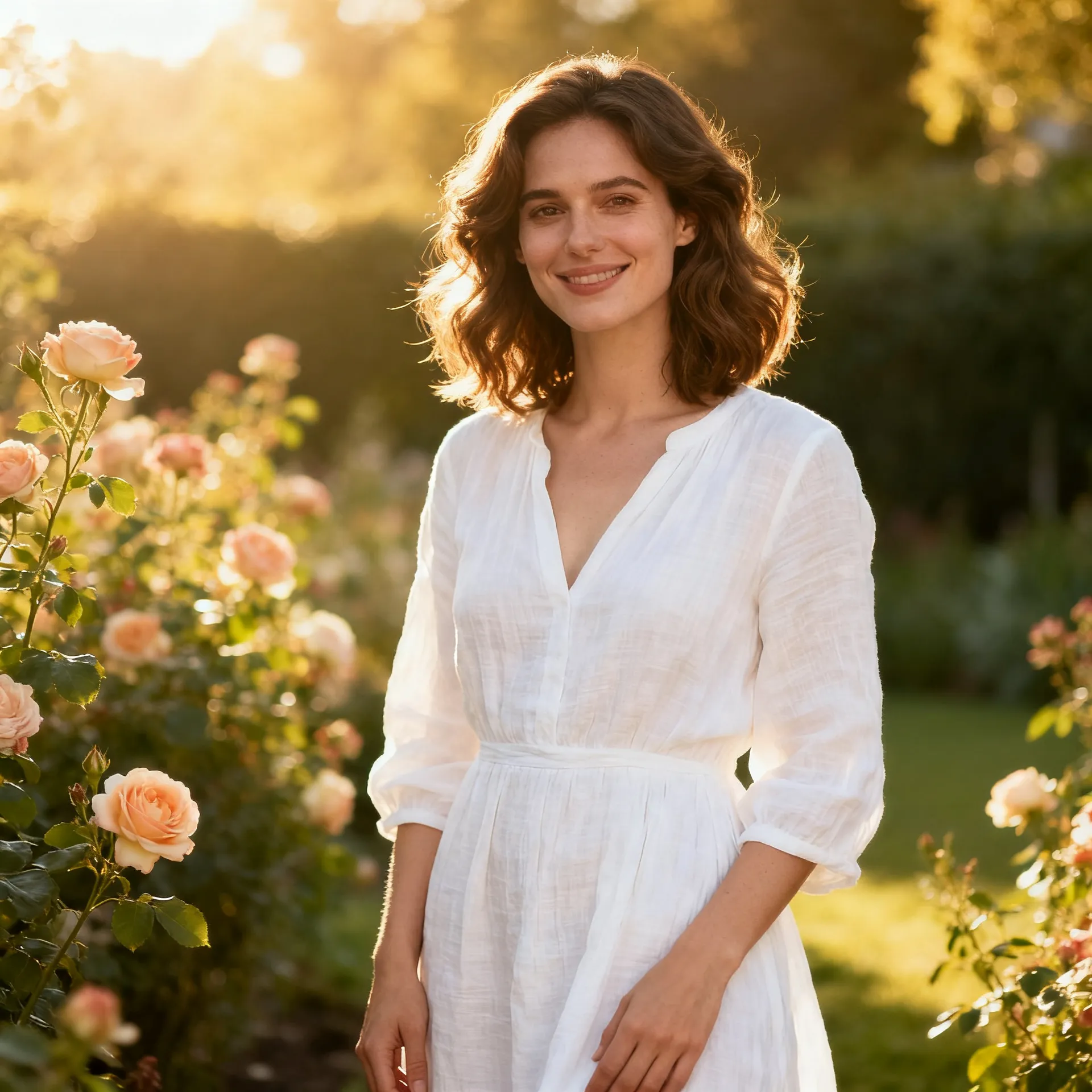
"A woman"
Two words. The model fills in age, wardrobe, setting, light and framing from its own averages, and hands back a competent picture of someone you did not ask for.
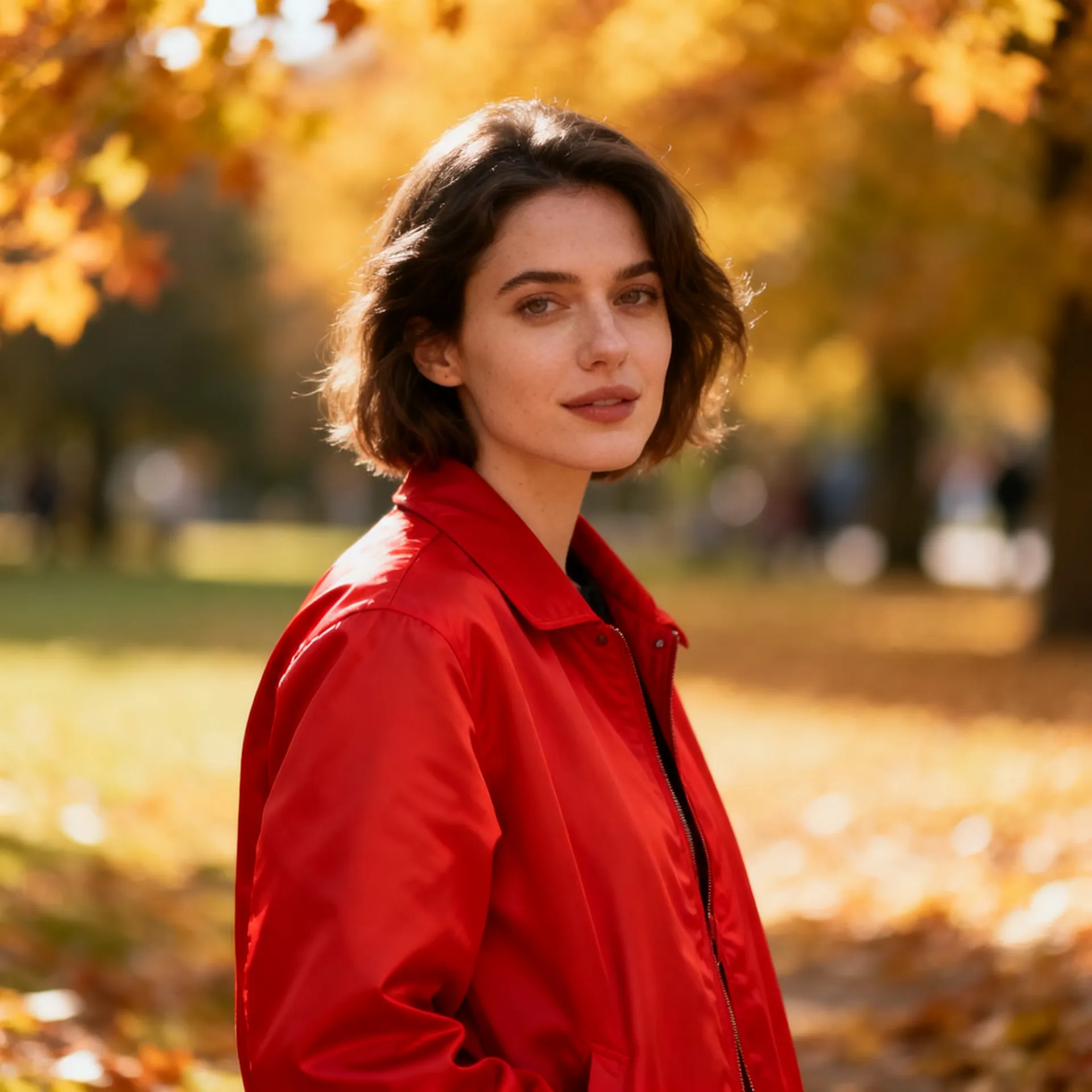
+ wardrobe
"A woman in a red jacket." One detail is now yours. Everything else is still the model's call, so it picks a park, soft autumn light and a flattering half-length crop on its own.
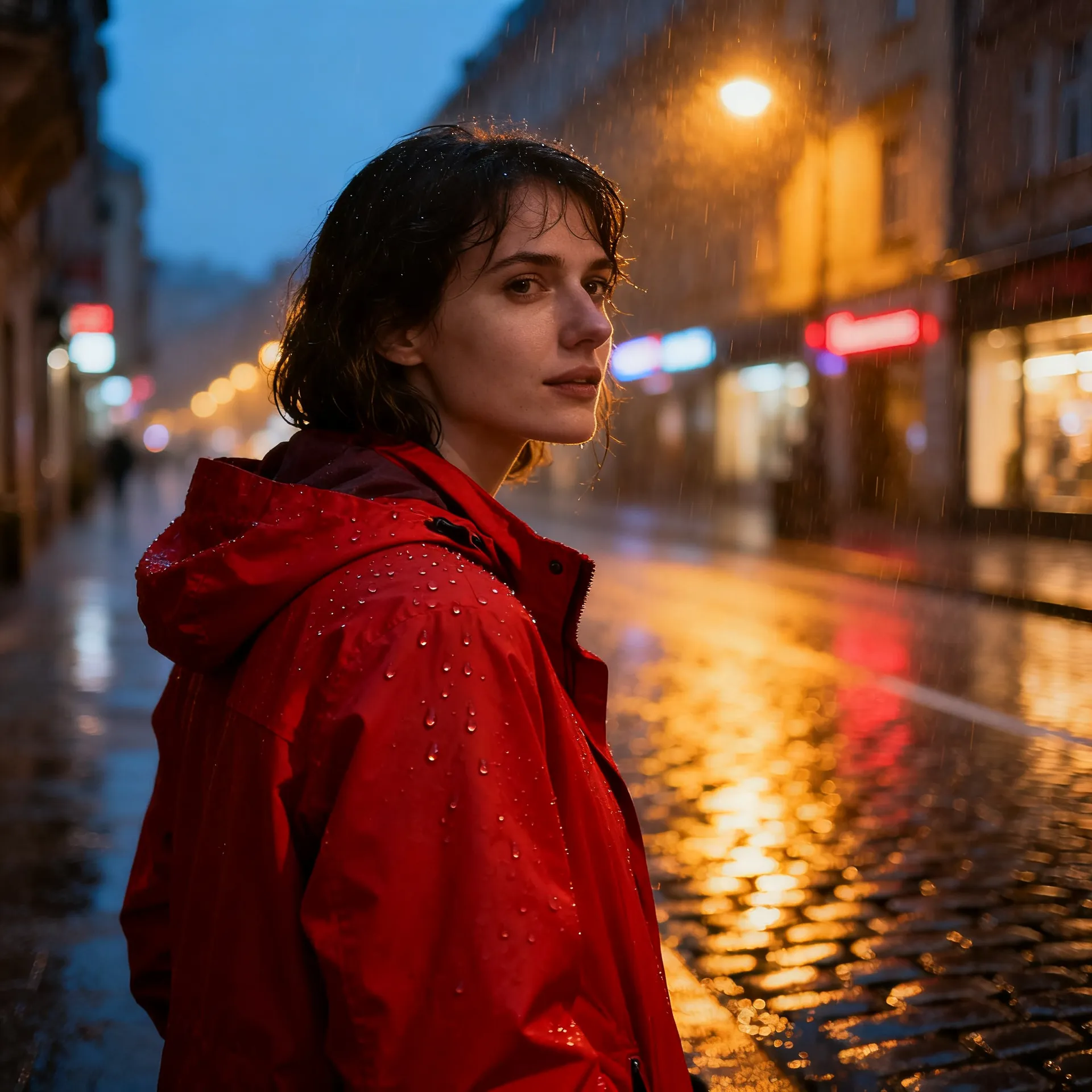
+ environment
"...on a rain-soaked city street at dusk." Setting changes the palette and the time of day at once. Note that the model also chose a wide establishing shot, because nothing told it how close to stand.
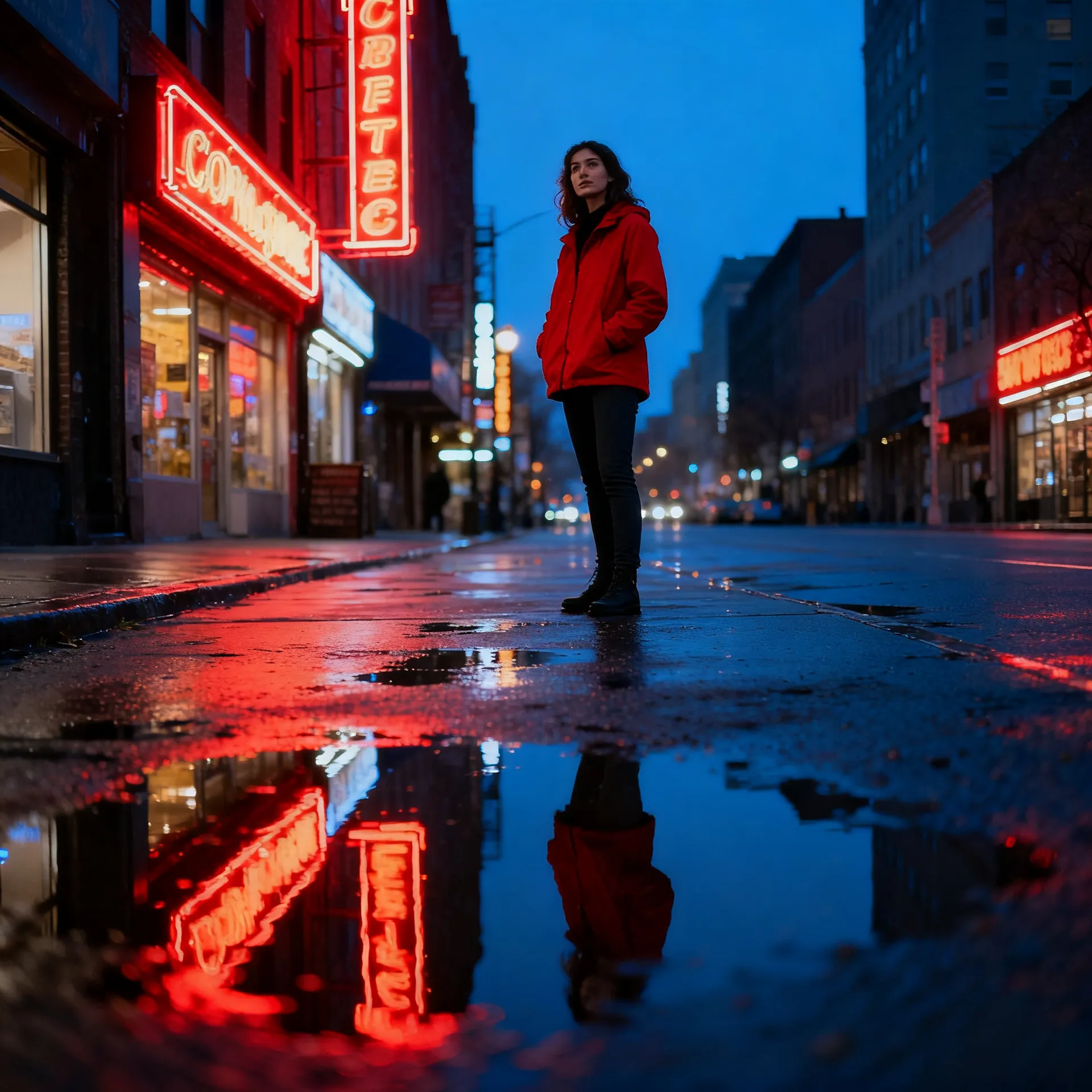
+ composition, lens, light
"...medium shot, slightly below eye level, 35mm, neon reflections in the puddles, cool shadows against warm highlights, film grain." The subject has not changed since step two. The picture has.
Text-to-Image Prompt Examples
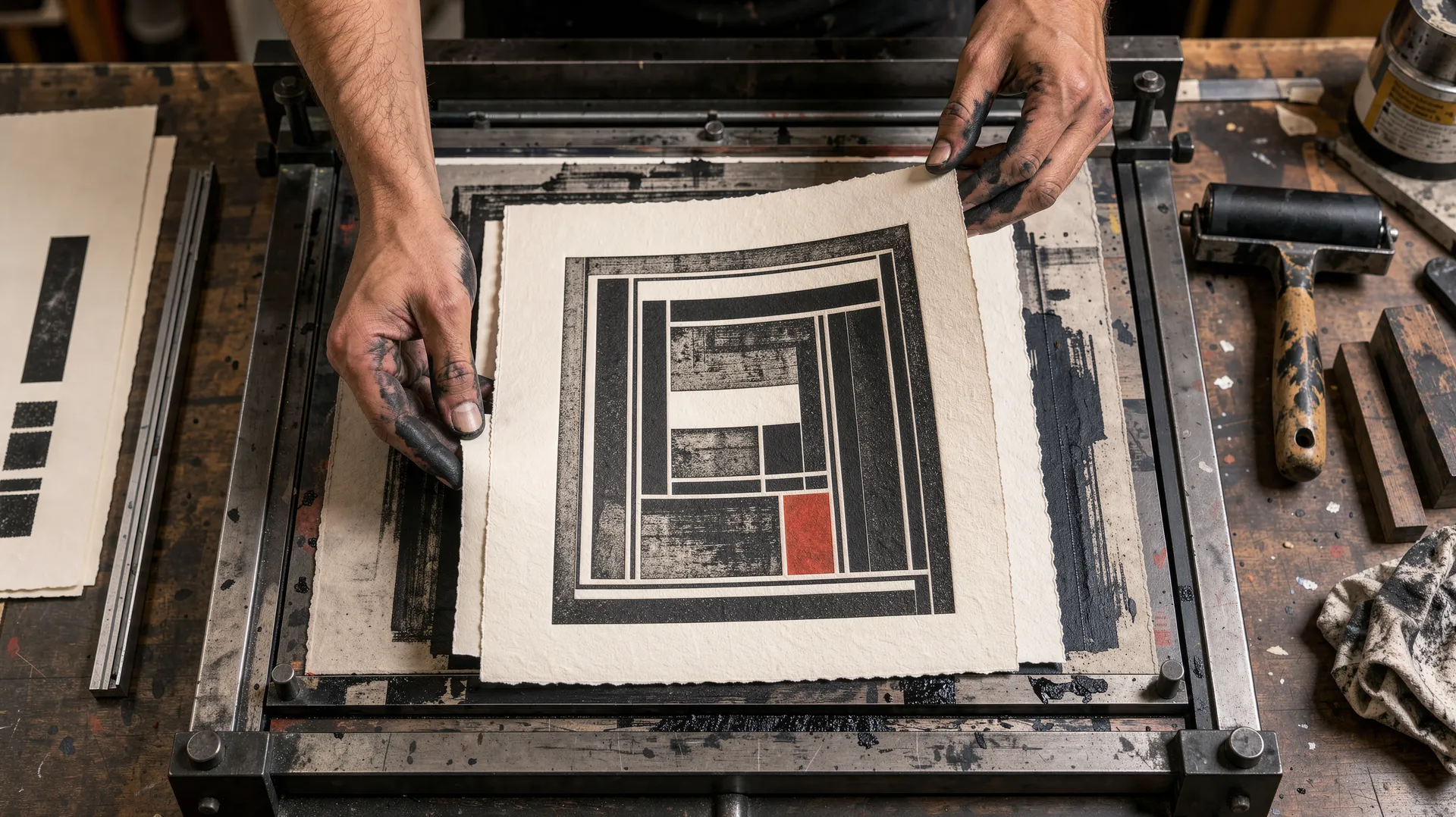
Eight prompts, eight finished images, all generated on getimg.ai. Each prompt is written out in full, so you can lift the structure and swap in your own subject.
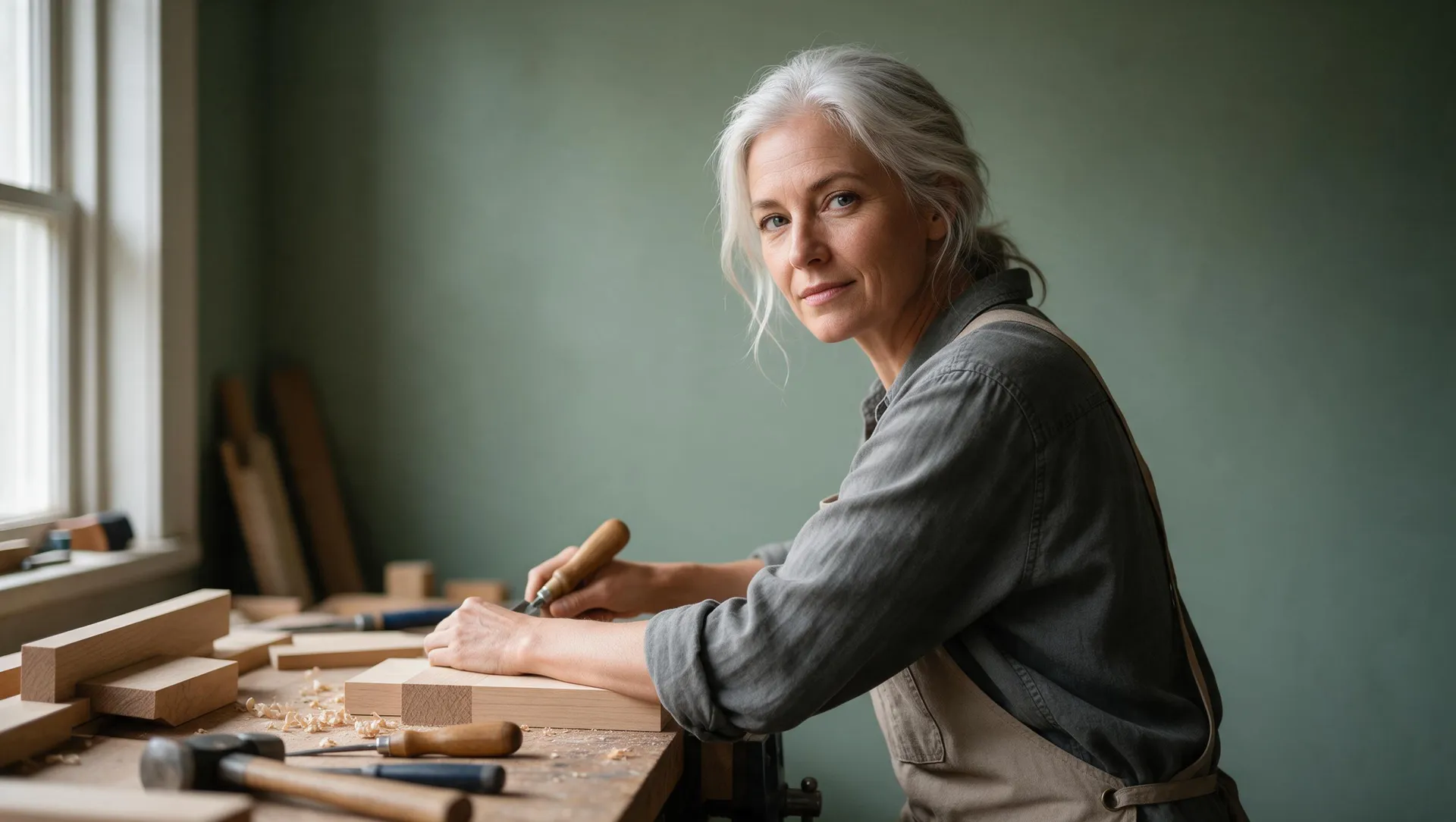
One prompt box
What You Can Create from a Text Prompt
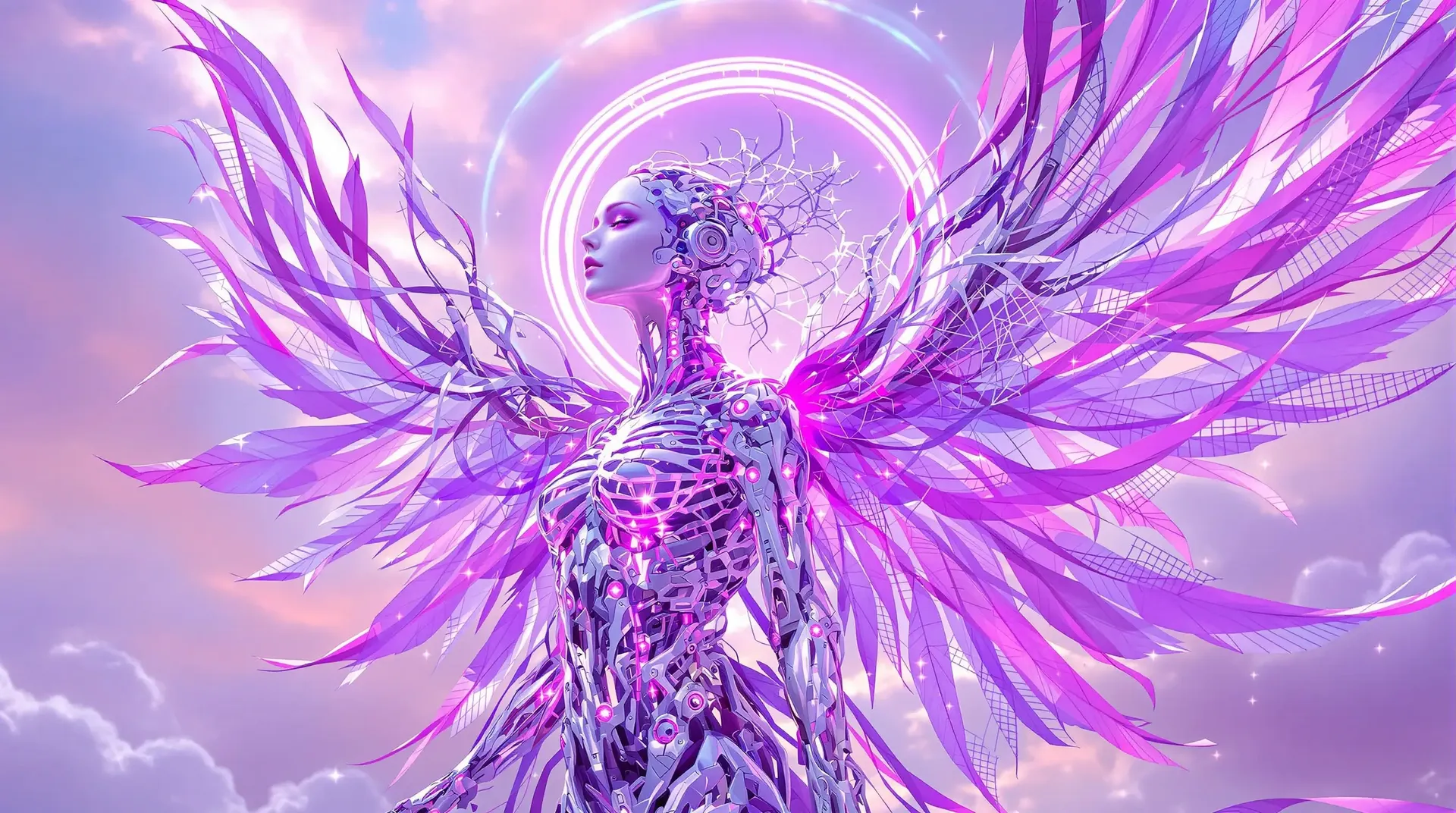
AI Art
Turn a written description into original paintings, digital art, or abstract pieces. Name the medium, the palette and the brushwork, and the output follows the brief instead of guessing at it.
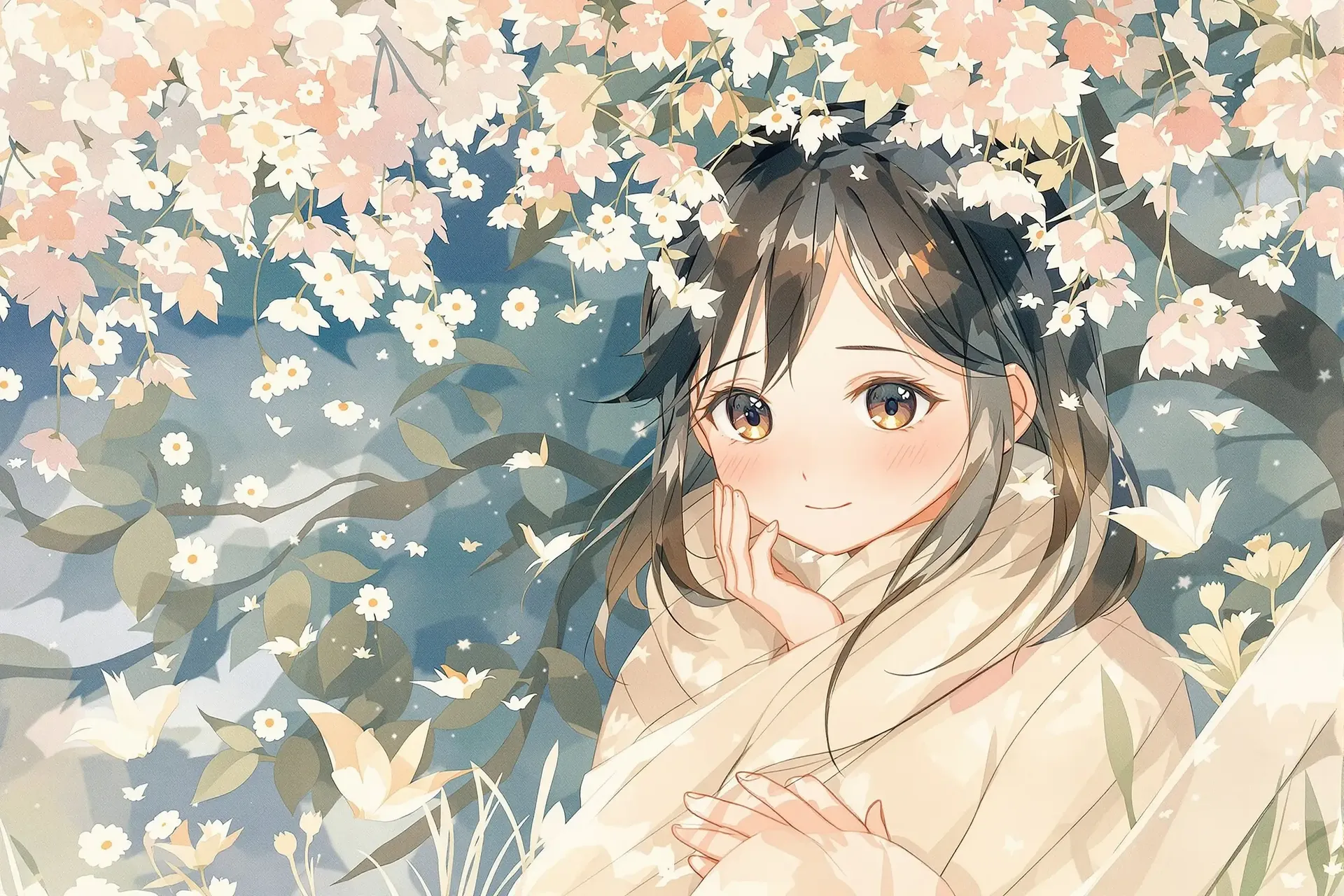
Anime Art
Create original anime characters, environments, and illustrated scenes in styles ranging from chibi to cinematic anime. More on this in our Anime AI Art Generator.
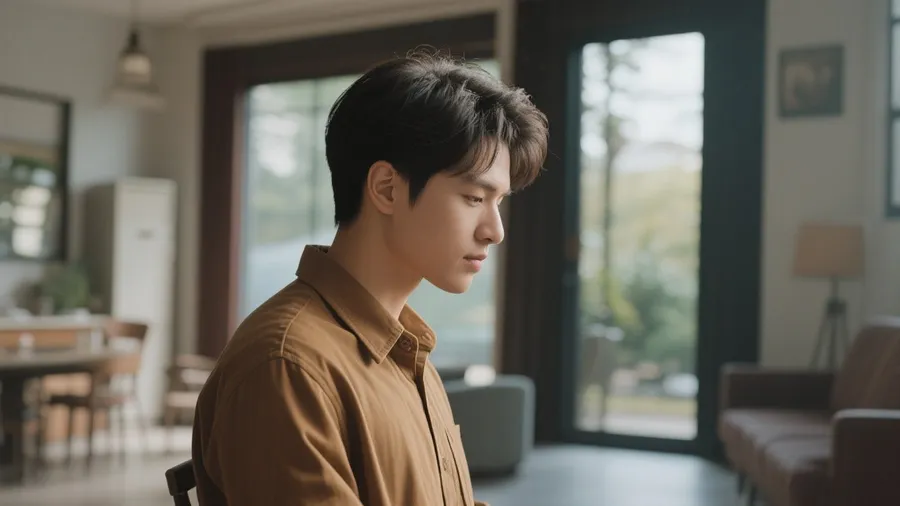
Stock-Style Photos
Generate custom stock-style images for marketing, websites, presentations, and creative projects. Describe the scene you actually need instead of hunting for one that almost fits.
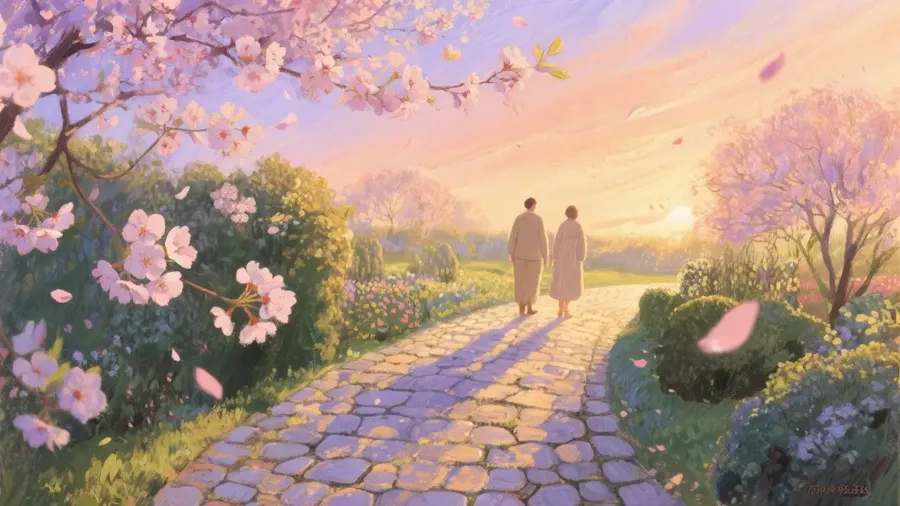
Wallpapers
Craft personalized wallpapers for your phone or desktop. Generate anything from quiet landscapes to dense futuristic cityscapes, at the aspect ratio your screen actually needs.

Blog and Article Images
Illustrate posts with images made for the piece: header images, section breaks, concept illustrations. Create infographic concepts and visual layouts, then verify all generated text, numbers, and factual information before publishing.
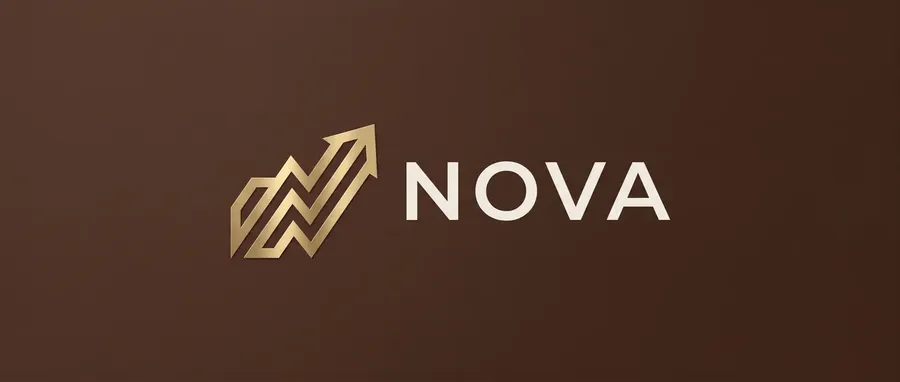
Logo Concepts
Explore symbol directions, color treatments, and wordmark concepts for a brand. Generate many options in seconds, then check typography, similarity to existing marks, and overall brand suitability before taking a concept forward.
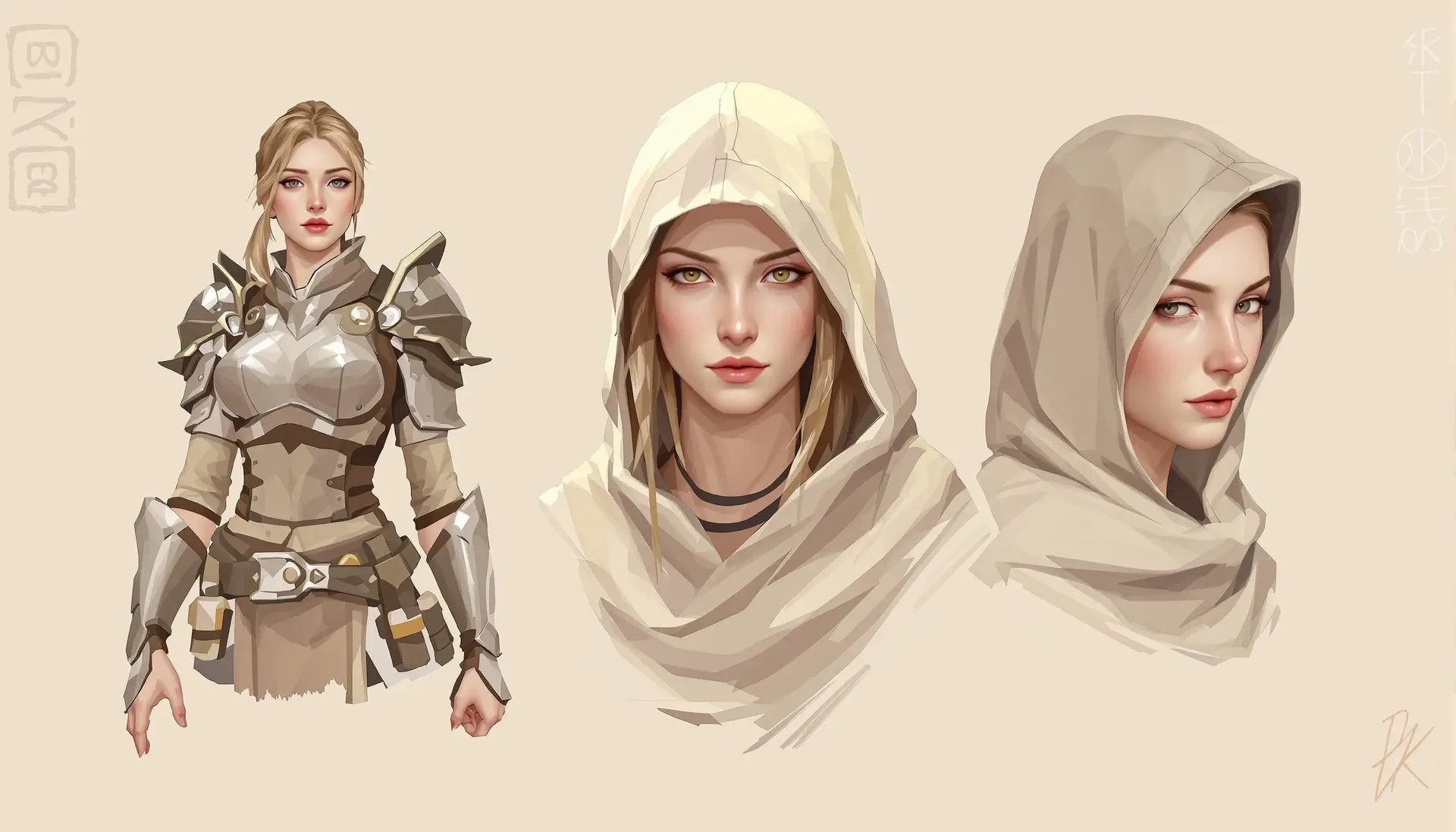
Character Design
Develop detailed character concepts for a novel or a game. Test outfits, expressions, and poses, then keep the same face across generations by saving it as an Element.
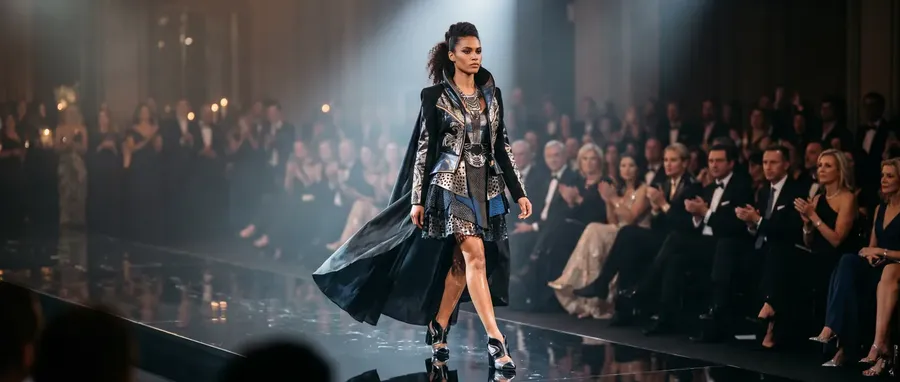
Fashion
Visualize a new garment or a whole collection. Test color schemes, patterns, and silhouettes on screen before anything goes into production.
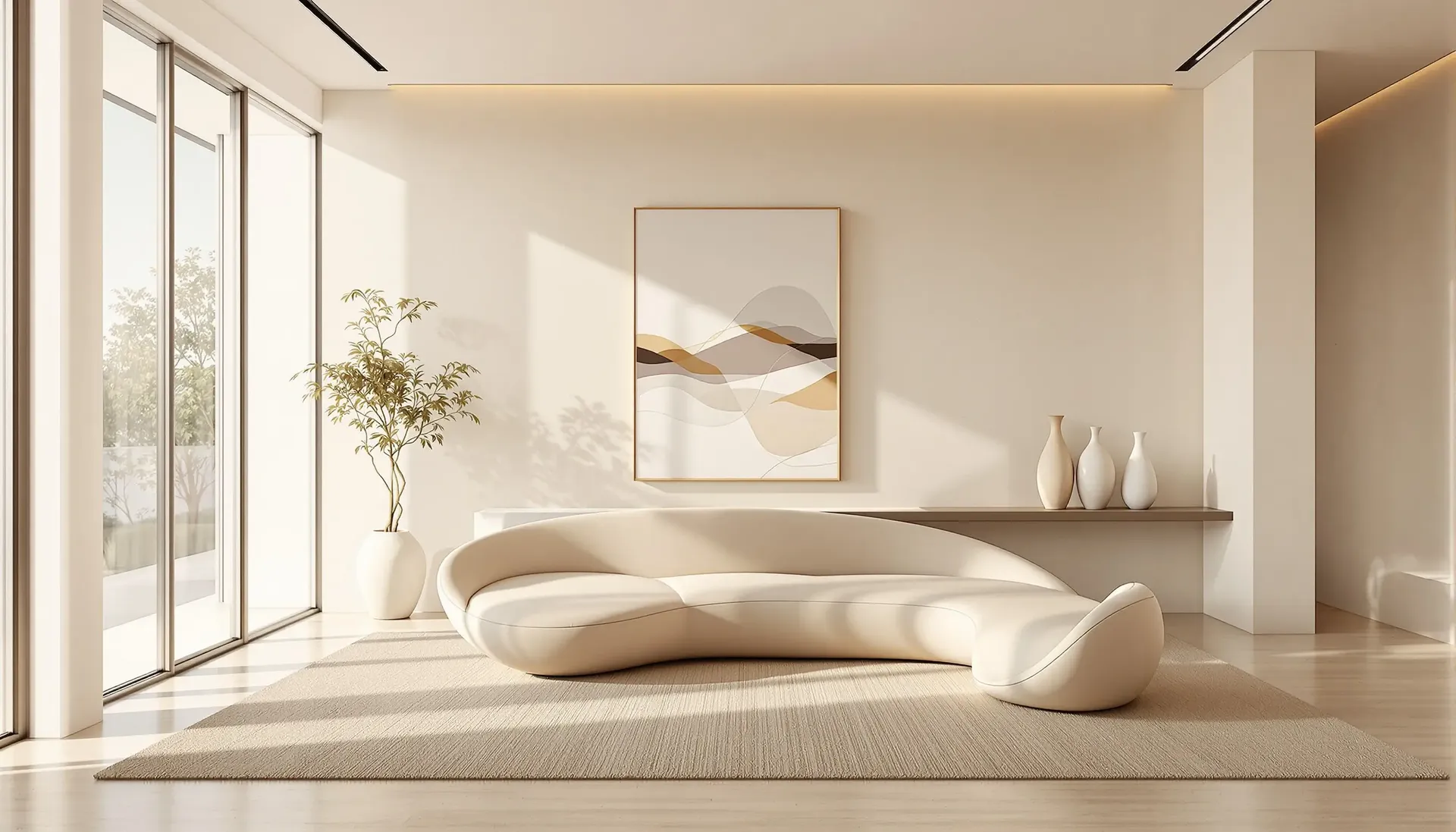
Interior Design
Plan room layouts or preview furniture arrangements. Generate realistic interior renders to show a client, or to settle a direction before you commit to it.
Social Media Assets
Create posts for Instagram, Facebook, or LinkedIn at the right aspect ratio. Build themed sets for holidays, product launches, or company milestones.
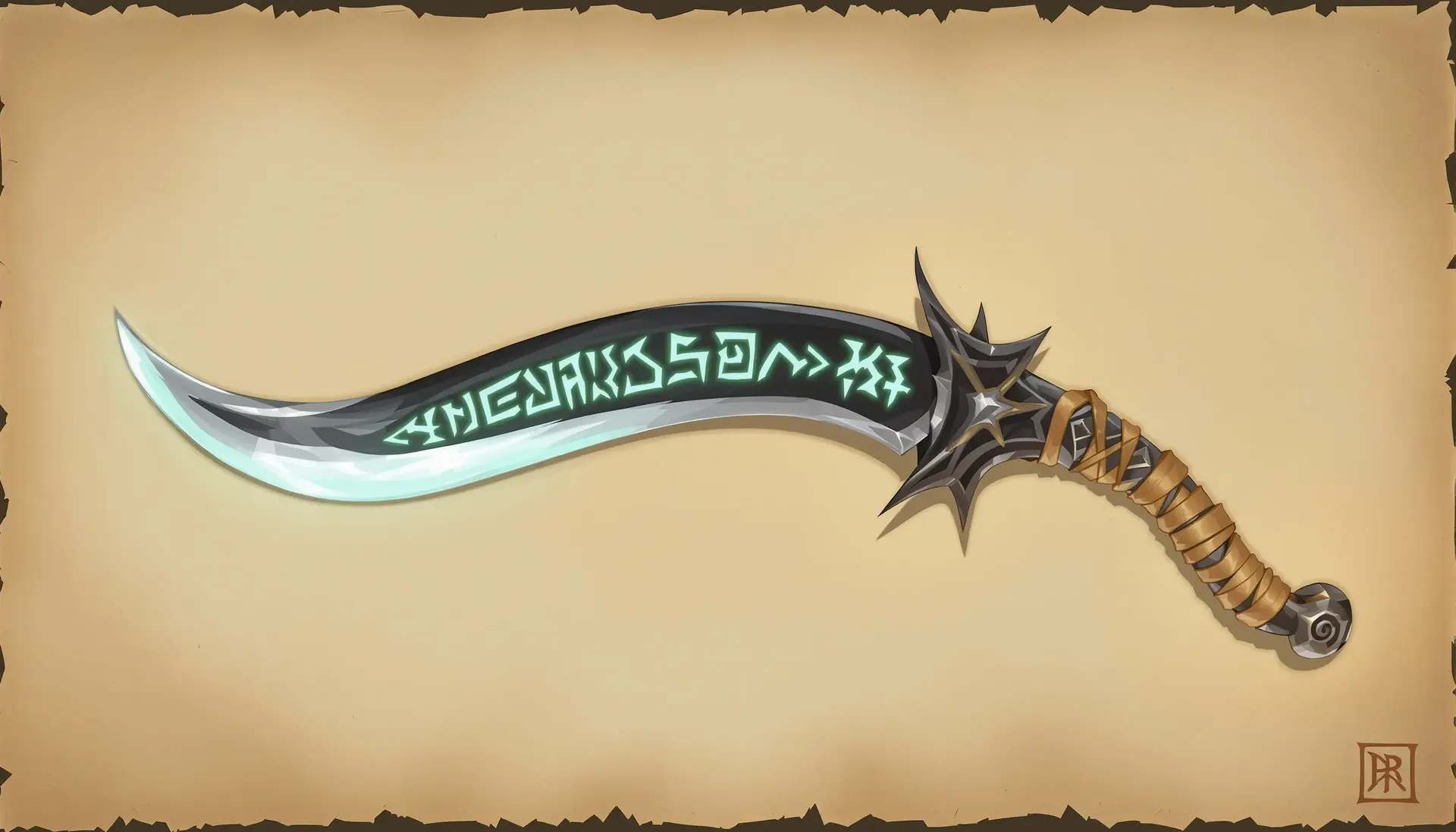
2D Game Assets
Generate backgrounds, item icons, or concept art for a game. Keep a set visually consistent by reusing the same style description, or by saving it as an Element.
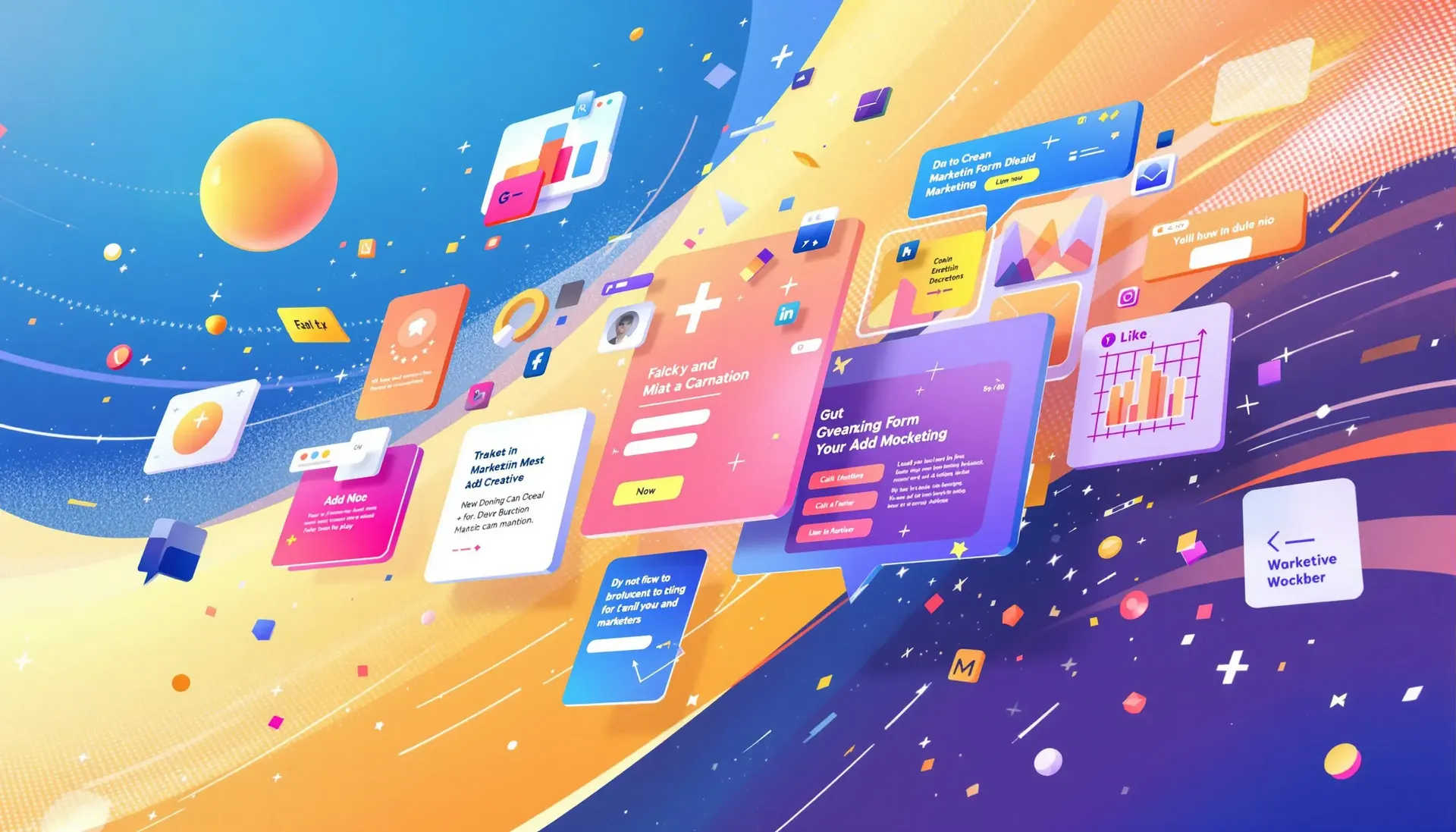
Marketing
Design ad creatives, email headers, or campaign visuals. Produce variations of the same concept quickly, so you have something real to put in front of an audience and test.
Why Didn't My Prompt Work?
Five failure modes cover almost every disappointing generation. Each has a specific fix, and none of them is 'be more descriptive'.
The output is too generic
Nothing in the prompt told the model where to stand, how to light the scene, or what kind of picture this is, so it averaged. Add the layers you skipped: environment, composition, lighting, materials, and the visual medium.
Medium is usually the highest-leverage one. 'Editorial photography' and 'flat vector illustration' point at completely different outputs from the same subject.
Which Text-to-Image Model Should You Use?
Auto mode handles model selection for you, and for most prompts that is the right answer. Switch manually when you already know what the job needs. Here is how we think about it, grouped by what you are trying to get out of the prompt.
Photoreal, portraits and product
Judge how the model handles light and material, not overall sharpness. The real test is whether a specified lighting setup, say a hard key from the upper right with soft fill from the left, actually shows up in the output.
In our own five-model run, FLUX 3 and Seedream 5.0 Pro held the specified lighting most faithfully, and FLUX 3 produced the longest, hardest cast shadow of the five. That was one prompt on one day, so run your own version of the test before you commit a model to a shoot.
We Ran the Same Prompt Through Five Image Models
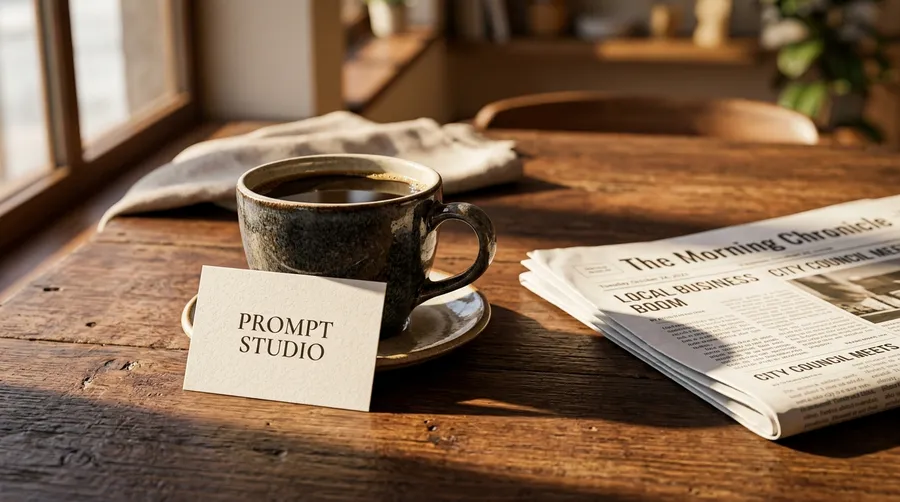
One prompt, five current flagship models, prompt enhancement off, same aspect ratio and the same 1K output. We asked for a low three-quarter angle, hard raking morning light, a warm amber and brown palette, and a small card reading PROMPT STUDIO. One run each, so read this as a worked example of how differently models interpret the same words, not as a benchmark.
The prompt: A ceramic coffee cup on a dark walnut table beside a folded newspaper, low three-quarter camera angle, 50mm lens, hard morning sunlight raking in from the left casting a long shadow, warm amber and deep brown palette, a small white card leaning against the cup reading PROMPT STUDIO, shallow depth of field, editorial food photography.
What Makes Text to Image a Daily Workflow
Three pieces of the platform that show up after the first generation, when the real work starts.
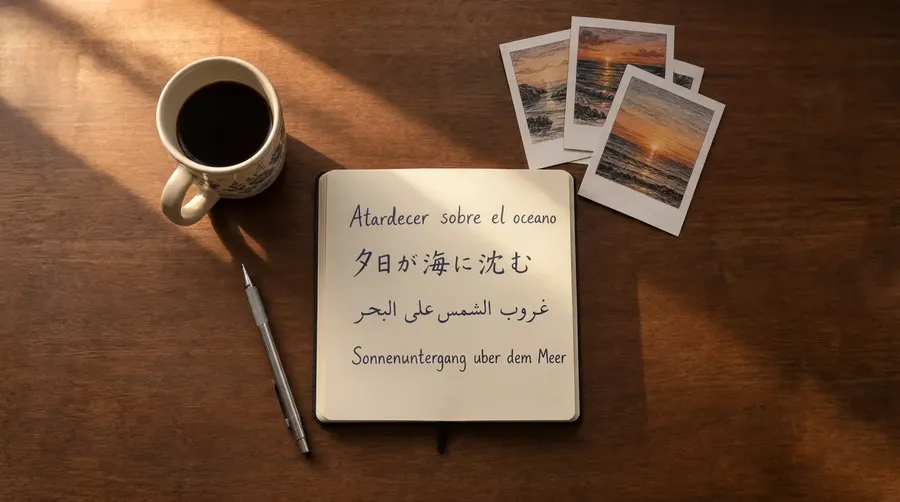
Write prompts in your own language
Type in any of 20+ languages, from Spanish to Japanese to Arabic. The image model reads your description natively, so teams across markets stop translating into English first.
Use what you create commercially
Paid plans include commercial usage rights for generated content, subject to our terms and applicable third-party rights. That covers campaigns, client deliverables, product pages, and merchandise.
Commercial usage
Marketing
Ads, social media posts, & more.
E-commerce
Product photography, lifestyle photos.
Photography
Fast image editing.
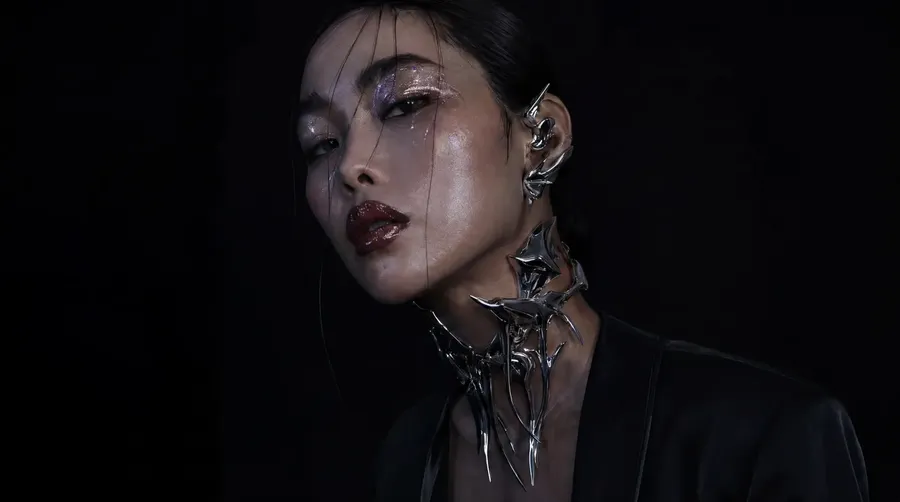
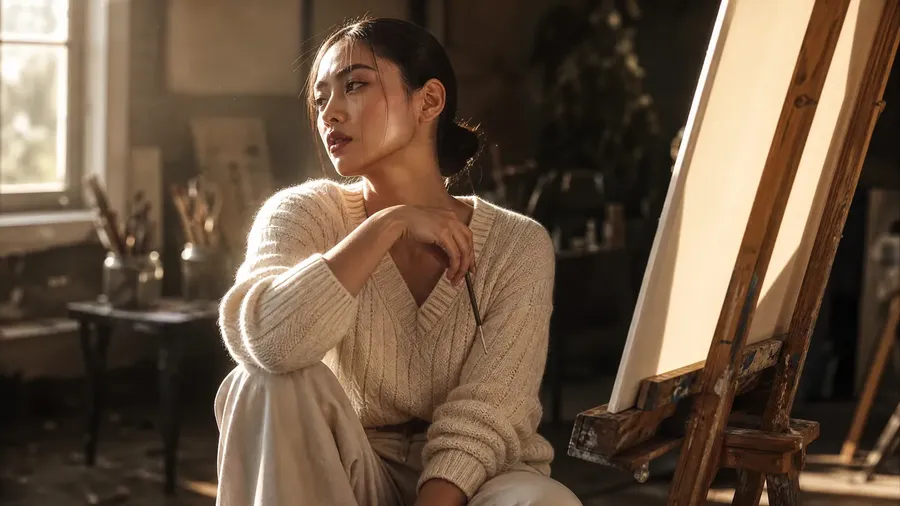
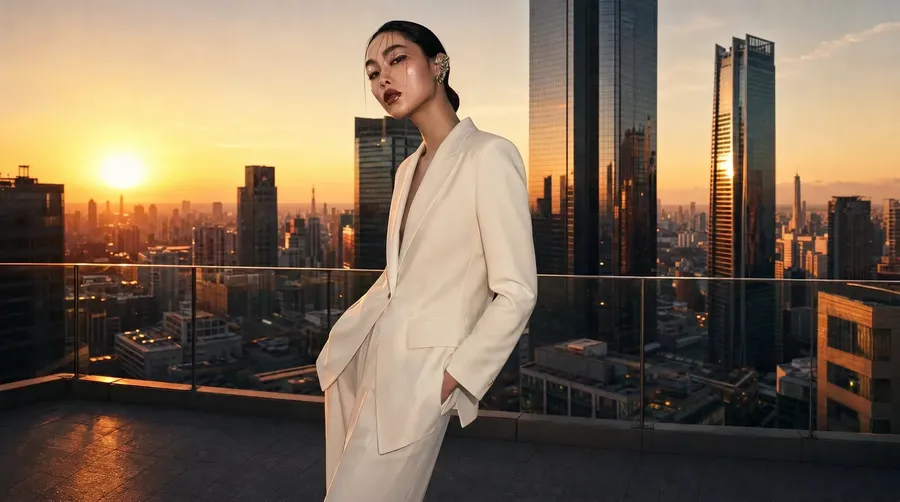
Keep characters and styles recognizable
Save a face, a product, or a palette as an Element, then call it back as @Name in any prompt. It helps maintain a more recognizable visual direction across many generations.
Generate, Compare, Refine
Often the first batch already has what you need. When it does not, this is the loop that closes the gap, and it gets there faster than starting over.
Compare, then change one thing
Read the batch, pick the closest result, and adjust a single layer: the composition, the light, the medium. Refining the prompt that nearly worked beats starting over.
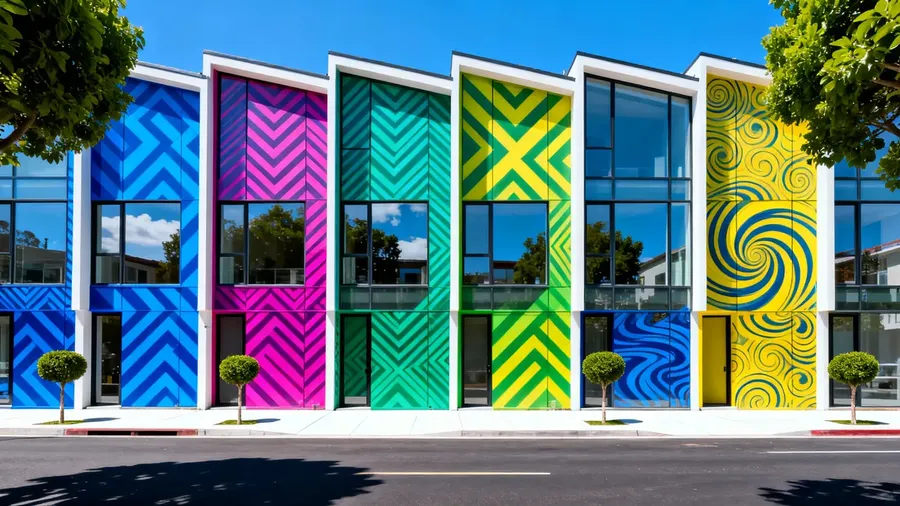
Generate multiple directions in seconds
Run 1, 2, 4, 8, or 16 images from one prompt in a single batch. More directions on the first pass means fewer rounds before you get to the one you keep.
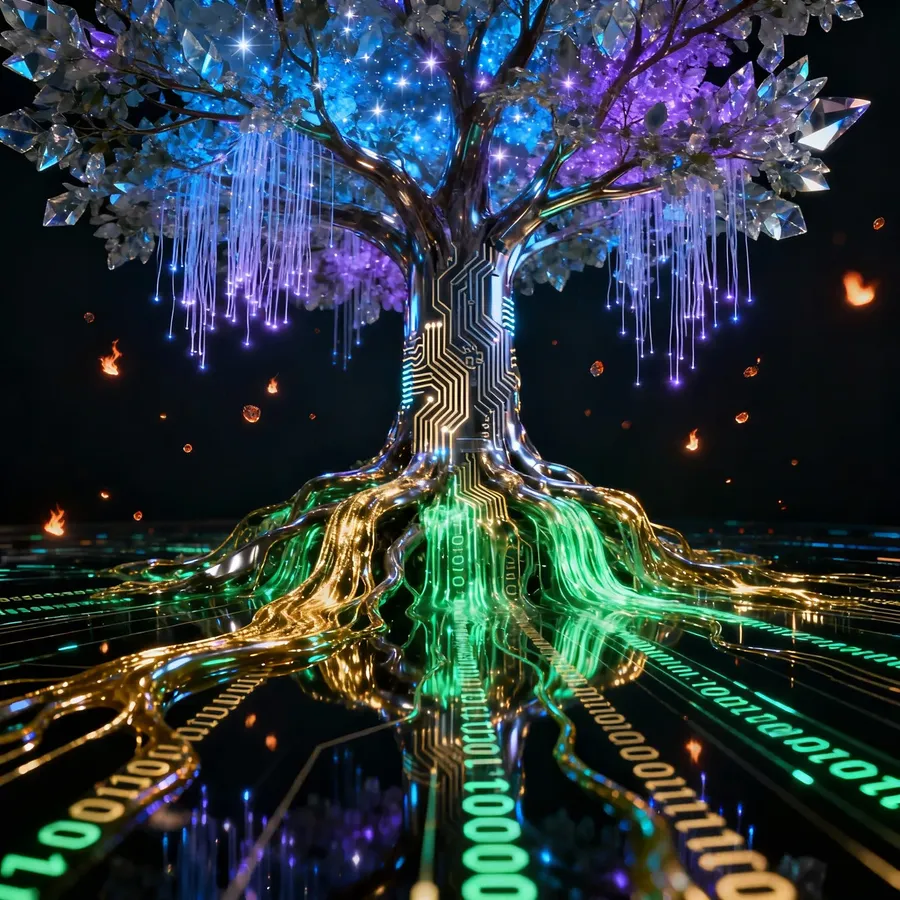
Leading image models in one workspace
Use Auto mode for automatic model selection, or choose manually when you want to compare how different models read the same prompt.
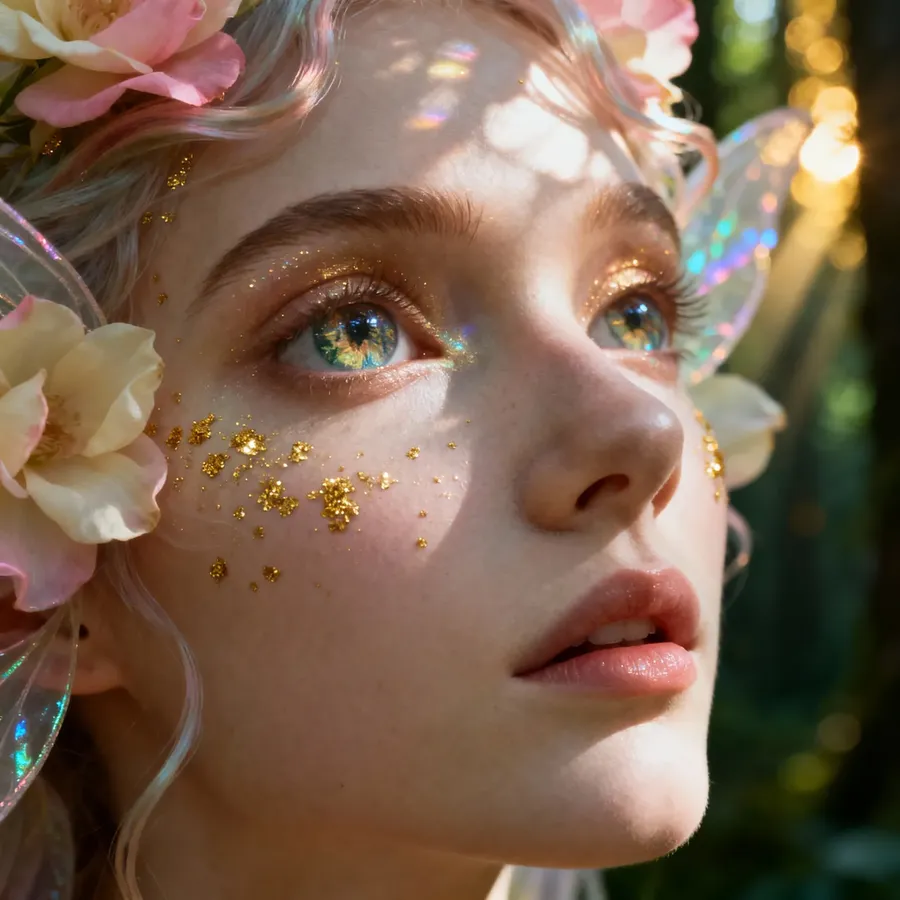
Built for every budget
Explore with fast, low-cost models and save the expensive ones for the frame you are actually going to use. Credit cost varies by model and output resolution, so a wide exploration run and a single high-resolution final can sit in the same budget.
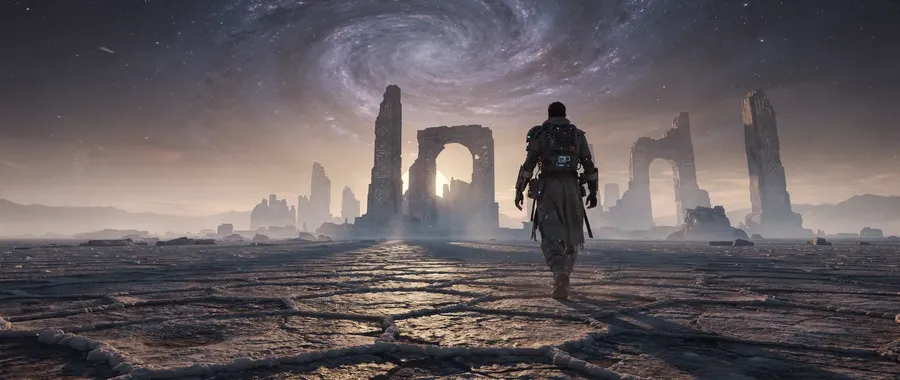
When Text-to-Image Is Useful
Text to image does not replace illustration, design, or a photo shoot. It earns its place earlier: early ideation, visual exploration, concept development, campaign variations, placeholders and pre-vis, and one-off custom assets. These are the moments where the cost of producing a visual the traditional way is what stops an idea from being tested at all.
-1920x983.webp)
getimg.ai
Open Create image
Auto mode handles model selection, so there is nothing to configure first.
Write the prompt
Describe subject, environment, composition, medium and light in plain language.
Generate and refine
Run up to 16 variations at once, compare them, and adjust the prompt until one lands.
Producing the same visual by hand
- Brief the concept and sketch directions
- Source reference photography or license stock
- Book an illustrator, a designer, or a shoot
- Build the artwork in design software
- Manage layers, masks, and type by hand
- Wait on a round of feedback, then revise
- Export every size and format the channel needs
- Repeat the whole process for each variation
Beyond the prompt
When words alone are not enough control
Prompt enhancement on getimg.ai expands a short description with the details an image model expects, like light direction, lens, materials and palette, so a sentence such as 'overhead shot of a layered breakfast bowl' already lands close to a finished image.
When you need tighter visual control than words give you, go further. On supported models, add reference images to guide the subject, composition, or visual direction. Reference limits and supported roles vary by model. Save a recurring face, product, or palette as an Element and call it back as @Name to help maintain a more recognizable visual direction.
And if you are starting from a picture you already have rather than from words, that is Image to Image.
-600x1067.webp)
-600x1067.webp)
-600x1067.webp)
Related AI Tools on getimg.ai
Frequently Asked Questions
Text to image means you create a picture by writing a description of it. You describe a subject, a scene, or a style, and an image model produces a picture that matches the description. No drawing, no stock library, no setup.
Designers, marketers, and creators use it to get original images quickly. Instead of searching for something that almost fits, you describe the thing you actually need and generate it.
Image models are trained on very large collections of images paired with captions. From that training they learn statistical relationships between language and visual patterns: which words tend to co-occur with which shapes, colors, lighting and composition.
When you submit a prompt, the text is encoded and used as conditioning for the generation process. The model starts from noise and resolves it step by step into an image that fits that conditioning. Nothing in the model knows what a sunset is, but 'sunset' reliably steers the output toward warm tones and low, angled light, because that is what the pairing looked like in training.
That is also why specific prompts outperform vague ones. Every layer you leave out, the model fills in from its own averages. On getimg.ai, Auto mode handles the model choice and sharpens the wording, so you can spend your effort on describing the image rather than on settings.
Text to Image creates a new image from a written description. You start with words and end with an image.
Image to Image, also available on getimg.ai, starts from a picture you already have. You add the image and describe how it should change: the style, the background, an object, the mood.
Text to Image is the right tool for new ideas and exploration. Image to Image is the right tool when you want to refine or transform something that already exists.
Start with prompt following. The gap between a generator that renders your description and one that renders something merely adjacent to it is the difference between one generation and ten. Test it with a prompt that specifies composition and lighting, not just a subject, and see how much of it survives.
Then check the practical constraints: how many image models you can reach from one account, which aspect ratios and output resolutions are available, how the model handles text inside an image, whether you can attach reference images, how fast a batch comes back, and what each generation costs.
Finally, look at what happens after the first result. Running several variations, comparing them side by side, switching model, and refining the prompt matters more than any single output. Style range is worth checking too, from photoreal product shots to AI-generated anime art, because the model that handles one well does not always handle the other.
Paid plans include commercial usage rights for generated content, subject to our terms and applicable third-party rights. That covers marketing campaigns, websites, social media, client work, product pages, and more.
Realistic portraits, product shots, illustrations, anime art, fantasy scenes, concept art, logo concepts, and 3D style renders are all within range of a written prompt.
In practice that covers social posts, ads, game assets, book covers, presentations, and early concepts. How close the result lands depends far more on how specifically you describe it than on the subject itself.
Text to Image is one workflow: you write a prompt, and a new image comes back. Nothing else goes in. That makes it the right tool when the thing you want does not exist yet, and it puts all of the control in how you describe it, which is why composition, lighting and medium belong in the prompt rather than in a settings panel.
The AI Image Generator is the wider toolset around that workflow. It covers the other ways to direct or transform an image on getimg.ai: guiding a result with reference images, reusing a face, product or palette with Elements, editing an image you already have, and turning a still into video. Most people use both. Write the prompt first, then reach for the wider toolset at the point where words alone stop giving you enough control.
Work through the layers rather than adding adjectives. Subject, action and pose, environment, composition and framing, visual medium, then light, color and mood. A prompt that names the shot size, the lens and the direction of the light gives you far more control than one that asks for something beautiful or highly detailed.
Then change one layer at a time. If you rewrite the whole prompt between runs, you learn nothing about which part was responsible for the result. Start from a bare subject, add the environment, then composition and lens, then light and palette, and look at the output after each step. Four runs like that teach you more about a model than forty random ones.
Write the prompt. Get the image.
Describe what you want, pick Auto or choose a model, and generate. If the first batch is not quite there, change one thing in the prompt and run it again.