How to Create Seasonal Product Images With AI (2026 Guide)

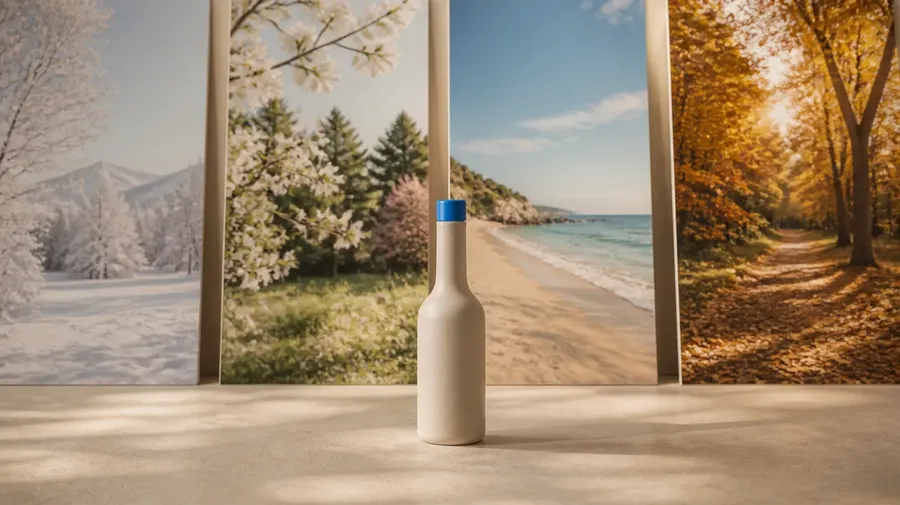
To create seasonal product images without a new shoot, keep your existing product photo fixed and change only the scene around it. Attach the photo as a reference, describe the season you want, and generate the new setting around the unchanged product. getimg.ai does this by swapping the background from a prompt and batching several seasonal looks at once, and a reusable Element keeps the product consistent when you want it at fresh angles or formats. One product photo becomes a full year of on-season imagery.
Why Seasonal Imagery Is Worth the Effort
Seasons are where a large share of retail revenue is won. The National Retail Federation reports that November and December sales have averaged about 19% of total annual retail sales over the past five years, and that is one season among many.
Add Valentine's Day, spring, summer, back-to-school, and autumn, and most of the calendar has a moment worth dressing for. The problem has always been production cost: a fresh shoot for every season is slow and expensive, so brands reuse stale imagery and miss the moment. AI removes that constraint.
The Shortcut: Change the Scene, Not the Product
The core idea is simple. A seasonal image is your existing product placed in a seasonal setting, so you do not need to reshoot the product, only regenerate the world around it. The product is the constant. The pine sprigs, warm string lights, fallen leaves, beach sand, or pastel blossoms are the variable. When you treat it this way, one clean product photo becomes the source for every season.
This works because AI can hold a referenced product steady while generating an entirely new background. You describe autumn on Monday and summer on Tuesday, and the same bottle, jar, or box sits convincingly in both. The output is not a filter laid over the old photo; it is a genuinely new scene built to match the product's lighting and perspective. That is what separates a real e-commerce seasonal image from a recolored one.
Step 1: Reference the Product You Already Have
Start from a clean product photo you already have. For seasonal imagery the product itself does not change, only the world around it, so in most cases you simply attach that photo as a reference and the product carries through into each new scene exactly as shot.
Its labels, colors, and proportions come straight from the reference rather than the model's imagination, which is what keeps a winter image and a summer image looking like the same product.
Build a reusable Product Element when a season calls for more than a backdrop change: when you want the product at new angles, in new compositions, or across several formats, where it has to be re-rendered rather than reused. An Element, built from several real photos, holds the product consistent across all those fresh generations. Either way, the same discipline that keeps products accurate in AI-generated scenes applies: reference the real item so the model reproduces it instead of inventing a near-copy.
Step 2: Describe the Season Around It
With the product locked, change the background with a prompt that describes the season concretely. Vague seasonal words produce generic scenes, so name the props, the palette, and the light. Winter holidays might be pine branches, warm string lights, and a dusting of snow in cool blue evening light. Summer might be pale sand, a woven mat, and bright overhead sun. The more specific the cue, the more the season reads at a glance.
Think in terms of surface, setting, props, and light for each season. You do not have to spell out how the product should be lit to fit the scene; a capable model integrates it into the seasonal setting on its own, matching perspective and light so it reads as photographed rather than pasted.
A useful pattern is to write one strong base description of the product on its surface, then swap only the seasonal layer for each version, which keeps the composition steady while the season changes and makes the set feel like a deliberate campaign. For product-specific phrasing, the e-commerce prompt examples are a practical starting point.
Step 3: Batch Several Seasons in One Run
You do not have to generate seasons one at a time. Use the image generation Action to batch several variations in one run producing 1, 2, 4, 8, or 16 images at once, then shortlist the strongest execution of each season.
A practical rhythm is to batch within one season first, generate several holiday scenes, pick the best, then move to the next season and repeat. Because the product is carried straight from your reference, every image in every batch stays product-accurate, so the only thing you are judging is the seasonal scene itself.
This is how a single afternoon can produce a full year of seasonal imagery for one product, and the same batch approach scales when you plan a full campaign around each season.
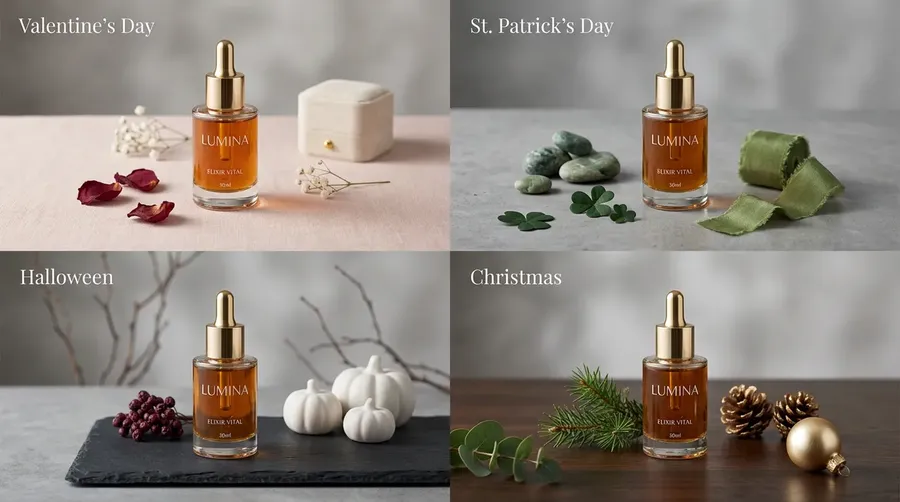
AI-generated seasonal product images.
Step 4: Resize Each Season for Every Channel
Each seasonal image needs to run in several places: a square for the feed, a vertical for Stories and Reels, a wide crop for a web banner or email header. Rather than regenerate the scene at each shape, resize each seasonal image from the approved master. Smart Resize regenerates the composition at a new aspect ratio, and Outpainting keeps the original and extends the canvas outward to fill a taller or wider frame.
Adapting from one approved master keeps every placement of a given season visually identical, so your holiday square and holiday Story read as the same campaign. Work through your channel list once per season and you have a complete, ratio-correct set ready to schedule. Seasonal outputs also feed naturally into related formats, like holiday card visuals, which can come from the same Create image generator rather than any separate tool.
A Seasonal Scene Reference
Use concrete cues so each season is unmistakable. The table gives a starting point you can adapt per product.
Season or Moment | Scene Cues to Prompt | Palette & Light |
Winter Holidays | Pine, string lights, wrapped gifts, light snow | Warm highlights, cool blue evening |
Valentine's | Soft florals, ribbon, paper hearts | Warm pinks and reds, soft light |
Spring | Fresh blossoms, pale linen, budding branches | Bright, airy, high key |
Summer | Sand, woven textures, citrus, water | Saturated, hard overhead sun |
Back-to-School | Desk, notebooks, warm interior | Neutral, focused daylight |
Autumn | Fallen leaves, wood grain, knit textures | Amber, low golden light |
The point is not to follow the table literally but to prompt with this level of specificity. Named props, a defined palette, and a stated light direction turn a generic setting into a season a shopper recognizes in under a second.
Seasonal AI Images vs a Seasonal Reshoot
Factor | Seasonal Reshoot | AI Seasonal Images (getimg.ai) |
Lead Time Before the Season | Weeks of planning | Same day |
Cost per Additional Season | Full shoot each time | Marginal |
Product Consistency Across Seasons | Manual matching | Carried from one reference |
Reacting to a Late Trend | Not feasible | Generate on demand |
Every Channel Ratio | Separate design work | Resize from the master |
The advantage is timing as much as cost. Because a new season is a new prompt rather than a new shoot, you can prepare imagery well ahead of each moment and still react to a trend that appears late, which a booked shoot can never do.
Start Creating Seasonal Images
Reference your existing product photo, describe each season with concrete props and light, batch several looks and shortlist the best, then resize every winner for the channels you run, stepping up to a reusable Element only when you want the product at fresh angles or formats.
getimg.ai does all of it from the product photos you already have, with commercial rights on every paid plan so your seasonal imagery is cleared to publish and sell.
Create your seasonal product images on getimg.ai.
Frequently Asked Questions
Keep your existing product photo fixed and change only the scene around it. Attach the photo as a reference, then write a prompt describing the season you want, with concrete props, palette, and light. The product is carried from your reference and held steady while AI changes the background around it to match the season, so one clean photo becomes the source for holiday, spring, summer, and autumn versions.
Build a reusable Element when you want the product at new angles or formats. getimg.ai handles the swap and batch generation in one place.
Because AI seasonal images take minutes rather than the weeks a shoot needs, you can prepare each season well before its shopping window opens and still keep capacity to react late.
A practical approach is to generate a season's set as soon as you begin planning campaigns for it, bank the approved masters and their resized versions, then schedule them. The low production cost also means you can add a season you had not planned for, or refresh a set that is underperforming, without waiting on a new shoot.
Specific enough that the season is unmistakable at a glance. Vague words like "festive" produce generic scenes, so name the props, the palette, and the light: pine branches, warm string lights, and cool evening light for winter holidays, or sand, woven textures, and hard overhead sun for summer. State the product's surface too, so the composition stays steady while only the seasonal layer changes.
Prompt enhancement fills in finer detail, but the concrete cues you provide are what make a shopper recognize the season instantly, and the image prompting guide goes deeper on writing them.
Yes, that is the core benefit. By referencing that photo, a single clean shot can be placed into every season while only the background is regenerated, so the product stays exactly as shot. Batch several looks per season, shortlist the strongest, then resize each winner for the feed, Stories, banners, and email.
Step up to an Element when a season needs the product at a new angle or format. The result is a year of on-season imagery from one source photo, updated whenever a trend or a promotion calls for a fresh scene.
Related Articles