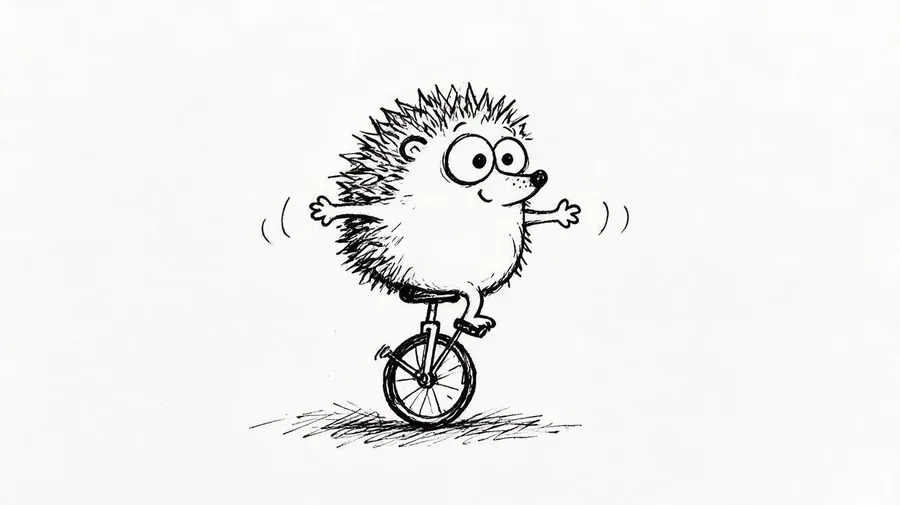
AI Doodle Generator: Create Doodles from Text or Images
Doodles from a prompt, a photo or a sketch
getimg.ai's AI Doodle Generator creates hand-drawn-style images from text prompts or visual references. Describe a doodle from scratch or add a photo or rough sketch as a reference, choose the line style, colors, level of detail and composition, generate several directions, then refine the version that fits your project. Generated doodles are image files rather than editable vector strokes.
Access 48+ leading AI models. Pay for one subscription.


How to create doodles with AI
Start from a description, a photo or a rough sketch.
1. Open Create image
Open getimg.ai's image generation Action by clicking here.
2. Describe it or add a reference
Write what you want to see, and add a photo or rough sketch as a Reference when you start from an existing subject. Name the line style, palette, composition and level of detail.
3. Generate and refine
Pick an aspect ratio and a number of variations, generate several doodle directions, then refine the closest one with a follow-up prompt.
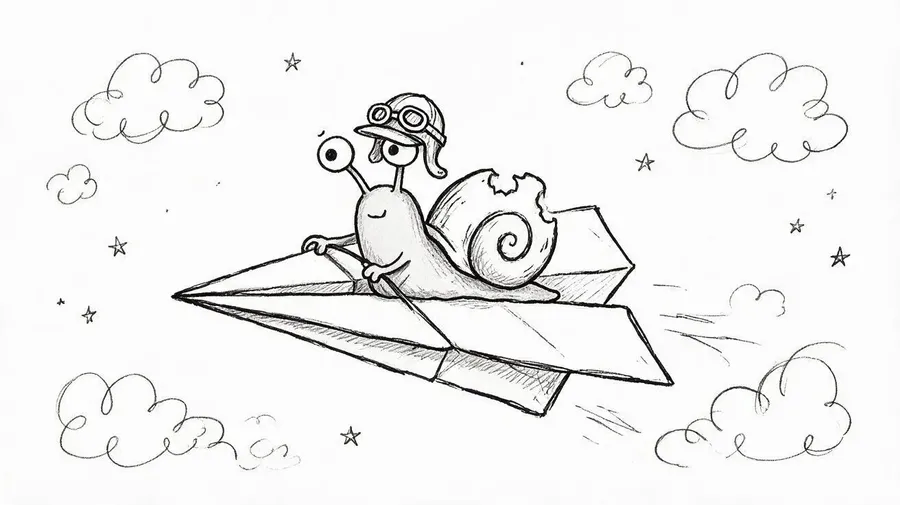
Turn a photo into a doodle
Upload a photo as a Reference and describe the doodle treatment you want: loose black ink, colorful cartoon scribbles, simple linework or a notebook-style drawing. Generate several versions and refine the one closest to your subject.
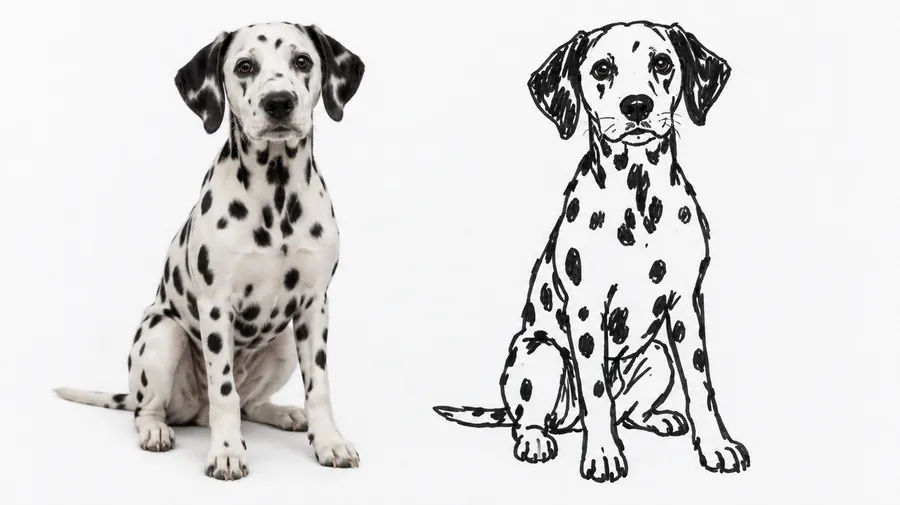
Simple hand drawn black and white doodle, depicting a grumpy owl with furrowed eyebrows, round spectacles, perched on a weathered wooden bookshelf, whimsical and slightly absurd
Use your own rough sketch as a reference
Upload a simple sketch or rough line drawing to guide the composition, then describe the doodle style or finished visual direction you want.
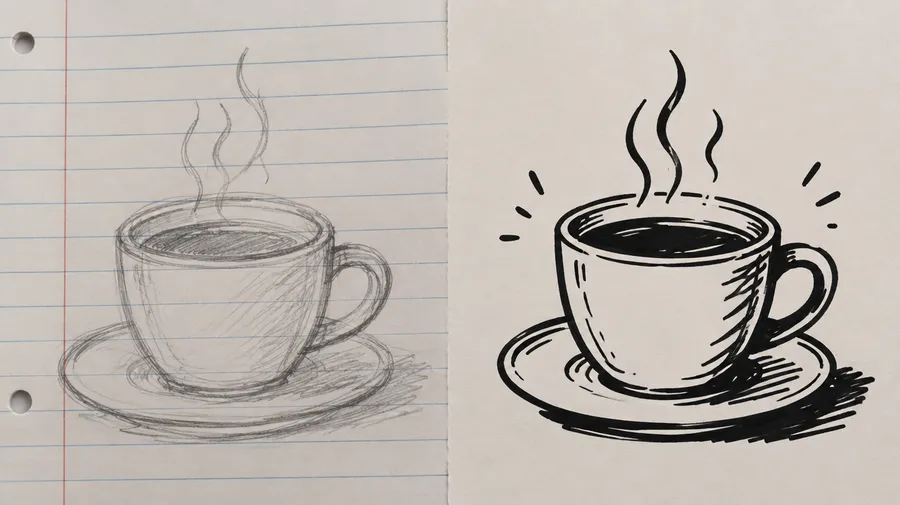
Doodle vs sketch vs line art - what's the difference?
The three terms overlap in everyday use, but they describe different visual languages. Pick the one that matches the result you want.
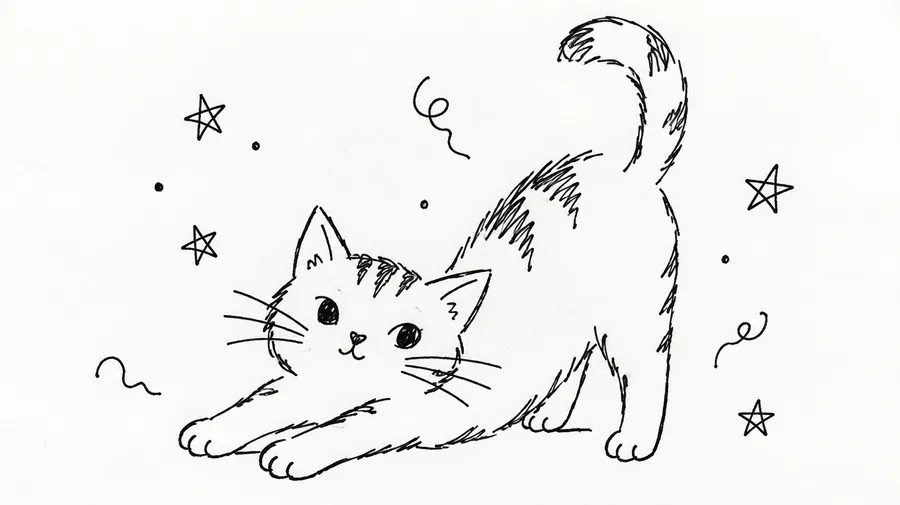
Doodle
Loose, playful, simplified and intentionally informal hand-drawn artwork: uneven lines, small marks, compact subjects.
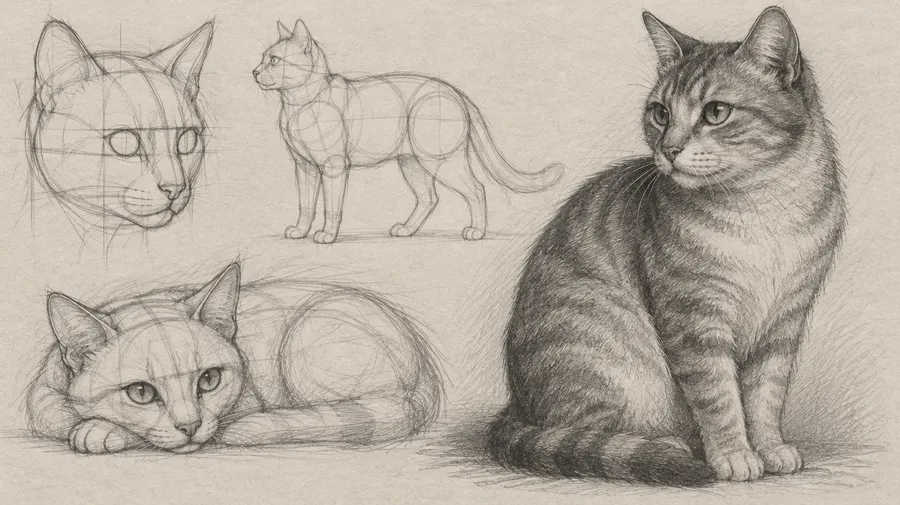
Sketch
A broader drawing category, often exploratory or realistic, with pencil, charcoal, shading and visible construction lines. See the [AI Drawing Generator](/use-cases/ai-drawing-generator).
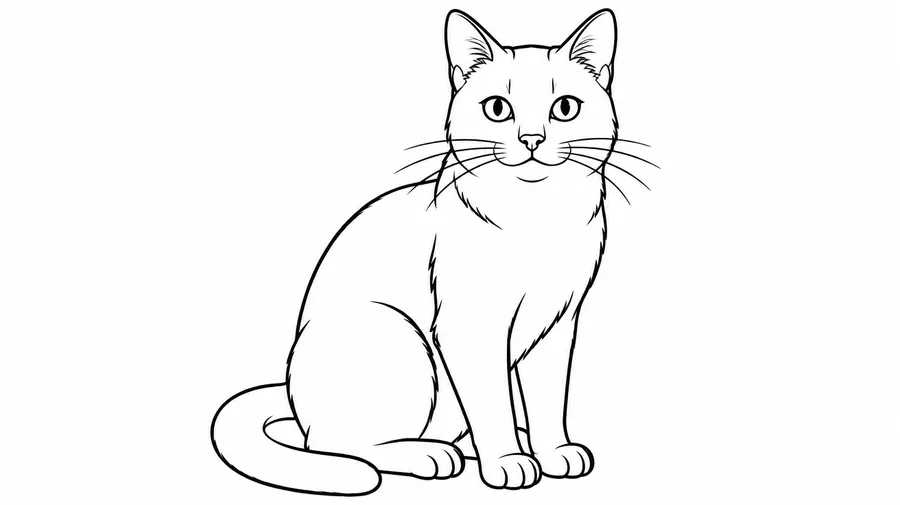
Line art
Primarily lines and contours, cleaner and more controlled, usually high contrast. See the [Line Art Generator](/ai-line-art-generator).
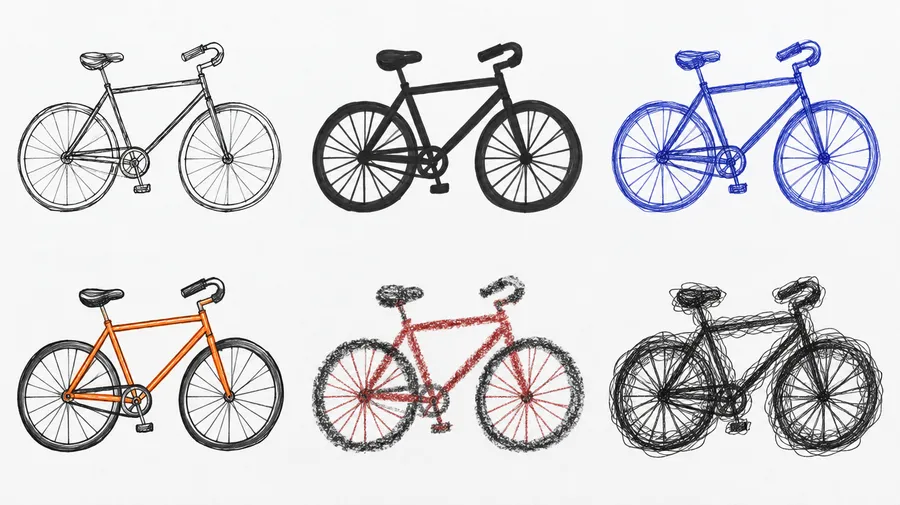
Explore several doodle directions before choosing one
Generate multiple versions of the same idea to compare line weights, poses, compositions, colors and levels of detail before refining your favorite.
What kind of doodles can you create?
Characters, animals and pets, objects and food, reaction doodles, icons and spot illustrations, presentation doodles, educational visuals, sticker-style doodles, social graphics, invitation illustrations, website doodles and abstract concept doodles.
Doodles also work as explanatory visuals: a lightbulb and a rocket for innovation, a team around a whiteboard, simple process arrows, a student studying, a cloud and a lock for security, or hand-drawn finance icons on a slide.
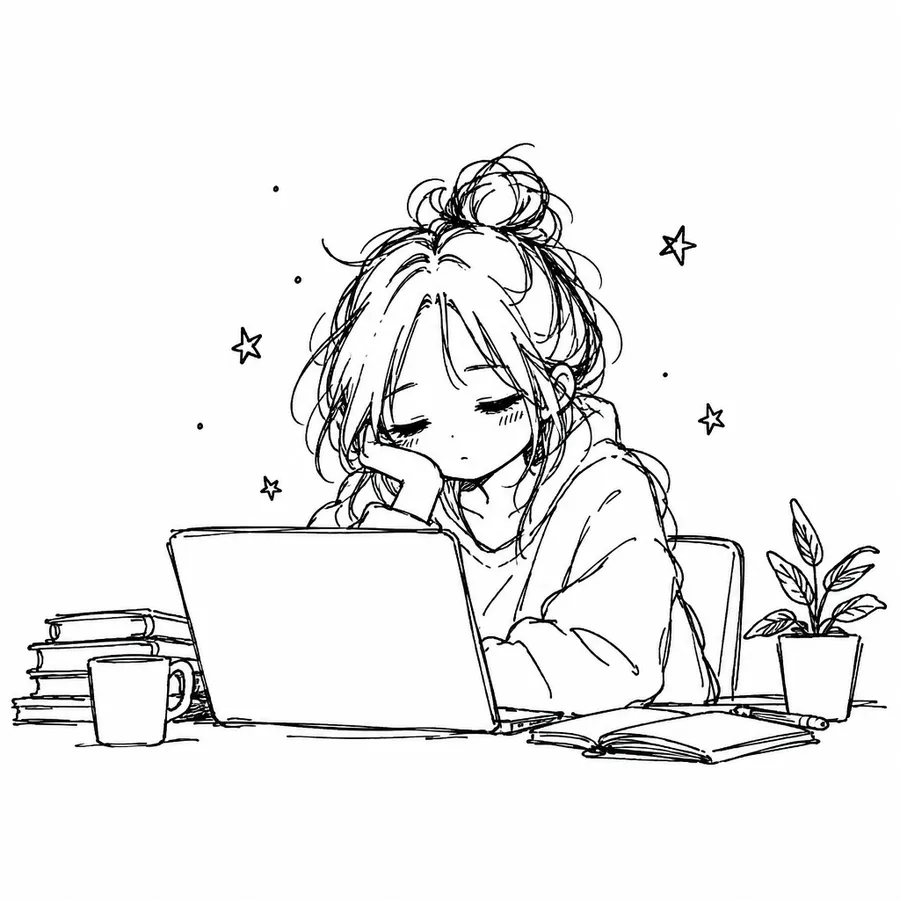
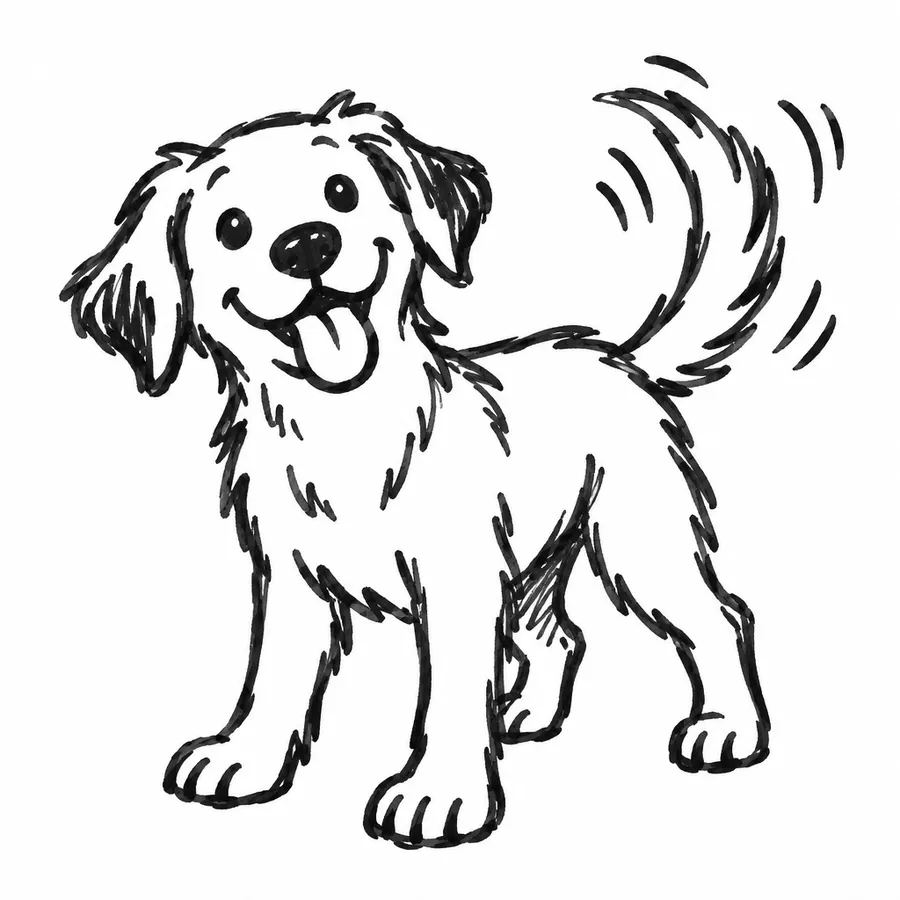
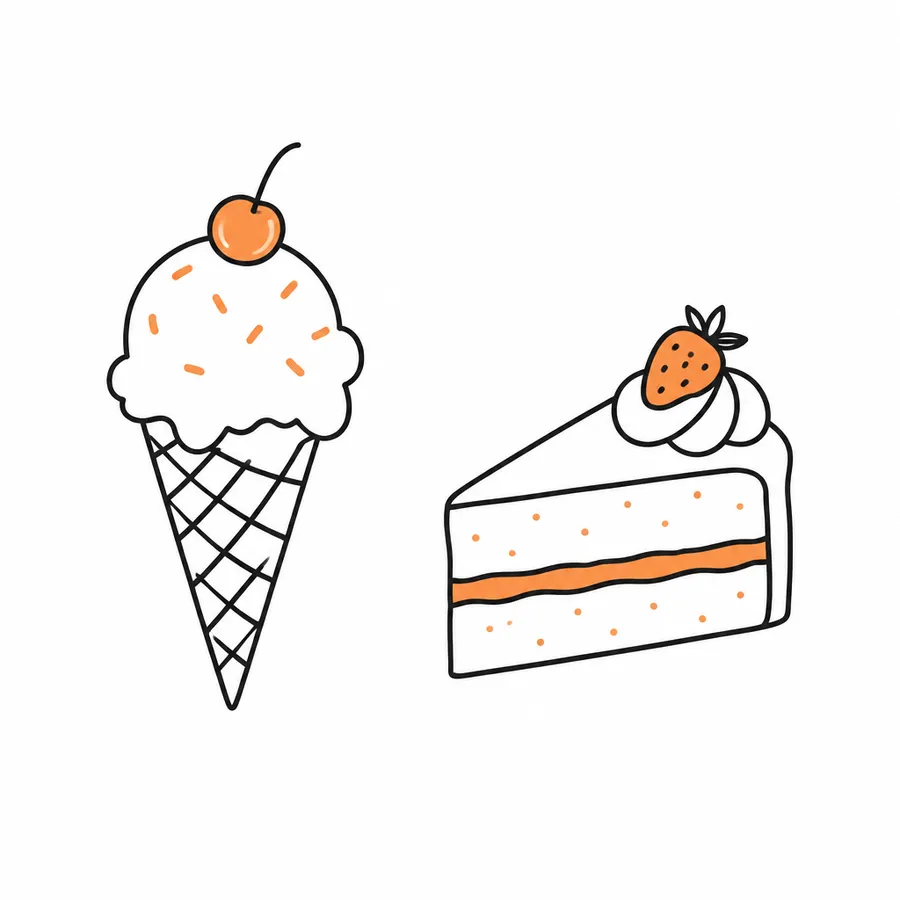
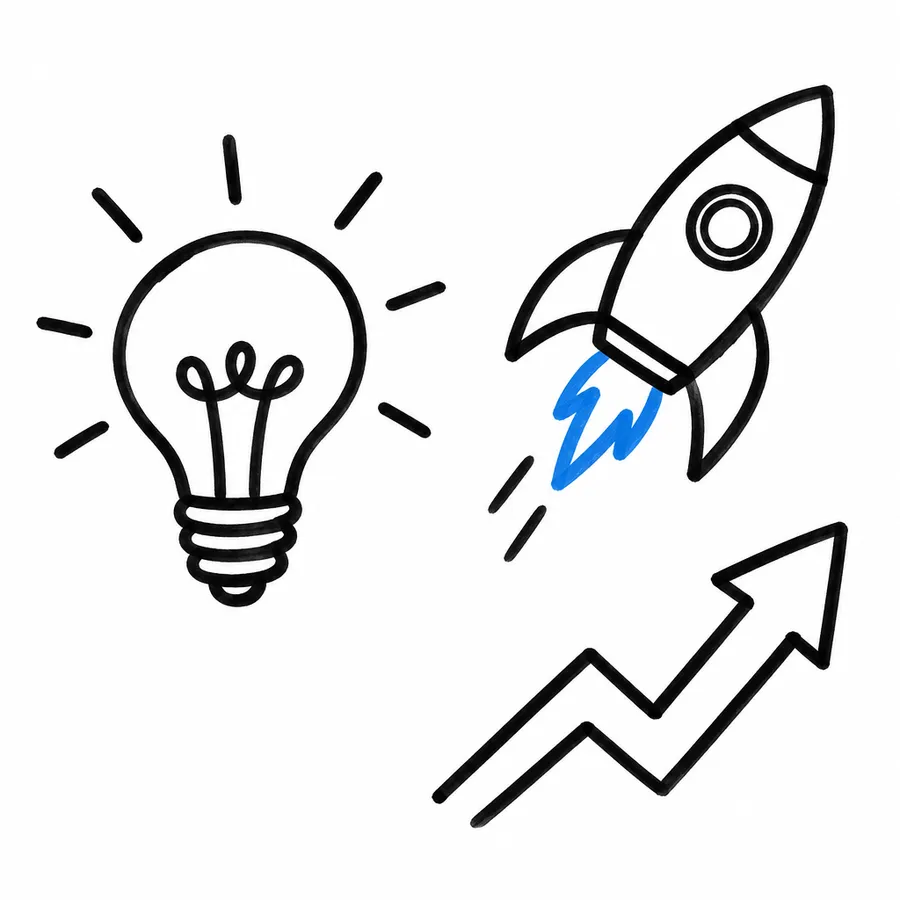
Create a consistent doodle set
Save a Style or Color Palette Element and reuse it when you create more doodles for the same presentation, website, campaign or visual system. Read the Elements guide for how to store and reuse them.
Turn a doodle into a transparent graphic
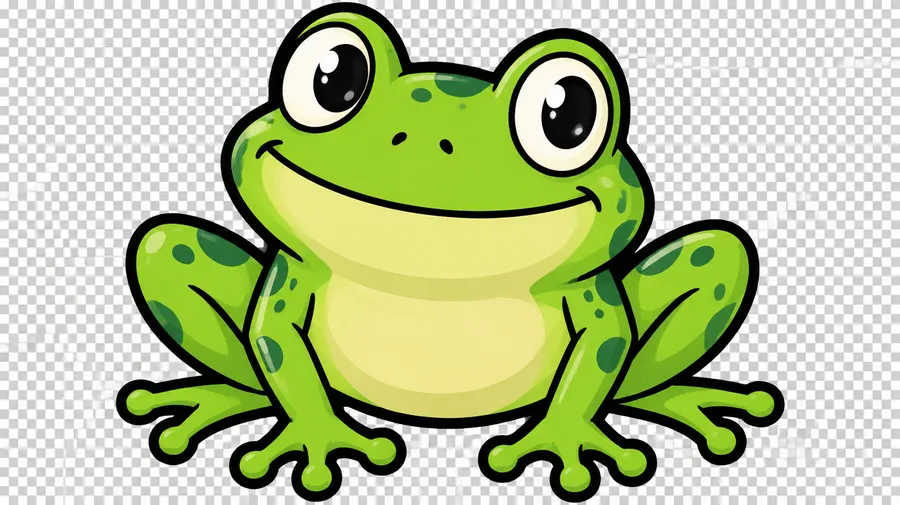
Generate a simple character or object doodle, remove the background with the Background Remover, and reuse the transparent version in stickers, slides, websites, social posts or other layouts.
Less setup, more room to iterate
The prompt box stays simple. getimg.ai handles model selection, format and export, so your attention stays on the doodle itself.
The right model, picked for you
Leave the model on Auto and getimg.ai reads your prompt, then routes it to a model suited to line work, such as Nano Banana 2 or GPT Image 2.
Auto picks the model

Nano Banana 2
Google's image model, strong at clean, characterful line work.

GPT Image 2
OpenAI's image model, strong at detailed, prompt-accurate doodles.
Compare up to 16 doodle variations
Generate up to 16 variations of one prompt and keep the ones that work. Each batch varies the same idea rather than producing a coordinated doodle pack.
Prompt, generate, download
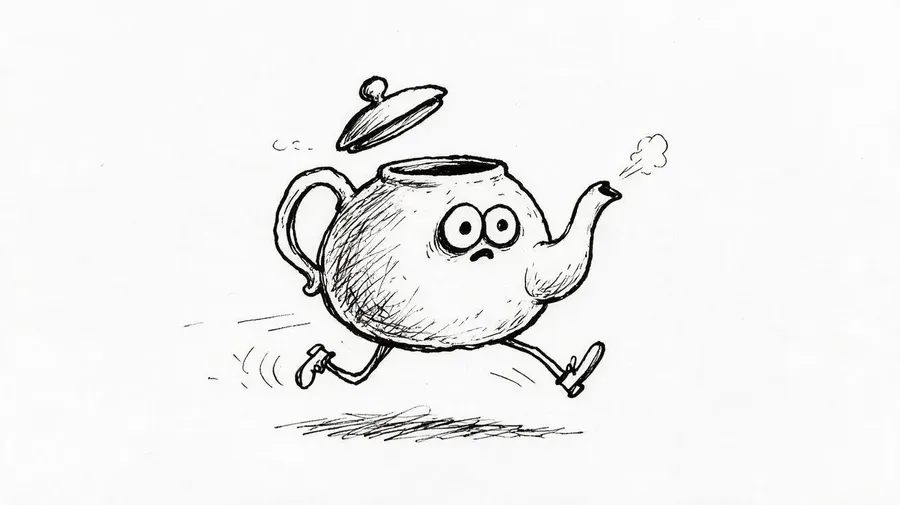
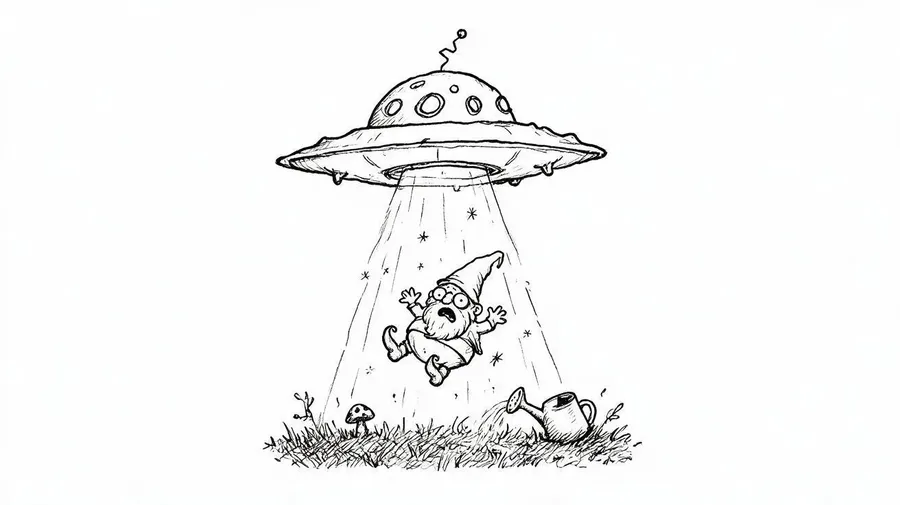
Type what you picture, press generate, then download the doodle as an image file. The whole flow lives in one prompt box.
Prompt
Generate
Download
How to get better doodle results
Doodles depend on line quality and visual density, so name those explicitly.
Writing the prompt
Describe the line before the subject styling: thin pen, thick marker, crayon, chalk or uneven ink. Then say whether the result should be black-and-white or colorful, and simple or dense.
Name the line
Say "thin uneven pen lines" or "thick imperfect marker outline" instead of leaving line weight to chance.
Name the background
Plain white, lined notebook paper, chalkboard or a flat color keeps the subject readable.
Start from a prompt or a photo. End with a doodle.
Describe what you picture or add a reference image, compare several directions, then refine and download the one you need.
Frequently Asked Questions
Yes. Upload the photo as a Reference in Create image and describe the doodle treatment you want, such as loose black ink or colorful cartoon scribbles. The reference guides subject and composition, while stronger simplification can change smaller facial and object details.
Yes. A rough sketch or line drawing can be added as a Reference to guide composition, and you can then describe the finished visual direction. getimg.ai uses the sketch as generative guidance rather than treating it as an editable vector drawing or an exact tracing template.
A doodle is loose, playful and intentionally informal. A sketch is a broader drawing category, often exploratory, with pencil, shading and construction lines. Line art is built primarily from clean contours and high contrast. For contour work use the Line Art Generator; for pencil and ink styles use the AI Drawing Generator.
Yes. Ask for black ink or marker lines on a plain white background and skip any color instruction. Adding "clean closed shapes, no gray shading" keeps the result closer to a black-and-white outline drawing.
Save a Style or Color Palette Element and reuse it across generations for the same deck, site or campaign. Elements guide the visual direction, but line shapes and small details still vary between images, so a set usually needs a short selection pass.
Yes. Run the generated doodle through the Background Remover to isolate the subject and get a transparent version for stickers, slides, websites or social posts.
Yes. Generate a compact character or object doodle with a thick outline, set a square aspect ratio, then remove the background. For a dedicated sticker workflow, use the AI Sticker Creator.
Yes. Simple concept doodles - a lightbulb, a rocket, process arrows, a team around a whiteboard - work well on slides and in teaching material. Ask for clean marker lines, one accent color and minimal detail so the visual stays readable at slide size.
Generate the doodle as a still image first, then use it as the image input in Image-to-Video to explore an animated version.
getimg.ai generates doodle artwork as an image. If your project needs editable SVG paths or mathematically scalable vector strokes, additional vectorization is required. For larger print applications, upscale the selected image with the Upscaler and check the pixel dimensions your target physical size requires.
Paid plans include monthly credits and full commercial rights, and a single doodle uses only a few credits. See current plans and generation limits on the getimg.ai Pricing page.