AI Line Art Generator: Create Art from Text or Photos
From reference to line-art direction
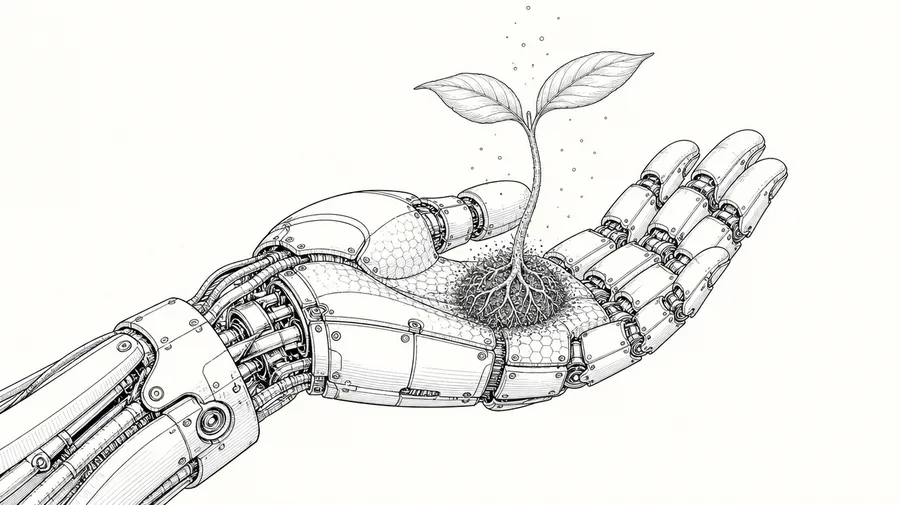
Create clean line art from a text prompt or photo reference. Choose anything from minimalist single-line-style drawings to detailed cross-hatching, generate several directions, then refine the result that best matches your project.
Access 48+ leading AI models. Pay for one subscription.


What is an AI line art generator?
getimg.ai's AI Line Art Generator creates black-and-white line illustrations from text prompts or visual references. Use it to generate minimalist contour drawings, single-line-style artwork, cross-hatched illustrations, geometric designs and detailed line art from photos.
The output is generated raster artwork rather than editable SVG/vector paths or a technical drawing.
Turn a photo into line art
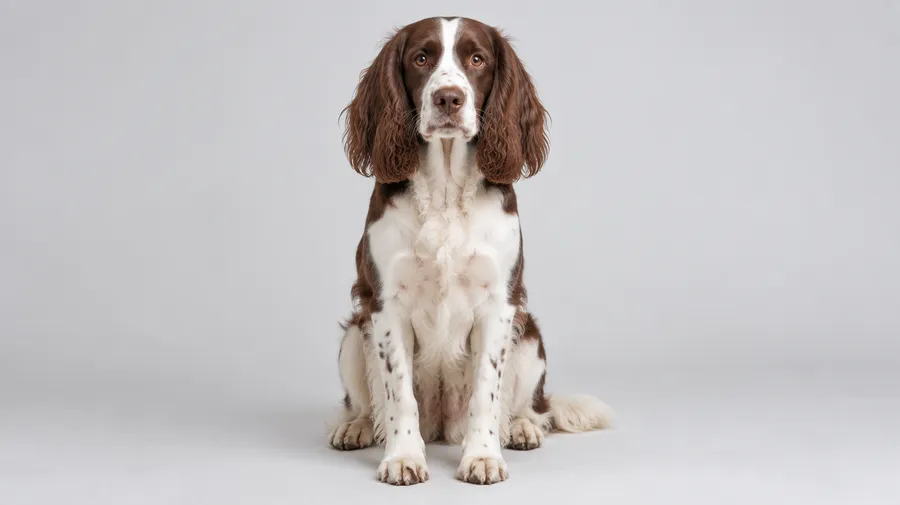
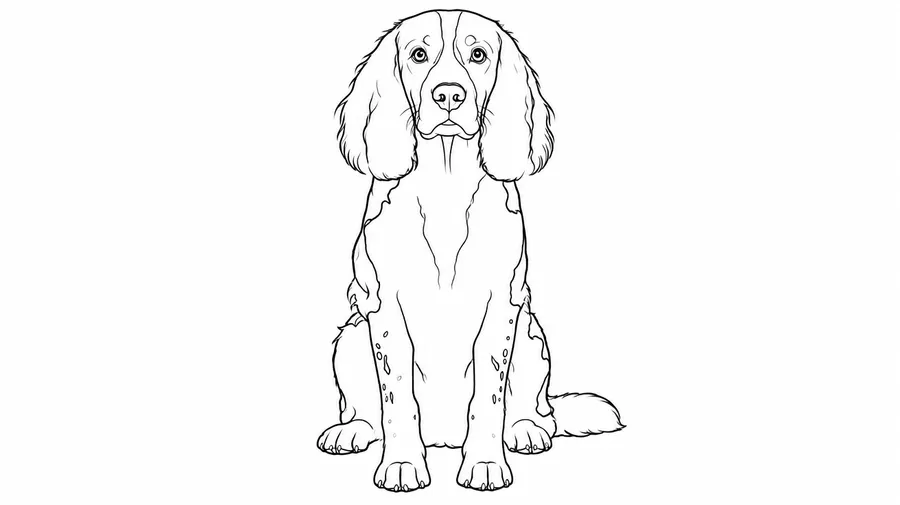
Attach a photo as a Reference and describe the features, composition and line treatment to retain. Use portraits, pets, houses, objects or products, flowers and architecture as starting points. Reference images can guide object, composition, style and perspective; up to 10 images can be attached.
The example shows a dog photo reinterpreted as medium-weight black outlines. Compare facial markings, ears and proportions with the original, then refine any changes you did not request.
How to generate line art from text or a reference
Describe, compare, refine.
1. Log into getimg.ai
Click here to open Create image in the Content Generator. Start with text or attach a photo or sketch as a reference.
2. Describe the line treatment
Name the subject, technique, line weight, shading and background. For a reference image, specify which shapes and details to retain.
3. Generate and refine
Generate several directions using the options available on your plan. Check contours, intersections and symmetry, then describe the changes needed before downloading.
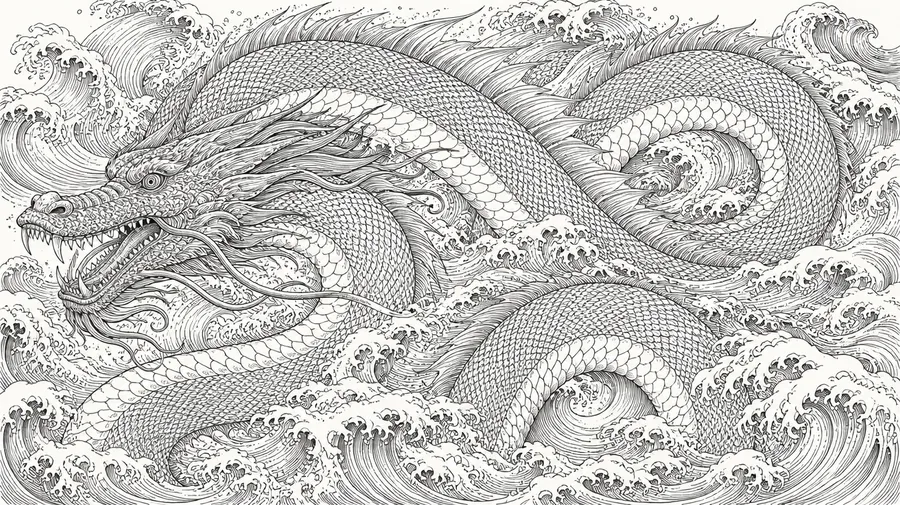
Explore polished line-art directions without drawing every stroke manually
Compare variations in contour, line weight and shading before selecting a direction. AI can leave broken contours, awkward intersections, duplicated details or uneven cross-hatching. Review symmetry and small features, then refine the chosen image rather than assuming every stroke is finished.
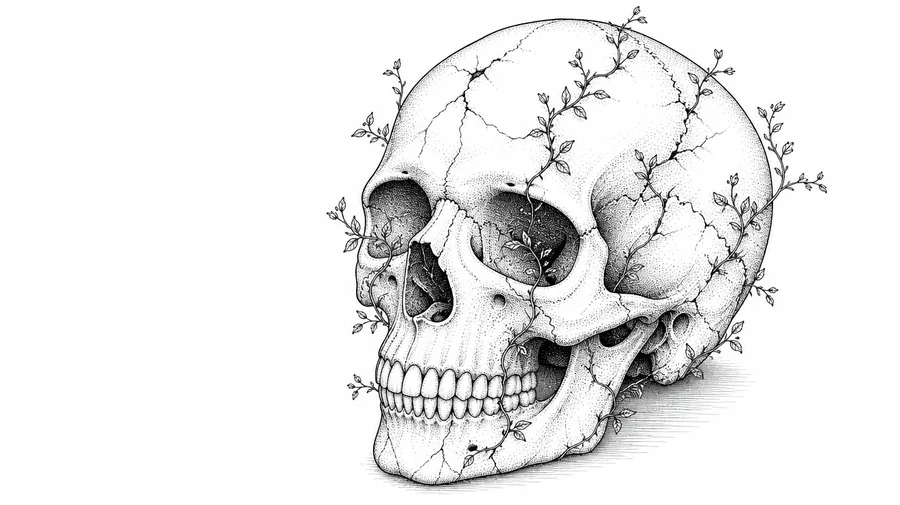
monochrome line art of a realistic skull with delicate vines growing from its cracks, shaded meticulously with stippling technique
Choose a line-art technique
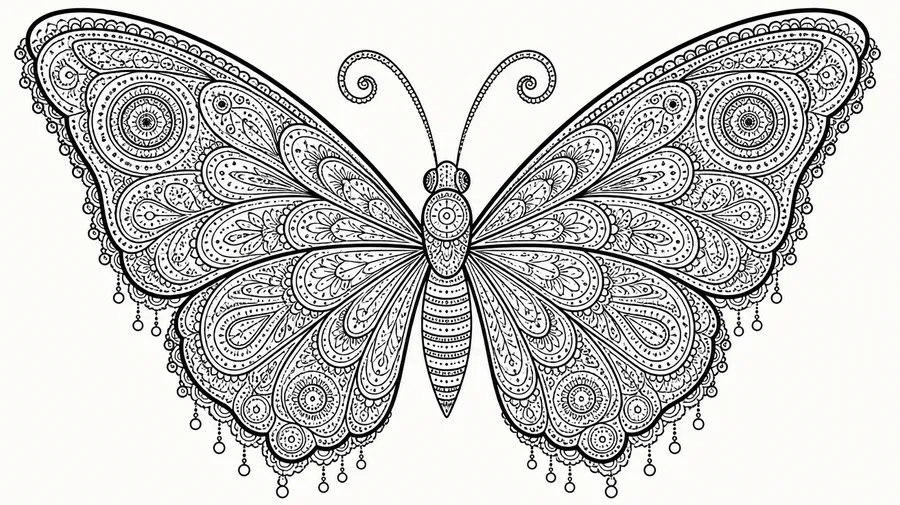
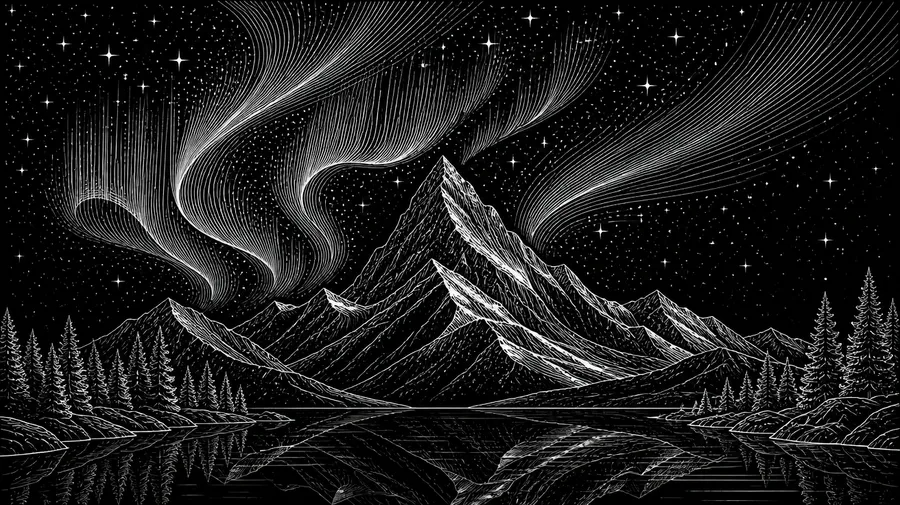
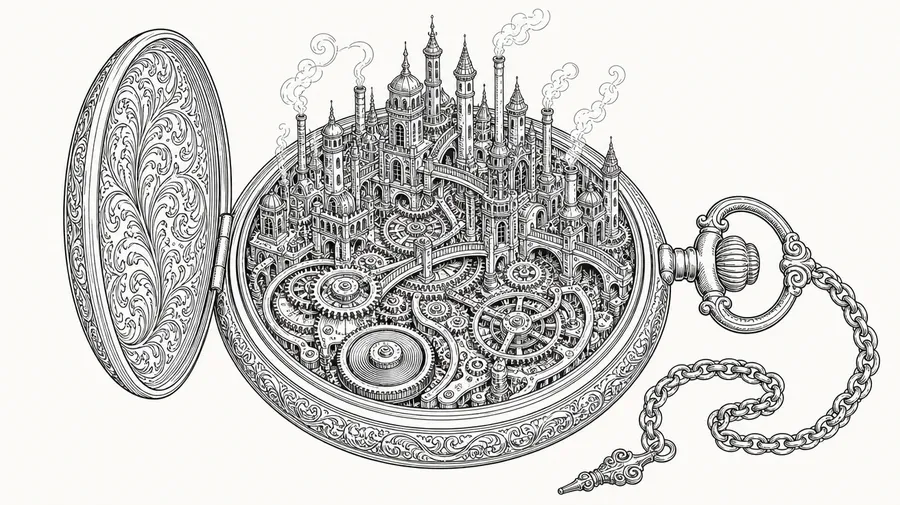
Choose single-line-style, contour, bold outline, cross-hatching, stippled, geometric, engraving-style or mandala-style artwork. Apply the treatment to botanical line art, architectural illustrations or minimal portraits. Technical-inspired line illustration is a visual style, not an accurate engineering drawing. A continuous-line look does not guarantee one mathematically continuous vector path.
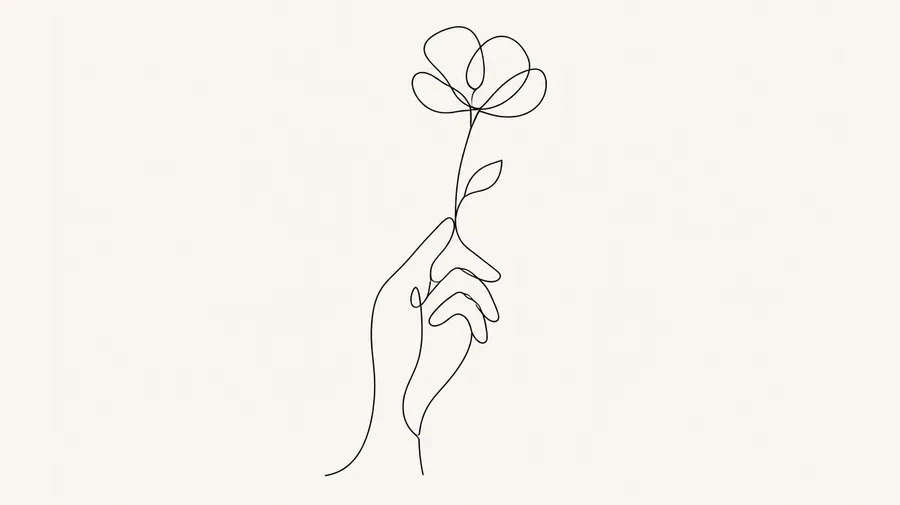
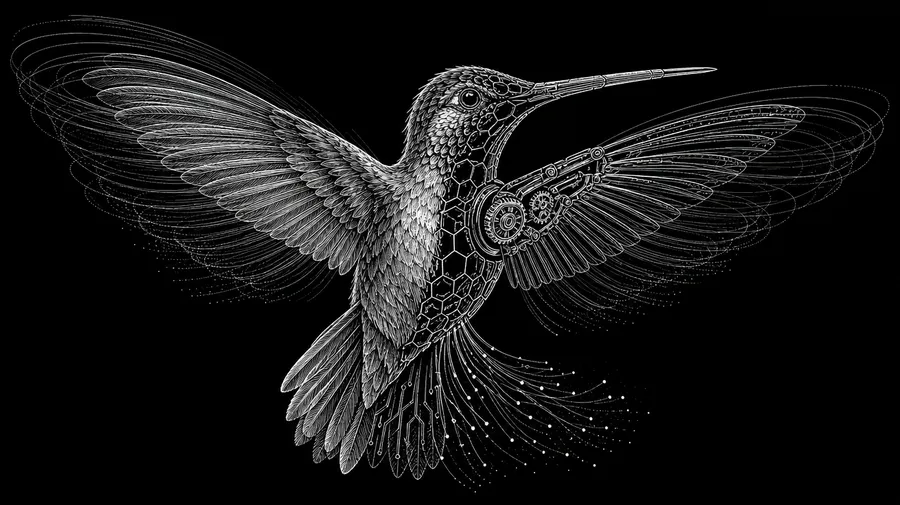
Prepare line-art concepts for your project
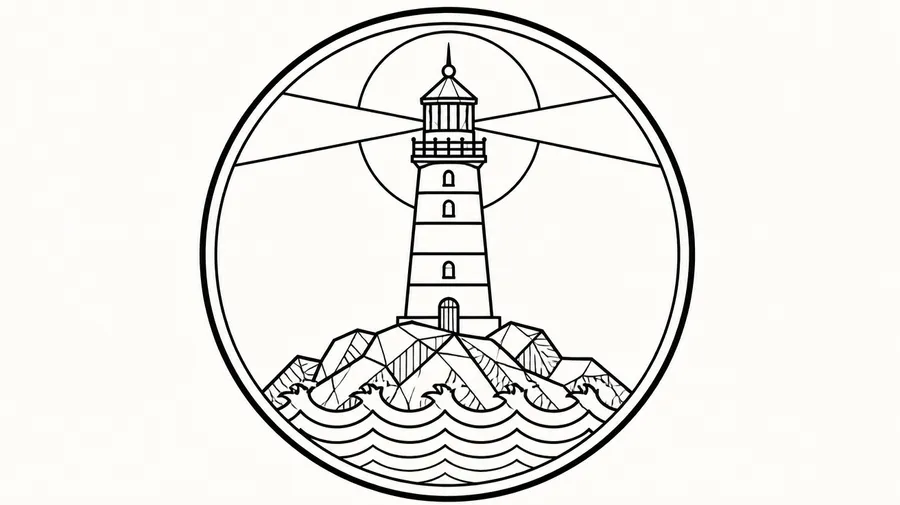
Explore logo and badge concepts, then vectorize or refine the selected artwork when editable production files are required. For posters or t-shirt concepts, check size, PPI, bleed and trim with your printer. Use tattoo line art as a concept or visual reference: a tattoo artist should adapt line weight, scale and detail for the placement and skin.
Line art or a coloring page?
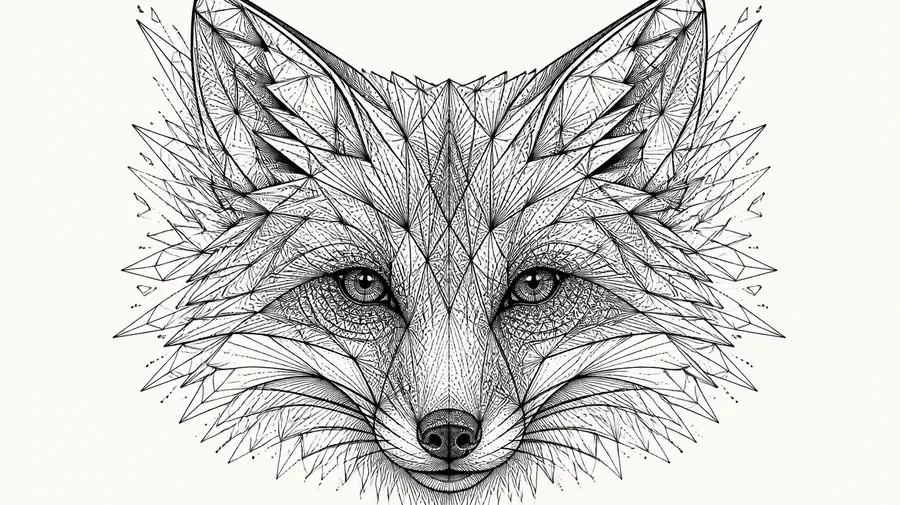
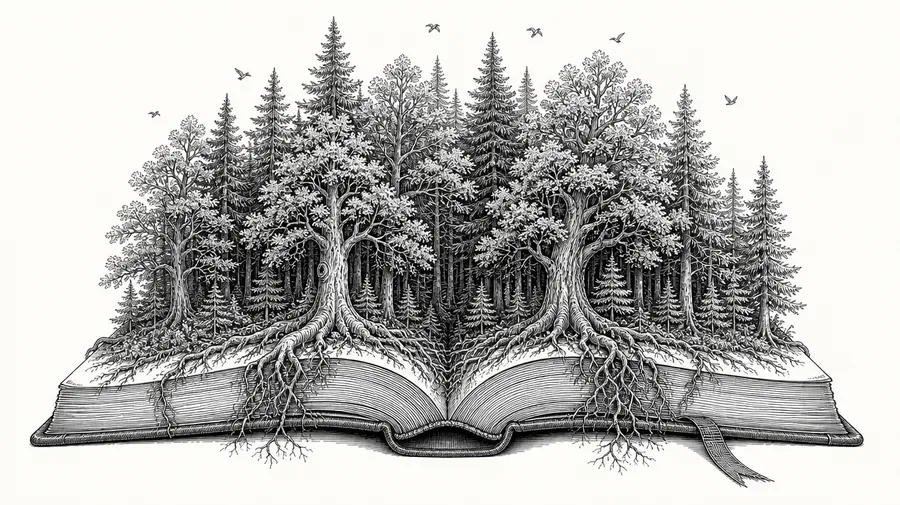
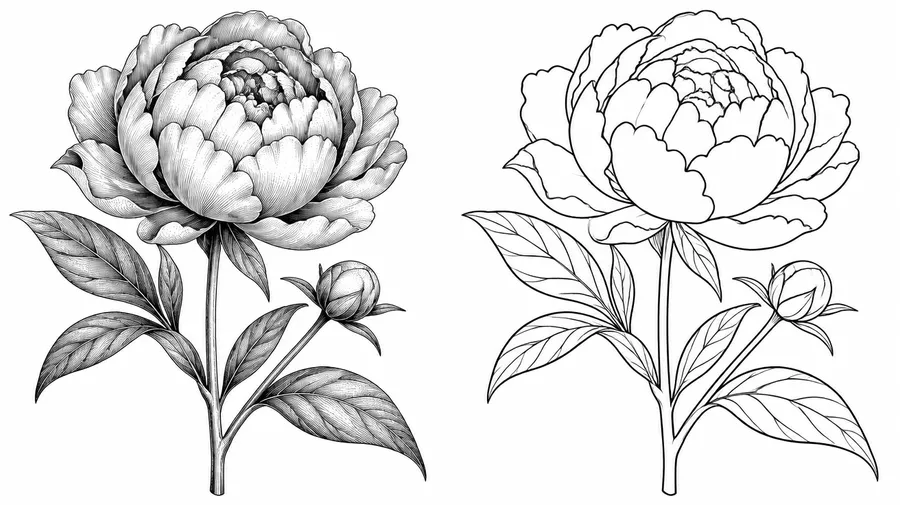
Line art can use cross-hatching, stippling, dense texture and fine decorative lines to shade a subject. A coloring page needs larger open spaces, fewer shaded areas and clear closed shapes that are comfortable to fill.
For coloring-focused layouts, use the AI Coloring Page Generator. Check that outlines close and spaces remain large enough at the intended print size.
Refine, remove the background, prepare for use
Generate → refine → remove background → transparent PNG → layout or merchandise concept. Inspect fine lines and enclosed spaces after removal.
Transparent PNG
Use Background Remover after refining the artwork. Transparent PNG is raster artwork: it can sit over a colored layout but does not contain editable vector paths.
Keep one line-art style across a series
Save a reference as a Style Element, then call it with @ElementName in later image prompts. Reuse an engraving-style direction for a botanical set or a consistent line treatment for portrait illustrations.
Elements provide reusable visual guidance, not identical strokes. Line placement and detailing can still vary; compare the set and refine outliers.
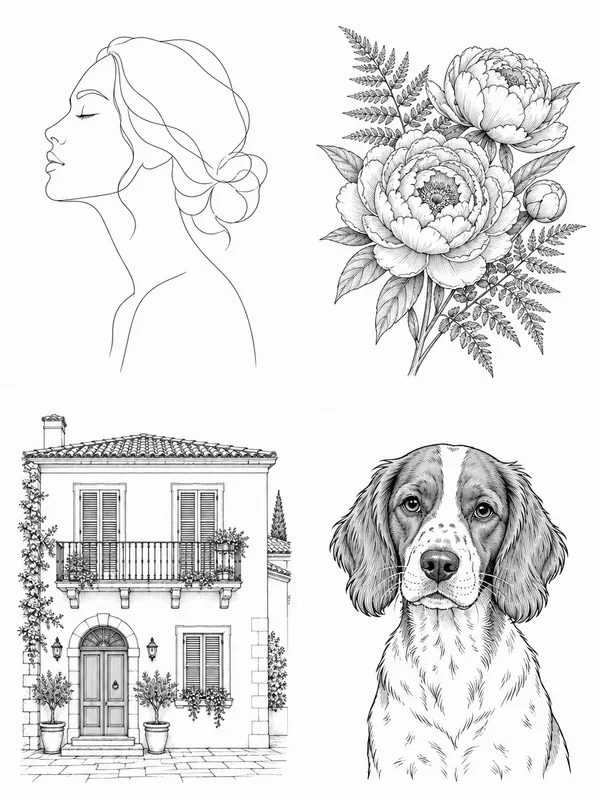
Five line-art prompts to adapt
Specify the subject, technique, line weight, shading and background. For the photo transformation example, attach the dog photo shown above as image 1.
Minimal portrait
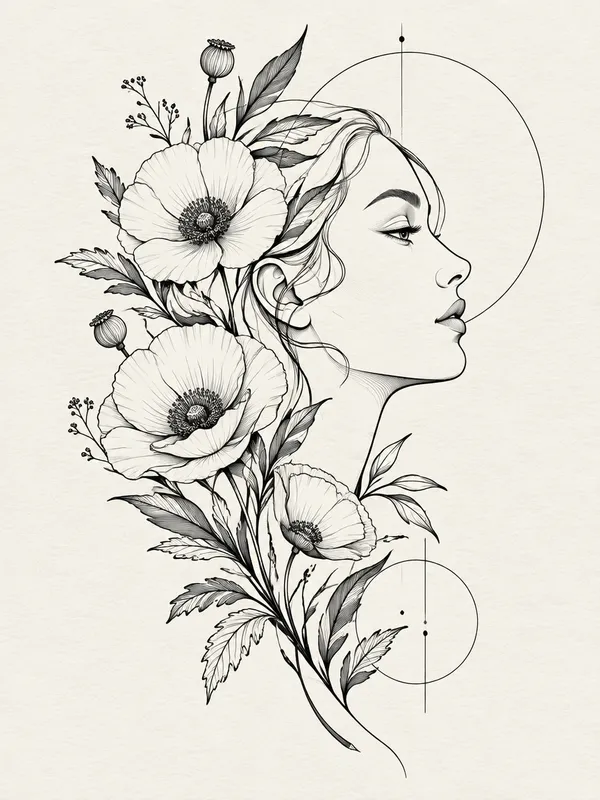
Minimal continuous-line-style portrait of a woman in profile, thin elegant black line, white background, no shading.
Botanical
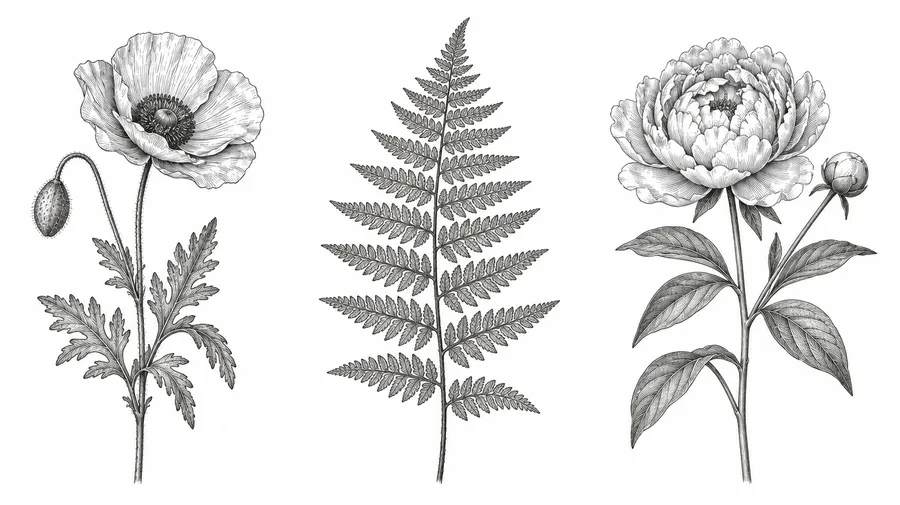
Fine botanical line drawing of peonies and fern leaves, delicate black contour lines, subtle cross-hatching, white background.
Architecture
Detailed architectural line illustration of a Mediterranean townhouse, black ink contours, minimal shading, white background.
Photo transformation
Turn the dog in image 1 into clean black line art, preserve the floppy ears and facial markings, medium-weight outlines, minimal shading, white background.
Start with a prompt or photo. Refine your line art.
Describe the drawing you need, compare directions and refine the selected image. Review the raster artwork for its intended use before exporting.
Frequently Asked Questions
Open Create image in the Content Generator, describe your subject and line-art technique, and generate a few directions. Specify line weight, shading and background. Check the selected result for broken contours, repeated details and uneven shading, then request changes.
Download the reviewed image or use our AI Upscaler to increase resolution. Upscaling does not create editable vector paths or set print size, bleed and trim; inspect the enlarged lines before production.
Paid getimg.ai plans include commercial usage rights under our Terms. Third-party images, trademarks, characters and other protected material used in References may require separate rights.
Commercial permission is not the same as copyright ownership or a guarantee of exclusivity. Check third-party rights, likeness permissions and the intended use before publishing or selling an image.
Line art uses outlines and marks to describe a subject. It can include fine contours, cross-hatching, stippling and dense decorative shading. getimg.ai creates high-contrast raster line drawings from text or visual references that can be prepared for print, rather than editable SVG paths or technical drawings.
Yes. Attach a portrait, pet, house, product, flower or architecture photo as a reference, then request contour lines, bold outlines or cross-hatching. Describe which features and composition to retain. You can attach up to 10 reference images; the result is an interpretation, and your original stays unchanged.
Yes. Generate and refine the image, then use Background Remover and download a transparent PNG for a layout, poster or t-shirt concept. Check fine lines and small enclosed areas after removal. The original remains unchanged, and transparency does not turn the image into vector artwork.
Line art can include cross-hatching, stippling and dense decorative shading. Coloring pages favor larger open areas, less shading and clear closed shapes. Review outlines and space for coloring at the intended size.
getimg.ai creates raster line-art images. You can generate a clean vector-style appearance, but editable SVG paths require a separate vectorization workflow. Single-line-style artwork does not guarantee one mathematically continuous path.
Yes. Attach the sketch as a reference and describe the contours, proportions and details to retain. Request a line weight and background, then check for changed shapes, missing lines and duplicated details. Refine the result; it is an interpretation rather than exact tracing.
Create a Style Element from a reference and reuse it with @ElementName in each image prompt. Keep the line treatment and shading instructions consistent. Line placement and detailing can still vary, so review the set together.
Not automatically. It is raster artwork that can be prepared for print. Check physical dimensions, PPI, bleed, trim and line weight with the printer. Upscaling increases resolution but does not create vectors or configure these production requirements.
Yes, as a tattoo concept or visual reference. A tattoo artist should adapt line weight, scale and detail for the placement and skin. Generated line art is not automatically a tattoo-ready stencil.