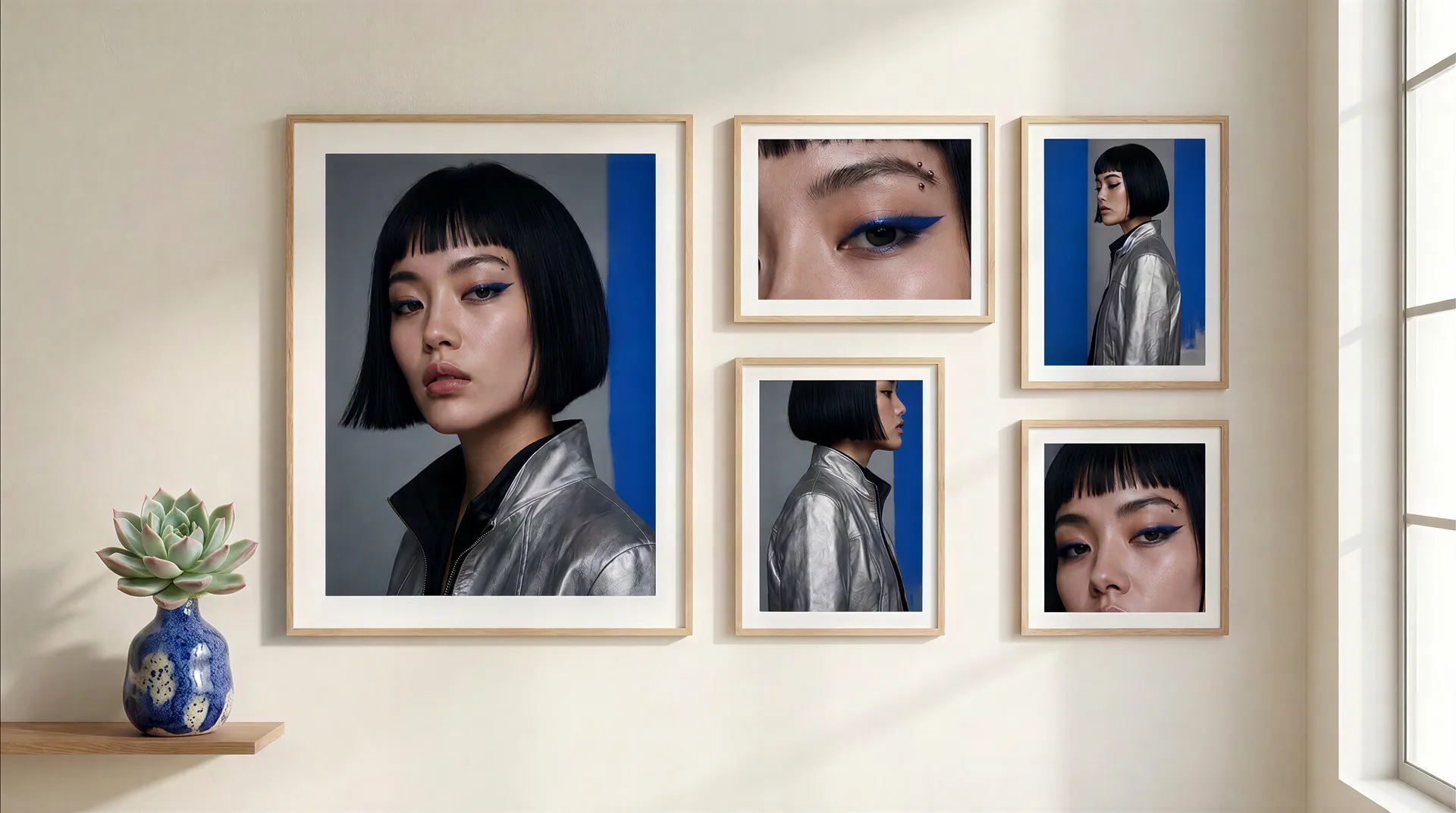
How to Turn Clothing Photos Into AI Fashion Model Photos

You can turn a flat lay, hanger shot, or clothing product photo into an AI fashion model image by using the garment as a reference and asking the model to place it naturally on a person. For more control, add a separate model reference or reuse a Person Element across the campaign. The most important step is checking garment fidelity: silhouette, color, print, seams, closures, proportions, and branding should remain consistent before the image is used for e-commerce or advertising.
What is AI clothing-to-model photography?
AI clothing-to-model photography uses an existing image of a garment as a visual reference and generates a new image showing that item worn by a person. The starting image can be a:
- flat lay
- hanger photo
- mannequin photo
- basic product photo
- studio clothing image
- previously generated garment visual
Instead of organizing a new photoshoot for every creative direction, the same clothing image can become an on-model studio shot, street-style photo, campaign visual, social ad, editorial image, or lifestyle scene.
The clothing remains the anchor. The model, pose, camera, location, lighting, and art direction can change around it. This workflow is particularly useful for fashion brands, e-commerce stores, designers, social teams, agencies, and creators who need more visual variations from existing product photography.
What can you create from one clothing photo?
A single garment reference can support several types of fashion imagery.
Starting asset | AI output |
Flat lay T-shirt | On-model e-commerce image |
Hanger dress photo | Editorial fashion portrait |
Jacket product shot | Street-style campaign |
Matching set | Full-body lookbook image |
Shoes plus clothing references | Complete styled outfit |
Product image plus model reference | Same person wearing the garment |
Garment plus recurring model | Multi-image fashion campaign |
The important distinction is between creating another fashion image and representing a specific product accurately. For moodboards, early campaign concepts, and social creative, some variation may be acceptable. For product pages and paid ads selling the exact garment, small differences matter much more. A missing pocket is not a creative variation if the customer is buying the jacket because it has that pocket.
What clothing photos work best as AI references?
Clear product photography gives the AI more usable information about the garment. The ideal clothing reference shows the item without important details being hidden by folds, props, hands, or extreme lighting. For best results, start with an image where you can clearly identify:
- overall silhouette and garment length
- neckline and sleeves
- color and fabric
- print or pattern
- buttons, zippers and pockets
- stitching and logos
- distinctive construction details
A simple front-facing flat lay or hanger shot is often a strong starting point because the complete design is visible. If one image does not show enough information, use additional references for details such as the back, side, texture, or branding.
getimg.ai supports multiple reference images in a generation, and individual references can be identified inside the prompt as Image 1, Image 2, and so on. This makes it possible to assign different jobs to different references, such as using one image for the garment and another for the person.
How to turn a clothing photo into an AI fashion model photo
The simplest workflow starts with the clothing image itself. Upload the garment as a reference, define what must remain unchanged, then describe the person, pose, photography, and environment you want around it. For a one-off fashion image, you do not necessarily need to create a custom AI model or train anything. The clothing photo can be the reference.
Step 1: Upload the clothing image
Start with your strongest product image. In getimg.ai, reference images can be uploaded from your device or selected from images already available in your gallery. You can then refer to the uploaded garment directly inside the prompt, for example as Image 1 = garment, and build the prompt around it.
Basic prompt template
Create a realistic full-body fashion photo of a model wearing the exact clothing item from Image 1. Preserve the garment's original design, silhouette, color, pattern, neckline, sleeves, material, seams, and construction details. Natural fit on the body with realistic fabric folds. [MODEL DESCRIPTION]. [POSE]. [LOCATION]. [LIGHTING]. [CAMERA AND FASHION PHOTOGRAPHY STYLE].
The key phrase is not simply wearing this dress but preserve the garment's original design, silhouette, color, pattern and construction details. You are telling the model which visual information has priority.
Step 2: Decide what should change and what should stay fixed
Before generating, divide the image into two categories.
Keep fixed: garment design, garment color, pattern, branding, material, hardware, and key proportions.
Change: person, pose, environment, camera, crop, lighting, mood, and styling around the garment.
This distinction makes fashion prompts much easier to control. Instead of describing everything with equal importance, establish a consistency contract: keep the garment, change the world around it.
Step 3: Describe the model
If you do not need a specific person, describe the model directly. You might specify approximate age, presentation, hairstyle, body type, expression, makeup, styling, and casting direction. For example:
Fashion model in her late twenties, short dark bob, natural makeup, relaxed expression, realistic skin texture, athletic build.
Or:
Male fashion model in his early thirties, shaved head, minimal styling, relaxed posture, contemporary European casting.
Avoid filling the prompt with unnecessary facial micro-details when the clothing is supposed to remain the hero, though it is still worth asking for realistic skin so the model does not look plastic. For fashion e-commerce, the model is often there to show fit, scale, drape, proportion, and context. If faces come back waxy, our guide to making AI skin look real covers the fix.
Step 4: Choose the type of fashion image
The same garment can look completely different depending on its photographic job.
Clean e-commerce
Use when the goal is to show the product clearly. Create a realistic full-body e-commerce fashion photo of a model wearing the exact black knit dress from Image 1. Preserve the original neckline, sleeve length, ribbed knit texture, fitted silhouette, hem length, and black color. Model standing naturally with arms relaxed, neutral expression, simple off-white studio background, large diffused softbox lighting, realistic fabric folds, clean commercial fashion photography, front view, garment fully visible.
Fashion lookbook
Use when the image should feel styled but still product-led. Create a contemporary fashion lookbook photo of a model wearing the exact jacket from Image 1. Keep the jacket's cropped silhouette, faded blue denim, chest pockets, silver buttons, contrast stitching, and proportions accurate. Model standing against raw concrete architecture, relaxed pose, slightly turned body, soft overcast daylight, understated styling, 50mm fashion photography, natural fabric folds, premium European lookbook aesthetic.
Street style
Use when you want the garment in a more everyday context. Create a realistic street-style photograph of a model wearing the exact oversized leather jacket from Image 1. Preserve the jacket's shape, dark brown leather, collar, zipper placement, pockets, sleeve construction, and distressed texture. Model walking on a quiet city street, casual jeans and simple shoes, candid body movement, cloudy daylight, slightly imperfect framing, documentary fashion photography.
Fashion editorial
Use when visual direction matters as much as product presentation. Create an editorial fashion photograph of a model wearing the exact silver dress from Image 1. Preserve the asymmetric neckline, metallic fabric, draped waist, ankle length, and silver tone. Model standing inside a minimalist brutalist interior, sculptural pose, hard directional afternoon light, long architectural shadows, controlled editorial styling, medium-format fashion photography, realistic textile behavior.
Social campaign
Use when the output needs to feel faster and more platform-native. Vertical 9:16 fashion campaign image of a model wearing the exact red knit top from Image 1. Preserve its cropped fit, neckline, sleeve length, ribbed texture, and original red color. Model photographed close to camera outside a cafe, relaxed candid pose, natural daylight, subtle movement in hair and clothing, realistic smartphone-meets-editorial photography, social-first composition.
How to use a specific person as the fashion model
If you want the garment on a particular person, use separate references for the person and the clothing, for example Image 1 = model and Image 2 = clothing. The prompt can then clearly assign both roles:
Create a full-body fashion photograph of the person from Image 1 wearing the exact outfit from Image 2. Preserve the person's recognizable facial features, hair, and proportions. Preserve the garment's silhouette, material, colors, pattern, neckline, sleeves, seams, and design details. Natural standing pose, minimalist photography studio, soft directional lighting, realistic fabric folds and body fit.
getimg.ai's reference workflow explicitly supports instructions such as using the character from one reference with the outfit from another. This is useful when you need the same brand model, an influencer-style visual, yourself in different clothing, a recurring fictional model, or consistent casting across a collection.
How to keep the same AI fashion model across a campaign
If you plan to generate one or two images, repeatedly attaching a model reference may be enough. For a larger campaign, use a reusable Person Element. Elements in getimg.ai store reference images for a recurring person, product, style, or other visual concept. A Person Element can then be called directly in prompts using its @ElementName, and up to 20 reference images can currently be added to an Element. See the guide to Elements for the setup.
With an Element such as @MayaModel saved, the campaign becomes a series of variations on one prompt:
- Full-body studio fashion photograph of @MayaModel wearing the exact dress from Image 1. Preserve the dress design, color, silhouette, neckline, sleeve length and fabric.
- @MayaModel walking outdoors wearing the exact dress from Image 1.
- Close editorial portrait of @MayaModel wearing the exact dress from Image 1.
Now the model remains the recurring element while the campaign moves around her. This is much more useful than generating a completely different face for every product image, and it is the same principle we apply in our guide to turning one AI character into a full brand campaign.
Three workflows for clothing-to-model images
Choose the workflow based on the amount of consistency you need.
Workflow | Inputs | Best for |
Clothing only | 1 garment reference | Fast concepts and one-off images |
Clothing plus model | Garment plus person reference | Specific casting |
Clothing plus Person Element | Garment plus reusable model | Collections and recurring campaigns |
Workflow 1, clothing photo only. Use when you do not care who models the product. It is the fastest option: upload the clothing image and describe the desired model.
Workflow 2, clothing photo plus model photo. Use when the same person needs to appear in one or several outputs. Attach both references and tell the AI exactly which reference controls which part of the image.
Workflow 3, clothing photo plus reusable AI model. Use when you want to build an ongoing brand world. Create a Person Element once, then combine it with different garment references throughout the collection. One model, different clothes, one visual system.
How to make AI fashion photos look realistic
Photorealism is not only about the face. Fashion images reveal AI mistakes through clothing physics very quickly. Pay attention to:
- Fabric tension. A fitted fabric should stretch differently from denim, leather, silk, or heavy knitwear.
- Folds. Folds should respond to pose and gravity, not appear as random painted lines.
- Garment-body contact. Check shoulders, armpits, waist, hips, elbows, and knees, where incorrect fabric geometry becomes obvious.
- Layering. If the person is wearing a jacket over a shirt, the layers should behave independently.
- Hands. Hands frequently interact with pockets, cuffs, bags, collars, and waistbands in fashion photography. Check those contact points carefully.
- Symmetry. AI may accidentally change sleeve lengths, lapels, pockets, straps, buttons, earrings, or shoe details.
Perfect symmetry is not always required. Consistent product construction is.
How to preserve clothing details more accurately
The more product accuracy matters, the more deliberately you should inspect the result. After generation, compare the AI image directly with the original clothing reference and check:
- overall silhouette
- color
- neckline
- sleeve shape
- garment length
- number and placement of buttons
- pockets
- zippers
- seams
- logos
- texture
- hardware
- trims
- back or side details if visible
A visually attractive result is not automatically a faithful product image. If the model changes a critical design feature, regenerate or edit it before using the image commercially. This distinction matters especially for e-commerce: a campaign visual can tolerate artistic interpretation, but a product listing should represent what the customer is actually buying.
How to create several poses from the same garment
Once the first image works, do not change the entire prompt. Keep the garment instructions fixed and change only the pose.
- Front: Model standing straight toward camera, arms relaxed, full garment clearly visible.
- Three-quarter: Model turned approximately 30 degrees from camera, one hand relaxed beside body.
- Walking: Model taking a natural step toward camera, realistic fabric movement.
- Seated: Model sitting on a simple bench, garment folding naturally around the waist and knees.
- Back view: Model facing away from camera, full back of garment visible, neutral standing pose.
This approach gives you a cleaner lookbook because the creative direction stays consistent while each image performs a different product-view function.
How to turn one garment into a full AI fashion campaign
The first on-model image should not have to be the final asset. Once the product and model combination works, extend the same direction. One clothing reference can become:
- E-commerce hero. Clean full-body view.
- Detail image. Fabric, hardware, stitching.
- Lifestyle image. Garment in context.
- Editorial hero. Stronger art direction.
- Vertical social ad. Closer crop and platform-native composition.
- Campaign poster. More negative space for layout.
- Lookbook variation. Alternative pose or location.
You are no longer asking AI for random fashion images. You are building a system around one product.
How to create a full collection with the same AI model
The same method becomes more useful when you have multiple garments. Imagine a collection with Jacket A, Dress B, Top C, Trousers D, and Coat E. Create your recurring model once, then use the appropriate clothing reference for each generation.
Keep the campaign rules consistent: model fixed, lighting fixed, camera language fixed, background direction fixed, color treatment fixed, garment changes. This gives the collection a visual identity. For example:
@MayaModel wearing the exact garment from Image 1, photographed against pale limestone architecture, soft Mediterranean morning light, low-contrast fashion photography, natural styling, 50mm lens, understated luxury lookbook.
The next product keeps the same framework. Only Image 1 changes. That is how separate product photos can start to feel like one campaign.
Common problems when turning clothing photos into model photos
The AI redesigns the garment
This usually happens when the prompt focuses heavily on the fashion aesthetic and not enough on preserving the original item. Fix: explicitly list the features that cannot change.
The color shifts
A cream garment becomes white. Burgundy becomes red. Navy becomes black. Fix: state the precise color and use the original clothing image as the visual reference.
Prints become inaccurate
Repeated patterns, typography, logos, or detailed graphics can be particularly sensitive. Fix: inspect these areas closely and use additional detail references when needed.
The model hides the product
An editorial pose may cover the front of a bag, jacket, dress, or top. Fix: give the pose a product-display purpose, for example arms positioned away from the torso so the full garment construction remains visible.
The result looks like generic AI fashion
This often happens when the prompt contains only beautiful model, luxury fashion photography, cinematic. Fix: describe an actual photographic direction, including location, light, lens feel, pose, casting, and garment behavior.
The garment looks pasted onto the body
Fix: ask for realistic fit, body interaction, tension, weight, and fabric folds appropriate to the material.
AI fashion photography vs. a traditional photoshoot
AI fashion photography does not need to replace every physical shoot to be useful. The two workflows solve different problems.
AI fashion workflow | Traditional fashion shoot |
Fast concept variations | Real physical garment |
Easy casting variations | Reliable garment fidelity |
Location changes without travel | Real-world fabric behavior |
Useful for pre-production | Strong for final premium assets |
Easy campaign prototyping | Photographer-led performance |
Repeatable AI model | Real model performance |
Scalable social variations | Direct control on set |
A useful hybrid workflow is: product photography, then AI campaign exploration, then choose the strongest direction, then decide what needs physical production. For some brands, the AI image itself may be usable. For others, its main value is deciding what to shoot before the team books the studio. AI does not have to replace the shoot to reduce expensive guessing before it.
Practical workflow in getimg.ai
A repeatable clothing-to-model workflow looks like this. If you are new to the basics, start with the guide to image generation basics.
- Choose the cleanest garment image. Make sure the design is clearly visible.
- Upload it as a reference. Treat it as the source of truth for the clothing.
- Choose the model workflow. Generate a new person, add a person reference, or use an existing Person Element.
- Write the garment consistency instructions. List the details that must stay fixed.
- Define the photographic job. E-commerce, lookbook, lifestyle, editorial, social, or campaign.
- Generate the first hero image. Solve the model, fit, clothing, and art direction before multiplying variations.
- Compare the result with the original garment. Check silhouette, color, pattern, seams, hardware, branding, and proportions.
- Fix the strongest version. Do not build a campaign from a garment that is already inaccurate.
- Create pose and crop variations. Keep the model, product, and visual direction fixed.
- Extend the approved direction. Turn one clothing photo into the set of assets the campaign actually needs.
One product image can become more than one product image. The key is knowing what cannot change. For more e-commerce prompt patterns, see the AI E-commerce Prompt Book.
Summary
To turn a clothing photo into an AI fashion model image, use the garment as a visual reference and make its design the fixed part of the prompt. Then define the person, pose, environment, camera, and lighting around it.
For a one-off image, one clothing reference may be enough. Add a separate person reference when you need specific casting. For recurring campaigns, a reusable Person Element helps maintain the same model across different garments and scenes.
The most important quality check is not whether the image looks impressive. It is whether the garment is still the garment you started with. Preserve the product. Change the model, pose, location, and campaign direction around it. That is what turns a basic clothing photo into a usable fashion creative workflow.
Create your first AI fashion model photo with getimg.ai.
Frequently Asked Questions
Yes. A clothing photo can be used as a reference while generating a new image of a person wearing that garment. For better results, clearly instruct the model to preserve important features such as the garment's silhouette, color, material, pattern, neckline, sleeves, seams, hardware, and proportions.
Yes. Flat lays are useful clothing references because they often show the full design clearly. Upload the flat lay as a reference, then describe the model, pose, location, lighting, and type of fashion photography you want. Always compare the output with the source garment before using it for e-commerce.
Create a reusable Person Element from several reference images of the model, then use that Element with a different clothing reference for each generation. This keeps the person relatively consistent while the garment changes across the collection.
You can use a person's photograph as a reference when you have the appropriate rights or permission to use their likeness. Add the person and clothing as separate references, then specify which reference controls the model and which controls the garment.
Use a clear garment reference and explicitly state which features must remain unchanged. Check the final result against the source image for color, silhouette, pattern, seams, buttons, pockets, zippers, branding, material, and proportions. Complex prints and small details may require additional references or corrections.
AI-generated fashion images can be used in commercial workflows where applicable, but product representation still needs to be accurate. For e-commerce, review every image carefully to make sure AI has not introduced product features, removed real details, changed the garment's proportions, or otherwise created a misleading representation of what customers will receive.
Not necessarily, but clear inputs generally make the task easier. A simple flat lay, hanger image, or clean product photo can work if the garment's important design details are visible. Better references give the model more information about what needs to remain consistent.
Sources
Related Articles