Guide to Image References
Learn how to use image references in getimg.ai to guide AI results: from matching faces and styles to combining multiple creative elements.
What Are Image References
Image references help guide the AI by showing it what kind of result you want.
They can influence things like:
- Style and color palette
- Lighting or mood
- Composition and perspective
- Faces, characters, or objects.
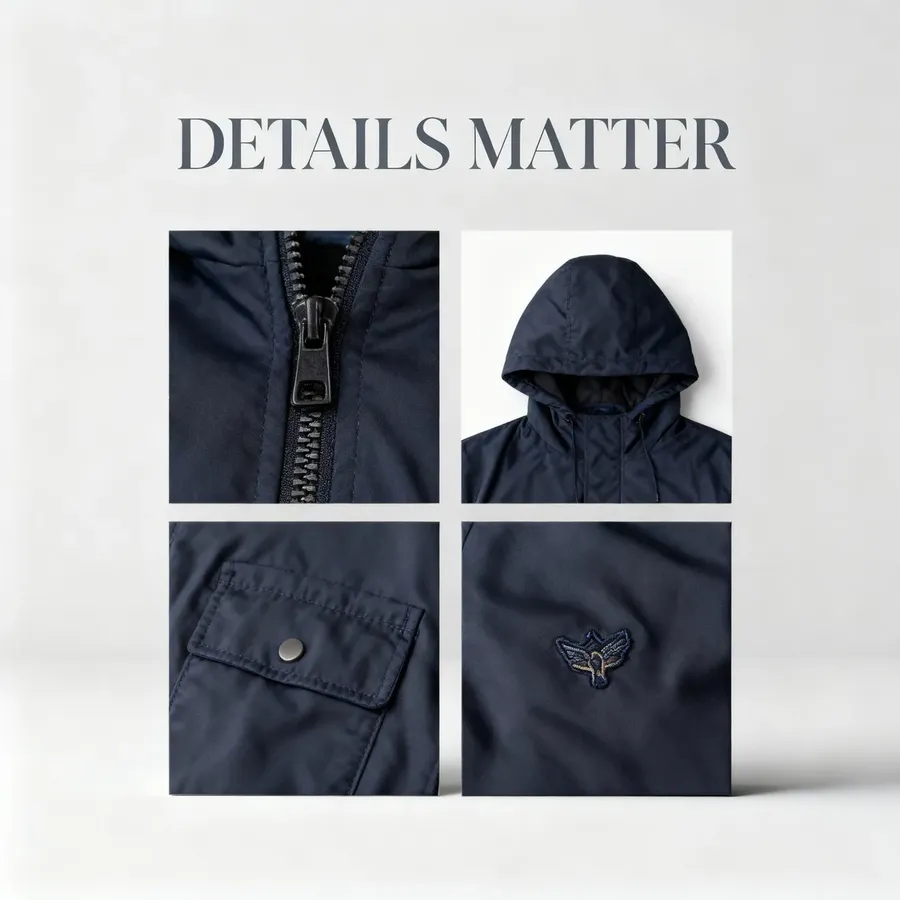
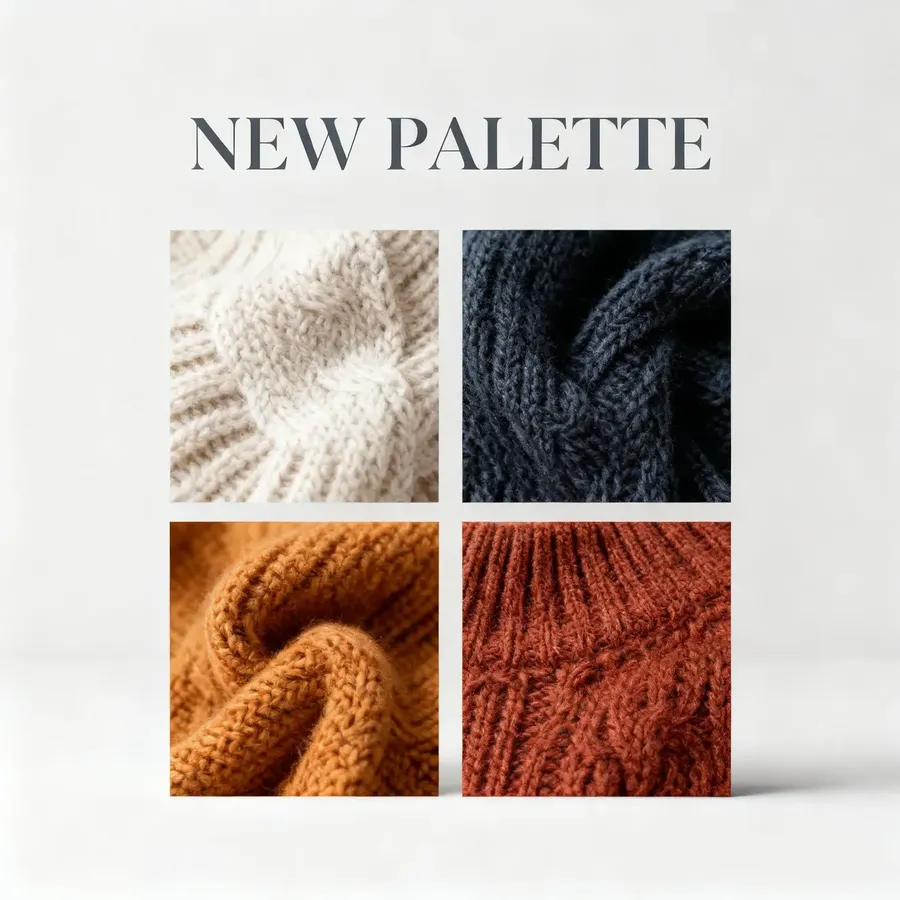
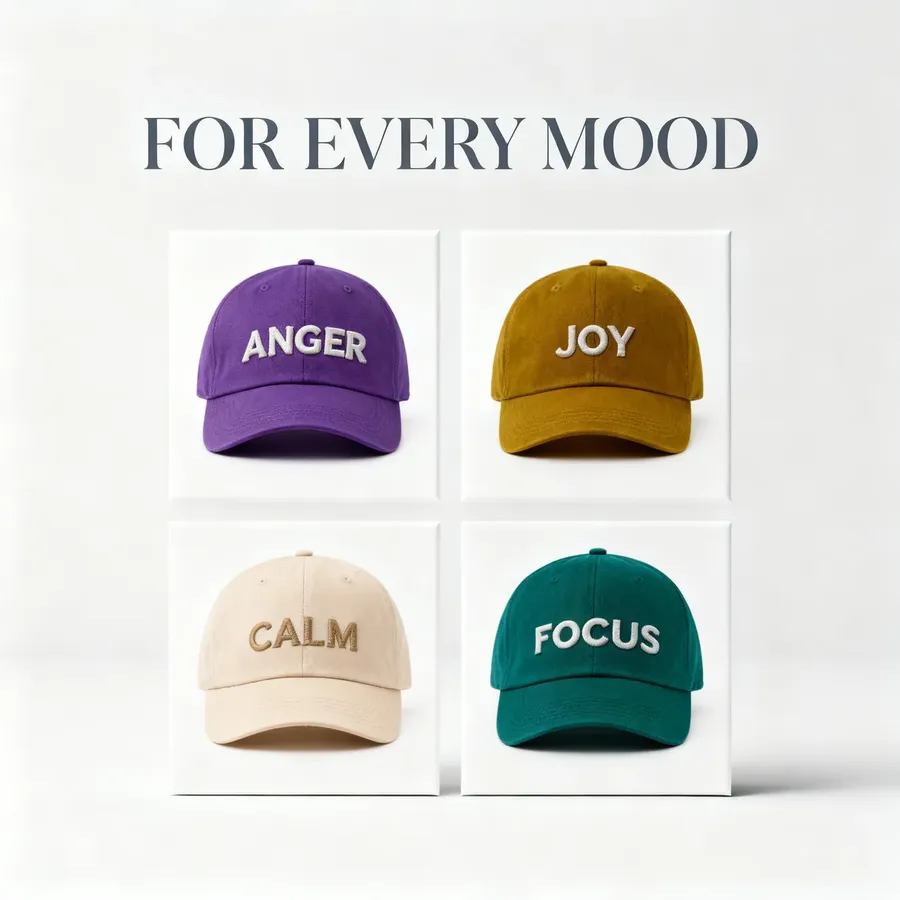
Reference Image
Example 1
Example 2
Example 3
You can attach several image references at once. The AI “looks” at them while generating, blending their details with your text prompt. How many you can attach depends on the model you generate with, and on Auto it follows whichever model Auto picks.
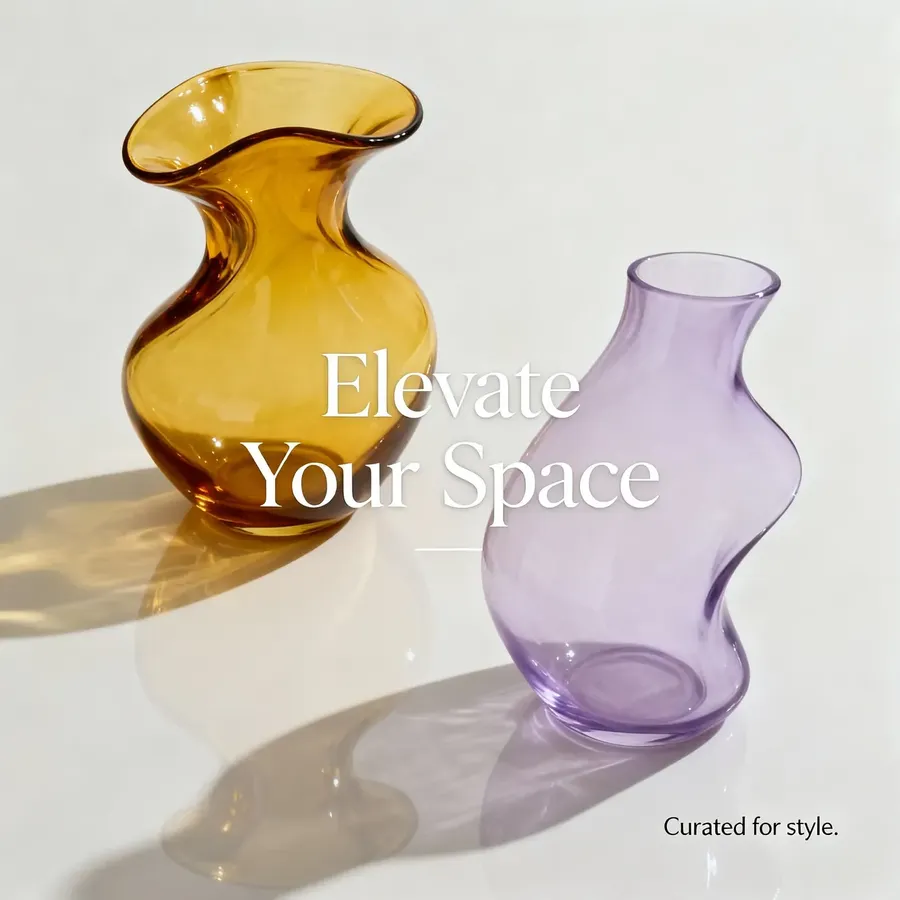
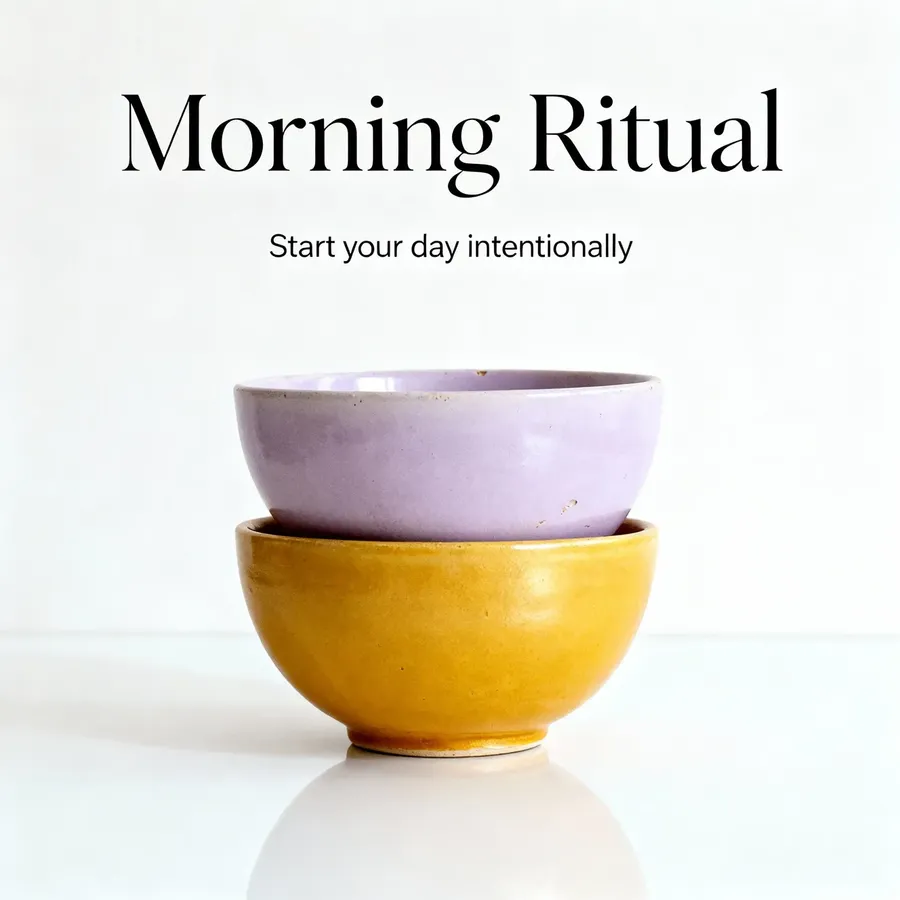
Reference Image 1
Reference Image 2
Example 1
Example 2
When mentioning references in prompts, you can refer to them by number, e.g.:
- portrait of the same person as in image 1, cinematic lighting, shallow depth of field
- product photo of the shoes from image 1, on the table from image 2
- character from image 1 wearing the outfit from image 2.
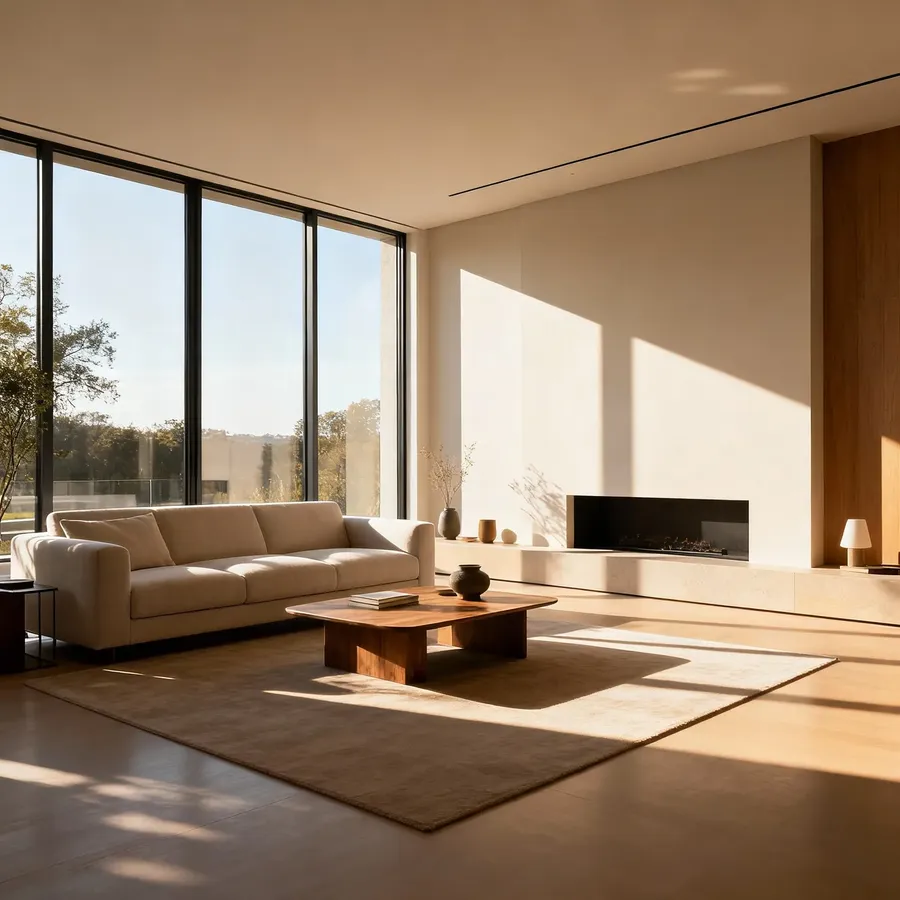
Reference Image 1
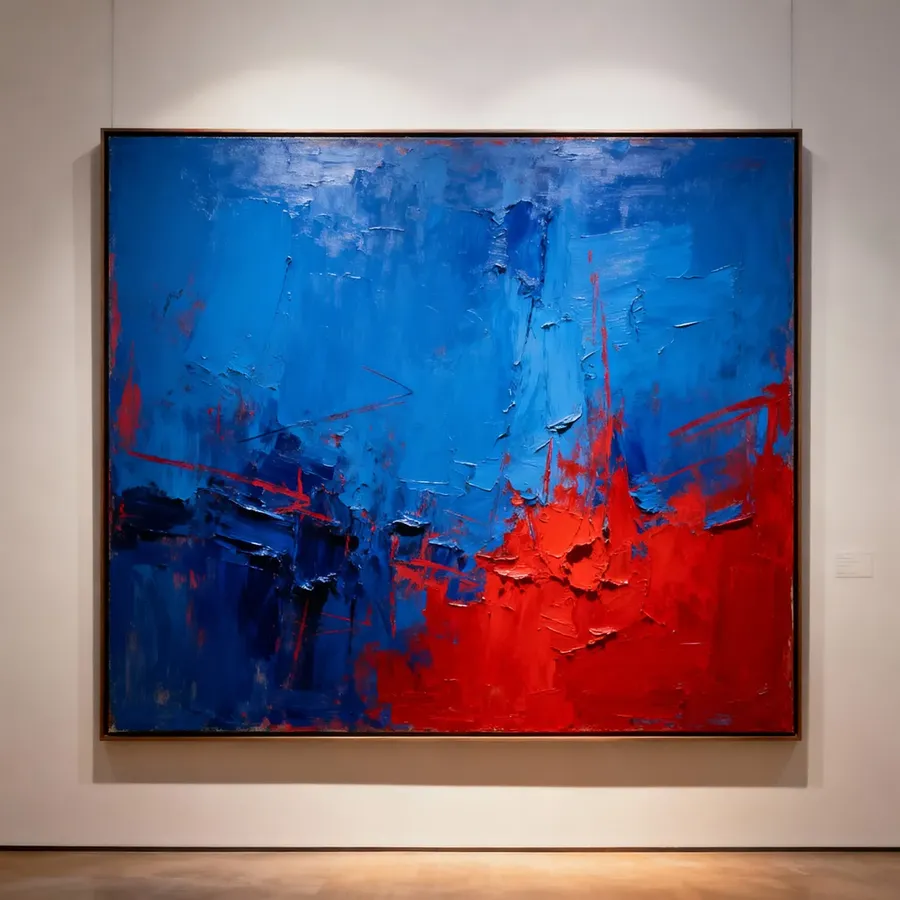
Reference Image 2
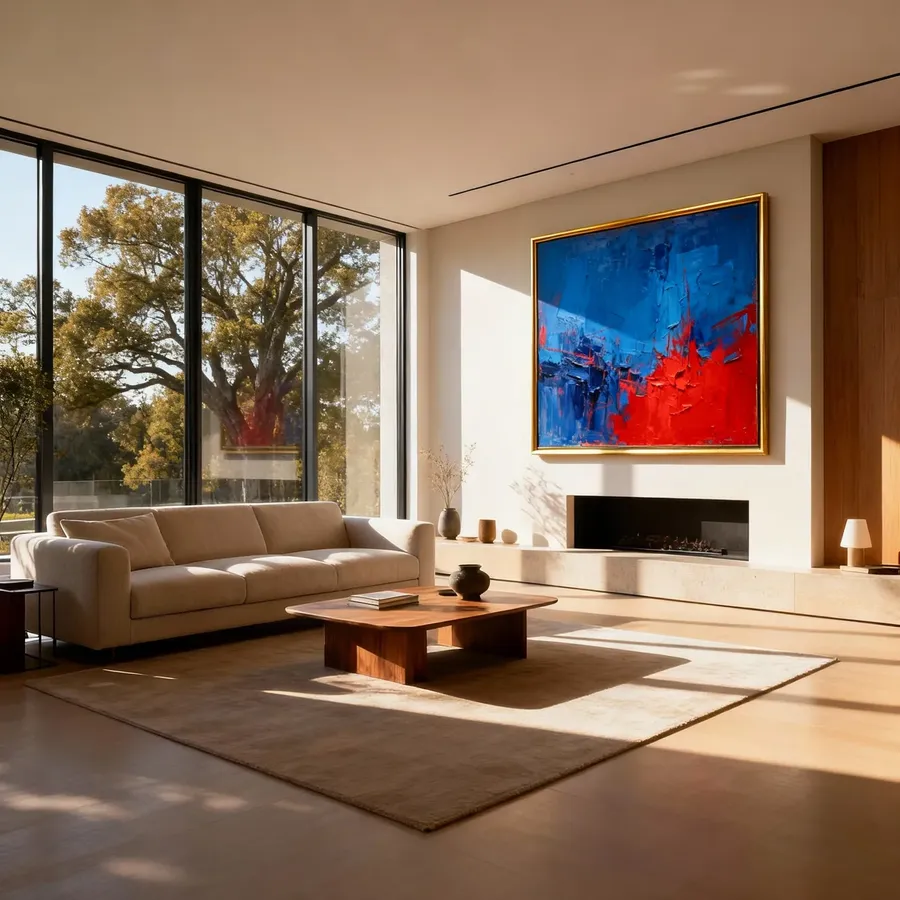
place the painting from image 2 above the fireplace in the room from image 1
How to Add Image References
There are several easy ways to add image references. First, log into getimg.ai, click "Image" in the toolbar, and open the Create image Action. Then:
- Click the "Reference" button in the top-left corner of the prompt box. Then, upload a file from your device or select existing image from your getimg.ai library.
- Drag and drop an image from the main gallery view directly into the prompt box.
Your selected references will appear above the prompt box as thumbnails. All you need to do is write a prompt and generate.
To remove a reference, hover over it and click the X in the top-right corner of the image.
In Teams, all uploaded and generated images are shared automatically, so everyone can use the same references when creating together.
Reusing Image References
If you open an image created with references, you’ll see small thumbnails of the references used at the bottom of the right-hand panel.
- Hover over any of them and click Use to add that reference to your current generation.
- Or press Use All to reapply every reference from that image at once.
This is great for continuing a series or making quick variations on an existing idea.
Reference images are one of the most powerful ways to steer AI generation. Try mixing a few and see how much more control you get over your results.
Frequently Asked Questions
When you attach multiple images, the AI assigns them numbers based on the order they are added. You can refer to them directly in your text prompt using "image 1," "image 2," etc. For example: "The character from image 1 wearing the outfit from image 2."
It depends on the model you generate with, so there is no single number that holds across getimg.ai. On Auto, the limit follows whichever model Auto picks for your prompt; to pin it down, choose the model yourself from the model button in the bottom left of the prompt box. However many you attach, they let you combine elements in one image, such as a specific face, a colour palette, a pose and a background style.
Yes. This is one of the primary uses of references. Upload a clear photo of a person's face (or a character sheet) as a reference. Then, in your prompt, ask for "the person from image 1." This helps the AI generate that specific character in different poses or environments.
If you want to recreate the style of a previous generation, open that image in the full view. On the right-hand panel, you will see thumbnails of the original references used. Click "Use" to add a single one, or "Use All" to instantly attach all original references to your new prompt.
Yes. If you are working inside a Team, all uploaded and generated images are visible to other members. This allows your team to share asset libraries (like brand colors or product photos) and use the exact same references for consistent collaboration.