How to Put a Person into a Scene with AI
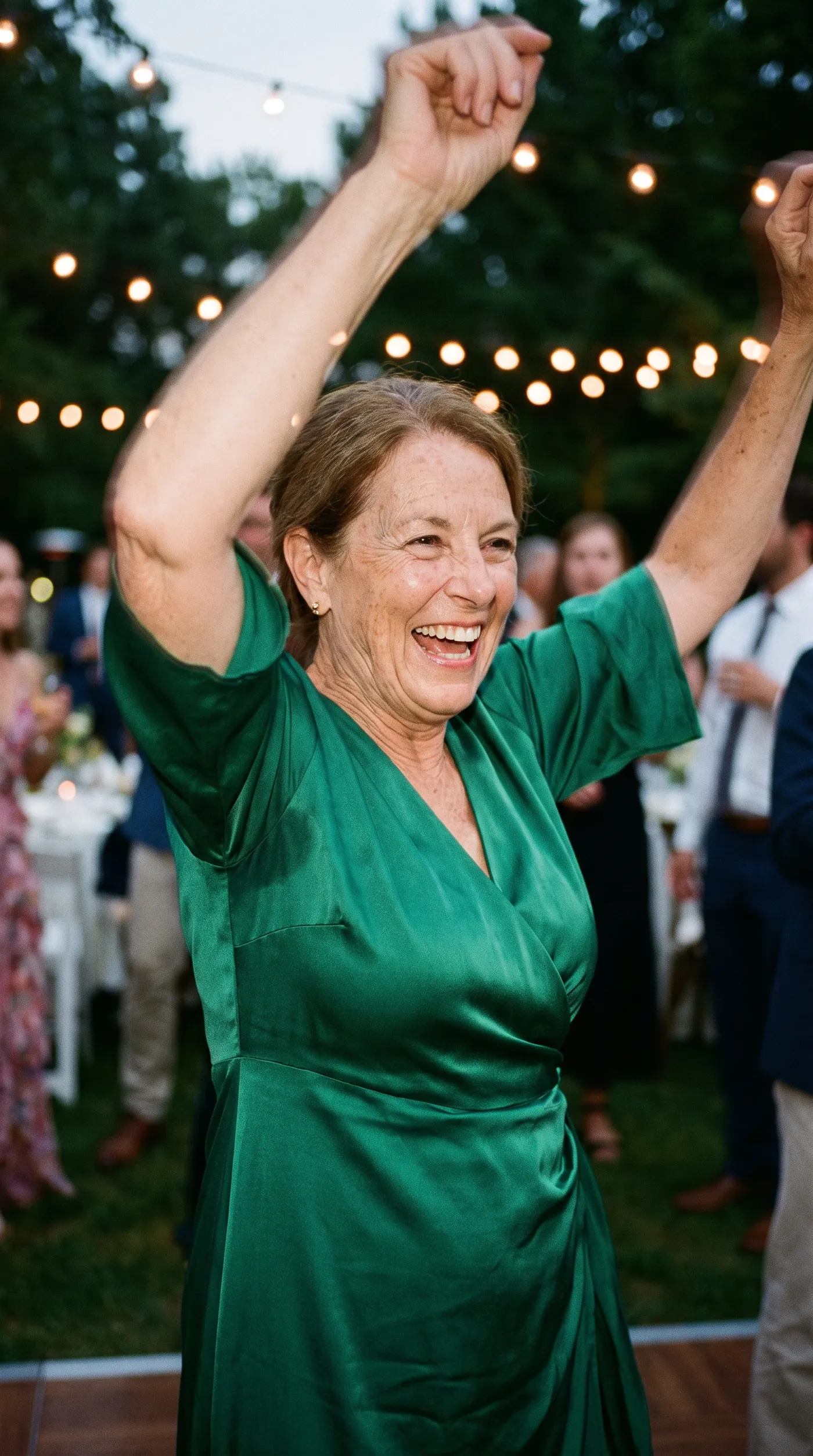
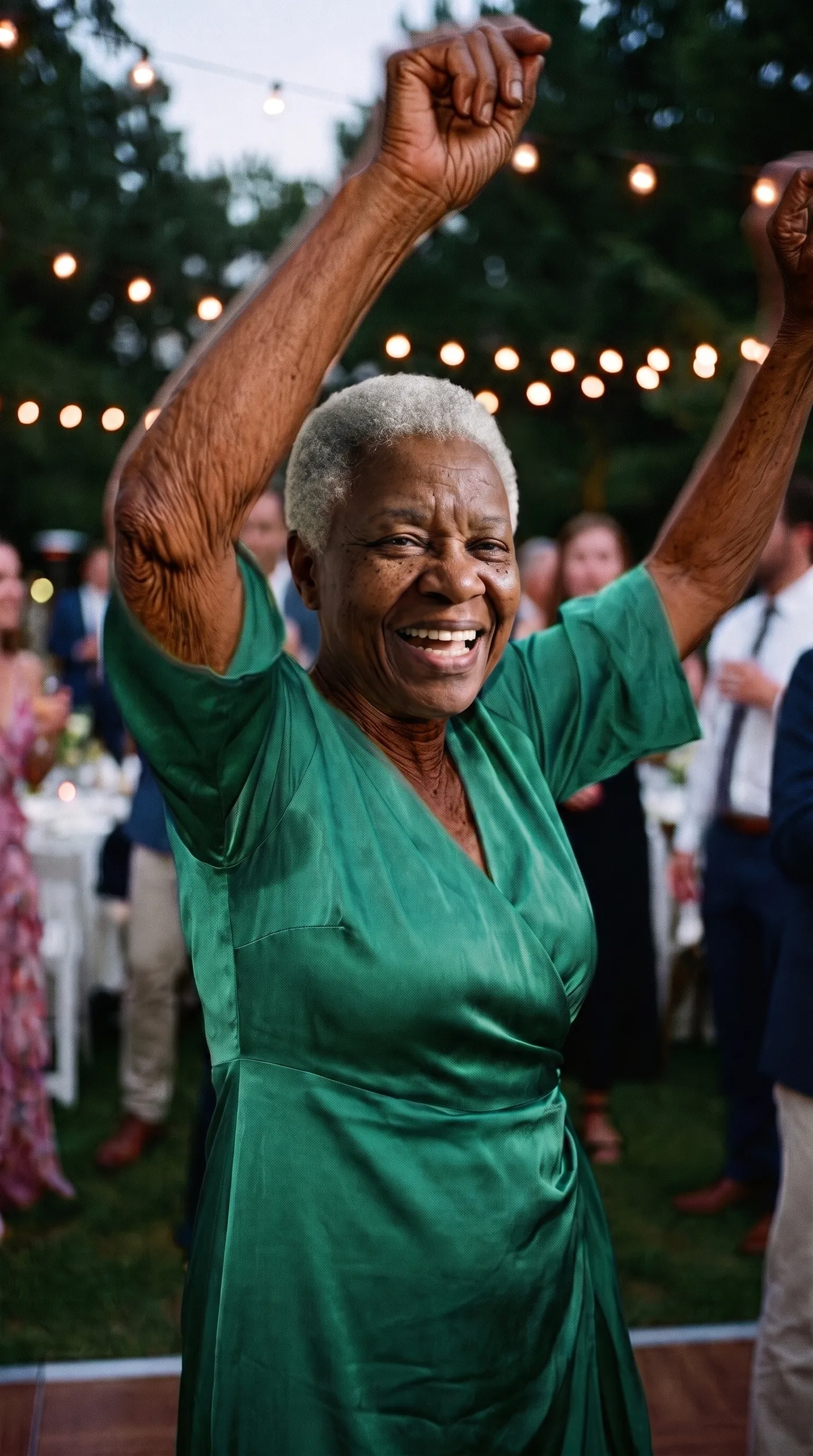
Putting a person into a scene with AI means taking an existing image, its pose, clothing, and background, and replacing the person in it with someone else. The scene stays exactly as it was; only the person changes. You add the scene you want to keep and a clear photo of the person to place into it, and the model composites them in. On getimg.ai the Character swap Action does this from two images, with no masking or compositing by hand.
TL;DR
- Character swap keeps a scene's pose, clothing, and background and replaces the person in it with someone else.
- In getimg.ai, open the Character swap Action, add the scene to keep and a clear photo of the person to place in it.
- Set the quality to 2K or 4K and generate.
- A clear, well-lit photo of the person and a scene with a similar pose and angle give the most convincing result.
- Only swap people who have consented; use it for your own projects, models, and team, not to impersonate or mislead.
What Character Swap Is
Sometimes the scene is already right, the pose, the outfit, the setting, the lighting, and the only thing you need to change is who is in it. Reshooting to change the person means rebuilding everything else too. Compositing a new person in by hand is skilled work: cutting them out, matching the lighting and colour, and blending the edges so it does not look pasted.
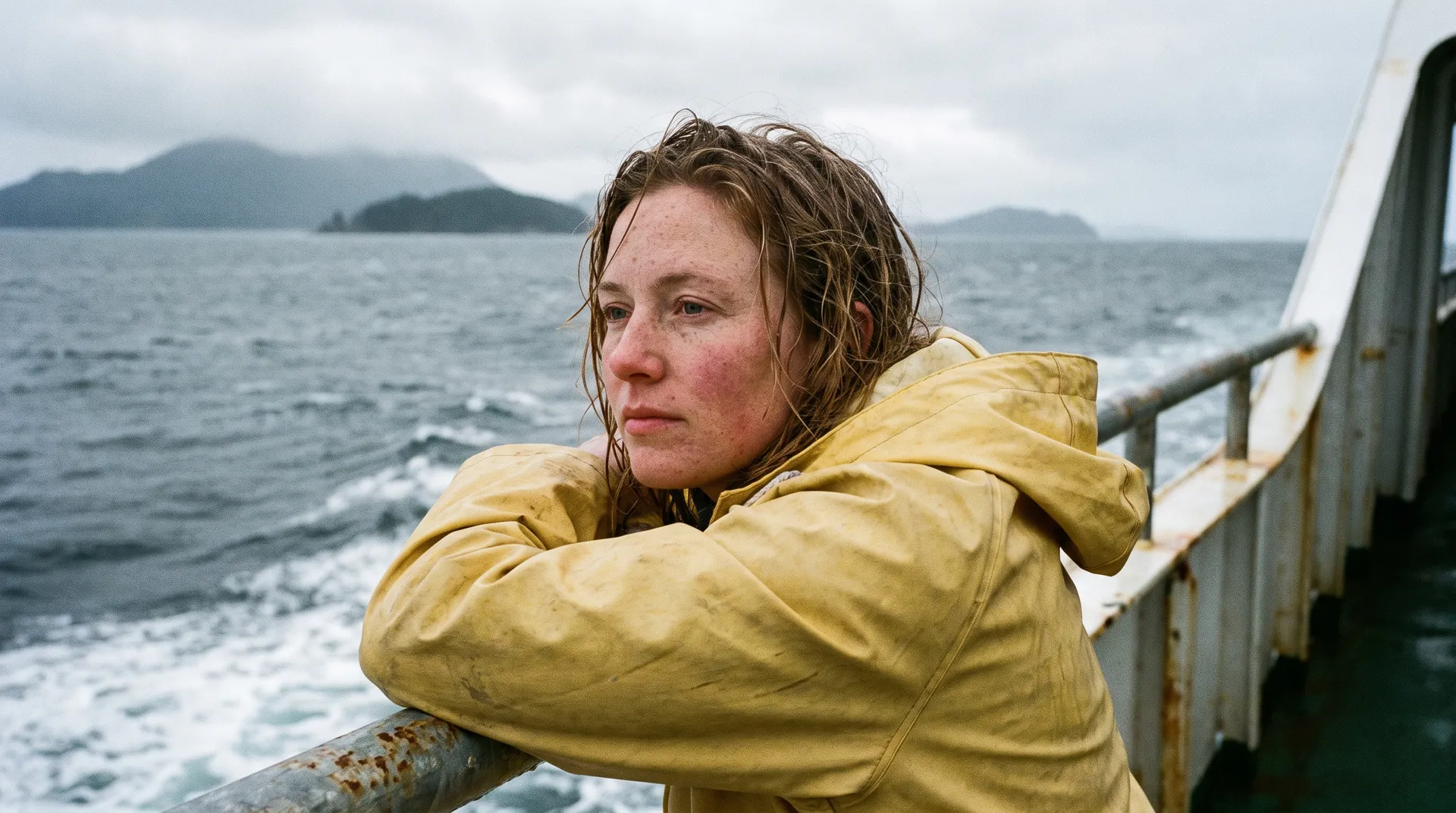
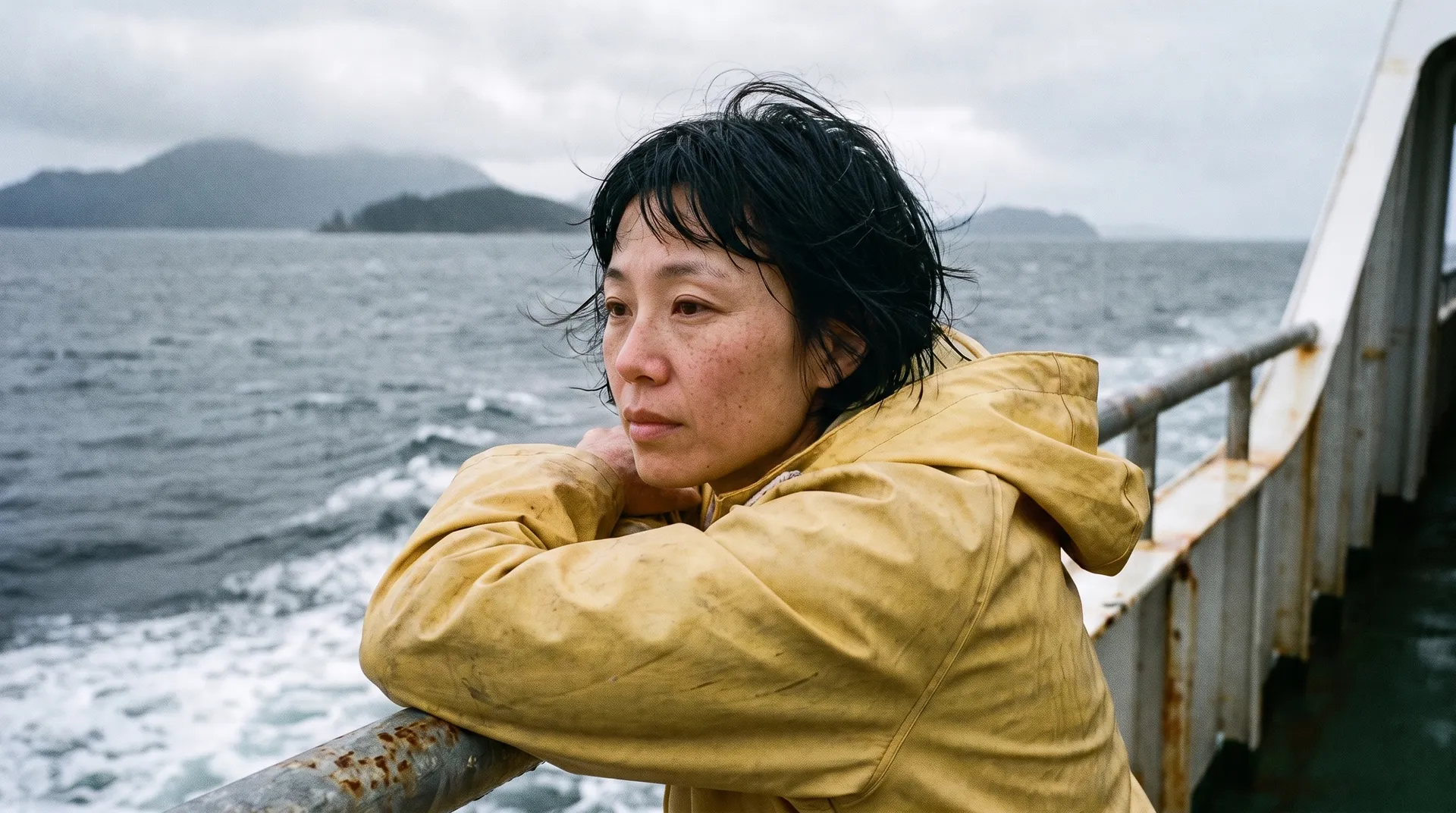
Character swap does the composite for you. It reads the scene you want to keep and the person you want to place into it, then re-renders the person in the scene's pose and lighting so they belong there. The result is the same image with a different subject: the clothing, the background, and the moment are preserved, and the face and figure are the person you supplied.
When to Use It (and When to Reshoot)
Character swap fits situations where the scene is fixed and the person is the variable:
- Model and stand-in swaps, placing a chosen person into a shot built around a pose and setting.
- Personalised creative, putting yourself or a client into an existing concept or template.
- Consistent casting, keeping a scene and changing who appears in it across a series.
- Concept and previz, showing how a specific person would look in a planned shot before committing to a full production.
Reshooting still wins when the person and the scene need to genuinely match in ways a swap cannot fake, such as complex interaction with objects or other people, or when authenticity is essential. And a swap is only as good as the fit between the person's photo and the scene's pose and angle: a front-on photo dropped into a profile pose is a hard ask. When the two are far apart, capturing the person in the right pose is the better route.
How to Swap a Person into a Scene, Step by Step
Here is the workflow in getimg.ai. Open the Character swap Action to follow along. It takes two inputs.
1. Add the scene to keep
Add (upload or choose) the image whose pose, clothing, and background you want to preserve. Everything except the person will carry through to the result, so pick a scene that is already how you want the final image to look.
2. Add a photo of the person
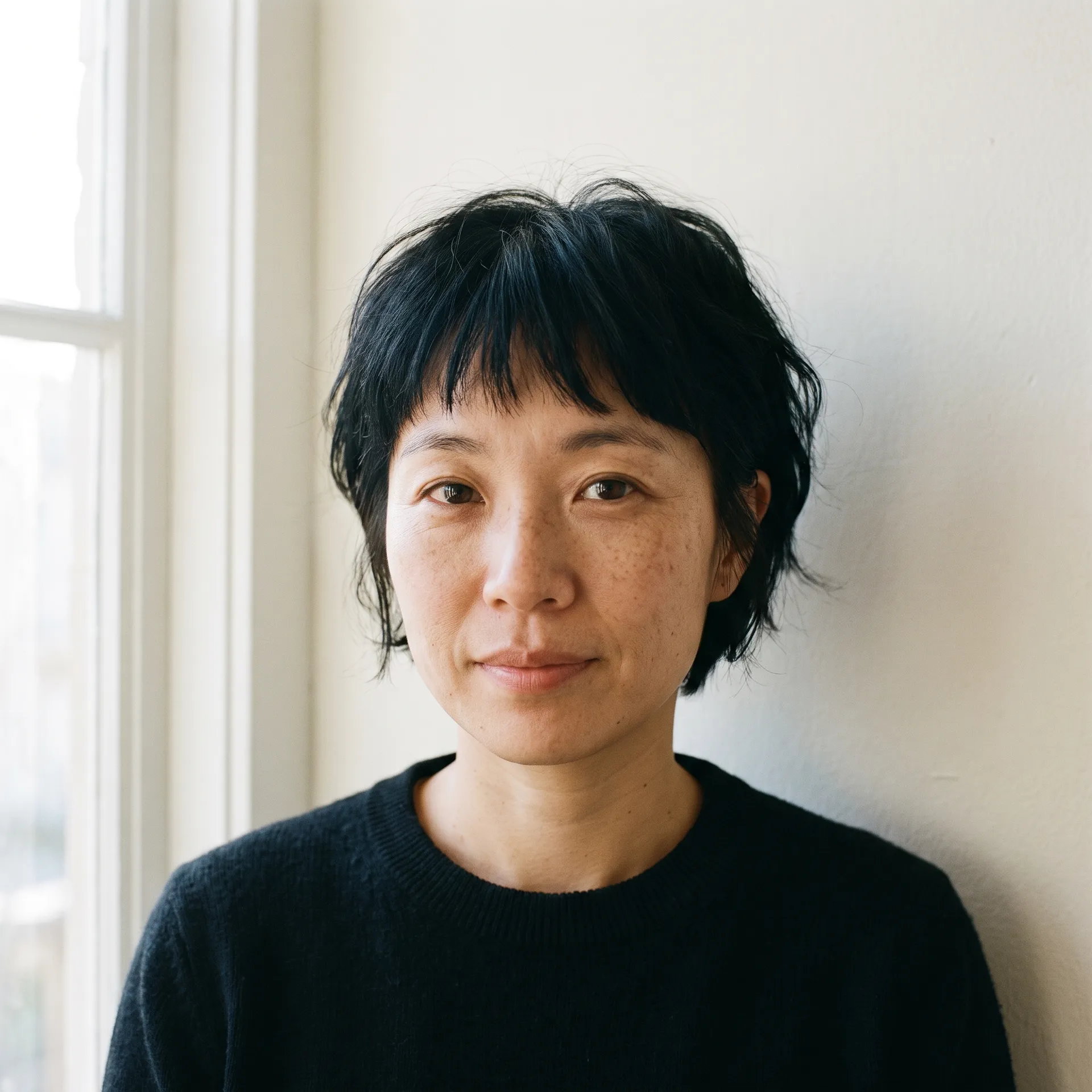
Add a clear photo of the person you want to place into that scene. As with any face-based tool, a sharp, well-lit, front-facing photo gives the model the most to work with and produces the most convincing likeness.
3. Set the quality and generate
Choose an output resolution of 2K or 4K, then run the Action. The result appears in the gallery to the right of the controls. Both source images are left untouched, so you can try a different person photo or a different scene and compare.
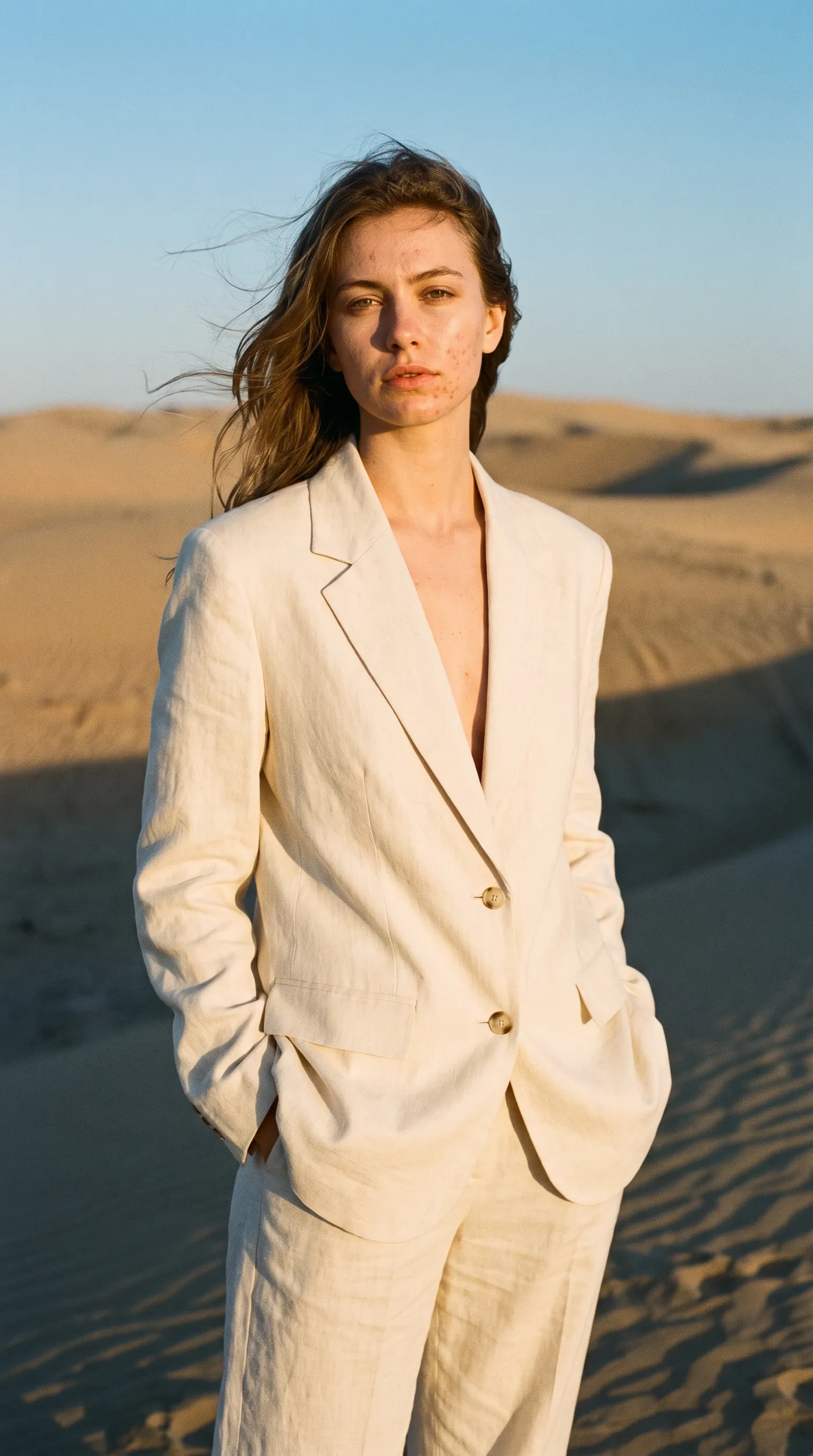
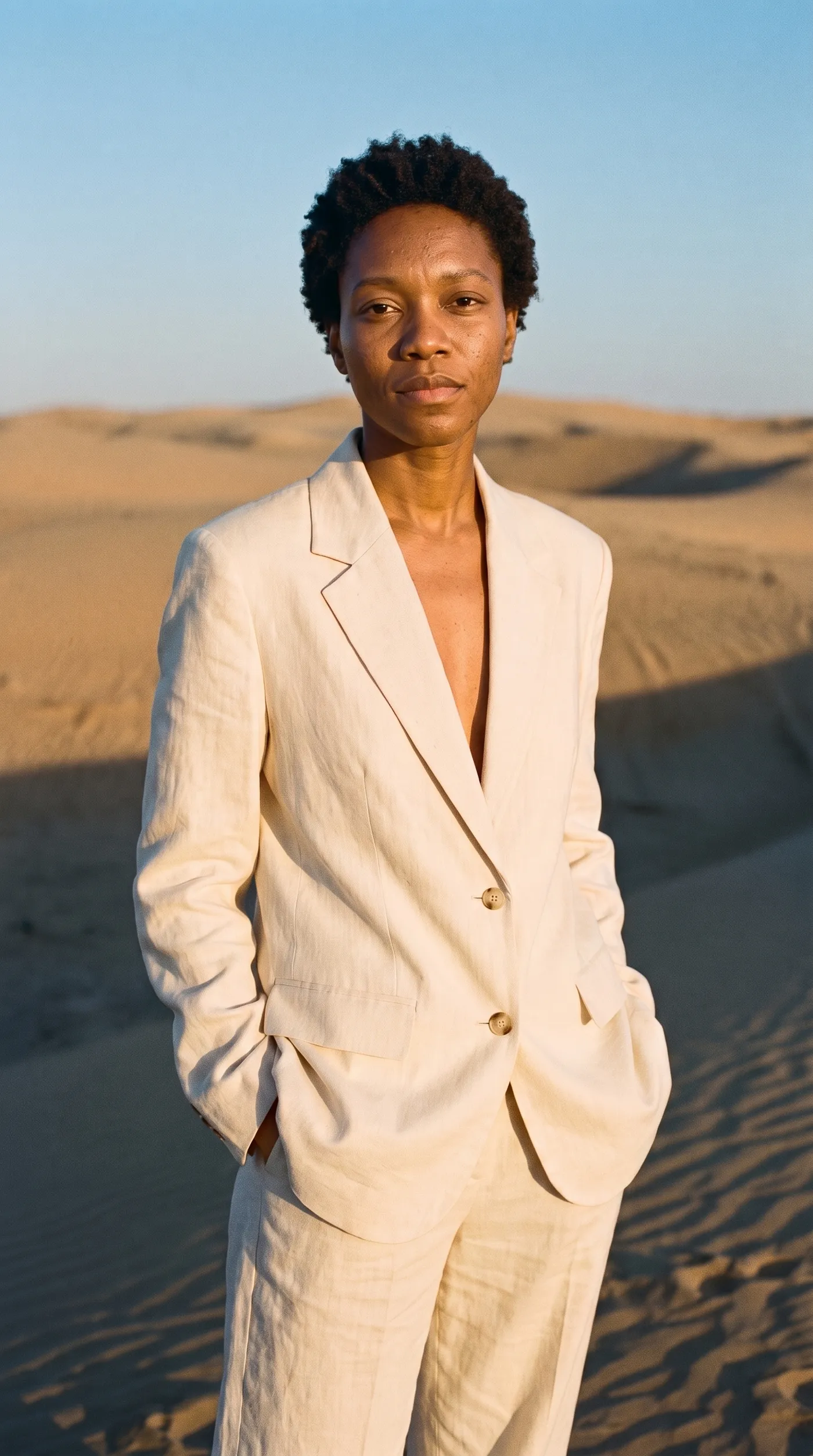
How to Get a Convincing Swap
- Match the pose and angle. The closer the person's photo is to the scene's pose and camera angle, the more believable the swap. A person photographed from a similar viewpoint composites far more naturally than one from a very different angle.
- Use a clear photo of the person. A sharp, evenly lit, front-facing photo preserves the likeness. Blur, shadow, or an extreme angle gives the model less to work with.
- Mind the lighting. Swaps read best when the person's photo and the scene share a broadly similar light direction and warmth, so the composited person does not look lit differently from their surroundings.
- Check hands and edges. As with any composite, glance at where the person meets the scene and at any visible hands; these are the usual places a swap shows, and a second attempt often improves them.
- Generate at high quality for final use. Use 4K when the image will be published or printed, so the swapped person carries the same detail as the scene.
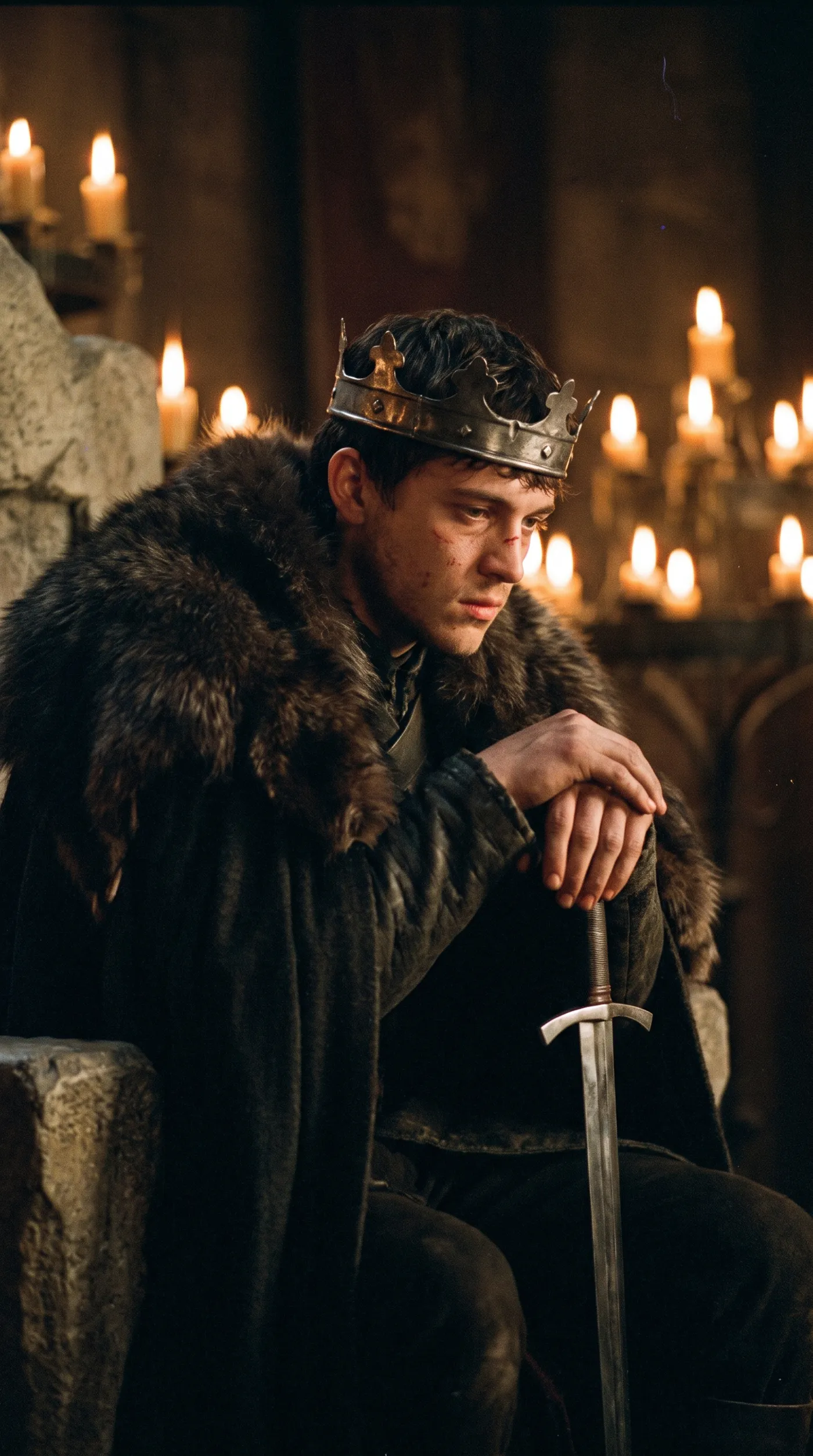
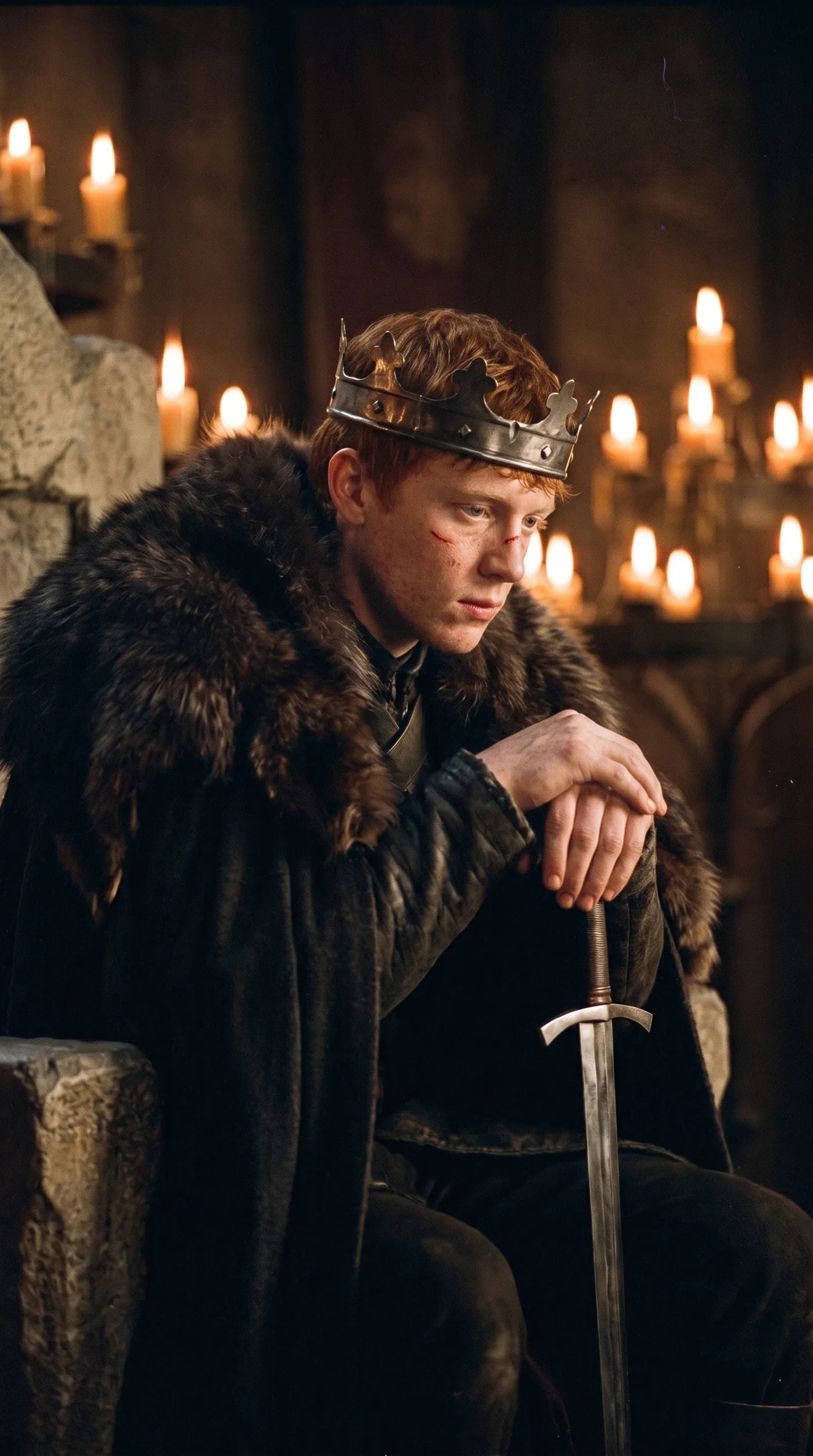
Using Character Swap Responsibly
Because this tool changes who appears in an image, it comes with responsibility. Only swap in people who have agreed to it: yourself, your clients, your models, or your team. Do not use it to place someone into a scene without their consent, to impersonate a real person, or to create misleading images. This is both an ethical line and, in many places, a legal one around likeness and publicity rights. Used within those bounds, it is a fast way to personalise and cast your own creative work. For building an original person who is not based on anyone real, the Character creator Action is the better starting point, and getimg.ai's consistent character tools keep a chosen person consistent across many images.
The Bottom Line
Character swap keeps a scene and changes the person in it: add the shot you want to preserve and a clear photo of the person, and the model composites them into the pose, clothing, and lighting already there. The most convincing swaps come from matching the person's photo to the scene's pose and light, and from using it only with people who have consented.
Open the Character swap Action in getimg.ai, bring a scene you like and a clear photo, and see the person land in it. Commercial rights are included, subject to our terms and applicable third-party rights.
Frequently Asked Questions
It keeps the scene: the pose, the clothing, and the background of the image you add as the scene. It changes the person, replacing them with the one in the photo you supply. The result is the same shot with a different subject, re-rendered so the new person matches the scene's pose and lighting.
A clear, well-lit, front-facing photo of the person, and a scene whose pose and camera angle are broadly similar to that photo. The closer the two match in viewpoint and lighting, the more natural the composite. Very different angles or poor lighting make a convincing swap harder.
No. Character swap is intended for legitimate creative use with people who have consented, such as placing yourself, a client, a model, or a team member into a scene. Using it to impersonate someone, to swap in a person without their permission, or to create misleading images is against our terms and, in many places, against the law. Use it only within those bounds.
For repeated use of one person across many images, getimg.ai's consistent character tools store a person as a reusable reference so they stay recognisable from scene to scene. Character swap places a person into one scene at a time; the consistency tools are what carry a character across a whole series.
You can generate at 2K or 4K. Use 4K when the final image will be published or printed, so the swapped person holds the same detail as the rest of the scene.
Commercial rights are included, subject to our terms and applicable third-party rights. You are responsible for holding the rights and consent for both the scene and the person, including likeness and publicity rights, before using a swap commercially.
Related Articles