How to Make Stickers from a Photo with AI

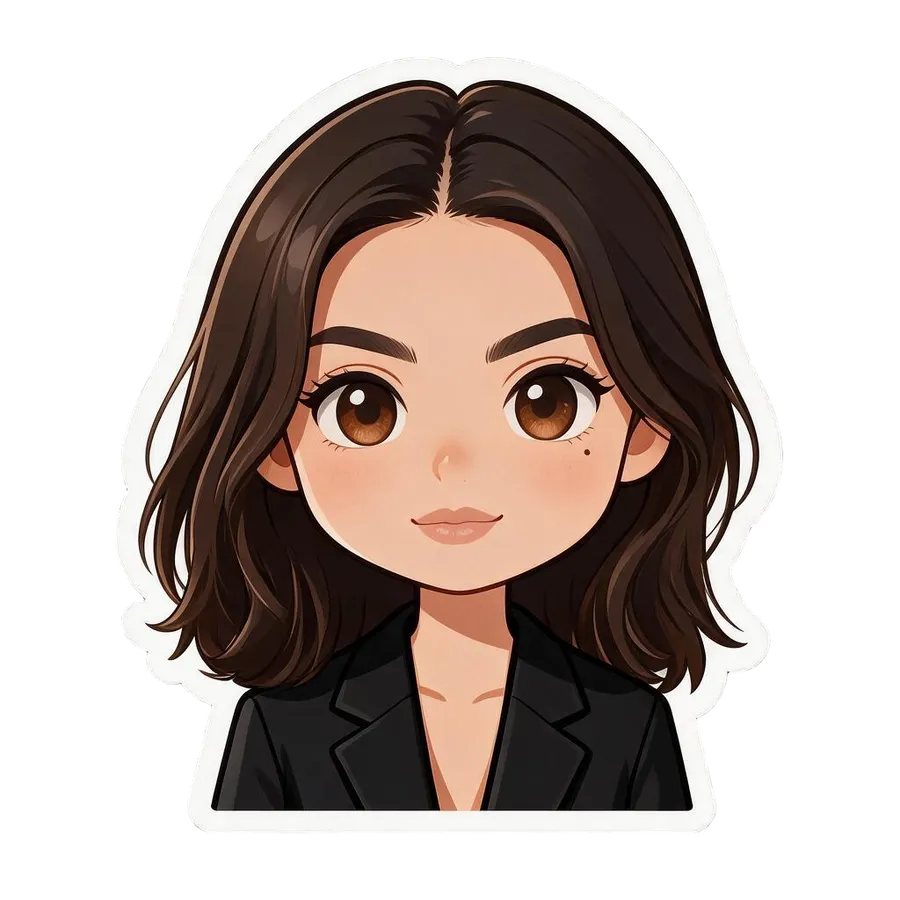
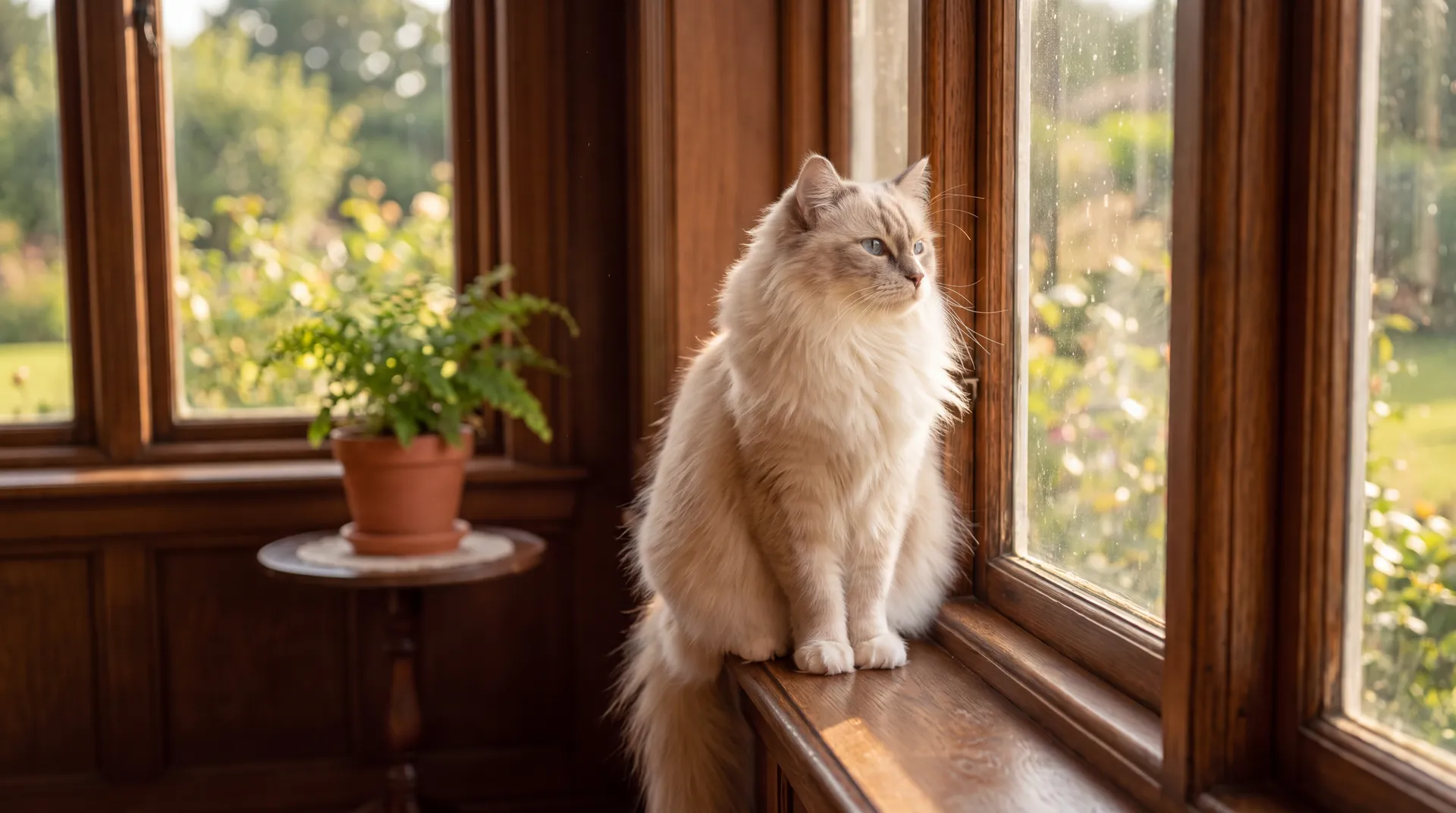
Making a sticker with AI turns a photo of a subject into a stylised graphic: a pet, a face, or a product redrawn as a kawaii character, a bold-outline cartoon, a vinyl toy, or a pixel-art icon. You add a close-up, well-lit photo of one subject, choose a style, and the model redraws it as a sticker. On getimg.ai the Sticker maker Action does this from a single photo, with a set of styles to pick from and no drawing required.
TL;DR
- AI sticker making redraws a subject from a photo into a stylised sticker.
- In getimg.ai, open the Sticker maker Action, add a close-up, well-lit photo of one subject, and choose a style.
- Styles include kawaii, bold outline, chibi, shoujo, retro anime, 3d cartoon, vinyl toy, glossy emoji, 3d clay, pixel art, and watercolor.
- A single, clearly separated subject on a simple background gives the cleanest sticker.
- It never overwrites your original photo.
What an AI Sticker Is
A sticker is a subject reduced to its essentials and given a strong graphic style: clear shapes, a defined edge, and enough character to read at small size. Making one by hand means illustration work, redrawing a photo in a chosen style and cleaning up the outline, which is a real skill and a real time cost, especially for a set.
AI sticker making does the illustration for you. The model reads the subject in your photo, keeps what makes it recognisable, and redraws it in the style you choose, from a soft kawaii character to a chunky vinyl toy. Because a sticker is meant to be a stylised version rather than a literal copy, this is a task AI suits well: the goal is a charming, on-style graphic, not a photographic likeness.






When to Use It (and When to Commission an Illustrator)
Sticker making fits any time you want a fun, stylised graphic quickly:
- Chat and social stickers, turning a pet, a friend, or yourself into a set for messaging or a feed.
- Brand mascots and merch concepts, sketching a character direction before committing to production art.
- Content and community assets, like reactions, emotes, or profile graphics for a creator or a group.
- Product stickers, redrawing an item as a playful icon for packaging or promotion.
Commissioning an illustrator still wins when the sticker is a core brand asset that needs to be perfectly on-brand, ownable, and consistent across a large, evolving set, or when you want a truly original character rather than a stylised photo. AI covers the fast, fun, and exploratory end: personal stickers, concepts, and quick sets, without commissioning an illustrator for each one.
How to Make a Sticker with AI, Step by Step
Here is the workflow in getimg.ai. Open the Sticker maker Action to follow along.
1. Add a photo of one subject
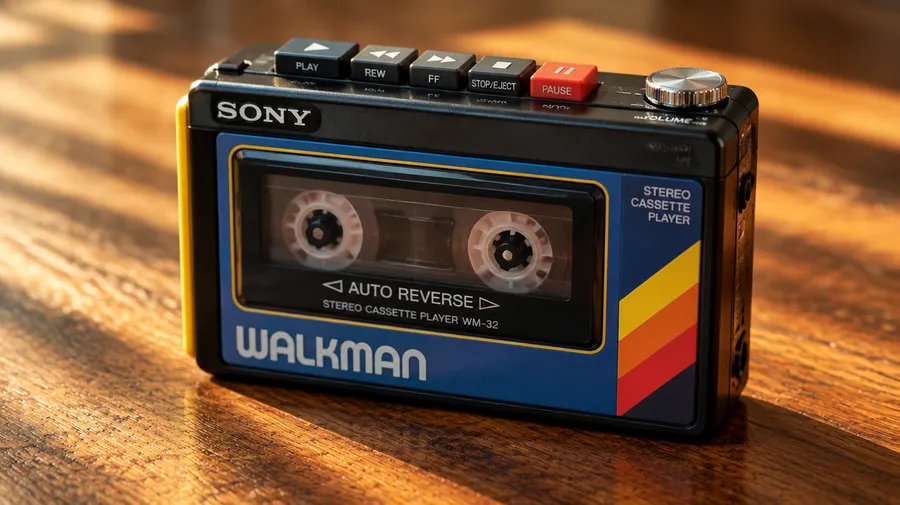
Upload a close-up, well-lit photo with a single clear subject, or pick one from your library. A sticker is about one thing, so a photo where the subject fills the frame and stands out from the background gives the model the cleanest shape to redraw.
2. Choose the style
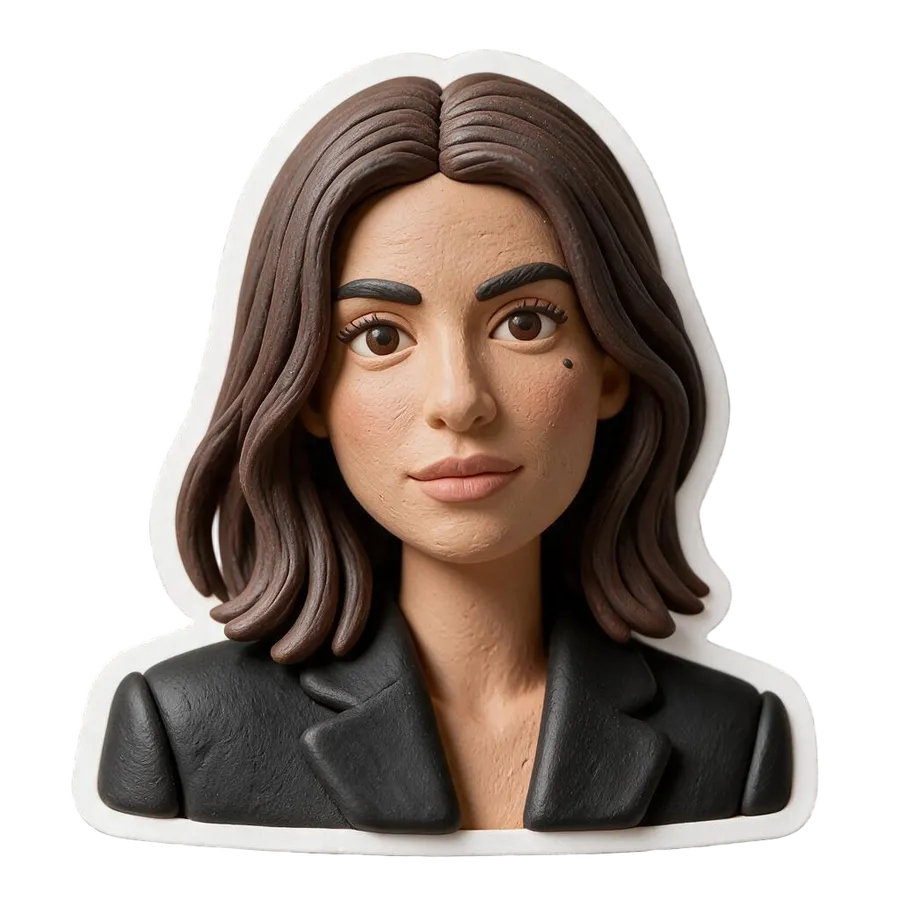
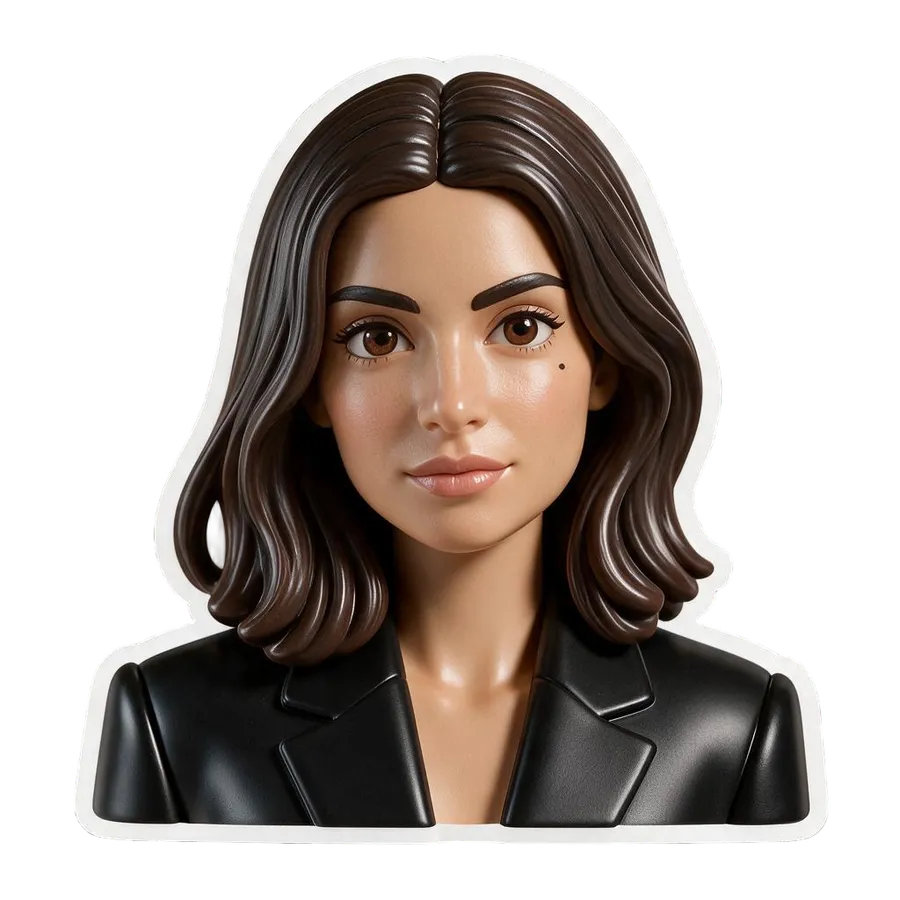
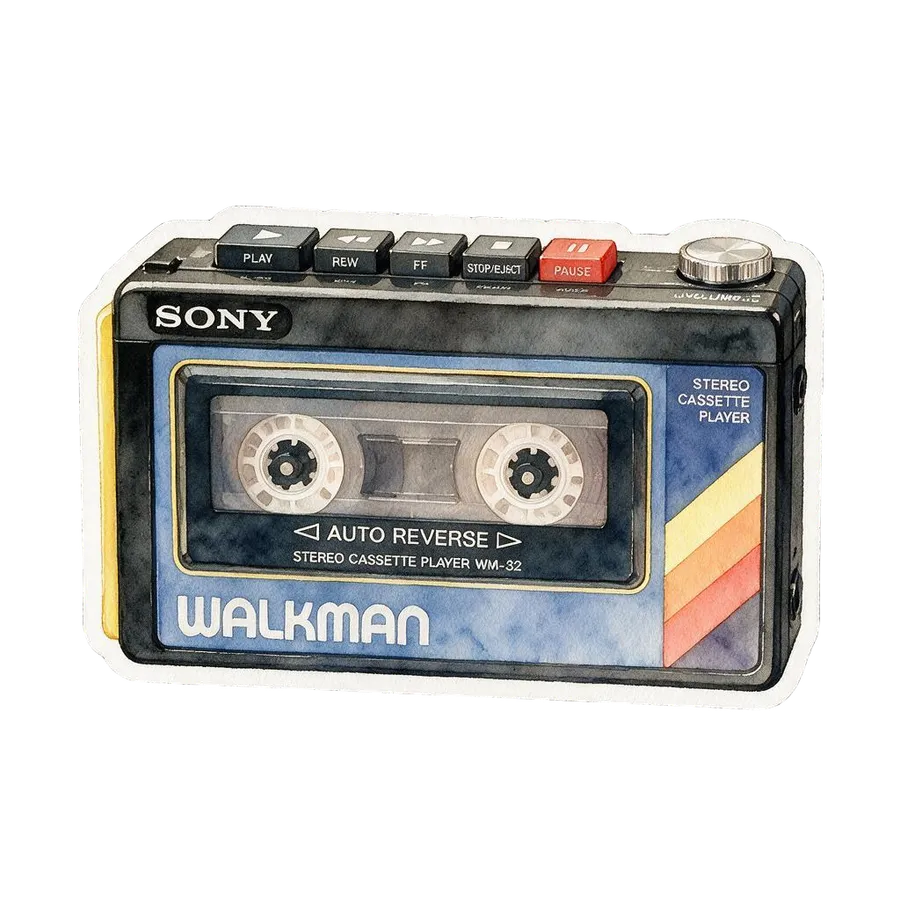
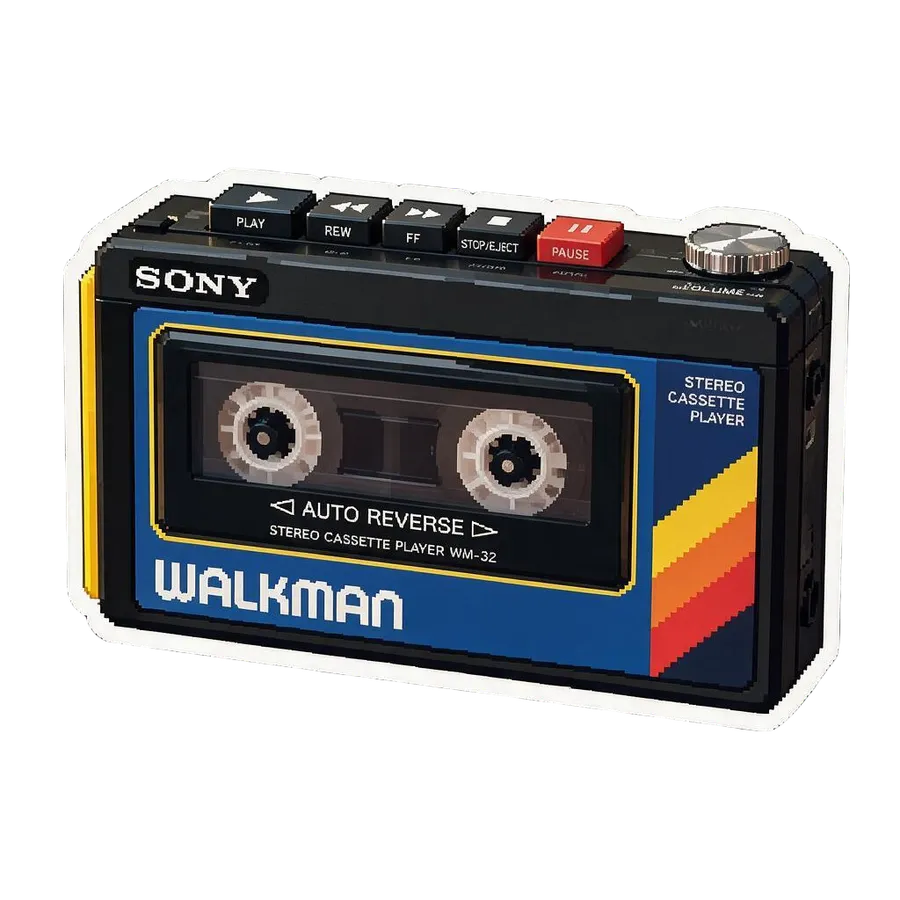
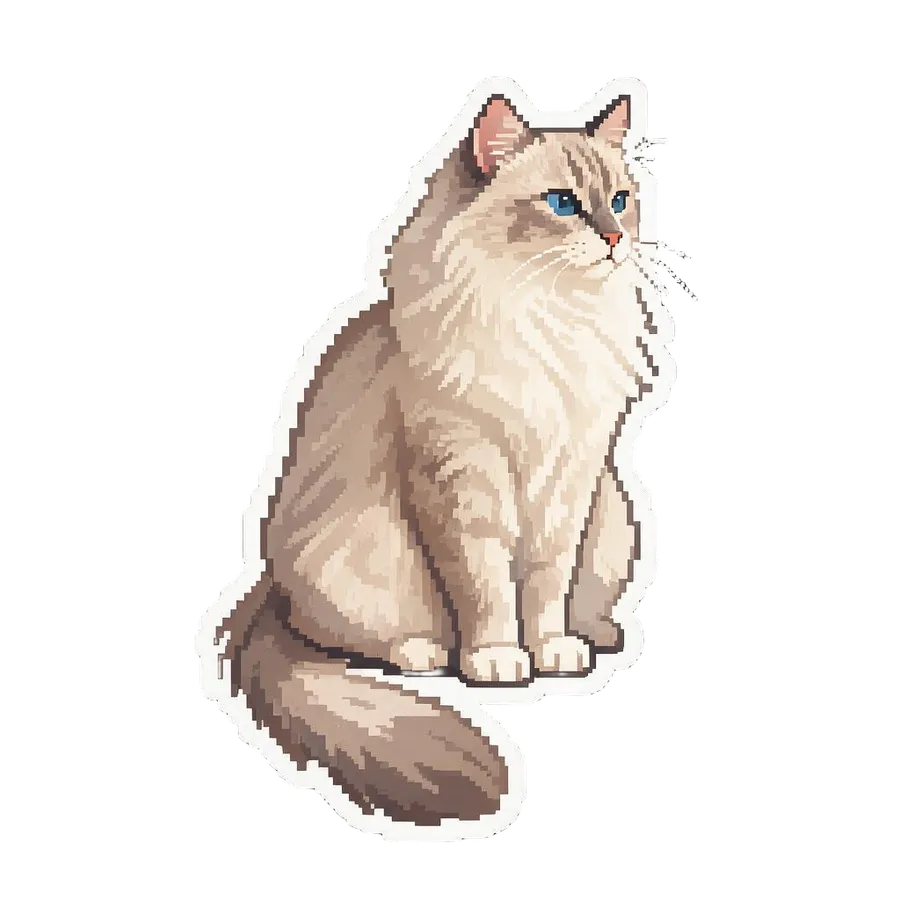
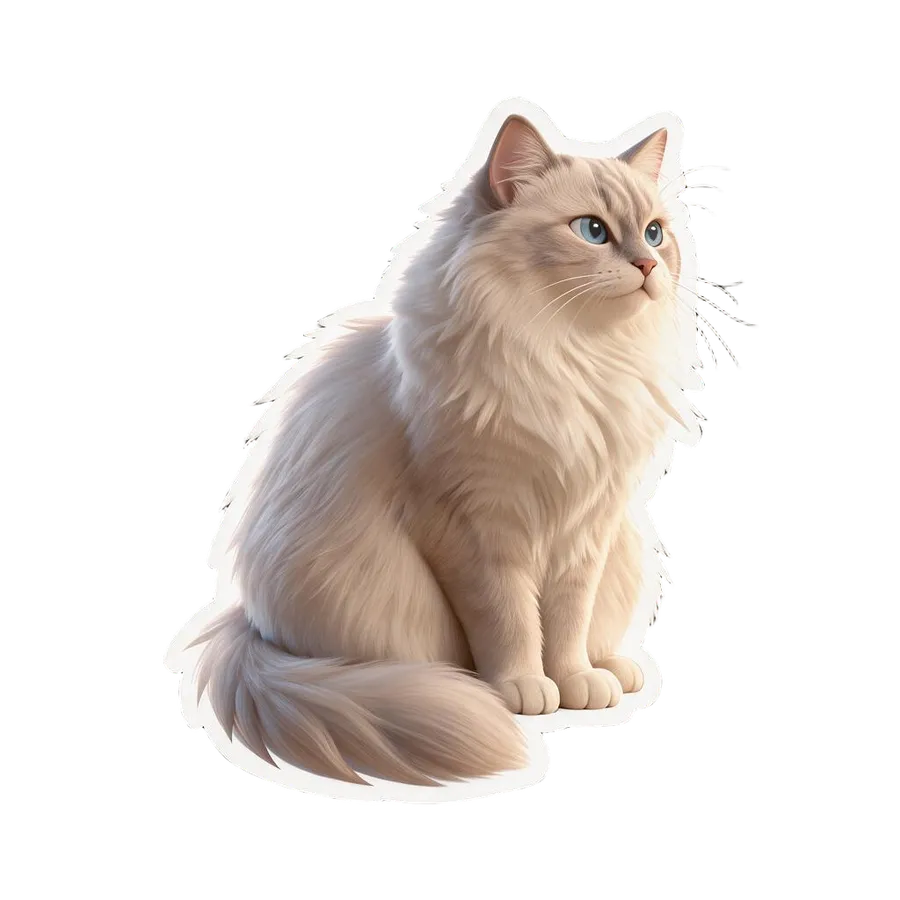
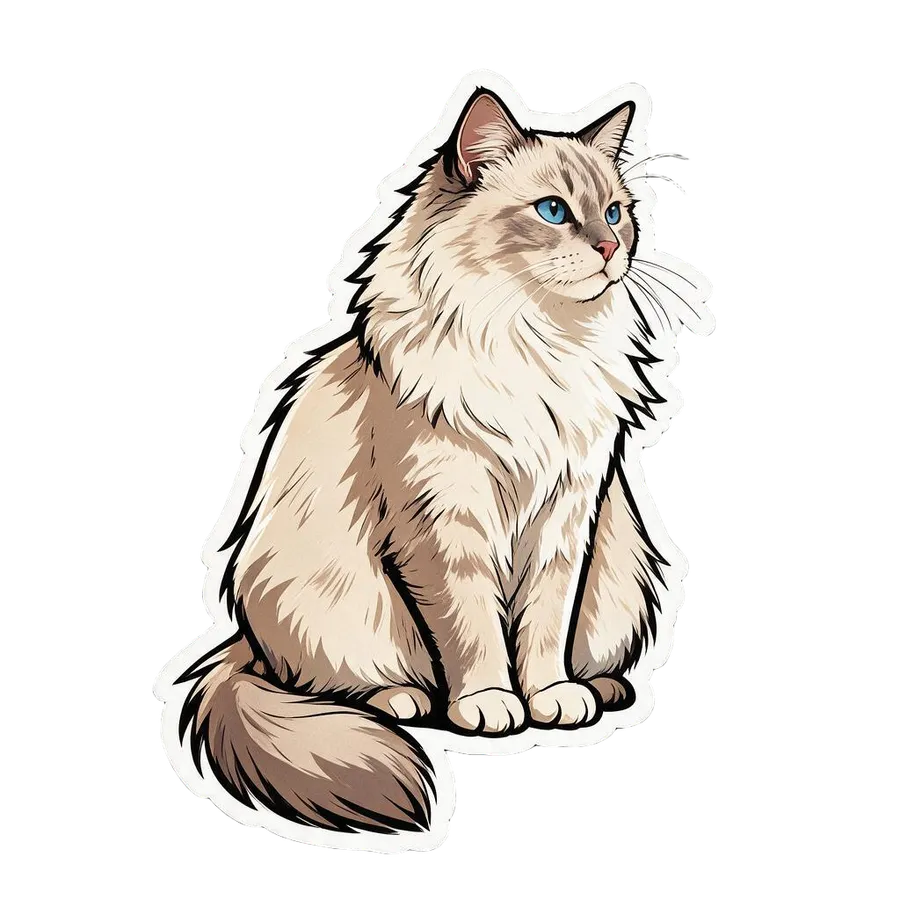
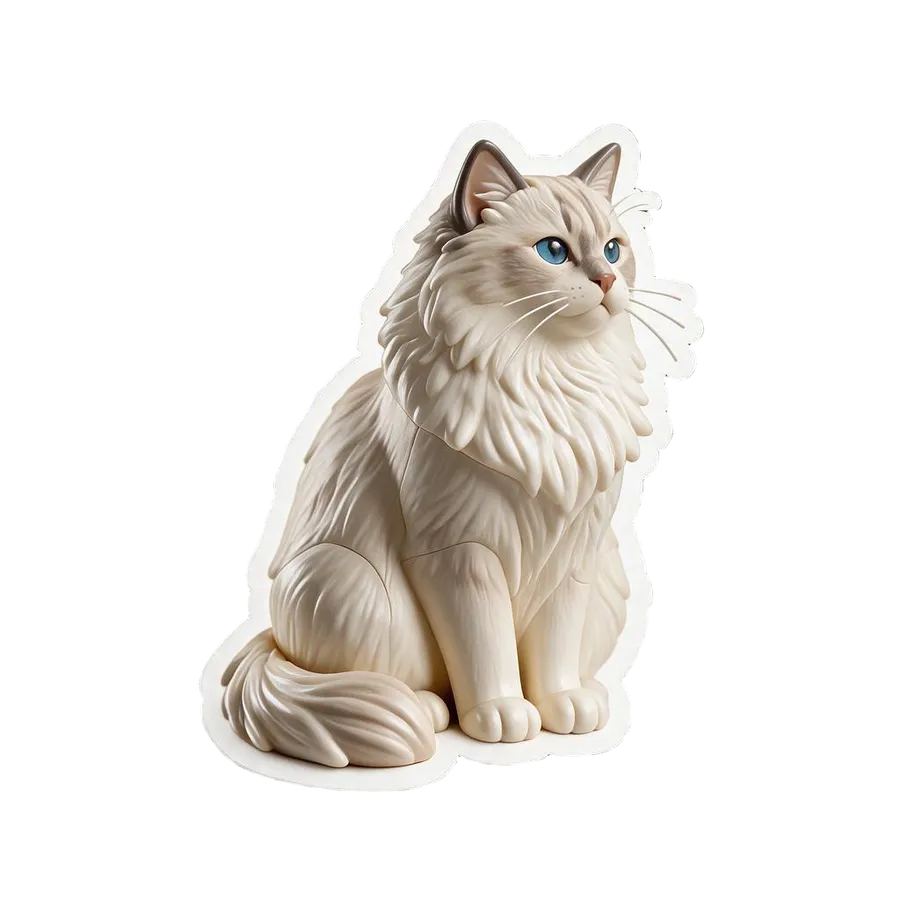
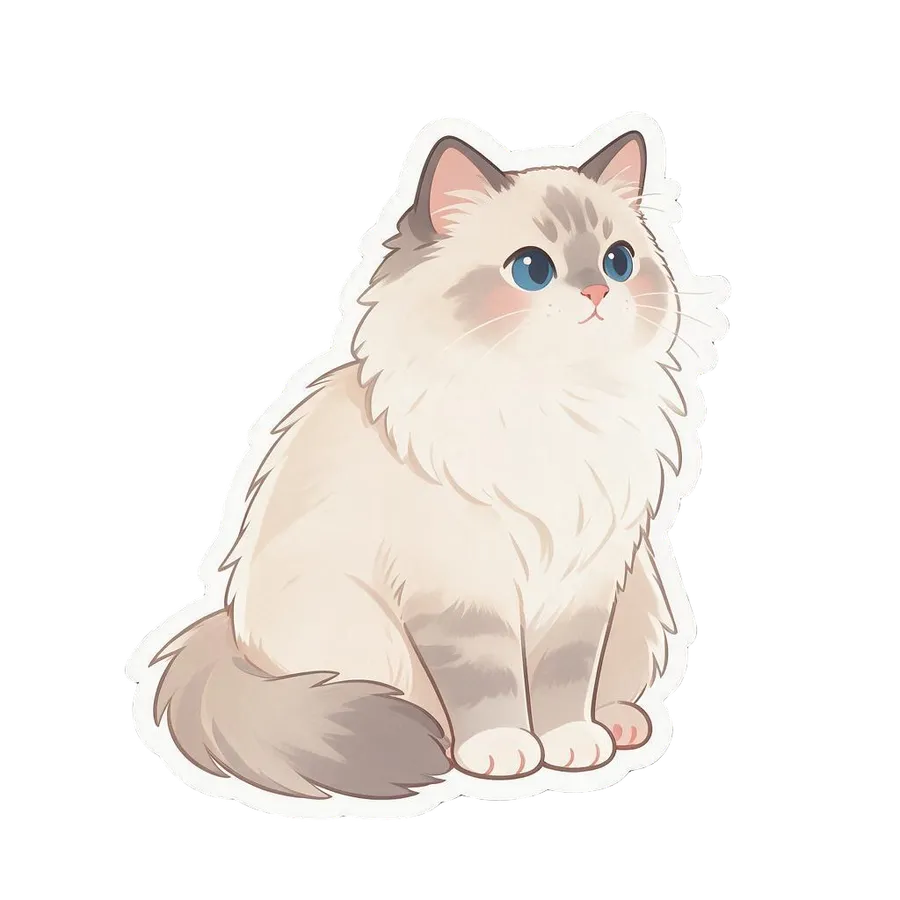
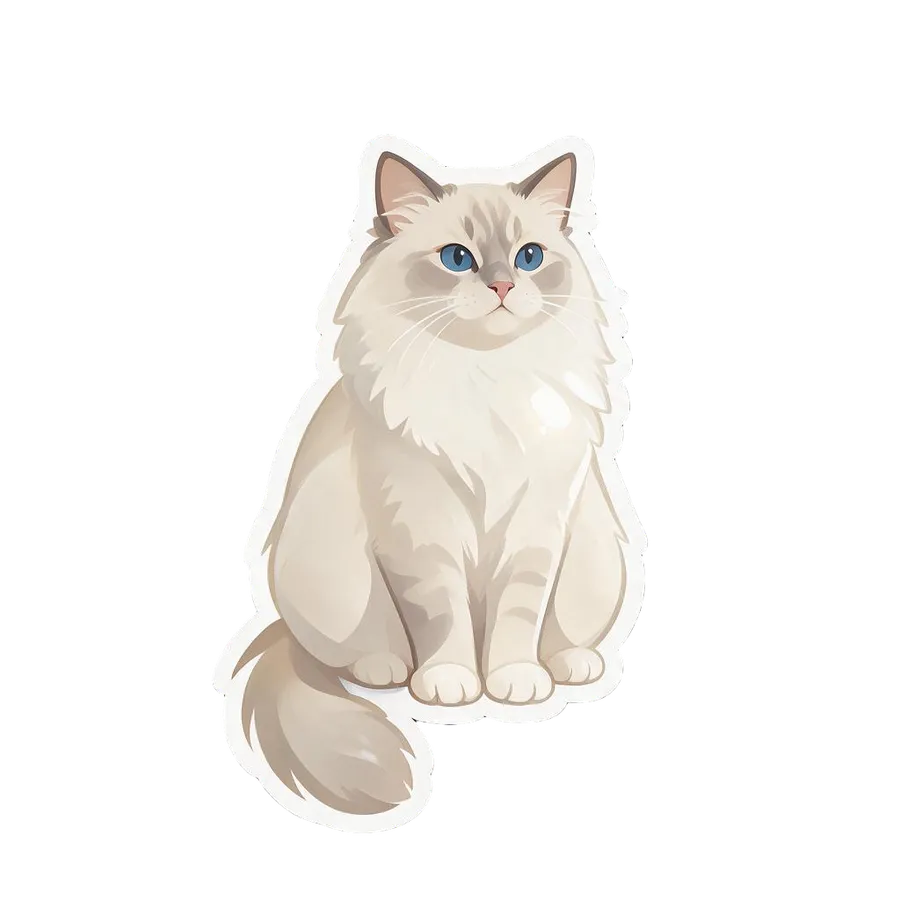
Pick the look you want. The options include kawaii and chibi for cute, big-headed characters, bold outline and retro anime and shoujo for illustrated looks, 3d cartoon, vinyl toy, and 3d clay for dimensional toy-like styles, glossy emoji for a slick icon, pixel art for a retro game look, and watercolor for a soft, painterly finish. Match the style to where the sticker will live and the feeling you want.
3. Set the quality and generate
Choose an output resolution of 1K or 2K then run the Action. The sticker appears in the gallery to the right of the controls. Your original is untouched, so trying two or three styles on the same subject and comparing them is the quickest way to find the best one.
-900x900.webp)
-900x900.webp)
-900x900.webp)
-900x900.webp)
-900x900.webp)
-900x900.webp)
How to Get a Clean, Well-Defined Sticker
- Start with a close, well-lit subject. The clearer and better-lit the subject in the source photo, the cleaner the redraw. Soft, even light and a subject that fills the frame beat a distant or shadowy shot.
- Keep the background simple. A subject that stands out clearly from its background gives a better-defined sticker edge. A busy background makes it harder for the model to know where the subject ends.
- One subject per sticker. Stickers read best as a single character or object. A photo crowded with several subjects gives a muddier result than one clear focal point.
- Match style to use. Kawaii and glossy emoji suit chat and social; vinyl toy and 3d clay suit mascot and merch concepts; pixel art suits gaming contexts. The right style does half the work.
- Build a set with one style. For a coherent sticker pack, run several subjects through the same style so they feel like one family.
-900x900.webp)
-900x900.webp)
The Bottom Line
AI sticker making turns a photo into a stylised graphic in one step: add a close-up of one subject, choose a style from kawaii to pixel art, and generate. Because a sticker is meant to be stylised rather than photographic, it is a task AI does well, and running several subjects through one style is the fast way to build a coherent set.
Open the Sticker maker Action in getimg.ai, bring a good close-up of your pet or yourself, and try a couple of styles. Commercial rights are included, subject to our terms and applicable third-party rights.
Frequently Asked Questions
The Sticker maker Action offers kawaii, bold outline, chibi, shoujo, retro anime, 3d cartoon, vinyl toy, glossy emoji, 3d clay, pixel art, and watercolor. They range from cute character looks to dimensional toy styles, a retro game look, and a soft painterly finish, so you can match the sticker to where it will be used.
A close-up, well-lit photo with a single clear subject that stands out from the background. Since a sticker redraws the subject as a stylised graphic, a clean, well-defined source gives the clearest result. Busy backgrounds and distant or shadowy subjects are harder to redraw cleanly.
Not exactly, and that is the point. A sticker is a stylised version of the subject, not a photographic copy. The model keeps what makes the subject recognisable and redraws it in the chosen style, so a kawaii or vinyl-toy sticker will read as your subject while clearly being an illustration.
Yes. Run several subjects through the same style so they share a consistent look and read as one pack. Because your originals are never changed, you can build the set piece by piece and keep the results together.
Commercial rights are included, subject to our terms and applicable third-party rights. Make sure you hold the rights to the source photo and to any people or brands shown in it before using a sticker commercially.