How to Replace the Sky in a Photo with AI

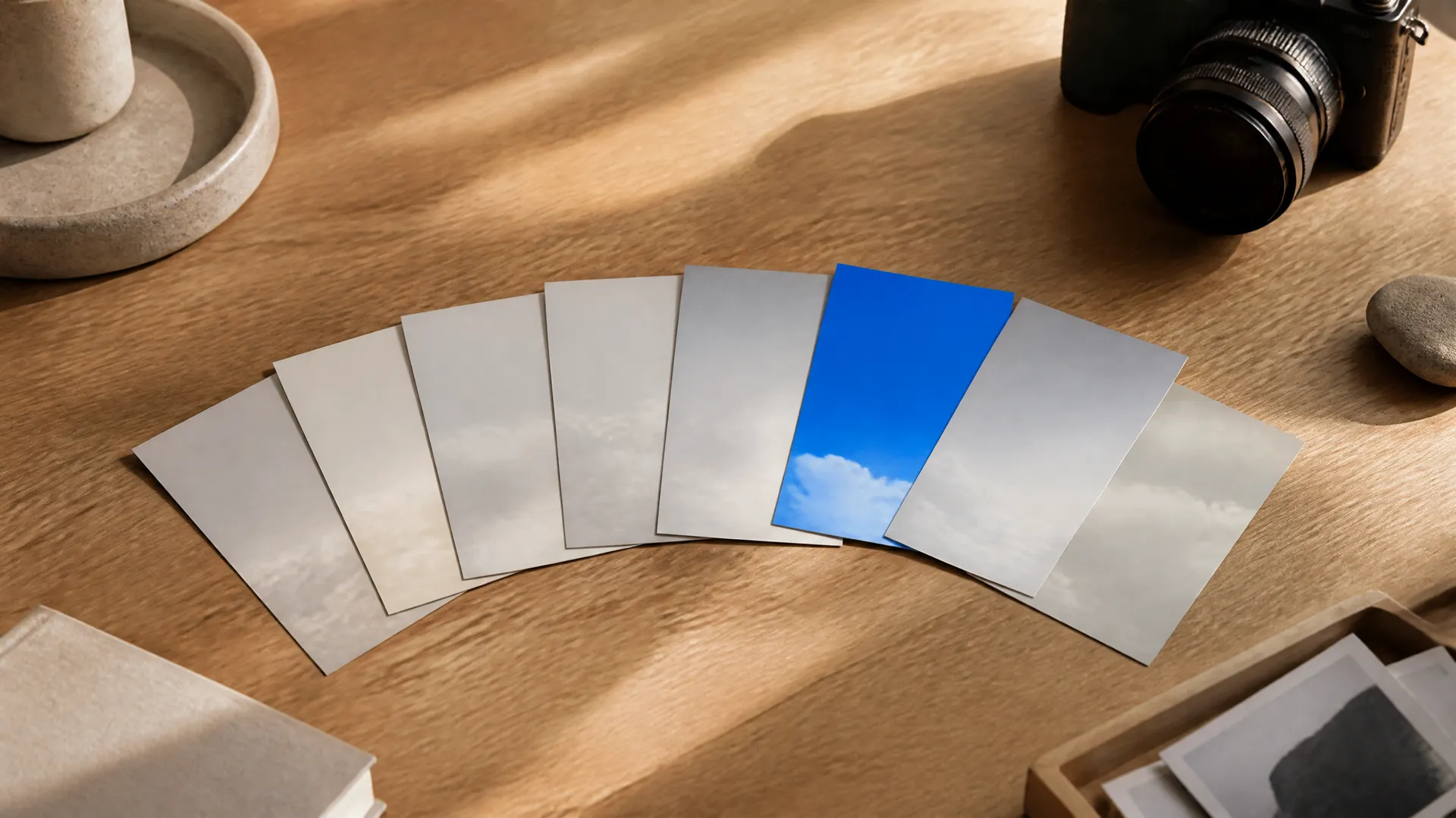
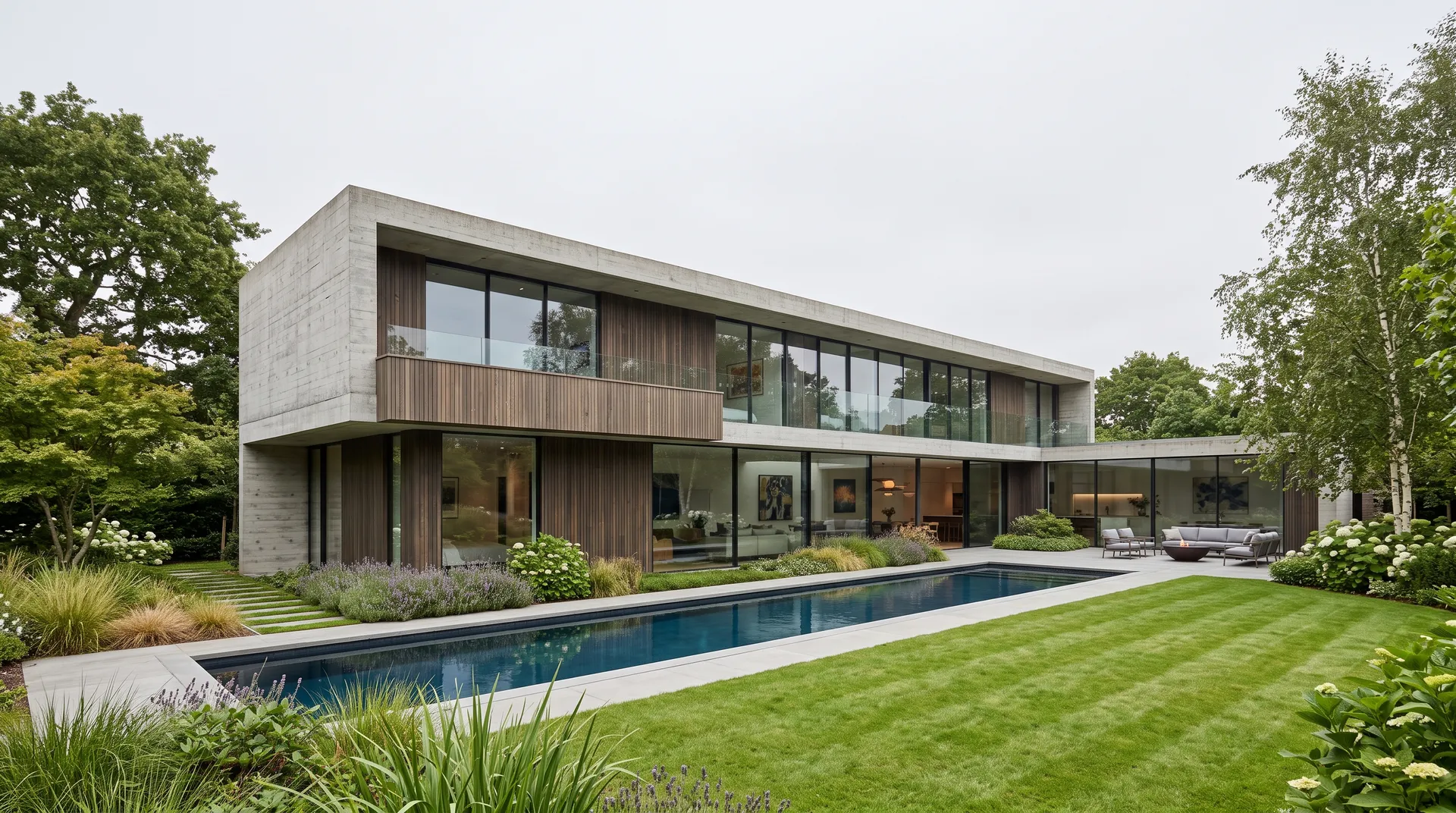
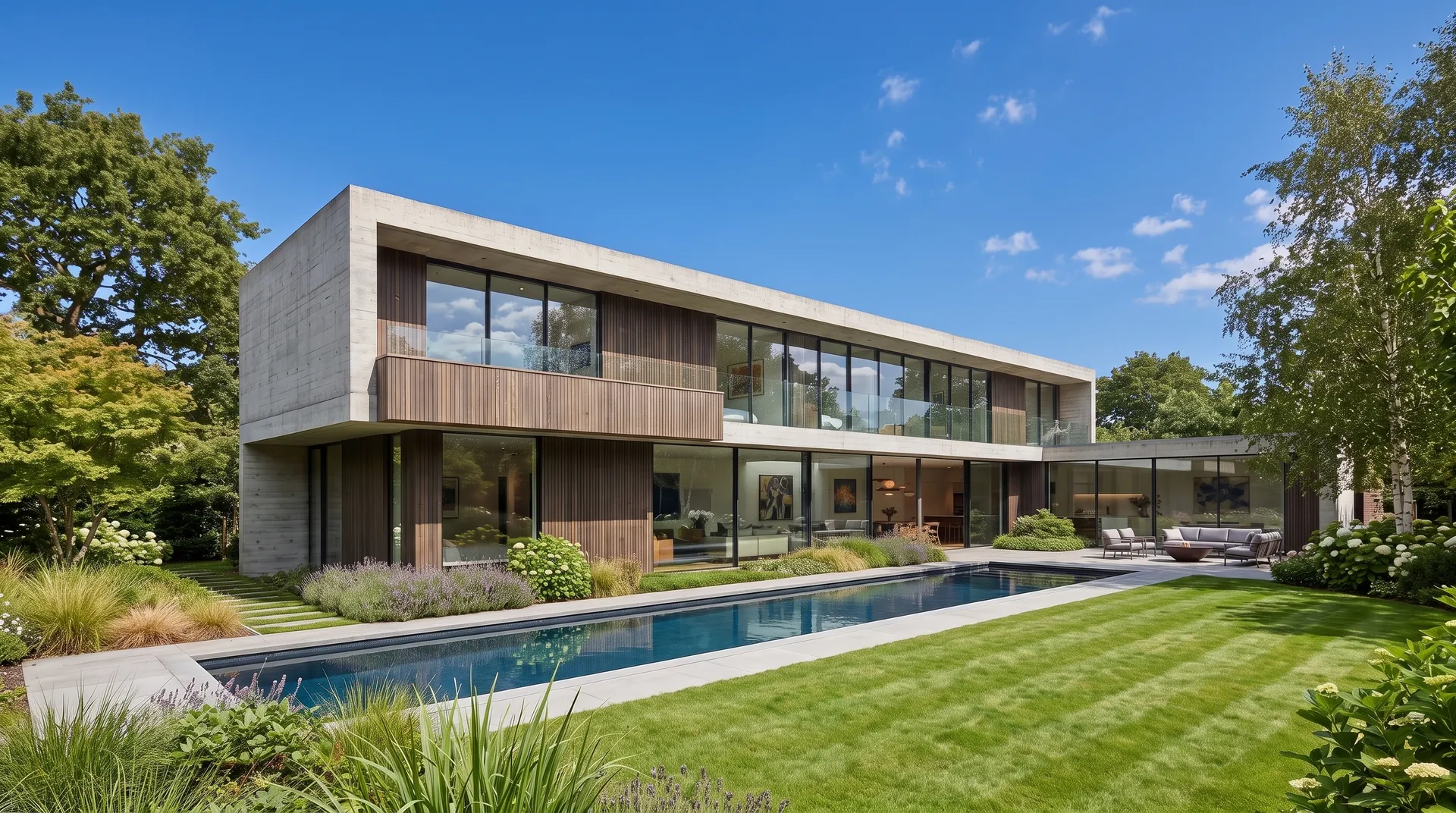
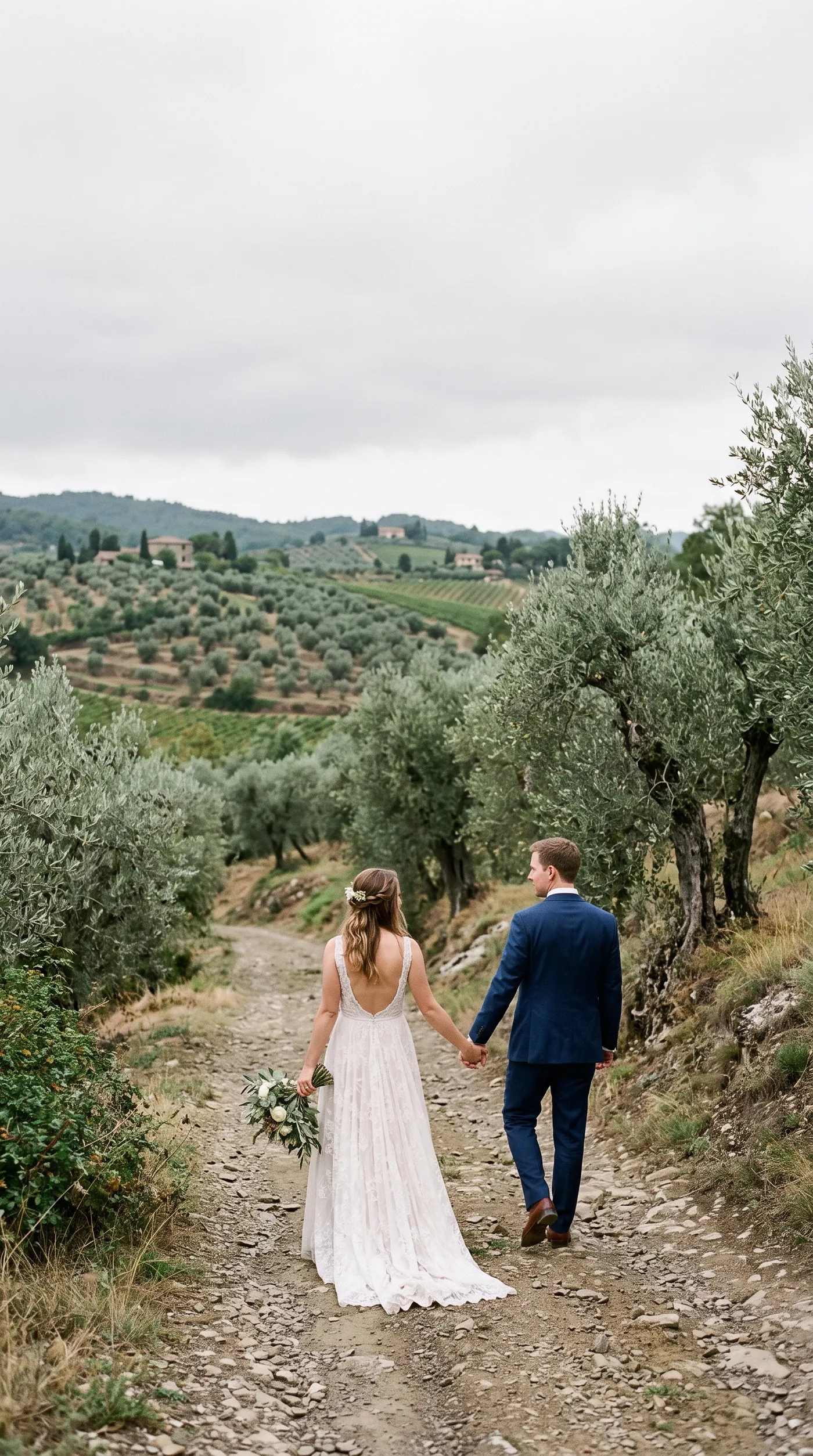
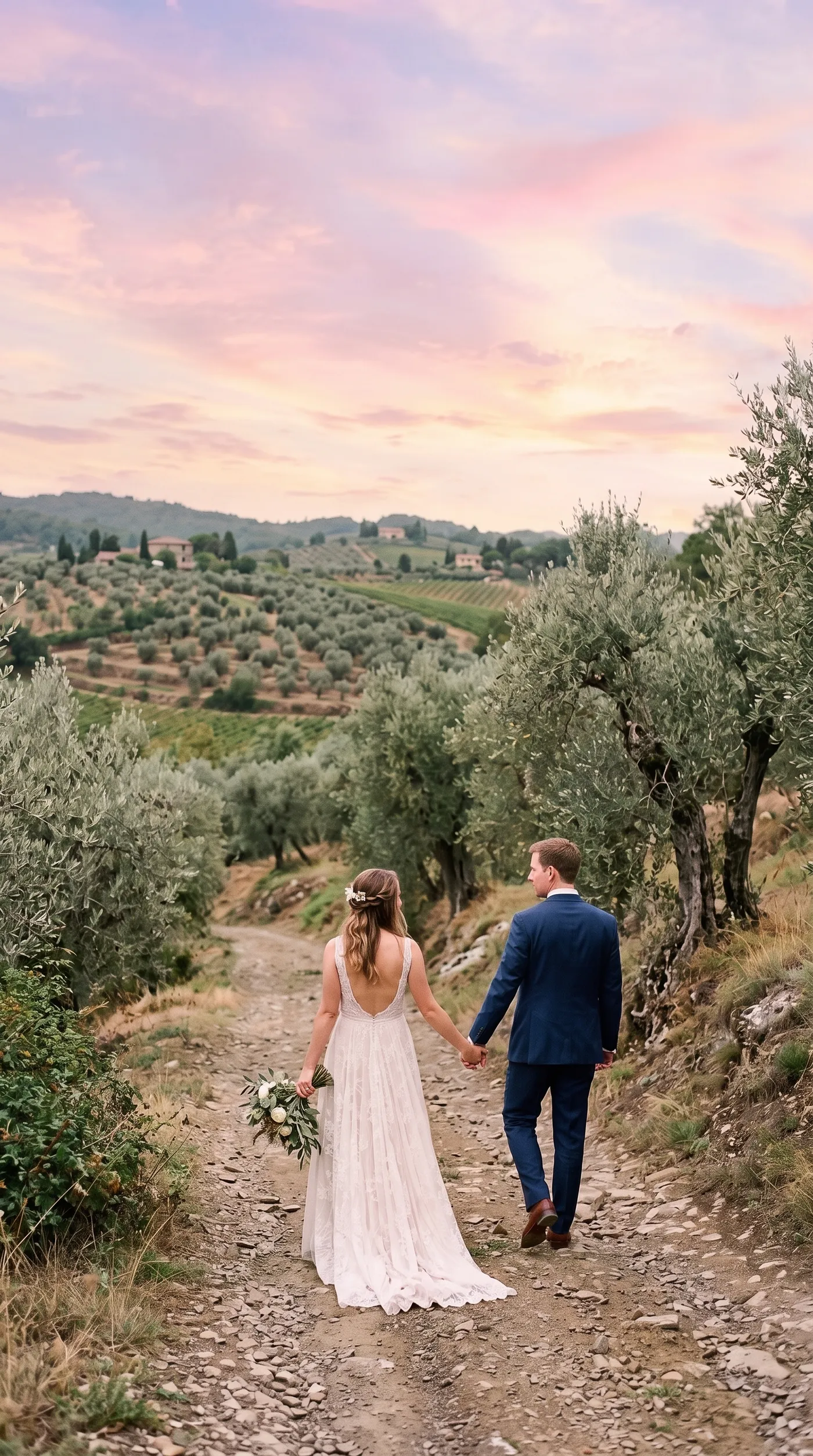
Sky replacement swaps the sky in an outdoor photo for a different one while keeping the rest of the scene in place. A flat white sky becomes clear blue, a midday shot becomes golden hour, a calm horizon gains a dramatic storm. You add a photo with visible sky above the horizon, choose the sky you want, and the model replaces it and blends the edges along the skyline. On getimg.ai the Sky replacement Action does this in one flow, with no manual selection or layer masking.
TL;DR
- Sky replacement swaps the sky in an outdoor photo while keeping the foreground and subject in place.
- In getimg.ai, open the Sky replacement Action, add a photo with sky above the horizon, and pick a sky type.
- There are 12 skies, from clear blue, summer clouds, and overcast to golden hour, fiery sunset, starry night, and northern lights.
- Results look most believable when the new sky matches the direction and warmth of the light already on the ground.
- It leaves your original photo untouched.
What Sky Replacement Is
The sky sets the mood of almost any outdoor photo, and it is the one thing a photographer cannot control. Shoot a property, a landscape, or an event on a grey day and the sky comes out blank and lifeless, no matter how good the rest of the frame is. Traditionally, fixing that meant a careful editing job: selecting the sky by hand along a fiddly edge of trees and rooftops, dropping in a replacement, and matching the colour and light so it did not look pasted on.
Sky replacement with AI handles the selection and the blend automatically. The model finds the sky above the horizon, replaces it with the type you choose, and feathers the transition along the skyline, including tricky edges like branches and buildings. The foreground stays as shot, so the scene is the same photo with a better sky.
When to Use It (and When to Wait for the Light)
Sky replacement earns its place whenever the sky is letting a good photo down:
- Real estate and architecture, where a blue or golden-hour sky makes a property look far more appealing than a grey one.
- Landscape and travel photos shot under flat, overcast conditions.
- Event and exterior marketing shots, where the weather on the day did not match the mood you need.
- Consistency across a set, when photos taken on different days need to share one sky.
Waiting for the light still wins when the sky is the subject and authenticity matters: a weather report, a documentary image, or a fine-art landscape where the real conditions are the point. And a replacement is only as convincing as its match to the scene, so a photo lit by hard midday sun will never quite sell a starry night. When the ground light and the new sky genuinely disagree, a reshoot at the right time of day is the better call.
How to Replace a Sky with AI, Step by Step
Here is the workflow in getimg.ai. Open the Sky replacement Action to follow along.
1. Add a photo with visible sky
Upload an outdoor photo that shows sky above the horizon, or pick one from your library. The more clearly the sky is separated from the foreground along the skyline, the cleaner the swap.
2. Choose the sky type
Pick the sky that fits the mood from 12 options: clear blue or summer clouds for a bright, open look; overcast or misty for an even, understated sky; golden hour, pastel sunset, or fiery sunset for warm, low light; blue hour for the cool moment after sunset; dramatic storm for mood and contrast; and starry night, moonlit, or northern lights for a night scene. Match the choice to the light already in the photo, which is what makes the result believable.
3. Set the quality
Choose an output resolution of 1K or 2K. Use 1K for quick tests and 2K for listings, web pages, and anything that will be viewed at full size.
4. Generate and check the horizon
Run the Action and the result appears in the gallery to the right of the controls. Look along the skyline where the new sky meets the foreground; a clean edge there is the sign of a convincing swap. Your original is untouched, so you can try a few sky types on the same photo and compare.


How to Make a Replaced Sky Look Real
- Match the sky to the ground light. The single biggest factor in believability is agreement between the new sky and the light already on the scene. Warm golden light on the buildings calls for golden hour or sunset, not clear midday blue.
- Mind the direction of the light. If shadows in the photo fall a certain way, a sky whose light comes from roughly the same direction reads as natural; a mismatch is what makes a swap look fake.
- Choose drama in moderation. A dramatic storm or vivid sunset is striking but easy to overdo. For real estate especially, a clean clear-blue or soft golden-hour sky usually sells the space better than a theatrical one.
- Give the model a clear skyline. Photos where the sky sits cleanly above trees, rooftops, or a horizon swap more neatly than ones where the sky is broken up by fine, complex edges.
- Generate at print quality when needed. For property brochures or large displays, render at 2K so the new sky carries the same detail as the rest of the image.
Sky Replacement in a Wider Edit
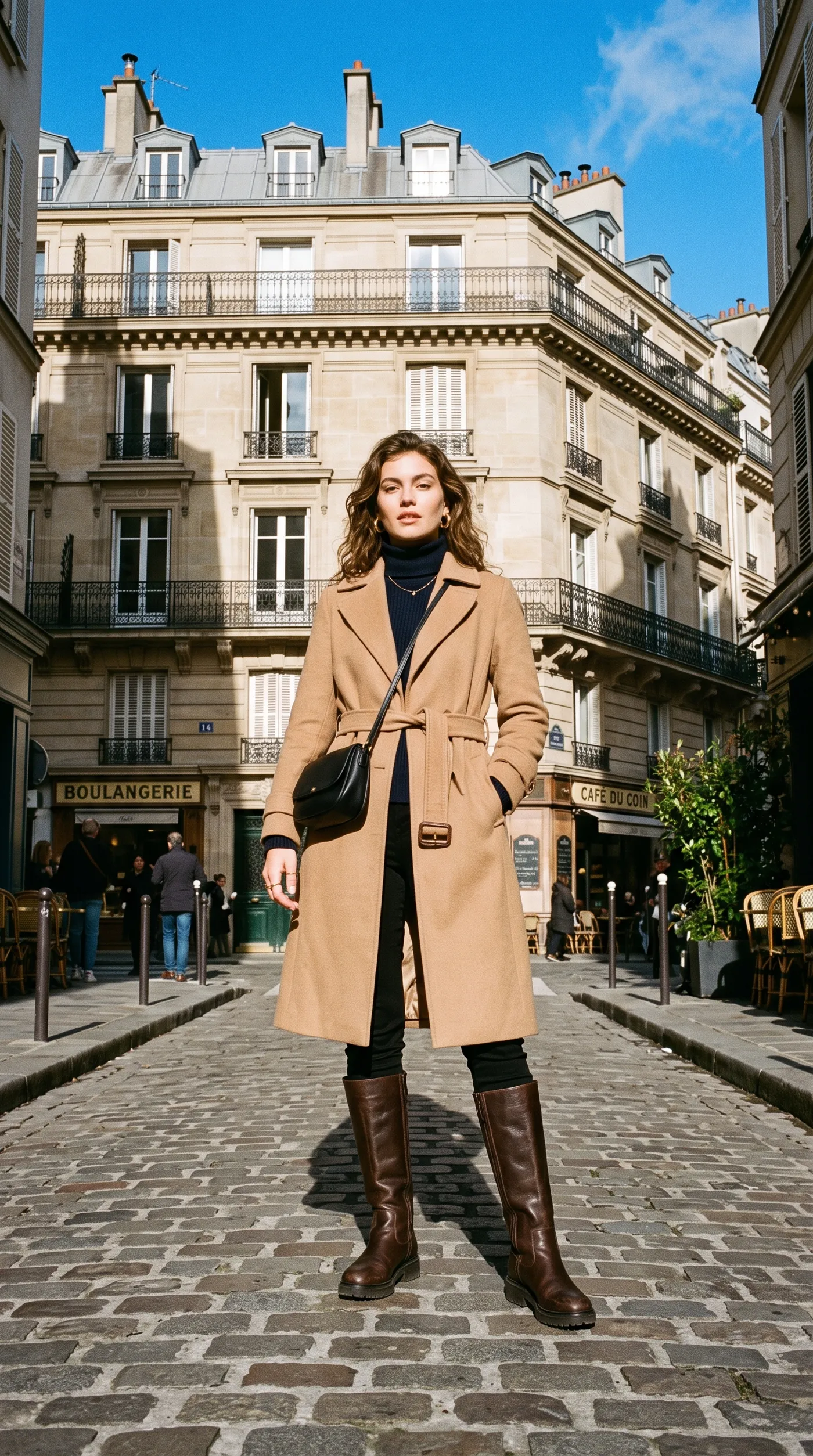
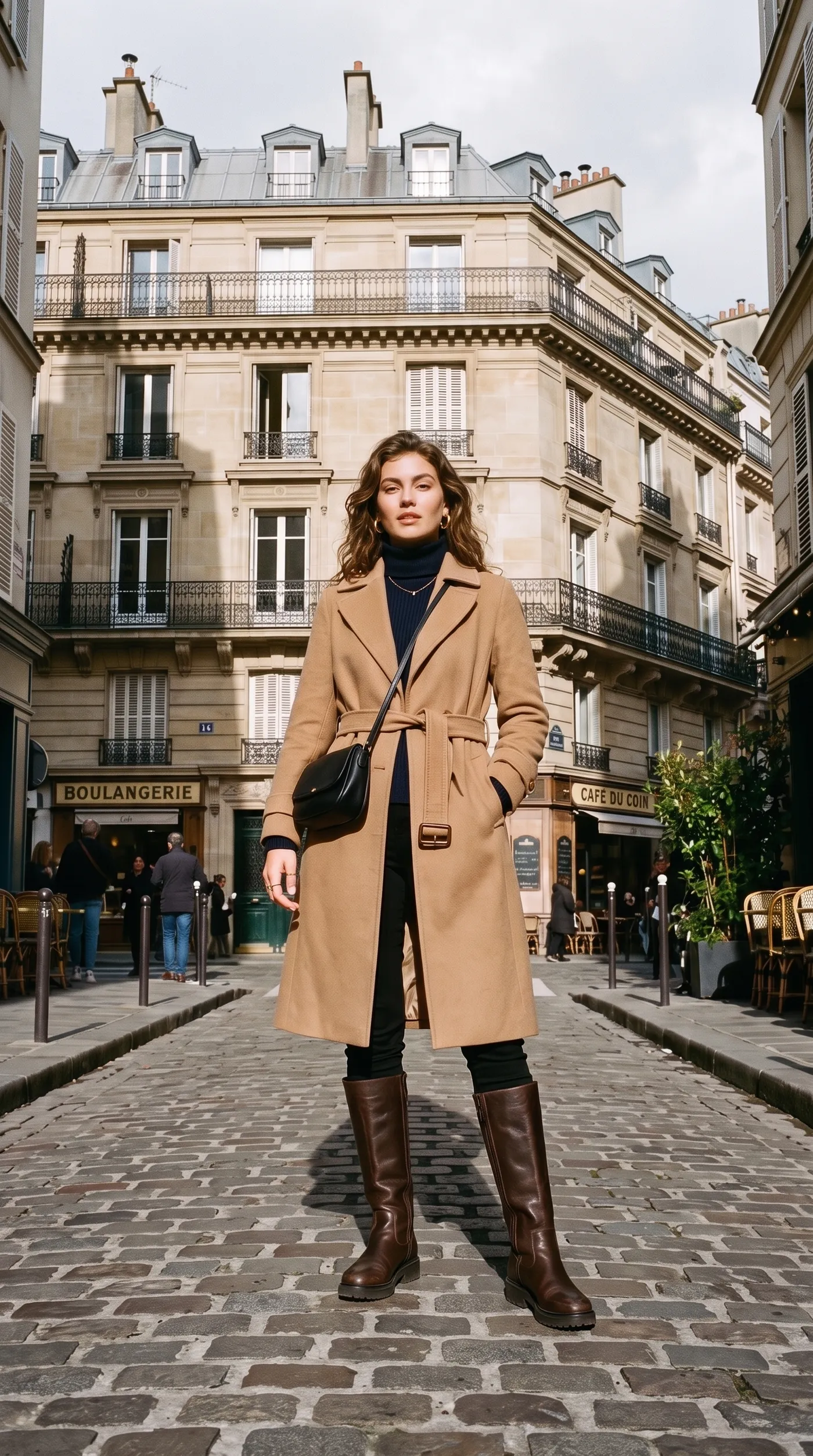
A new sky often changes what the rest of the photo needs. Once the sky reads right, small follow-up edits pull the whole frame together: relighting the scene so the foreground matches a warmer sky, or applying a colour grade so the image reads as one cohesive shot rather than a foreground and a sky from two different days. For anything the presets do not cover, the open-ended Create image generator can rework the scene from a prompt.
The Bottom Line
Sky replacement gives a flat outdoor photo the sky it should have had. Add a photo with sky above the horizon, choose from clear blue to dramatic storm, and generate, with the selection and the blend handled for you. The trick to a believable result is matching the new sky to the light already on the ground, and because your original stays intact, you can try several and keep the one that fits.
Open the Sky replacement Action in getimg.ai, bring a photo ruined by a grey day, and give it a better sky. Commercial rights are included, subject to our terms and applicable third-party rights.
Frequently Asked Questions
The Sky replacement Action offers 12 skies: clear blue, summer clouds, overcast, misty, golden hour, pastel sunset, fiery sunset, blue hour, dramatic storm, starry night, moonlit, and northern lights. Clear blue, summer clouds, overcast, and misty are the understated options; golden hour, pastel sunset, and fiery sunset add warmth; blue hour, dramatic storm, starry night, moonlit, and northern lights add mood. Pick the one that matches the light already in your photo for the most believable result.
It looks convincing when the new sky matches the direction and warmth of the light on the ground. The model handles the selection and blends the edge along the skyline, so the seam is rarely the problem. Mismatched light is what gives a swap away, for example a starry night over a scene lit by hard midday sun, so choosing a sky that fits the existing light is the key step.
You need a photo with visible sky above the horizon. The cleaner the separation between the sky and the foreground along the skyline, the neater the swap. Photos where the sky is broken up by very fine, complex edges are harder to blend perfectly.
Yes, and it is one of the most common uses. Swapping a grey sky for clear blue or golden hour makes a property look far more appealing. For listings, a clean, natural-looking sky usually sells the space better than a dramatic one. Check your local advertising rules on edited property images if that applies to you.
Only the sky is replaced; the foreground and subject stay as shot. You may want to follow up with a light relight or colour grade so the whole image reads as one cohesive shot, but that is your choice. Your original photo is never overwritten.
Commercial rights are included, subject to our terms and applicable third-party rights. Make sure you hold the rights to the original photo you are editing.
Related Articles