How to Generate a Subject from Every Angle with AI
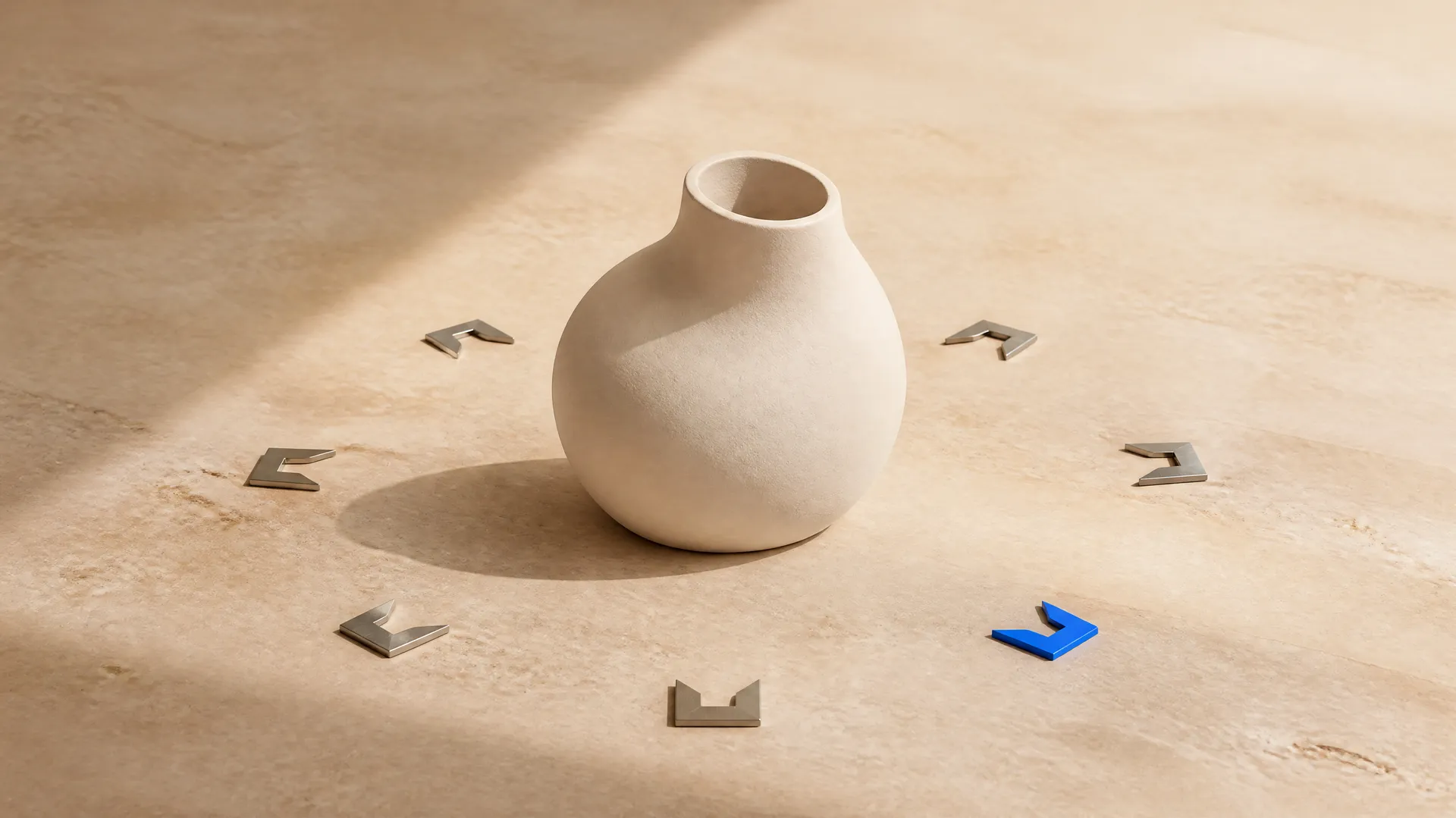
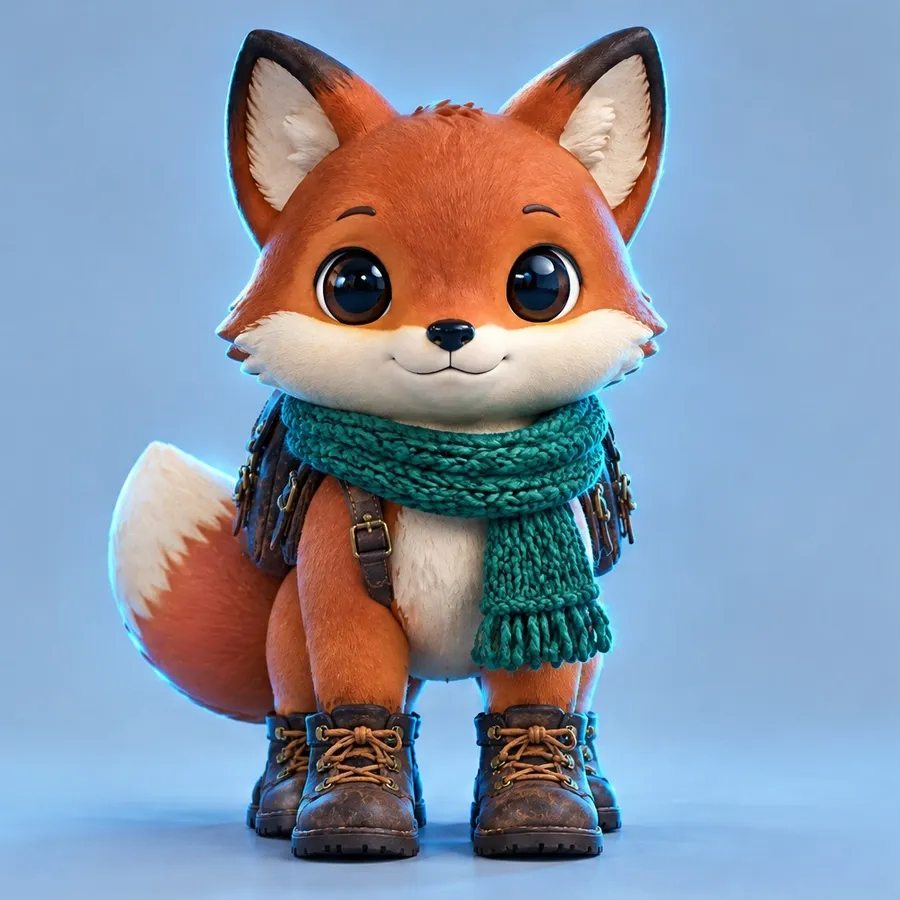
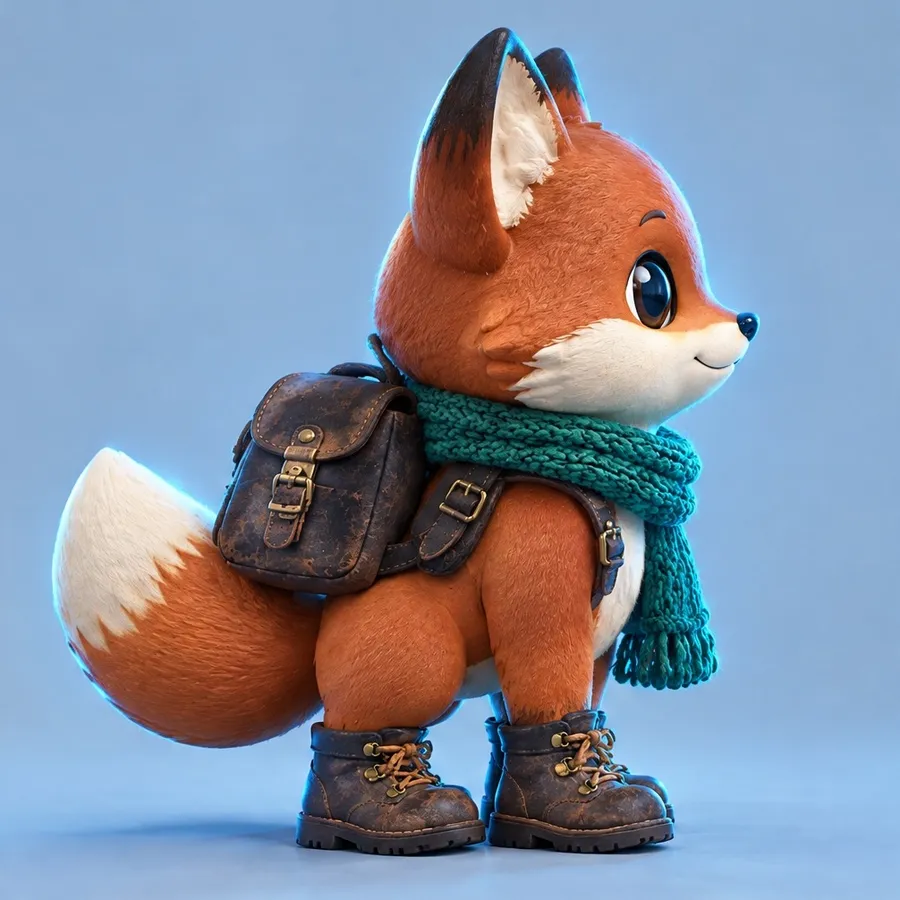
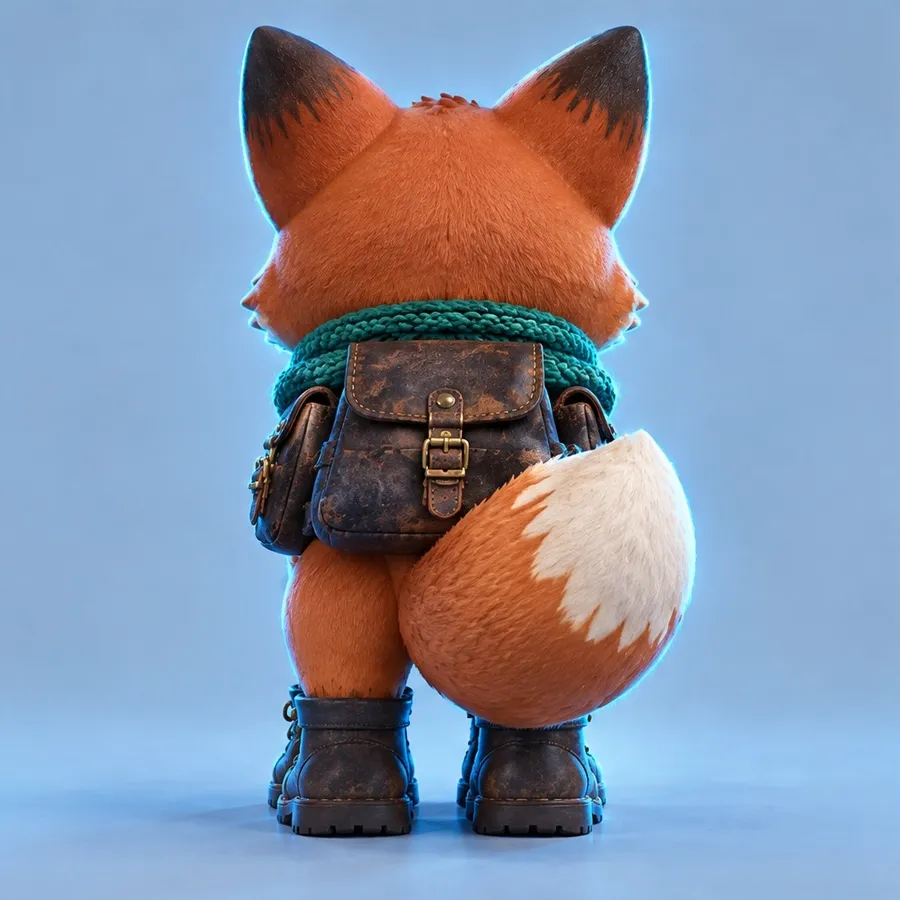
Generating every angle with AI means turning one photo of a subject into a set of views seen from around it: the same person, product, or room from 4, 8, or 12 viewpoints. Instead of walking around the subject with a camera, you add a single image and choose how far around you want to see, and the model generates the other angles consistently. On getimg.ai the Every angle Action does this from one photo, keeping the subject the same as the viewpoint rotates.
TL;DR
- Every angle turns one photo into multiple consistent views of the same subject from around it.
- In getimg.ai, open the Every angle Action, add the subject, and choose 4, 8, or 12 angles.
- It works for a person, a product, a room, or almost any subject.
- Set the quality and an aspect ratio (including "same as photo"), then generate the full set.
- It keeps your original photo untouched.
What Multi-View Generation Is
Some things need to be seen from more than one side. A product looks flat in a single photo; a character needs a turnaround for a game or a story; a room reads better when you can see more than one corner. Capturing all those angles normally means a full shoot: moving the camera or the subject, keeping the lighting consistent, and matching each frame so the set feels like one subject rather than several photos.
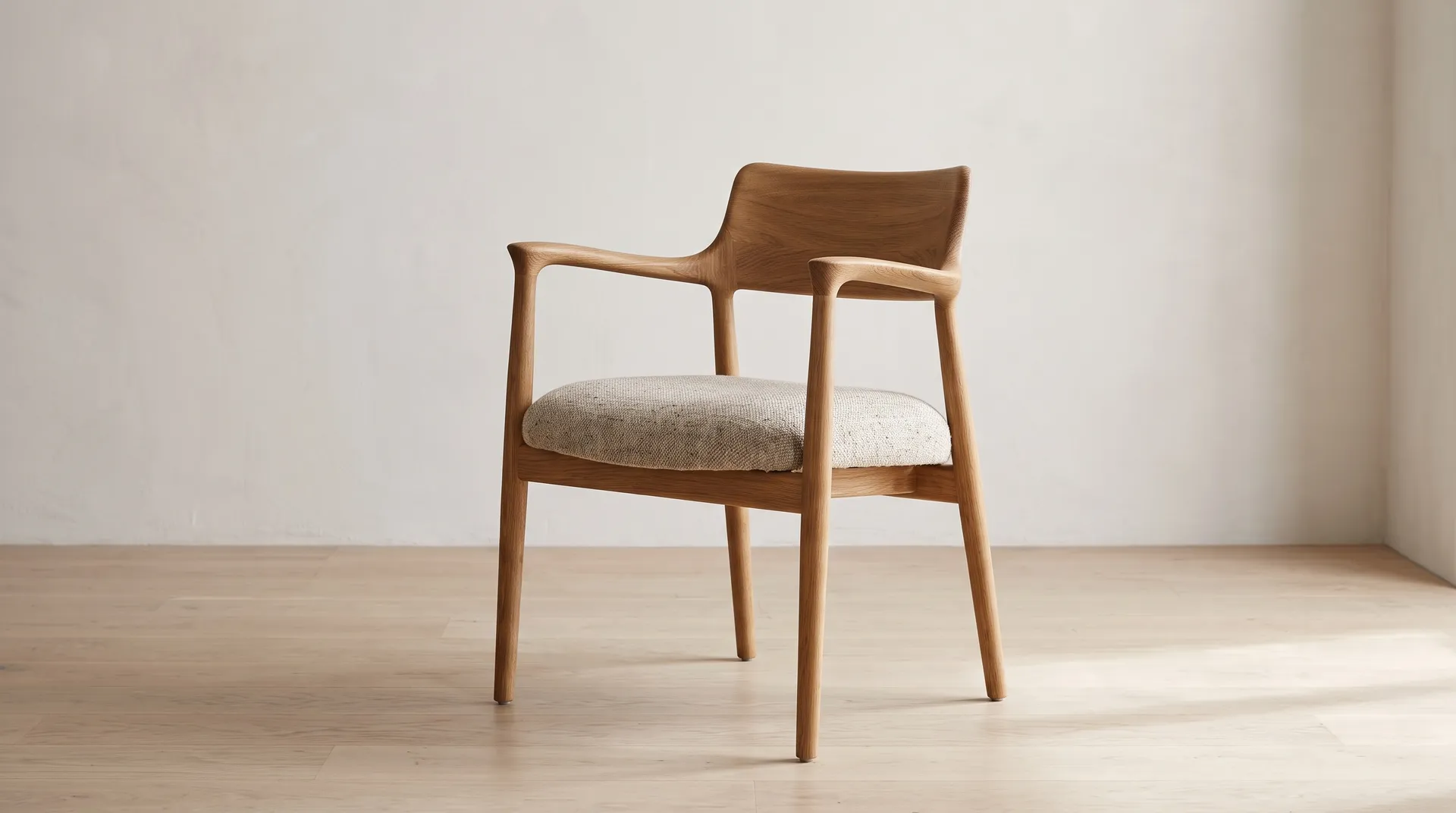
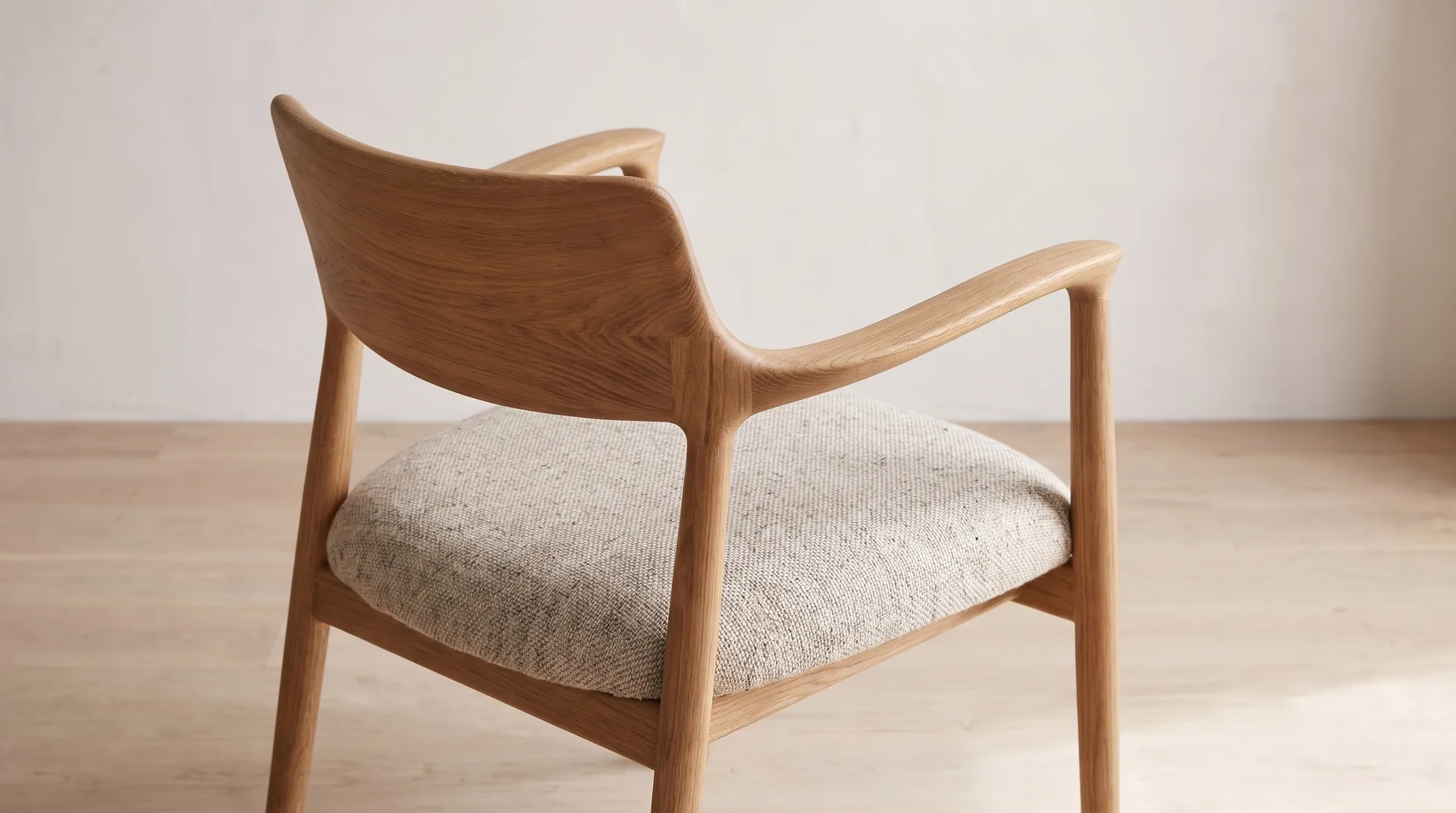
Multi-view generation produces those angles from a single image. The model builds an understanding of the subject from the photo you provide and renders it from additional viewpoints around it, keeping the same identity, colour, and form as the view rotates. The result is a coherent set of angles of one subject, not a collection of loosely related images.
When to Use It (and When to Shoot the Angles)
Every angle fits whenever one view is not enough:
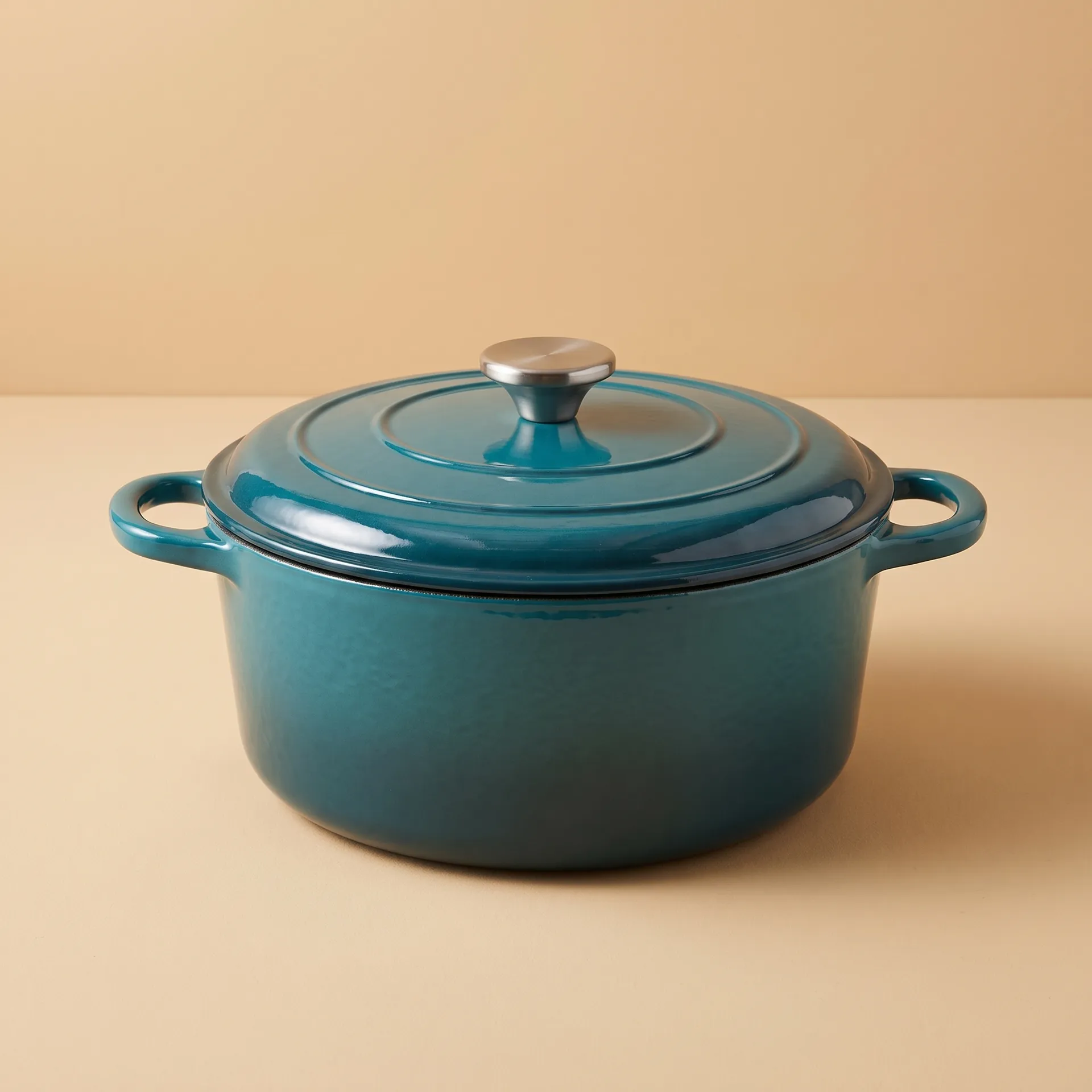
- Product listings, where several angles of an item help shoppers understand it.
- Character turnarounds, giving a person or character consistent front, side, and back views for reference.
- Room and space overviews, showing more than one corner of an interior from a single photo.
- Reference sheets, building a multi-angle reference of an object for design or modelling.
Shooting the angles still wins when absolute accuracy from every side matters, such as a product whose hidden faces carry critical detail (fine print, exact textures, or mechanisms) that the model cannot know from one photo. Generated angles are consistent and convincing, but they are the model's reconstruction of the unseen sides, not a record of them. When the back of the object genuinely differs from what a single photo implies, a real multi-angle shoot is the honest choice.
How to Generate Every Angle, Step by Step
Here is the workflow in getimg.ai. Open the Every angle Action to follow along.
1. Add the subject
Add a photo of the subject you want to see from multiple sides, a person, a product, a room, or almost anything. A clear photo where the subject is well defined gives the model the best basis for reconstructing the other views.
2. Choose how far around
Pick how many viewpoints to generate: 4 angles for a basic set, 8 angles for a fuller turnaround, or 12 angles for a near-complete rotation around the subject. More angles give a smoother sense of the subject in the round.
3. Set quality and aspect ratio
Choose an output resolution of 1K, 2K, or 4K, and an aspect ratio: same as photo to match your source, or 1:1, 4:5, 3:4, or 16:9. Matching the source aspect ratio keeps the set consistent with the original.
4. Generate the set
Run the Action and the views appear in the gallery to the right of the controls. Your original photo is untouched, so you can generate a 4-angle set first to check the consistency, then run 8 or 12 if it holds up.
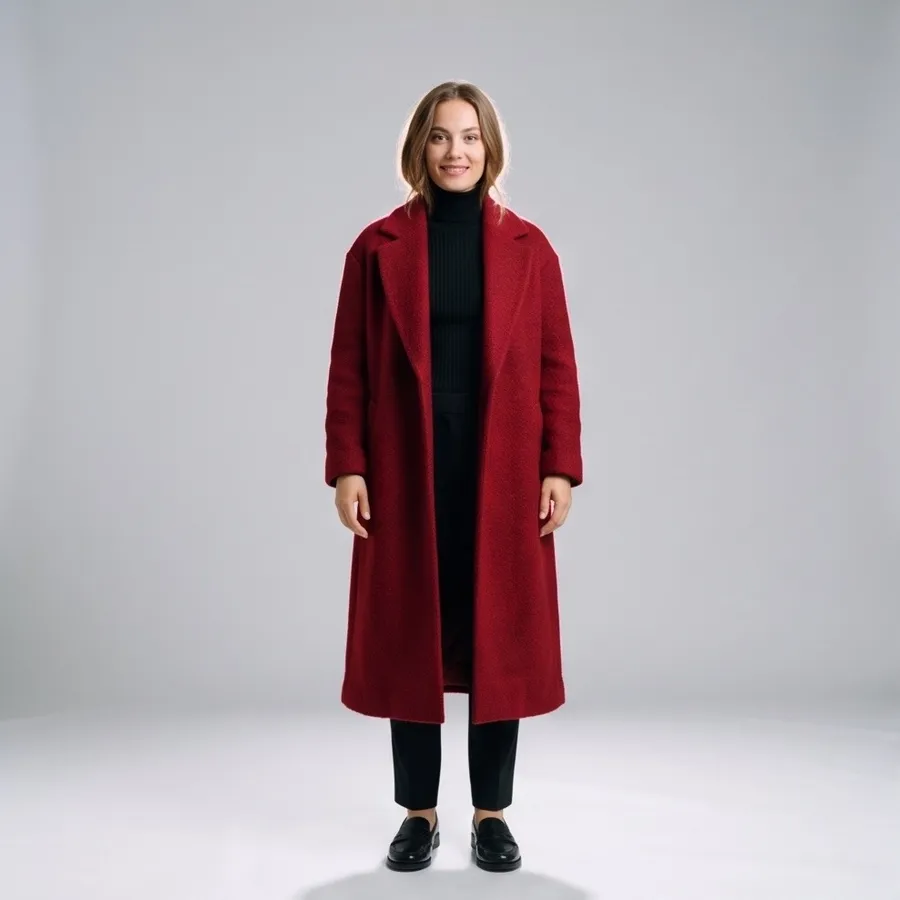
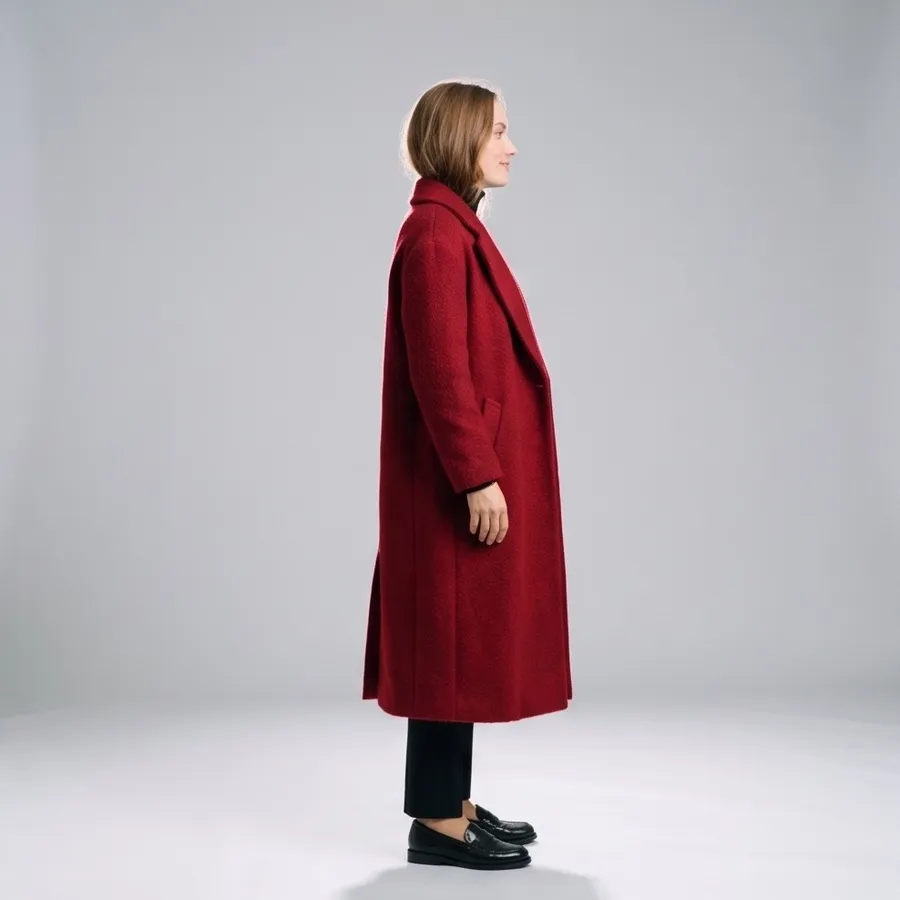
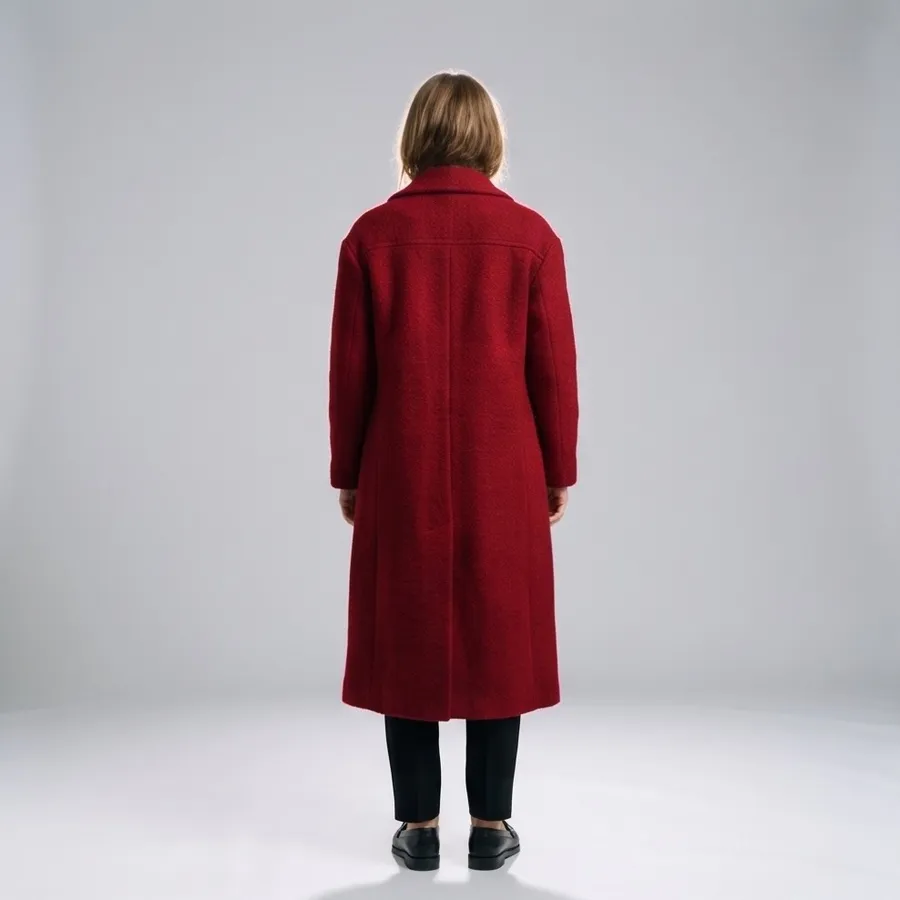
How to Get a Consistent Set of Angles
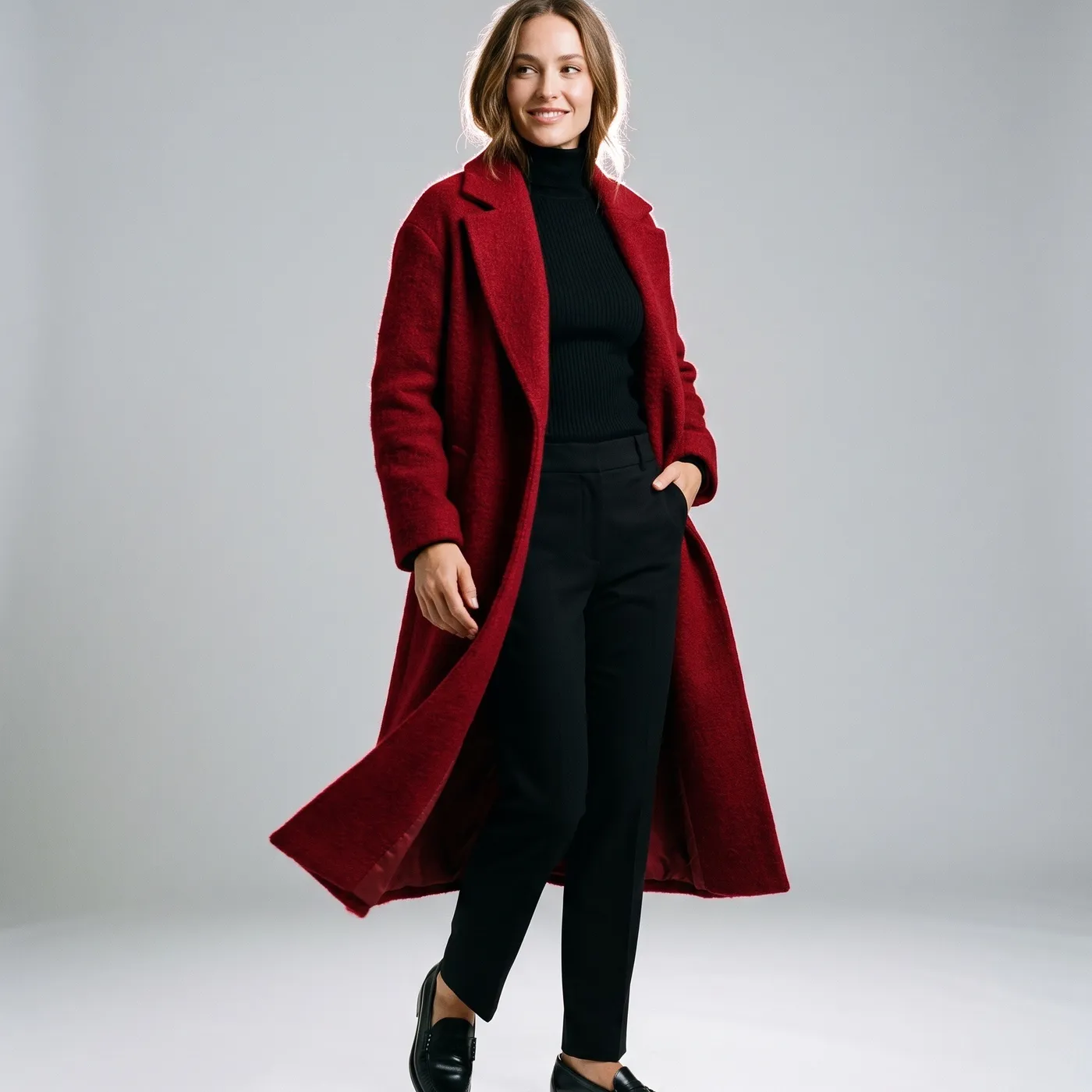
- Start with a clear, well-defined subject. The better the model can read the subject from the source photo, the more consistent the generated angles. A clean, well-lit shot beats a cluttered or ambiguous one.
- Choose the angle count for the job. Four angles are enough for a quick sense of a product; a character turnaround or a smooth rotation benefits from eight or twelve.
- Keep the aspect ratio consistent. Using "same as photo" or one fixed ratio across the set keeps every view uniform, which matters when the angles will be shown together.
- Treat unseen sides as reconstruction. The angles the original photo never showed are the model's best interpretation. Where a hidden side carries detail that matters, verify it rather than assume.
- Generate at high quality for delivery. Use 4K when the angles will be used in a listing or a reference sheet at full size.
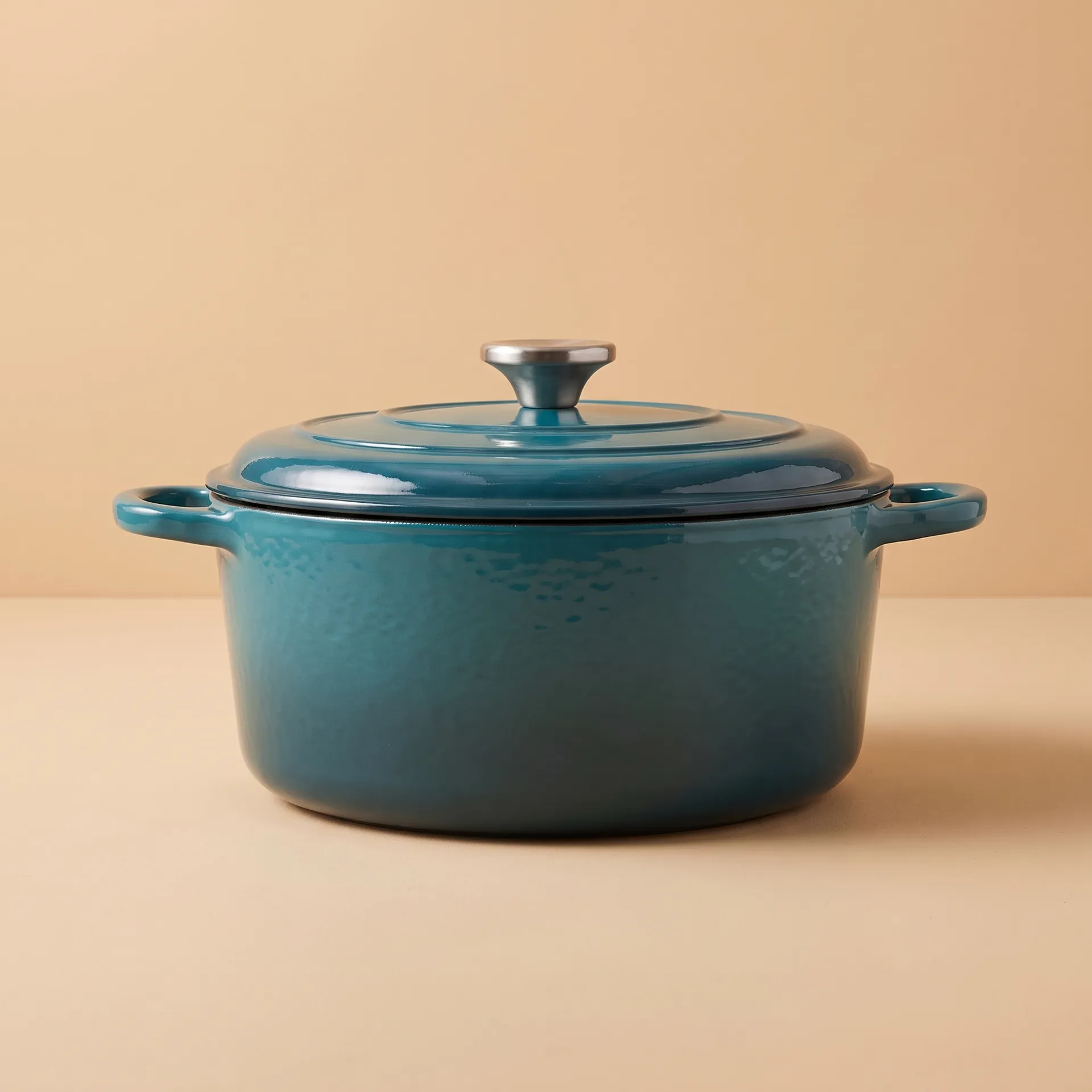
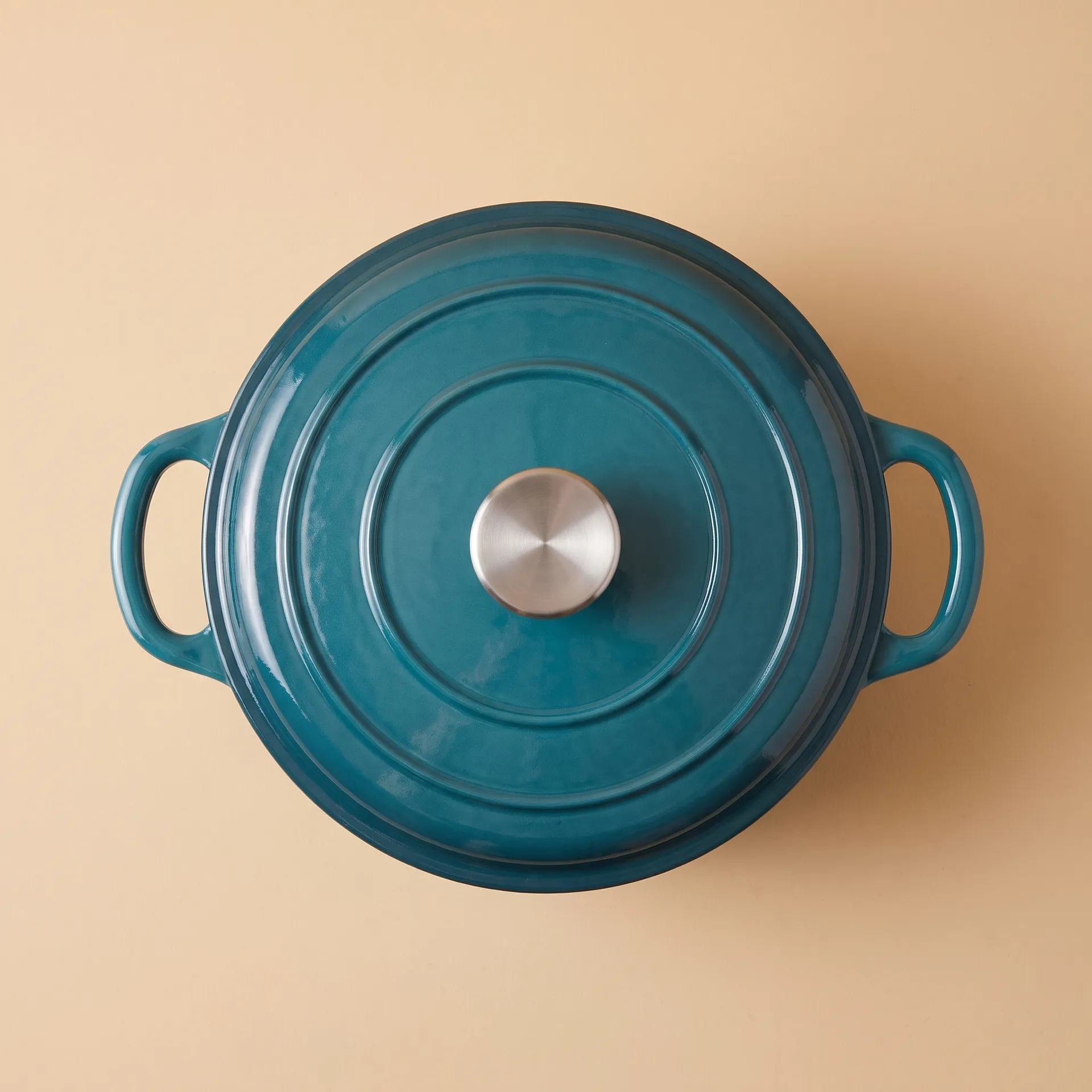
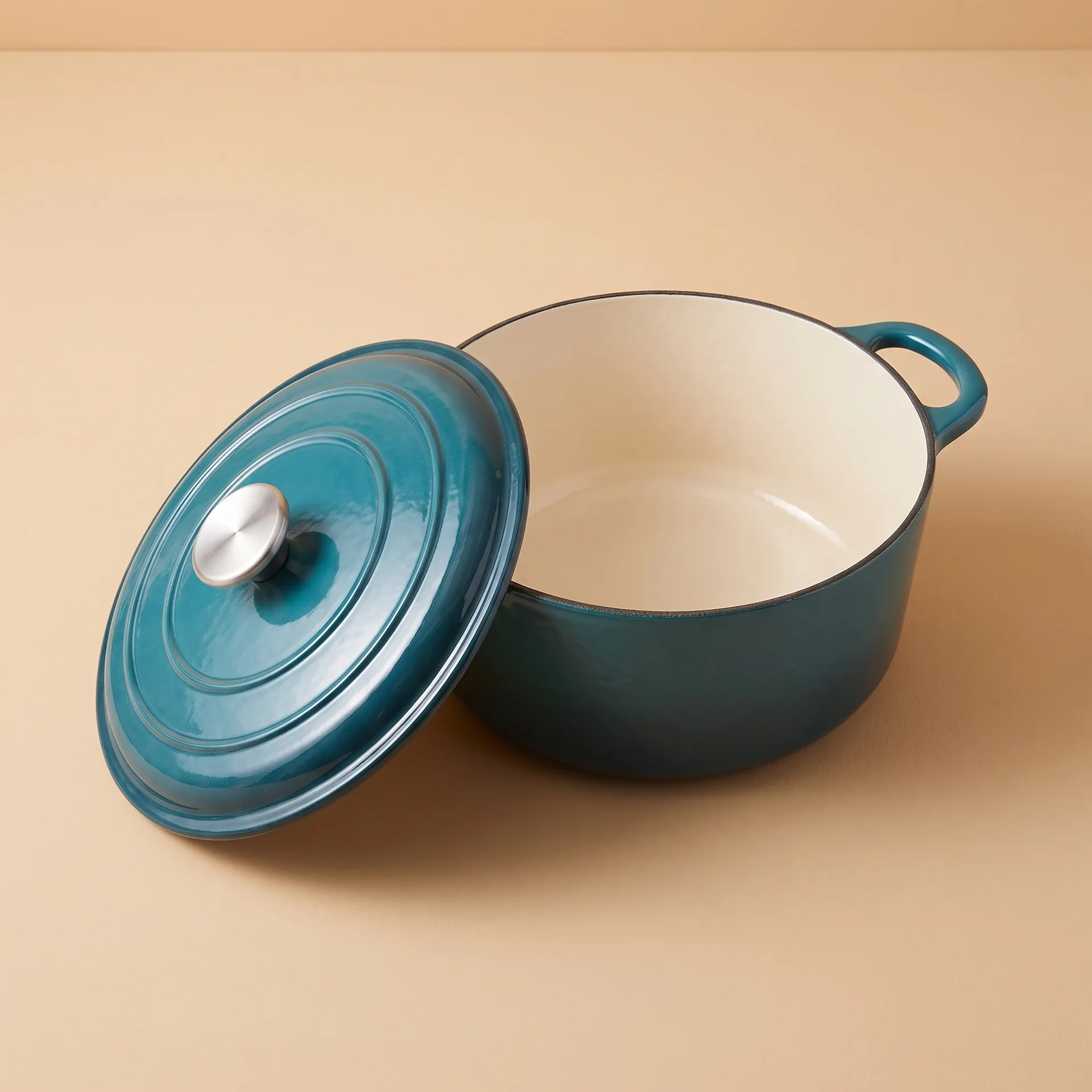
Angles as Part of a Product or Character Workflow
Multi-view generation slots into bigger workflows. For products, a set of angles pairs naturally with the Product shots Action for scene-based photography and supports richer e-commerce listings where shoppers expect to see an item from several sides. For characters, a turnaround is a reference other tools can build on. When you need a specific view or scene that the fixed angle counts do not cover, the open-ended Create image generator lets you describe the exact viewpoint you want.
The Bottom Line
Every angle turns one photo into a consistent set of views around a subject: add the image, choose 4, 8, or 12 angles, and generate. It is the fast way to build a product turnaround, a character reference, or a multi-angle set without a full shoot, with the caveat that the sides the photo never showed are reconstructed rather than recorded.
Open the Every angle Action in getimg.ai, bring a clear photo of a product or a character, and generate a turnaround. Commercial rights are included, subject to our terms and applicable third-party rights.
Frequently Asked Questions
You can choose 4, 8, or 12 angles. Four gives a basic set of views, eight a fuller turnaround, and twelve a near-complete rotation around the subject. More angles produce a smoother sense of the subject in the round, which is useful for character turnarounds and detailed product sets.
It works on a person, a product, a room, or almost any subject with a clear form. The model reconstructs additional viewpoints from the single photo you provide, keeping the subject's identity, colour, and form consistent as the view rotates.
The angles the original photo showed are reproduced faithfully; the sides it never showed are the model's reconstruction based on the visible detail. This is convincing for most subjects, but where a hidden side carries critical detail the photo could not reveal, treat the generated view as an interpretation and verify it if accuracy matters.
Yes. The aspect ratio options include "same as photo," along with 1:1, 4:5, 3:4, and 16:9. Using the same ratio across the set keeps every view uniform, which is helpful when the angles will be displayed together.
Choose 1K for a quick preview, 2K for most uses, and 4K when the angles will appear in a listing or reference sheet at full size, so each view holds its detail.
Commercial rights are included, subject to our terms and applicable third-party rights. Make sure you hold the rights to the original photo of the subject.
Related Articles