How to Zoom into Photo Details with AI
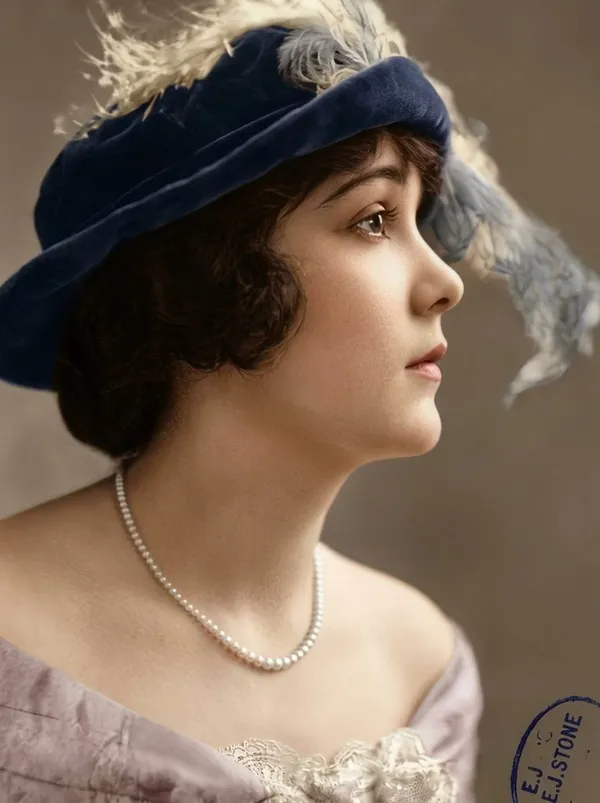
Zooming into details with AI means generating a set of close-up views of the notable parts of a single picture. Instead of one wide shot, you get several detail crops: the stitching on a bag, the finish on a product, the corner of a room, each pulled out and shown up close. You add the picture, choose how many details you want, and the model produces the close-ups. On getimg.ai the Zoom on details Action does this from one image, surfacing the parts worth a closer look.
TL;DR
- Zoom on details generates close-up views of the notable parts of a single picture.
- In getimg.ai, open the Zoom on details Action, add a picture, and choose 4, 6, or 8 details.
- It works on a product, a room, a garment, or almost anything with detail worth showing.
- Set the quality and an aspect ratio (including "same as photo"), then generate the set.
- It is not an upscaler; it creates detail views, it does not raise the resolution of the whole image.
What Zooming into Details Is
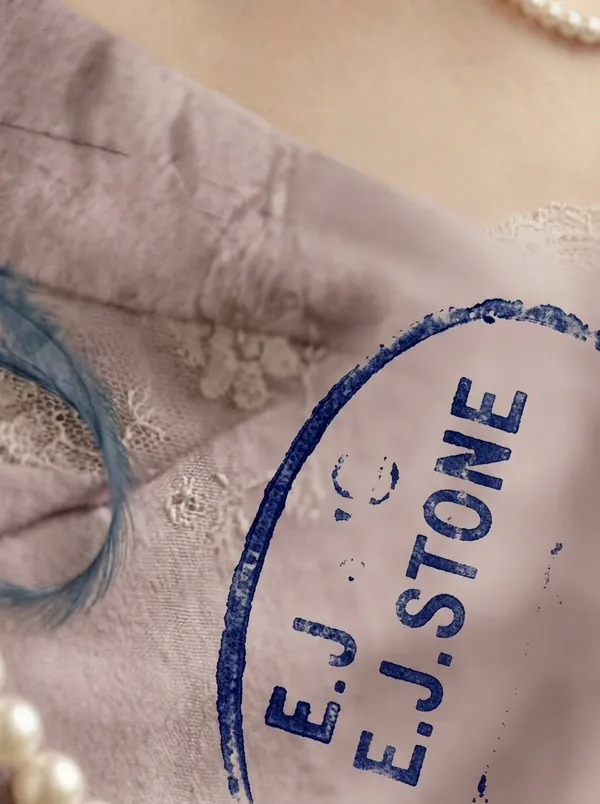
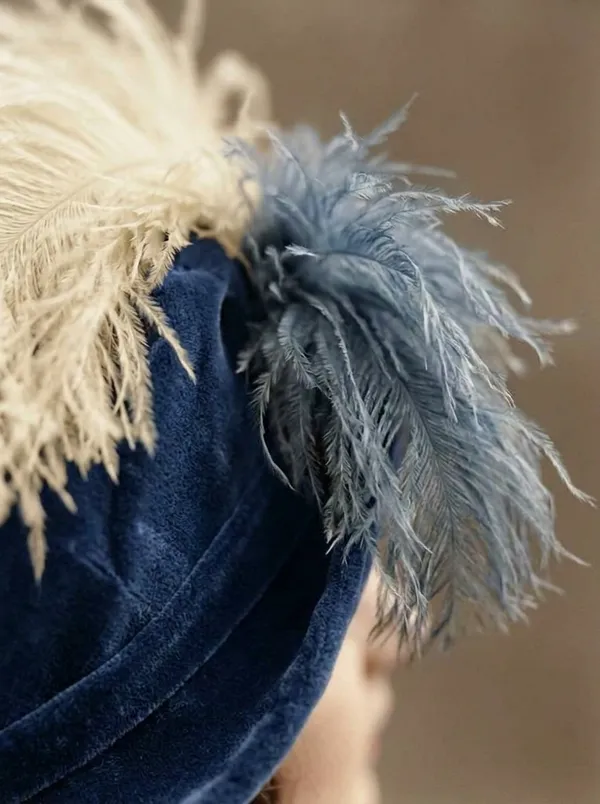
A single wide photo answers "what is this," but not "what is it like up close." For products, listings, and design work, the close-up is often what convinces: the texture of a fabric, the quality of a seam, the material of a surface, the small features that distinguish one item from another. Capturing those normally means a second round of macro photography, moving in on each detail with the right lens and lighting, which is a whole extra shoot.
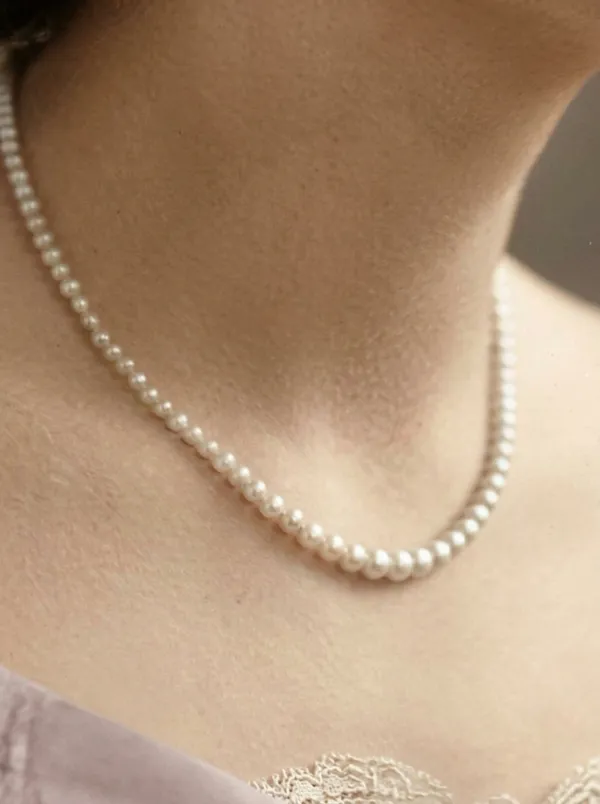
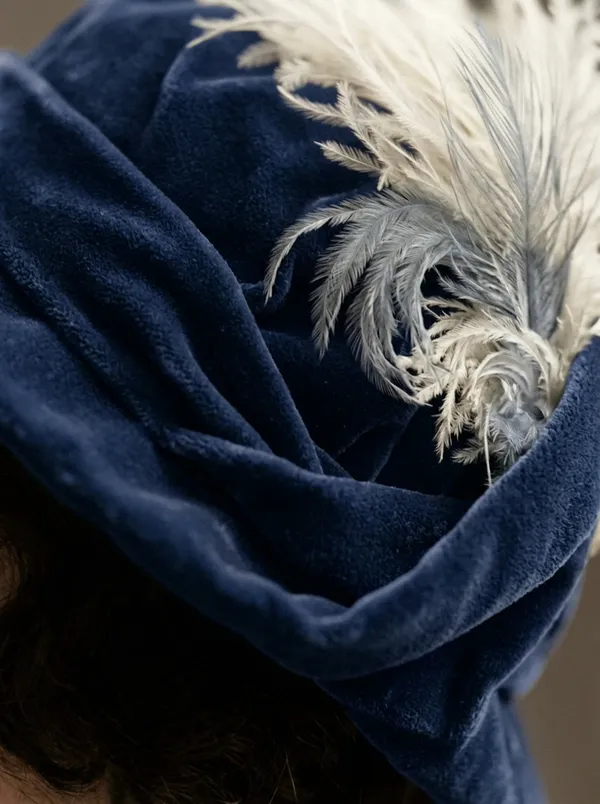
Zooming into details with AI generates those close-ups from the picture you already have. The model identifies the notable parts of the image and produces close-up views of them, so a single product photo yields a set of detail shots without a macro lens. It is a different job from enlarging a photo: rather than making the whole image bigger, it selects regions and presents them as their own close-up views.
When to Use It (and When to Shoot Macro)
Zoom on details fits anywhere close-ups add value:
- Product listings, showing the texture, finish, and construction that a wide shot cannot convey.
- Fashion and textiles, highlighting fabric, stitching, and trims on a garment.
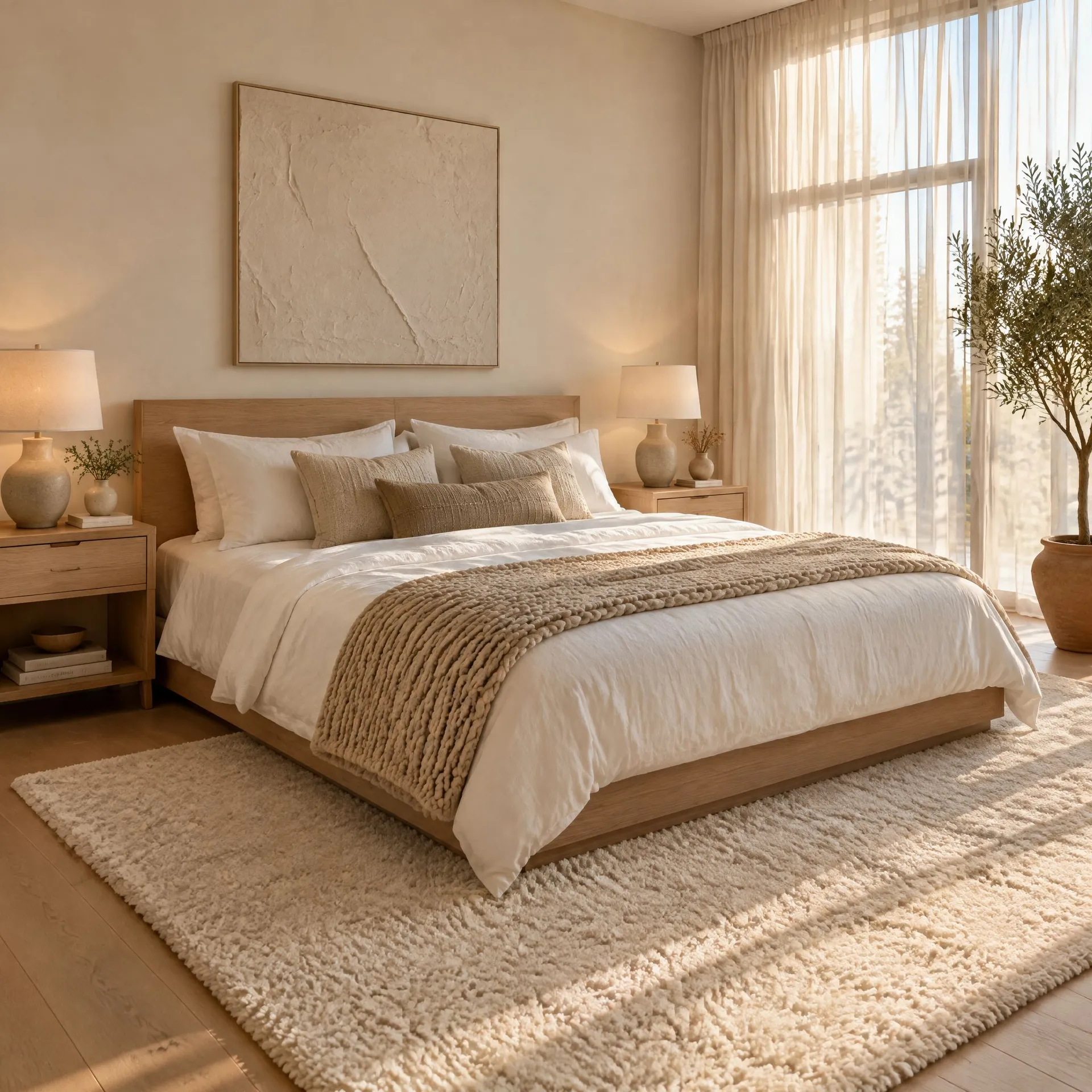
- Interiors and architecture, drawing attention to materials and features in a room.
- Presentations and portfolios, breaking one image into a set of detail views that tell a fuller story.
Shooting macro still wins when a buyer will scrutinise exact, critical detail: the precise weave of a fabric, a hallmark, fine print, or a flaw that matters for authenticity or quality control. Generated detail views are drawn from what the original photo contains, so their fidelity is bound by the source. When the true, exact detail is the deciding factor, a real macro shot is the honest record; when the goal is to show and sell the character of an item, generated close-ups do it fast.
How to Zoom into Details, Step by Step
Here is the workflow in getimg.ai. Open the Zoom on details Action to follow along.
1. Add the picture
Add the picture you want to look into: a product, a room, a garment, or anything with detail worth showing. The higher the resolution and clarity of the source, the more the model has to draw on for the close-ups.
2. Choose how many details
Pick how many close-up views to generate: 4 details for a focused set, 6 details for a broader spread, or 8 details for a thorough look across the picture. More details cover more of the image.
3. Set quality and aspect ratio
Choose an output resolution of 1K, 2K, or 4K, and an aspect ratio: same as photo, 1:1, 4:5, or 16:9. Square and portrait crops suit individual detail shots well.
4. Generate the set
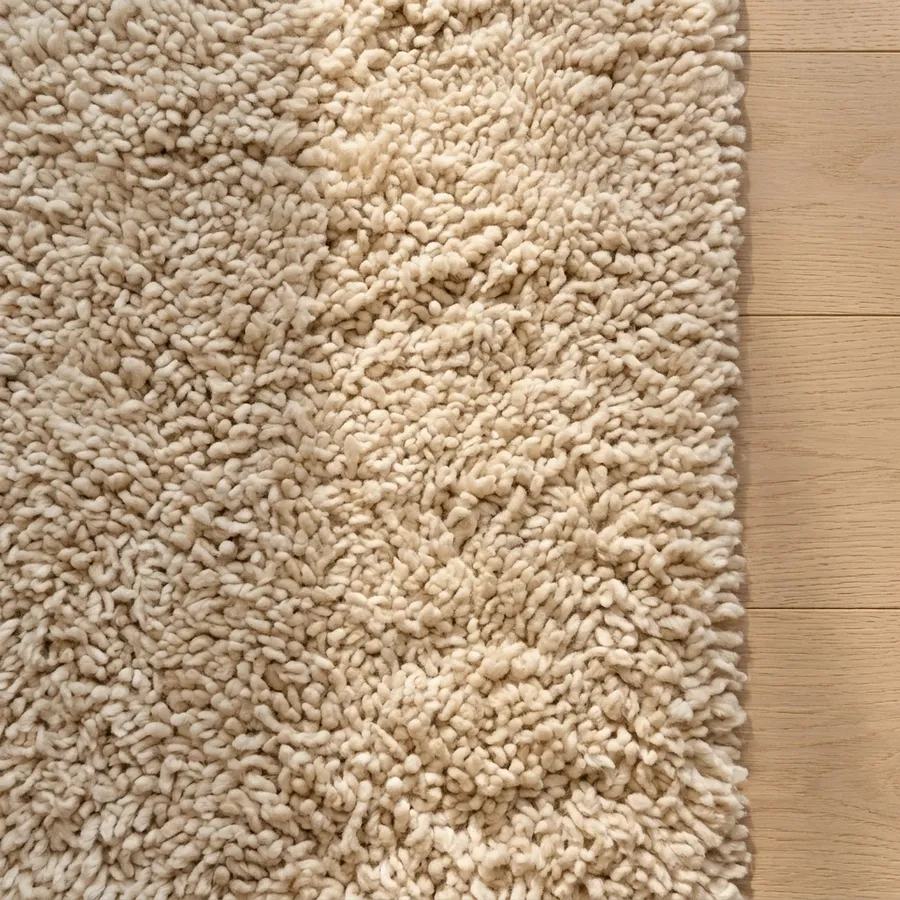
Run the Action and the detail views appear in the gallery to the right of the controls. Your original picture is untouched, so you can generate a set of four first and go wider if the results are useful.
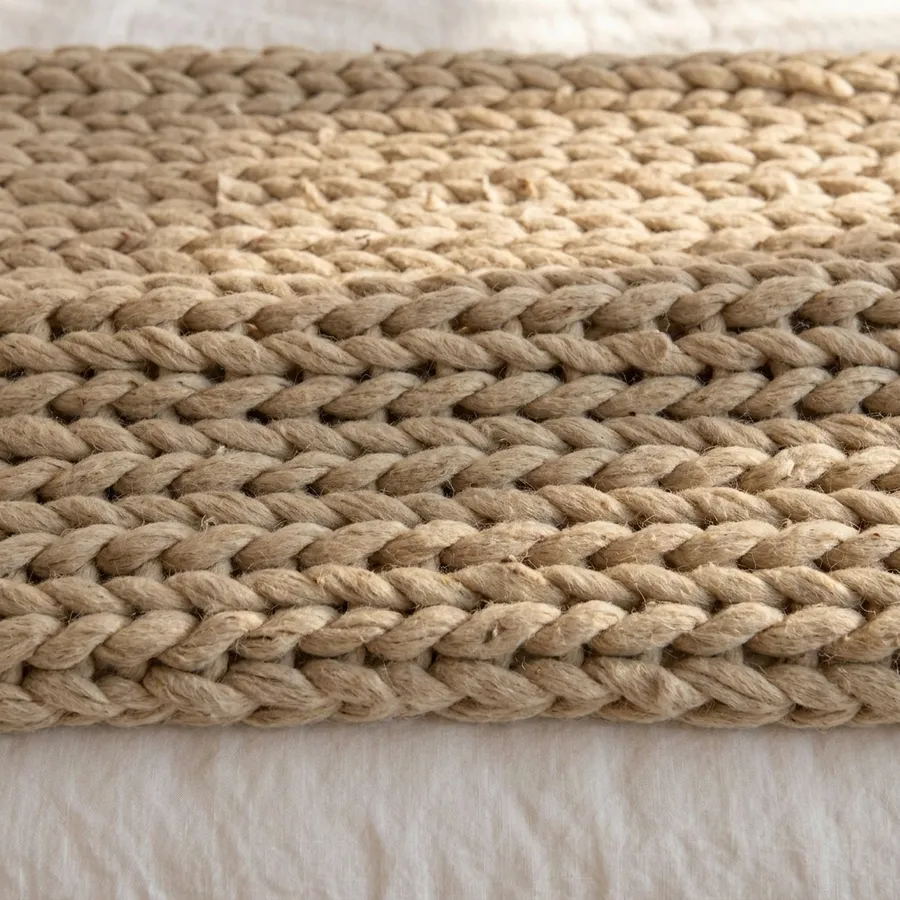
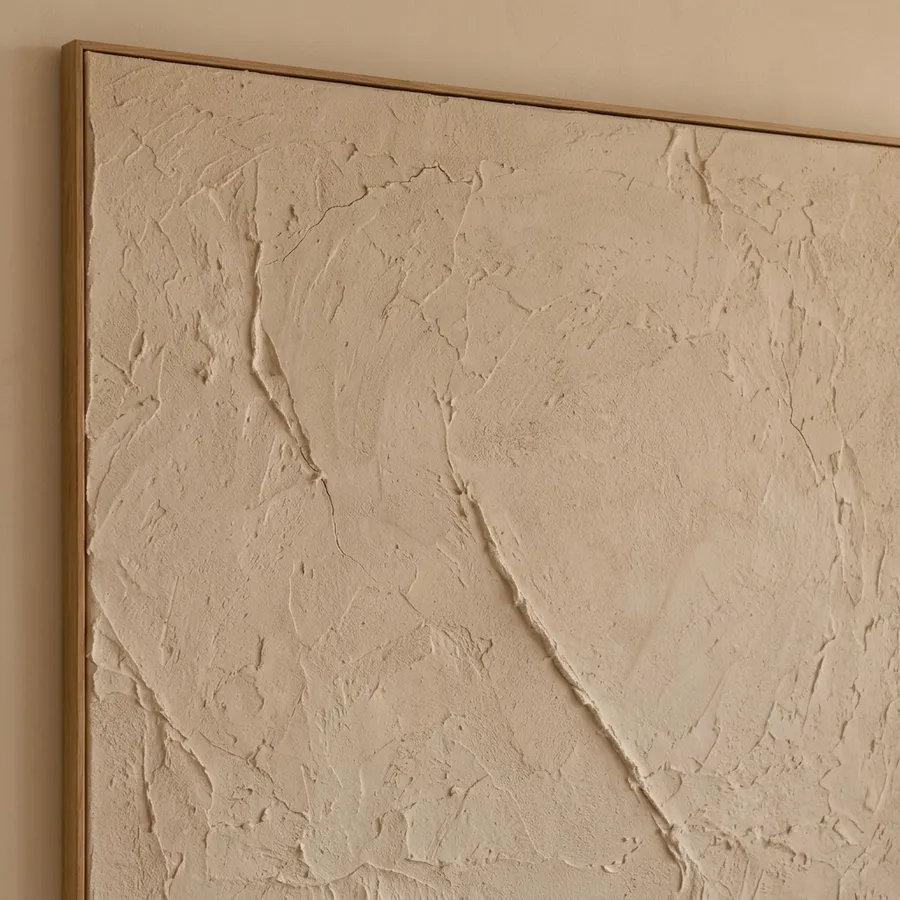
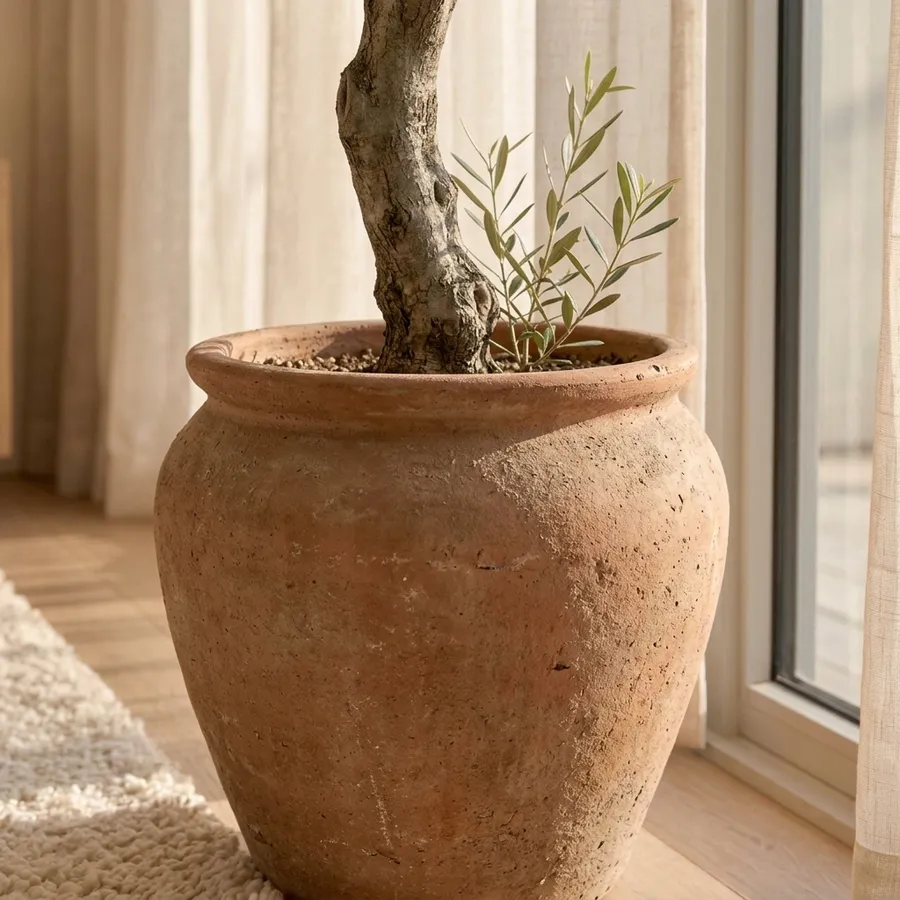
How to Get Useful Detail Views
- Start with the sharpest source you have. The close-ups are drawn from the original, so a high-resolution, sharp picture yields cleaner detail views than a small or soft one.
- Choose the count for the subject. A simple product may only have four details worth showing; a richly detailed room or garment supports six or eight.
- Use it to tell a story. A set of details works best when it walks a viewer through the parts that matter, the texture, the construction, the features, rather than random crops.
- Remember what it is not. This creates detail views; it does not increase the resolution of your whole image. If you need the full picture at a higher resolution, that is a job for an upscaler.
- Generate at high quality for delivery. Use 4K when the detail shots will appear in a listing or a portfolio at full size.
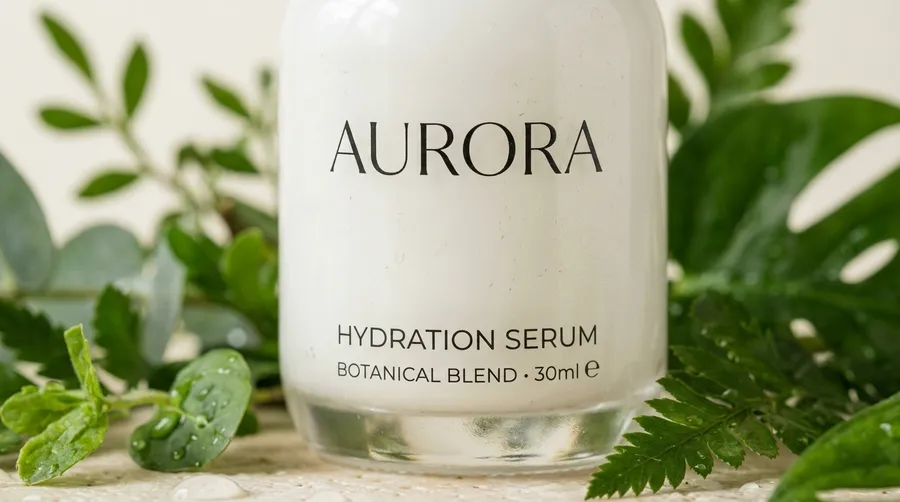
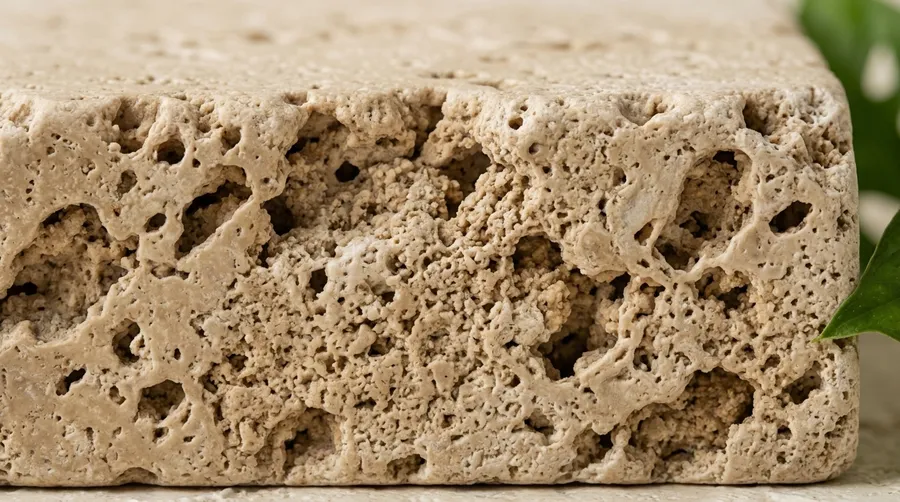
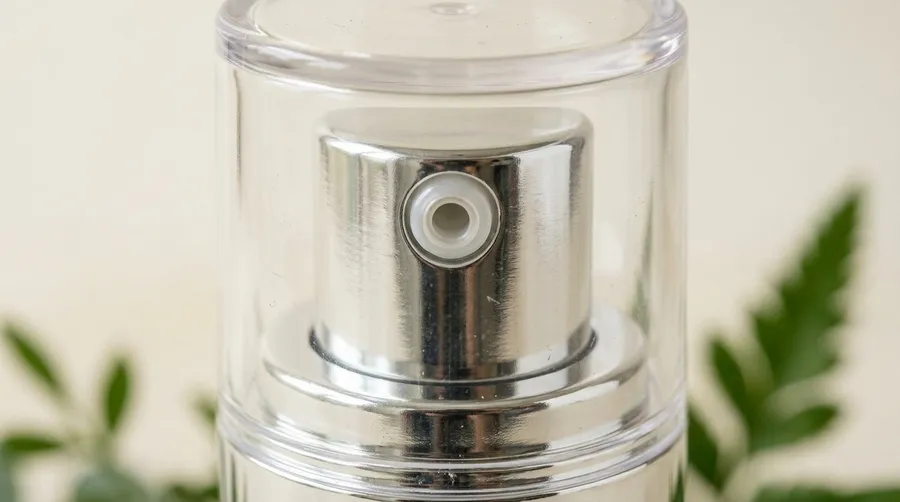
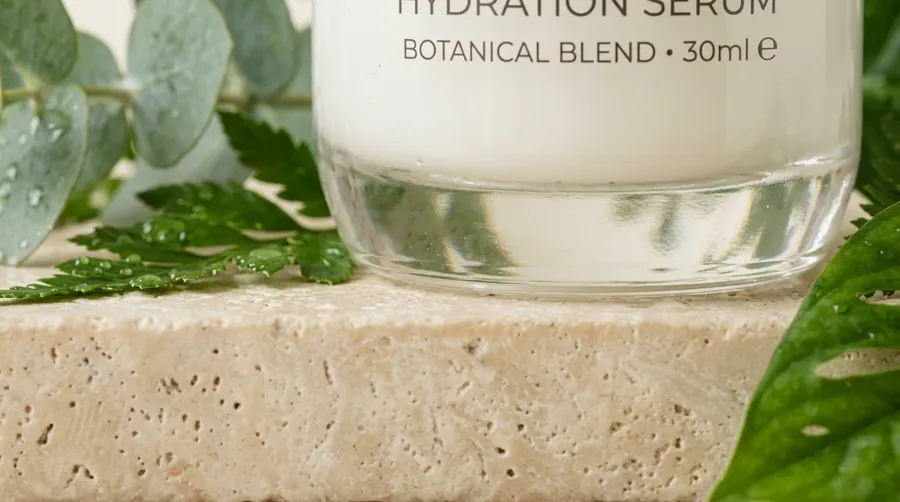
Details Alongside Other Views
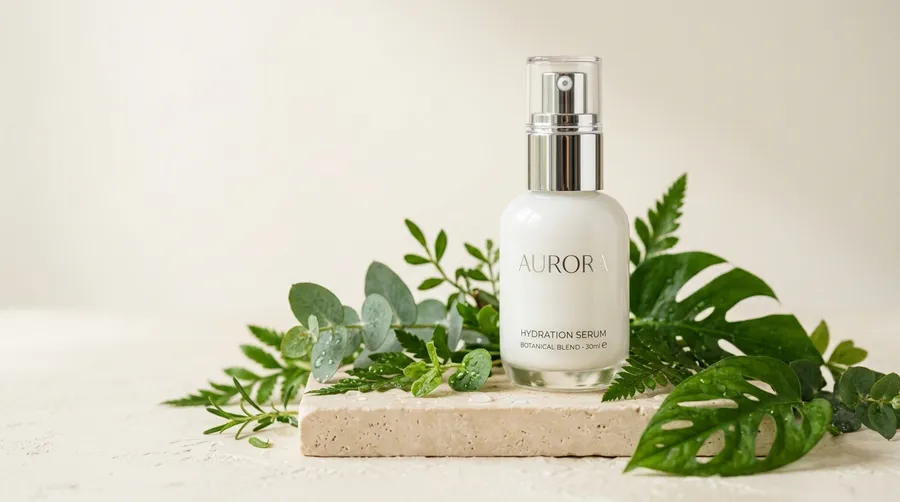
Detail views pair naturally with other ways of showing a subject more completely. The Every angle Action shows a subject from multiple viewpoints, while Zoom on details goes the other way, moving in close on one view.
Together they give a listing or a presentation both the tour around an item and the look inside it. When you need a specific crop or a detail the Action does not surface, the open-ended Create image generator lets you direct exactly what you want.
The Bottom Line
Zoom on details turns one picture into a set of close-ups: add the image, choose 4, 6, or 8 details, and generate. It is the fast way to give a product, a room, or a garment the detail shots that convince, without a macro shoot, as long as you remember it is generating detail views from the source rather than recording exact, critical detail or enlarging the whole image.
Open the Zoom on details Action in getimg.ai, add a detailed product or garment photo, and pull a set of close-ups. Commercial rights are included, subject to our terms and applicable third-party rights.
Frequently Asked Questions
You can choose 4, 6, or 8 details. Four gives a focused set, six a broader spread, and eight a thorough look across the picture. Choose the count to match how much detail the subject has worth showing.
No. Upscaling increases the resolution of the whole image. Zoom on details selects notable parts of the picture and generates close-up views of them. If your goal is a higher-resolution version of the entire photo, use an upscaler; if it is a set of close-ups, use this Action.
Products, rooms, garments, and anything with detail worth a closer look. The close-ups are drawn from the source, so a sharp, high-resolution picture with genuine detail produces the most useful views. A small or soft image gives the model less to work with.
They are drawn from what the original photo contains, so their fidelity is bound by the source. This is convincing for showing the character and texture of an item. Where a buyer needs exact, critical detail for authenticity or quality, a real macro shot remains the honest record.
Yes. The options include "same as photo," along with 1:1, 4:5, and 16:9. Square and portrait crops tend to suit individual detail shots, while "same as photo" keeps them consistent with the original.
Commercial rights are included, subject to our terms and applicable third-party rights. Make sure you hold the rights to the original picture.
Related Articles