How to Virtually Stage an Empty Room with AI

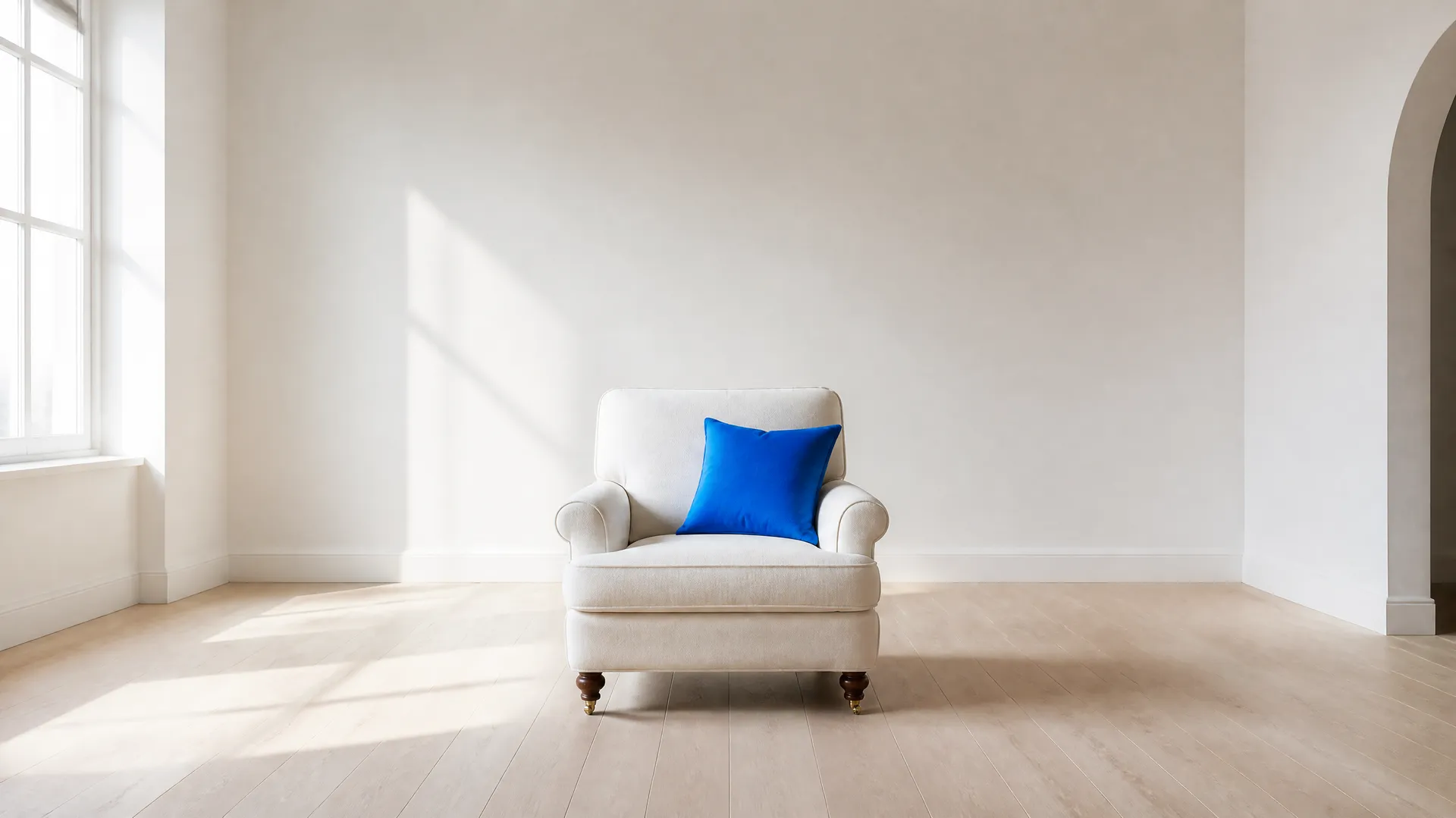
Virtual staging with AI means furnishing an empty room in a photo: adding furniture, decor, and styling to a bare space so it looks lived-in and appealing. An empty listing photo becomes a warm living room, a blank bedroom, or a working home office. You add a wide photo of the empty room, choose the room type, a furniture style, and how much furniture to add, and the model stages it. On getimg.ai the Virtual staging Action does this from one photo, so you can furnish a space without renting a single piece.
What Virtual Staging Is
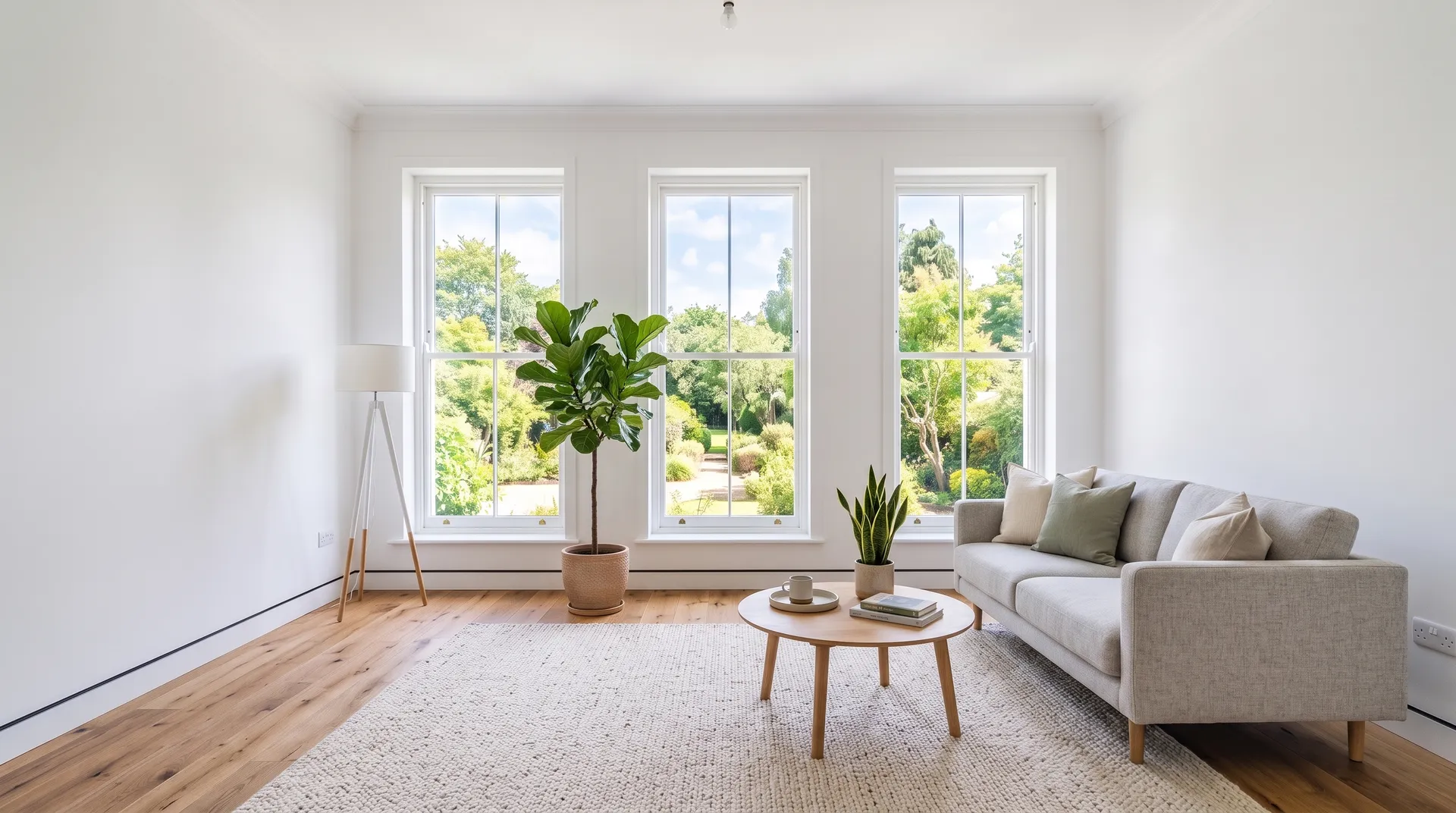
An empty room is hard to sell and hard to picture. Buyers and renters struggle to judge scale and imagine living in a bare space, which is why staging, filling a property with furniture so it feels like a home, has always lifted listings. The catch is cost: physical staging means renting furniture, moving it in, photographing, and moving it out, which runs to real money per property and simply is not practical for every listing.
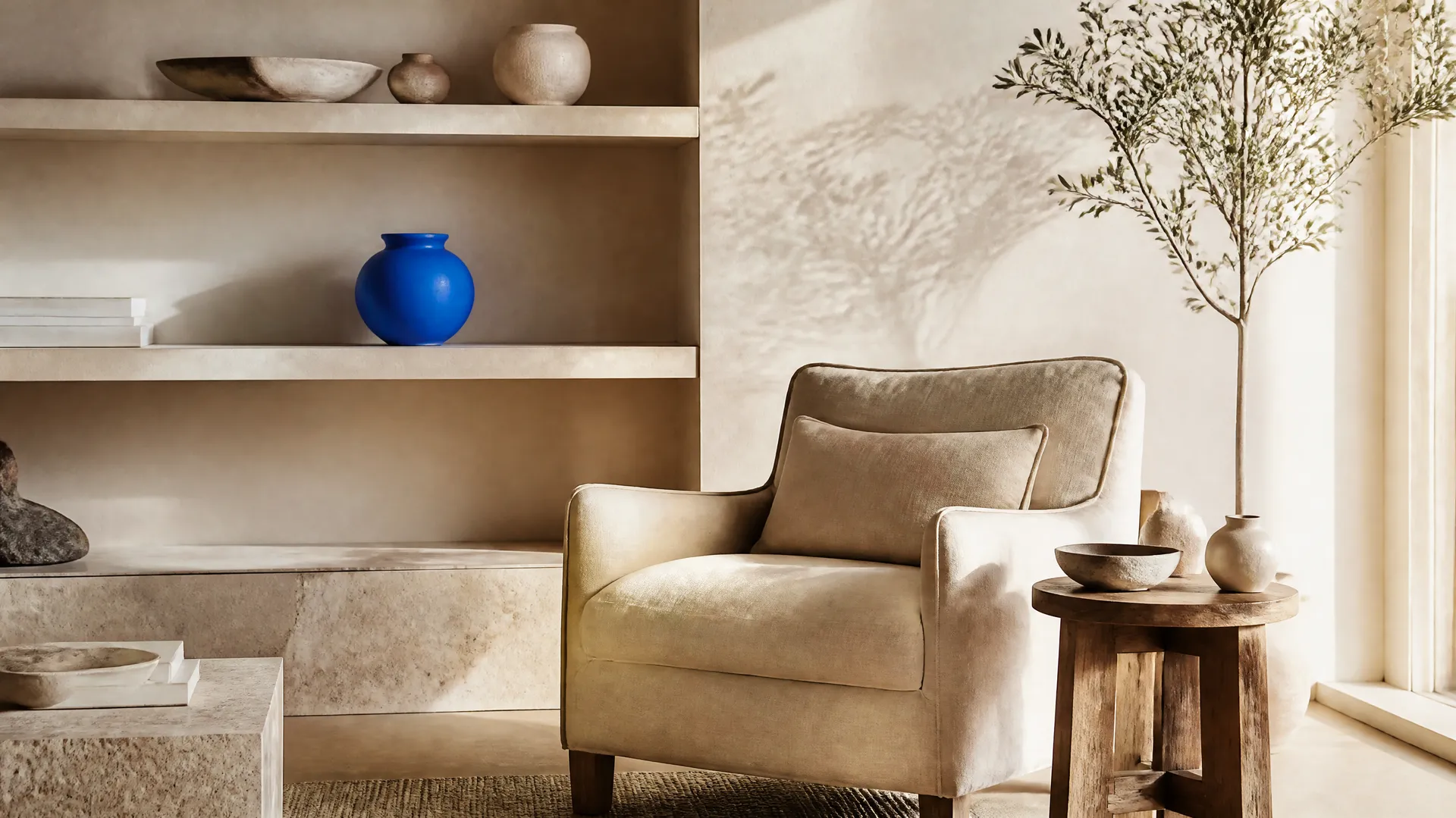
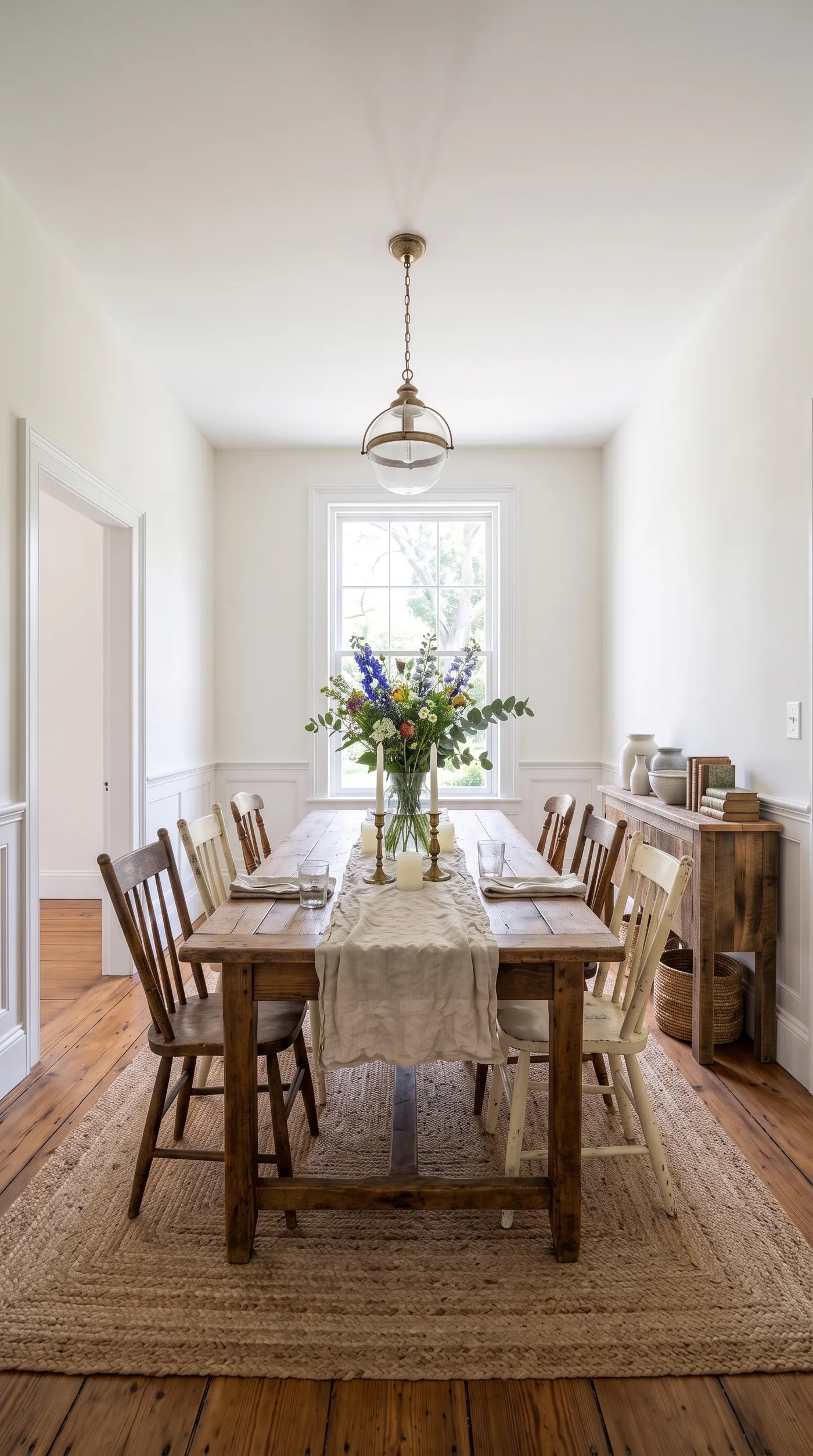
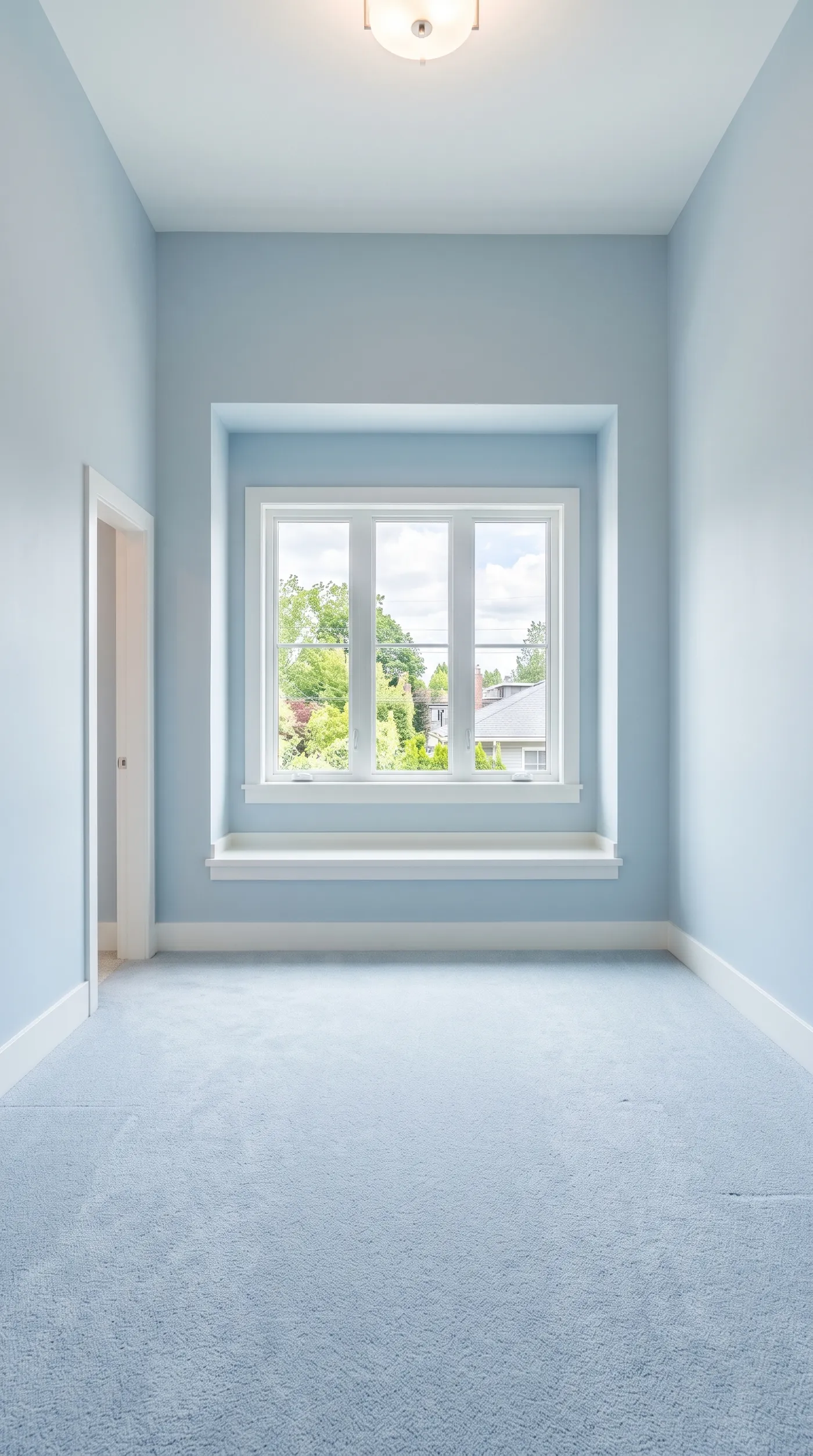
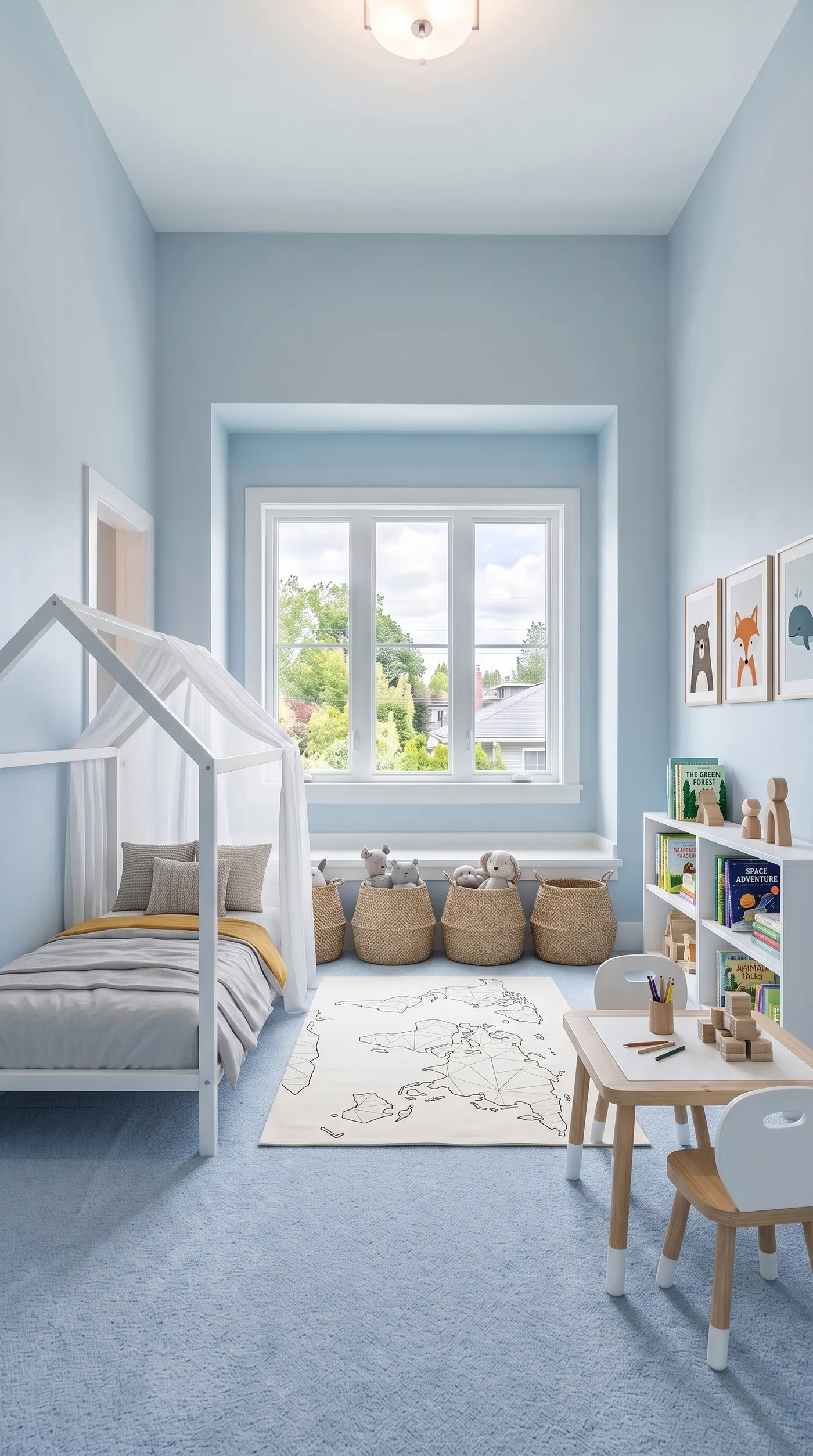
Virtual staging furnishes the room in the photo instead of in reality. The model reads the empty space, keeps the floor, walls, windows, and proportions, and adds furniture and decor appropriate to the room type and style you choose. The result is the same room, furnished: a believable picture of how the space could look and live, produced from a single photo, without renting and staging real furniture.
When to Use It (and When to Stage for Real)
Virtual staging fits property and space marketing especially well:
- Real estate listings, furnishing empty rooms so buyers can picture living there.
- Rentals and short-lets, showing a bare unit as a warm, move-in-ready home.
- New builds and off-plan, presenting unfinished or empty spaces as finished interiors.
- Design previews, showing a client how an empty room could be furnished before committing.
Staging for real still wins when buyers will physically walk the property and expect what they saw online to match: an in-person viewing of an empty room that looked furnished can disappoint, and in many markets virtually staged photos must be disclosed as such. Physical staging also lets people feel the space and the furniture. Virtual staging is ideal for the online listing, for reach, and for previews; a real stage is for the high-touch, in-person sale where the physical experience matters.
How to Virtually Stage a Room, Step by Step
Here is the workflow in getimg.ai. Open the Virtual staging Action to follow along.
1. Add a wide photo of the empty room
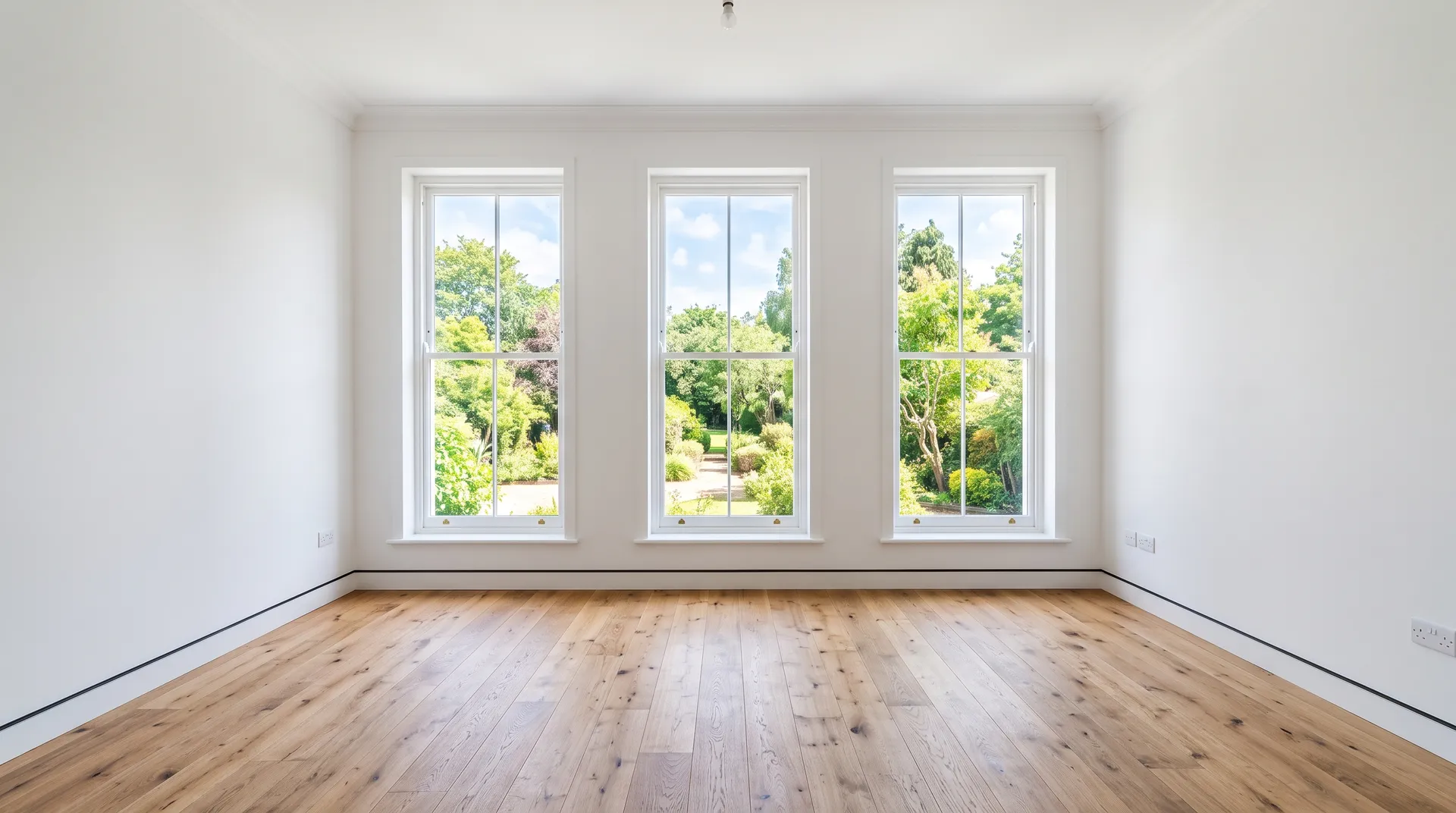
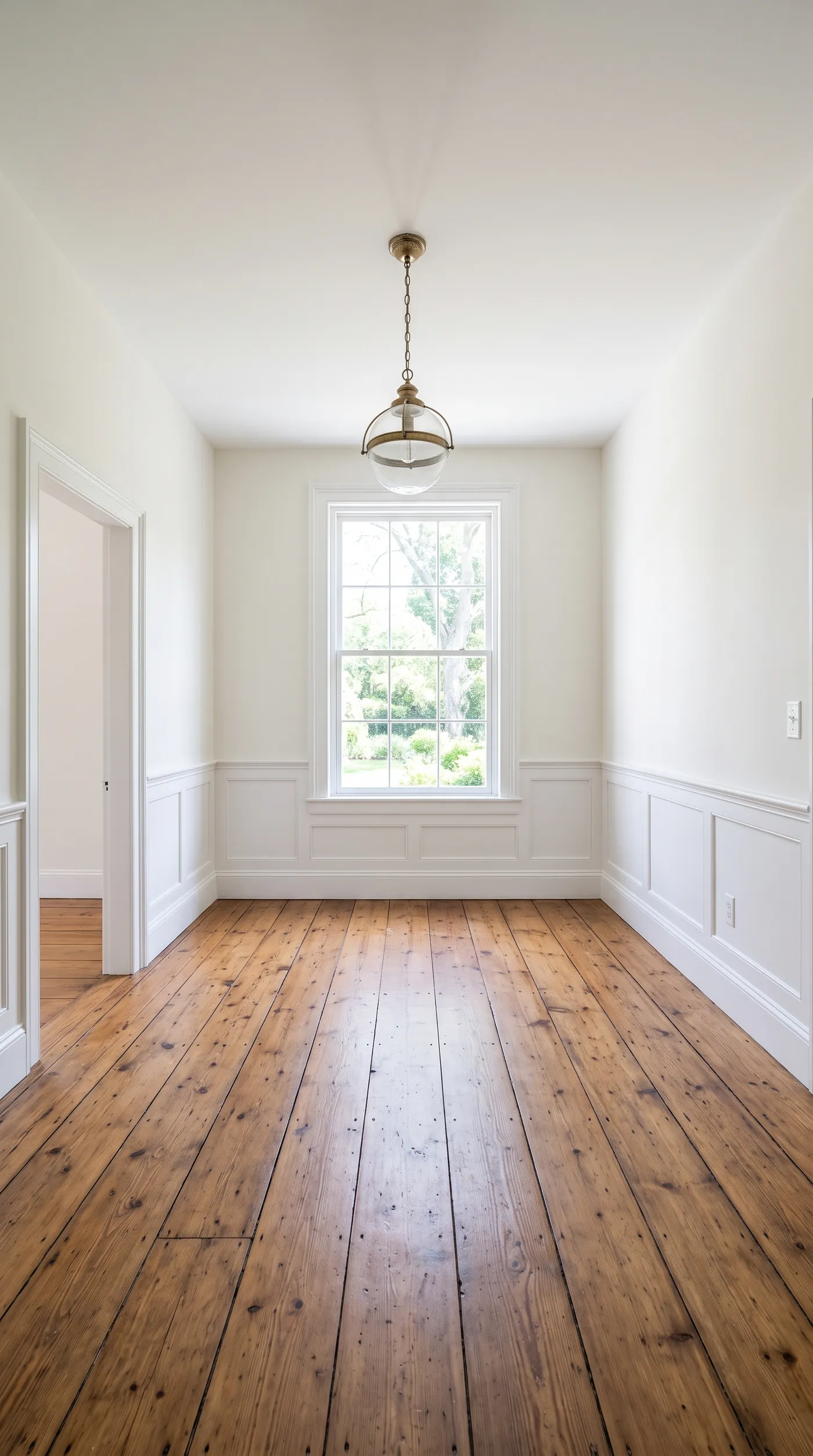
Add a wide photo that shows the floor and the walls of the empty room. The more of the space the photo captures, the better the model can place furniture at a believable scale and keep the room's proportions right.
2. Choose the room type
Pick what the room should become: living room, bedroom, dining room, home office, kids' room, patio, entryway, studio apartment, or balcony. The room type determines the kind of furniture the model adds, so choose the function you want the space to show.
3. Choose the furniture style and amount
Pick a furniture style: modern, Scandinavian, japandi, mid-century, coastal, traditional, farmhouse, industrial loft, or maximalist. Then set how much furniture to add: essentials for a light, uncluttered stage, balanced for a natural, lived-in amount, or fully dressed for a rich, complete look. Use the text field to add a specific piece, layout, or colour if you want.
4. Set quality and variations, then generate
Choose an output resolution of 1K, 2K, or 4K, and how many variations to generate (1 to 4). Run the Action and the staged rooms appear in the gallery to the right of the controls, with your original photo left untouched.
How to Get a Believable Stage
- Shoot the empty room wide. A wide photo showing the floor and walls lets the model judge scale and place furniture that fits the space. A cramped or partial shot makes believable placement harder.
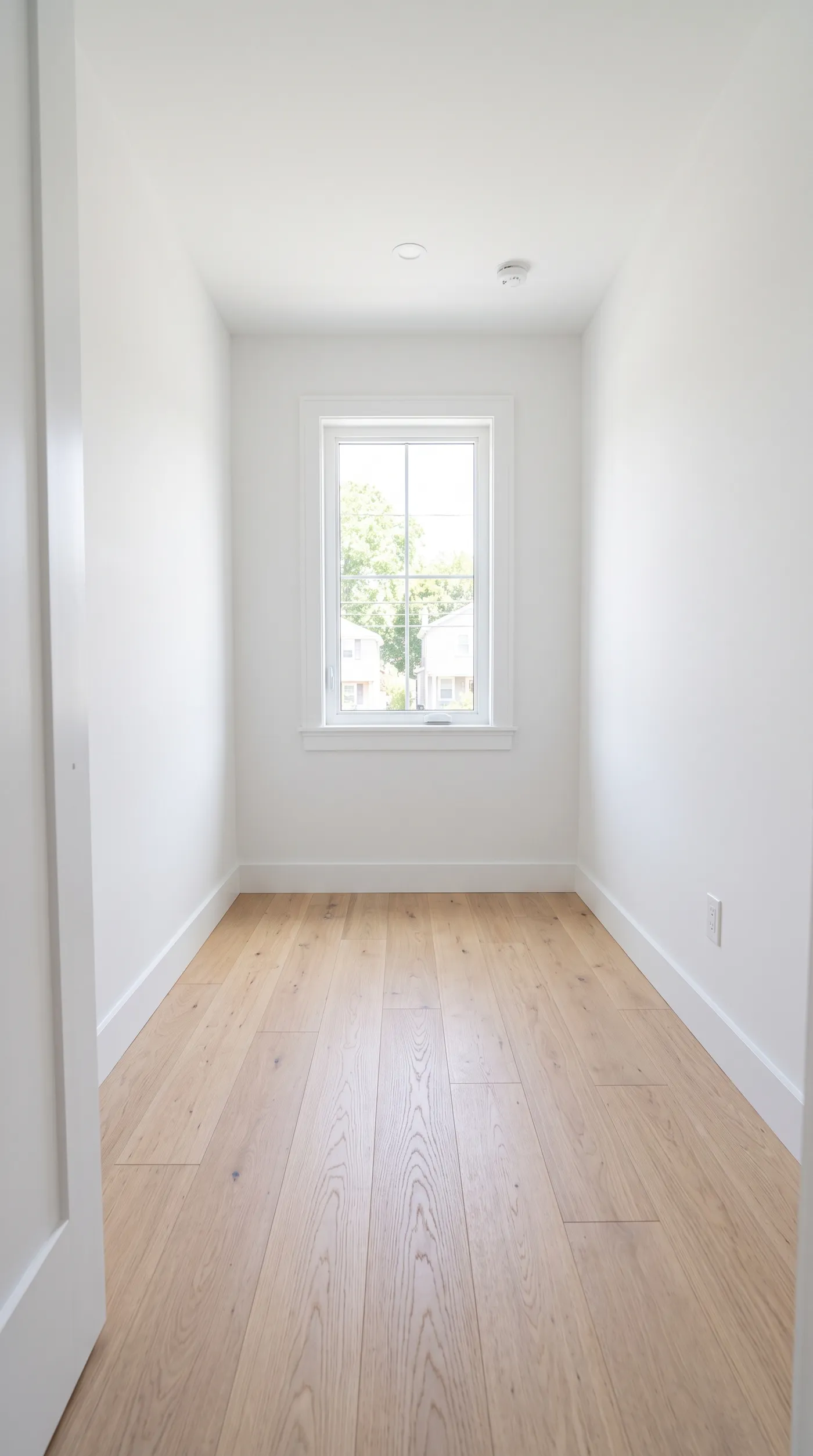
- Match room type to reality. Stage a space as what it actually is or realistically could be. Furnishing a small box room as a grand dining room reads as false and, for listings, can mislead.
- Choose the amount to suit the goal. Essentials keeps a room feeling open and spacious; fully dressed makes it feel warm and complete. Balanced is the safe default for most listings.
- Keep the style consistent across a property. Staging every room in one furniture style makes a listing feel like a single, coherent home.
- Disclose virtual staging where required. Many markets require that virtually staged listing photos be labelled as such. Check your local rules and disclose to keep the listing honest.
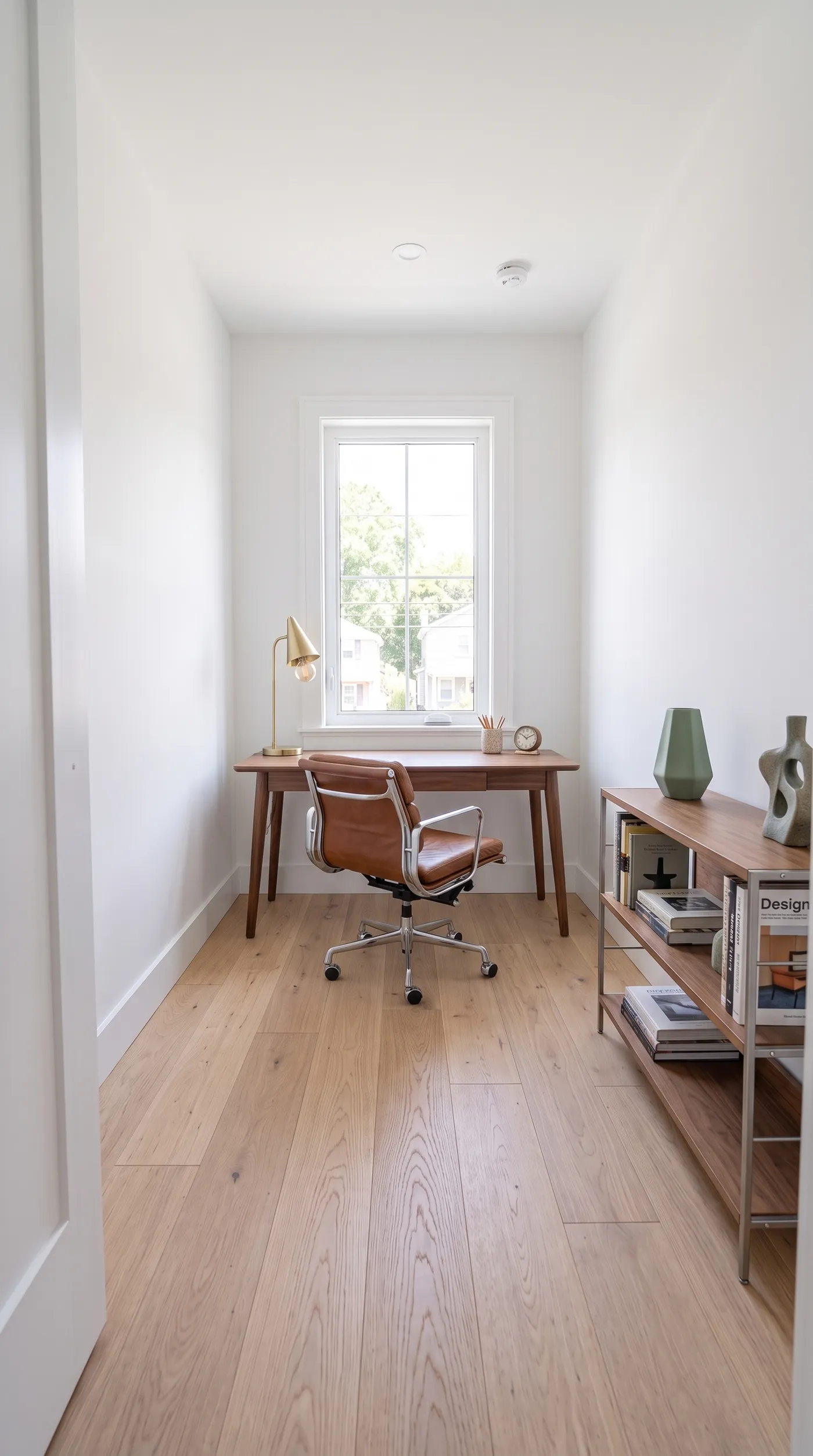
Staging Versus Restyling a Furnished Room
Virtual staging and room restyling are two sides of the same coin. Staging furnishes an empty room from scratch; restyling changes the look of a room that is already furnished. If your room already has furniture and you want a different style, the Room restyle Action is the tool for that. Both belong to a broader home and interior design workflow, and pairing them, staging an empty room and then trying different styles, covers most property visualisation needs.
The Bottom Line
AI virtual staging furnishes an empty room in a photo: add a wide shot of the bare space, choose the room type, furniture style, and amount, and generate. It gives an empty listing the warmth of a furnished home without renting real furniture, which makes it one of the most practical uses of image AI, provided you stage honestly and disclose it where your market requires.
Open the Virtual staging Action in getimg.ai, add a photo of an empty room, and furnish it as a living room and a home office to compare. Commercial rights are included, subject to our terms and applicable third-party rights.
Frequently Asked Questions
Virtual staging furnishes an empty room, adding furniture and decor to a bare space. Room restyle changes the style of a room that is already furnished, keeping the layout but swapping the look. Use staging for empty rooms and restyle when the room already has furniture and you want a different style.
Room types include living room, bedroom, dining room, home office, kids' room, patio, entryway, studio apartment, and balcony. Furniture styles include modern, Scandinavian, japandi, mid-century, coastal, traditional, farmhouse, industrial loft, and maximalist. You also choose how much furniture to add, essentials, balanced, or fully dressed, and can add a specific piece or colour in the text field.
In many markets, yes. Rules vary by region and platform, but a common requirement is to clearly label virtually staged photos so buyers are not misled. Check your local regulations and disclose accordingly; honest staging protects both you and the buyer.
The model places furniture to fit the space shown in your photo, which is why a wide shot of the floor and walls matters, as it lets the model judge scale and proportions. Staging a room as what it realistically is, rather than something grander, keeps the result believable.
You can generate 1 to 4 variations per run, at 1K, 2K, or 4K. Generating a few gives you a choice of layouts and stylings, and you can stage the same empty room as different room types to show its potential.
Commercial rights are included, subject to our terms and applicable third-party rights. For real estate specifically, follow your market's disclosure rules for virtually staged images, and make sure you hold the rights to the original room photo.
Related Articles