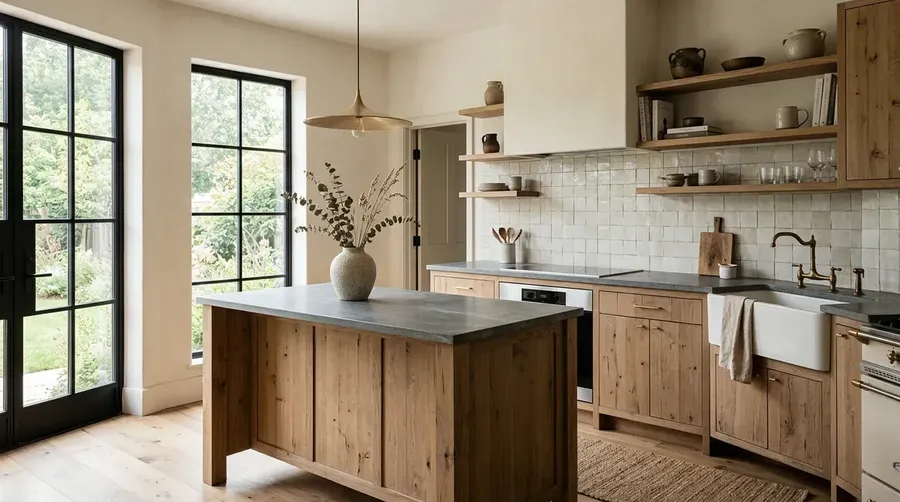
AI Home Design Generator
Visualize interior, exterior and renovation concepts from a text description, room photo, sketch or floor-plan reference. Explore materials, furniture, lighting and architectural directions, then refine the strongest visual before moving into detailed design.
One workflow for interior visualization, exterior rendering, and renovation concepts.
Multiple leading models, one subscription.


AI visualization vs measured room planning
getimg.ai's AI Home Design Generator creates interior, exterior and renovation visualizations from text prompts, room photos, sketches and visual references. Explore furniture, materials, lighting, room styles, facade directions and virtual-staging concepts.
Photo, sketch and floor-plan references guide the visual layout while you compare directions. The output is a generated image rather than a measured floor plan, CAD/BIM model, engineering analysis or construction drawing. Verify dimensions, structural feasibility, building systems and local permit requirements separately before construction.
AI visualization
Explore how furniture, finishes, style and lighting could look. Use getimg.ai for this first stage.
Create home design visuals from text, photos, sketches or floor plans
Start with the input that matches your project. Use references as guidance, not a promise of exact reconstruction.
Start from text
Generate a new room, facade or design direction. Describe the space, style, materials, furniture, palette, lighting and camera perspective.
Explore text-to-image generation for an initial concept.
Redesign a room from a photo
Upload a photo of your living room, kitchen, bedroom or office. Keep the space as visual context while exploring new furniture, finishes, colors, lighting and styling directions.
Use the existing room layout as visual guidance. Review doors, windows, dimensions and fixed architectural elements after each edit when spatial accuracy matters.
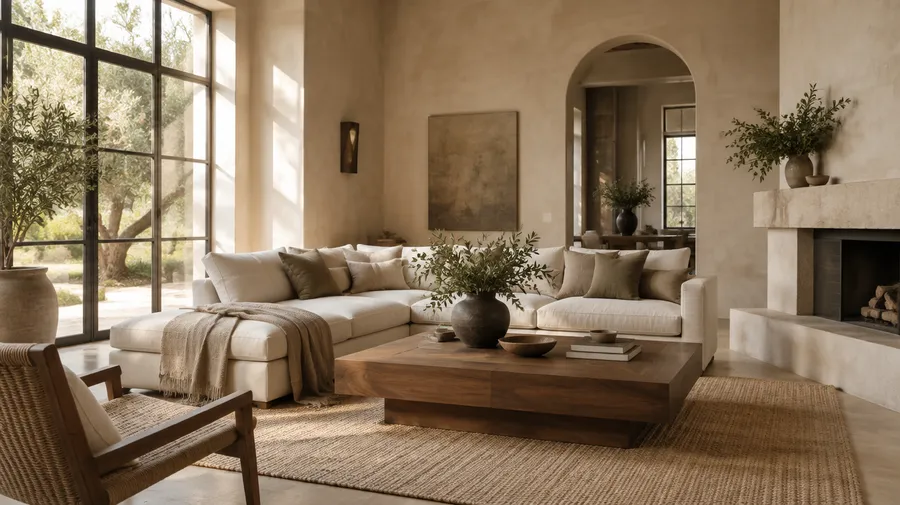
Virtually stage an empty room
Upload a real listing photo, add furniture and decor, or compare furnished presentations of an empty room. AI virtual staging helps communicate a possible use of the space.
Listing rules and disclosure requirements vary by market and platform. Clearly label materially altered or virtually staged images where required. Do not hide damage, invent larger rooms, change window counts or remove permanent columns in listing imagery.
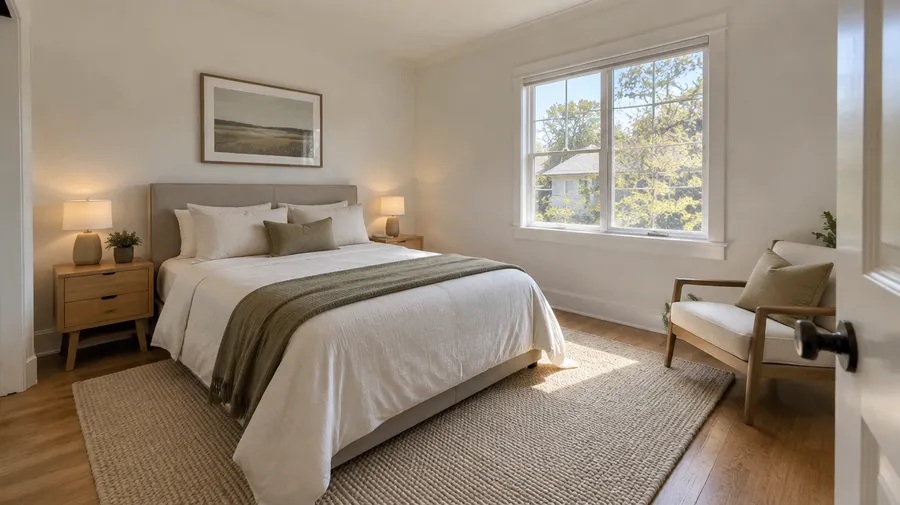
Turn a floor plan or sketch into a design visualization
Upload an existing floor plan or sketch to guide room arrangement, architectural features and composition, then generate a more realistic visual direction. The resulting image is a visualization rather than an editable or measured floor plan.
Turn an interior or architectural sketch into a realistic render
Use a hand-drawn perspective to explore materials, furniture and convincing lighting before a client meeting. The sketch guides the result rather than becoming an exact 3D reconstruction.
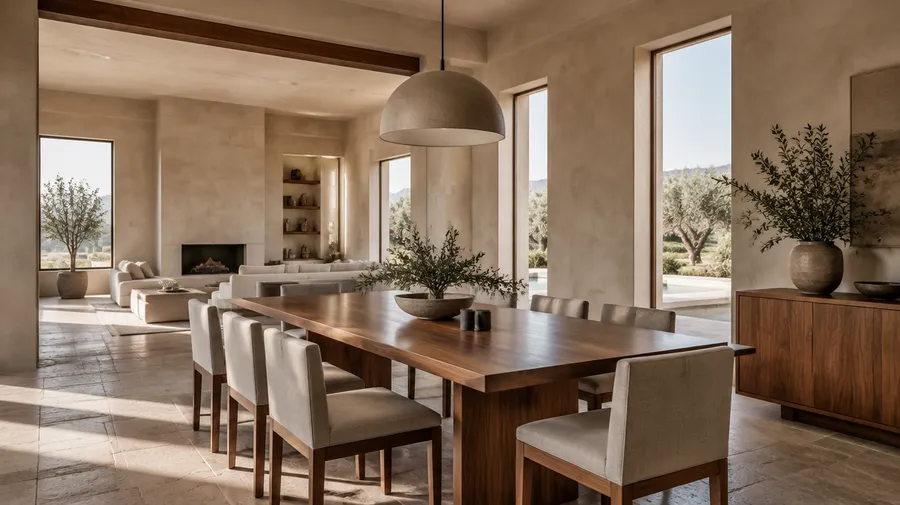
Preview a renovation before committing to it
Compare new flooring, cabinetry, wall colors, countertops, bathroom finishes, lighting mood, furniture placement and facade materials. Explore renovation concepts including visual layout changes.
Kitchen and bathroom renovation previews
Compare cabinet fronts, backsplash, countertops, tiles, fixtures and flooring. A kitchen remodel visualizer or bathroom concept image does not supply a plumbing or electrical plan.
For structural changes, use generated visuals for concept communication only. A wall-removal or larger-opening concept does not identify load-bearing walls, required beams, utilities or code compliance. Validate feasibility through the appropriate design, engineering and permitting process. A visual preview is not a cost estimate or construction schedule.
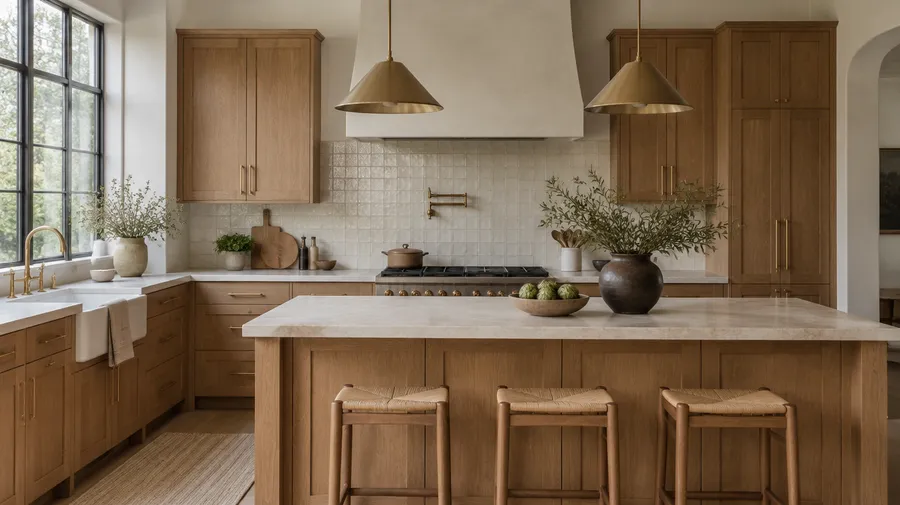
Try furniture and materials in your existing room
Preview a sofa, rug, lamp, tile or artwork in your room. Use a product or material Reference when you need the generated visualization to stay closer to a specific item.
AI renders are useful for visual fit, not dimensional fit. Verify furniture and room measurements, clearances and door swings before purchasing. Shape, stitching, scale, pattern and color tone may vary in a generated image.
Test finishes, colors and materials
Compare wood, stone, marble, tile, concrete, metal, paint, fabric, upholstery and facade cladding. Generated color and texture are visual approximations. Verify physical samples, manufacturer finishes and lighting conditions before final specification.
Lighting edits show moods and time-of-day directions, not measured lux levels, photometric analysis or daylight calculations.
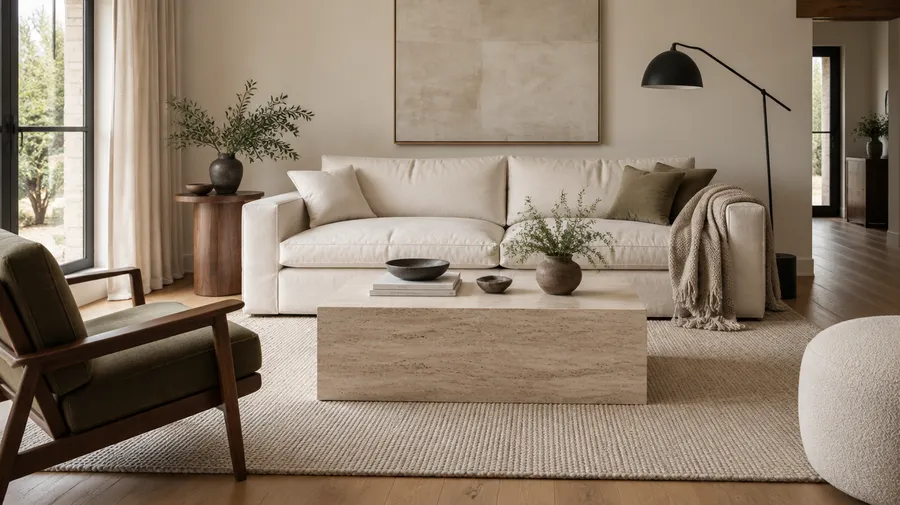
Visualize exterior and facade directions
Compare facade color, cladding, roof materials, windows, entry design, terraces and day-to-night lighting. Generate a house exterior visual direction rather than a measured architectural elevation drawing.
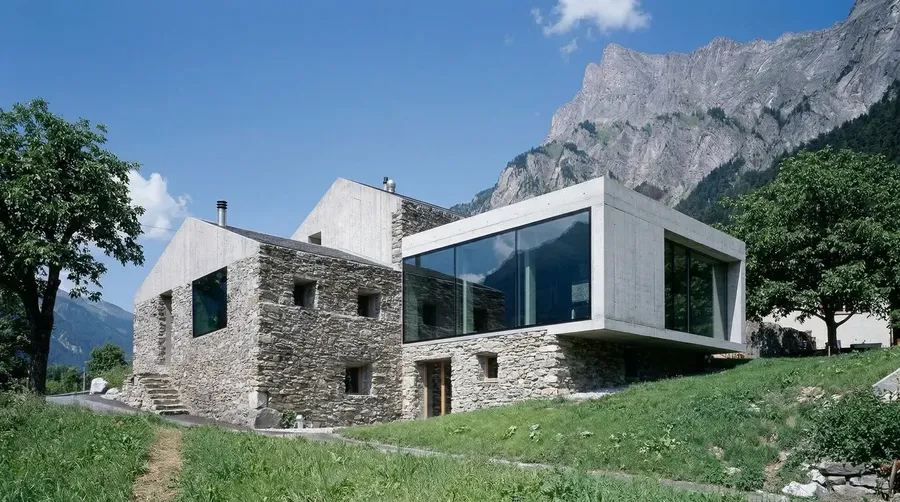
Explore Mediterranean, Modernist, contemporary villa, traditional, coastal, rustic stone and minimalist facade directions.
Explore outdoor and landscape concepts
Preview a patio, terrace, garden or pool-area setting with AI landscape design. Treat it as visual context, not drainage, irrigation, grading or a planting plan.
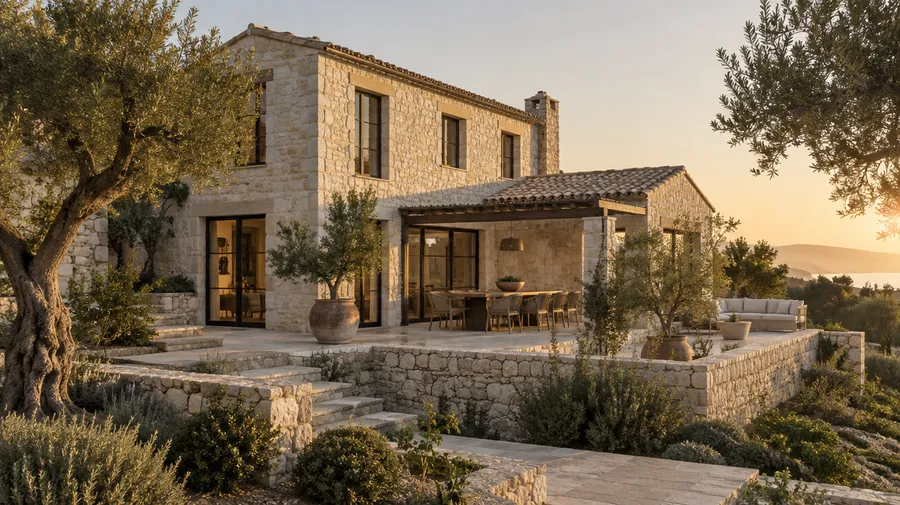
Keep a design direction consistent across rooms
Develop an approved living-room direction into kitchen, bedroom, hallway and home-office concepts. Reuse palette, flooring references, wood tone, stone, lighting mood and signature furniture with Elements. Call a saved reference with @ElementName to help keep the broader visual direction consistent.
Individual furniture geometry, material placement and architectural details can still vary between generated rooms. Review each output rather than assuming an identical finish or object was reproduced.
For studio-scale revisions and client delivery, explore AI for Architects & Interior Designers and Teams.
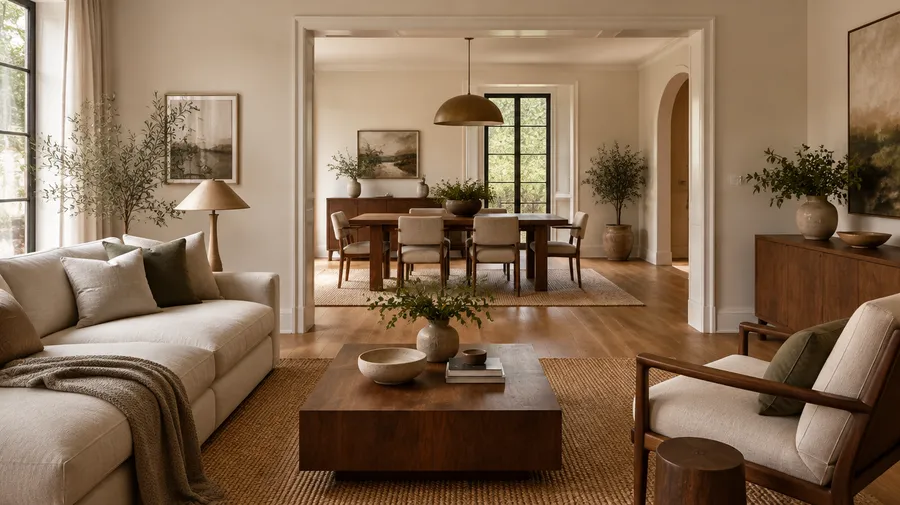
Explore interior design styles and room types
Name the style and room, then describe the materials and furniture that define your direction.
Interior styles
Scandinavian, Japandi, mid-century modern, minimalist, industrial, contemporary, traditional, Mediterranean, modern farmhouse, Art Deco, wabi-sabi, maximalist and luxury modern.
AI Home Design Prompt Examples
Prompt formula: room or space + existing constraints + desired style + materials + furniture + palette + lighting + camera perspective + what must remain unchanged. Preservation language expresses intent; inspect every result.
Living room from text
Create a warm minimalist Japandi living room with limewash walls, a low-profile cream sectional, walnut coffee table and woven wool rug. Soft afternoon daylight, eye-level wide-angle interior photography, generous uncluttered circulation.
How to get more accurate room redesigns
Start from a real photo when existing geometry matters. Say what must not change, then make targeted edits and inspect the output.
Prepare the input
Choose a clear room photo. Name the room and style, specify major materials, attach product or material References, and describe the camera perspective. Explicitly list windows, doors, fireplace and room proportions that should remain unchanged.
Turn a room concept into a walkthrough-style video
Use a selected room render as input for image-to-video to create a room showcase, camera-motion presentation or before-and-after reveal. Generated walkthrough-style video is a visual presentation rather than a navigable 3D architectural model.
Why getimg.ai works for AI home design
Compare image models in one workspace for room layout concepts, exterior views and renovation previews. These are visual directions, not measured plans or substitutes for detailed design.
Fast from concept to visual
Describe the style, materials, and spatial arrangement you need and get a detailed render in seconds. Produce multiple directions without returning to a 3D modeling suite for each revision.
Auto selection

GPT Image 2
OpenAI's top versatile image model.

Nano Banana 2
Ultra-realistic and detailed, excellent at typography.
Design-quality output you can show clients
Generate renders with realistic material textures, convincing lighting, and spatial depth. Outputs that hold up in client presentations, mood boards, and planning conversations — not just internal iteration.
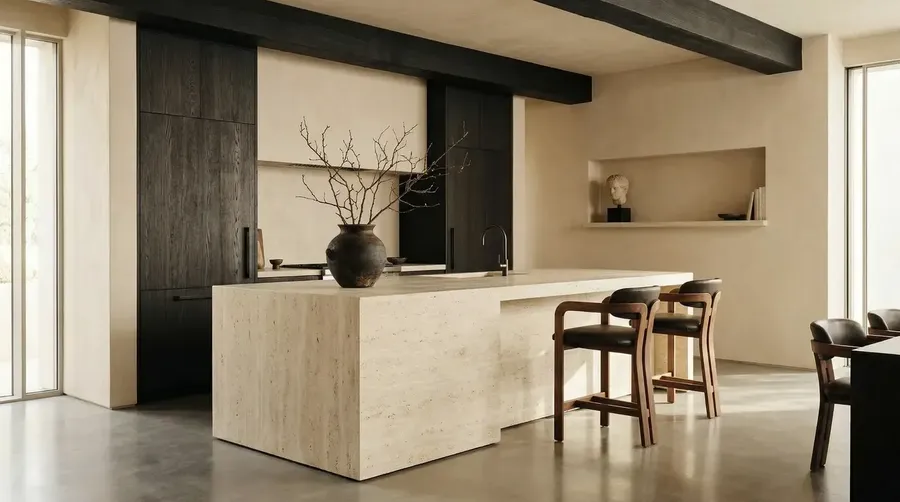
Create from a prompt or refine from a reference
Start from a text description or upload a floor plan, sketch, or existing photo. Use image-to-image workflows to relight a space, apply new materials, or generate a furnished version of an empty room.
Prompt
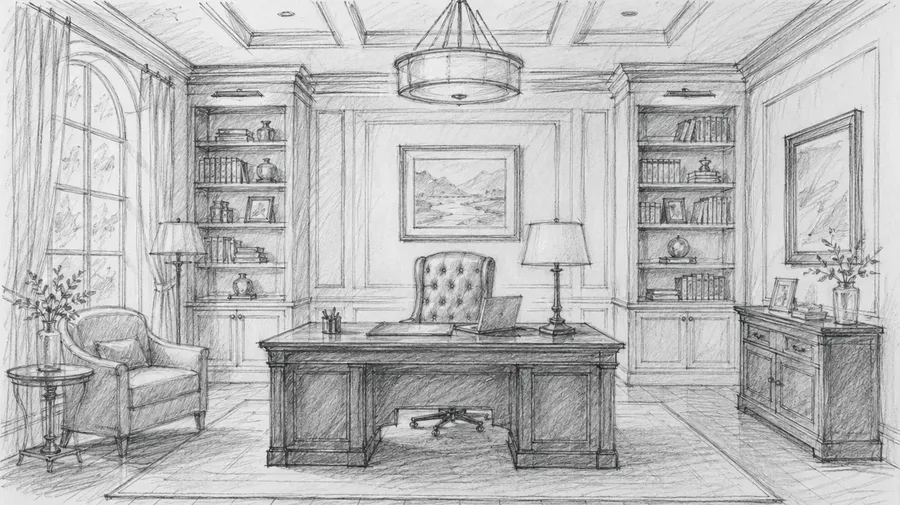
Reference Image
Output
Visualize spaces from a text description
Describe a room style, architectural approach, or outdoor setting and get a detailed visualization in seconds. Useful when you need to communicate a design direction before committing to a full render.
This works well for:
- interior design and room layout concepts
- exterior facade and architectural styles
- renovation and remodeling previews
- furniture and material arrangement ideas.
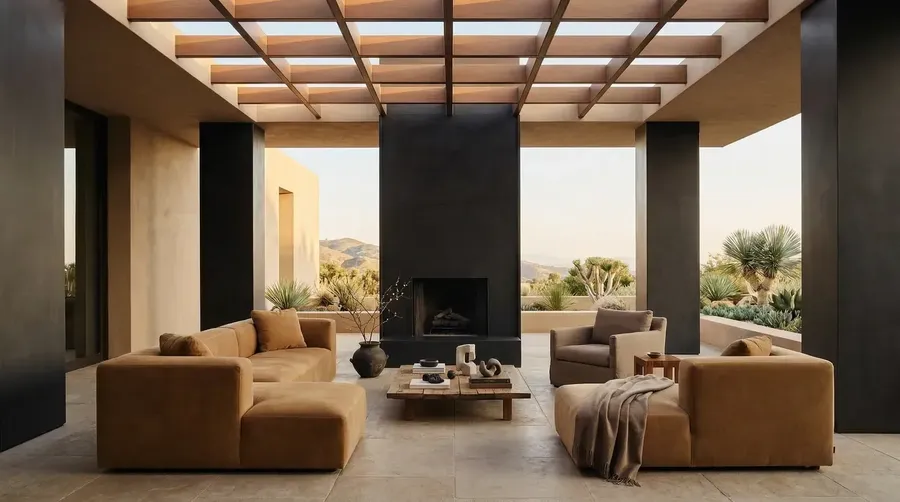
contemporary terrace blending European restraint with American outdoor living comfort
What you can design with an AI home design generator
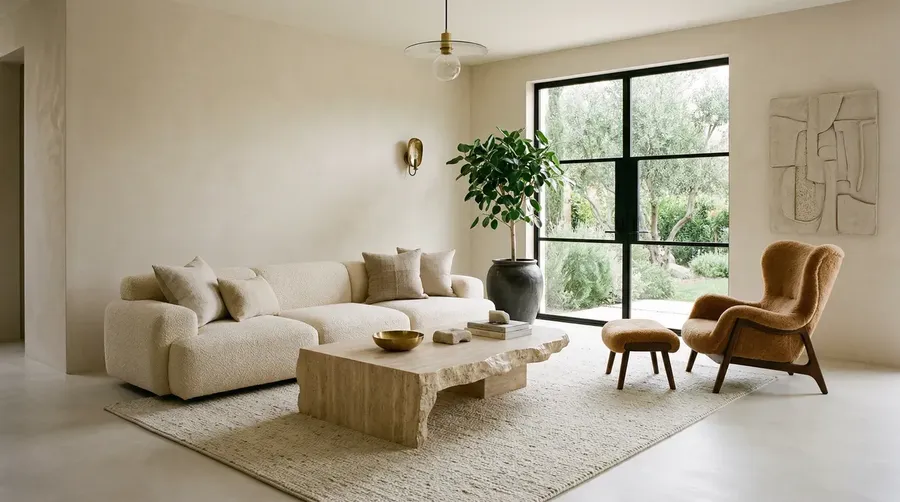
Use a reference image to guide your home design render
Upload a floor plan, mood board photo, or existing space image to anchor your generation. Use image-to-image workflows to relight, refurnish, or restyle a room while using the existing room layout as visual guidance — or explore renovation directions from a current-state photo.
- Relight an interior with different time-of-day or artificial lighting
- Apply new materials and finishes to existing surfaces
- Generate furnished versions of empty or stripped spaces
- Explore renovation directions from a current-state photograph.
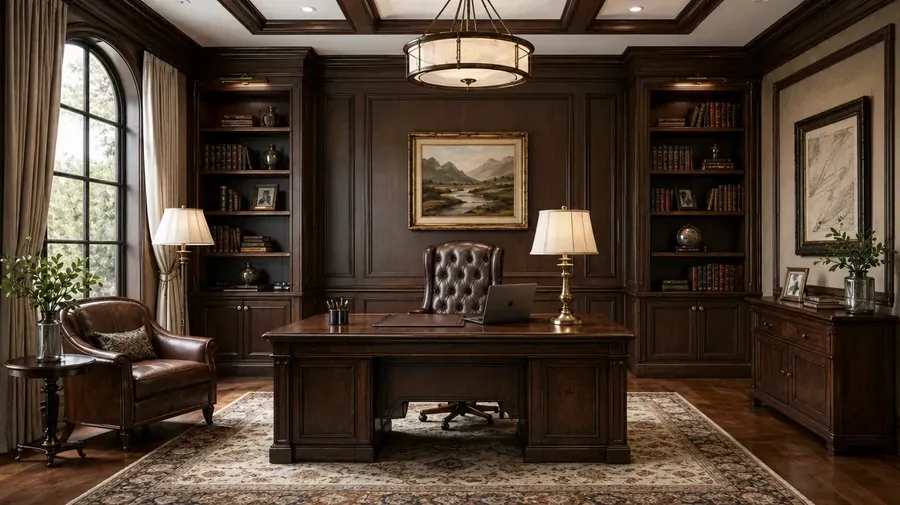
turn this sketch into an ultra detailed photograph
Why architects, designers, and homeowners use AI visualization
More control than browsing inspiration boards
Generate a room direction based on the style, materials and spatial arrangement you describe. Review fixed architectural features after each edit; a visual match does not guarantee dimensional fit.
Refine a direction before detailed design
Generate, review and revise early concepts in one workspace. Use the chosen visual to communicate with your designer; retain measured modeling and technical documentation for the stages that require them.
Compare more design directions
When generating a new direction takes seconds rather than days, teams and homeowners can explore a wider range of styles, layouts, and materials before committing to a final approach.
Match the right model to your design style
Compare current image models for architectural detail, realistic-looking lighting and material texture. Use the same space description and references, then review geometry and finishes before choosing a visual direction.
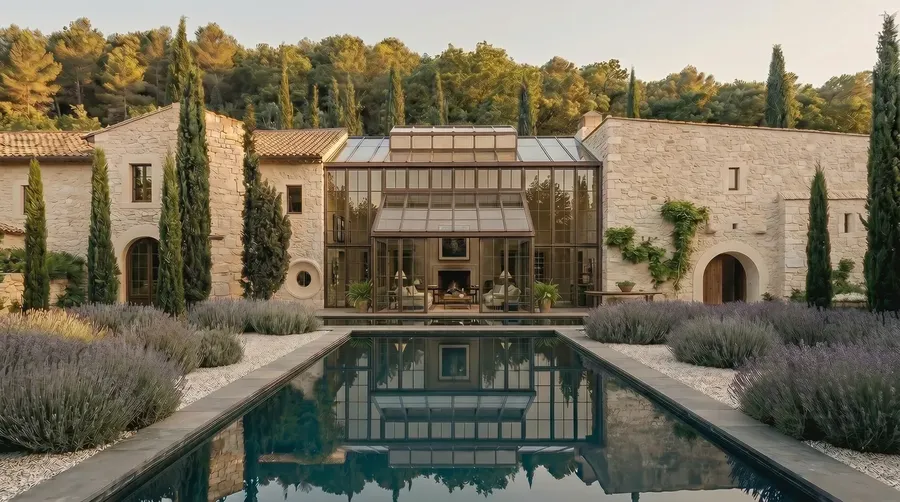
editorial architectural photography, luxury restored Provençal stone estate
Frequently Asked Questions
An AI home design generator is a tool that uses an AI image generator to create visual representations of interior spaces, architectural exteriors, and renovation concepts from a text description. With getimg.ai, you describe the style, materials, and arrangement you want and get a render back in seconds — as a visualization rather than a measured plan.
Specify the room type, architectural style, materials, lighting direction, and camera perspective. Current image models in getimg.ai work well with specific descriptions — include terms like 'Scandinavian', 'industrial', or 'mid-century modern', along with material references ('concrete floor', 'exposed brick', 'matte brass fixtures'). Use text-to-image generation and describe the framing explicitly — wide-angle, eye-level, overhead — to control composition.
For exterior prompts, name the architectural style explicitly and add time of day and environmental details: 'Mediterranean villa at golden hour, terracotta tiles, whitewashed walls, stone courtyard'. The more concrete the description, the closer the output to what you actually need.
AI home design generation is best for fast concept visualization and direction-setting — producing multiple render options in seconds so you can identify what works before investing in detailed design work. It doesn't replace structural planning, technical drawings, or the judgment of an experienced architect. But it's a practical tool for exploring styles, presenting early concepts to clients, and generating reference images for further refinement.
Most residential and commercial spaces work well — interiors (living rooms, kitchens, bedrooms, offices, retail), exteriors (facades, gardens, courtyards), and renovation concepts. Use getimg.ai's image generator to describe what you want and generate options across any space type.
The best AI home design tool depends on what you need to create. Some tools are stronger for interior rendering, others for exterior architectural visualization or renovation concepts. getimg.ai is a strong option when you want design-quality results and the flexibility to try multiple models in one workflow — comparing outputs for the same space description without switching platforms.
Paid plans include commercial rights subject to plan terms and usage policies for client presentations, architectural pitches and interior proposals. These rights do not override real-estate advertising or disclosure rules for materially altered listing imagery.
Start with a clear room description and specify materials, lighting, and camera framing in concrete terms rather than vague adjectives. Upload a reference image or floor plan to guide the composition when you need stronger spatial accuracy. You can also use image-to-image workflows to take an existing render and improve material realism, relighting, or depth without rebuilding the scene from scratch.
Yes. Describe the architectural style, materials, setting, and time of day and getimg.ai generates an exterior visualization from that description. This is useful for presenting facade options to clients, exploring material and color combinations, or generating reference images for early design conversations, not permit submissions.
Yes. Use Elements to define a visual reference — a specific material palette, lighting style, or design language — and call it into any generation with @ElementName. You can also use a generated render as a reference image in subsequent generations via the image-to-image workflow to help keep the broader visual direction consistent. Furniture geometry, material placement and architectural details can still vary between rooms.
Home visualization, accuracy and professional use FAQ
Yes. Attach a real room photo and describe new furniture, finishes or lighting. Use the existing layout as visual guidance and list fixed features that should remain. Generative editing can still alter openings and proportions; compare each result with the original.
Yes. Add virtual furniture and decor to an empty-room photo to explore a furnished presentation. Preserve permanent property features, retain the original photo and review the result for misleading alterations.
Use an existing floor plan or sketch as a visual reference for arrangement and composition. The result is a generated image, not a conversion into measured geometry or an editable floor plan.
This workflow is a room and home visualizer, not a measured floor-plan generator. Use dedicated planning software for scaled, editable 2D or 3D plans, dimensions and clearances.
You can describe dimensions as part of your intent, but a generated image does not enforce or verify them. Confirm actual room and furniture measurements, door swings and circulation clearances before purchasing.
You can visualize the appearance of a larger opening or open-plan concept. The image cannot determine whether a wall is load-bearing, what support is needed or whether utilities can move. Ask qualified design and engineering professionals to establish feasibility before any structural work.
No. They communicate concepts rather than construction instructions. Permit submissions require scaled drawings and technical information appropriate to the project and local requirements. Obtain the required professional documentation separately.
This image workflow produces 2D raster visualizations rather than structured CAD/BIM geometry, editable 3D scenes or engineering analysis.
AI staging can support real-estate visualization, but listing and disclosure rules vary by market and platform. Clearly label materially altered or virtually staged images where required. Do not hide damage, change permanent features or misrepresent property size. Commercial-use rights do not override advertising rules.
A product or material reference can keep the visual closer to a specific item, but does not guarantee exact shape, stitching, scale, pattern or color. Verify dimensions, manufacturer finishes and physical samples separately.
No. Generated colors and textures are visual approximations affected by the model, simulated lighting and your screen. Use physical samples under the real room's lighting for final specification.
It can visualize lighting moods and time-of-day directions. It is not a photometric simulation tool and does not calculate measured illumination levels, lux values or daylight performance.
You can create a walkthrough-style video presentation from a room image. This does not produce a navigable 3D model, editable CAD/BIM scene or exact camera path through measured geometry.
It can generate elevation-like or facade visualizations. The output is an image rather than a measured architectural elevation drawing.
AI home design visualization — from concept to client-ready render
Describe a room, exterior, or renovation concept and get a detailed render in minutes. Generate multiple directions, compare results across models, and export when it's ready. If you need a fast, practical path from design idea to visual output, getimg.ai gives you the workflow to do it.