Professional Headshots, Photo Restoration, and Photo Edits in ChatGPT
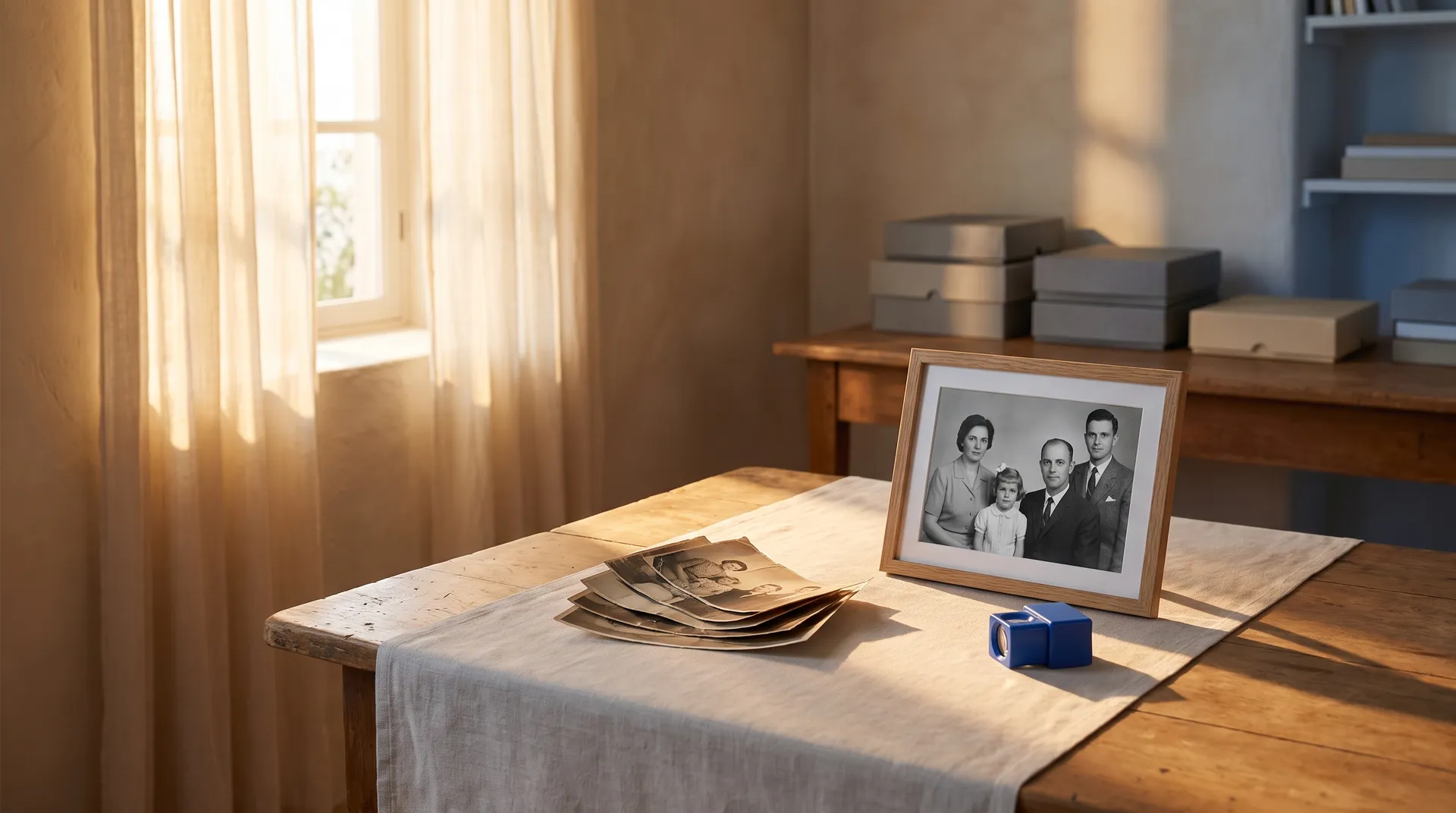
ChatGPT can make a professional headshot, restore an old photo, or clean up a background once the getimg.ai plugin is installed. You upload the photo in the chat and say what you want, for example "turn this selfie into a LinkedIn headshot" or "restore and colorize this old family picture." getimg.ai runs a tool built for that job and sends the result back to the chat. Every result saves to your getimg.ai library, and your original photo stays untouched.
Why use dedicated tools instead of ChatGPT's own image editing
ChatGPT can edit images through conversation, and for a quick change that's often enough. Some photo jobs go better with a tool built for one purpose.
A headshot tool is set up to keep your face recognizable while it changes the outfit, background, and lighting, and it offers fixed backdrops and styles instead of leaving everything to the prompt. A restoration tool is built to tell scratches, tears, and fading apart from real detail in the photo. A sticker tool returns a die-cut image with the background already removed, ready to print. Fixed options also make results more repeatable: if one headshot works, the same settings produce matching shots for the rest of the team.
The getimg.ai plugin gives ChatGPT these tools, and ChatGPT picks the right one from your request. You don't need to know the tool names. "Make me a professional profile photo" goes to headshots, and "fix this old picture" goes to restoration. If you haven't installed the plugin yet, add getimg.ai to ChatGPT first.
Professional headshots from a selfie
Upload a clear, well-lit photo of your face looking at the camera, and ask:
"Turn this selfie into a professional headshot for LinkedIn, gray studio background, navy blazer."
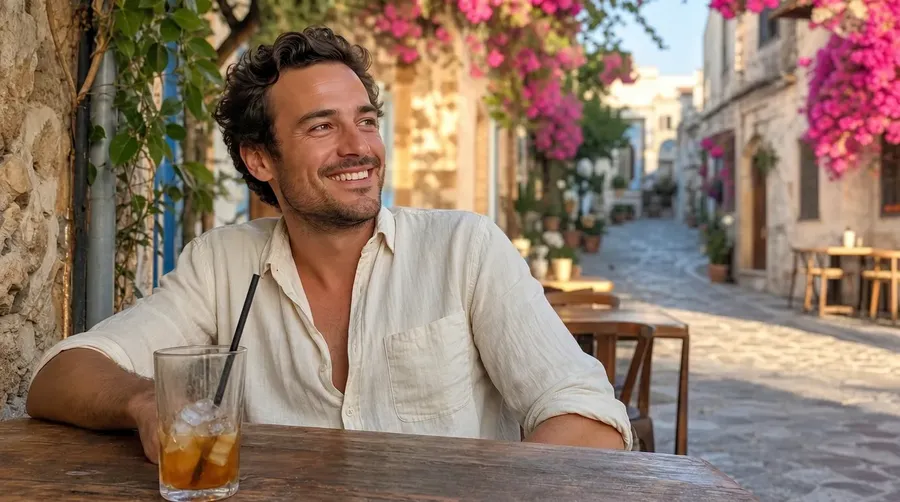
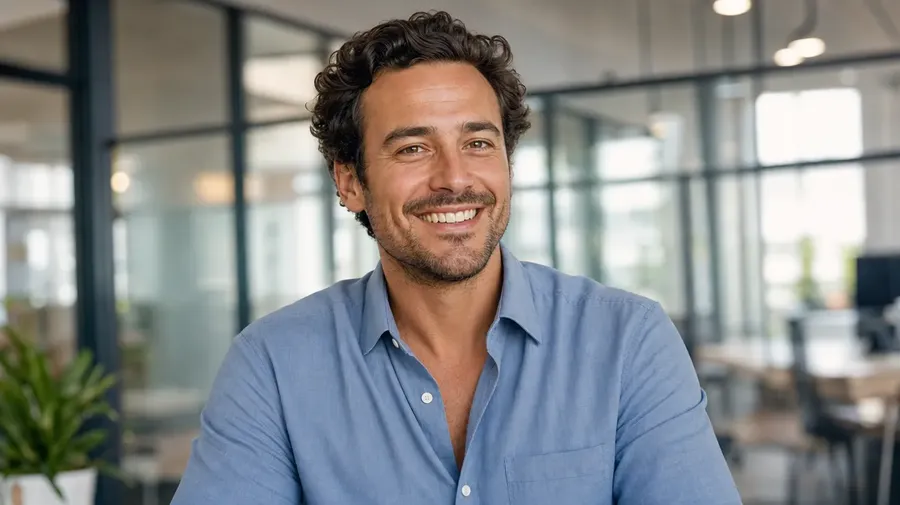
You can set:
Setting | Options |
Background | White, gray studio, office, office with city skyline, bookshelf, street, nature, sky, black, stage, data center |
Outfit | Keep your own clothes, or suit, blazer, shirt, knitwear, t-shirt, leather |
Style | Corporate, creative, startup, natural, editorial |
Shape | 4:5, 1:1, 3:4, 16:9 |
Quality | 2K or 4K |
How many | Up to 8 headshots per request |
Not sure what to pick? Describe where the photo will be used, such as "for a law firm's team page" or "for a speaker bio at a design conference," and ChatGPT will choose the settings. For a team, use the same settings for every person so the photos match on the website.
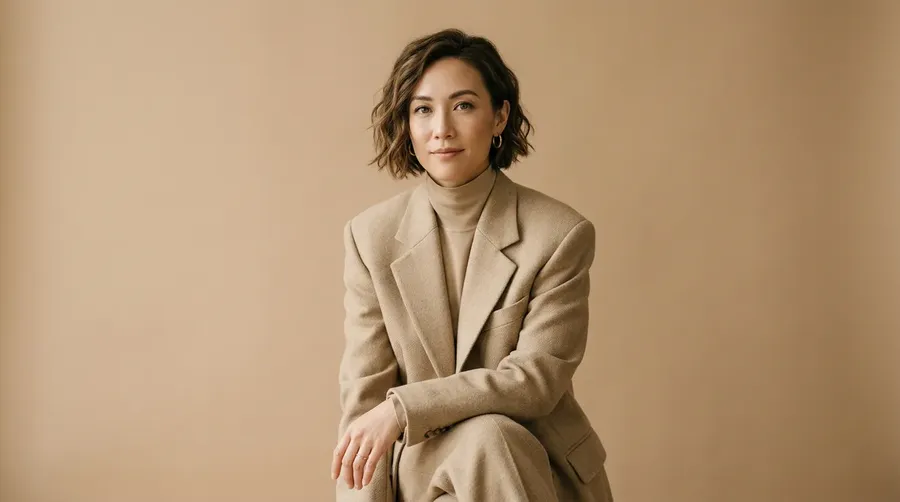
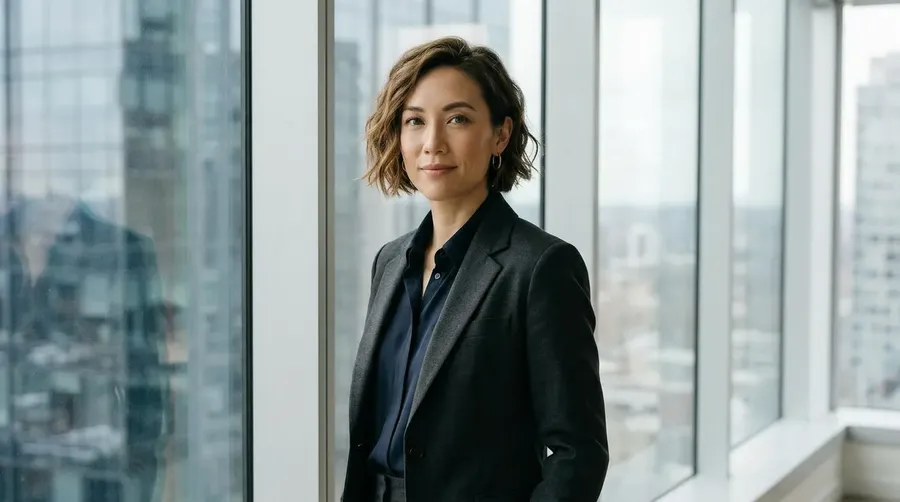
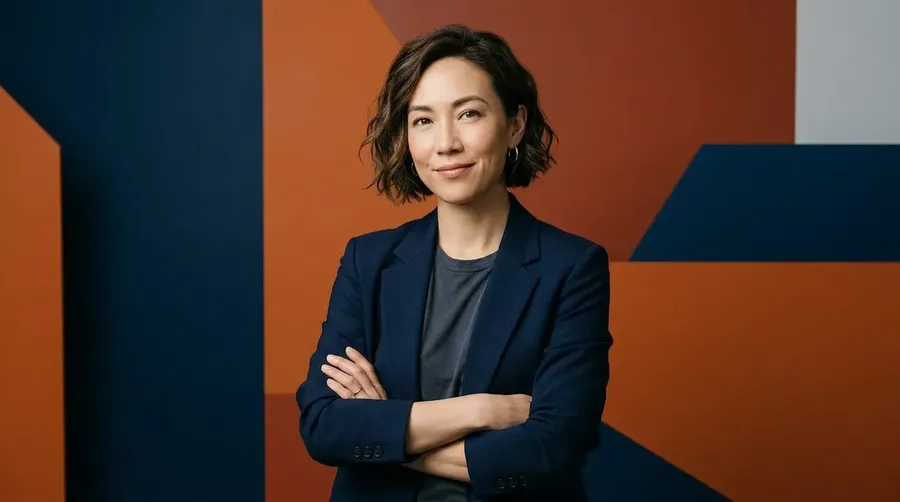
For a better result: use a photo with even light on your face, no sunglasses, and your face filling a good part of the picture. The AI headshot generator explains the options in more detail.
Restore old photos
Scan or photograph the old picture as sharply as you can, upload it, and ask:
"Restore this old family photo: fix the scratches and the faded areas."
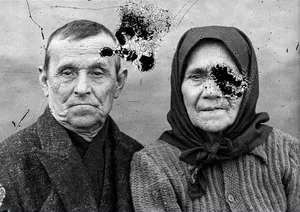
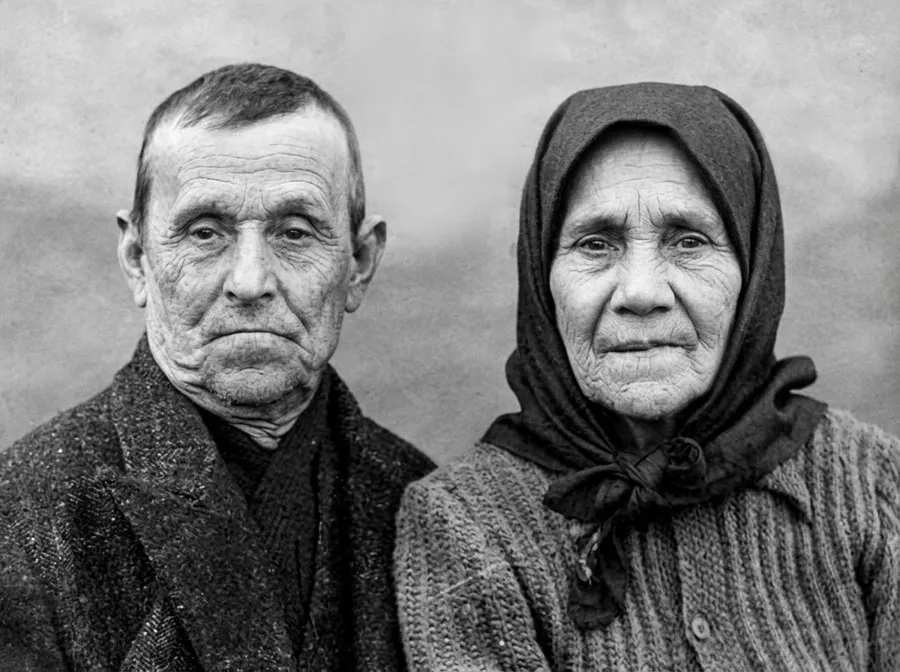
There are two modes:
- Restore only repairs scratches, tears, blur, and fading and keeps the original colors.
- Restore and colorize does the same and adds natural color to a black-and-white photo.
"Restore this 1950s black-and-white wedding photo and colorize it."
.jpeg-300x400.webp)
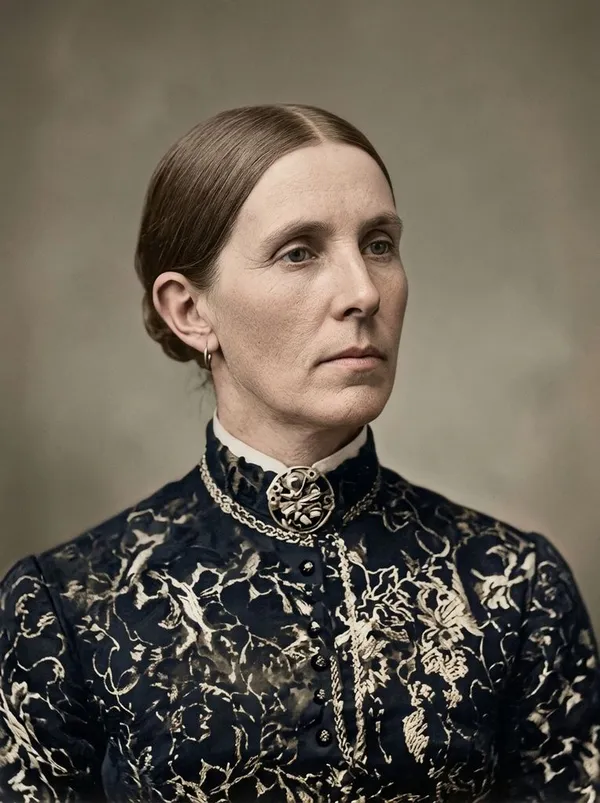
Output comes in 1K, 2K, or 4K. Choose 4K if you plan to print the restored photo large or frame it. The scan matters more than anything else: a flat, glare-free scan at high resolution gives the tool real detail to work with, while a phone photo taken at an angle under a lamp adds problems the tool then has to guess around.
Make stickers from a photo
Upload a photo of one subject, a person, a pet, or an object, close up and well lit:
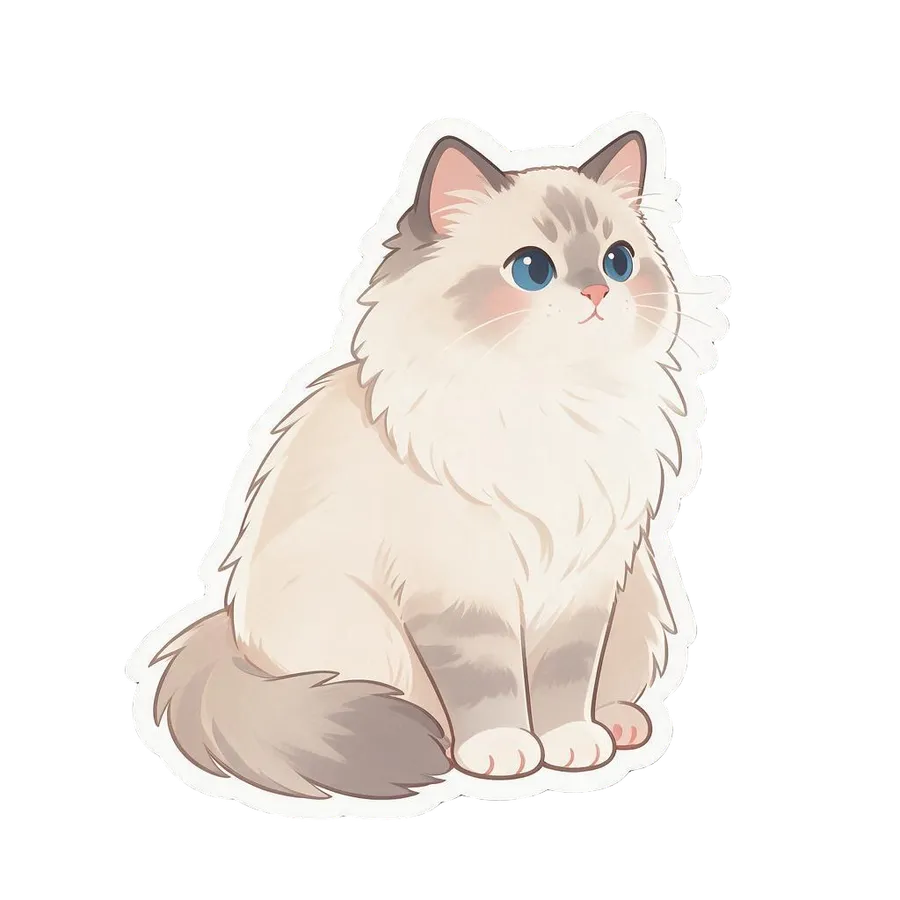
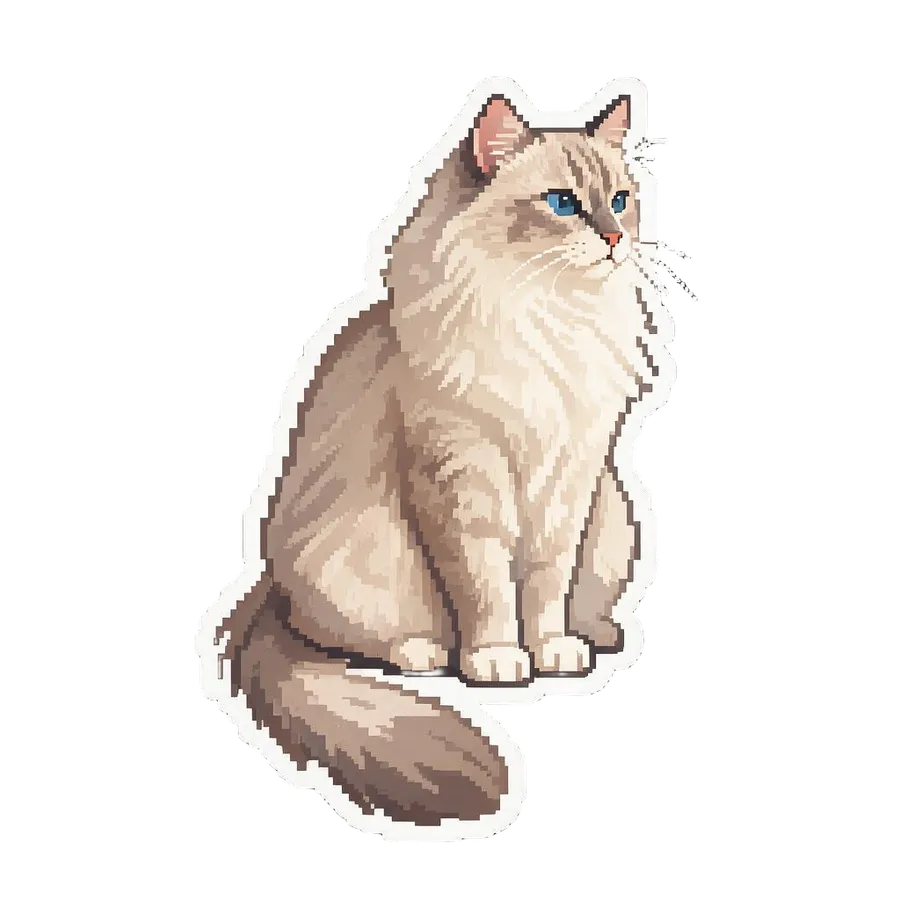
"Make stickers of my cat from this photo in kawaii, pixel art, and watercolor styles."
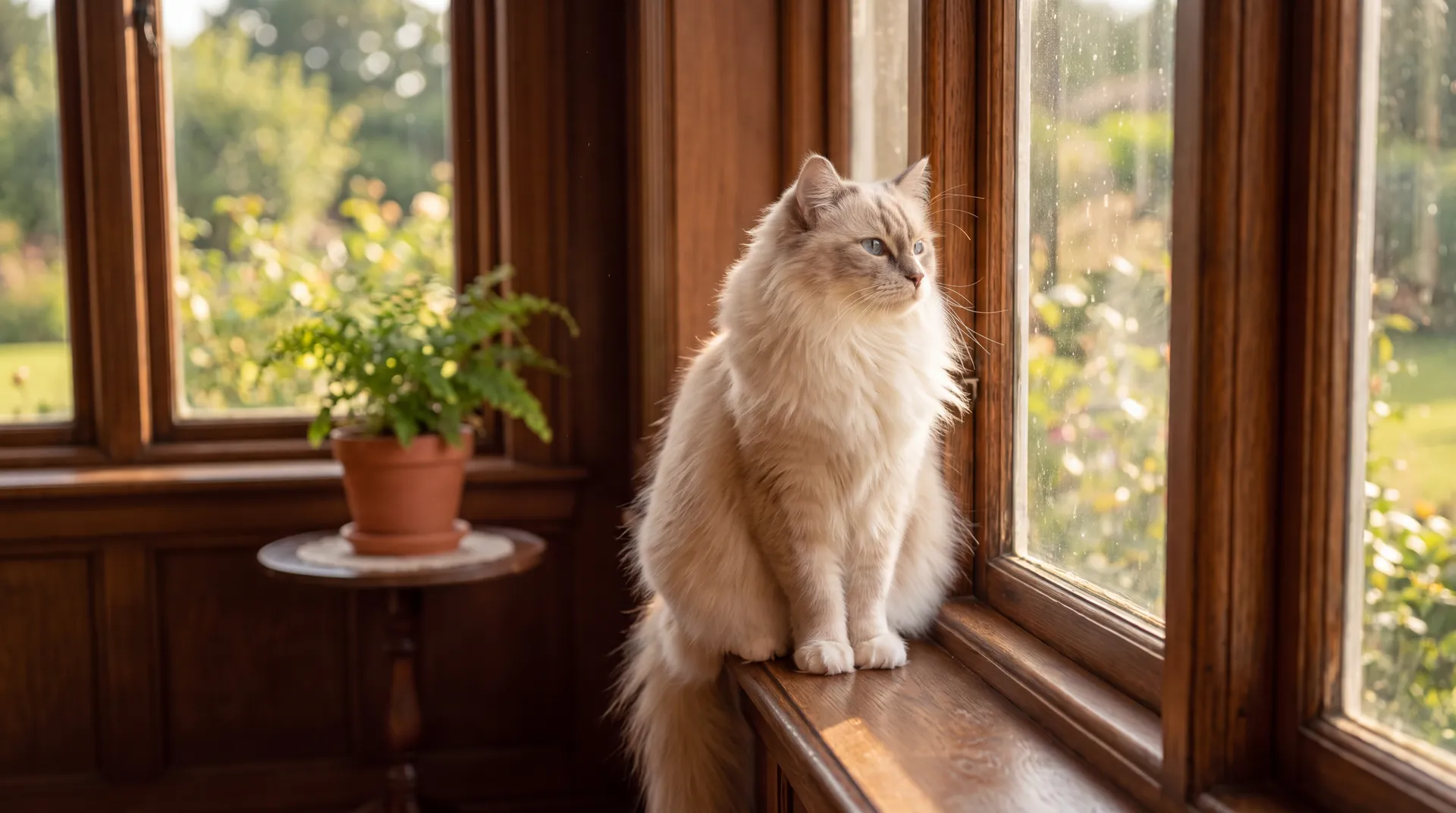
You get one sticker per style, die-cut with a transparent background, ready for print shops, laptop stickers, or messaging apps. The 11 styles are kawaii, bold outline, chibi, shoujo, retro anime, 3D cartoon, vinyl toy, glossy emoji, 3D clay, pixel art, and watercolor, with up to six in one request. A photo with one clear subject and a plain background works best, because the tool has to decide what belongs in the sticker.
-900x900.webp)
Everyday photo edits in ChatGPT
You want | Ask ChatGPT |
A clean product cutout | "Remove the background from this product photo." |
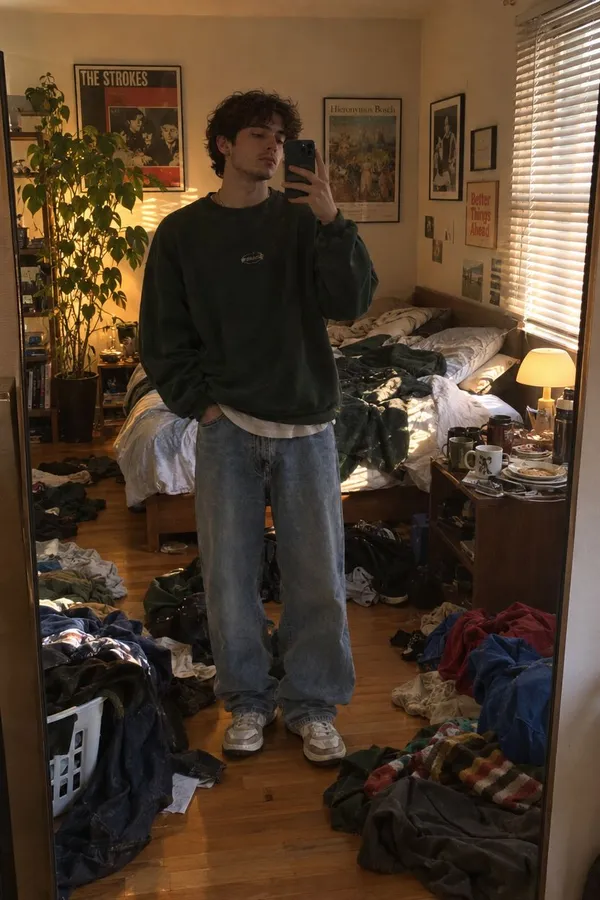
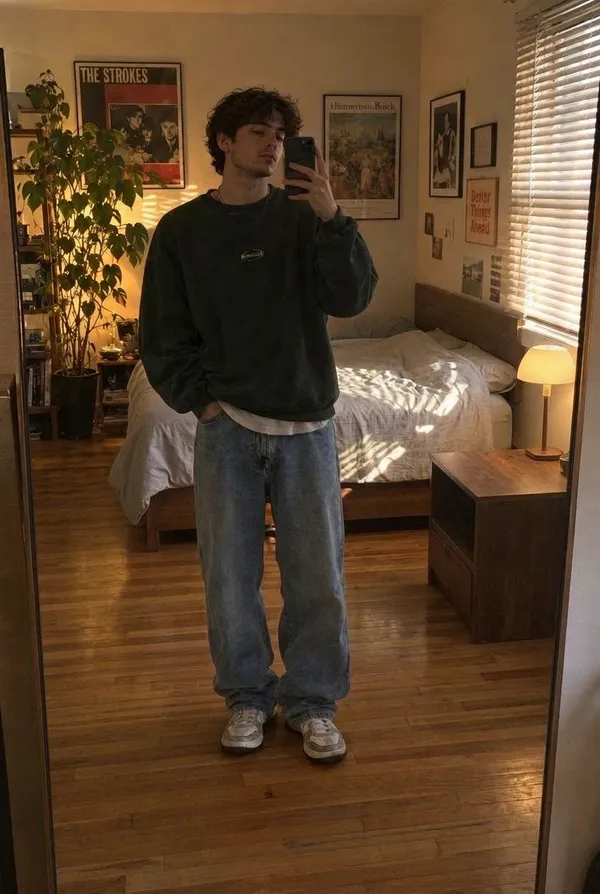
A tidier background | "Clean up the messy background in this photo." |
Something gone from the shot | "Remove the person walking behind me in this photo." |
A sharper, larger image | "Upscale this photo so it stays sharp in print." |
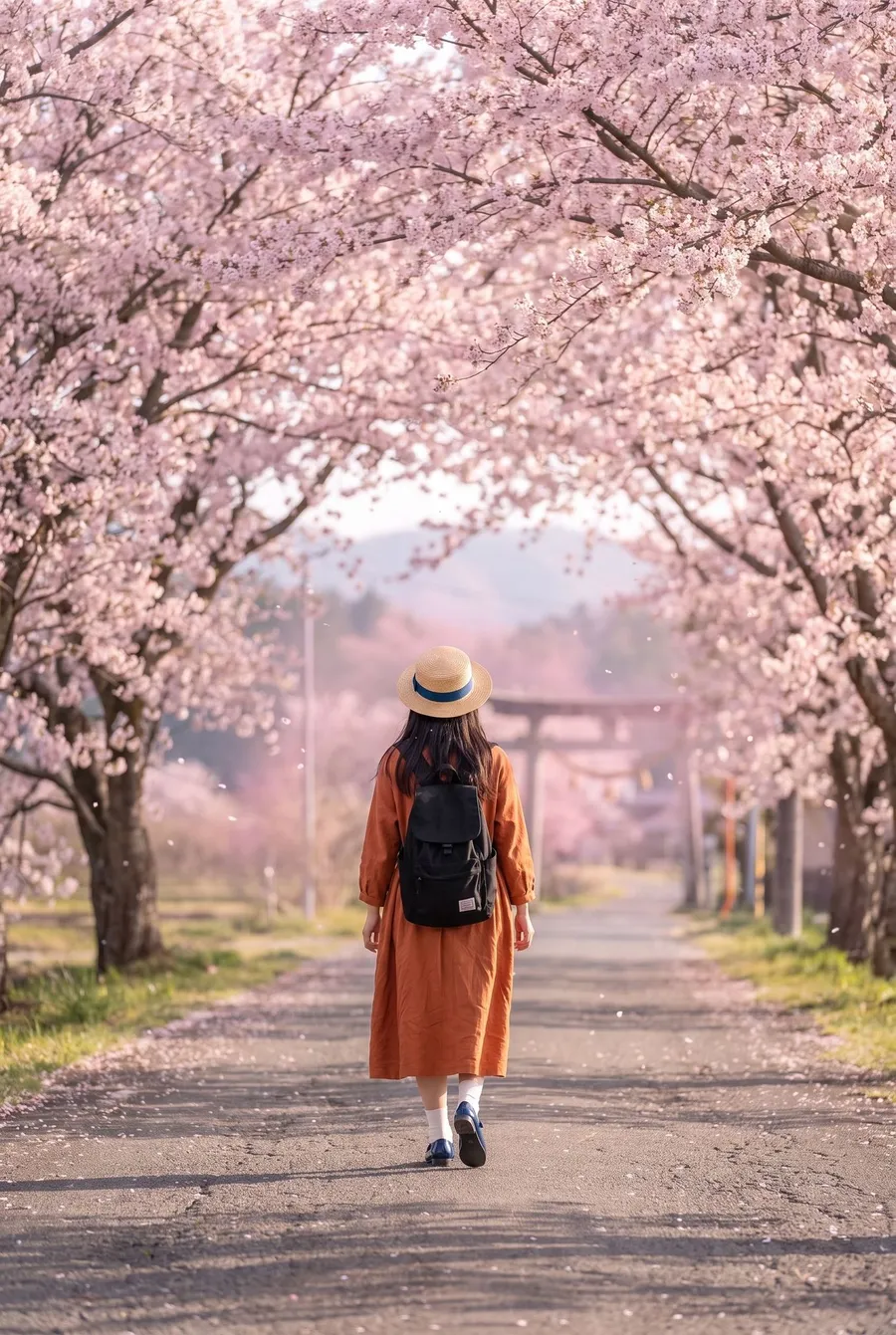
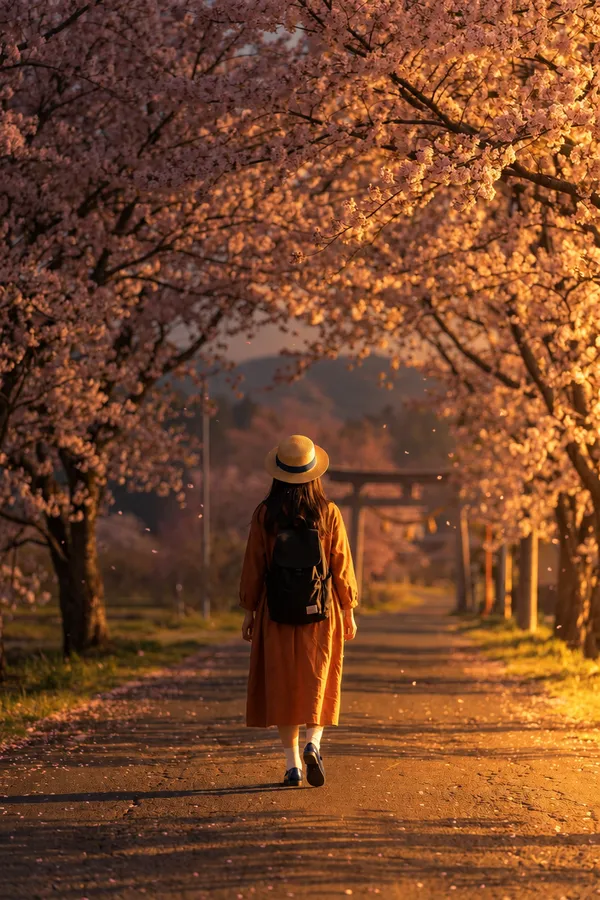
Different lighting | "Relight this portrait with warm orange light from the left, medium intensity." |
A new shape | "Resize this image to 9:16 for Instagram Stories." |
A changed detail | "Change the mug in this photo to a glass of orange juice and keep everything else the same." |
A few notes on how these work. Background removal returns a transparent cutout, while background cleanup keeps the scene and removes clutter or unwanted people from it. Relighting lets you set the direction, the color of the light, and its intensity on a scale from 1 to 10. Resizing either extends the canvas around your original or re-renders the picture at the new shape, so nothing important gets cropped off. For a changed detail, name the one thing to change and say to keep the rest; the model regenerates the image with that change.
Headshots for a whole team
Matching team photos are one of the most common reasons to use a headshot tool, and ChatGPT makes the process easier to repeat. Start by settling on the look with one person:
"Make a headshot from this photo: office with city skyline background, blazer, corporate style, 4:5."
When the result is right, ask ChatGPT to remember those settings for the chat, then upload each colleague's selfie one at a time with "same settings as before." Every headshot comes out with the same background, outfit, style, and shape, so the team page looks like one shoot even though the photos were taken in different places.
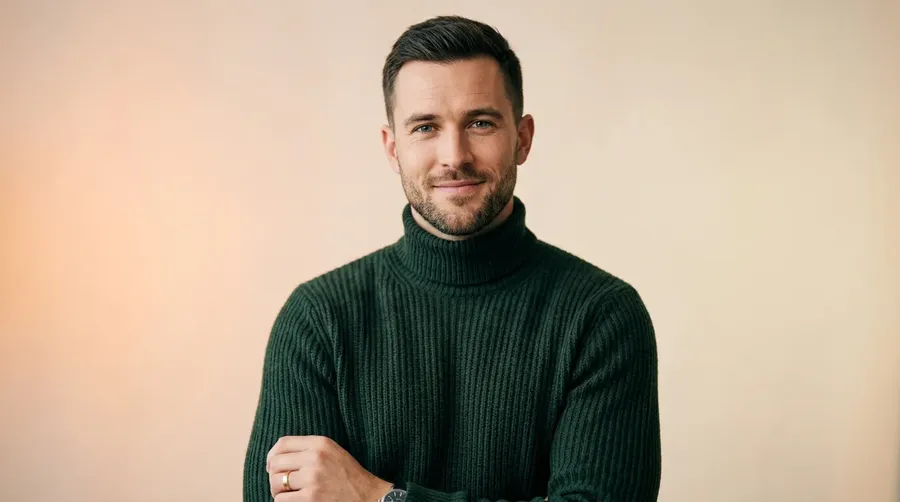
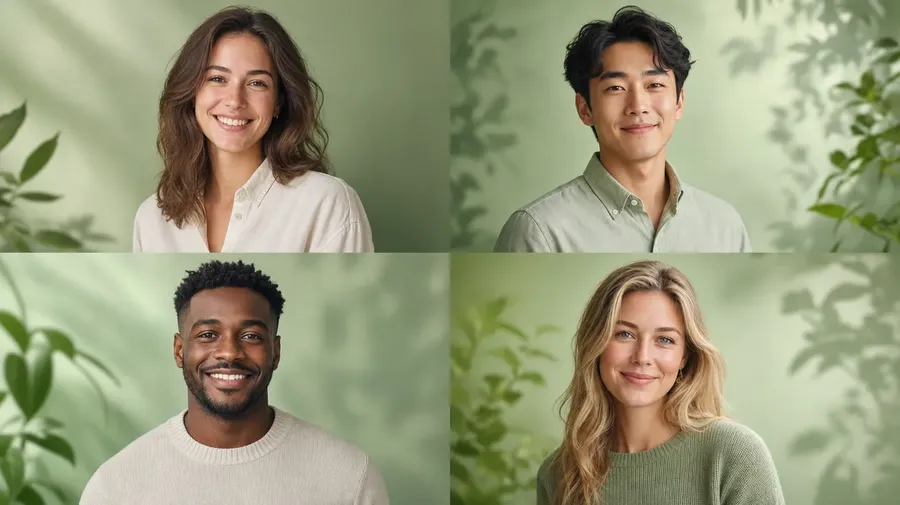
A few things keep the set consistent. Ask everyone for a similar selfie: front-facing, at eye level, near a window. Pick one outfit rule for the whole team, either everyone in their own clothes or everyone in a blazer, rather than mixing. If you work in a getimg.ai team, everyone's headshots land in the same team library, which makes it easy to collect and download the full set at the end.
What photo to upload for each tool
Tool | Best source photo |
Headshots | Front-facing, even light, face clearly visible, no sunglasses |
Photo restoration | Flat, high-resolution scan without glare |
Sticker maker | One subject, close up, plain background |
Background removal | Subject clearly separated from the background |
Relight | Any photo; portraits and products show the change most |
Upscale | The highest-quality version you have, not a screenshot |
Give each tool one clear source photo per request. For several photos, ask for them one after another in the same chat.
Turn a still into something more
A finished photo can go further in the same chat:
- Product orbit: "Make a product orbit video from this product photo."
- Animate it: "Animate this restored photo: a gentle smile and a slow camera push-in."
- Dolly zoom: "Make a dolly zoom video from this street photo, with the background falling away."
For more on clips, see how to make videos in ChatGPT.
Good to know
Everything lands in your library. Uploaded photos and results save to your getimg.ai library. The link in ChatGPT expires after 24 hours; the library copy stays.
It uses your getimg.ai credits. Each tool uses credits from your getimg.ai plan, and a set of eight headshots costs more than one. Ask ChatGPT how many credits you have left at any time.
Commercial use. getimg.ai plans include commercial usage rights for what you make, subject to our terms and applicable third-party rights. Only upload photos of people who have agreed to it.
The Bottom Line
The photo jobs people put off, a new headshot, a box of faded family pictures, a product shot with a messy background, now take one message in ChatGPT. Upload the photo, say what you want, and the getimg.ai plugin runs the tool built for it.
Frequently Asked Questions
Yes, with the getimg.ai plugin. Upload a clear selfie and describe the background, outfit, and style you want. You get up to 8 headshots back, in 2K or 4K.
Say where the photo will be used and the look you want, for example: "Professional headshot for LinkedIn, gray studio background, navy blazer, natural style." The headshot tool handles the rest.
Yes, with the getimg.ai plugin. Upload a scan of the photo and ask to restore it, or to restore and colorize it if it's black and white.
Yes. With the getimg.ai plugin installed, ask ChatGPT to remove the background and you get a cutout with a transparent background. To keep the scene and only tidy it, ask to clean up the background instead.
For edits like "change the mug to a glass," the model regenerates the image with your change and keeps the rest as close to the original as it can. Name the one thing to change and say to keep everything else.
To your getimg.ai library. The link in ChatGPT expires after 24 hours; the library copy stays.
Related Articles