Can ChatGPT Make Videos? How to Make AI Videos in ChatGPT with getimg.ai
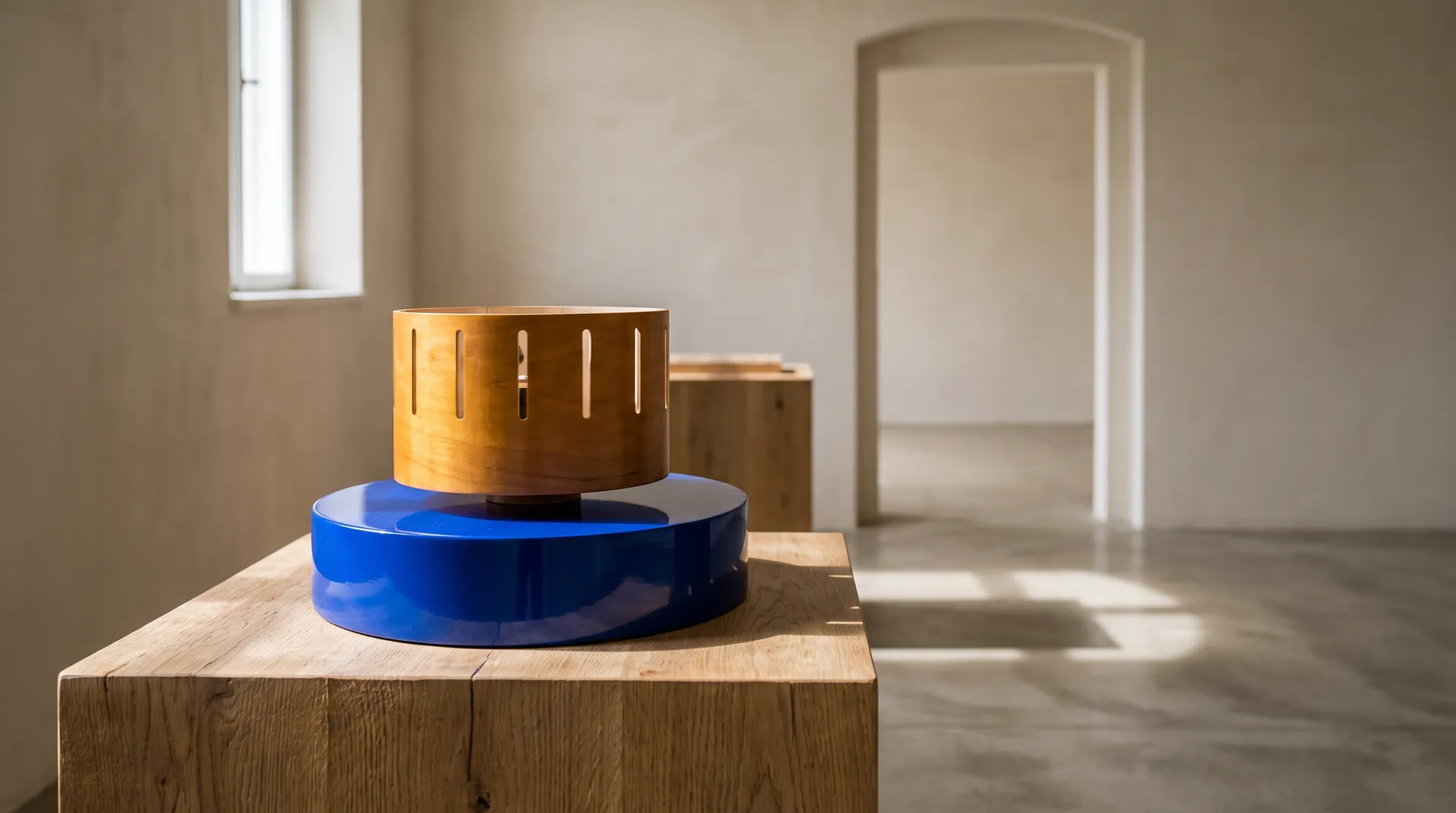
ChatGPT can't make videos on its own. It writes scripts, plans shots, and generates still images, but it doesn't produce video files. To get a clip out of a chat, install a video plugin such as getimg.ai. Then you can describe a scene, upload an image to animate, or set a start and end image, and the finished video comes back in the conversation. Supported models also add sound, such as ambience, effects, or short lines of dialogue.
Why ChatGPT can't make videos by itself
ChatGPT handles the planning half of video well: scripts, hooks, shot lists, captions, and storyboards described in words. Its output is always text or a still image, though. Video generation needs a dedicated video model, and ChatGPT doesn't include one.
Plugins fill that gap. The getimg.ai plugin connects ChatGPT to getimg.ai, which runs many current video models from different developers. ChatGPT sends your request, getimg.ai picks a model that suits it, and the clip comes back in the same chat. Because ChatGPT already has your script or campaign in context, the request comes straight from the work you've been doing instead of a prompt you retype in another tool.
Before you start, add getimg.ai to ChatGPT. It takes about a minute: click Install plugin, sign in to your getimg.ai account, and pick your team on the authorization screen.
Three ways to make a video in ChatGPT
Method | Start with | Best for |
Text to video | A description | New scenes, b-roll, concept clips, social posts |
Image to video | One image | Animating a product shot, a portrait, or an image ChatGPT made |
Start and end image | Two images | Transitions, reveals, before-and-after shots |
1. Text to video
Describe what happens, where, and how it should look. Adding the shape and length helps too.
"Use getimg.ai to make an 8-second vertical video of a barista pouring latte art in slow motion, warm morning light, shallow depth of field."
A good video prompt covers four things:
- Subject and action: who or what, doing what.
- Setting: where it happens, and when (time of day, weather).
- Camera: close-up or wide, still or moving, push-in, pan, orbit.
- Look: lighting, color, film style.
Short prompts work too. getimg.ai enhances them before generating, so "a dog running on a beach at sunset" gets a usable clip. The four parts are how you take control when you want a specific result.
2. Image to video
Upload a photo in the chat, or use an image ChatGPT or getimg.ai just made, and describe the motion:
"Animate this image: the camera slowly pushes in while steam rises from the cup."
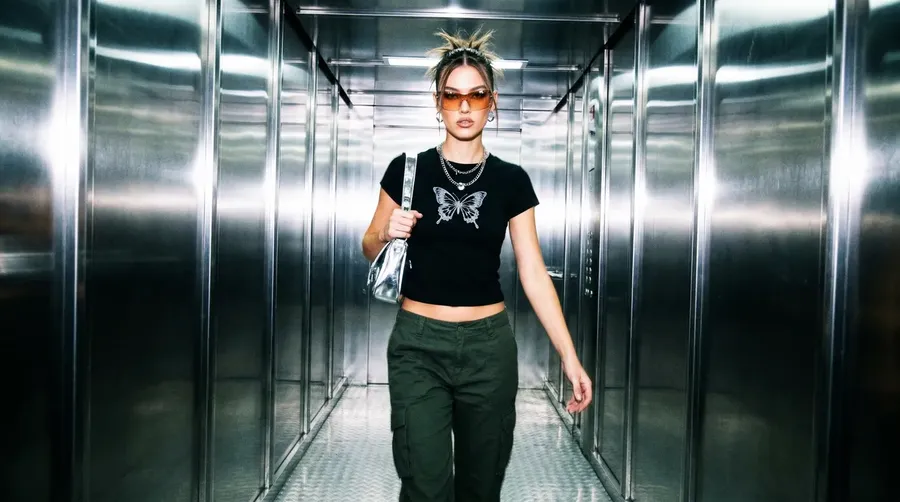
This is the most reliable way to get a clip that matches a still you already like, because the image fixes the subject, colors, and composition and the prompt only has to describe movement. For products, upload one to three product photos and ask for a product orbit video, a one-step tool that turns the camera smoothly around the product against a backdrop color you choose.
3. Start and end image
Give two images and let the model fill in the motion between them:
"Make a video that starts on this image of the empty living room and ends on this one with the room fully furnished."
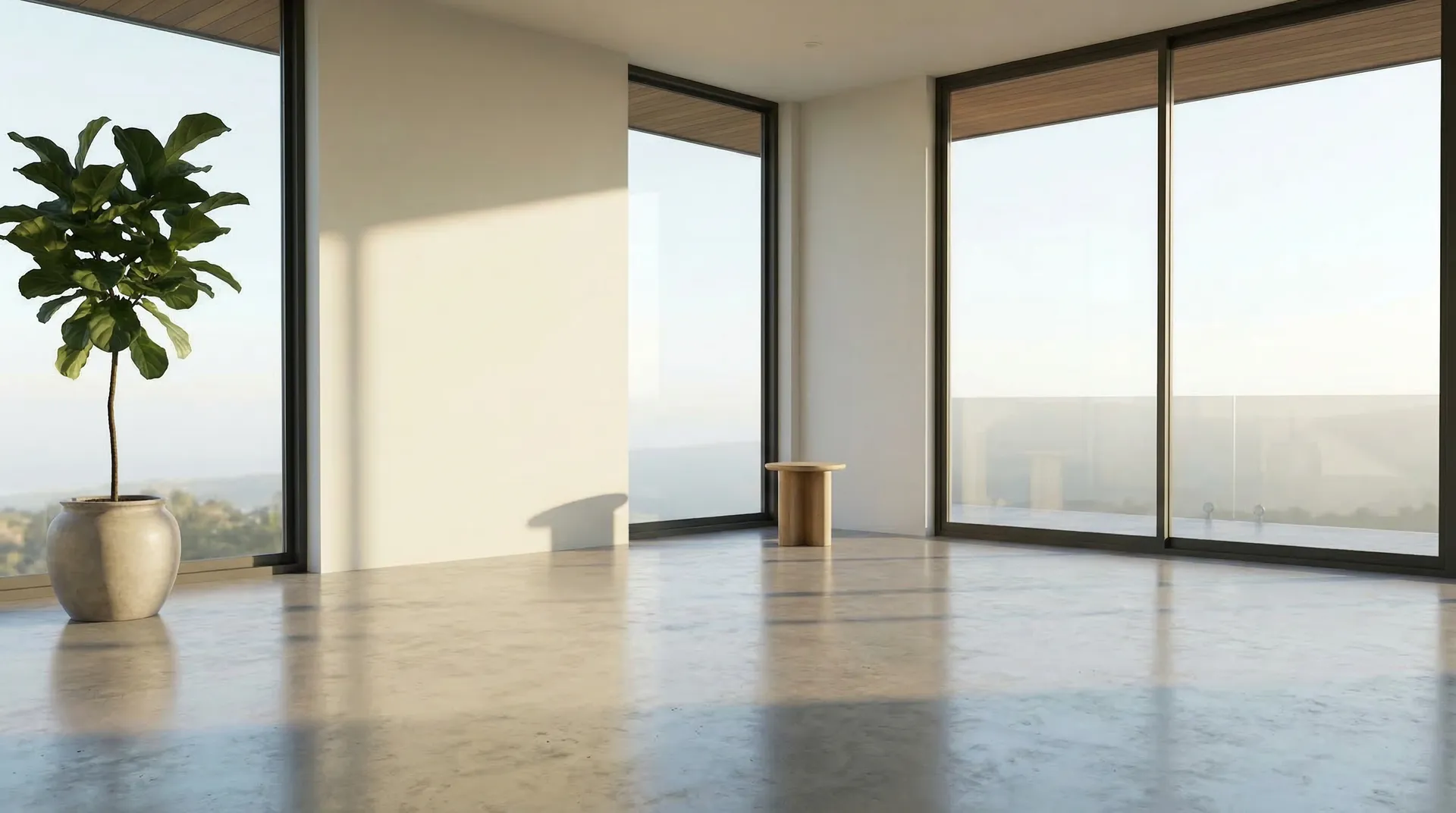
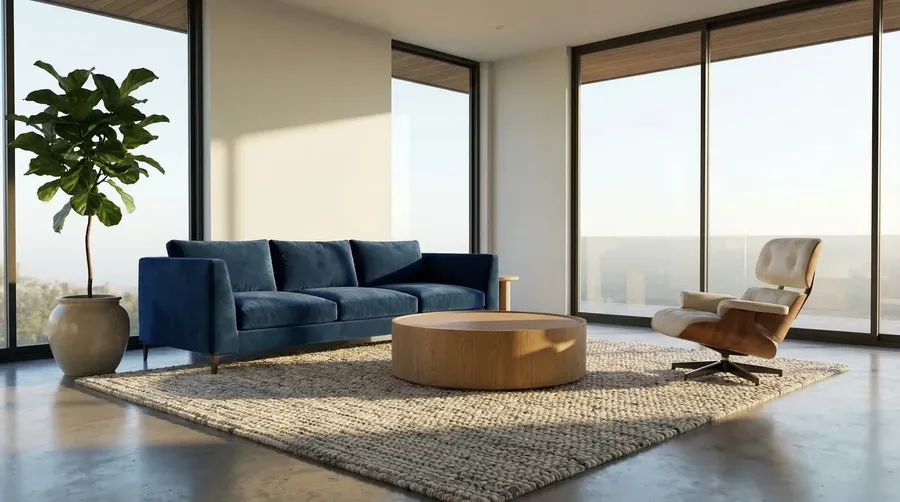
You can also ask for a specific transition style: morph, camera travel, zoom through, slow dissolve, whip pan, or a flash of light. It suits reveals, renovations, outfit changes, and sketch-to-final comparisons.
Video options at a glance
The exact options depend on which model getimg.ai picks for the request. Across the current lineup, this is the range:
Option | What's available |
Length | From about 4 seconds; most models reach 10 to 15 seconds, and the longest go up to 30 seconds per clip |
Aspect ratio | 16:9 on every model and 9:16 on nearly all; many also offer 1:1, 4:3, 3:4, or 21:9 |
Resolution | 480p to 1080p on most models; some go up to 2K or 4K |
Sound | Native audio on most current models: ambience, effects, music, short dialogue |
References | First and last image on many models; reference images on some; reference video and audio clips on a few |
Variations | Up to 4 versions of the same prompt in one request |
You don't have to pick a model to get these. Say "vertical, 15 seconds, with sound" and getimg.ai chooses a model that can do it. If you want a particular one, name it.
Add sound to your video
Most current video models generate sound together with the picture: footsteps, rain, crowd noise, music, even a short line of dialogue. Ask for it in the prompt the way you'd describe it to a sound designer:
"Make a 9:16 video of rain on a city window at night, with soft rain and distant traffic sound."
"A chef in a busy kitchen turns to the camera and says 'Service!', with clattering pans in the background."
getimg.ai picks a model that supports sound when you ask for it. For a separate voiceover or a full music track to lay under the clip, see how to make music and voiceovers in ChatGPT. Separate audio files are easier to adjust in an editor than sound baked into the video.
Keep characters and products consistent
For a series of clips with the same person, mascot, or product, give ChatGPT reference images:
"Use these three photos of our mascot as references. Make a video of him skateboarding through a park, then another of him ordering at a food truck."
-1920x1080.webp)
getimg.ai picks a model that accepts reference images. On models that support it, you can also add up to three reference video clips to guide motion and up to three reference audio clips to guide sound, mixed with your images in the same generation. A dance move from one clip, a character from a photo, and a beat from an audio file can shape one video.
Fix common video problems
Problem | What to ask |
The person's face changes between shots | Start from a photo of the person (image to video) or add reference images |
The camera moves too much | "Keep the camera still" or "locked-off shot" |
Wrong shape for the platform | "Make it 9:16 for Reels" or "16:9 for YouTube" |
Too short | Ask for a longer duration; for long videos, make several clips and join them in an editor |
Looks soft on a big screen | Ask getimg.ai to upscale the clip to 1080p, 2K, or 4K |
Not quite the right take | Ask for up to four variations and pick the best one |
Edits work in plain words too: "same shot, but from above," "slower camera move, and end on the logo," or "make the jacket red." On models that accept video references, ChatGPT can pass your existing clip along with the change, and getimg.ai makes a new version while your original stays as it is.
Video prompts to copy
Goal | Prompt |
Product orbit | "Make a product orbit video of this sneaker on a white backdrop." |
Social reel | "Make a 9:16 video of a florist wrapping a bouquet, close-up hands, soft window light." |
UGC-style ad | "Make a UGC video of the person in this photo talking about this skincare serum, excited tone." |
Animated still | "Animate this landscape: clouds drift, grass moves in the wind, the camera holds still." |
Transition | "Make a morph transition from this sketch of the living room to this photo of the finished room." |
Dolly zoom | "Make a dolly zoom video from this street photo, with the background falling away." |
Script to scene | "Take the second shot from the script above and make it as an 8-second clip." |
Good to know
Videos take a moment. Video takes longer than an image. ChatGPT checks on the job and posts the result when it's ready, so there's no need to ask again.
It uses your getimg.ai credits. Video costs more credits than an image, and longer or higher-resolution clips cost more than short ones. Ask ChatGPT how many credits you have left at any time.
Download from your library. The link in ChatGPT expires after 24 hours. The video stays in your getimg.ai library.
Commercial use. getimg.ai plans include commercial usage rights for videos you make through ChatGPT, subject to our terms and applicable third-party rights.
The Bottom Line
ChatGPT can plan a video but can't render one. With the getimg.ai plugin installed, the plan and the clip live in the same conversation: describe a scene, animate an image, or link two images, and the video comes back ready to post or edit. To work outside ChatGPT, the AI video generator offers the same models in the getimg.ai app.
Frequently Asked Questions
ChatGPT doesn't generate videos on its own. The getimg.ai plugin costs nothing to install, and video generations use credits from your getimg.ai plan. See getimg.ai pricing for plans.
It depends on the video model. Most clips run between 4 and 15 seconds, and the longest models go up to 30 seconds in one generation. For longer videos, make several clips and join them in an editor.
Yes, with the getimg.ai plugin. Upload the image in the chat or use one ChatGPT just made, and describe the motion you want.
Yes, on video models that generate native audio. Ask for the sound in your prompt and getimg.ai picks a model that supports it.
getimg.ai picks a suitable model automatically. To use a specific one, name it in your message, for example "use Seedance 2.5 for this."
Yes, on video models that accept video references. Give ChatGPT the clip and describe the change, and getimg.ai makes a new video with it; your original stays as it is. It can also upscale a clip to a higher resolution.
Related Articles