getimg.ai in ChatGPT: How to Install the Plugin and What It Can Do
getimg.ai is a ChatGPT plugin that adds video, image, music, voiceover, and sound effect generation to your chats. You install it once and sign in with your getimg.ai account, then ask for media in plain words. ChatGPT passes the request to getimg.ai, which picks a suitable AI model, and the result comes back in the conversation. Every file saves to your getimg.ai library, and generations use credits from your getimg.ai plan.
What are ChatGPT plugins?
Plugins are outside services that ChatGPT can use on your behalf inside a conversation. Once a plugin is installed, ChatGPT decides when a request needs it, calls it, and shows the result in the chat, the same way it might search the web.
Each plugin gives ChatGPT an ability it doesn't have on its own. You install it once from Plugins in ChatGPT, sign in to the service, and it stays available in every chat. Plugins like getimg.ai are built on the Model Context Protocol (MCP), an open standard for connecting AI assistants to outside tools, which is also why the same getimg.ai tools work in other assistants.
For getimg.ai, that ability is making media. ChatGPT already writes the script, the caption, or the campaign plan. With the getimg.ai plugin installed, it can also produce the video, image, music, or voiceover that goes with it, without you opening another tool.
What the getimg.ai plugin adds to ChatGPT
You want | ChatGPT on its own | ChatGPT with getimg.ai |
A video clip | Writes the script and shot list | Generates the video, with native sound on supported models |
Music | Not built in | Generates a track from a description, with or without vocals |
A voiceover | Reads replies aloud in voice mode | Generates a downloadable voiceover in one of 30 voices |
Sound effects | Not built in | Generates them from a description |
Images | Generates with OpenAI's image model | Generates with a wide range of image models, picked automatically |
Photo edits | Edits its own images through chat | Professional headshots, photo restoration, stickers, background removal and cleanup, upscaling, relighting, resizing |
A place to keep it all | Results stay in the chat | Every result saves to your getimg.ai library |
You don't need to know which AI model to use. getimg.ai picks a suitable one for each request based on what you ask for, such as a video with sound or an image that has to match a reference. If you have a favorite model, name it in your message and ChatGPT will use it.
How to add getimg.ai to ChatGPT
Setup takes about a minute and needs no API key.
- Open the getimg.ai plugin page. Go to the getimg.ai plugin in ChatGPT, or search for "getimg.ai" in Plugins in ChatGPT.
- Click Install plugin. ChatGPT opens a getimg.ai sign-in window.
- Sign in and authorize the connection. On the authorization screen, pick the getimg.ai team the plugin should work with. Generations use that team's credits and save to that team's library. No account yet? You can create a getimg.ai account in the same window.
- Ask for something. Type
@getimgin the message box, or click the plus icon and select getimg.ai from the list, then describe what you want.
To switch to a different getimg.ai team later, go to Plugins in ChatGPT, open the three-dot menu next to getimg.ai in your installed plugins, and choose Manage. Under your connected accounts, open the three-dot menu next to your account and choose Reconnect. The authorization screen opens again, and you can pick another team.
What you can make with getimg.ai in ChatGPT
Videos
ChatGPT can't make video clips on its own. With the getimg.ai plugin installed, it generates them from a description, animates an image you upload, or creates the motion between a start image and an end image. Many video models also add sound, from footsteps and rain to short lines of dialogue.
"Make an 8-second vertical video of a barista pouring latte art in slow motion, warm morning light."
Clip length, aspect ratio, and resolution depend on the model getimg.ai picks. The full walkthrough covers all three methods and includes video prompts to copy: how to make videos in ChatGPT.
Music, voiceovers, and sound effects
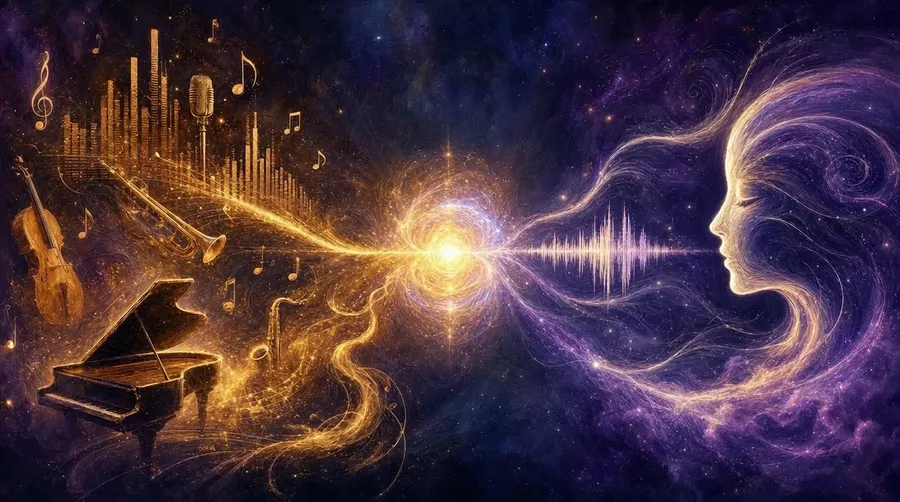
Ask for a music track for your video, a voiceover from the script ChatGPT just wrote, or a sound effect for an ad. Each comes back as a file you can download and use in an editor.
"Turn this script into a voiceover with a calm, warm voice, then make a 30-second acoustic track to go under it."
There's a step-by-step guide for each format: how to make music, voiceovers, and sound effects in ChatGPT.
Headshots and photo edits
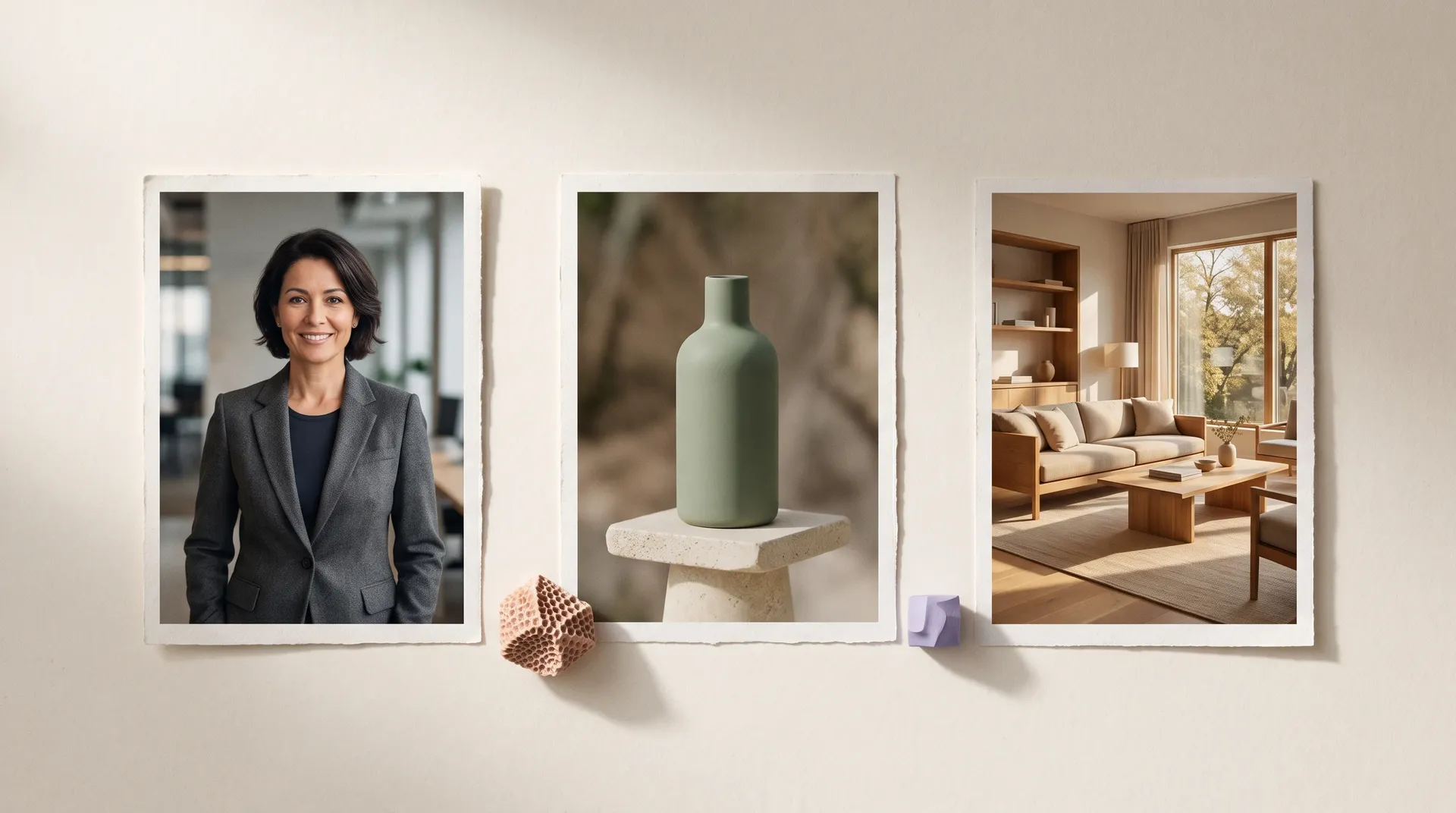
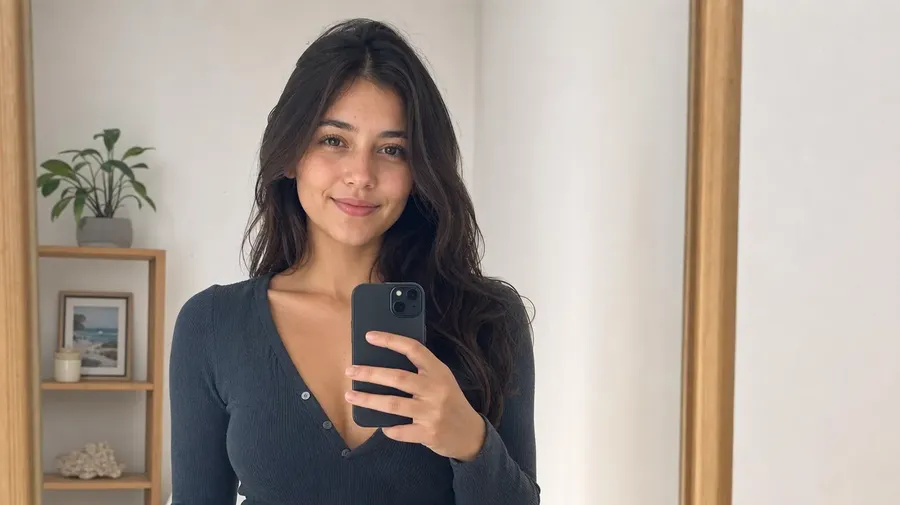
Upload a photo in the chat and ask for one of getimg.ai's one-step tools: a professional headshot from a selfie, a restored old family photo, a set of stickers, a clean product cutout, a tidier background, or a sharper, larger version.
"Turn this selfie into a professional headshot with a gray studio background."
-900x502.webp)
For settings and examples, see headshots, photo restoration, and photo edits in ChatGPT.
Images
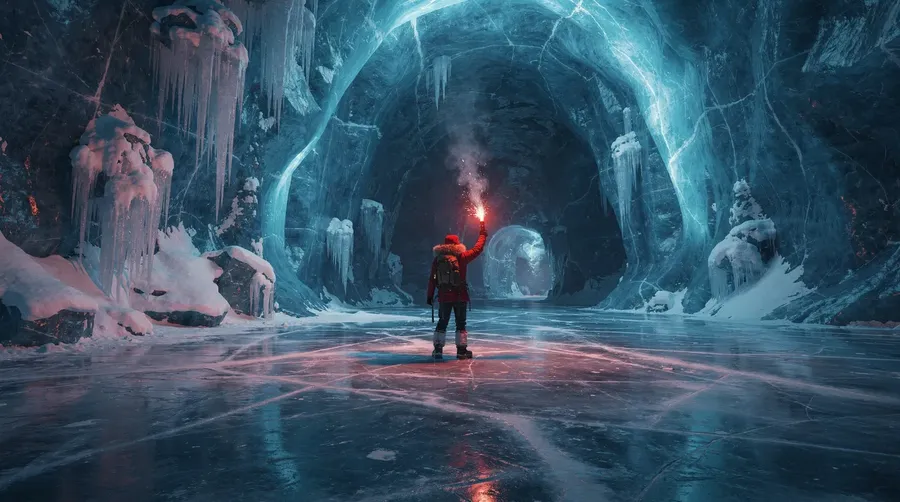
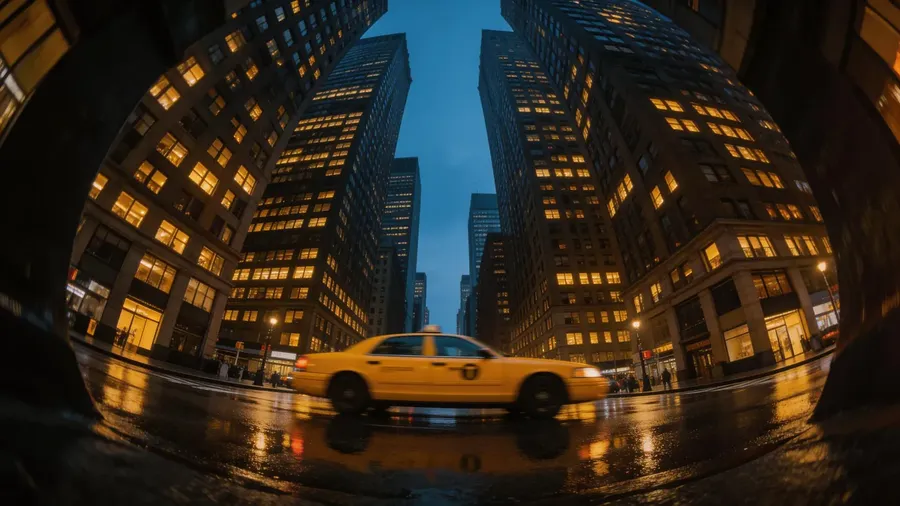
ChatGPT can already make images, so the getimg.ai plugin matters most when you want more than one model to choose from, an edit tool in the same place, or a library that keeps everything. It's handy when the image belongs to something you just wrote:
"Make a header image for this article: editorial style, soft daylight, one small blue object as the focal point. Then a square version for Instagram."
When to use getimg.ai instead of ChatGPT's own image tools
ChatGPT's built-in image generation is fine for a quick picture in the middle of a conversation. The getimg.ai plugin makes more sense in four situations.
The first is when you need anything beyond a still image. Video, music, voiceovers, and sound effects aren't part of ChatGPT itself, so a project that mixes formats runs through one plugin instead of several tools. The second is when the result has to look a specific way. getimg.ai works across many image models, each with different strengths in photorealism, illustration, or text in images, and Auto picks one that fits the request. The third is when the job is a known task, such as a headshot, a restoration, or a background cutout. A dedicated tool with fixed options gives more predictable results than describing the edit from scratch. The fourth is when you need to find the work later. Everything lands in your getimg.ai library, so a result from last week's chat is still there, and you can keep editing it in the getimg.ai app.
Chaining several steps in one request
The biggest gain is asking for several steps at once. ChatGPT runs them in order and hands you the full set:
"Write a 15-second ad for a cold brew brand. Make a product image from this photo, animate it into a short video, add a voiceover from the script, and a lo-fi music bed."
That one message covers copywriting, image editing, video, speech, and music, with no files to move between tools. Every piece lands in your getimg.ai library, so you can open the getimg.ai app to keep working on any of them. The same works for smaller jobs: "find the beach images I made last week and upscale the best two" searches your library and runs the upscale in one go.
Tips for getting good results
- Call the plugin when it matters. If ChatGPT answers with its own image instead of calling getimg.ai, start your message with
@getimgor select it from the plus icon menu. - Say where the result will be used. "For a 9:16 Instagram Reel" or "for a LinkedIn banner" tells ChatGPT the shape and style without a list of settings.
- Give it something to work from. A product photo, a selfie, or an image from earlier in the chat usually gets closer to what you want than a description alone.
- Ask for variations. When you're unsure about a direction, ask for two or four versions and pick one.
- Edit in plain words. "Same shot, warmer light" or "slower voice" is enough. ChatGPT turns it into the right request.
Good to know before you start
It uses your getimg.ai credits. Generations draw from your plan's credit balance at the same rates as the getimg.ai app. Ask ChatGPT "how many getimg.ai credits do I have left?" at any time.
Links expire, files don't. The result links in ChatGPT are share links that expire after 24 hours. The files stay in your getimg.ai library.
Bring your own files. Upload photos or videos in the chat, share a public link, or ask ChatGPT to find something in your getimg.ai library, including work you made in the getimg.ai app.
Longer jobs keep running. Videos and longer audio take a little time. ChatGPT checks on the job and posts the result when it's ready.
Same rights as the getimg.ai app. getimg.ai plans include commercial usage rights for what you make through ChatGPT, subject to our terms and applicable third-party rights.
Using a different assistant? The same tools work in Claude, Cursor, and other assistants that support MCP. The getimg.ai MCP server explainer covers setup for those.
The Bottom Line
The getimg.ai plugin moves ChatGPT from planning content to making it: videos, images, music, voiceovers, and photo edits, all from the conversation you're already having. Install it once, sign in, and ask for your first asset in plain words.
Frequently Asked Questions
It's a plugin that lets ChatGPT generate videos, images, music, voiceovers, and sound effects, and edit photos, using getimg.ai. You install it once and sign in with your getimg.ai account, and ChatGPT calls it whenever a request needs an image, video, or audio file.
Open the plugin's page in ChatGPT, click Install plugin, and sign in to the service when asked. For getimg.ai, you sign in with your getimg.ai account and authorize the connection, picking your team on the same screen.
Installing the plugin costs nothing. Generations use credits from your getimg.ai plan, the same as in the getimg.ai app. See getimg.ai pricing for plans and credit amounts.
No. You sign in with your getimg.ai account when you install the plugin, and ChatGPT works on your behalf from there.
getimg.ai picks a suitable model automatically for each request. To use a specific model, name it in your message.
To your getimg.ai library, the same place as everything you make in the getimg.ai app. Work started in ChatGPT can be finished in the app, and the other way around.
Yes. When you authorize the connection, you choose which getimg.ai team the plugin works with. Generations use that team's credits and appear in that team's library. To change teams, reconnect your account from the getimg.ai plugin's Manage page in ChatGPT.
Related Articles