Introducing getimg.ai MCP: What It Is and How to Use It
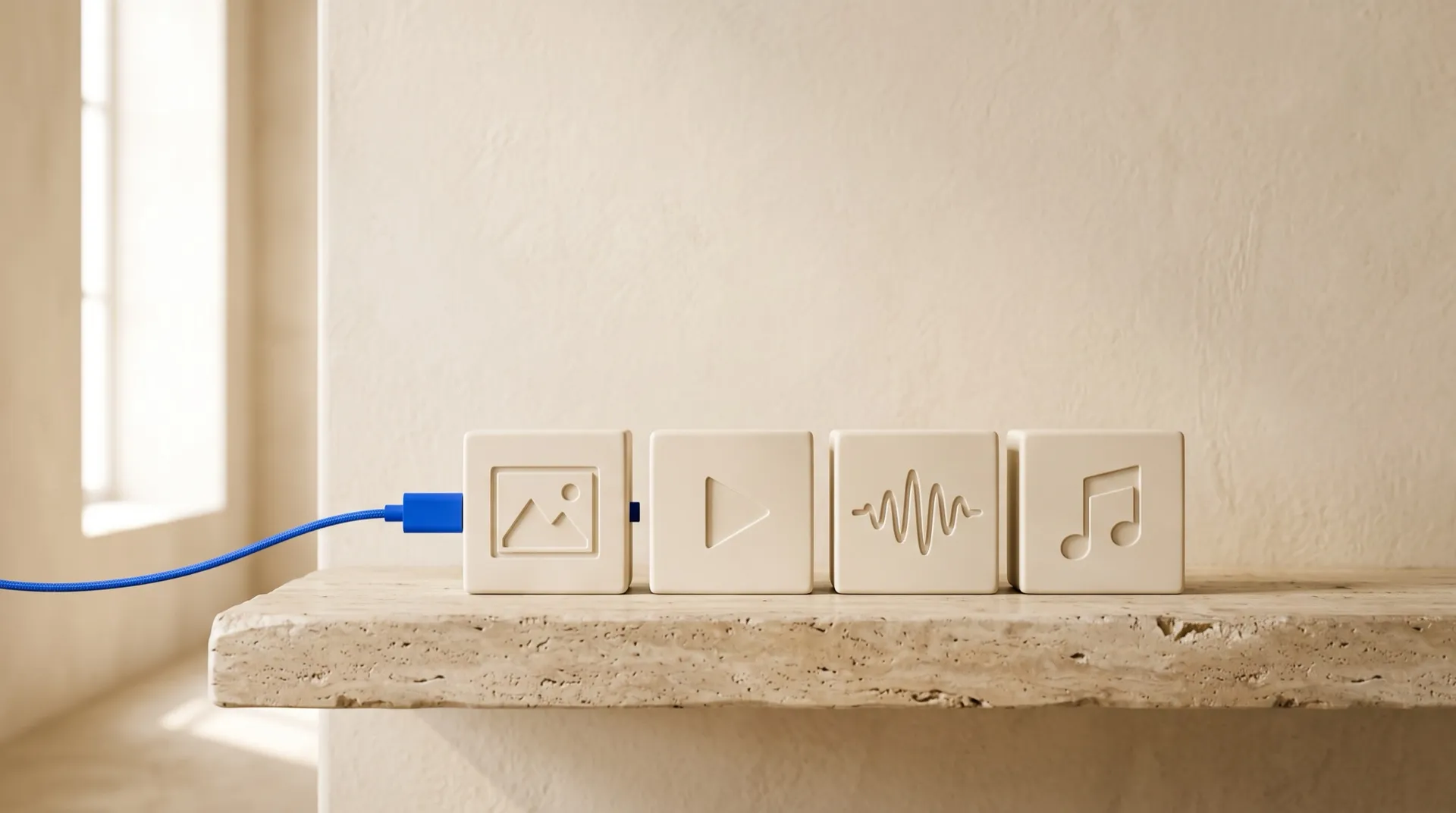
You can now use a MCP server to connect getimg.ai to your AI assistant. Add one URL, https://getimg.ai/mcp, to any MCP-compatible assistant or code editor, sign in with your getimg.ai account, and the assistant can generate images, videos, music, speech, and sound effects for you, edit them, and pull up anything already in your library. Everything runs on your existing plan and credits, and every result lands in your getimg.ai library.
If you already plan campaigns, draft posts, or write code with an AI assistant, the MCP server lets you create the visuals and audio in that same conversation. The assistant already knows what you're working on, so it can call getimg.ai with that context: "write the launch email and make a header image for it" becomes one request with one answer. The getimg.ai app is still there whenever you want to work hands-on, and everything you make in either place ends up in the same library.
What is the getimg.ai MCP server?
MCP (Model Context Protocol) is an open standard that lets AI assistants use outside tools. An MCP server is the bridge: it tells the assistant which tools exist, what each one does, and how to call it. Once connected, the assistant decides when a tool is useful and calls it on your behalf, the same way it might search the web or read a file.
The getimg.ai MCP server gives an assistant access to the same tools you use in the app: the AI image generator and AI video generator, the music, voice, and sound effect generators, and editing tools like the image upscaler and headshot generator. Here's the full picture:
Category | What the assistant can do |
Images | Generate from a text prompt, edit with reference images, upscale, resize to new aspect ratios, remove or clean up backgrounds, relight |
Video | Generate from text or from a first and last frame, guide it with reference images, video clips, and audio (on models that support them), add native sound, upscale video |
Audio | Generate music, speech from a script, and sound effects |
Ready-made recipes | Professional headshots, sticker maker, photo restoration, product orbit video, UGC-style video, character creator, dolly zoom, image transitions |
Your library | List and reuse earlier results, including ones made in the app or in other chats |
Account | Check your credit balance and which team you're connected to |
You don't need to name a model. Describe what you want and getimg.ai picks a suitable one automatically. If you do have a preference, ask for it by name ("use Veo 3.1 for this one") and the assistant will check the available models and use it. The same happens when a request needs something only some models offer, like guiding a video with a reference clip or an audio track: the assistant picks a model that supports it.
How to connect getimg.ai to your assistant
The server lives at one address:
It's a remote server, so there's nothing to install or run locally, and no API key to copy around. Setup is the same in any assistant or editor that supports MCP:
- Open your assistant's MCP settings. Depending on the app, this is called connectors, integrations, tools, or MCP servers.
- Add a new remote (HTTP) server and paste
https://getimg.ai/mcpas the URL. If it asks for a name, "getimg.ai" works. - Sign in. A browser window opens where you log in to your getimg.ai account and approve the connection.
- Choose your team. If you belong to more than one getimg.ai team, pick the one whose credits and library the assistant should use.
That's it. The getimg.ai tools then show up in your assistant, and it will use them whenever a request calls for an image, video, or audio.
If your client is set up through a configuration file instead of a settings screen, the entry usually looks like this:
{ "mcpServers": { "getimg": { "url": "https://getimg.ai/mcp" } }}
The exact steps and labels differ from app to app, so if something isn't where you expect it, check your assistant's documentation on adding a remote MCP server.
How the MCP server fits into your workflows
The real gain isn't generating an image in a chat window. It's that the generation happens inside work the assistant is already doing, with all the context of that work. A few examples of what that looks like in practice.
Write the post and make its visuals in one go
You're drafting a blog post or newsletter with your assistant. When the copy is done, ask for the visuals in the same thread:
"Make a featured image for this post: minimalist editorial style, warm neutral palette, one small blue object as the focal point. Then a 1:1 version for Instagram."
The assistant already knows what the article is about, so the image prompt comes from the actual content rather than a summary you retype. If you also have Notion or Google Drive connected, it can drop the finished image straight into the draft.
Turn one product photo into a launch kit
Start with a single product shot that's publicly hosted (or already in your getimg.ai library) and ask for the full set:
"Take this product photo, remove the background, generate a lifestyle scene of it on a marble kitchen counter in morning light, then make a product orbit video and resize the lifestyle shot to 9:16 and 4:5 for ads."
That's background removal, image editing, a video recipe, and resizing, chained by the assistant in order. You review the results instead of shepherding files between steps.
Produce a video ad with its own soundtrack
Planning a short spot? Let the assistant handle the script and every asset that hangs off it:
"Write a 20-second script for a cold brew ad aimed at night-shift nurses. Generate the voiceover from the script with a calm, warm voice, a 30-second lo-fi music bed, and a sound effect of ice dropping into a glass."
You get the script, the narration, the music, and the sound design back together, ready to cut against your footage or against clips generated in the same conversation.
Generate real assets while you code
In an AI coding assistant, the assistant can generate the images a project needs while it builds the project:
"Build the landing page for the bakery, and generate a hero image, three menu photos, and a set of stickers for the loyalty card. Save them into /public/images."
Instead of shipping with gray placeholder boxes, the first build already has images that fit the page. The same goes for app icons, onboarding illustrations, empty-state art, and test data for image features.
Pick up where you left off
Every result lands in your getimg.ai library, and the assistant can search it. So a request like this works even in a brand-new chat:
"Find the coffee shop images I generated last week, upscale the best two, and relight them for an evening look."
Work started in the getimg.ai app can be finished from your assistant, and the other way around.
Run it on a schedule
Assistants that support scheduled or recurring tasks can run getimg.ai on their own. A weekly routine might pull the topics from your content calendar, generate a set of social images for each one, and hand you a review list on Monday morning. You approve or redo, rather than starting from a blank prompt every week.
Good to know before you start
It uses your credits
Generations through the MCP server draw from the same credit balance as the app, at the same rates. Ask the assistant "how many credits do I have left?" at any time.
Results live in your library
The links the assistant shares are temporary share links that expire after 24 hours. The media itself stays in your getimg.ai library for as long as you keep it there.
One team per connection
When you connect, you pick which getimg.ai team the server works with. Generations draw from that team's credits and land in that team's library. To switch teams, disconnect and connect again.
The Bottom Line
Your AI assistant already knows your project: the article, the campaign, the codebase. The getimg.ai MCP server lets it make the images, videos, and audio for that project without you leaving the conversation. Add https://getimg.ai/mcp to your MCP-compatible assistant, sign in, and ask for the visuals in the same breath as everything else.
Don't have an account yet? Sign up for getimg.ai, then connect your assistant.
Frequently Asked Questions
MCP, short for Model Context Protocol, is an open standard for connecting AI assistants to external tools and data. An assistant that supports MCP can use any MCP server you add to it, which is how it gains abilities like generating images through getimg.ai.
Any assistant, chat app, or code editor that supports remote MCP servers with sign-in. Add https://getimg.ai/mcp in its MCP or connector settings and sign in with your getimg.ai account.
You need a getimg.ai account, and generations use credits from your plan, the same as in the app. Commercial usage rights apply on paid plans, subject to our terms and applicable third-party rights. See the pricing page for plans and credit amounts.
No. You sign in with your getimg.ai account when you connect, and the assistant works on your behalf from there.
Yes. By default getimg.ai selects a suitable model automatically based on your request. If you want a specific model, name it in your message and the assistant will use it.
Into your getimg.ai library, the same place app generations go. The assistant also shares direct links to each result, which expire after 24 hours, while the files stay in your library.
Related Articles