Remove Text From Image With AI
Add a photo, say which text should go, and get the same picture back with the words erased and everything they were on intact. It works on storefronts, packaging, vehicles, ads, listings and old photos.
Leading image models in one place.
Auto picks the model that fits your prompt best. Switch the model manually any time if you want to experiment.


How to remove text from an image
It's a regular edit in Create image: your photo goes in as the reference, and the prompt says what to clear.
Add the photo as a reference
Open Create image and add the picture with the text in it: an ad, a social post, a product shot, a listing photo or a scan.
Say what to remove
Name the text and where it sits, for example "remove the headline in the top right", and add "keep everything else the same".
Use it clean or with new text
Download the clean version, or write the new copy into the same prompt: a new headline, a new price or the same words in another language.
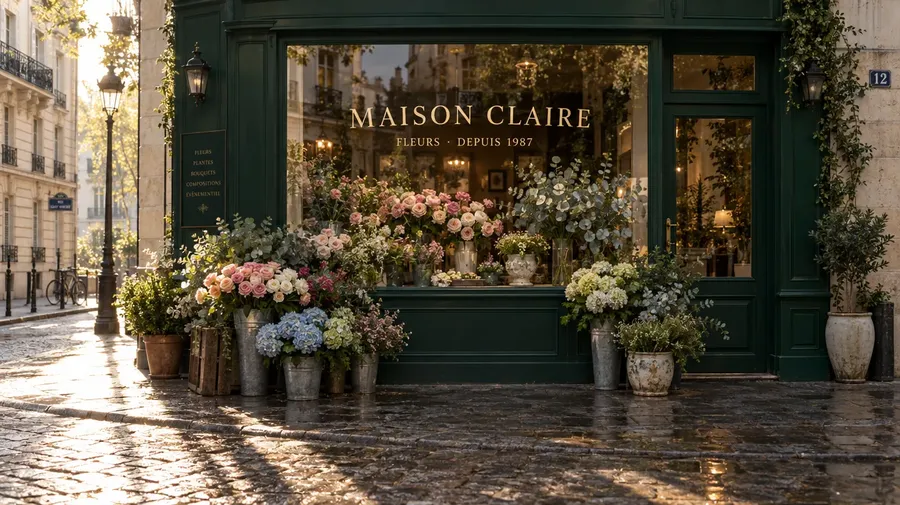
Clear signs and posters from location photos
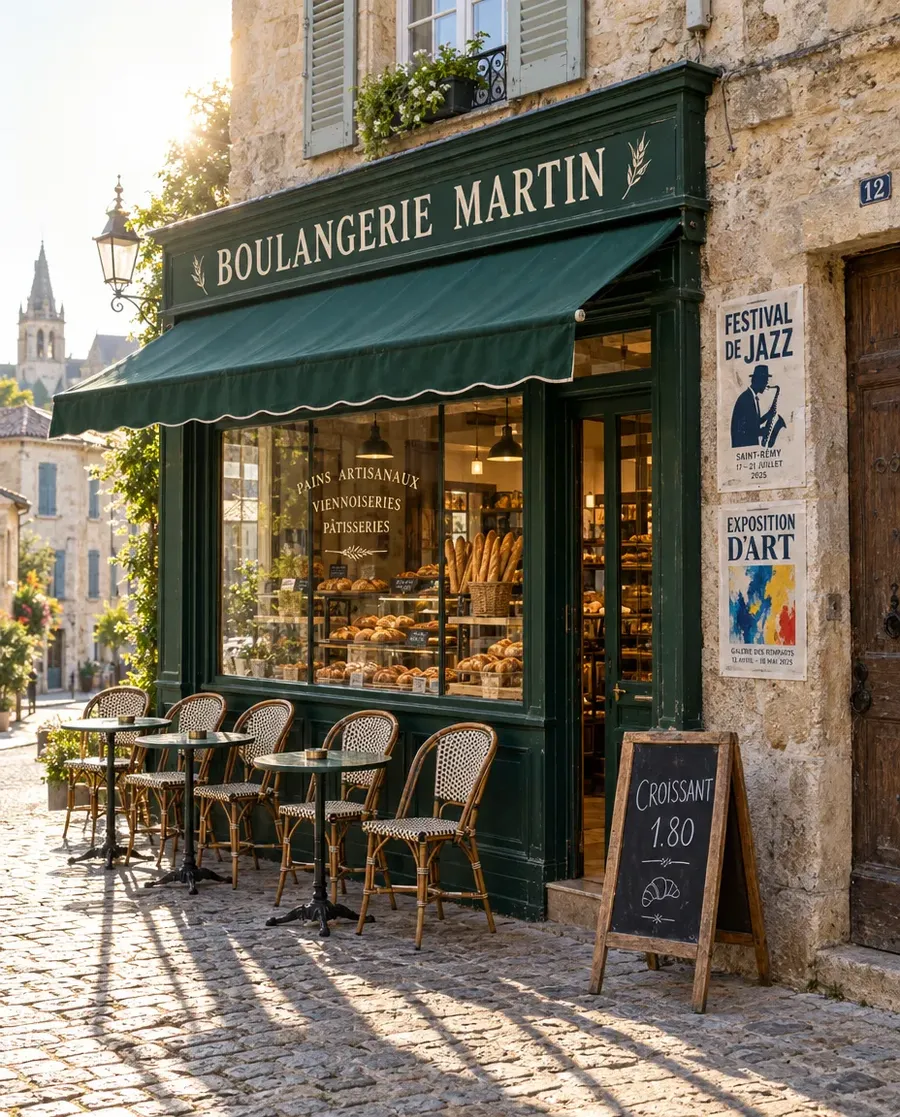
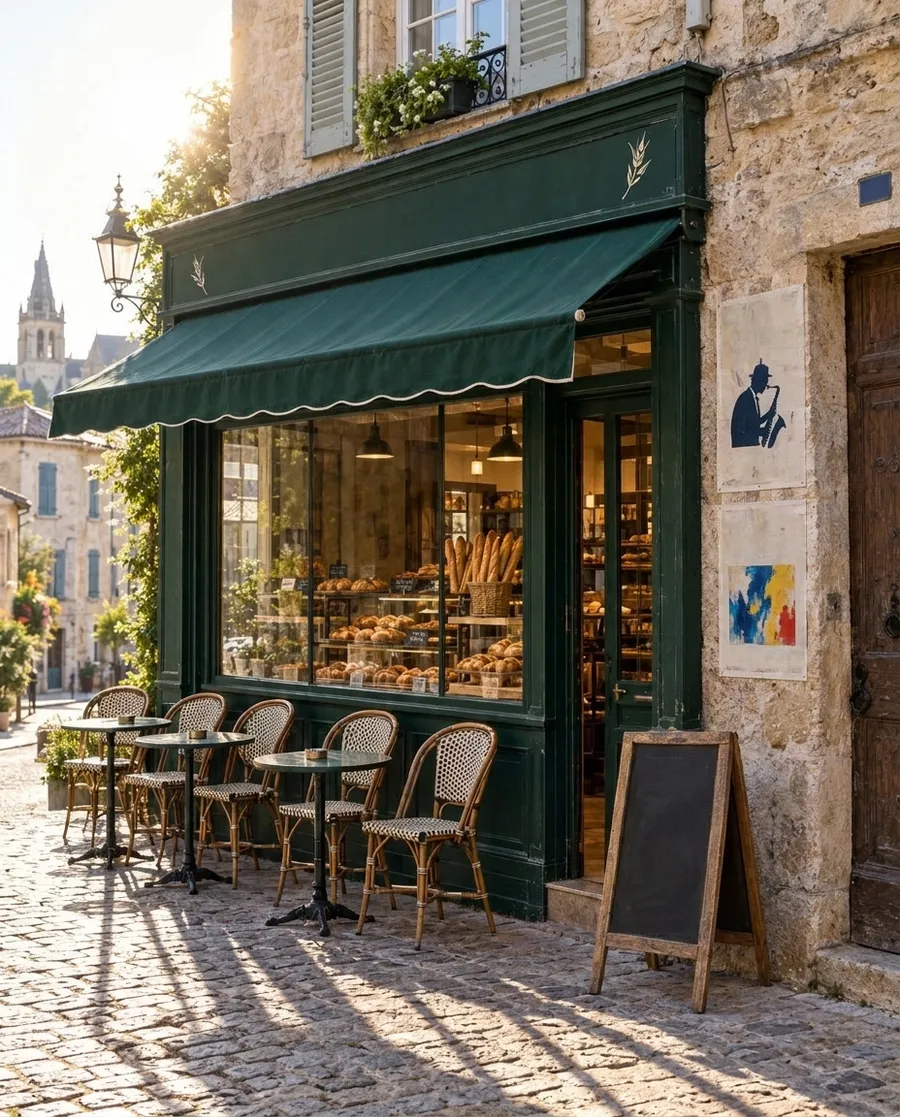
Shop signs, posters and chalkboards pull attention, and they can put another business's name into your ad. Clearing them turns a street corner into a neutral background for a campaign, a mockup or an editorial layout.
Only the words are gone: the signboard, the window glass, the chalkboard and both posters with their artwork stay, along with the awning, the bread in the window and the morning light.
Turn annotated product shots into clean packshots
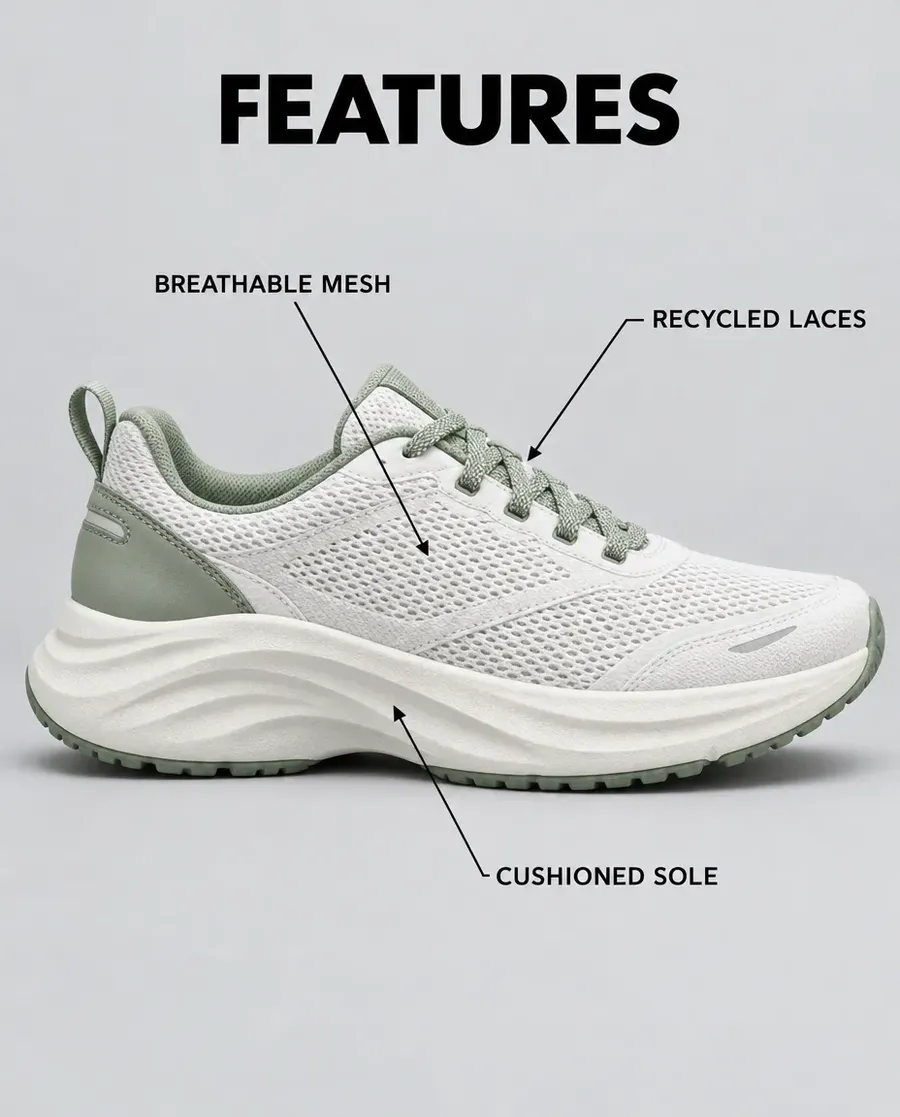
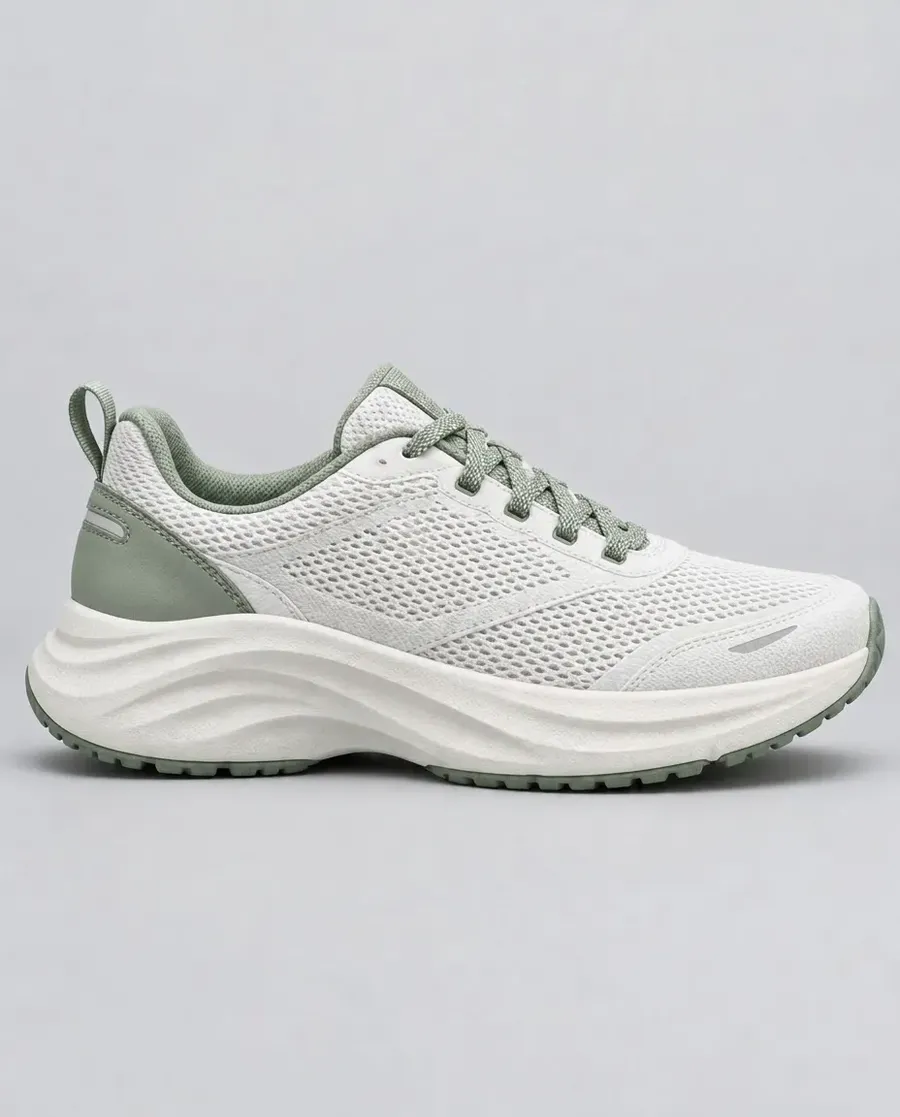
Supplier images and old listings often come with callouts, arrows and feature labels. Marketplaces such as Amazon expect a main image without added text, and your own store needs the shot without someone else's layout on top.
One prompt removed the headline, the three labels and every arrow, and kept the shoe and its shadow as they were.
Reuse event photos after the event
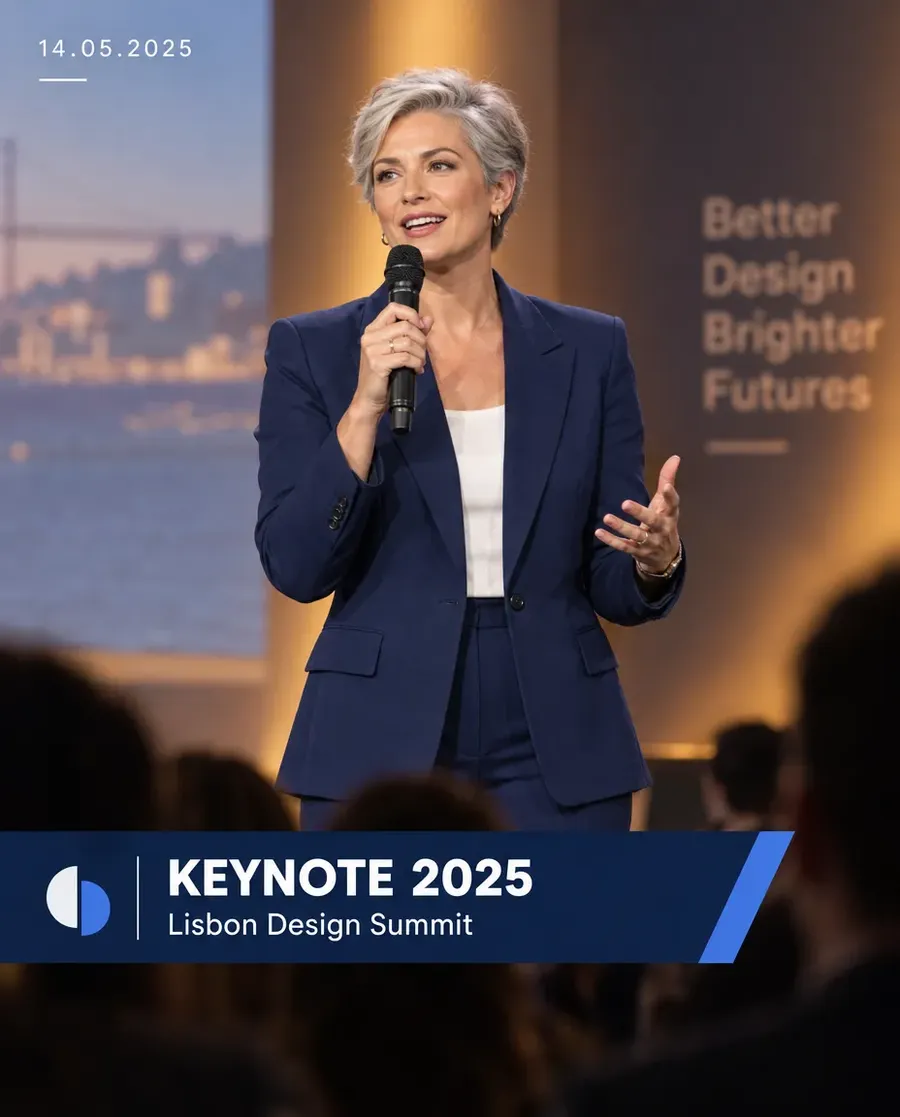
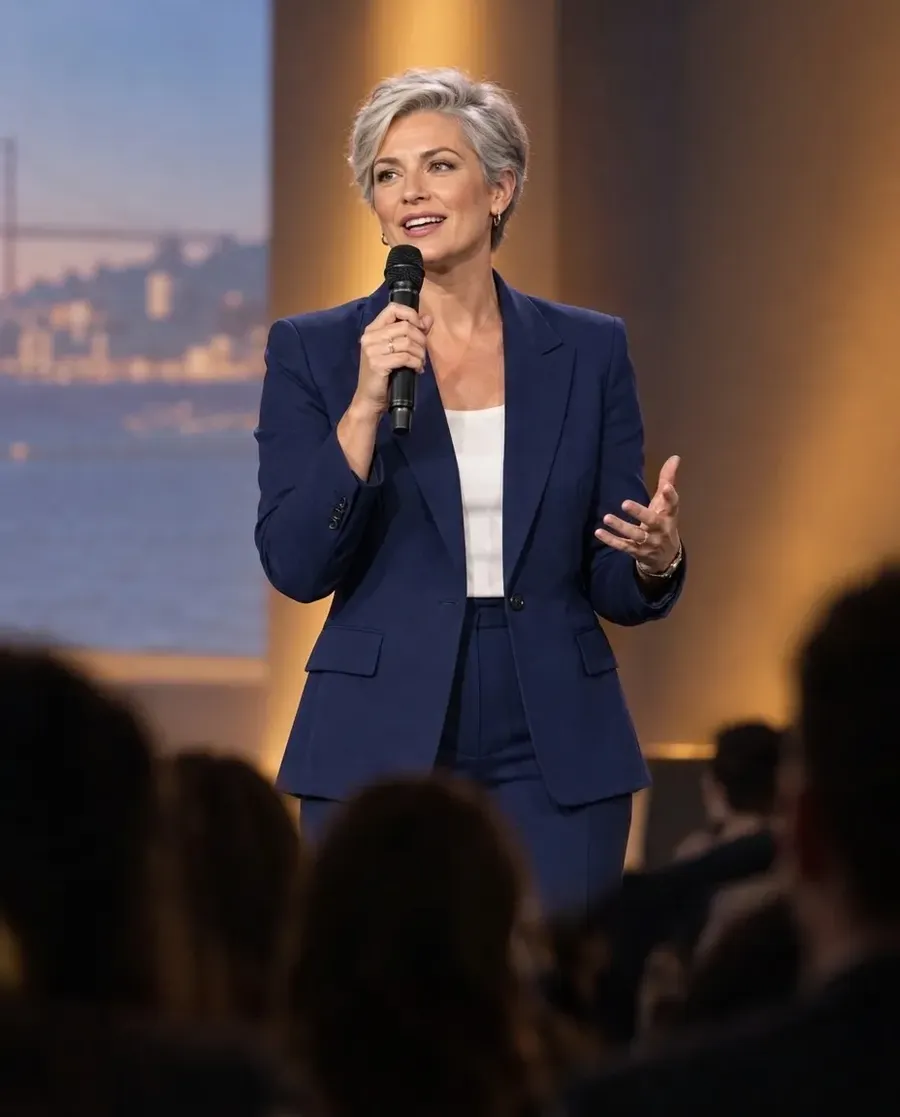
Photos from last year's conference come with last year's date, logo and lower-third. Without the overlay, the same shot works for next year's speaker announcement, a recap post or a press page.
The graphic bar, the date and the words on the stage backdrop are gone. The speaker, the stage light and the audience in the foreground stay as they were.
Wipe old menus and prices from venue photos
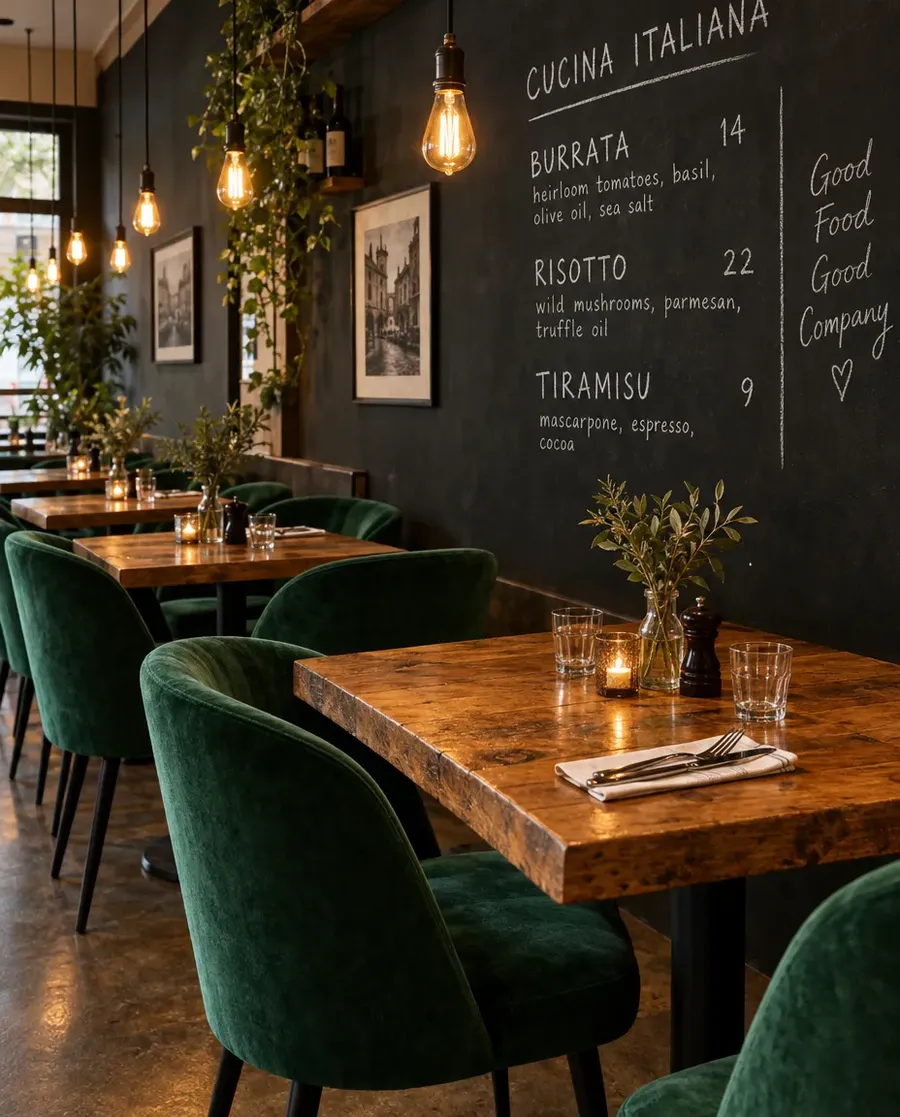
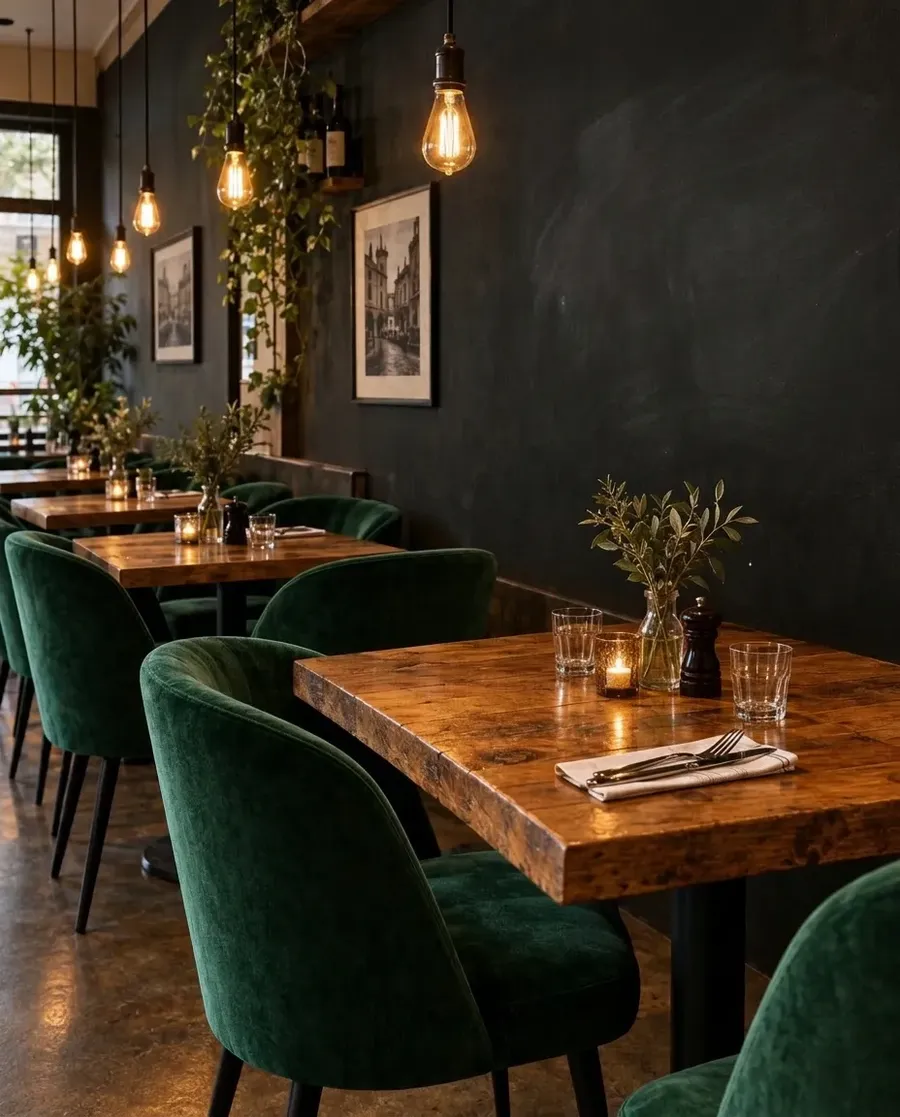
Prices change and menus rotate, and a photo with last season's dishes on the wall dates a website quickly. A wiped chalkboard gives a restaurant, café or bar an interior shot that stays current.
Use it as it is, or write this season's menu into the prompt and let it fill the board.
Get a clean result on the first try
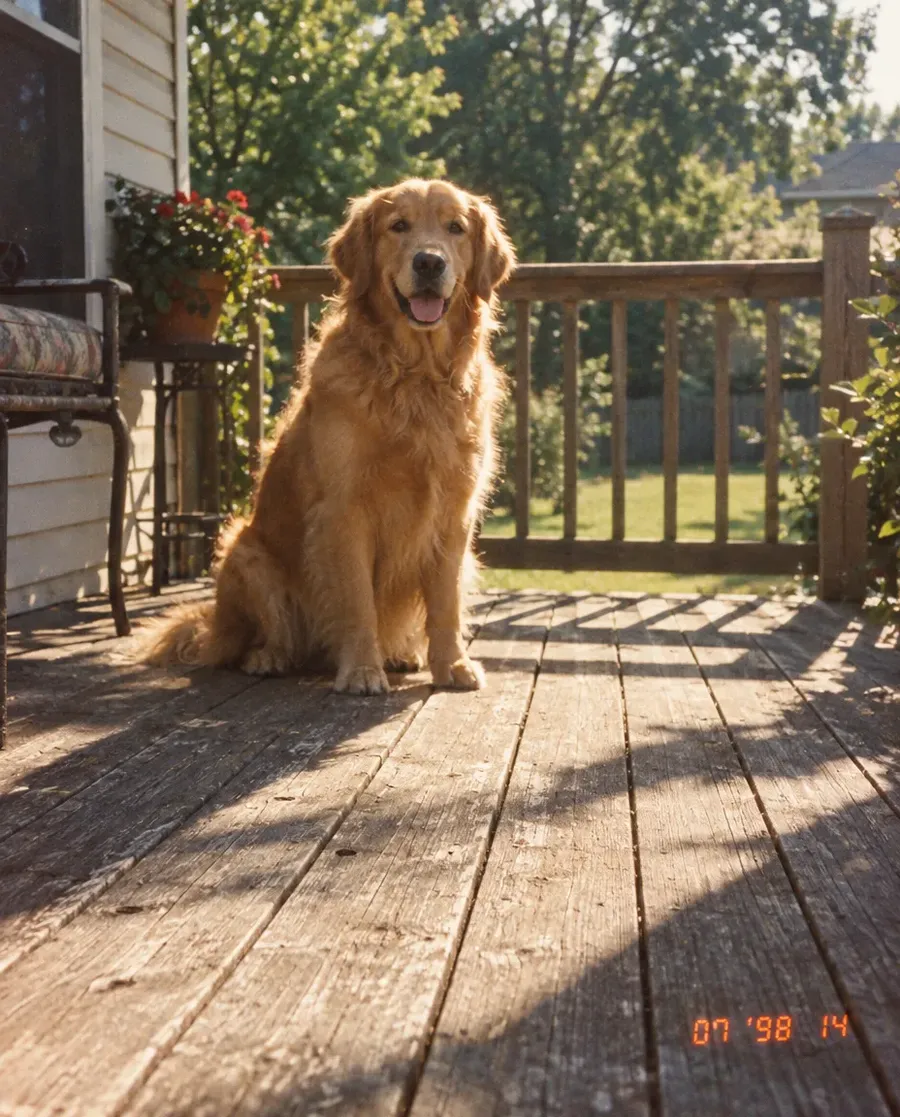
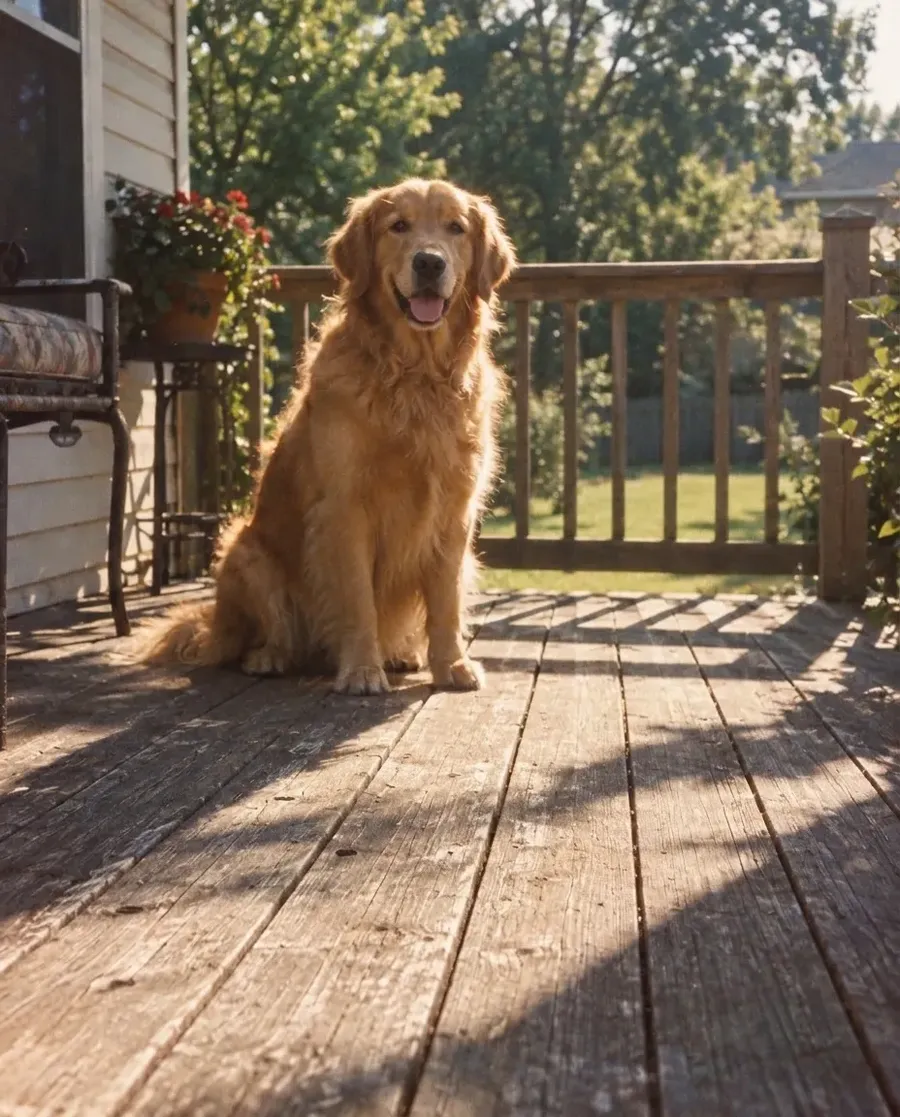
Removal works best when the prompt is specific about what goes and what stays. This old film photo needed one line: remove the orange date stamp in the bottom right corner.
Explore more AI image editing tools
Frequently Asked Questions
Open Create image on getimg.ai, add your photo as a reference and write a prompt such as "remove the headline and the button, keep everything else the same". You get back the same picture without the text.
Yes. Put the new text in the same prompt, for example "replace the headline with WINTER SALE in the same font and color". The same works for prices, dates or swapping the copy into another language.
getimg.ai generates the image again from your photo and prompt, so most of the picture stays the same, but small details can shift. Ask it to keep everything else the same, and check faces, products and any text you want to keep.
Headlines, captions, buttons, sale stickers, price tags, shop signs, posters, chalkboards, labels and arrows on product shots, event overlays and camera date stamps.
Only from images you own or have the right to edit. Removing someone else's watermark or branding to reuse their work isn't allowed.
The Background cleanup tool removes unwanted objects and people from a photo in one step.
Images you create on paid plans come with commercial usage rights, subject to our terms and applicable third-party rights.
Get the clean version of your image
Add the photo to Create image, describe the text to remove and download the result.