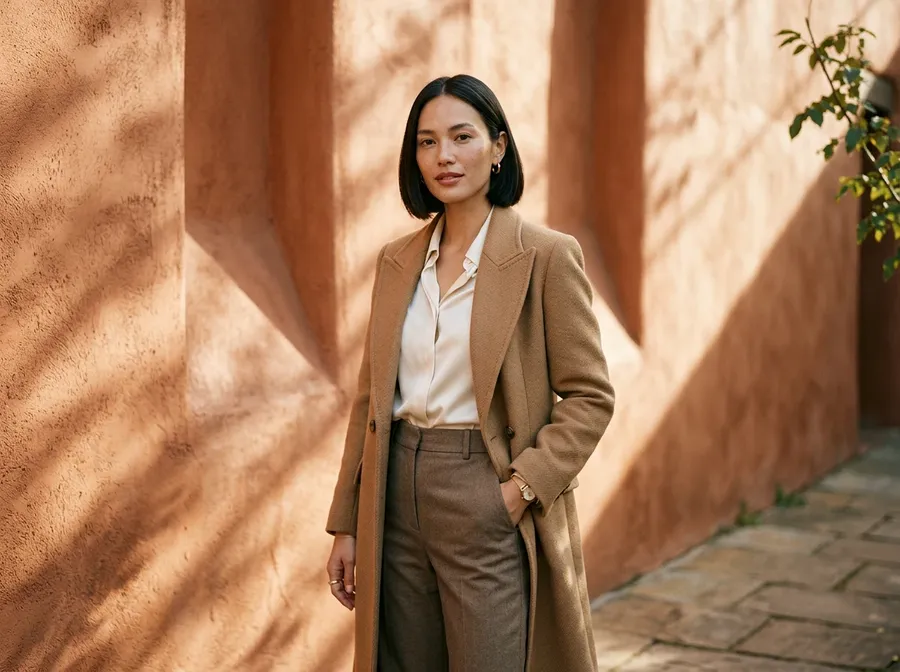
AI Inpainting: Add, Change or Remove Parts of an Image
Add, change, or remove objects and details in a photo. Describe the change in plain words and AI generates a new version while aiming to preserve the rest of the image, with the edit generated to match the surrounding image. No Photoshop and no manual selections.
Leading image models in one workspace.
Auto can select a model based on your request.


What is AI inpainting?
AI inpainting changes content inside an existing image by adding, removing, replacing, or recoloring specific elements while using the surrounding scene as context. It is sometimes described as generative fill.
In getimg.ai, you can open or upload an image, describe the change in plain language, generate a new version, and continue editing without overwriting the original.
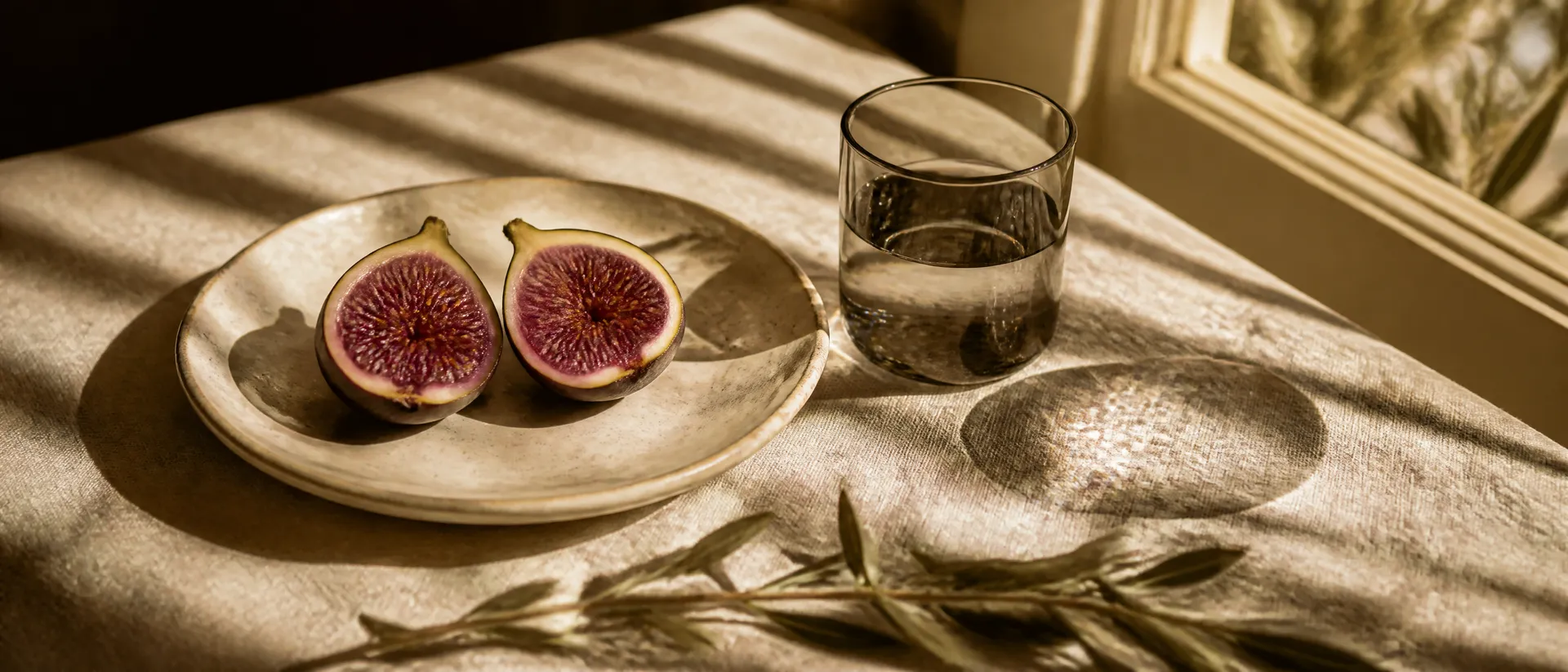
Targeted image edits without a traditional editing workflow
Inpainting is for changing part of an image you already have. Describe the change you want, generate a version, and adjust the wording if the result is not what you pictured. There are no layers to manage and no selections to draw.
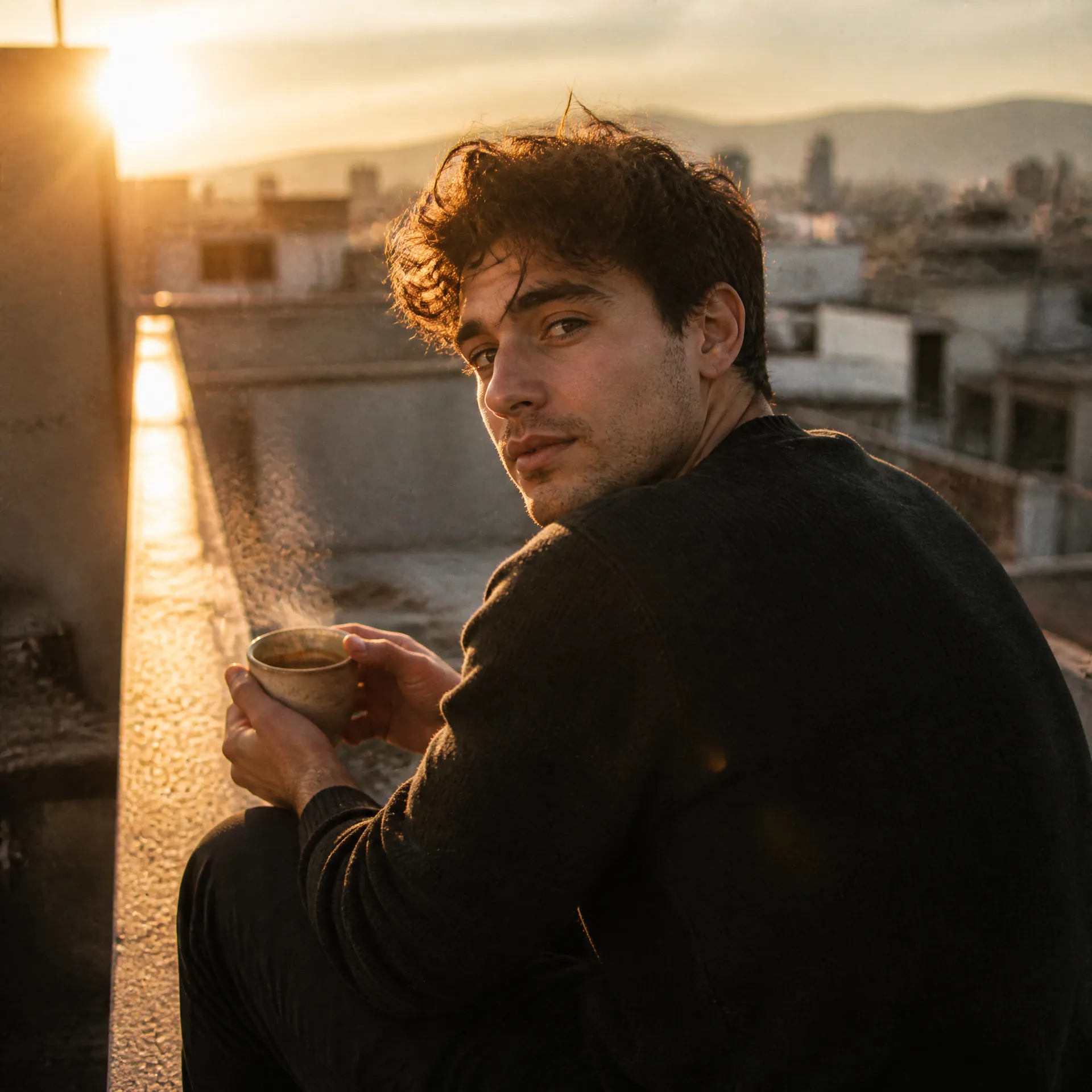
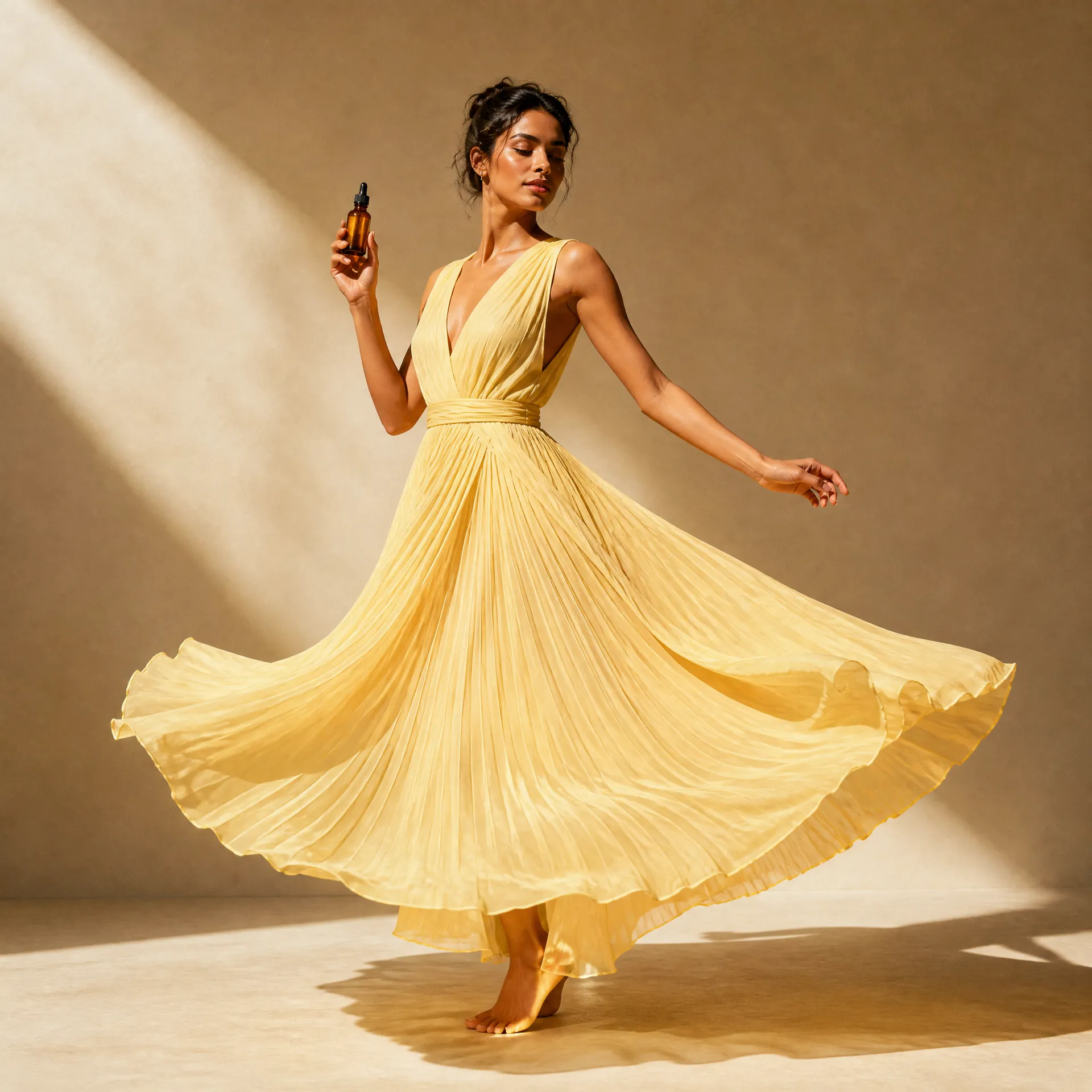
How to inpaint with getimg.ai
Three steps from photo to finished edit, all in the browser. Nothing to install and no selections to draw by hand.
1. Open your image
In Create image, add your photo with the Reference button, or click any image in your gallery to open it in full view.
2. Describe the change
Type what to add, swap, or remove in plain words. There is no masking and no selections: the model interprets which part of the image your instruction refers to.
3. Generate and download
Generate a new edited version in seconds, saved as a separate image. Keep iterating until it matches what you had in mind, then export and use it anywhere.
What can you do with AI Inpainting?
Five kinds of edit cover almost every inpainting request, and each one starts the same way: describe what you want changed.
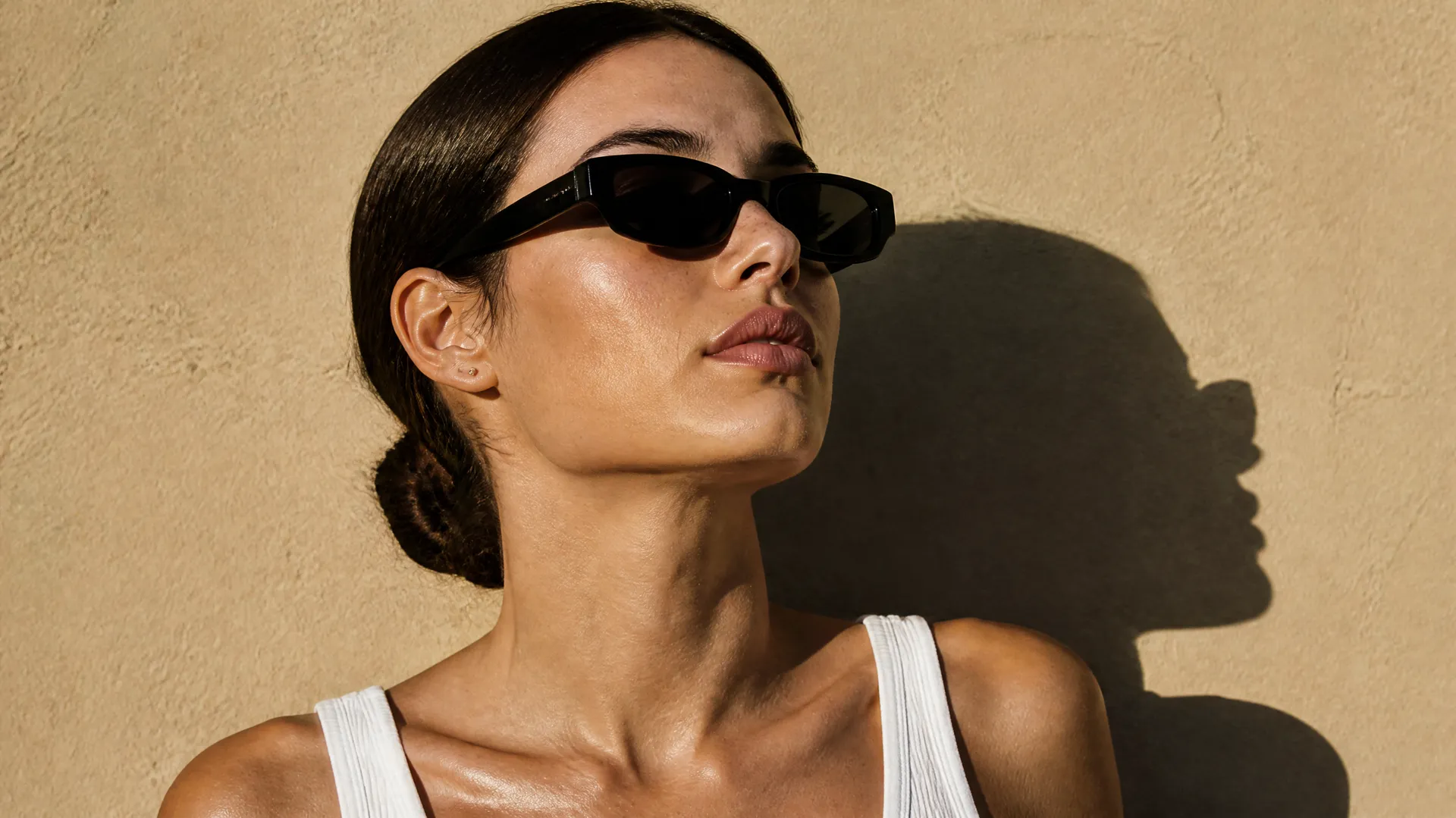
Add
Generate an element that was not in the original photo. Example: add sunglasses to a portrait.
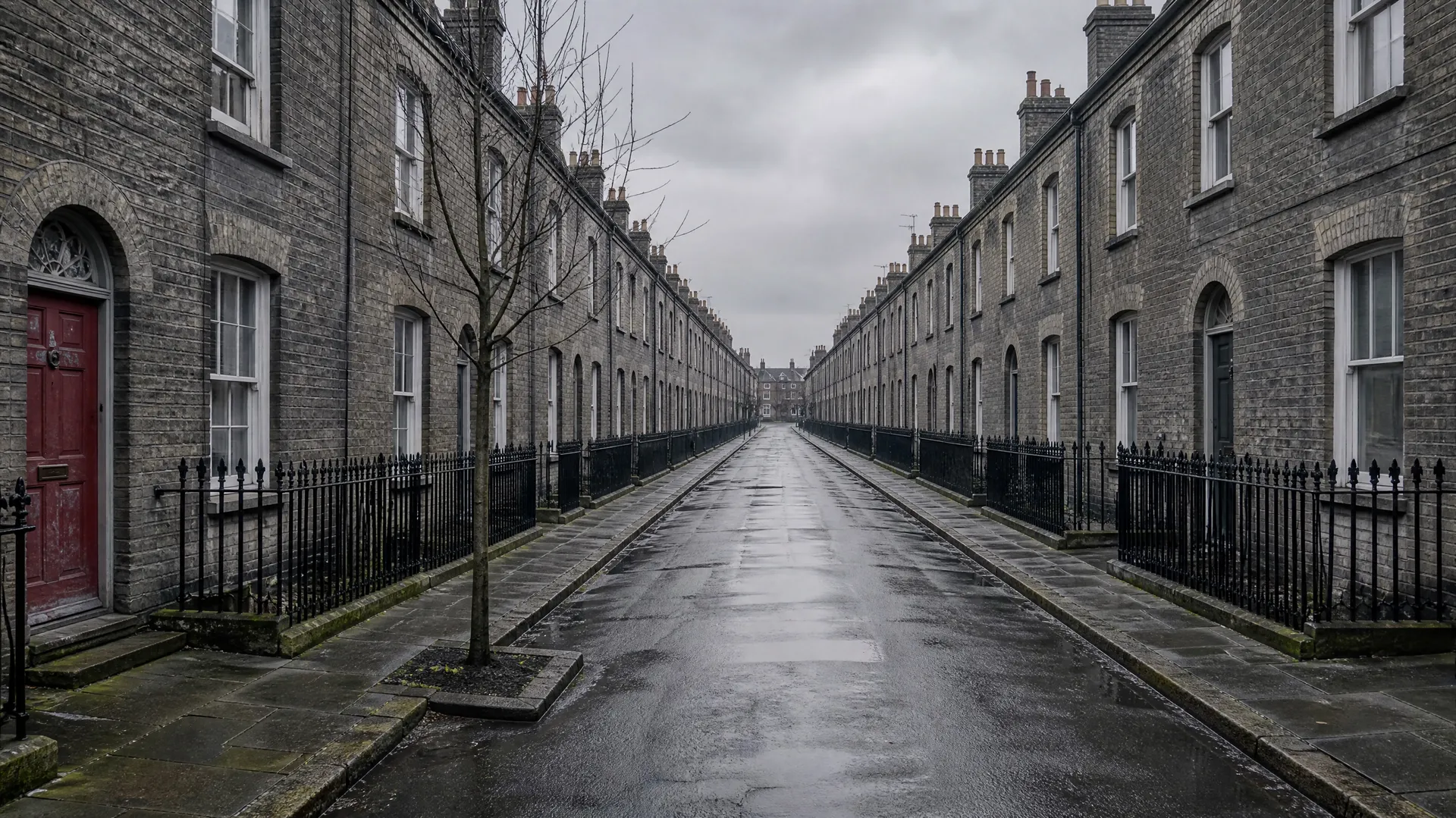
Remove
Take out an element you do not want in the shot. Example: remove a photobomber from a street photo.
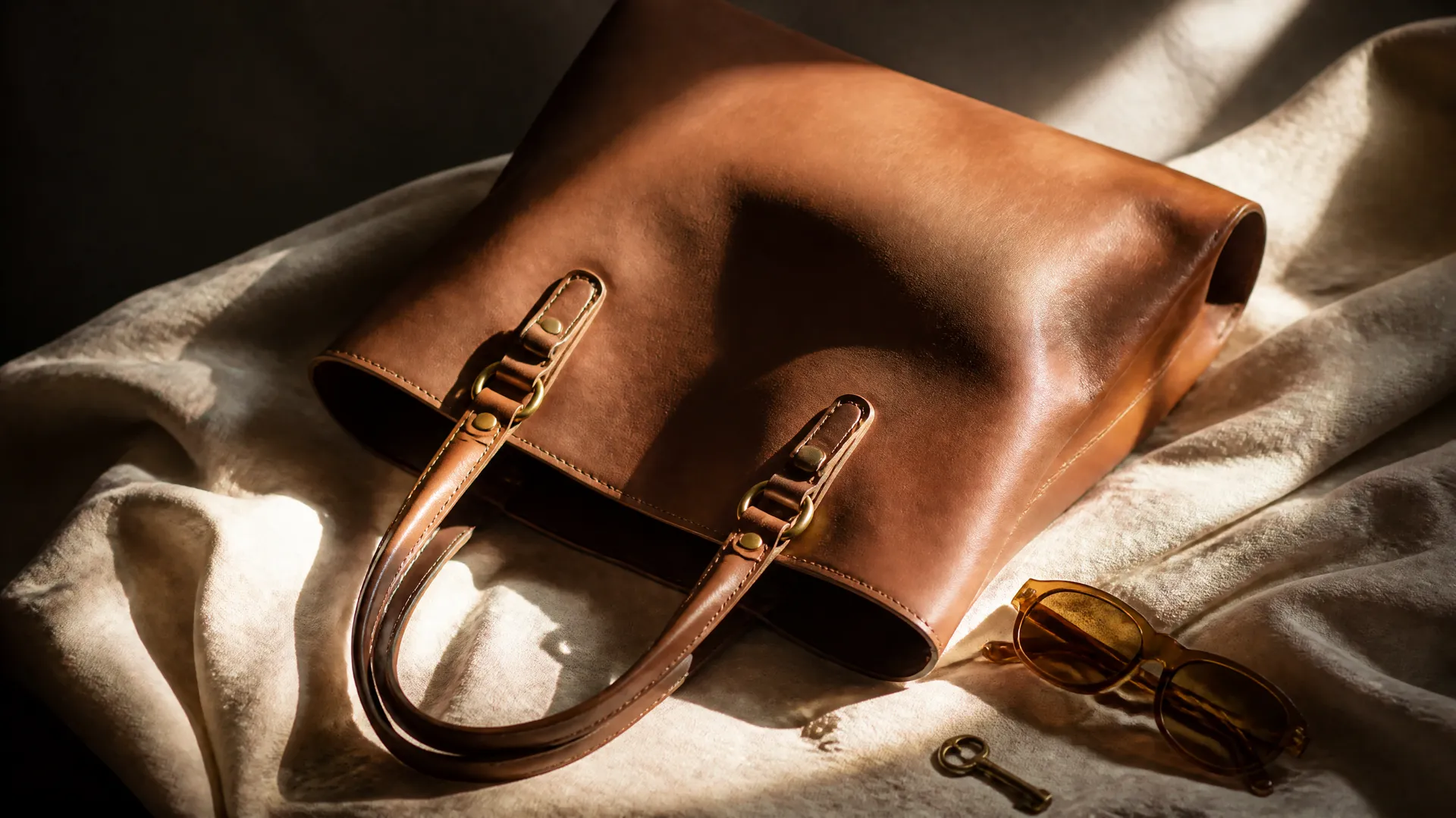
Replace
Swap one element for a different one. Example: replace a handbag with another model.
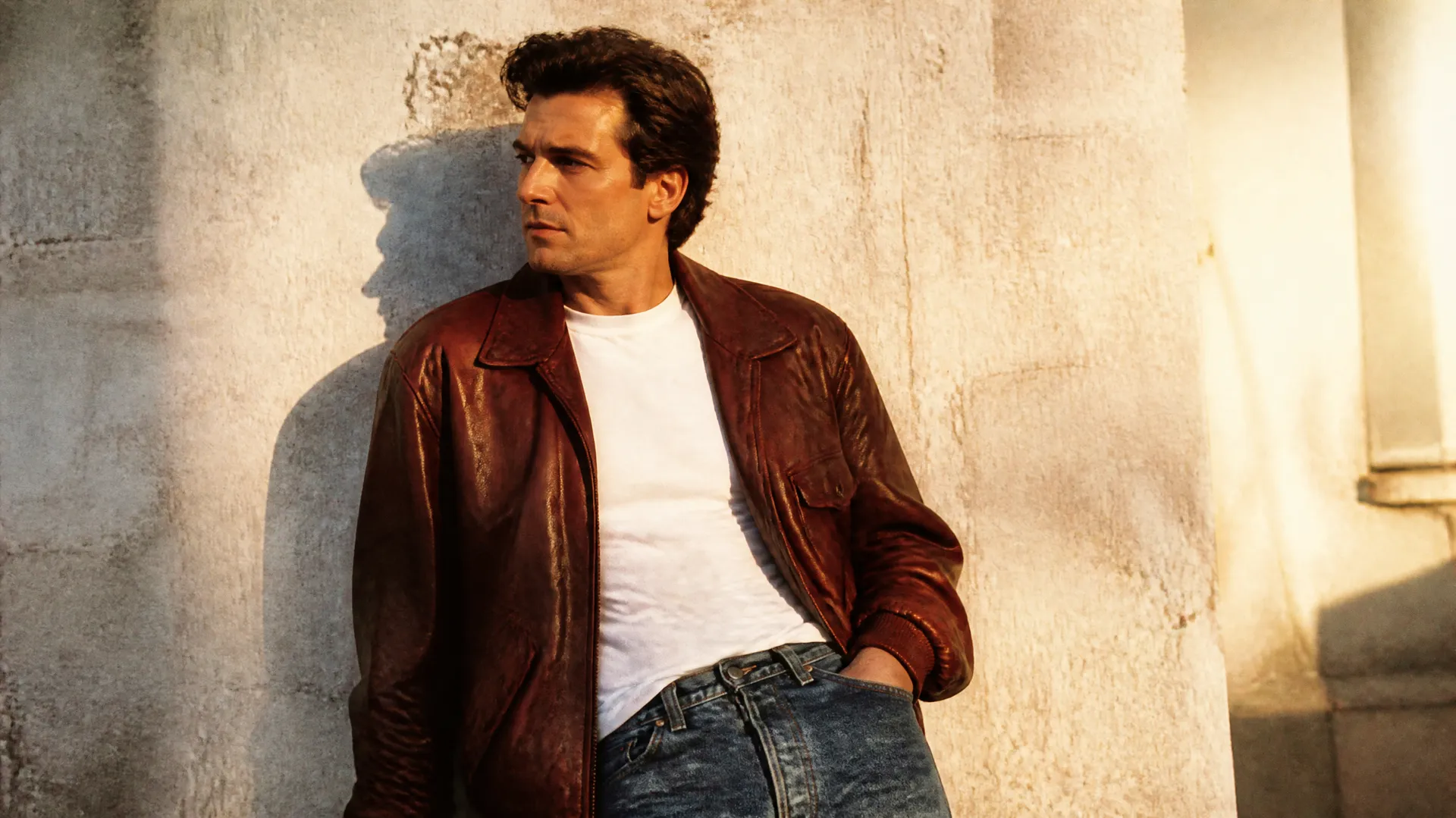
Recolor
Change the color or material of an element that is already there. Example: recolor a jacket to red leather.
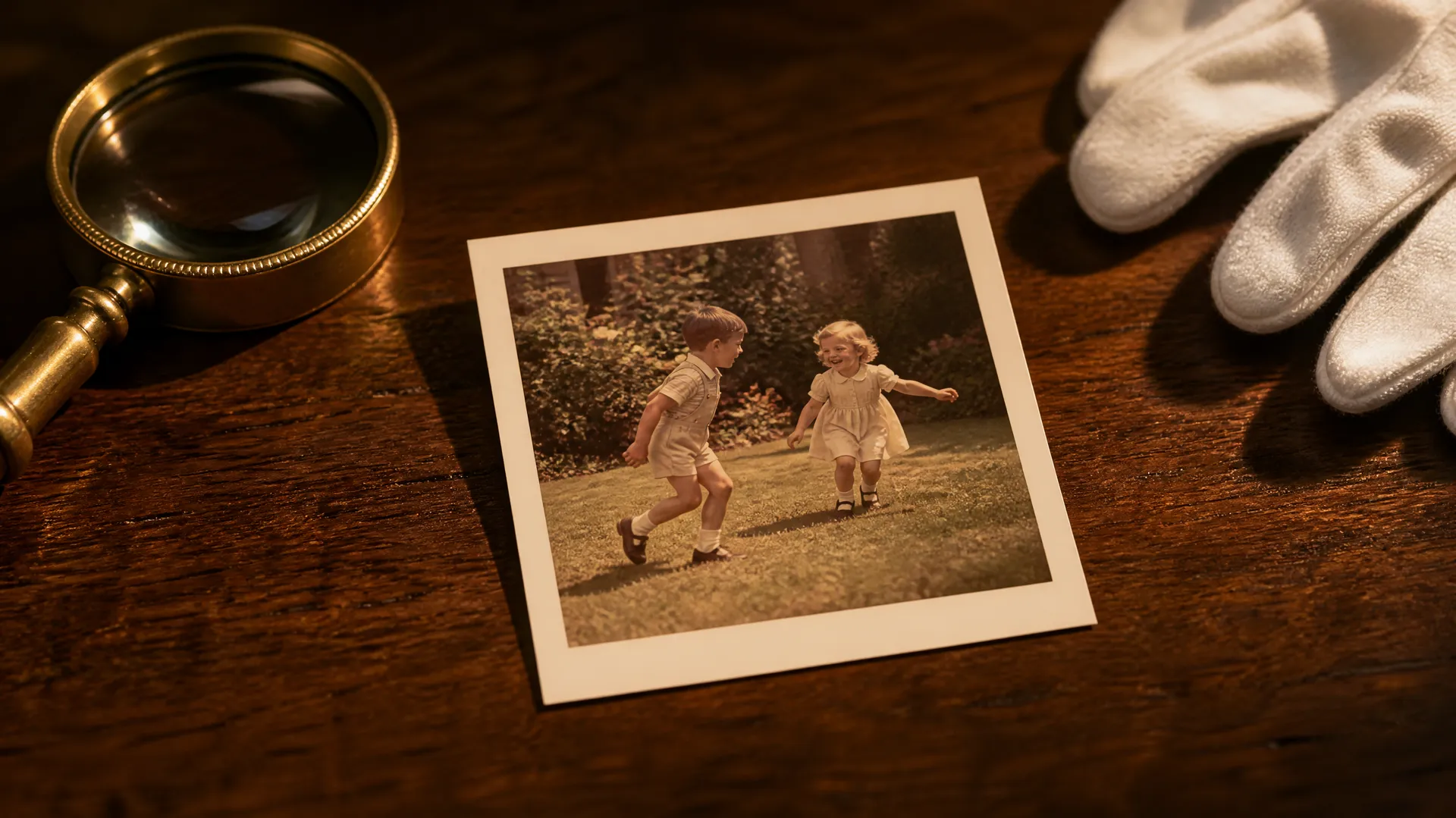
Repair
Regenerate a small damaged or distracting detail. Example: repair a scratch on a scanned photo.
More than an edit button
Inpainting is one tool inside getimg.ai. A few things work in the background to keep your edits ready for real projects.
Built on the latest models
getimg.ai works with leading image models, and Auto can select one based on your request.
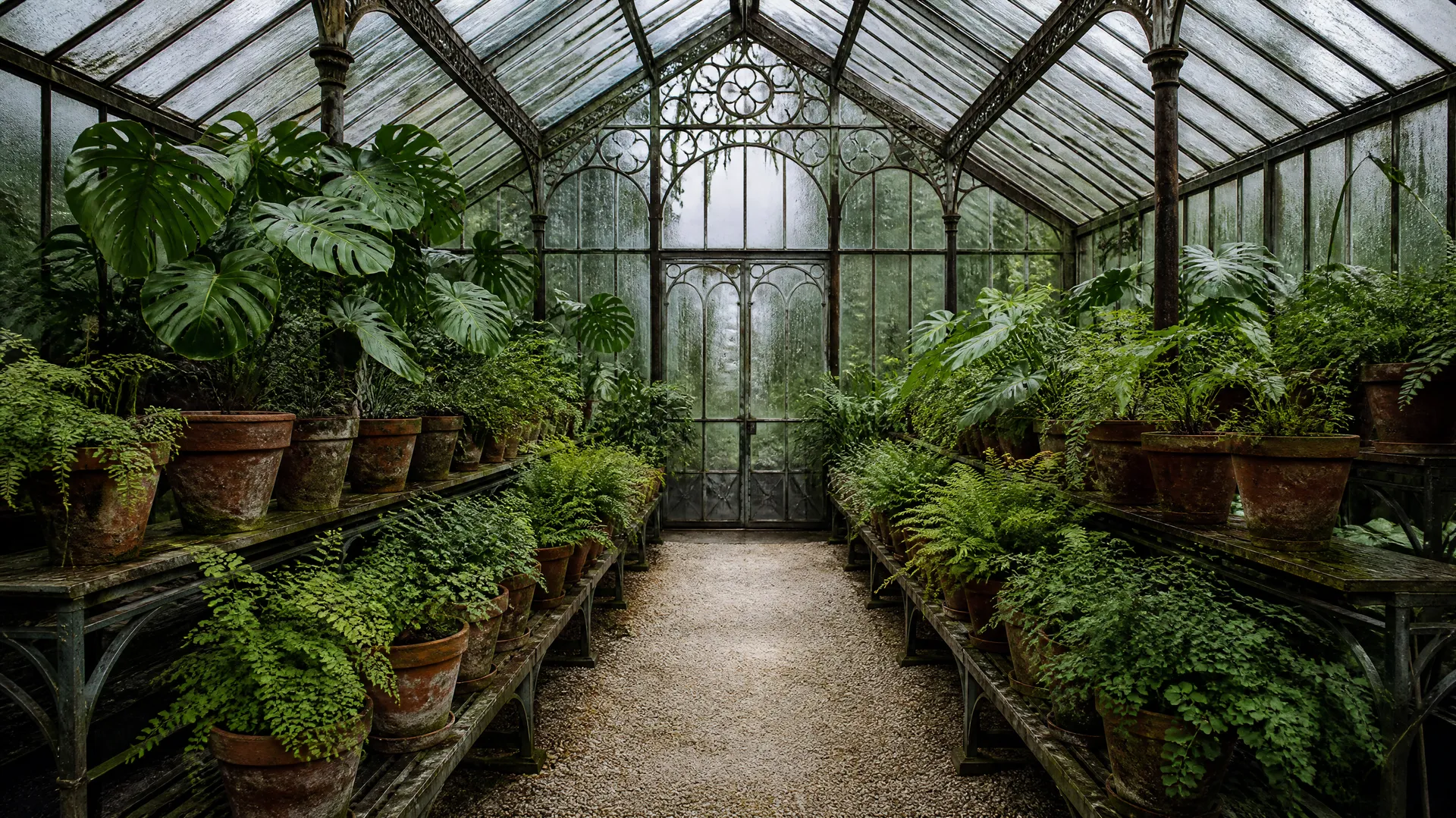
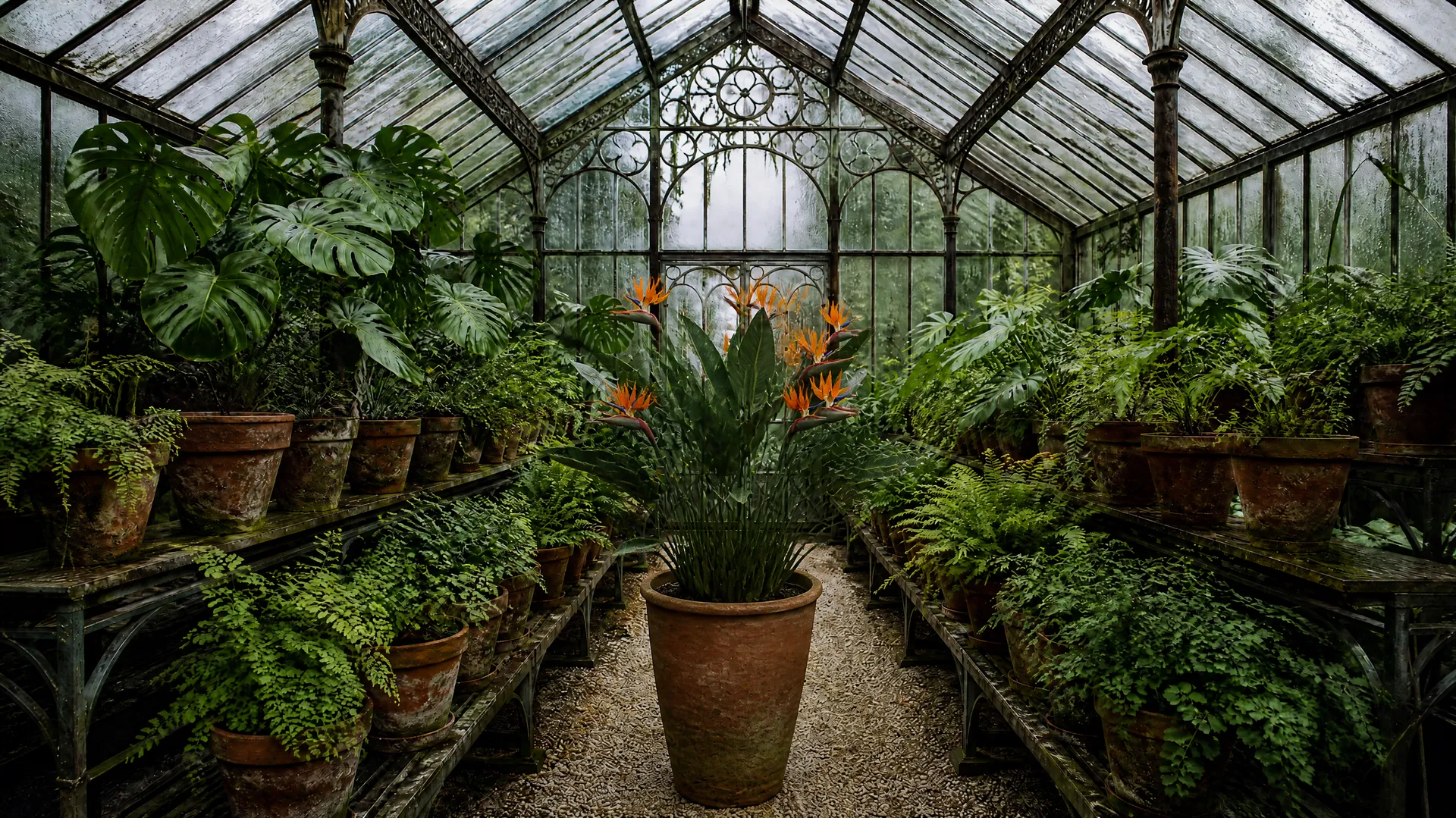
Your originals stay untouched
Each edit saves as a brand-new image, so your source file is never overwritten and you can compare versions side by side.
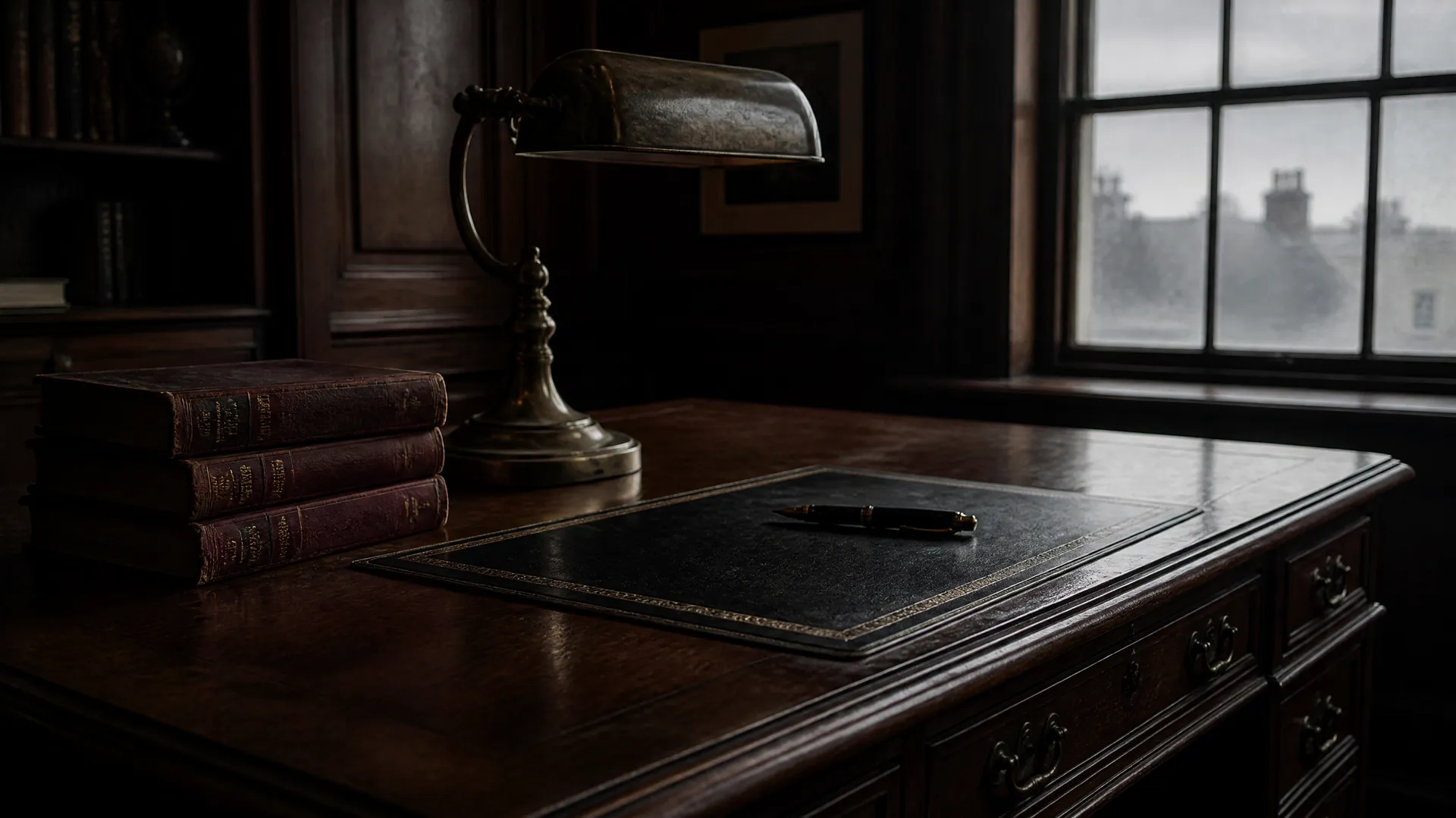
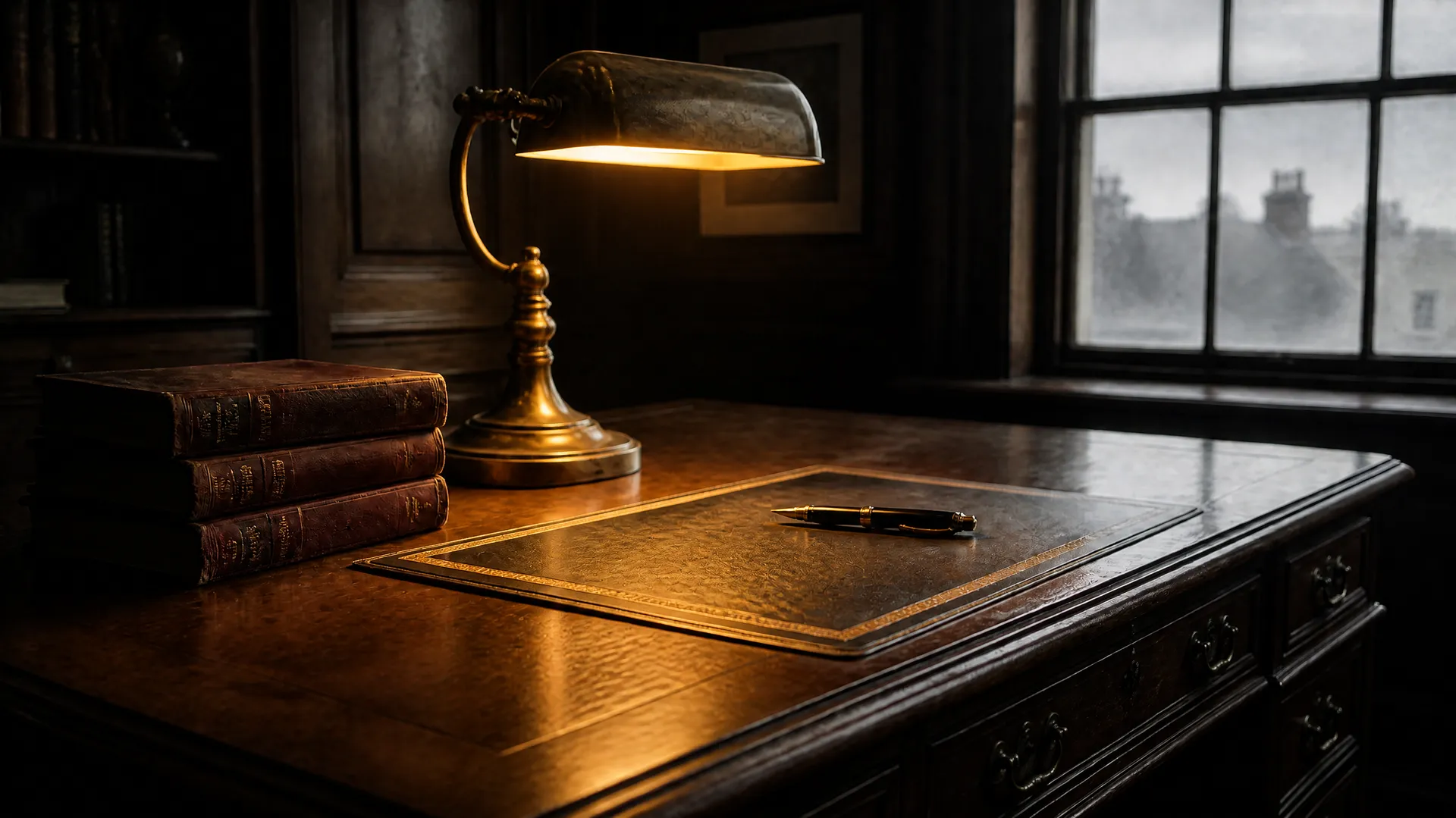
Commercial rights on paid plans
Every paid plan covers commercial use, subject to our usage policies, so edits go into ads, client work, and storefronts.
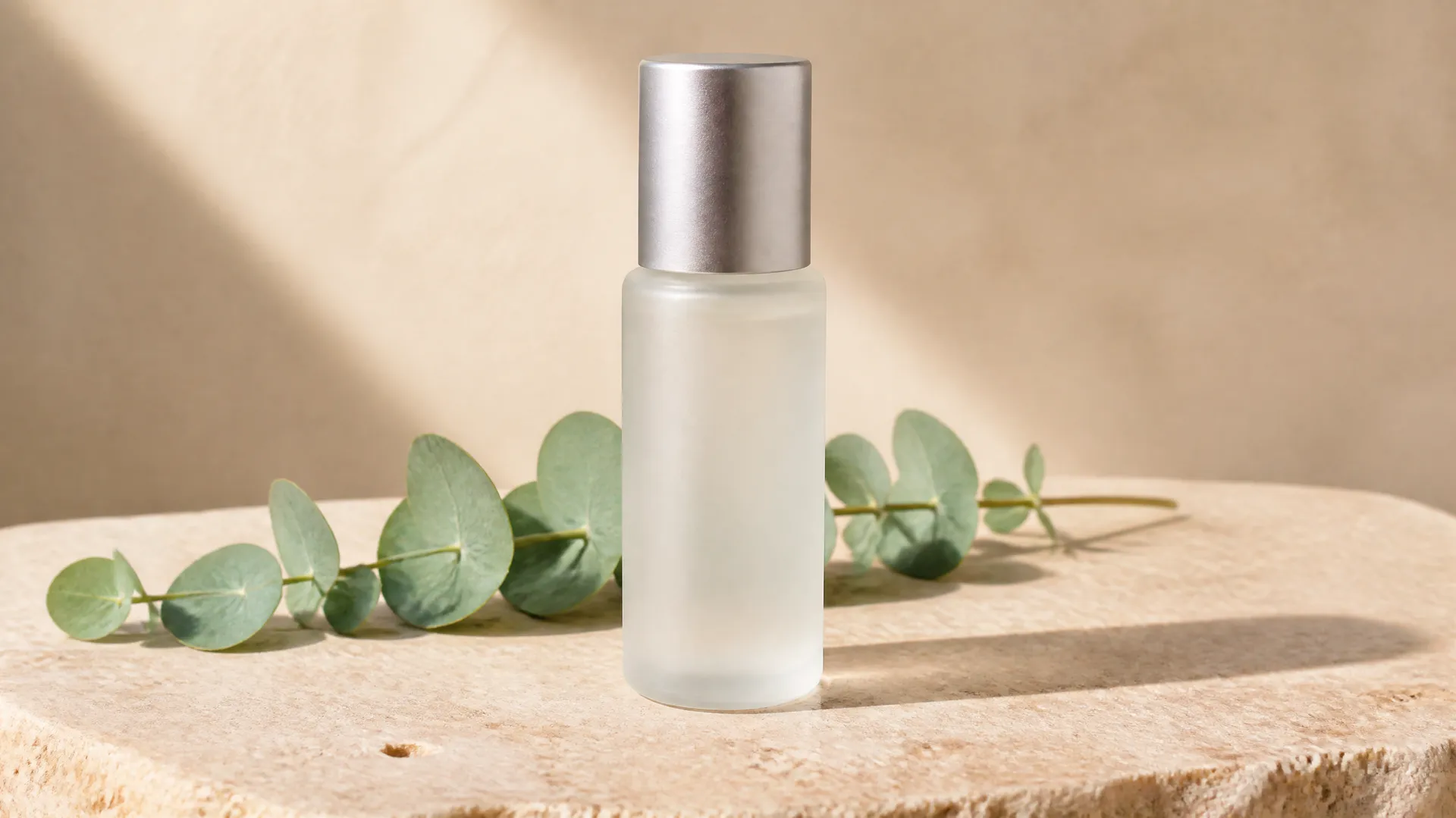
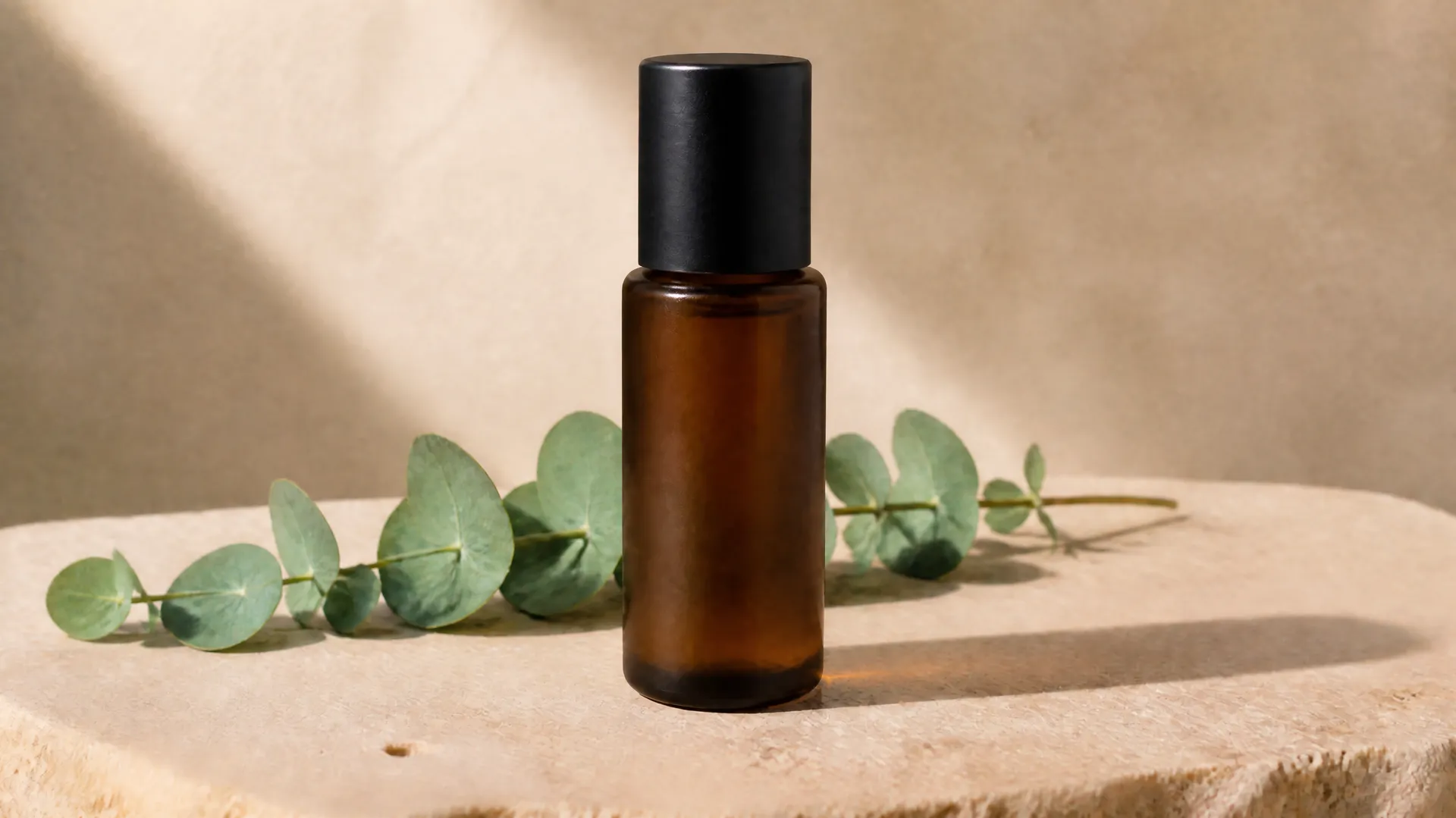
How inpainting compares
Inpainting, outpainting, and general AI image editing are often mixed up. Here is where each one starts and stops.
Edit the version that already works
You already have a product shot, a portrait, or a campaign visual that works. Instead of generating a new image from scratch and hoping to land the same look, change one element and keep the rest. Describe the change in plain language, generate a version, and refine it if needed without building the edit manually from layers and selections.
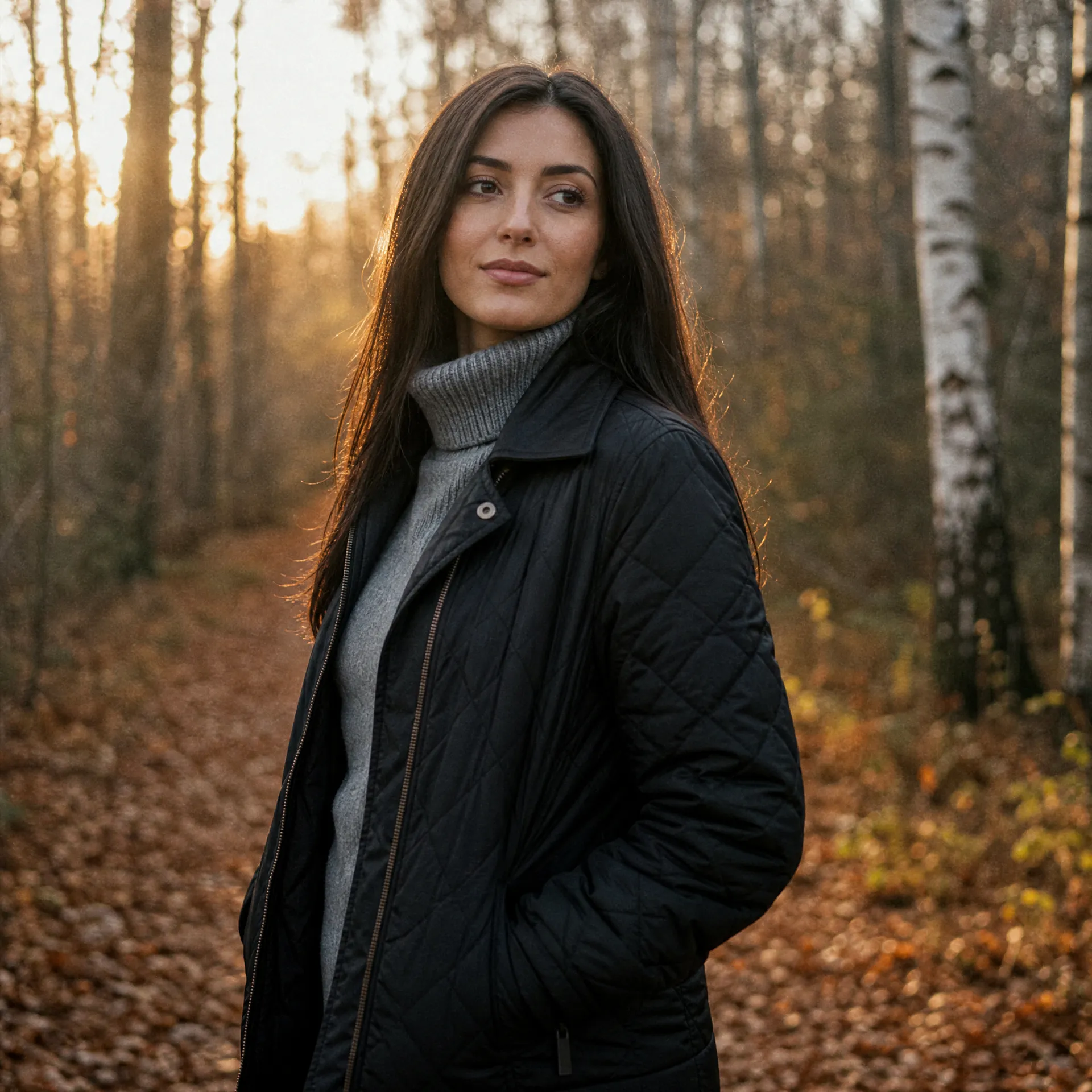
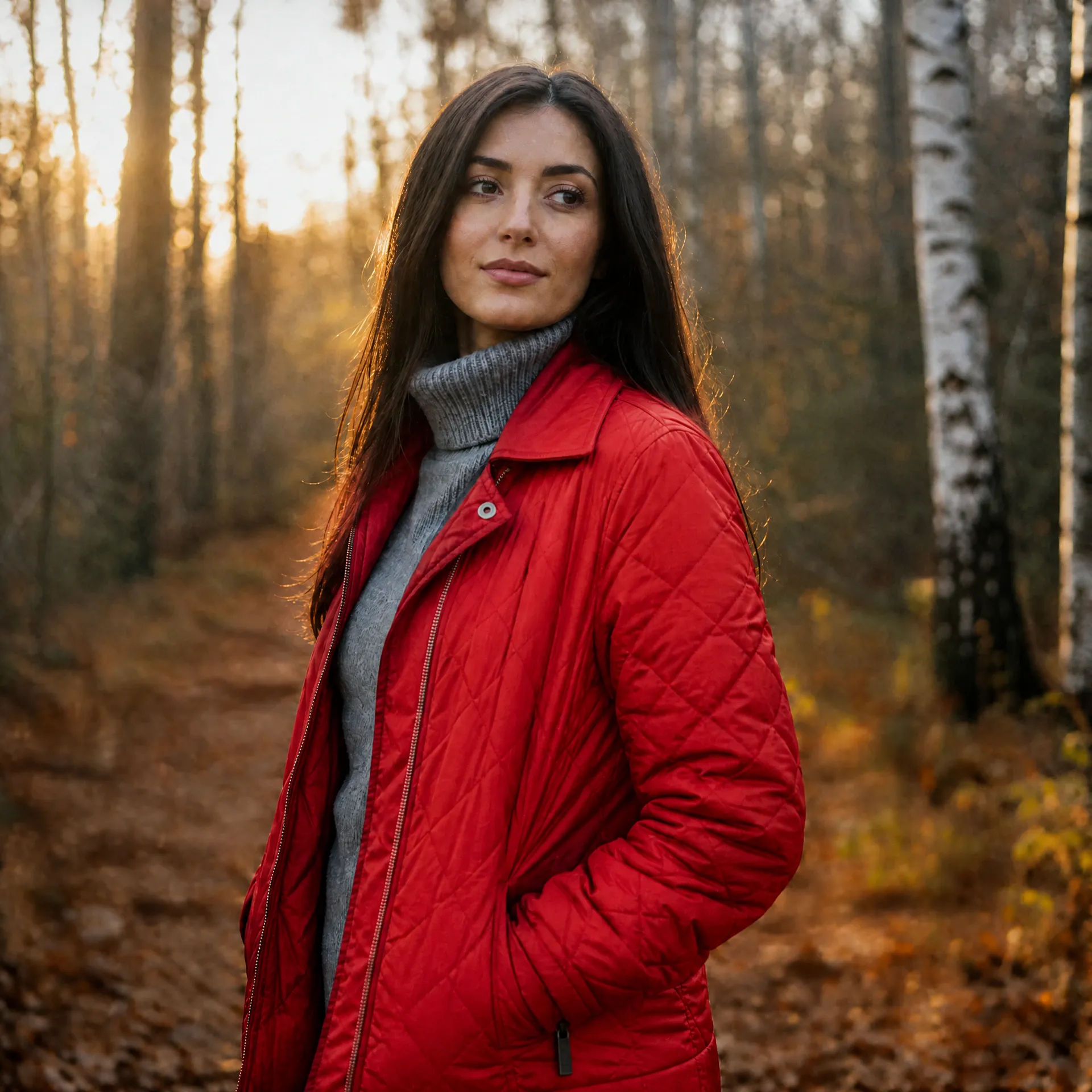
Use Inpainting to modify existing elements
Modify existing parts of your photos in seconds for a completely new look. Switch a jacket from black to vibrant red, try a different hairstyle, or change the fabric pattern on your couch. The model uses the surrounding image as context when generating the edited area, so testing new looks takes seconds.
Instantly place new elements in your image
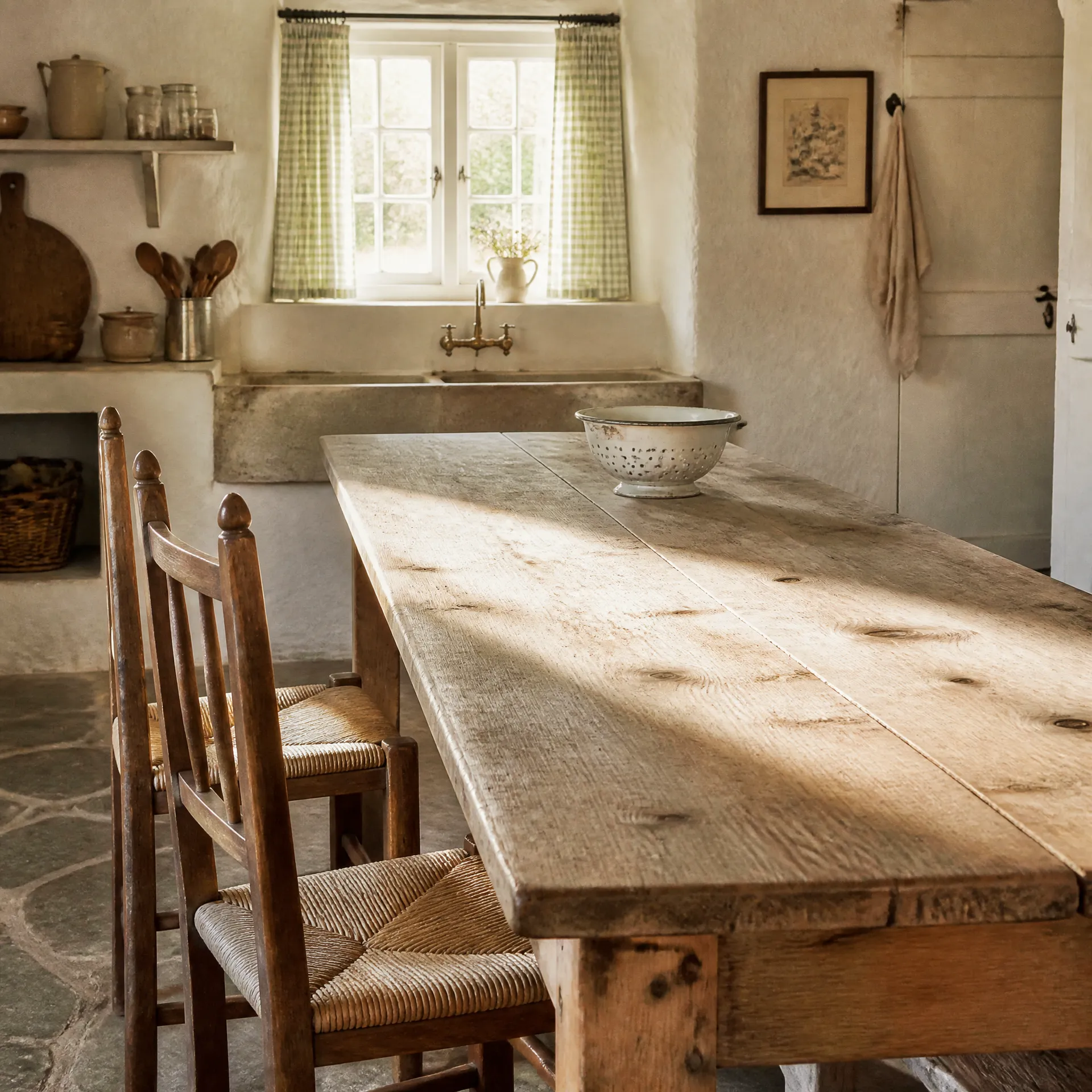
Add items that were never in the original shot. Turn a plain living room into a styled space with new decor, add colorful balloons to a party scene, drop flowers onto an empty table, or plate up dishes on a bare dining setup. The model generates new objects using the surrounding scene as visual context.
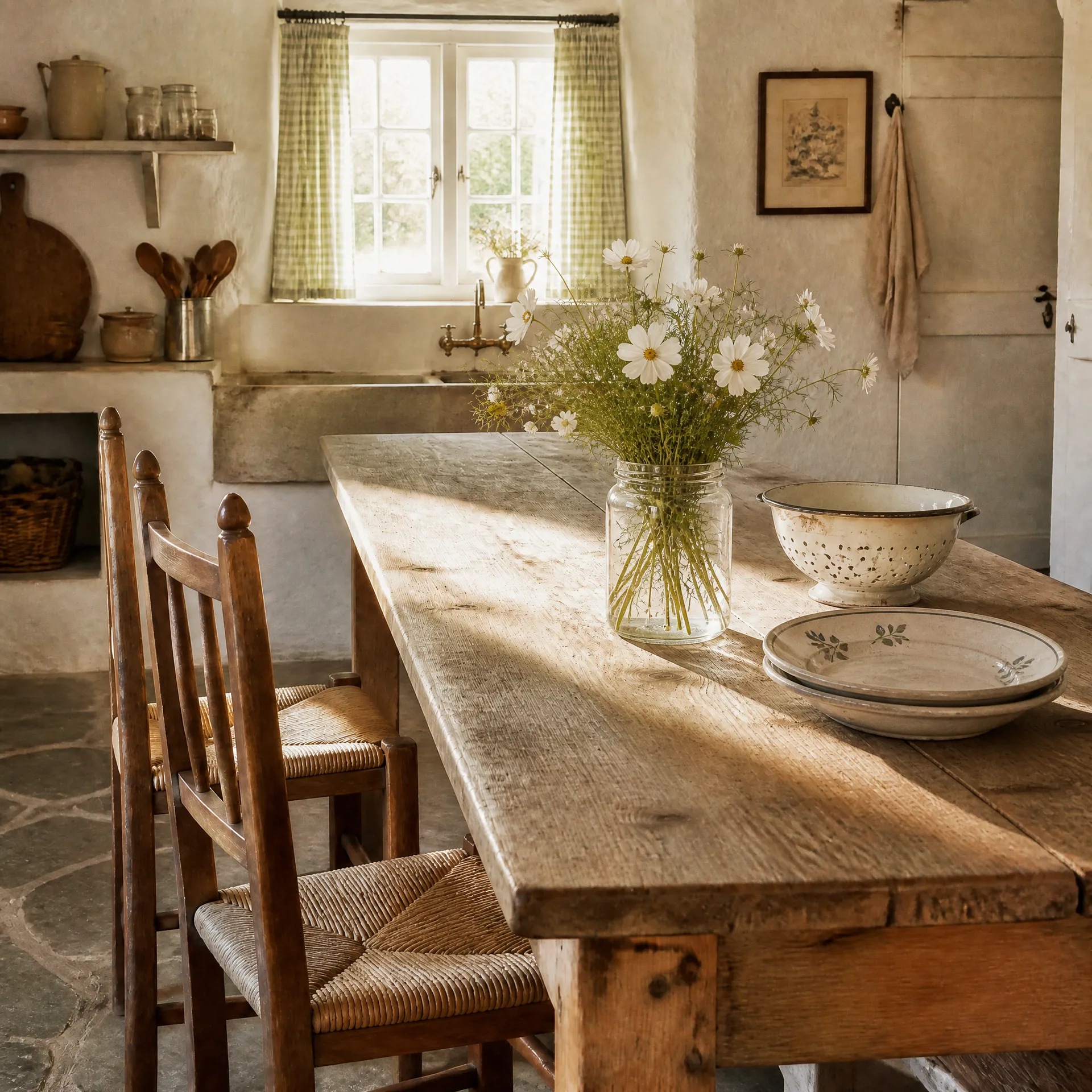
AI inpainting prompt examples
Describe the result you want, not the instruction. "red leather jacket" works better than "change the jacket to red". Here are four prompts and the kind of edit each one produces.
"red leather jacket"
Recolor and change material on clothing that is already in the shot. Name the colour and the fabric so the model has something concrete to generate.
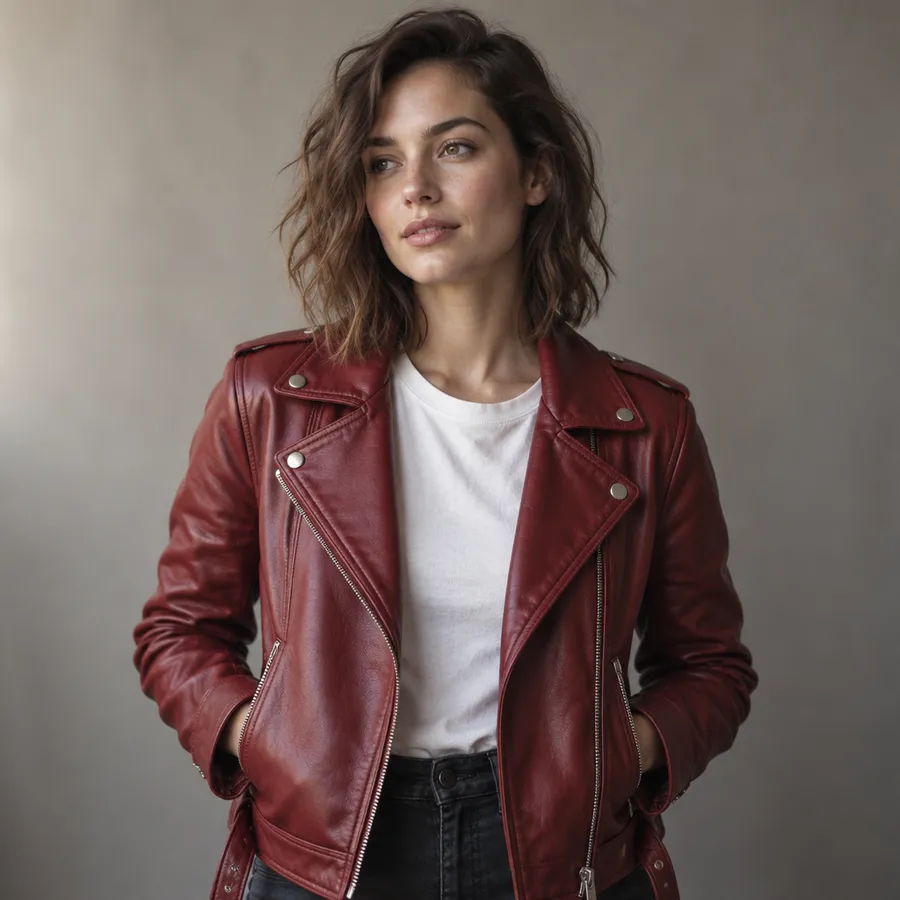
"small gold hoop earrings"
Add an accessory that was not in the original photo. Keep the description short and specific about size, metal, and shape.
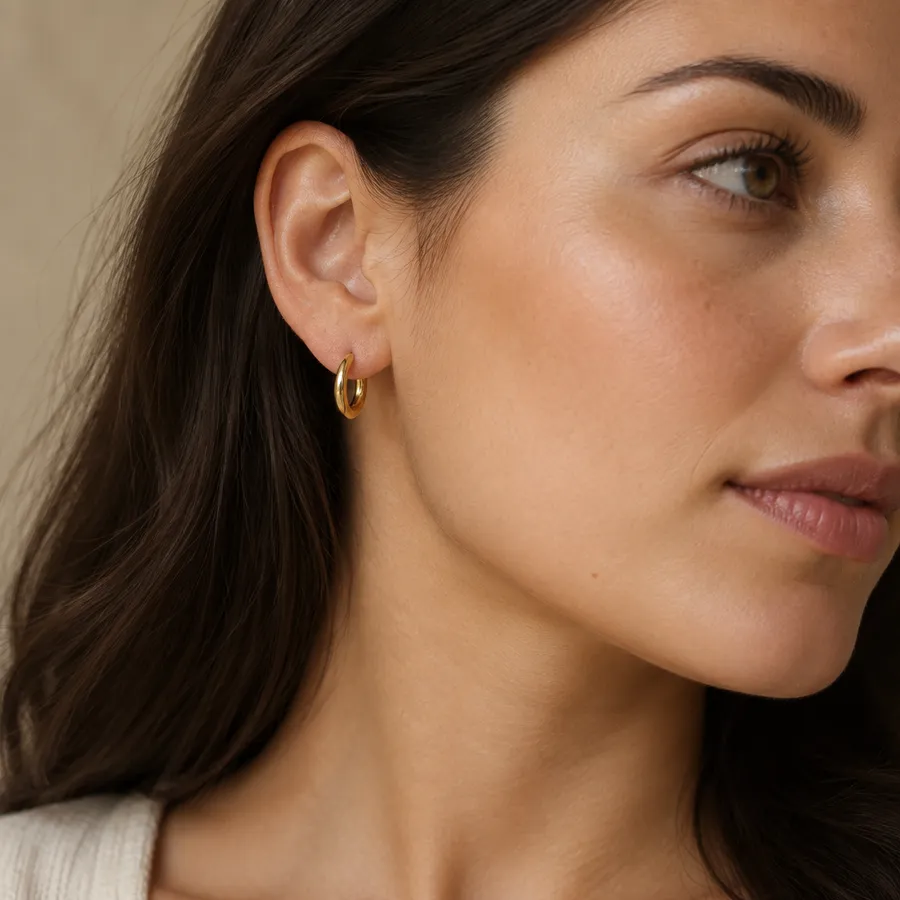
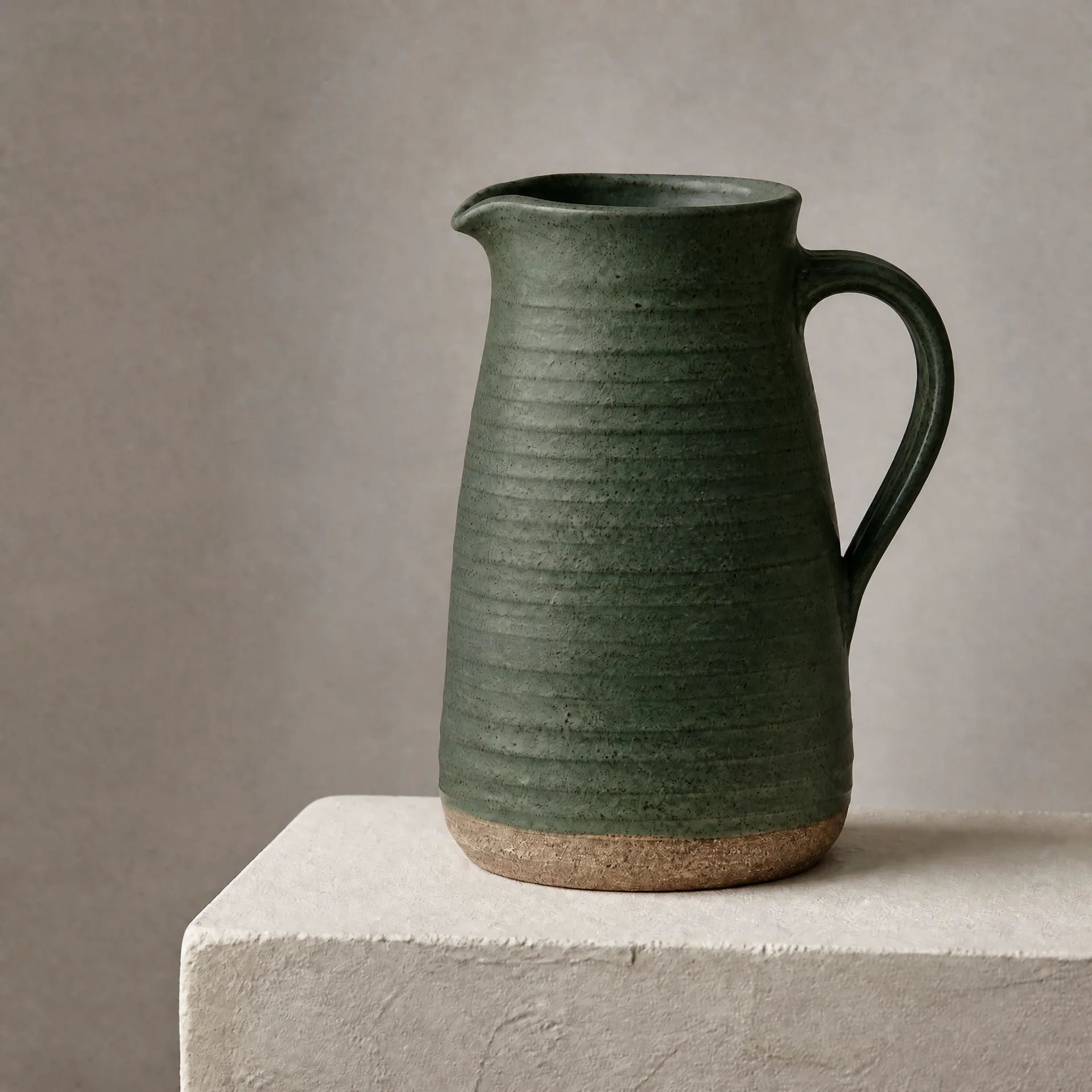
"ceramic vase with white tulips"
Replace one object with another. Describe the object you want to end up with rather than the one you want gone.
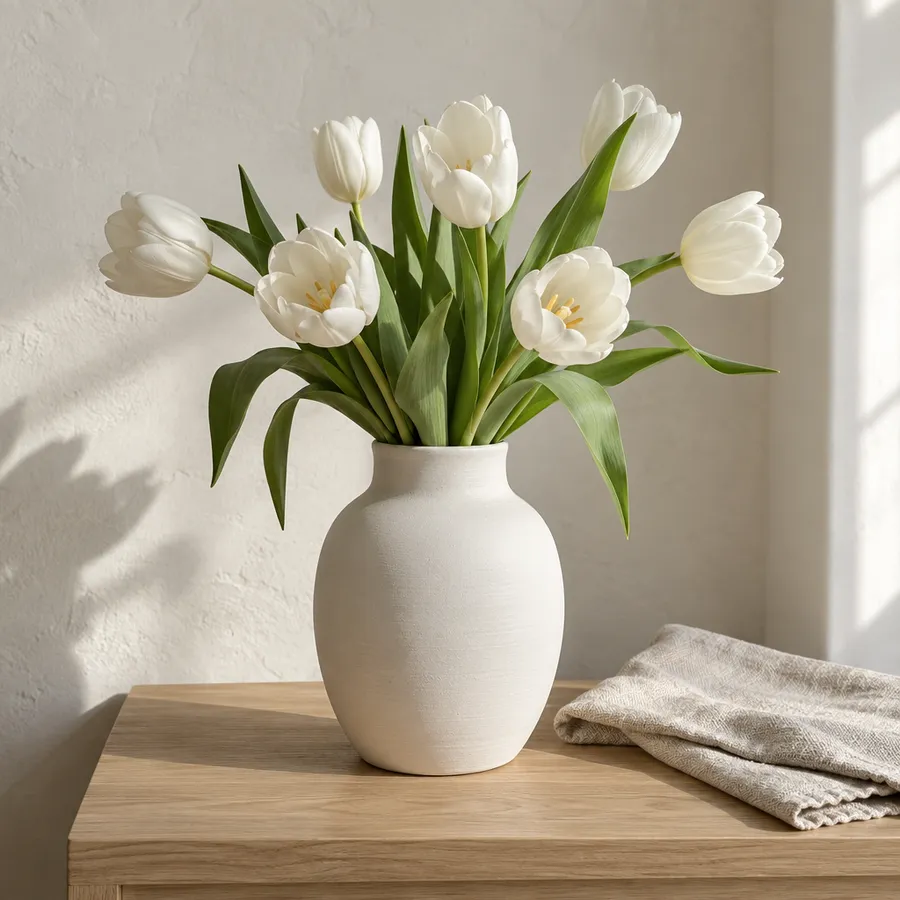
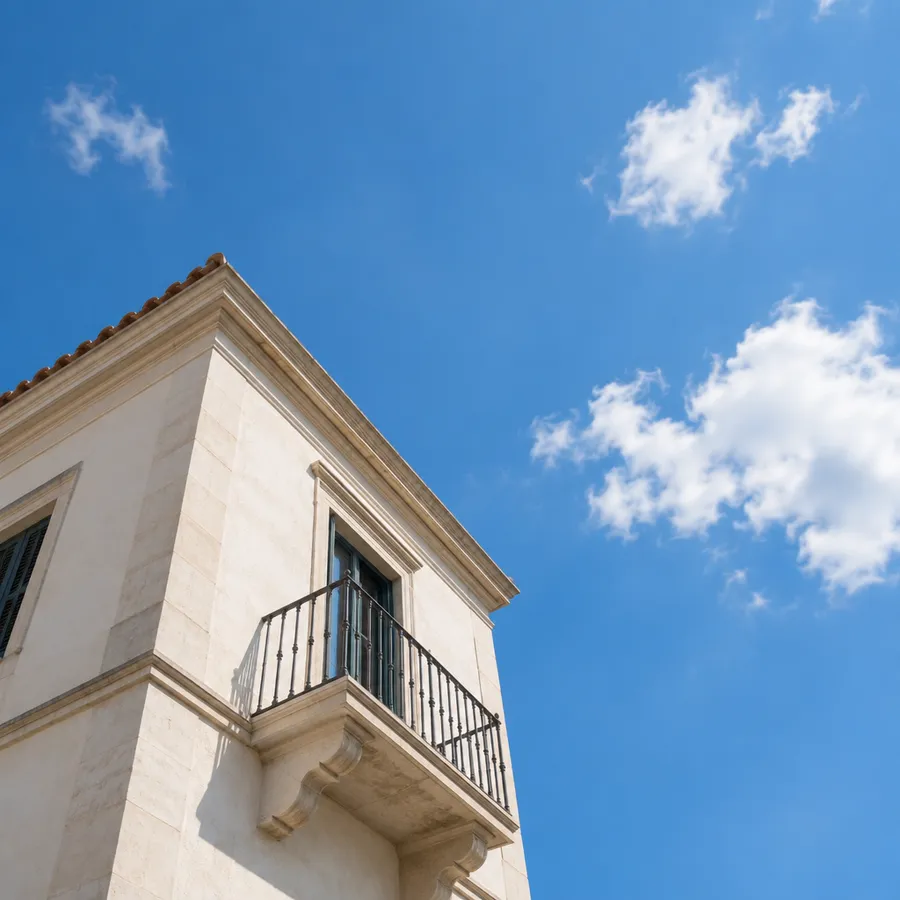
"clear blue sky with soft clouds"
Swap a large background area such as a sky or a wall. Naming the light and the weather keeps the rest of the scene consistent.
How to get better inpainting results
Generative edits are iterative. These three habits cut down the number of generations it takes to land the version you want.
Start with the image you already have
Describe the element you want added, changed, or removed and generate a new version in seconds. Your original stays saved, so you can iterate as many times as you need.
Frequently Asked Questions
AI inpainting changes content inside an existing image by adding, removing, replacing, or recoloring specific elements while using the surrounding scene as context. It is sometimes described as generative fill. Older tools ran on earlier diffusion models; getimg.ai's Inpainting runs on the latest image models.
Here is how it works: open getimg.ai, head to image editing and add an image as a reference. Upload it from your device or pick one you generated earlier. Then describe the change you want in plain words and generate a new version.
For example, if you have a headshot and want to add a pair of glasses, describe the glasses and the model generates them onto the face. If a living room photo needs something on a blank wall, ask for an abstract painting and it is generated as part of the room.
Inpainting edits or replaces content inside the existing boundaries of an image. You can add new objects, change elements, or regenerate imperfections, for example replacing a cloudy sky with a sunny one or removing a photobomber. The frame keeps its original dimensions.
Outpainting adds content outside the current edges of the image. It is for extending backgrounds, adding context to a scene, or creating a wider composition from a standard crop, such as generating more of the body and background around a portrait.
Both read the context and style of your image. Inpainting works on details within the frame; outpainting expands the frame itself.
Inpainting is one specific method: it changes elements inside an image you already have, and uses the rest of the frame as the reference for what the new area should look like.
Image Editor is the wider hub. It covers inpainting alongside other workflows such as changing a background, removing a background, restyling an image, and upscaling. If your goal is to change a specific element in a photo, inpainting is the method you want. If you are not sure which workflow applies, start in Image Editor.
The main advantage is that you keep an image that already works and change one part of it, instead of regenerating everything and trying to land the same look again. You describe the change in plain words, so there is no software to learn and nothing to select by hand.
It also makes variations cheap to try. Say you generated an image in Image Generator that is nearly right except for one detail, or you have a vacation photo where only the sky needs work. Both are a single described edit, and each result is saved as a separate image so you can compare versions.
That matters most for content creators, marketers, and anyone working with images daily: campaign variations, product colorways, and social crops stop being retouching projects.
Inpainting works with most images, whether it is a selfie, a product photo, a landscape, or digital art. Adding a pet to a family photo, changing the sky in a vacation shot, or updating a product mockup are all typical requests.
Results depend on the source image, the model, and how the request is worded, so low-resolution or heavily compressed sources are harder to work with. You can also combine inpainting with features like Upscaler and Outpainting without opening a traditional editor.
No. You can describe edits in natural language, review the generated version, and iterate if needed. There are no layers, masks, or selection tools to learn. More complex edits may take more than one generation.
It is equally useful if you already do design work: inpainting is a fast way to concept variations and iterate on a visual before committing to a manual edit.
No. There is no manual masking or lasso work. You describe the change in plain words, like "replace the background with a beach" or "remove the lamp", and the model interprets which part of the image your instruction refers to. If a result is not what you wanted, rephrase the prompt and generate again.
Inpainting is designed to focus the change on the requested area, but generative edits can sometimes affect nearby details, lighting, or composition. Your original image stays saved separately, so you can always compare the two versions and generate again.
Image models can edit text and fine graphic details, but spelling, typography, and logo shapes are not guaranteed to come out exactly right. If you are editing marketing visuals, packaging, or signage, check the generated text and any brand marks at full size before publishing, and regenerate if something is off.
Yes, on paid plans. Every paid plan on getimg.ai includes commercial rights, so you can publish inpainted images in ads, on storefronts, in client work, and across social, subject to our usage policies. There is no separate license to buy for commercial use.