AI Headshot Generator
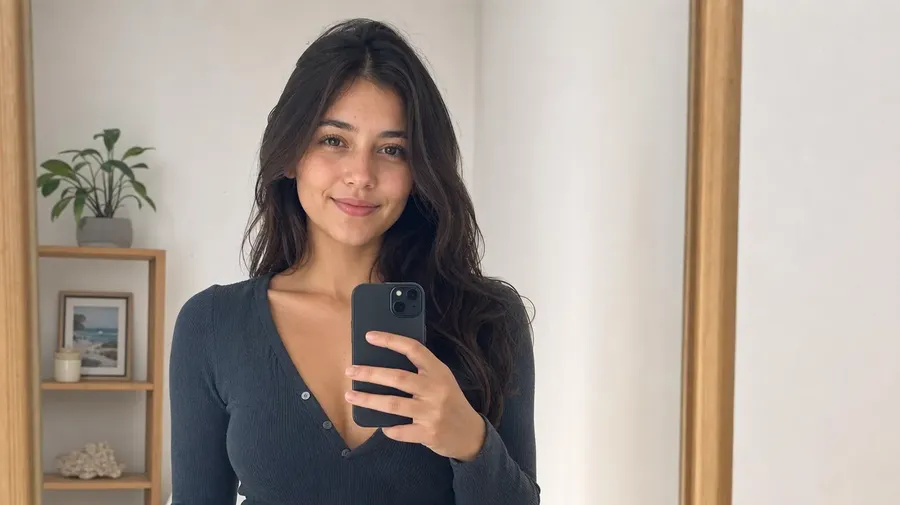
getimg.ai's AI Headshot Generator turns a selfie or a saved Person Element into professional-style headshots for LinkedIn, team pages, press kits, and other profile uses. Use your selfie as a reference, then change the outfit, setting, lighting, or style across different professional looks.
Leading image models in one workspace.
Auto picks the model that fits your prompt best. Switch the model manually any time if you want to experiment.


From a selfie to a press kit, in one place
Drop in a photo of yourself. getimg.ai selects a model based on your prompt, returns a batch of headshots, and keeps every control one click away.
Auto selects a model based on your prompt
Studio realism, editorial sharpness, natural-looking skin tones. Auto mode reads your prompt and selects a model based on the type of headshot you're asking for.
Auto selection

GPT Image 2
Studio-grade detail.

Nano Banana 2
Excellent prompt following.
Generate up to 16 variations from one prompt
Ask for 1, 2, 4, 8, or 16 headshots from the same selfie and prompt. Compare the variations side by side, save the ones that work, and keep going. How many generations run concurrently depends on your plan.
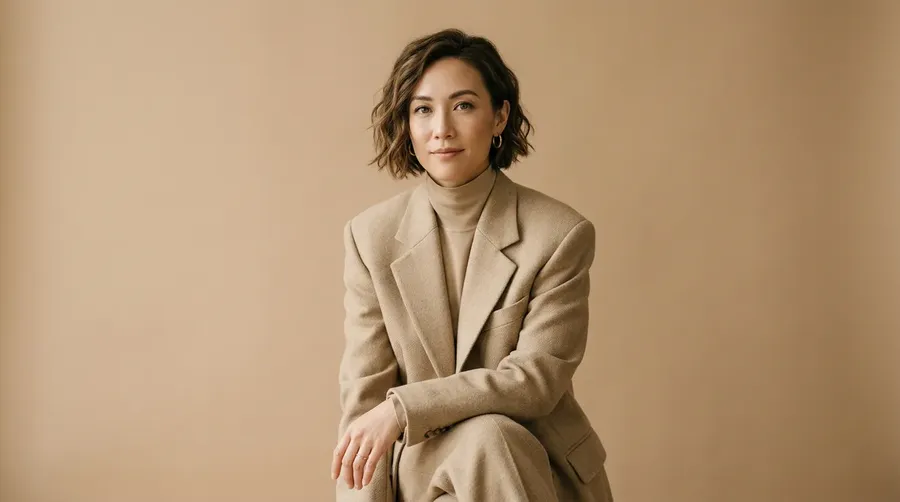
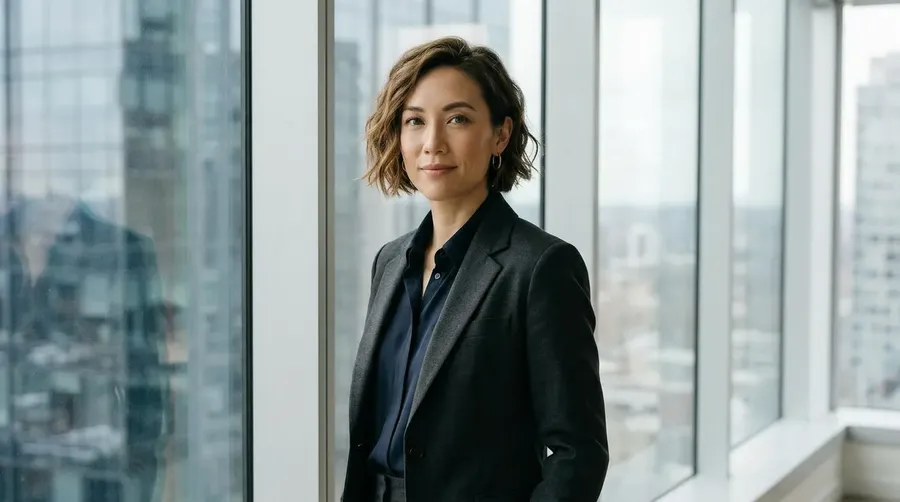
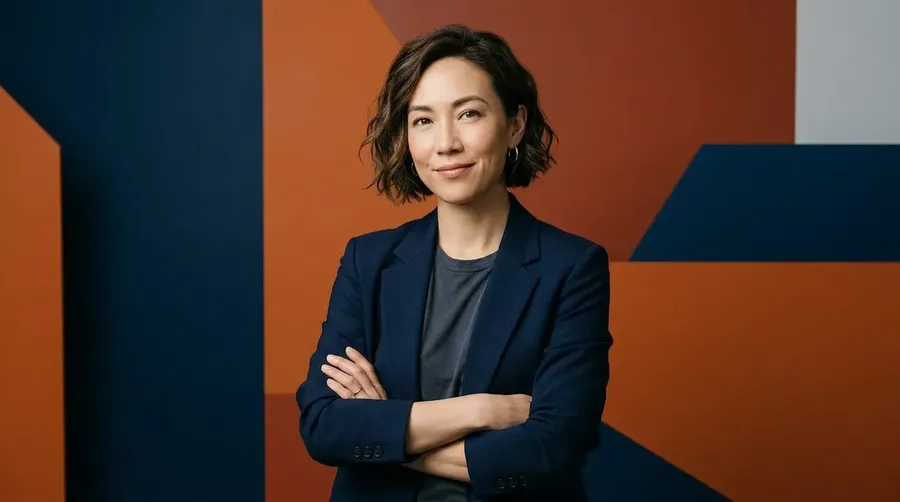
Adjust without starting over
Change the model, the aspect ratio, or the lighting and your prompt stays put. One adjustment, regenerate, and the new direction sits next to the previous one.
Prompt
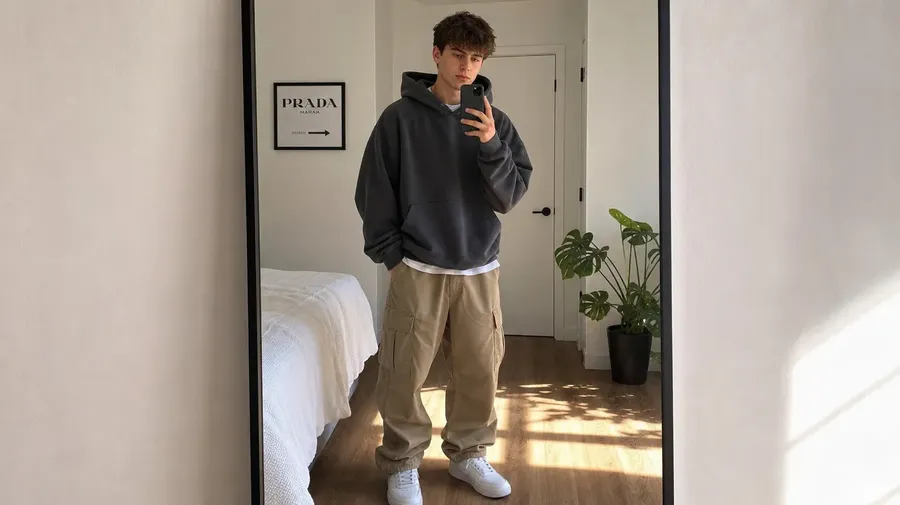
Upload a reference
Generate
Headshot, then everything around it
Drop in a photo. Pick the look. Export at the sizes you need for LinkedIn, a press kit, or a team page without re-uploading once.
Save your reference once
Upload up to 20 photos of yourself and save them as a Person Element. Type @YourName in any prompt to keep your facial identity recognizable across different outfits, lighting, and settings.
Restyle without starting over
Swap the outfit, change the background, or shift the lighting in a single sentence. The edit creates a new version. The original sits right next to it, untouched.
One source, several sizes
Upscale up to 2× for higher-resolution assets, resize for LinkedIn and Slack, remove the background for an ID badge. All from the headshot you just generated.
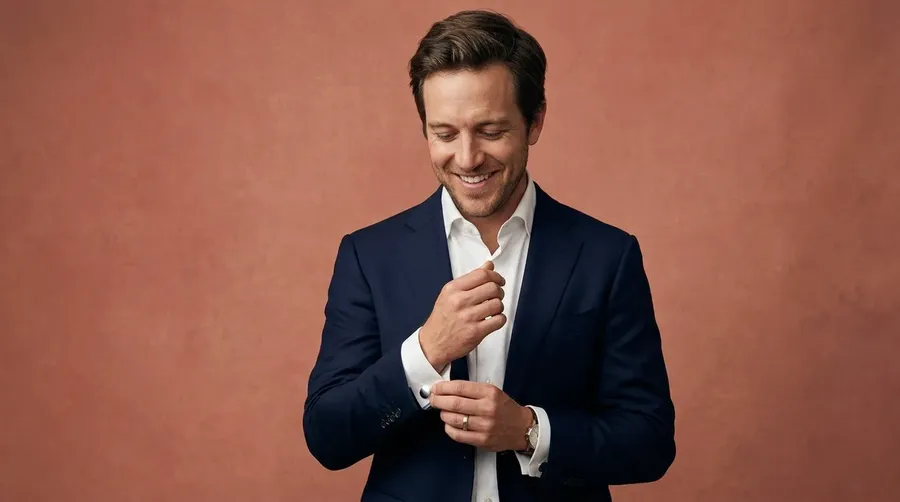
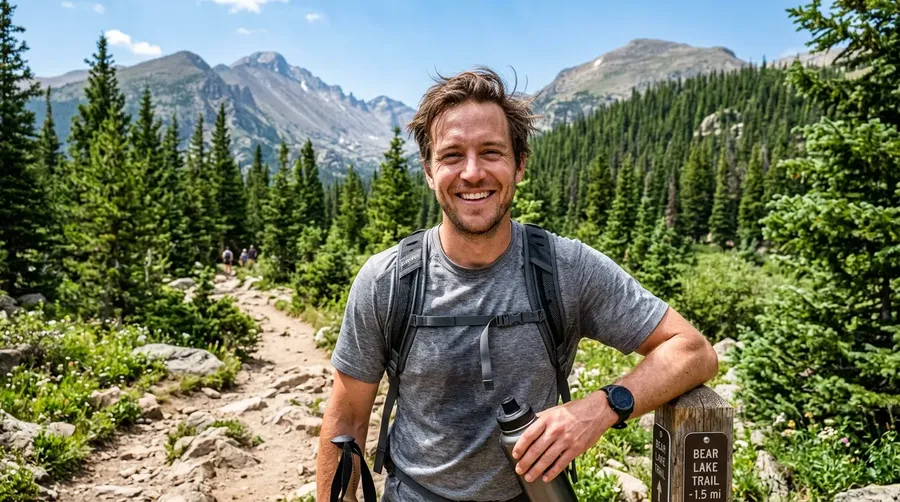
Editorial business portrait of @Me with hands naturally in frame
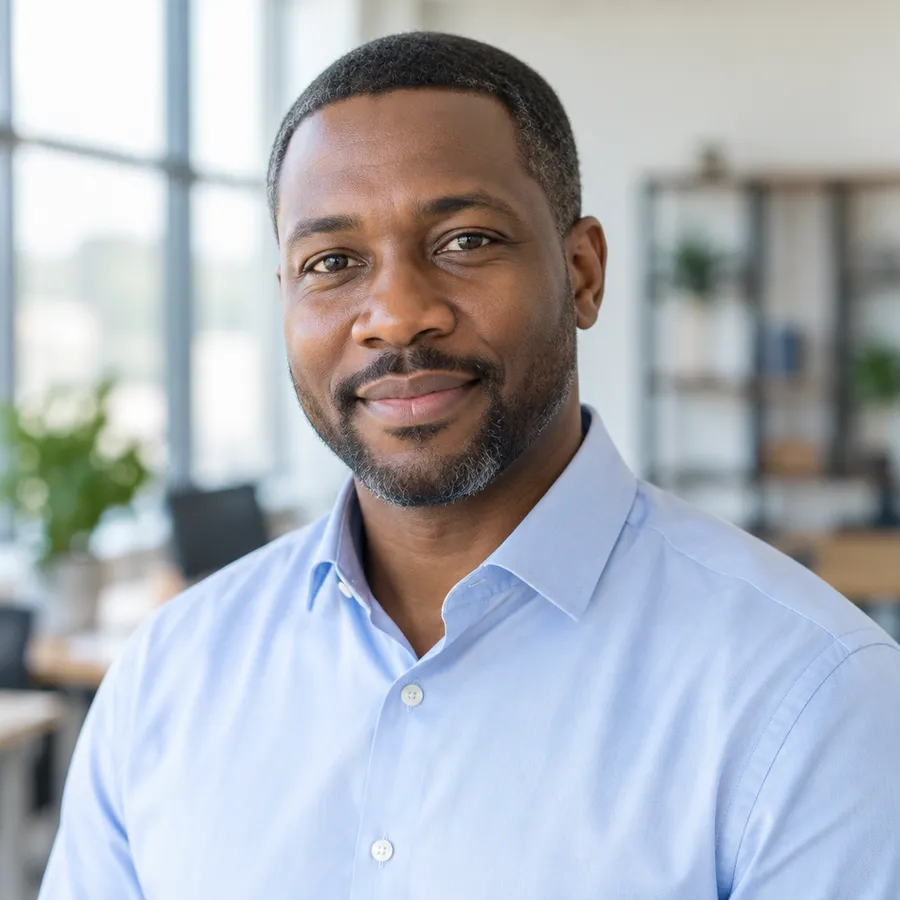
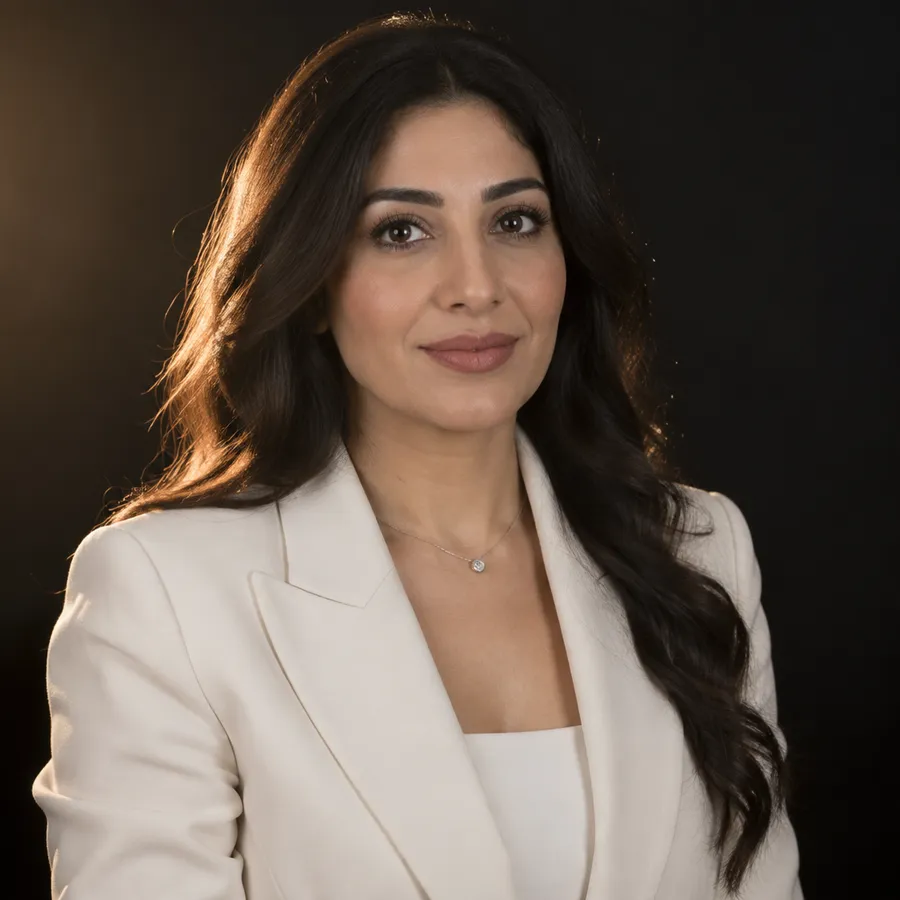
Different professional headshots from the same photo
Pick the scenario you need. One source photo can become a LinkedIn shot, a press headshot, an editorial portrait, or a team-page photo without re-uploading.
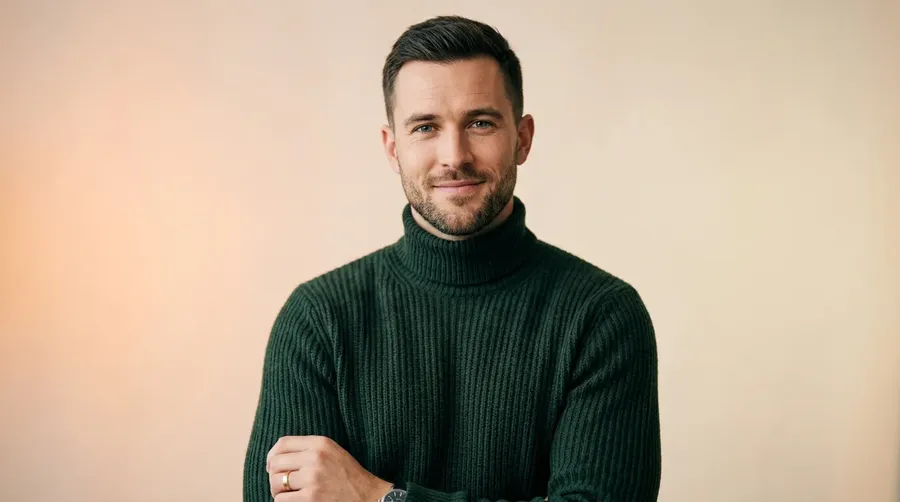
AI headshot prompt examples
Copy a prompt, swap @Me for your own Person Element, then adjust the outfit, background, expression, lighting, and framing to fit the brief.
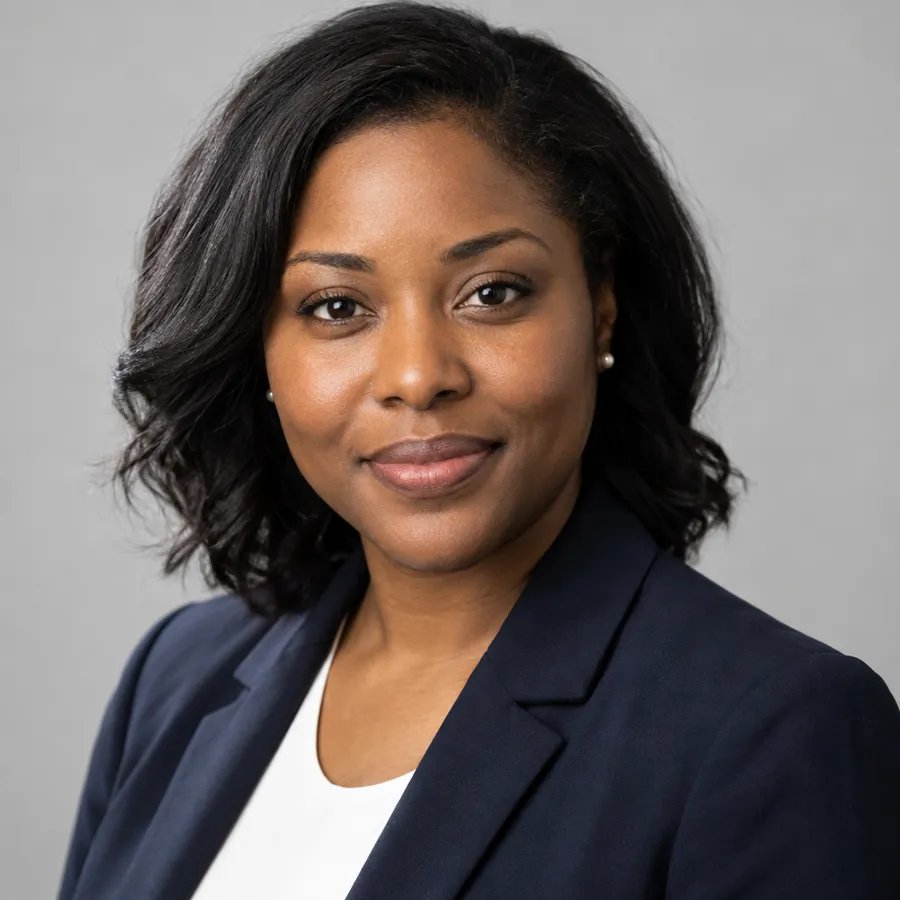
LinkedIn profile
Headshot of @Me in a navy blazer and white shirt, soft studio key light, neutral grey background, shoulders-up framing, direct eye contact, square crop.
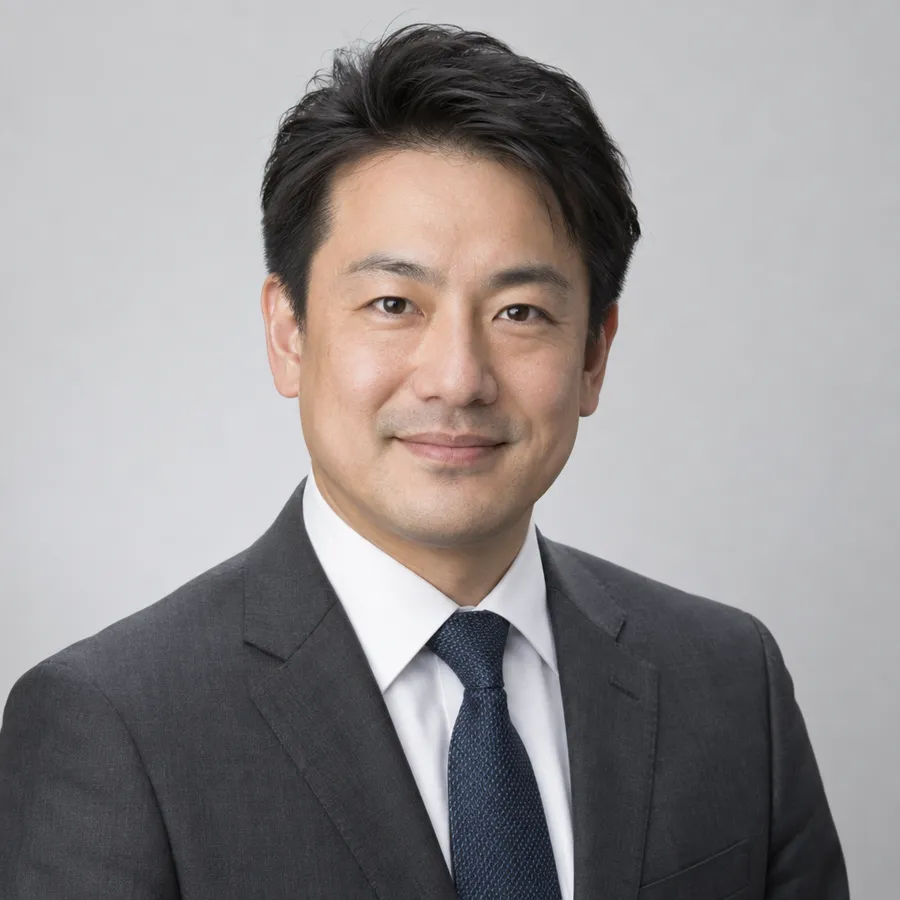
Corporate team page
Headshot of @Me in a charcoal suit, even softbox lighting, light grey seamless backdrop, chest-up framing, relaxed closed-mouth smile.
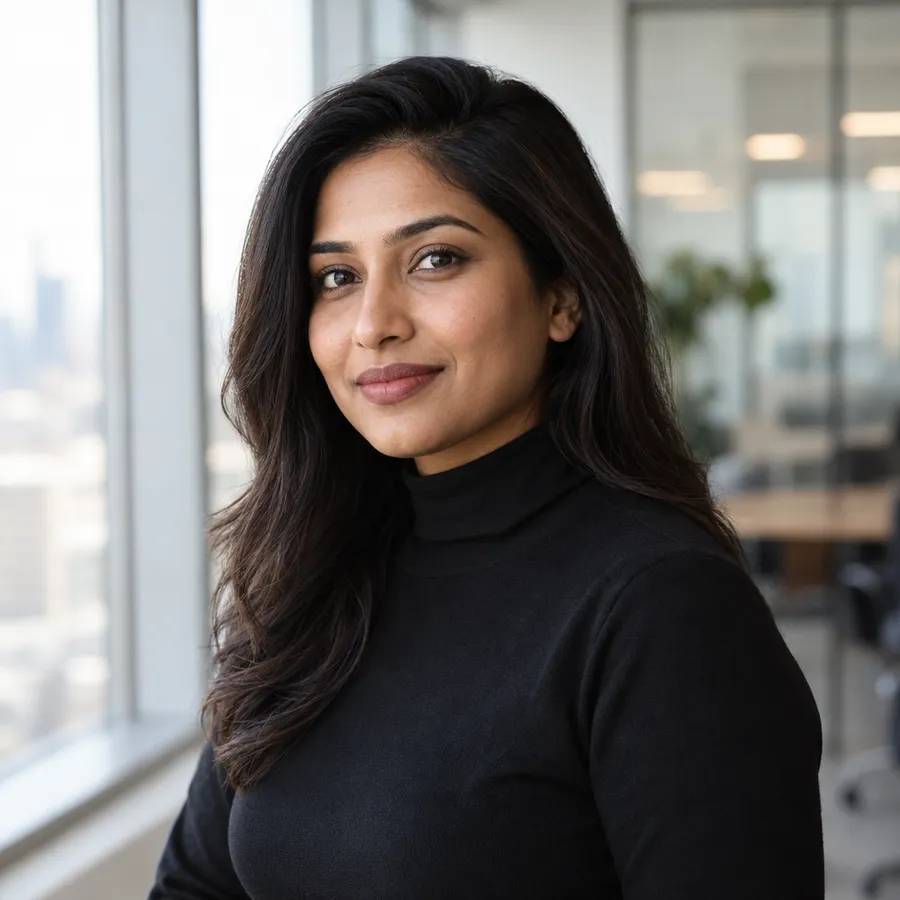
Founder or CEO
Headshot of @Me in a black turtleneck, window light from the left, blurred modern office behind, three-quarter angle, calm expression.
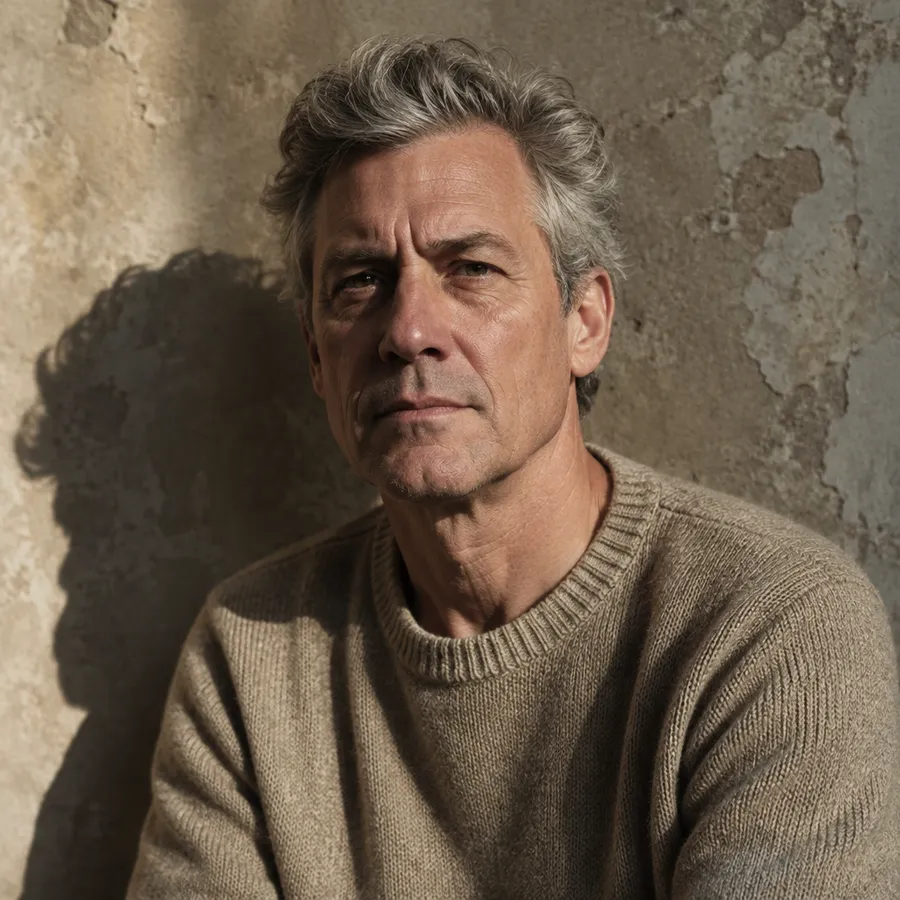
Creative professional
Headshot of @Me in a denim shirt, daylight from a large window, plant-filled studio background, waist-up framing, open natural smile.
Polish without leaving the page
Brush in a new jacket, remove the background, or pull a usable headshot from an old photo. Every refinement happens right next to the headshot you just generated, with the original kept intact.


Keep your look consistent across headshots
Save up to 20 photos of yourself as a Person Element, then type @YourName in any prompt. Outfit, lighting, and setting can change while your likeness stays recognizable from one headshot to the next.
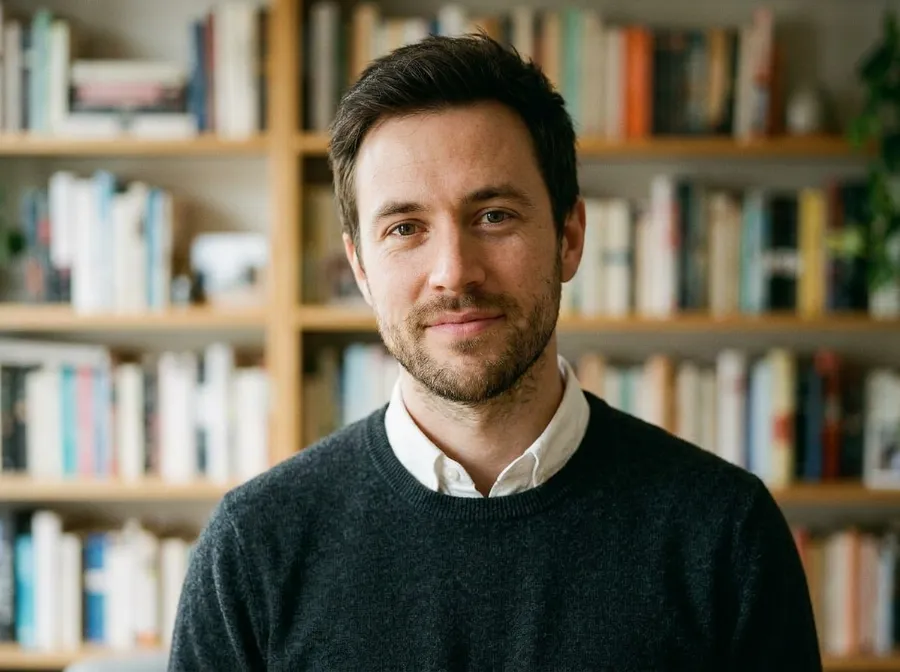
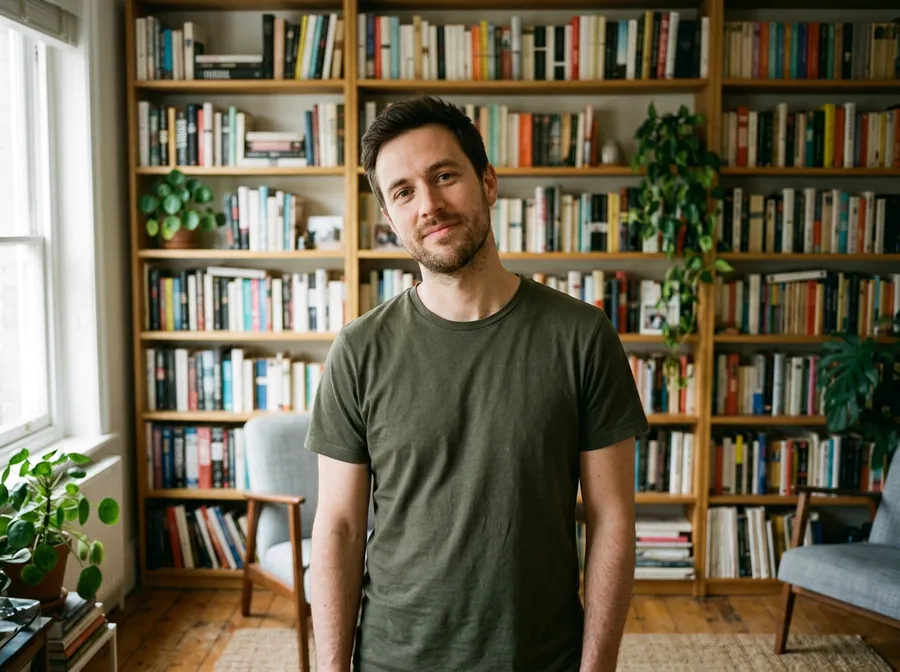
Headshot of @JonElement. Charcoal sweater, soft daylight, blurred bookshelf backdrop, calm confident expression.
How to create consistent AI headshots for a team
Consistency comes from repeating the same setup for everyone. Use one visual direction, then apply it across the whole team.
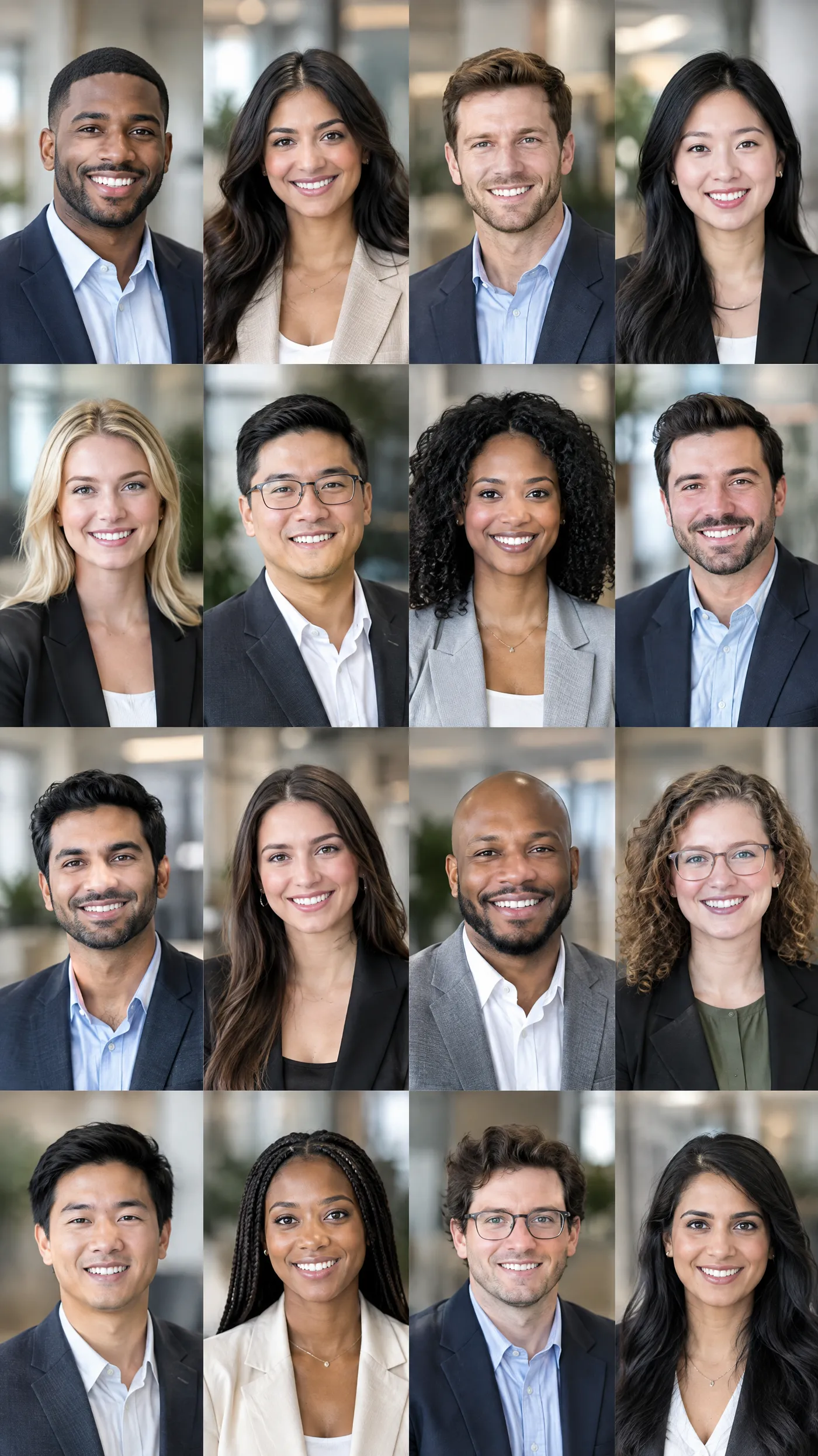
How to get better AI headshots
Most of the quality comes from the reference photos and how precisely you describe the shot. Six habits that make a measurable difference.
AI-generated headshots can slightly change facial details, so review the final image and choose a version that still looks recognizably like you.
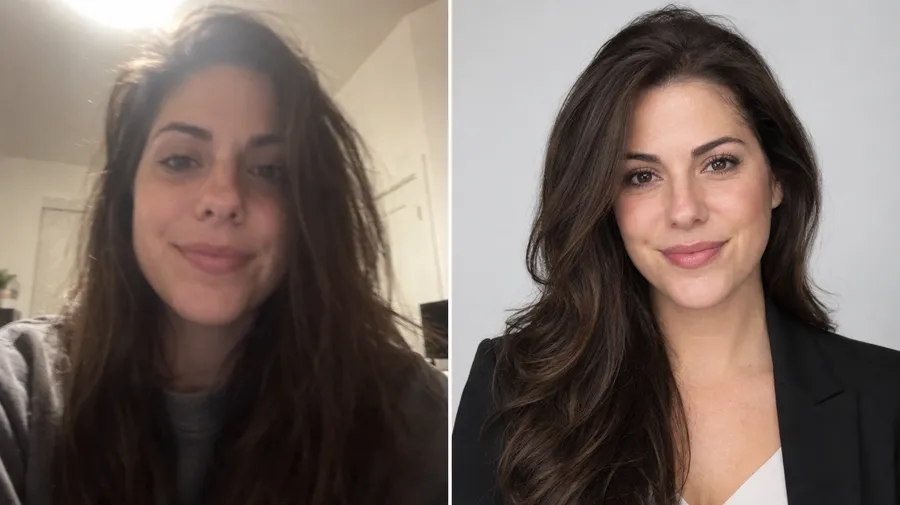
Headshots without the shoot.
From a casual selfie to a polished professional headshot, all in one workspace. Start creating in minutes.
Frequently asked questions
Not exactly. Reference images and Person Elements help keep your likeness recognizable, but generative AI can shift small facial details from one generation to the next. Generate a few variations and pick the one that still reads clearly as you. This matters for profile photos: LinkedIn asks that your profile picture reflect your likeness.
Yes. Save a Person Element for each colleague, apply the same Style Element to every generation, and keep the prompt, background, lighting, and aspect ratio identical. Change only the @Name token between generations, then review the finished headshots side by side and regenerate any that drift.
FLUX.2 [pro] and Nano Banana 2 both handle portrait realism and skin detail well. Auto mode selects a model based on your prompt, and you can switch manually when you want a specific look.
Yes. Attach a selfie as a reference image, or upload up to 20 photos of yourself and save them as a Person Element. Type @YourName in a prompt and every generation works from that reference.
Every paid plan includes commercial rights, subject to our use restrictions. Use the headshots for LinkedIn, press kits, team pages, marketing, and client work without extra licensing.
Square (1:1) is the simplest default for profile photos and avatars, 4:3 works for websites and press kits, 16:9 for banners. Switch the aspect ratio and regenerate; the same source photo carries over.
You can request up to 16 variations from a single prompt. That is separate from concurrent generations, which depend on your plan: 2 on Entry, 4 on Core, 8 on Plus, 10 on Ultra.
Yes. Inpaint a new background, swap an outfit, restore an old photo, or upscale up to 2x from the same place you generated it. Every edit creates a new version; the original stays intact.