AI Background Generator for Product Photos, Portraits & Creative Images
getimg.ai's AI Background Generator creates new backgrounds and replaces backgrounds in existing images using text prompts and visual references. Use it for product photos, portraits, campaign visuals, virtual-background images and other creative photography. For an existing product or person, start from the original image as a Reference. If you want transparency instead of a new scene, use the separate Remove background Action.
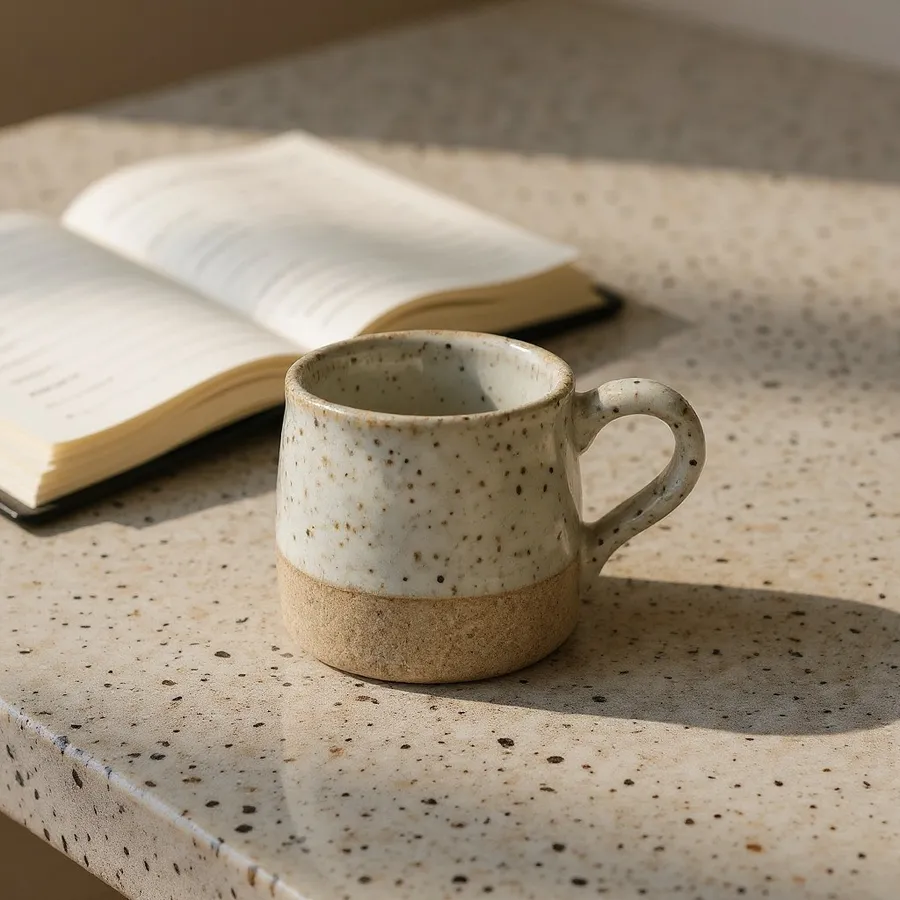

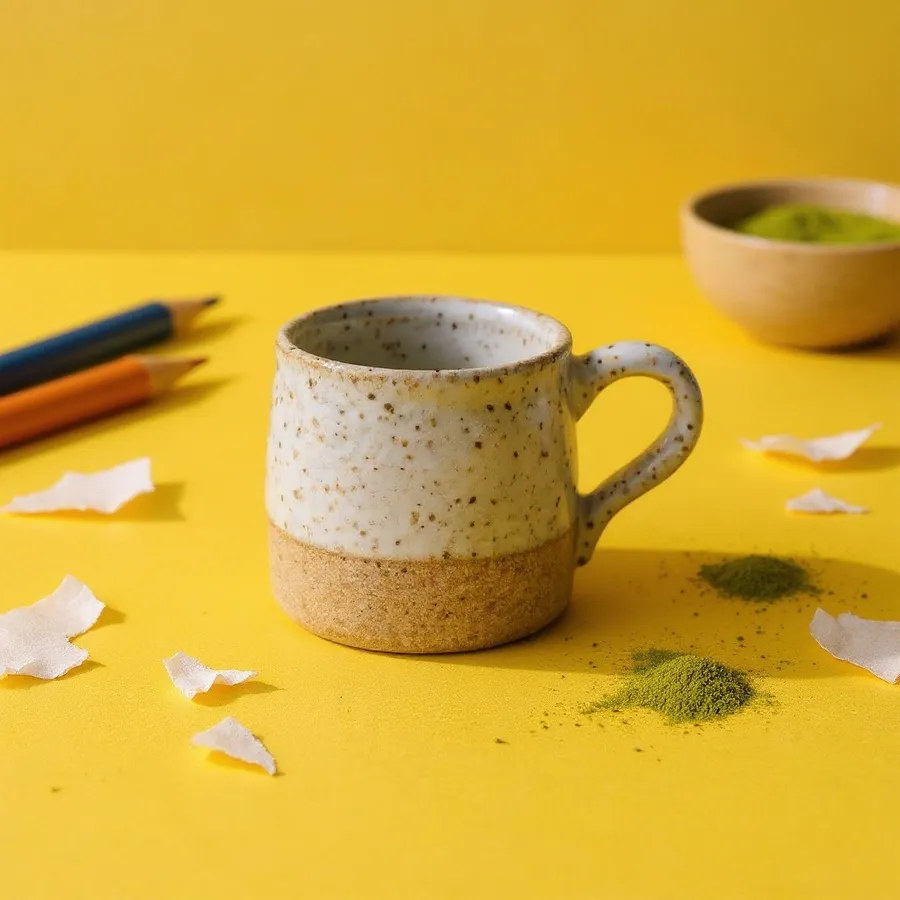
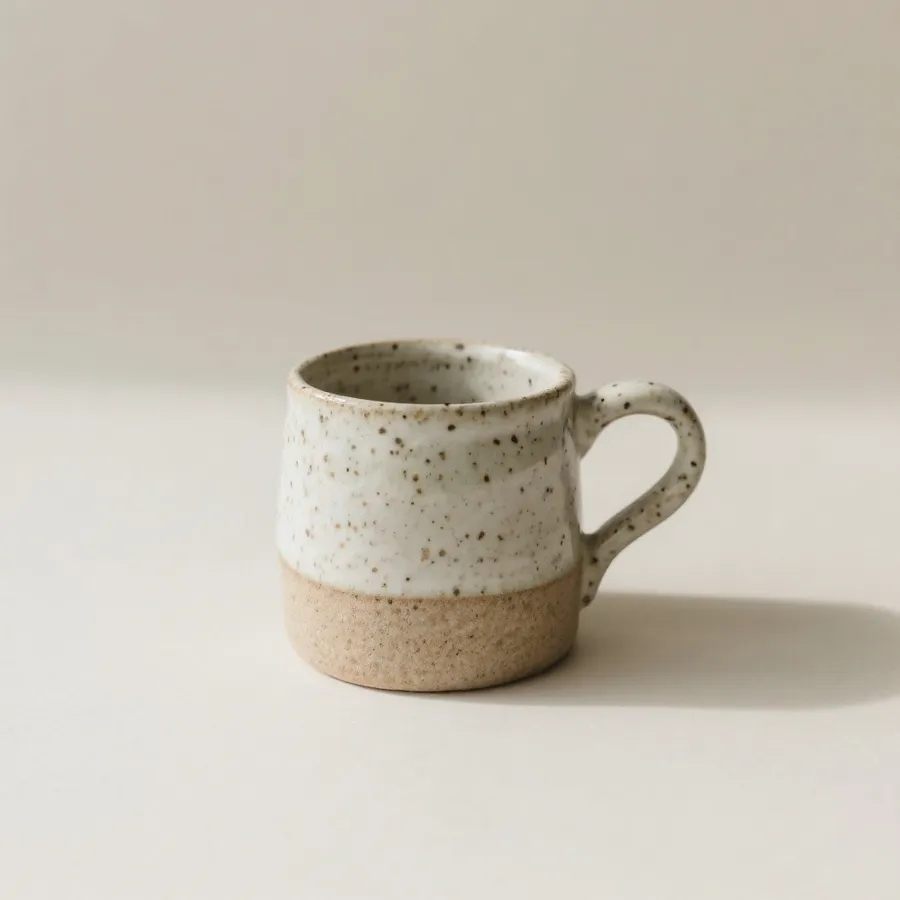
Generate, replace or remove a background
Choose the result you need before starting. A new scene and a transparent cutout are different outputs.
Generate a background
Create a standalone studio backdrop, beach scene or abstract gradient from a text prompt. No existing subject is required.
Clean studio backdrop
"A plain white seamless studio backdrop, soft diffused light, no visible horizon line."
Beach at golden hour
"A quiet beach at golden hour, warm low sunlight, soft long shadows, calm water in the distance."
Product photography
Create AI backgrounds for product photography
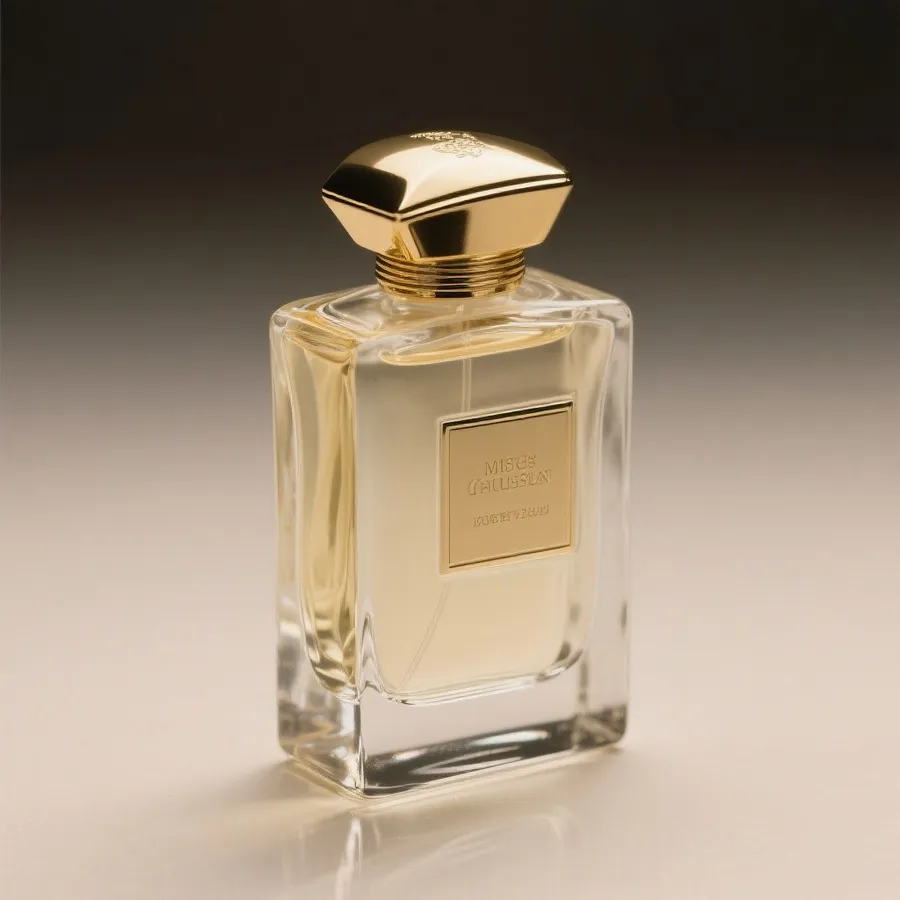
When the image represents a real product, start from the actual product photo and change the scene around it. Create clean studio, luxury pedestal, marble surface, kitchen, bathroom, seasonal campaign, outdoor lifestyle or brand-colored gradient settings. Review product shape, labels, hardware, texture and other important details before publishing generative edits.
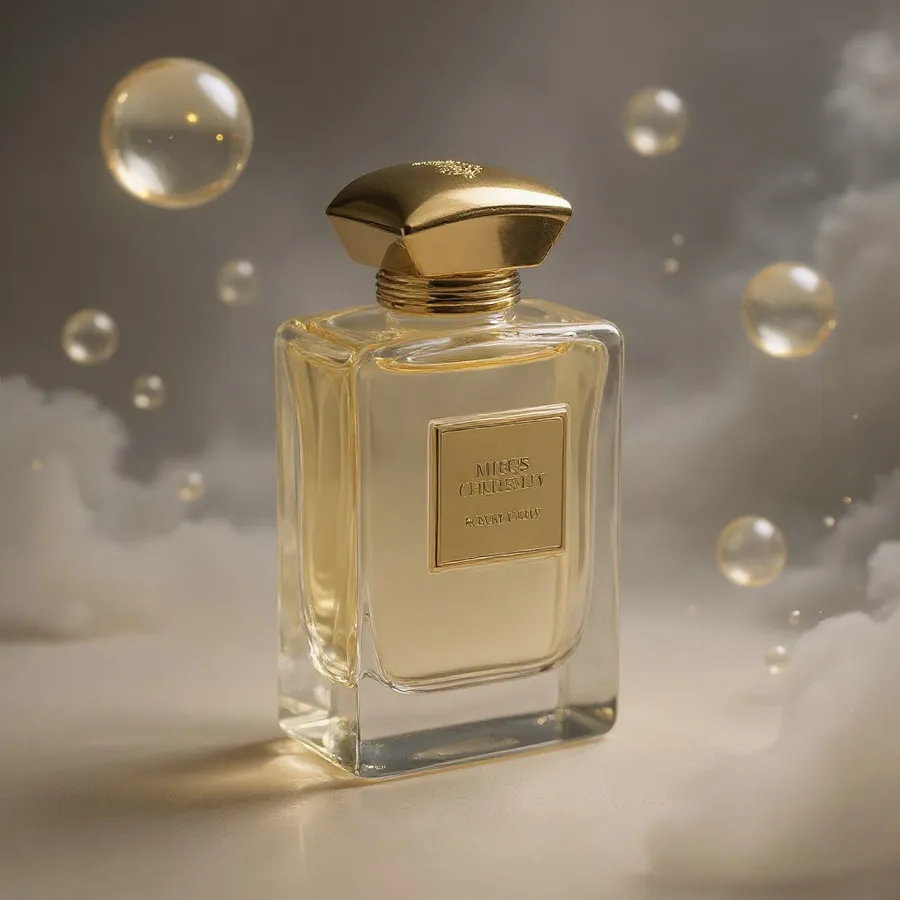
How to replace a background in your own photo
1. Open Create image.
2. Upload your image as a Reference.
3. Describe the new background: “put the product in a luxury studio setting.”
4. Generate the edited image.
5. Refine if needed and review product details against the original.
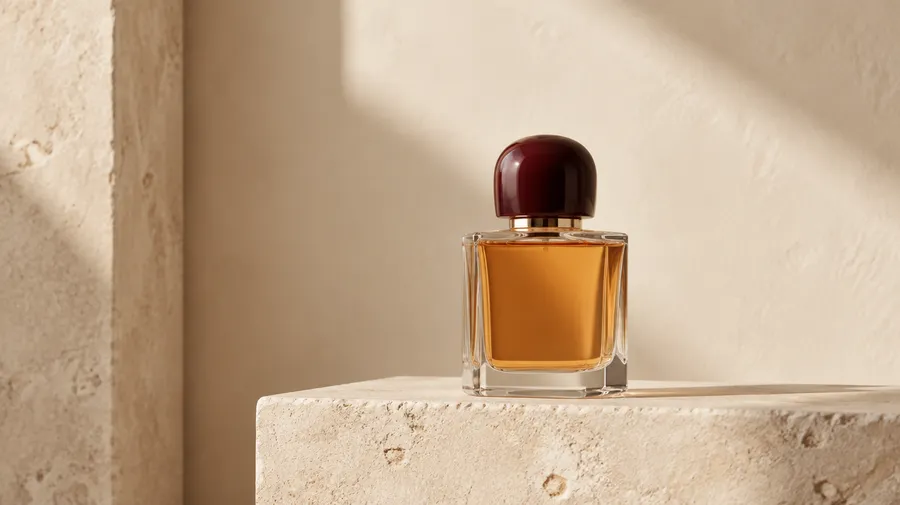
Guide the scene with multiple References
Attach up to 10 References to guide the object, palette, lighting, composition and perspective. Keep each image’s role explicit.
Image 1: your actual product. Image 2: the desired room or background style. Image 3: your brand color palette.
Prompt: “Place the perfume bottle from image 1 in a minimal luxury setting inspired by image 2, using the warm beige and burgundy palette from image 3.”
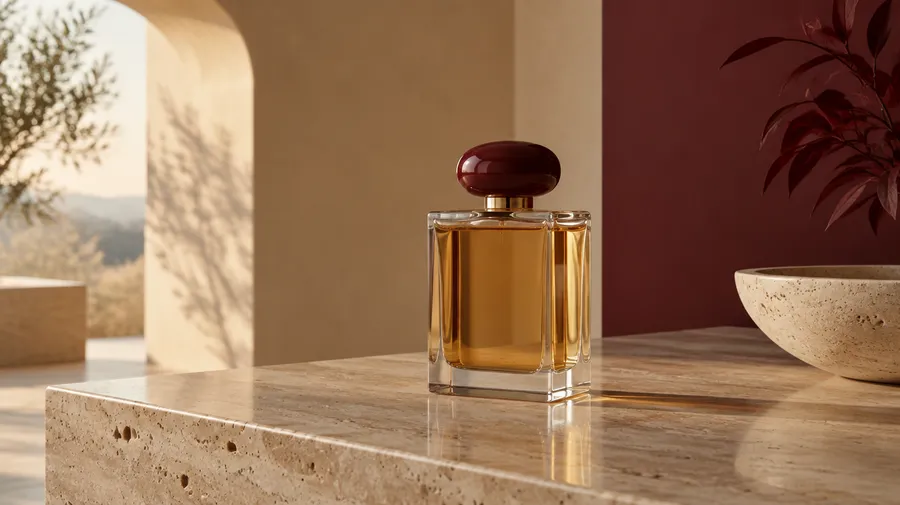
Keep campaign backgrounds visually consistent
Use the same Product Element with a Style Element or Color Palette Element for repeated image work. Type @ElementName into your prompt to reuse a saved visual reference, and add one-off References for a new setting.
Carry the same product, style and palette into a square ad, banner or seasonal variation. Layout, lighting and small background details can vary between generations; review the set before release.
Learn how to create and use reusable references in the Elements guide.
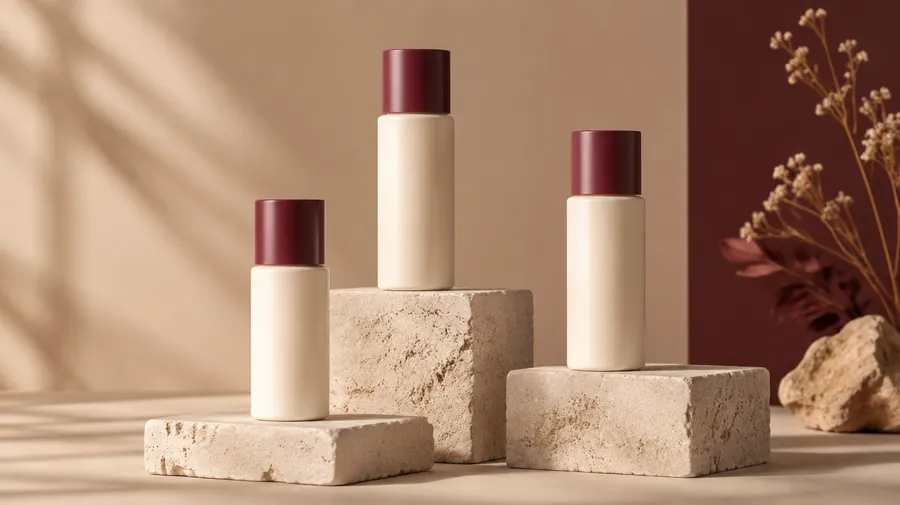
Write a background prompt with a clear visual brief
Scene type + surface + background depth + palette + lighting + camera or perspective + mood. Name the subject that must be preserved, then describe only the scene change.
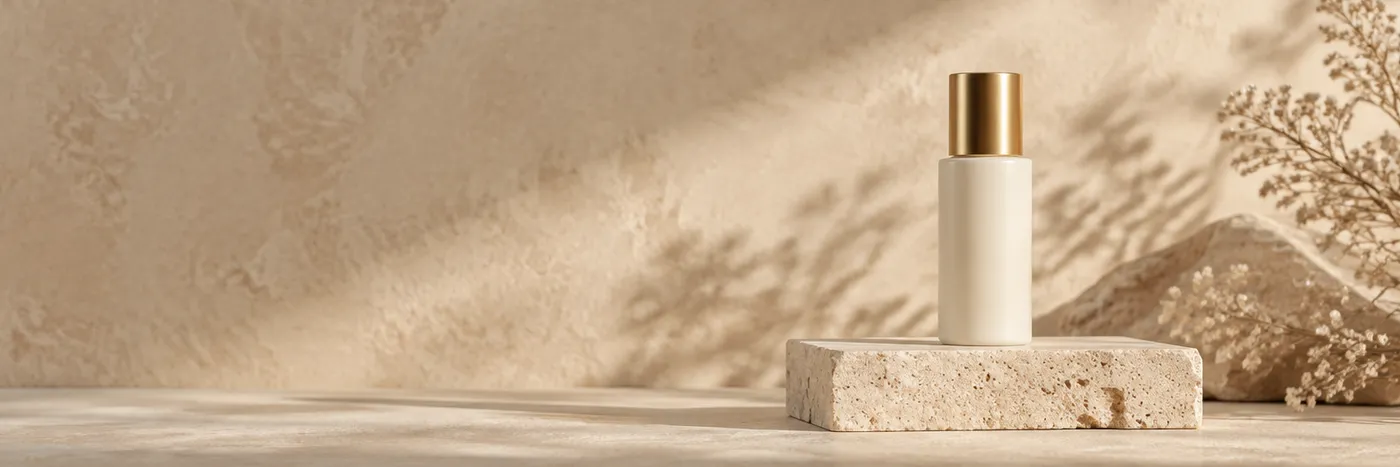
Skincare product on travertine
“Place the skincare bottle from image 1 on a pale travertine pedestal, warm beige plaster background, soft diffused side light, subtle natural shadow, clean luxury cosmetics campaign.”

Portrait in a modern office
“Replace the portrait background with a softly blurred modern office, neutral gray and warm wood palette, realistic daylight from the left.”
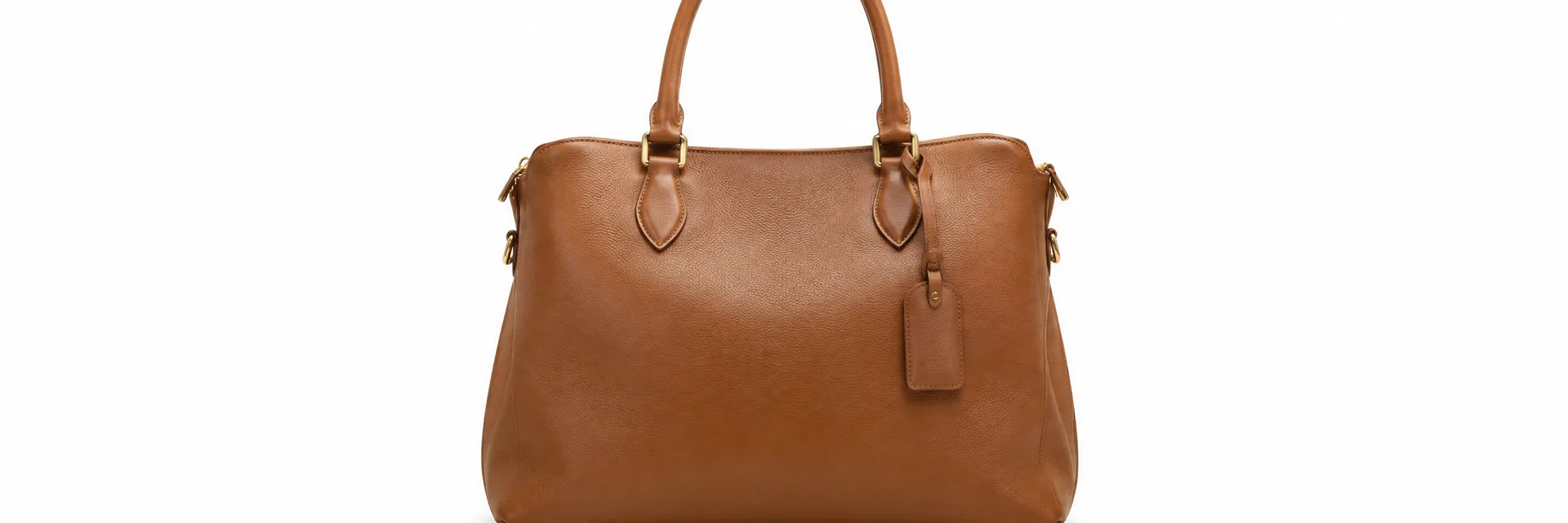
E-commerce white studio shot
“Change the background to a pure white seamless studio, soft overhead diffused light, subtle contact shadow directly beneath the product, centered composition, clean marketplace-ready shot.”

Video-call backdrop
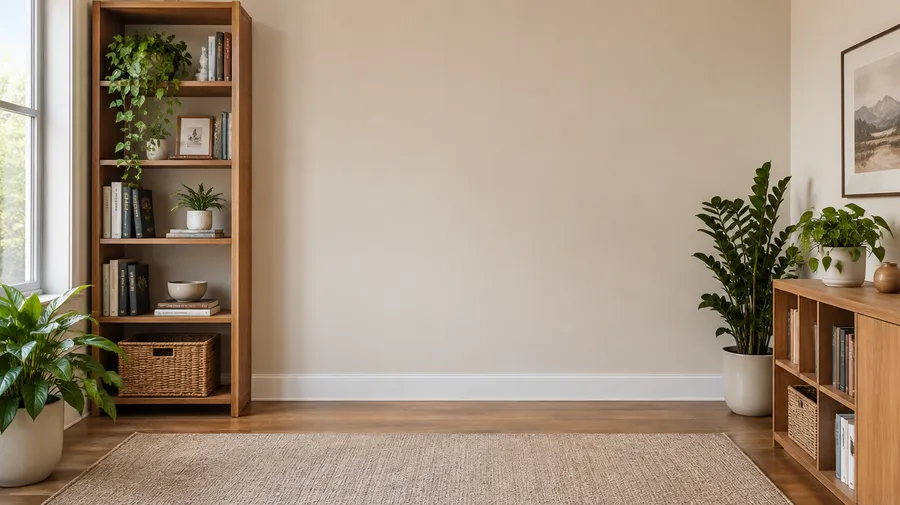
“A softly blurred home office background with plants and wooden shelving, warm neutral light, gentle bokeh, no subject in frame.”
Background images
Generate custom virtual-background images for video calls
Create a still background image with plants, shelving or a neutral office setting, then upload it to Zoom, Google Meet or Teams where custom backgrounds are supported. getimg.ai generates the image; it does not provide live virtual-background integration or segment people during a call.
Portrait photography
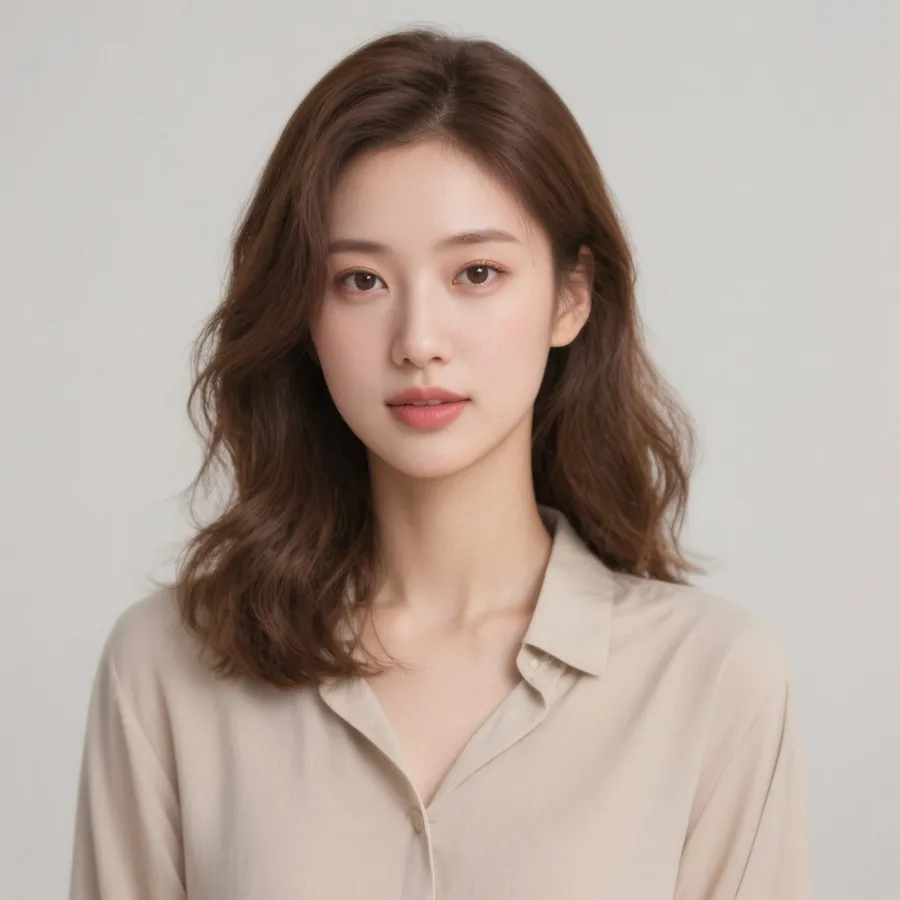
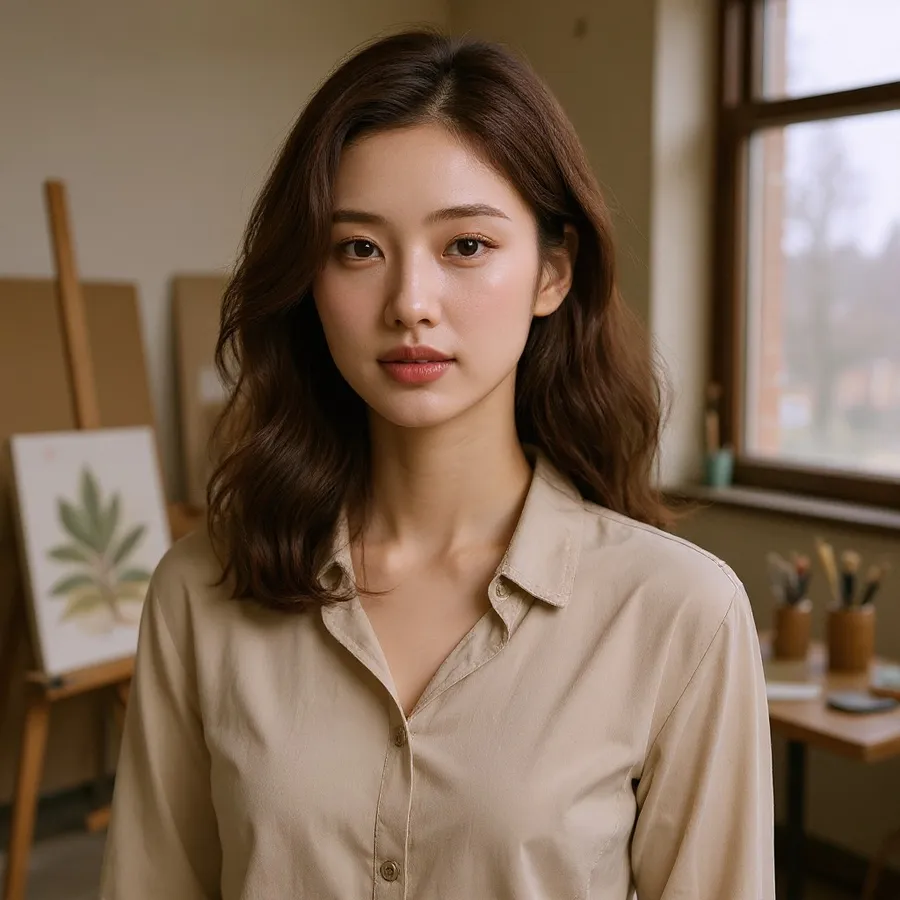
Replace portrait and headshot backgrounds
Place your portrait in a professional office, neutral studio, outdoor city scene or creative colored backdrop. Start from your own photo as a Reference and describe only the background change. For professional portraits, review hair edges, lighting direction and small facial details after a generative background edit.
Other background uses
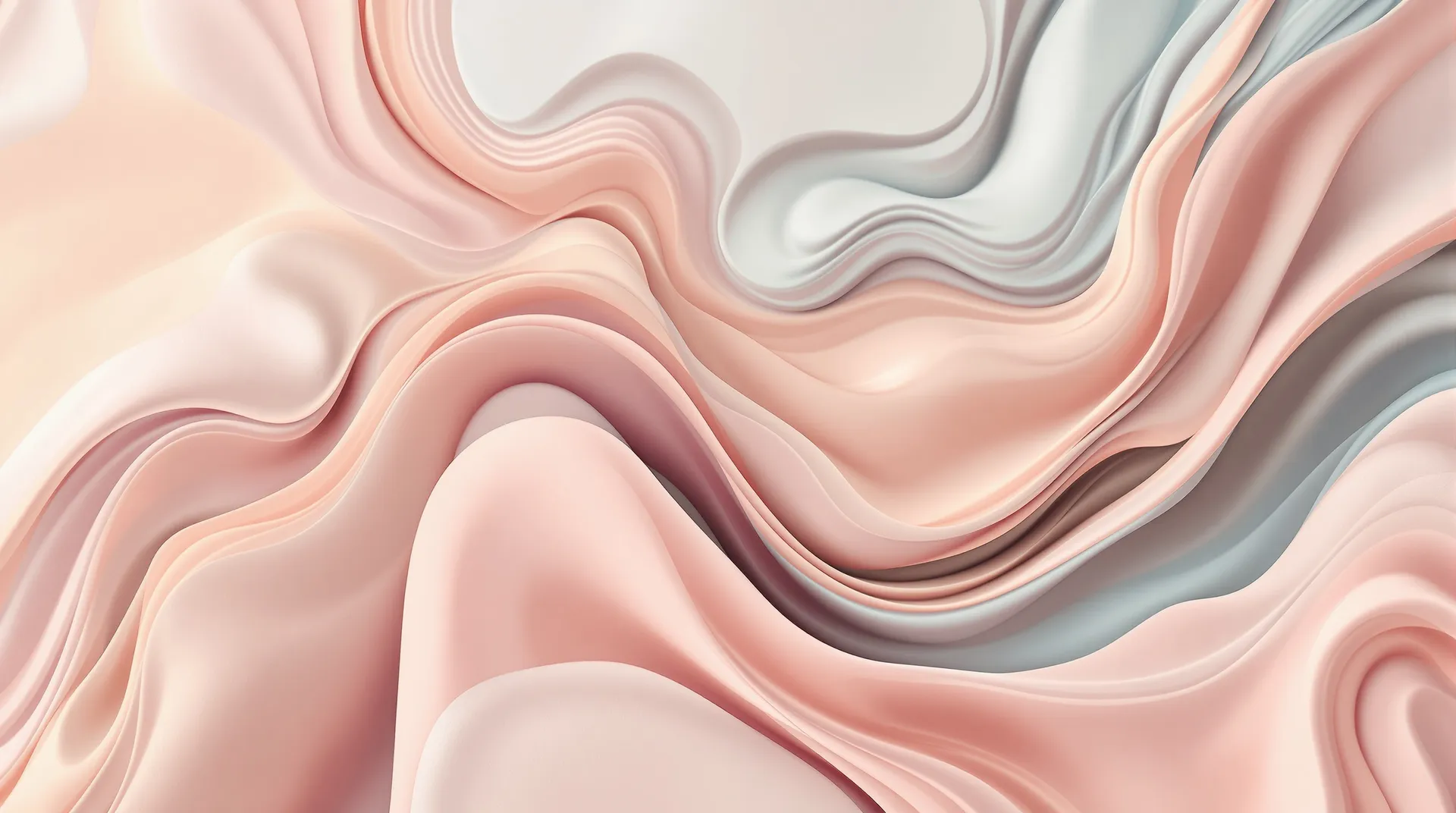
Create standalone wallpapers from a text prompt
For a device wallpaper, generate a complete image rather than replacing the scene behind an existing product or person. Describe the landscape, abstract pattern or city scene, and choose a composition suited to your screen. This is a separate use from product-photo background replacement.
Ready to start?
Create an account and turn your product photo into a new background variation.
Frequently Asked Questions
Yes. Open Create image, upload your image as a Reference, describe the new background, and generate the edited image. Refine the result if needed; edits create a new version rather than overwriting the original.
Keep the original product or person as the visual anchor. Use image editing to change the scene, then review subject details, edges and shadows before exporting.
Start from an actual product photo as a Reference, not a newly generated imitation of the SKU. Describe which parts must stay unchanged and how the scene should change. The Text to Image workflow is better suited to generating a new backdrop from scratch than establishing the exact appearance of a real product.
Generative edits can alter details. Review product shape, labels, hardware, texture, colors and other important details against the source photo before publishing.
Use the same Product Element with a Style Element or Color Palette Element, or attach consistent References. Call reusable Elements into image prompts with @ElementName, then describe the campaign setting.
A shared product, style and palette can guide a square ad, banner and seasonal variation. Layout, lighting and small background details can still change between generations; compare the outputs as a set.
Review the final image before using the Upscaler for a larger version. Use the separate Remove background Action when you need transparency rather than a scene.
Generate creates a new scene or backdrop from a text description. Replace uses your existing photo as a Reference and creates a different scene around its subject. Remove deletes the background and produces a transparent version rather than another scene. Need transparency instead? Remove the background.
Yes. Attach up to 10 References to guide the object, palette, lighting, composition and perspective. For example, use image 1 for the product, image 2 for the room or background style, and image 3 for your brand palette. Explain each image’s role in the prompt.
Yes. Start from your product photo and ask for a clean white studio backdrop, a matching surface and a soft natural shadow. Check that the background and product details meet the requirements of your intended marketplace before publishing.
Yes. Open the image and use the separate Remove background Action, then export a transparent PNG. This removes the scene rather than replacing it. Use Background Remover when you need a cutout for compositing or a transparent product asset.
Yes. Upload the portrait as a Reference and describe a neutral studio, professional office, city scene or colored backdrop. Review hair edges, lighting direction and small facial details after the edit. For a transparent cutout instead, use Background Remover.
Yes. Generate a still background image, download it and upload it to your calling app where custom backgrounds are supported. getimg.ai does not integrate live into the call or perform real-time segmentation.
Background replacement changes the scene behind a subject. Outpainting expands an existing scene beyond the original frame by generating new areas. Use Resize or Outpainting when you need a wider composition, not a new background.