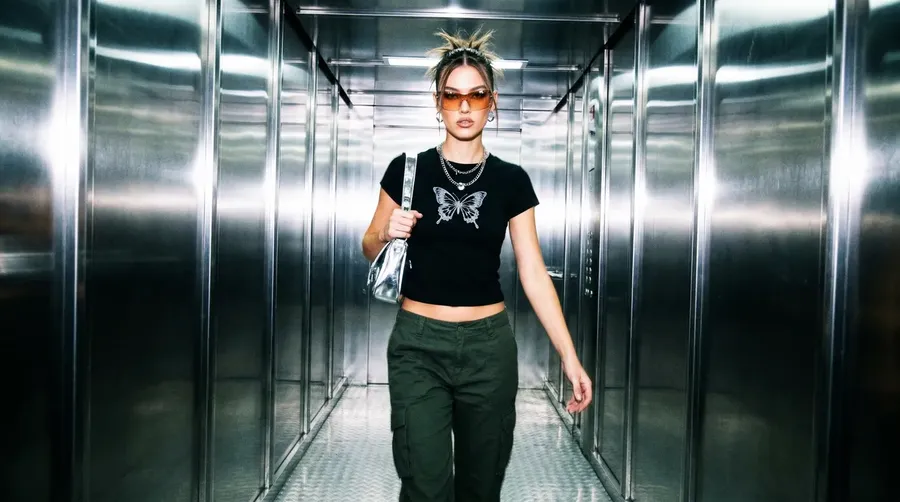
Image to Video AI Generator
Turn any image, photo, or artwork into video with cinematic motion in minutes. Upload your first frame, describe the movement, and generate AI video with leading models including Veo, Sora, Kling, Seedance, and more.
Access 29+ leading AI models in one image to video platform.
One workflow. One subscription. The right model for each shot.


Why getimg.ai for Image to Video
Turn images into video with more control
Most image to video AI tools stop at generic motion. getimg.ai gives you a more directed workflow, so you can animate a still image, guide the action with prompts, and shape how the clip starts, evolves, and ends.
Prompt
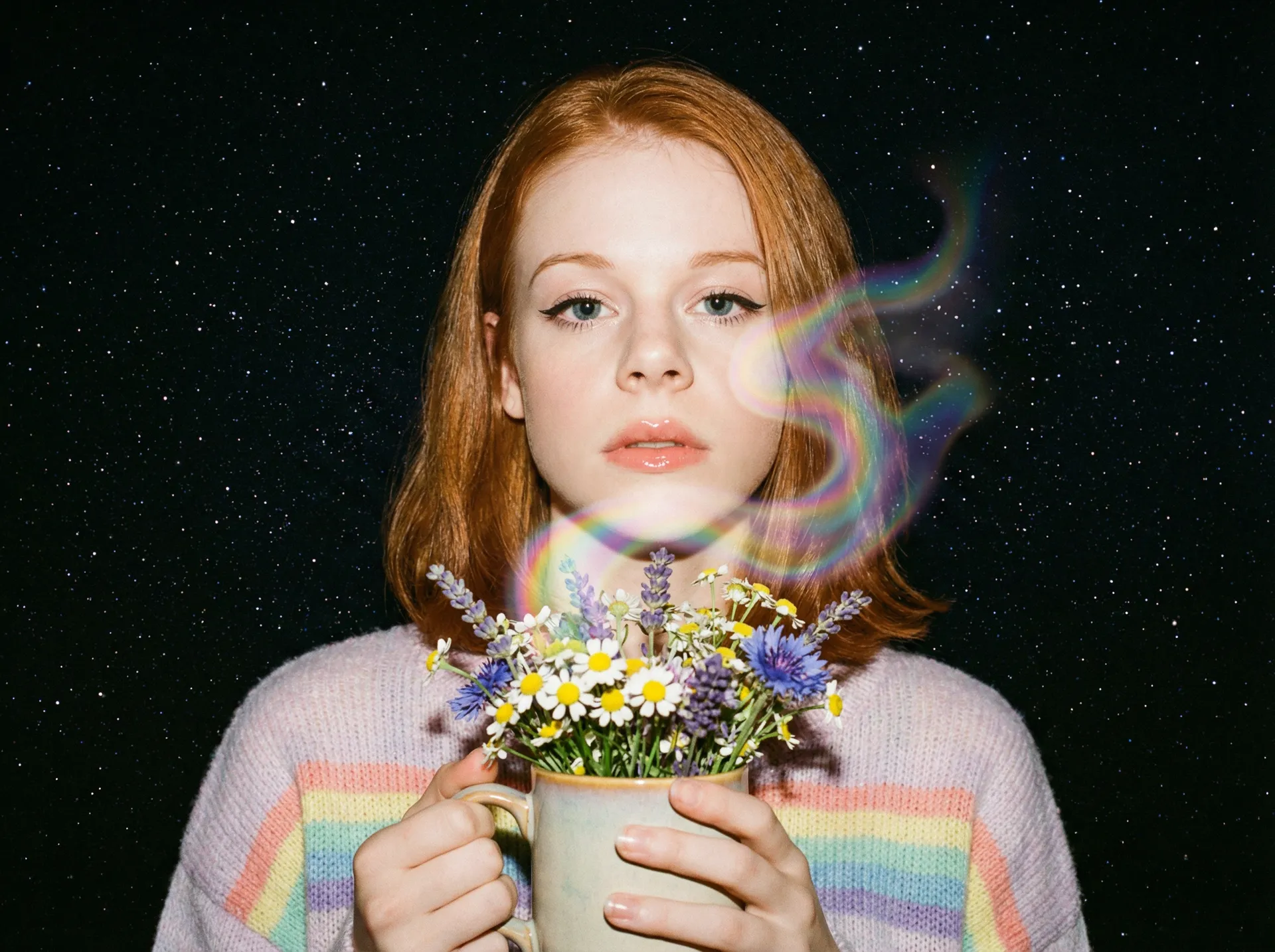
First Frame
Last Frame
Better output than a one-model tool
Different shots need different models. getimg.ai can automatically select a suitable model based on the type of shot, motion, prompt, and quality requirements.
Auto selection

Kling 3.0
Native audio-video generation, multi-shot cinematic storytelling

Seedance 2.5 Pro
Cinematic camera control, dynamic scenes, expressive characters.
Built for creators who need usable results
Turn a photo to video for a product launch, create a picture to video concept shot, or build branded social content from one still without a full production timeline.
How to convert Image to Video with AI
1. Upload your image
Start with a photo, illustration, product render, graphic, or AI-generated image. Your upload becomes the first frame of the video.
2. Describe the motion
Tell the model what should happen: camera push-in, character movement, environmental motion, product rotation, reveal, or cinematic transition.
3. Generate and refine
Create your clip in minutes, then refine it by changing the prompt, switching models, adding an end frame, or using reference images for tighter control.
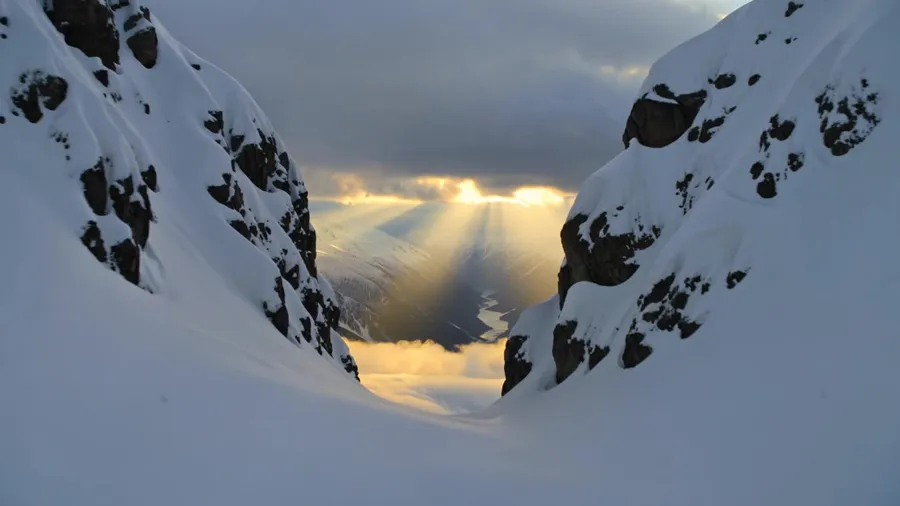
Turn any image into a video using it as the first frame
getimg.ai’s image to video workflow happens inside Content Generator. You start with a first frame, then generate motion from that image using your prompt and selected model.
That makes the workflow feel closer to an AI video generator from image than a basic image to video converter.
- Turn an image into video with prompt-guided motion
- Use the original composition as the visual anchor for the generated motion
- Test multiple models on the same first frame
- Create video from image without rebuilding the shot each time
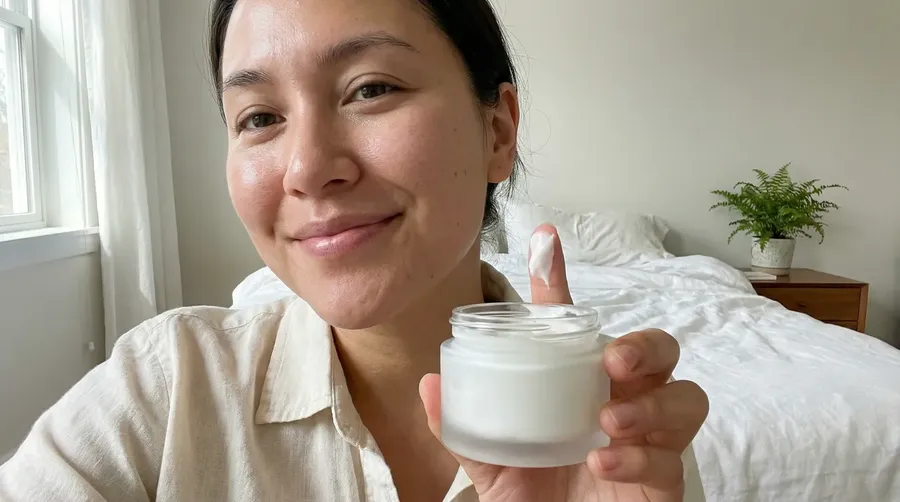
create review video, woman saying "this texture is so incredibly smooth and hydrating"
Choose start and end frames for more controlled Image to Video
When a standard image to video generator leaves too much to chance, set both the opening frame and the landing frame on supported models. You get a more predictable photo to video AI workflow for reveals, transformations, product motion, and cleaner transitions.
- Plan a specific reveal or transformation
- Keep product shots on-brand from first frame to last
- Create smoother transitions between visual states
- Reduce randomness in the final clip.
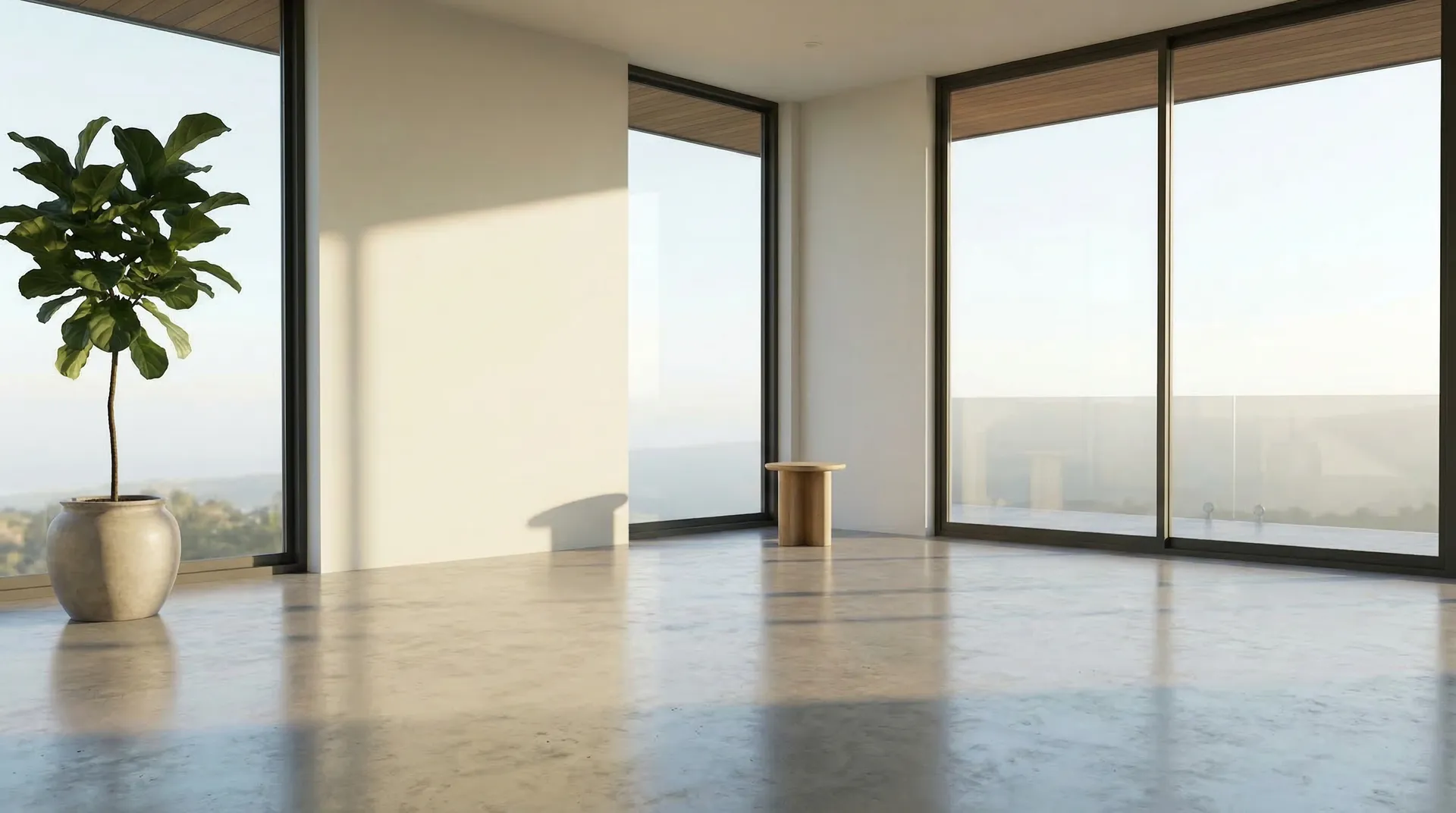
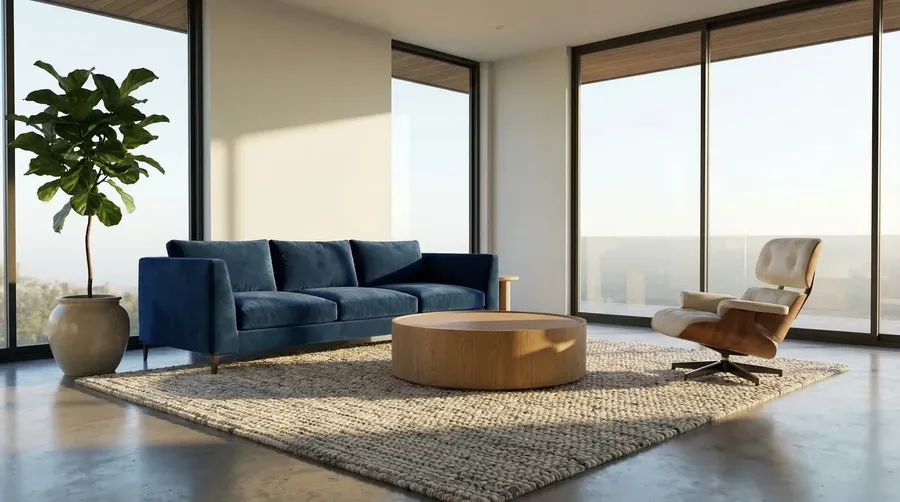
smooth transition, furniture drops from above
Add reference images for tighter Image to Video control
If a simple picture to video tool is not enough, reference images let you guide characters, props, logos, and visual details throughout the clip, not just in frame one.
- Keep subjects more consistent
- Introduce objects at the right moment
- Direct scene progression more precisely
- Create stronger branded or narrative video from image workflows.
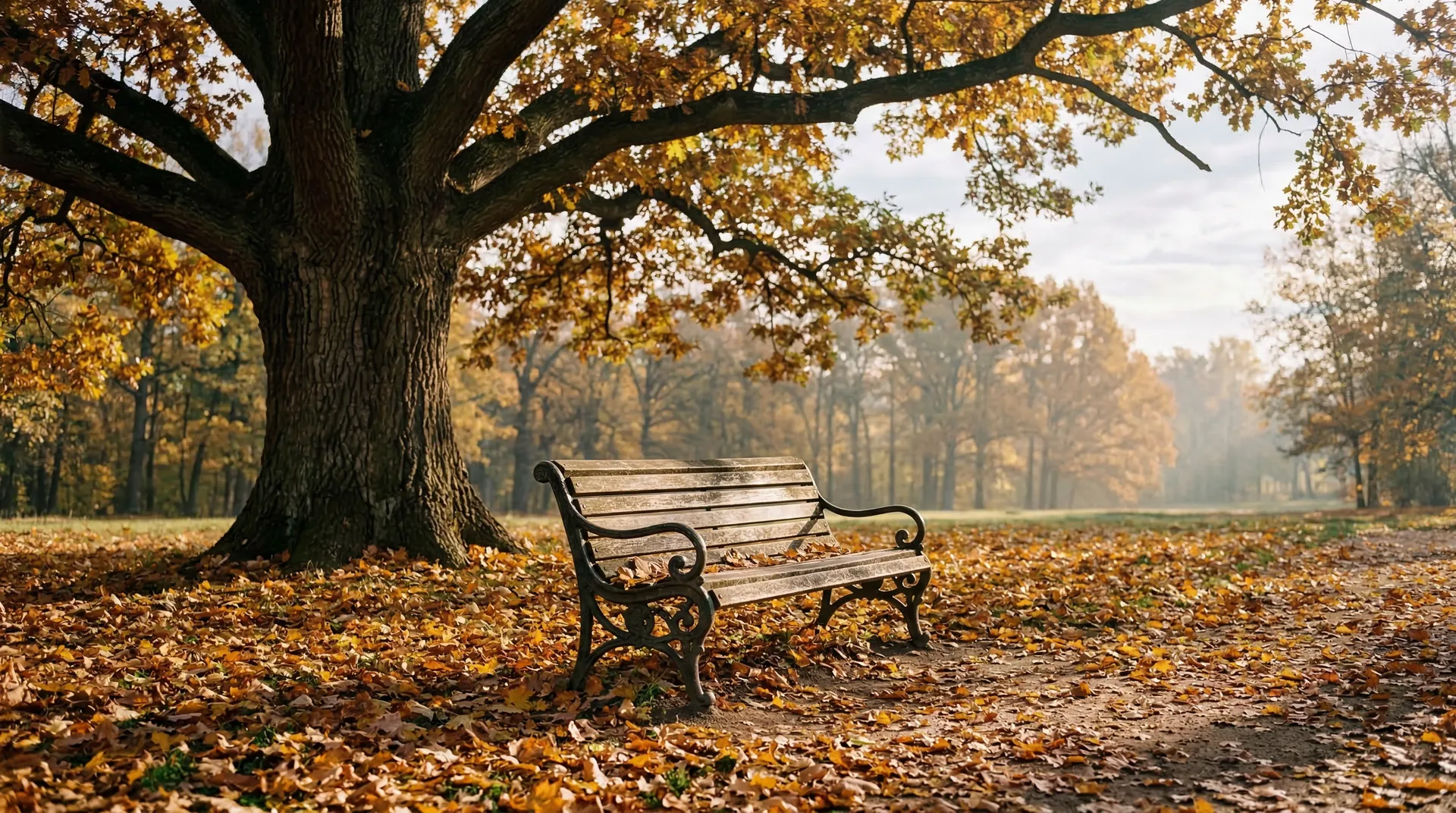
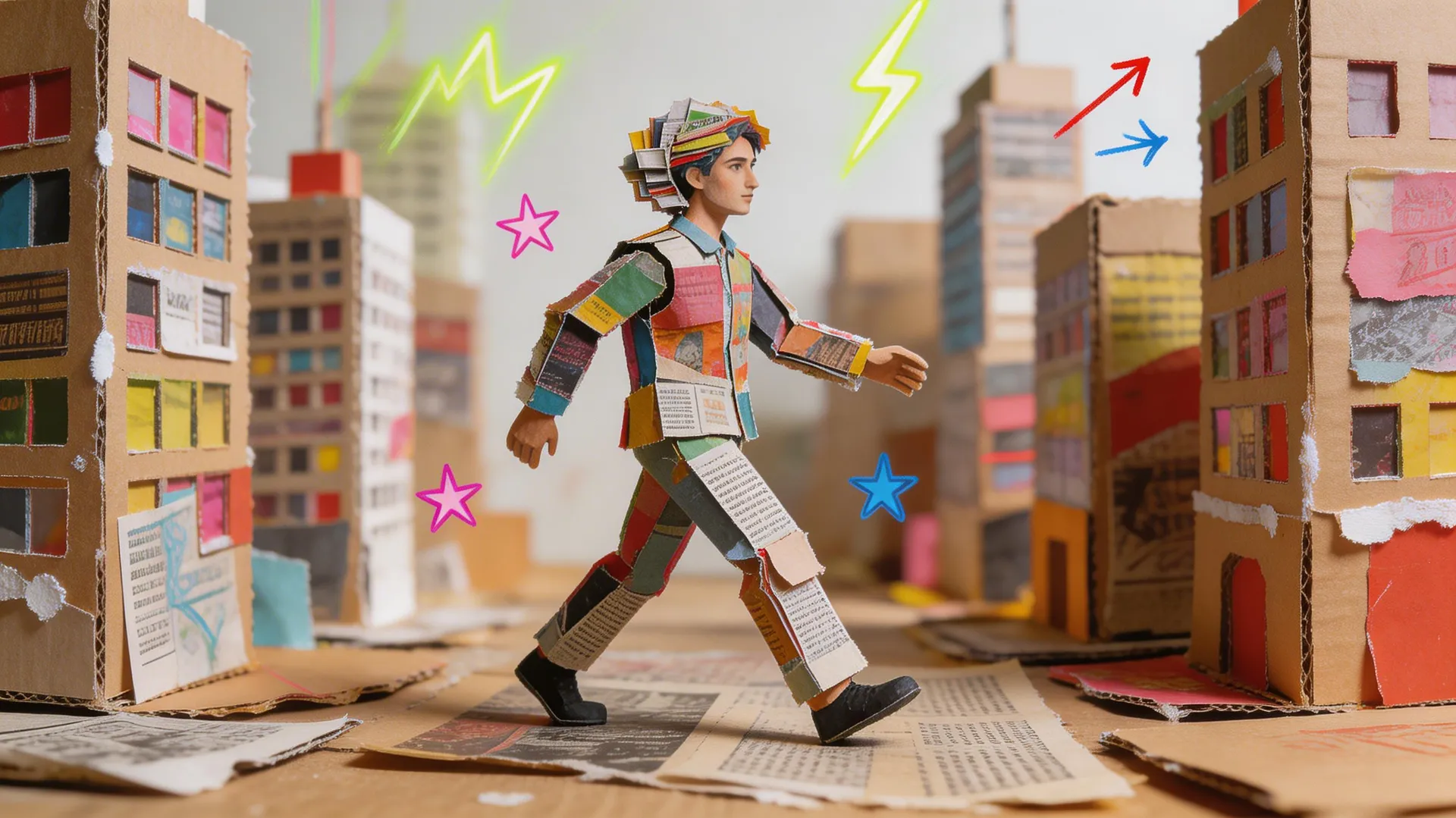
cardboard character walking through the park
One Image to Video AI workflow across leading models
getimg.ai gives you access to leading image to video AI models in one place, so you can choose based on the result you need instead of adapting the shot to the limitations of one tool.
Kling
A strong choice for high-resolution image to video generation when you need control, motion quality, and reliable prompt accuracy.
Kling 3.0 Turbo
A faster Kling 3.0 variant for quick image to video, with 4 to 15 second clips, native audio, and output up to 1080p.
Kling 3.0 Pro
A strong option when the shot depends on strict prompt following or difficult camera moves. Supports first and last frames at up to 4K.
Kling O3
Built for fluid movement, polished motion, and reliable cinematic output.
Kling O1
Works with reference images plus first and last frames for 5 or 10 second clips at 1080p.
Kling 2.6
The first Kling model with native audio.
Kling 2.5 Turbo
A fast, lower-cost option for 5 or 10 second clips at 1080p from a first frame.
What you can create with Image to Video AI
How to write a good Image to Video prompt
A strong image to video prompt does more than name the subject. It tells the model what moves, how the camera behaves, and what the shot should feel like. Cover these five layers and the motion comes out controlled instead of random:
- Subject movement: what the person, product, or object actually does, like walks forward, turns, pours, or blinks.
- Camera movement: how the shot travels, like a slow push-in, an orbit, a handheld drift, or a locked-off frame.
- Environmental movement: what else reacts in the scene, like wind in the hair, rippling water, drifting steam, or passing traffic.
- Speed: the pace of it all, from slow and cinematic to real-time to quick and energetic.
- Visual mood: the lighting and atmosphere that ties it together, like warm golden hour, moody low-key, or bright and clean.
Example: "The woman slowly turns to face the camera and smiles, camera pushes in gently, strands of hair lift in a soft breeze, relaxed real-time pace, warm golden-hour light."
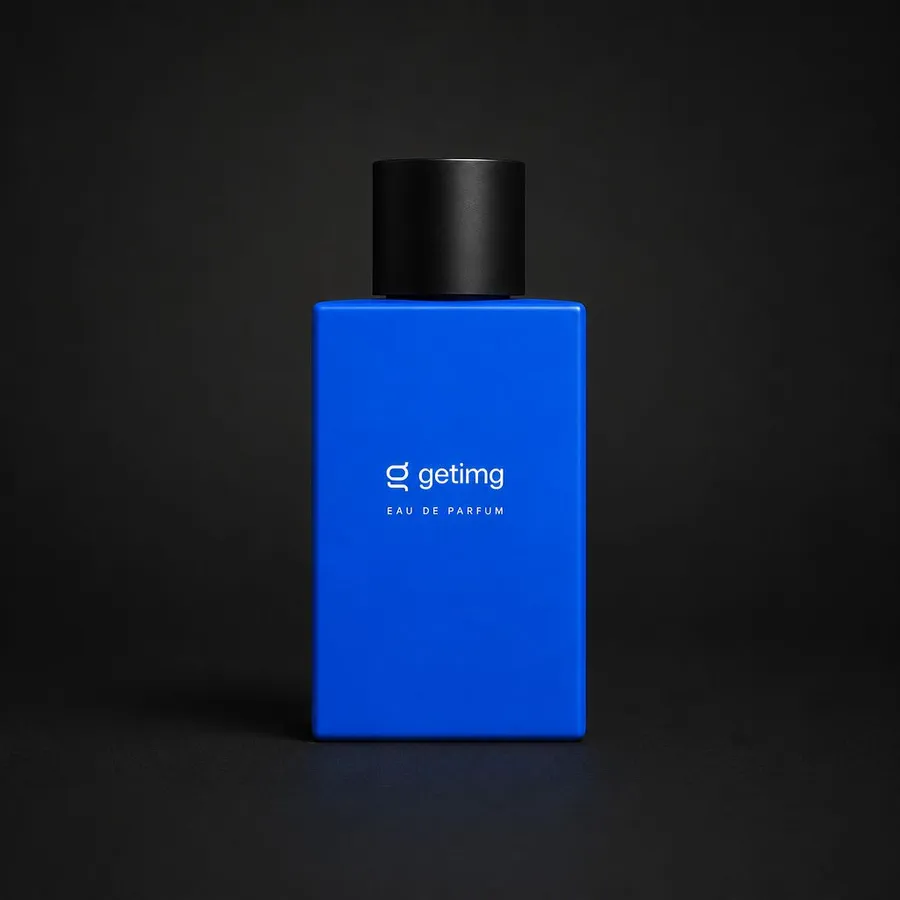
the camera moves in a smooth, continuous push toward the bottle's surface, ending in an extreme macro close-up on the logo and "EAU DE PARFUM" text
Image to Video Prompt Examples
Not sure where to start? These are ready-to-run prompts for the shots people animate most. Copy one, match it to your first frame, and adjust the details to fit your image.
- Portrait: "Subject blinks and smiles softly, hair moving in a gentle breeze, slow push-in, warm natural light."
- Product animation: "The product rotates slowly on a turntable, a studio light sweeps across it, crisp and clean, real-time pace."
- Fashion: "Model walks toward the camera, coat and hair flowing, slow motion, moody editorial lighting."
- Landscape: "Clouds drift over the mountains, mist rolls through the valley, slow cinematic drone push-in, golden-hour glow."
- Social ads: "Drink splashes into the glass, ice cubes tumble, fast and energetic pace, bright punchy colors."
- Transformations: "Day turns to night over the city skyline, lights switch on across the buildings, smooth time-lapse, cinematic mood."
-1400x1738.webp)
Explore More AI Features & Use Cases
Frequently Asked Questions
Image to video AI turns a still image into a short video clip by using the uploaded image as the first frame and generating motion between frames. With getimg.ai, you can guide the result with prompts, model choice, end frames, and reference images.
Open the Create video Action, upload your image or photo as the first frame, write the motion prompt, choose a model, and generate. The same workflow works whether you want to turn an image into video, create photo-to-video content, or animate visuals from your library. It works with photos, illustrations, product visuals, and more.
Photos, illustrations, product renders, concept art, and AI-generated images all work well. Clear subjects, strong composition, and visible opportunities for motion usually produce better results.
Yes. Supported models let you set both the starting and ending frame for more predictable results and cleaner scene transitions.
Yes. Reference images help control subjects, props, logos, and scene progression beyond the first frame.
Yes. Image to video is available on paid plans.
If your paid getimg.ai plan includes commercial rights, yes. Keep usage aligned with your current plan terms.
Start with a clear subject and a clean first frame, then keep the motion realistic by not asking for too much at once. One or two deliberate movements usually read as more natural than a scene where everything moves. It also helps to describe subject movement, camera movement, and environmental movement separately, so the model knows what each part of the shot should do.
Turn still images, photos, and artwork into usable video faster
Skip the long handoff between idea, editing, revision, and delivery. Upload an image, photo, or artwork, direct the motion, choose the right model, and generate. If you need a simple picture to video workflow, you can move quickly. If you need more control, shape the result with end frames and reference images.