How to Restyle a Video with AI: Anime, Cartoon, Film & More
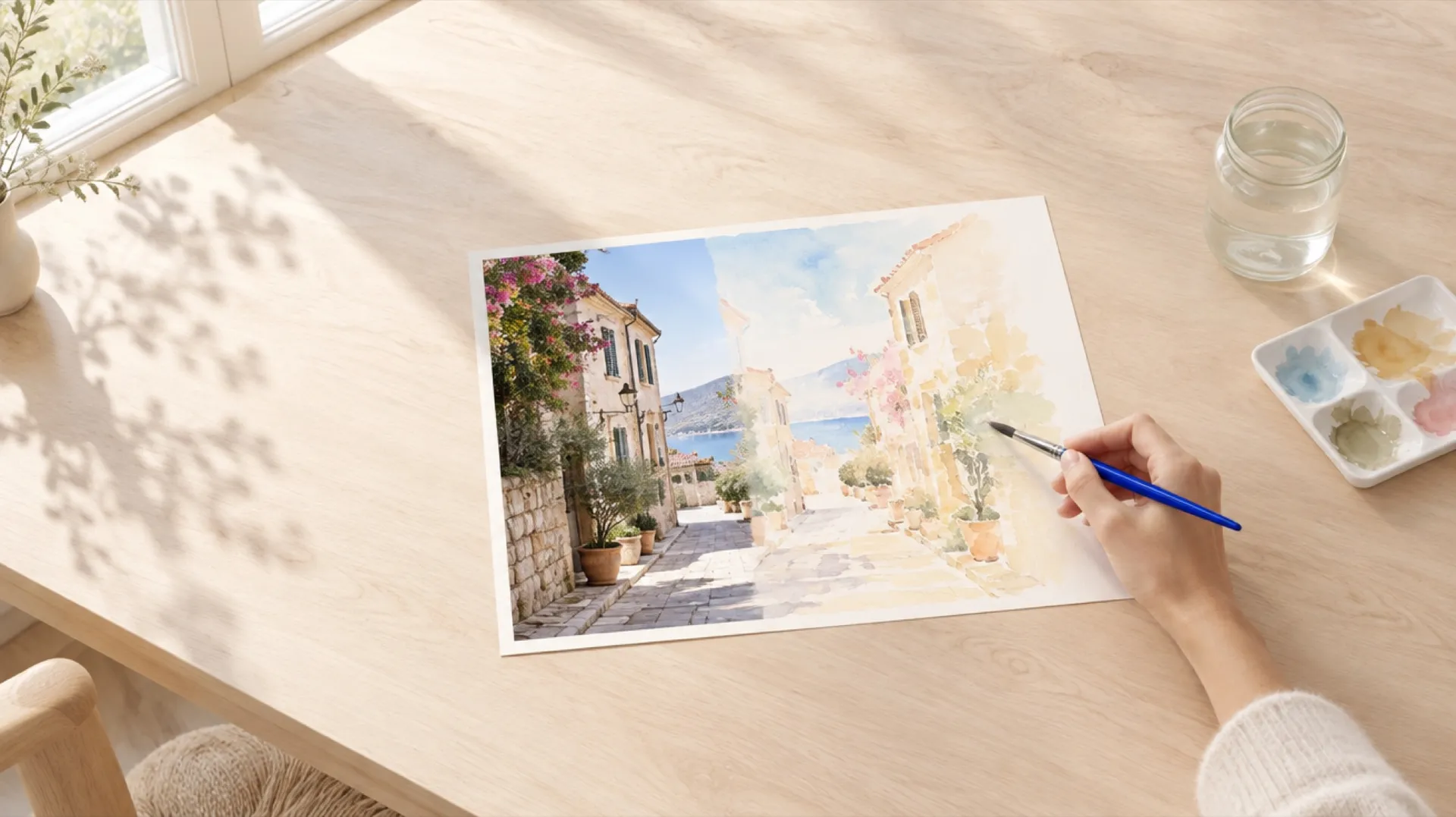
To restyle a video with AI, use a video-to-video model as a style converter: attach the clip as a reference, describe the target look by its visual traits (line work, shading, color, texture), and tell the model to keep the people, motion, camera, and timing the same. The model redraws the whole clip in the new style while following the original performance, whether that style is anime, a cartoon, a comic, watercolor, or a vintage film look. In getimg.ai, attach the video as a reference in Create video, write the style prompt, and generate a new version.
How AI Video Restyling Works
AI video style transfer used to mean running an image filter on each still of a video separately, which produced the familiar flicker: lines and colors jumping around because every image was styled on its own. Video-to-video models avoid that by generating the clip as a whole. The source video supplies the motion, timing, camera, and composition; the prompt supplies the look; and the model produces a new clip in which the style is consistent from start to end.
Restyling is one of the most forgiving AI video edits for a simple reason: the whole clip changes. With a local edit like removing an object, the eye can catch the boundary between edited and unedited areas. With a full restyle there is no boundary, so small differences from the source read as artistic interpretation rather than errors. That makes it a good first edit to try if you are new to AI video editing.
This is also why restyling is better described as a redraw than a filter. A cartoon or anime version of your clip is a new piece of animation that follows your footage, not your footage with an effect applied on top.
How to Restyle a Video in getimg.ai
- Trim the clip to the shot you need. Each video can be up to 15 seconds long, or 30 seconds on Seedance 2.5, so a longer video is restyled in segments.
- Attach the clip you want to restyle as a video reference: click it in your gallery to open it in full view with the clip already attached, or upload it with the Reference button in the Create video prompt box.
- Write a style prompt that describes the look in concrete traits, followed by a keep list (examples below).
- Optionally attach a style image as an image reference, such as an illustration or a still you made earlier in the look you want.
- Choose Seedance 2.5, MiniMax H3, MiniMax H3 Max, or Wan 3.0, match the aspect ratio to the source, and generate 2 to 4 variations.
- Pick the variation with the most stable faces and line work, and keep its prompt for the rest of your clips.
How to Describe a Style
The single most useful habit is to describe a style by what you can see, not by a label. "Anime" means different things to different models. "Clean thin black outlines, flat cel shading with one shadow tone, large expressive eyes, soft pastel sky" gives the model the same instructions an art director would.
It also keeps you clear of a common trap: naming a specific studio, show, or living artist. Describing traits gets you the look you want and keeps the result your own.
Ask for the whole scene to be redrawn, not only the people: "restyle the whole scene, including the street and the sky, as…". Without it, a model can draw the person in the new style and leave the background looking like a photo.
Useful trait vocabulary:
- Line: thin clean outlines, thick ink outlines, sketchy pencil lines, no outlines.
- Shading: flat cel shading, soft gradient shading, cross-hatching, halftone dots, painterly.
- Color: pastel, saturated primaries, muted earth tones, limited three-color palette.
- Texture: paper grain, visible brush strokes, cut paper edges, film grain.
- Motion feel: smooth, or slightly stepped like hand-drawn animation.
Style Prompts That Work
Each style prompt below follows the same pattern: the style as visual traits, then the keep list.
Style | Prompt core | Shots it suits |
Anime | Restyle the whole scene as 2D anime with clean thin outlines, flat cel shading, expressive eyes, and a soft painted sky | Character moments, walking, city scenes |
2D cartoon | Restyle as a bright cartoon with thick outlines, rounded simplified shapes, and saturated flat colors | Kids content, pets, explainers, comedy |
Comic book | Restyle as an inked comic book with heavy black outlines, halftone dot shading, and bold flat colors | Action, sport, stunts |
Watercolor | Restyle as a loose watercolor painting with soft bleeding edges, paper texture, and muted colors | Landscapes, travel, slow movement |
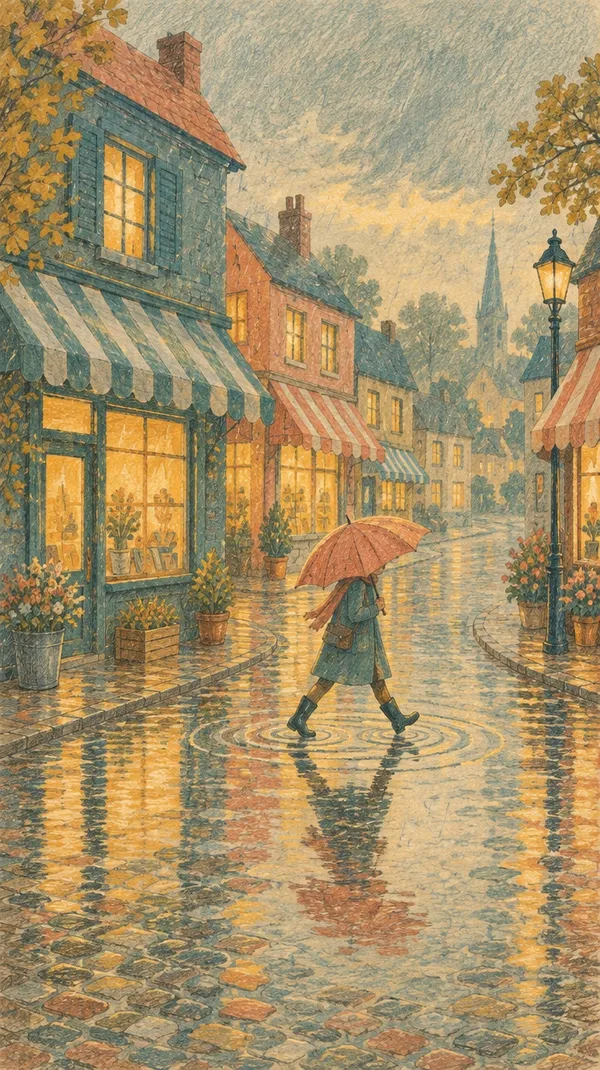
Pencil sketch | Restyle as a pencil sketch with graphite lines and light cross-hatching on warm off-white paper | Architecture, vehicles, process clips |
Cut paper | Restyle as a cut-paper animation built from layered matte colored paper with clean cut edges | Animals, simple scenes with big shapes |
1970s 16mm film | Restyle as 1970s 16mm film with warm faded color, visible grain, and soft halation around highlights | Lifestyle, music, nostalgic edits |
A full prompt, written out:
Edit the reference video: restyle the whole scene as 2D anime with clean thin outlines, flat cel shading, expressive eyes, and a soft painted evening sky. Keep the two friends, their movements, the camera move, and the timing the same.
The film look in the table is not drawn, but it uses the same mechanism and the same prompt shape: any look you can describe, from an AI video filter style to a full animated redraw, is a restyle.
What Footage Restyles Best
Not every clip restyles well. The model has to decide which shapes become characters and which become background, and clear footage makes that easy.
Clear silhouettes
A person against a simple background, in clothing that contrasts with the scene, restyles more cleanly than someone in a busy crowd.
Expressive, readable motion
Walking, dancing, jumping, gesturing, and turning toward the camera all read well in a drawn style. Tiny movements (a slight eye glance, typing on a phone) can get lost in a simplified look.
Medium shots over extreme wides
When a person is very small in the shot, the model has fewer details to keep their identity consistent.
Good light
Dark, noisy footage gives the model less to read, and noise can turn into unwanted texture in the style.
Short clips
Each attached file can be up to 15 seconds, or 30 seconds on Seedance 2.5, and shorter clips are easier to keep consistent. For a longer piece, cut it into shots and restyle each one.
Keeping One Style Across a Series of Clips
A single restyled clip is a nice post. A series in one recognizable style is a format. Keeping several clips consistent takes a little setup.
Lock the wording
Once a prompt works, reuse its style sentence word for word on every clip and change only the keep list.
Add a style image
Take a still from your best result, or an illustration in the look you want, and attach it as an image reference on the next clips, with "match the style of the reference image." This anchors the palette and line weight better than words alone.
Use the same model
Each model interprets a style slightly differently, so switching mid-series is the easiest way to get a mismatch.
Plan the characters
If the same person appears in several clips, describe them the same way each time ("a woman with short red hair in a yellow raincoat") so the model draws a consistent character. For stills to go alongside an anime series, such as thumbnails or posters in the same look, the anime AI art generator makes matching images.
Common Problems and Fixes
Problem | Likely cause | Fix |
The background still looks like a photo | Only the people were restyled | Ask to "restyle the whole scene, including the background and the sky" |
The person looks like a different character | The style pushed identity too far | Add "keep the person's face shape, hairstyle, and clothing recognizable" |
Style is too weak, looks like a filtered video | The style description is vague | Add more traits: line weight, shading type, palette |
Background turns into clutter | Busy source background | Ask for a simplified background: "simplify the background into flat painted shapes" |
Hands or small props break | Fine detail is hard in simplified styles | Use a tighter shot, or accept simpler hands as part of the style |
Text in the scene turns to gibberish | Text is redrawn in the style | Avoid shots where text matters, or add text later in your editor |
Motion feels too smooth for hand-drawn | Model defaults to fluid motion | Add "slightly stepped, hand-drawn animation timing" |
Where Restyled Videos Get Used
Creators use restyles to turn real-life moments into recurring social formats: a weekly clip as a comic, a travel series in watercolor, a skit in anime. Brands use them to make a live-action ad and an animated cut from the same shoot, which is useful when one platform favors one look over another. Musicians use them for lyric and visualizer videos built from simple performance footage. Educators use cartoon styles to make explainer clips feel lighter without hiring an animator.
In getimg.ai, every styled version is saved next to the original, so you can test three looks on one clip before choosing a direction for a series. You can turn a video into anime for character-driven clips, or turn a video into a cartoon for comic, watercolor, and sketch looks. Commercial use of the styled clips is allowed, subject to our terms and applicable third-party rights; describing styles by their traits rather than naming studios or characters keeps the result yours to use.
The Bottom Line
Restyling a video with AI redraws the whole clip in a new look while following the original motion, which makes it one of the most forgiving edits to start with. Describe the style by visible traits rather than labels, ask for the whole scene to be redrawn, and keep the people and their movements in the keep list. For a series, lock the wording, add a style image, and stay on one model so every clip matches.
Restyle a video in Create video
Frequently Asked Questions
Attach the video to a video-to-video model and describe the new style by its traits, such as line weight, shading, palette, and texture, then tell the model to keep the people, motion, camera, and timing the same. In getimg.ai, attach the clip as a video reference in Create video or open it from your gallery, write the style prompt, pick one of the models that support video references, and generate. The restyled version arrives as a new clip next to the original.
Yes. Video-to-video models can redraw live-action footage as anime or a cartoon while following the original motion and camera. Describe the look in concrete terms, for example "clean thin outlines, flat cel shading, expressive eyes, soft painted sky," ask for the whole scene to be redrawn, and include a keep instruction for the characters and their movements. Medium shots with clear silhouettes and readable motion convert best.
AI video style transfer applies a new visual style to an existing video, such as anime, a cartoon, watercolor, a pencil sketch, or a vintage film look. Modern video-to-video models do it by generating a new clip that follows the source's motion and composition in the new style, which avoids the flicker of older tools that styled each image of the video separately.
Not quite. A traditional video filter adjusts the existing image, changing color, contrast, or adding grain, and the content stays the same. AI restyling regenerates the whole clip in a new look, so shapes, lines, and textures change too. That is why restyling can turn footage into a hand-drawn cartoon, which no color filter can do.
Reuse the exact style wording on every clip, attach a still from your best result or a reference illustration as an image reference with "match the style of the reference image," and stay on the same model for the whole series. Describe recurring characters the same way each time. These steps keep line weight, palette, and character look much more consistent from clip to clip.
Generally yes. Clips you restyle in getimg.ai can be used commercially, subject to our terms and applicable third-party rights. You need the rights to the original footage and the people in it, and you should avoid recreating specific copyrighted characters or naming studios in the prompt. Describing a style by its visual traits keeps the result your own.
Related Articles