AI Video Editing Prompts: 50 Copy-Paste Prompts You Have to Try
The best AI video editing prompts follow one pattern: "Edit the reference video: [the change]. Keep [subject, motion, camera, timing] the same." Name one concrete change with visual detail, then list what the model should hold on to. Below are copy-paste prompts grouped by edit type (restyle, relight, color grade, outfit, weather, season, removal, background, and recasting) with tips for each. They work in getimg.ai on any video attached as a video reference, using a model that supports video references.
The Prompt Pattern Behind Every Edit
Every prompt below is built from the same three parts. Once you know them, you can write your own for any edit.
Part | Job | Example |
Opener | Tells the model the attached clip is the source to edit | Edit the reference video: |
Change | One edit, described visually | change the person's outfit to a tailored charcoal suit with a white shirt |
Keep list | What the model should follow from the source | Keep the person, their movements, the camera, and the timing the same. |
Three habits make the pattern work better. Describe the result, not the operation: "a rainy night street with wet reflections" beats "add rain." Name things the way they look in the shot: color, position, and action identify an object better than a category. And keep the keep list honest: if something in the shot matters to you (a logo on a product, a sign, a second person), name it.
Most prompts below refer to "the person," "the scene," or "the background," so they paste as they are onto any suitable clip. A few edits depend on what is in your shot, such as the object you want removed; those use [brackets] for the part you fill in. If there is more than one person in the shot, say which one you mean: "the person on the left," "the woman in the red coat."
All prompts below assume the clip is attached as a video reference, either from your gallery in full video view or uploaded in Create video, and run on Seedance 2.5, MiniMax H3, MiniMax H3 Max, or Wan 3.0. Each clip can be up to 15 seconds long, or 30 seconds on Seedance 2.5, so the prompts are written for single shots; for longer footage, run the same prompt on each segment.
Restyle Prompts
Restyles change the look of the whole clip and are the most forgiving edit type. Describe the style by visible traits.
- Edit the reference video: restyle the whole clip as 2D anime with clean thin outlines, flat cel shading, and a soft painted sky. Keep the people, their movements, the camera, and the timing the same.
- Edit the reference video: restyle the whole scene as a cut-paper animation built from layered matte colored paper with clean cut edges. Keep the subject, their actions, the framing, and the timing the same.
- Edit the reference video: restyle as hand-inked 2D animation with bold black ink lines and flat watercolor fills. Keep the people, every move, the camera, and the timing the same.
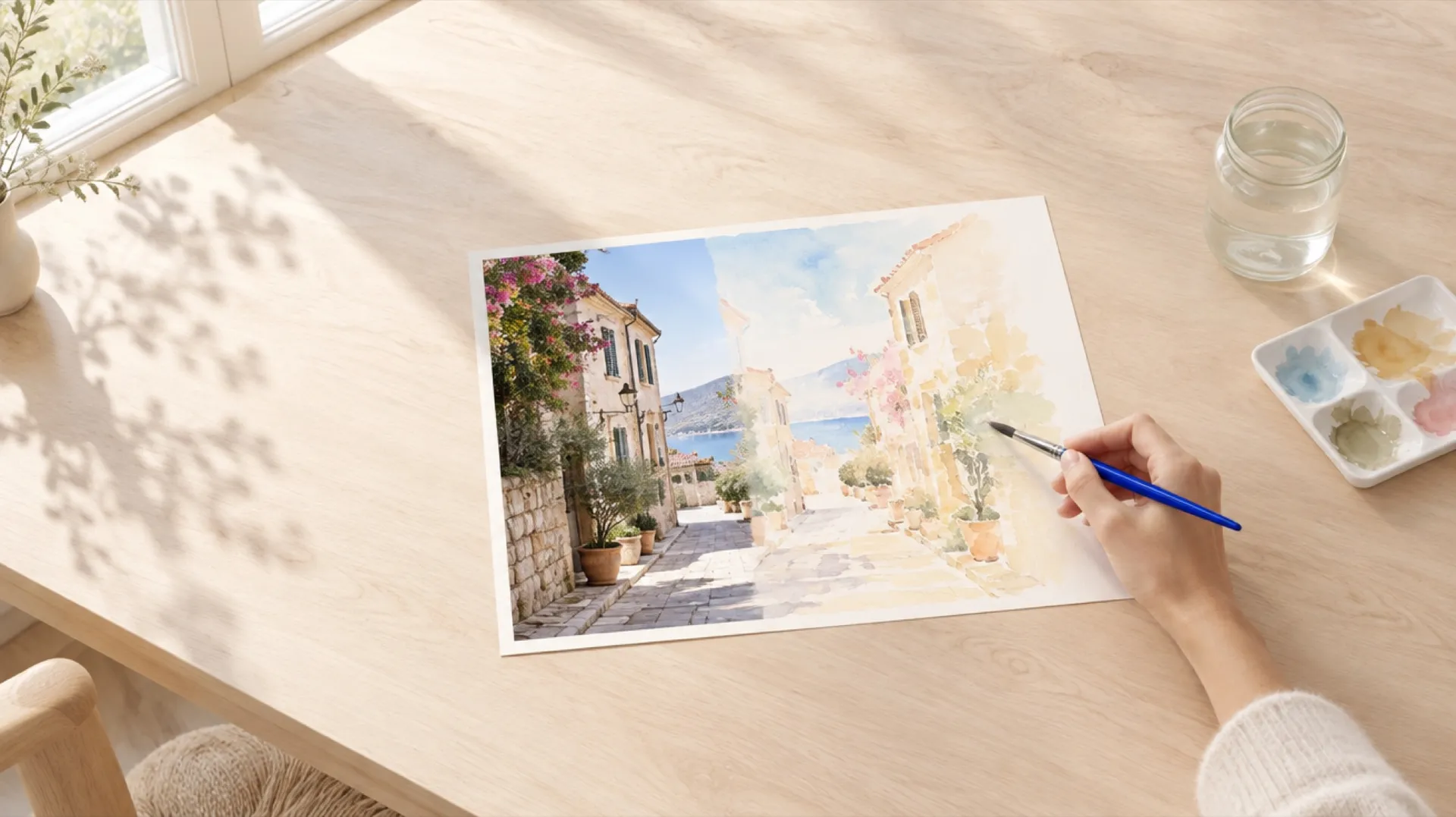
- Edit the reference video: restyle as a loose watercolor painting with soft bleeding edges and paper texture. Keep the layout of the scene, the camera move, and the timing the same.
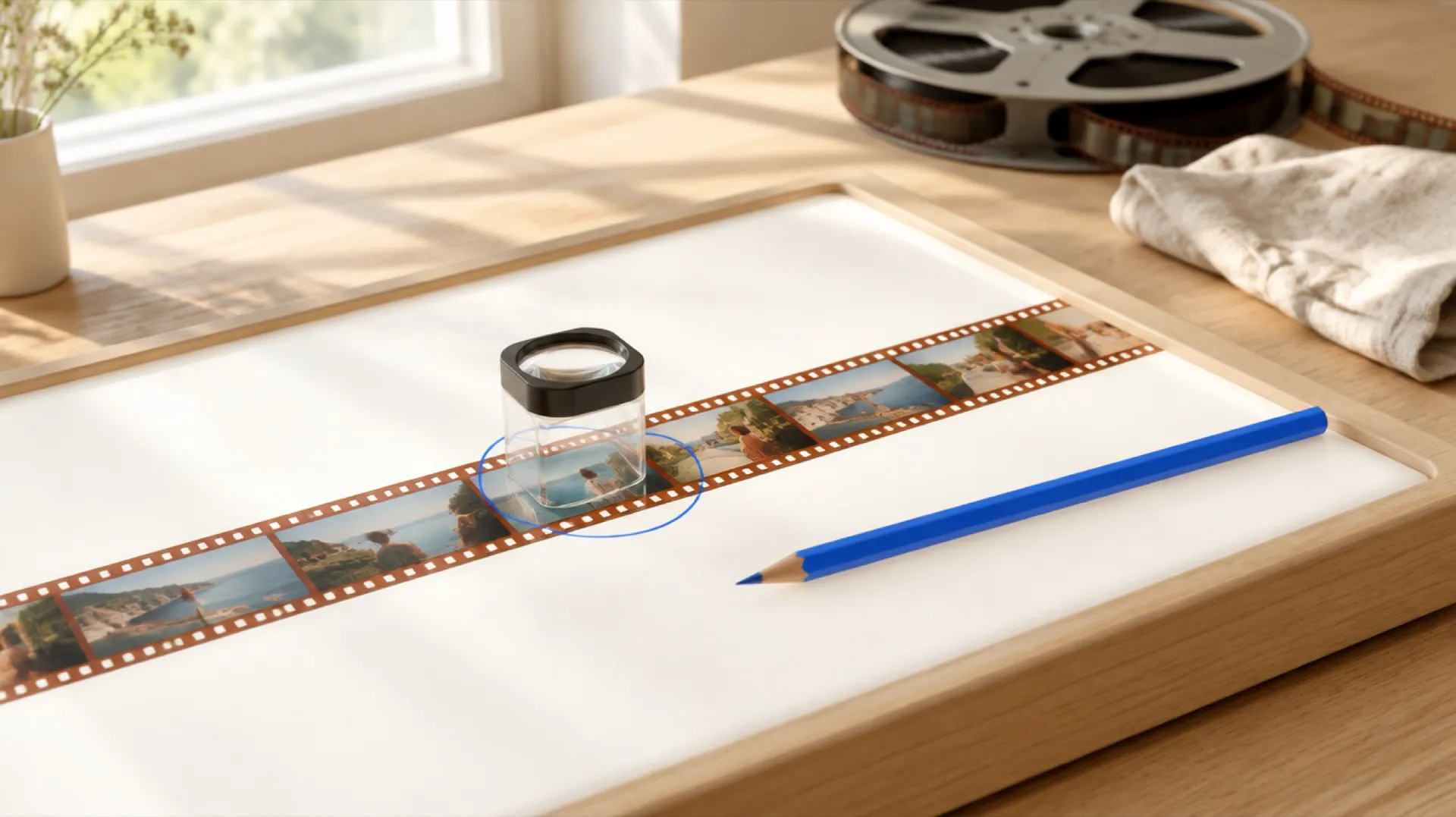
- Edit the reference video: restyle as 1970s 16mm film with warm faded color, visible grain, and soft halation around highlights. Keep the people, their movements, the camera, and the timing the same.
- Edit the reference video: restyle as a paper cut-out animation with layered colored paper and soft drop shadows between layers. Keep the people, their motion, and the timing the same.
- Edit the reference video: restyle as a charcoal sketch on rough paper with smudged shading. Keep the person, their gestures, and the camera the same.
Once a style works, reuse the style sentence word for word across clips and attach a still from the best result as an image reference to hold the look.
Relight Prompts
Relighting changes the light on the scene and the subject without changing the place. To relight a video, name the light source, its direction, its color, and how hard or soft it is.
- Edit the reference video: relight the scene with warm golden-hour sunlight coming low from the right, with long soft shadows. Keep the person, their movements, the location, and the camera the same.
- Edit the reference video: relight as a moody night interior lit only by a single warm table lamp on the left. Keep the person, the setting, their actions, and the timing the same.
- Edit the reference video: relight with soft, even overcast daylight and no harsh shadows. Keep everything else in the shot, the movements, and the camera the same.
- Edit the reference video: relight with cool blue moonlight from above and a warm glow from a light source behind the subject. Keep the person, the setting, and the timing the same.
- Edit the reference video: relight as a dramatic stage scene with one hard white spotlight from above and a dark background. Keep the person, their gestures, and the camera the same.
- Edit the reference video: add flickering warm firelight on the faces from below and to the left. Keep the people, their expressions, the setting, and the timing the same.
Say where the light comes from. "Warm light" alone gives the model too many options; "warm light from a window on the left" gives it one.
Color Grading Prompts
AI video color grading changes the palette and contrast of a clip without changing the light sources or the scene. Grade prompts read best when they describe the overall feel plus two or three concrete color decisions.
- Edit the reference video: color grade with warm amber highlights, deep teal shadows, and slightly crushed blacks. Keep the content, people, motion, and camera the same.
- Edit the reference video: color grade as a soft, low-contrast pastel look with lifted shadows and creamy skin tones. Keep everything in the shot and the timing the same.
- Edit the reference video: color grade as high-contrast black and white with deep blacks and bright clean highlights. Keep the people, their movements, and the camera the same.
- Edit the reference video: color grade with muted, desaturated greens and warm skin tones, like a quiet indie film. Keep the content and the timing the same.
- Edit the reference video: color grade as a bright, saturated summer commercial look with clean whites and vivid blues and yellows. Keep the people, the objects in the shot, and the camera the same.
- Edit the reference video: color grade as a cold, steel-grey thriller look with low saturation and cool shadows. Keep the people, their actions, and the timing the same.
A grade is a regeneration too, so check skin tones and product colors. If a product color must hold, add it to the keep list: "keep the red packaging the same red."
Outfit and Material Prompts
Outfit prompts can change a whole look or a single item. For a whole look, name the style and two or three pieces that define it. For a single item, describe it like a product listing: type, color, material.
- Edit the reference video: change the person's outfit to Y2K streetwear: a cropped puffer jacket, baggy low-rise jeans, and chunky sneakers. Keep the person, their face, their movements, the background, and the camera the same.
- Edit the reference video: change the person's shoes to red suede sneakers with white soles. Keep the person, their movements, the setting, and the camera the same.
- Edit the reference video: dress the person in a tailored charcoal suit with a white shirt and no tie. Keep the person, their gestures, and the framing the same.
- Edit the reference video: change the person's outfit to cozy winter clothes: a chunky knit sweater, a wool scarf, and a beanie. Keep the person, their movements, the background, and the timing the same.
- Edit the reference video: change the person's outfit to a 1970s look with flared trousers, a patterned shirt with a wide collar, and warm earth tones. Keep the person, their movements, and the camera the same.
- Edit the reference video: change the person's top to the garment shown in the reference image. Keep the person, their movements, the background, and the camera the same.
For a specific product, attach a photo as an image reference and point to it in the prompt, as in the last example. Outfits close to the original silhouette swap more cleanly than big changes, such as shorts to a floor-length dress.
Weather and Time of Day Prompts
To change the weather in a video, describe how the weather looks on surfaces, not only in the sky: wet reflections, snow on ledges, mist in the distance.
- Edit the reference video: change the scene to a stormy night with heavy rain, wet reflective surfaces, and lightning in the distance. Keep the person, their movements, the camera, and the timing the same.
- Edit the reference video: change the scene to a rainy night with glowing streetlights and warm lights reflecting in puddles on the ground. Keep the people, their movements, and the camera move the same.
- Edit the reference video: add light snowfall with a thin layer of snow on the ground and on every outdoor surface. Keep the people, their movements, and the camera the same.
- Edit the reference video: change the weather to thick fog, with everything in the distance fading into grey. Keep the person, their pace, and the timing the same.
- Edit the reference video: change the time to blue hour just after sunset, with a deep blue sky and warm lights switched on in the scene. Keep the setting, the people, and the camera the same.
- Edit the reference video: change the weather to bright midday sun with crisp shadows and a clear sky. Keep everything else, the movements, and the timing the same.
When moving to night, describe at least one light source (streetlights, shop windows, a car's headlights), or the scene can come back too dark to read.
Season Change Prompts
Season changes work well on outdoor clips with trees, grass, or gardens in view, because they alter color and foliage across the whole shot while the action carries over.
- Edit the reference video: change the season to autumn with orange and red leaves on the trees and fallen leaves on the ground. Keep the people, their movements, and the camera the same.
- Edit the reference video: change the scene to deep winter with bare trees, snow-covered grass, and people's breath visible in the cold air. Keep the people, their actions, and the timing the same.
- Edit the reference video: change the season to spring with the trees in full blossom and fresh green grass. Keep the setting, the people, and the camera move the same.
- Edit the reference video: change the season to late summer with dry golden grass and warm hazy light. Keep the person, their movements, and the framing the same.
If people in the shot are dressed for summer, decide whether their clothing should change too, and say so. A winter scene with someone in a t-shirt is easy to miss in review.
Object and People Removal Prompts
Removal prompts need three parts: what to remove, what replaces it, and what stays. The first three below paste as they are; the last two have [brackets] for the object in your shot.
- Edit the reference video: remove all people in the background so only the main subject remains. Keep the main subject, their movements, and the framing the same.
- Edit the reference video: remove all text, logos, and signs in the background and show plain surfaces in their place. Keep the person, their gestures, and the framing the same.
- Edit the reference video: remove the clutter from the background, leaving clean, empty surfaces. Keep the person, their movements, and the camera the same.
- Edit the reference video: remove the [object, e.g. the parked bicycle on the right] and its shadow. Show [what is behind it, e.g. the empty pavement] in its place. Keep everything else, the movements, and the camera the same.
- Edit the reference video: remove the person on the [left or right] of the shot and fill the space with the background behind them. Keep the other people, their movements, and the camera the same.
Name shadows and reflections explicitly; the model removes what you name.
Background Replacement Prompts
Background prompts work best when they describe a real place with its light and depth. Light is also what decides whether a swap looks pasted: when you change a video background with AI, the light on the subject has to match the new setting.
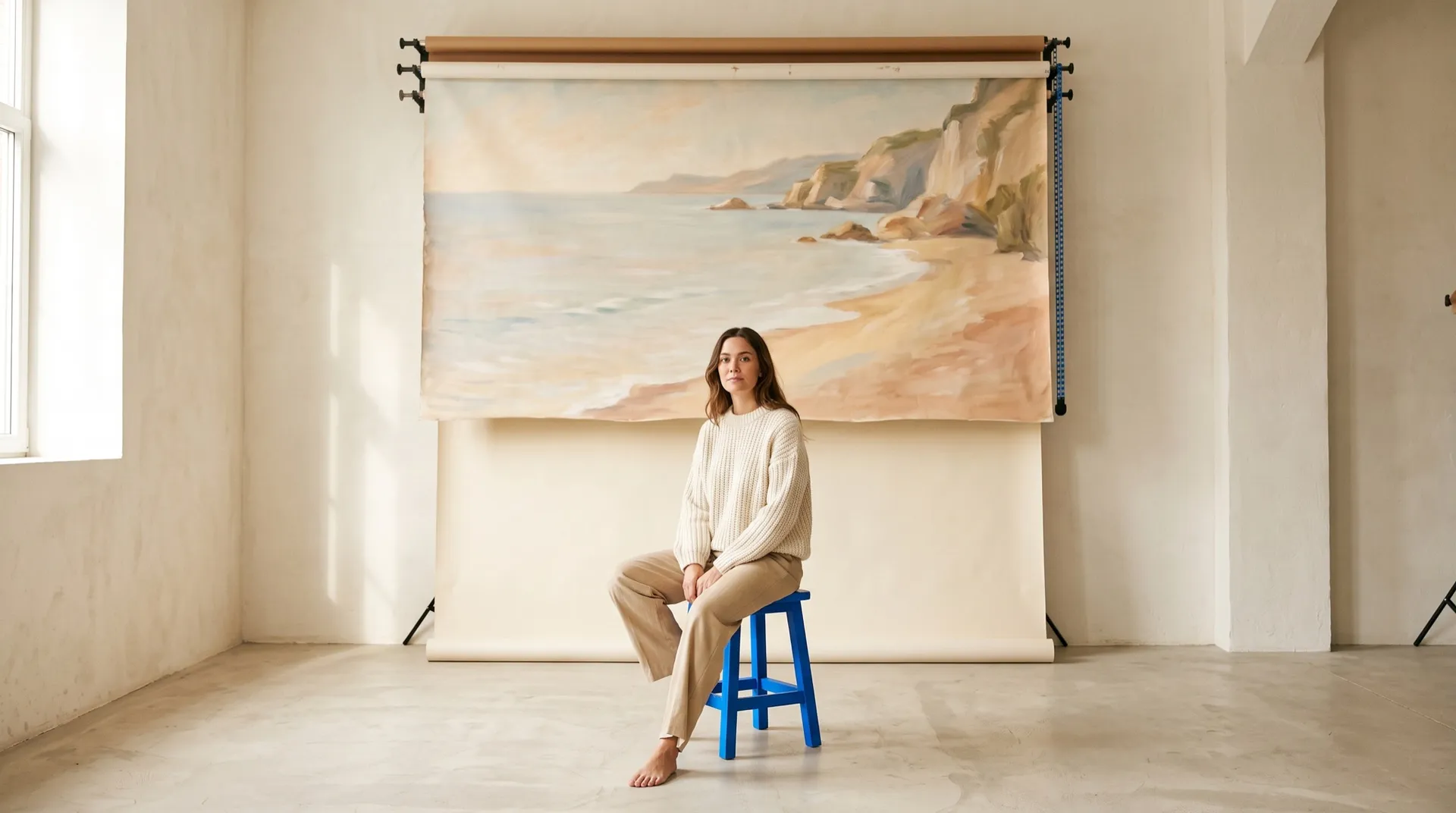
- Edit the reference video: replace the background with a bright white photo studio with a white paper backdrop and soft light from the left. Keep the person, their movements, the camera, and the timing the same.
- Edit the reference video: move the person to a jazz club stage with warm spotlights and a red curtain behind. Keep the person, their gestures, and the framing the same.
- Edit the reference video: move the scene to a quiet Scandinavian cafe with pale wood, plants, and soft window light, slightly out of focus. Keep the person, their actions, and the camera the same.
- Edit the reference video: place the product on a minimal concrete plinth in a sunlit gallery. Keep the product, any hands holding it, the movements, and the camera the same.
- Edit the reference video: use the location in the reference image as the new background. Keep the person, their movements, the camera, and the timing the same.
If the person sits on or leans against something from the old room, say what it becomes in the new one.
Recasting Prompts
Recasting replaces the performer with a different person from a photo, while following the original motion and blocking. Use it only with footage you own and with people who have agreed, both the original performer and the person in the photo.
- Edit the reference video: replace the person with the person in the reference image. Keep their movements, gestures, the clothing, the background, the camera, and the timing the same.
- Edit the reference video: replace only the face and hair of the person with those of the person in the reference image, and ignore the clothing in the photo. Keep the outfit, the gestures, the background, and the framing the same.
A clear, well-lit, front-facing reference photo gives the most consistent result, whether you recast the whole performer or only do a face swap in a video.
Combining Edits in One Prompt
Two compatible edits can run in one generation. Keep it to two, and list both before the keep list.
- Edit the reference video: remove the people in the background and change the time to blue hour with warm lights coming on in the distance. Keep the main subject, their movements, and the camera the same.
- Edit the reference video: change the season to autumn and restyle as 1970s 16mm film with warm faded color and grain. Keep the people, their movements, and the timing the same.
- Edit the reference video: dress the person in a yellow raincoat and change the weather to light rain with wet ground. Keep the person, their movements, and the camera the same.
If a combined edit comes back with one change missing, run them as two edits instead: make the first, open the new video, and make the second.
How to Fix a Prompt That Is Not Working
Most failed edits fall into a few patterns, and each has a prompt fix. If the change is too weak, add visual detail to it. If it spreads to things that should stay, name those things in the keep list. If the motion or camera drifts, describe it in plain words ("keep the slow pan from left to right").
If the subject's face or clothes shift, add "keep the person's face, hair, and clothing the same." And if nothing works after a few tries, test the same prompt on a second model; each one interprets edits a little differently. Our AI video generation prompt book covers prompting for new clips, which helps when you are writing the visual detail in the change part.
The Bottom Line
Good AI video editing prompts share one shape: "Edit the reference video:", one concrete change described visually, and a keep list for what should stay. Start from the prompt closest to the edit you need, adjust the details, and fill in any [brackets] with what is in your shot.
If a result misses, add visual detail to the change or name more in the keep list before switching models. Run two edits in one prompt only when they are compatible.
Try these prompts in Create video
Frequently Asked Questions
A good AI video editing prompt names one concrete change and then lists what should stay the same. The pattern is "Edit the reference video: [the change]. Keep [subject, motion, camera, timing] the same." For example: "Edit the reference video: change the scene to a rainy night with wet reflections. Keep the person, their movements, the camera, and the timing the same." Specific visual detail in the change and an explicit keep list give the most reliable results.
Attach the video to a model that supports video references and describe the new look: a style plus the two or three pieces that define it, for example "change the person's outfit to Y2K streetwear: a cropped puffer jacket, baggy low-rise jeans, and chunky sneakers," followed by a keep list for the person, their movements, the background, and the camera. For a specific product, attach a photo of it as an image reference and refer to it in the prompt.
Yes. A video-to-video model can apply a color grade from a text prompt, such as "warm amber highlights, deep teal shadows, slightly crushed blacks." Because the model regenerates the clip, check skin tones and product colors after grading, and add any color that must not change to the keep list. For exact numeric grading, a traditional color tool is still more precise.
Describe the new light by its source, direction, color, and softness, such as "warm golden-hour sunlight coming low from the right, with long soft shadows," and keep the person, location, and camera the same. Naming where the light comes from is the most important detail; vague prompts like "better lighting" give inconsistent results.
Describe the new weather by how it looks on surfaces as well as in the sky: wet reflective surfaces for rain, a thin layer of snow on the ground for snow, everything in the distance fading into grey for fog. Add a keep list for the people, their movements, and the camera. When moving to night, include at least one light source so the scene stays readable.
Yes, two compatible edits usually work in one prompt, such as removing background people and changing the time of day. Name both changes before the keep list. If one change goes missing, run the edits in sequence instead: make the first edit, open the new video, and apply the second.
Related Articles