What Is Video-to-Video AI? How It Works and Its Limits
Video-to-video AI is a type of generative video model that takes an existing video as input and produces a new video guided by it. The source clip supplies motion, timing, camera movement, and composition, while a text prompt describes what should change, such as the background, the weather, an outfit, or the entire visual style. The output is a newly generated clip, not a filtered copy. In getimg.ai, video-to-video runs on Seedance 2.5, MiniMax H3, MiniMax H3 Max, and Wan 3.0.
How Video-to-Video AI Works
A video-to-video model treats your clip as a reference, the same way an image model can treat a photo as a reference. During generation, the model reads the source for structure: where things are, how they move, how the camera travels, and when each movement happens. It then generates a new clip from scratch that follows that structure while applying the change in your prompt.
That is different from a filter, which adjusts the existing pixels (color, contrast, blur), and from a mask-based VFX tool, which replaces a selected region and leaves the rest of the footage alone. A video-to-video model rebuilds every part of the clip. When you ask it to remove a bicycle, it regenerates the whole shot with no bicycle in it, using the original to keep everything else as close as possible to what was there.
This approach has a clear upside and a clear trade-off. The upside: the model can make changes that would be very hard to do by hand, like converting a sunny afternoon into a stormy night with matching reflections and shadows across every surface. The trade-off: because everything is regenerated, fine details can shift slightly between the source and the result. A good prompt narrows that gap by telling the model what to hold on to.
What a Video Reference Carries Into the New Clip
The most useful way to think about a video reference is as a set of properties the model will try to keep unless you tell it otherwise.
Property | What it means | Usually follows the source? |
Motion | How people and objects move | Yes, closely |
Timing | When each action happens | Yes, closely |
Camera | Pans, tracking, push-ins, handheld feel | Yes, closely |
Composition | Where the subject sits in the shot | Yes |
Subject identity | Face, body, clothing details | Usually, better with a keep instruction |
Background detail | Textures, signage, small objects | Approximately; can drift |
Text in the shot | Signs, labels, screens | Often changes; treat as unreliable |
Audio | The original soundtrack | Not carried automatically; see below |
The table explains most results people see. Big structure (motion, timing, camera) transfers well, which is why restyles and relighting look convincing. Small detail (a shop sign, a pattern on a shirt, a background poster) is regenerated and can come back slightly different. If those details matter, name them in the keep list or choose shots where they are not the focus.
What You Can Change With Video-to-Video AI
Almost anything visible can be the target of a video-to-video edit, but some edits are more dependable than others. These worked well in our testing:
- Remove something: a parked bicycle, passers-by crossing the shot, a stray cable.
- Replace the setting: a kitchen becomes a white photo studio, a living room becomes a jazz club stage.
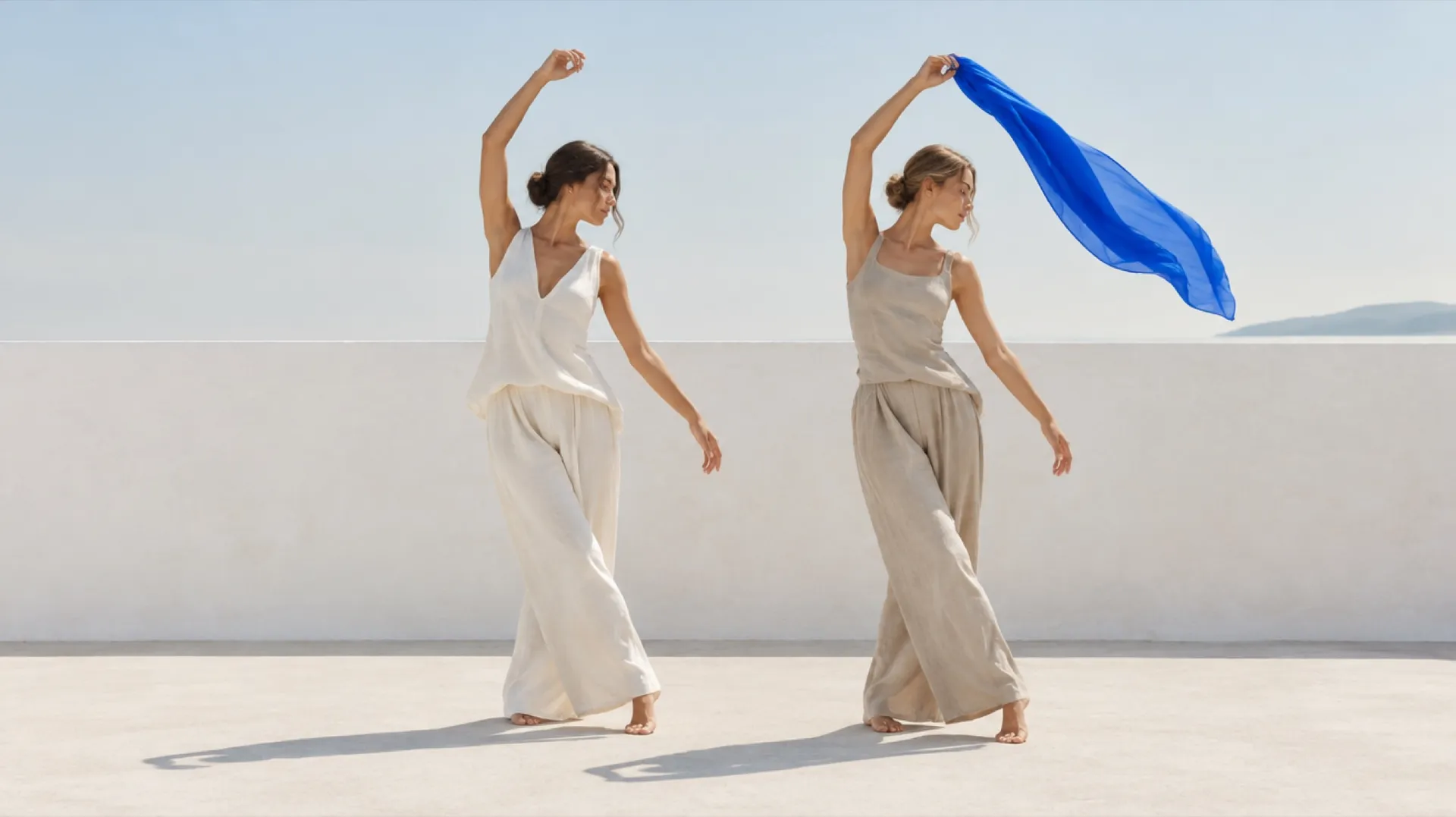
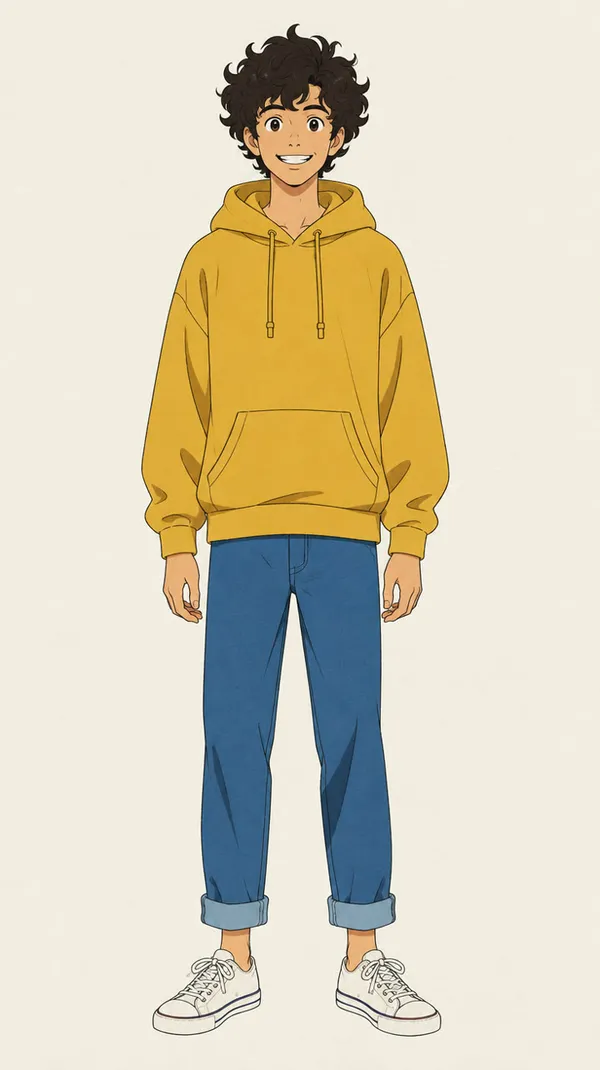
- Change wardrobe or materials: a grey hoodie becomes an orange windbreaker, white sneakers become red suede.
- Change weather or time of day: sunny to stormy night, daylight to a rainy evening.
- Change the season: a summer park turns into autumn foliage.
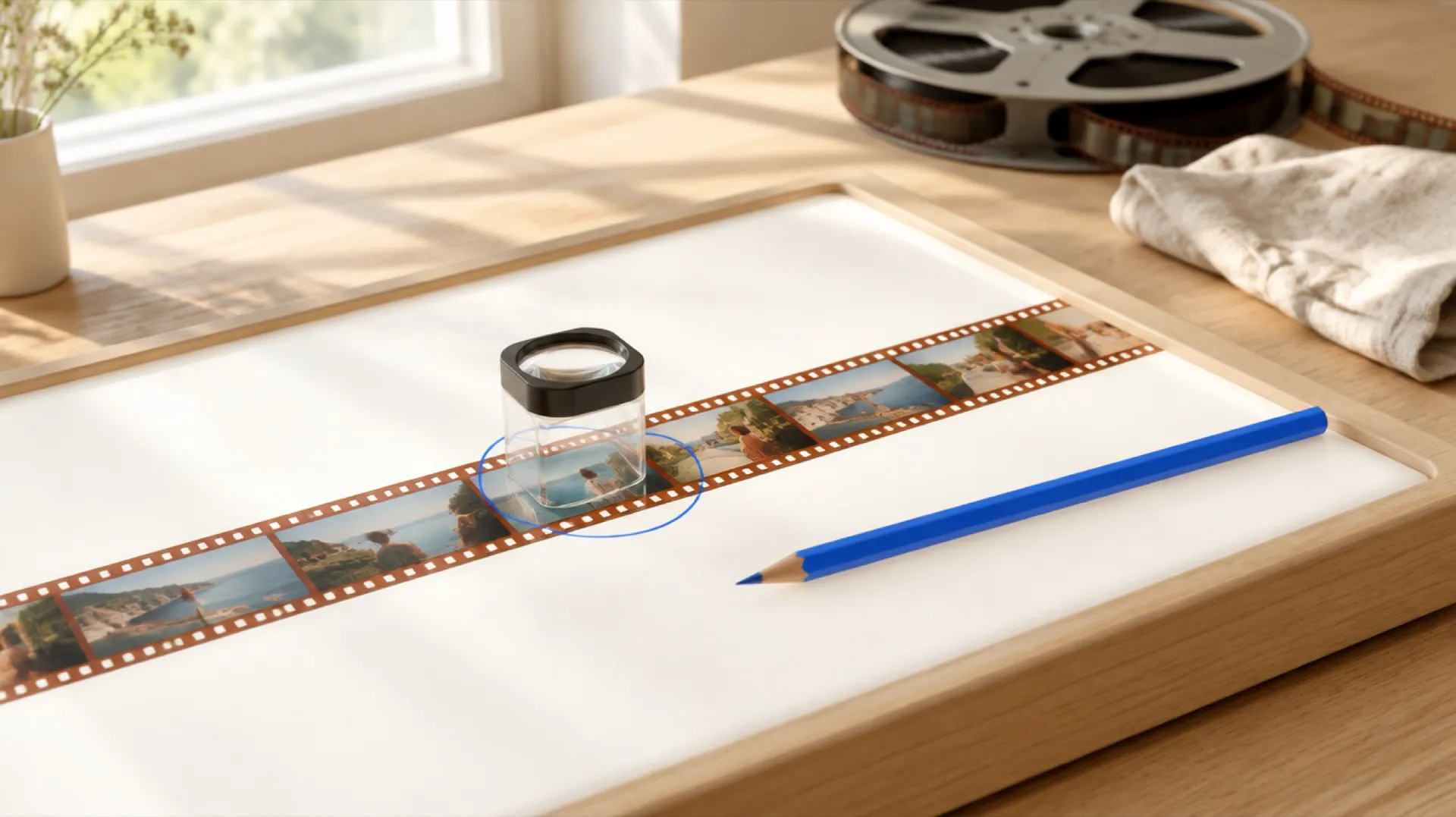
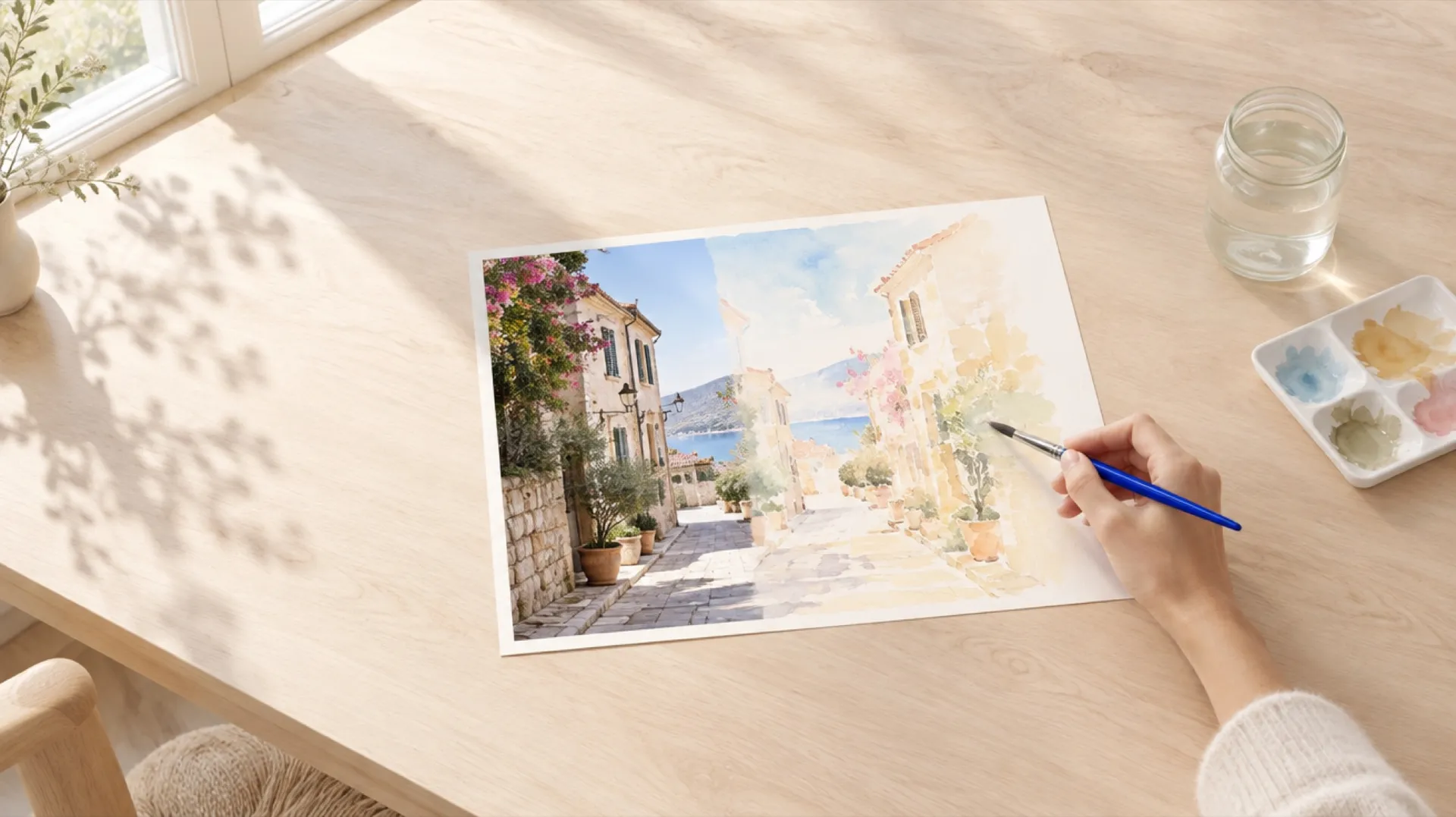
- Restyle the whole clip: anime, a comic book, a pencil sketch, watercolor, or the look of 1970s 16mm film.
- Recast a performer from a photo: the motion follows the original performance with a different person, used only with footage you own and people who agreed.
Whole-clip changes (restyle, weather, season) tend to be the most forgiving, because there is no boundary between edited and unedited areas for the eye to catch. Local changes (removing one object, swapping one garment) need more precise prompting. The specifics differ enough by edit type that each needs its own approach: restyling a video depends on describing style traits, while removal depends on describing what fills the gap.
Combining Video, Image, and Audio References
Video-to-video gets more precise when the video reference is not working alone. On the four models in getimg.ai that accept video references, a single generation can take up to 3 video references, up to 3 audio references, and image references at the same time.
Each reference type does a different job. The video reference supplies motion and structure. An image reference shows the model exactly what something new should look like: the specific jacket for an outfit change, a photo of the location for a background swap, a style frame for a restyle, or a portrait for recasting. An audio reference gives the model a sound to follow, such as a music track or a voice sample.
A prompt can then say how they relate: "Edit the reference video: replace the jacket with the jacket in the reference image. Keep the person, their movements, and the camera the same." This is how brand teams get closer to a specific product or look rather than the model's general idea of "a red jacket." Image references attach through the Reference control in Create video, which also handles reference images for regular video generation when there is no source clip.
Video-to-Video vs Text-to-Video vs Image-to-Video
The three modes differ in what you give the model to start from, and therefore in how much of the result you control.
Mode | Starting input | What you control | Best for |
Text-to-video | A prompt | Content and style, loosely | New ideas, concept shots |
Image-to-video | A still image plus a prompt | The look of the opening shot | Animating a product shot or illustration |
Video-to-video | A video plus a prompt | Motion, timing, camera, composition | Editing real footage, restyling, variations of a shot that already works |
Text-to-video gives the model the most freedom and you the least control over motion. Image-to-video fixes the look of one moment and lets the model invent the movement. Video-to-video is the only one of the three where the motion is decided before you start, which is why it is the right mode for editing: the performance, the blocking, and the camera move already exist, and you change everything else around them.
The Limits of Video-to-Video AI
Clip length is capped per file. In getimg.ai, each attached video can be up to 15 seconds on MiniMax H3, MiniMax H3 Max, and Wan 3.0, and up to 30 seconds on Seedance 2.5. Longer footage needs to be split into segments.
Results follow the source, they do not copy it. Because the whole clip is regenerated, expect close adherence rather than an exact match. Small background details, printed text, and fine patterns are the most likely to shift.
There is no transparent output. Video-to-video models generate a complete scene, so they cannot export a subject on an alpha channel. To place a person over a new background, you describe the new background and the model generates it as part of the clip.
Hard source footage is still hard. Very fast motion, heavy motion blur, dark scenes, and subjects that are mostly hidden give the model less to work from. Faces in extreme close-up and hands doing fine tasks need the most checking.
Audio is a separate question. The models can generate native audio and accept audio references, but if the original soundtrack matters, keeping it in your editor and laying it under the edited clip is the most dependable route.
What Video-to-Video AI Is Used For
The practical uses cluster around one idea: the shot already works, but something about it does not fit the next use.
Marketing teams use video-to-video to make seasonal or regional versions of one shot, change a product's color across a campaign, or move a scene to a different setting without a reshoot. Social creators use it to restyle clips into anime, comic, or film looks for a series, or to clean up distractions in the background of a shot they cannot reshoot. Filmmakers use it for previsualization, testing how a scene reads at night or in rain before committing to a location. Agencies use it to show a client three directions from the same footage in an afternoon.
The video-to-video AI workflow in getimg.ai keeps every version as its own file next to the original, so comparing directions is a matter of playing clips side by side. Commercial use of the results is allowed, subject to our terms and applicable third-party rights, and you still need the rights to the footage you start from.
The Bottom Line
Video-to-video AI generates a new clip guided by one you already have: the source supplies motion, timing, and camera, and the prompt decides what changes. That makes it the right tool when a shot works but something in it does not, from the background and the weather to the whole visual style. It works on short clips, regenerates the full shot rather than patching pixels, and can combine your video with image and audio references in one generation.
Try video-to-video in Create video
Frequently Asked Questions
Video-to-video AI is a generative model that creates a new video guided by an existing one. You provide a source clip and a text prompt; the model follows the clip's motion, timing, camera movement, and composition while applying the change you describe, such as a new background, different weather, an outfit change, or a new visual style. The result is a newly generated clip rather than a filtered version of the original.
A filter adjusts existing pixels, changing color, contrast, or texture, and cannot add or remove content. Video-to-video AI regenerates the whole clip, so it can remove a person, replace a room, change a sunny day into a rainy night, or convert footage into animation. The trade-off is that regeneration can shift small details, while a filter leaves the content itself unchanged.
In getimg.ai, four models accept video files as references and can do video-to-video: Seedance 2.5, MiniMax H3, MiniMax H3 Max, and Wan 3.0. Each takes up to 3 video references and up to 3 audio references per generation, and each can combine them with image references. Other video models in getimg.ai accept still images as references but not video.
In getimg.ai, the cap is per attached file: up to 15 seconds on MiniMax H3, MiniMax H3 Max, and Wan 3.0, and up to 30 seconds on Seedance 2.5. For longer footage, split it into segments and run the same prompt on each, then join the edited segments in your video editor.
Yes, motion is the property it follows most reliably. Movement, timing, and camera work transfer closely from the source clip, which is why restyles and relighting look natural. Fine details such as background text or small patterns are more likely to shift, so mention anything important in the prompt as something to keep the same.
No. Video-to-video models generate a complete scene, so the output always has a background. To put a subject somewhere new, describe the new background in the prompt and the model generates the subject in that setting. Transparent output needs a dedicated keying or rotoscoping tool.
Related Articles