Image Transition Generator: Turn Two Images into One Smooth Video
Add the image the clip starts on and the image it ends on, pick morph, camera travel, zoom through, slow dissolve, whip pan or flash of light, and get a 4 to 8 second video that lands on your second image. Outfit changes, before-and-afters and scene cuts without editing software.
Access 48+ leading AI models. Pay for one subscription.


How to make an image transition video
Two images and one choice of transition are all it takes.
Upload two images
Your starting image and your ending image. Photos, renders or AI-generated pictures all work.
Choose the transition
Morph, camera travel, zoom through, slow dissolve, whip pan or flash of light. Set the duration and aspect ratio for where the video will run.
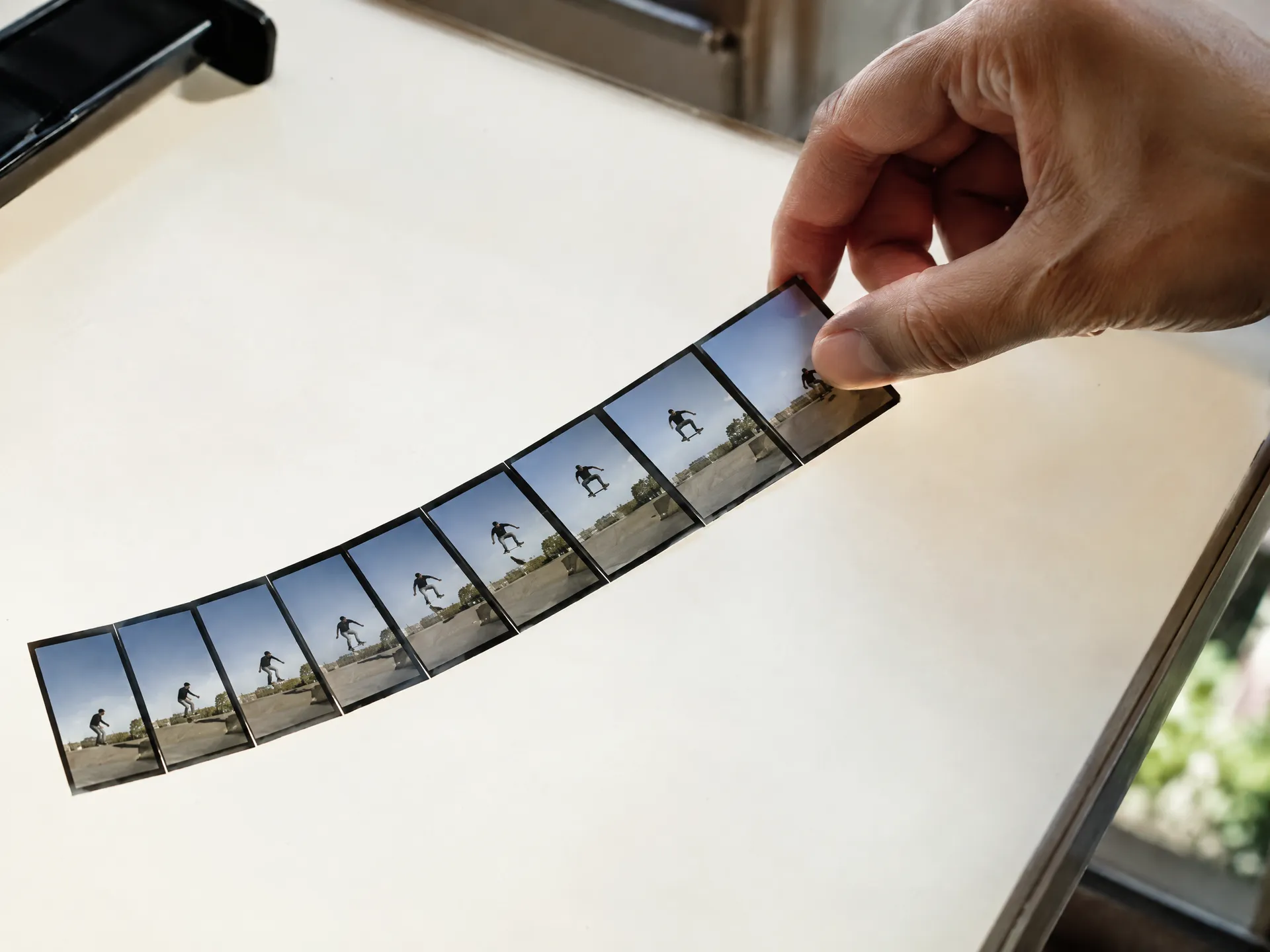
Generate the video
getimg.ai animates everything between the first image and the second, so the video lands on the image you chose.
Cut between destinations with a whip pan
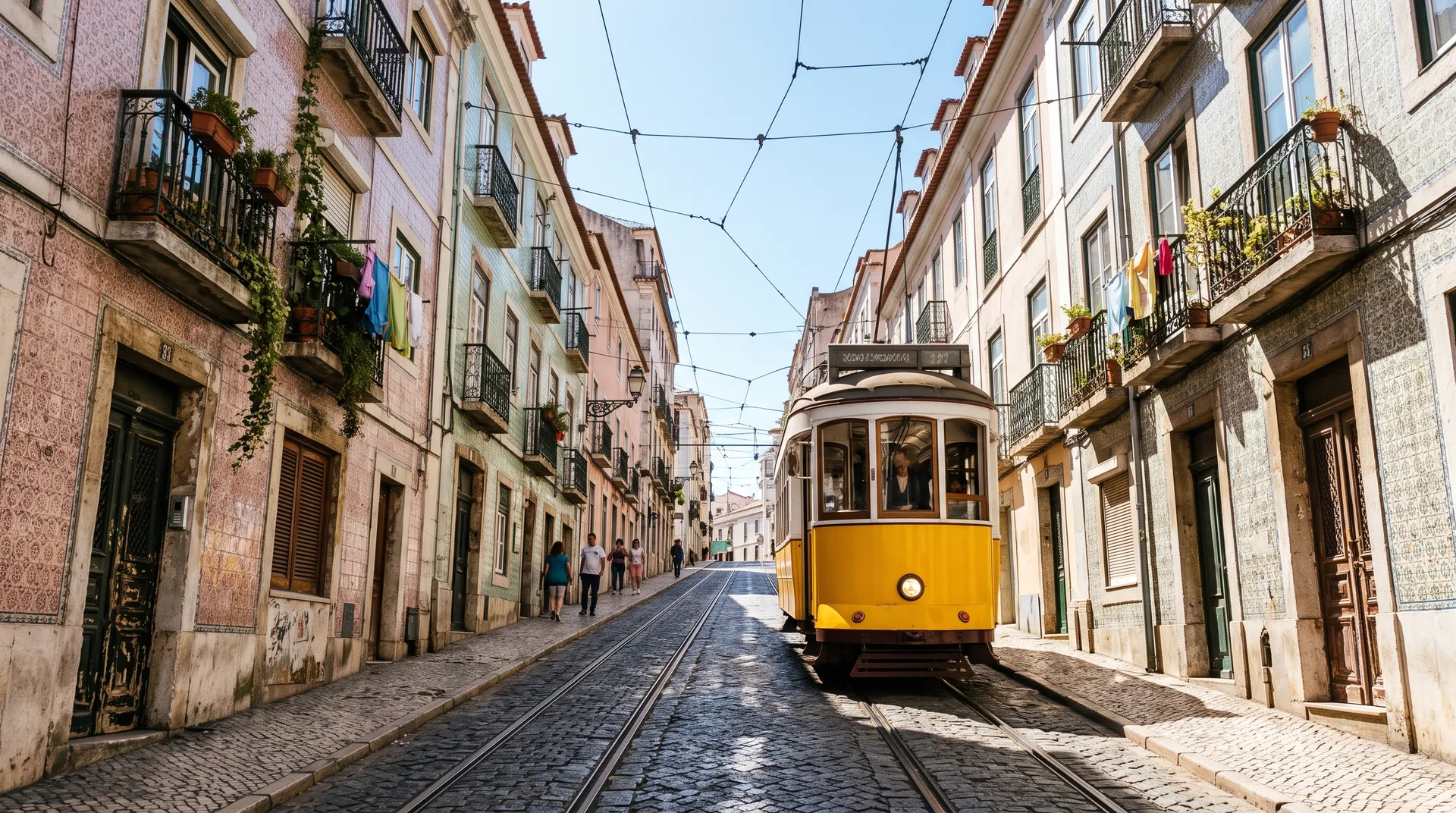
A whip pan is the fast camera swing travel creators use to jump between places. Here a tram climbing a Lisbon street swings away in a blur and lands on a sunlit lane on the Amalfi coast. Two unrelated photos become one four-second clip that feels like a single camera move.
Use it for travel reels, destination ads and itinerary posts, and chain several clips together to tell a whole trip.
Whip pan, made with Image transition on getimg.ai from two photos.
Show the same space from morning to evening
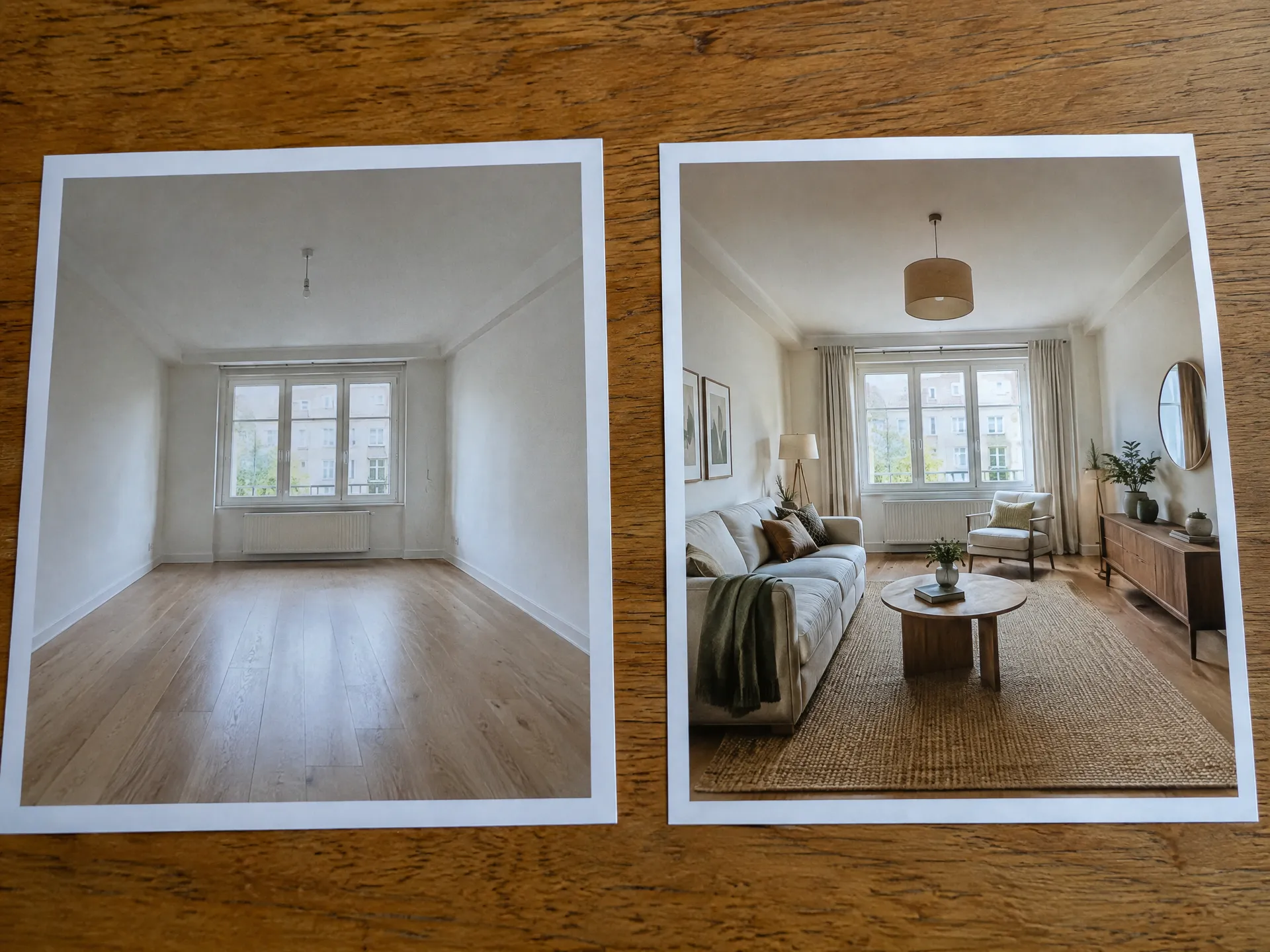
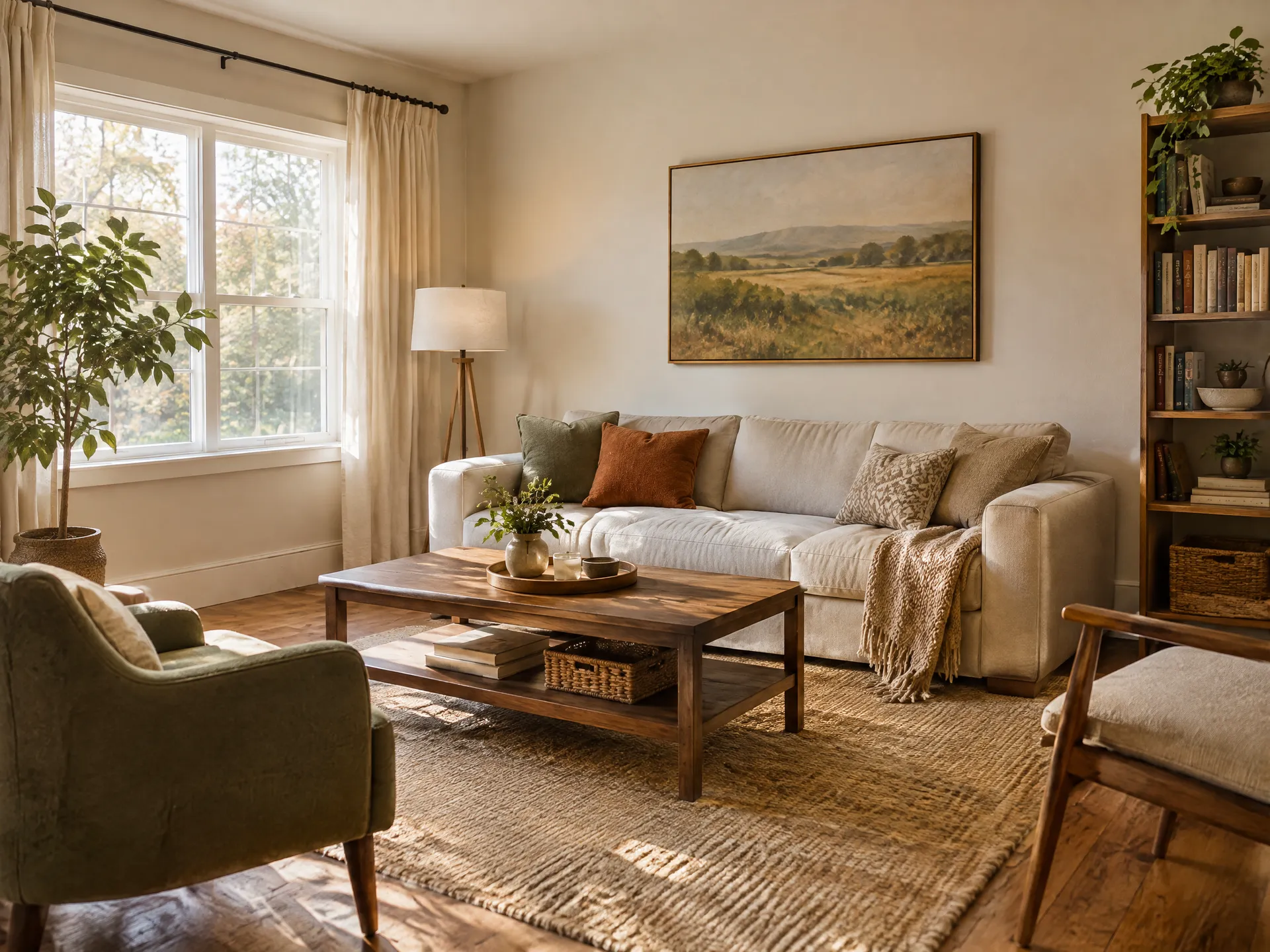
Slow dissolve blends two images that share the same framing, so the change happens in place. This living room goes from a bright winter morning to blue hour with the lamps on, with a note in the text field to keep the camera still.
It works for real estate listings, interior portfolios and hotel marketing, where people want to see how a room feels at different times of day.
Slow dissolve, made with Image transition on getimg.ai from two photos.
What creators make with image transitions
The scroll-stopping moment is the change. Transitions make the change the whole video.
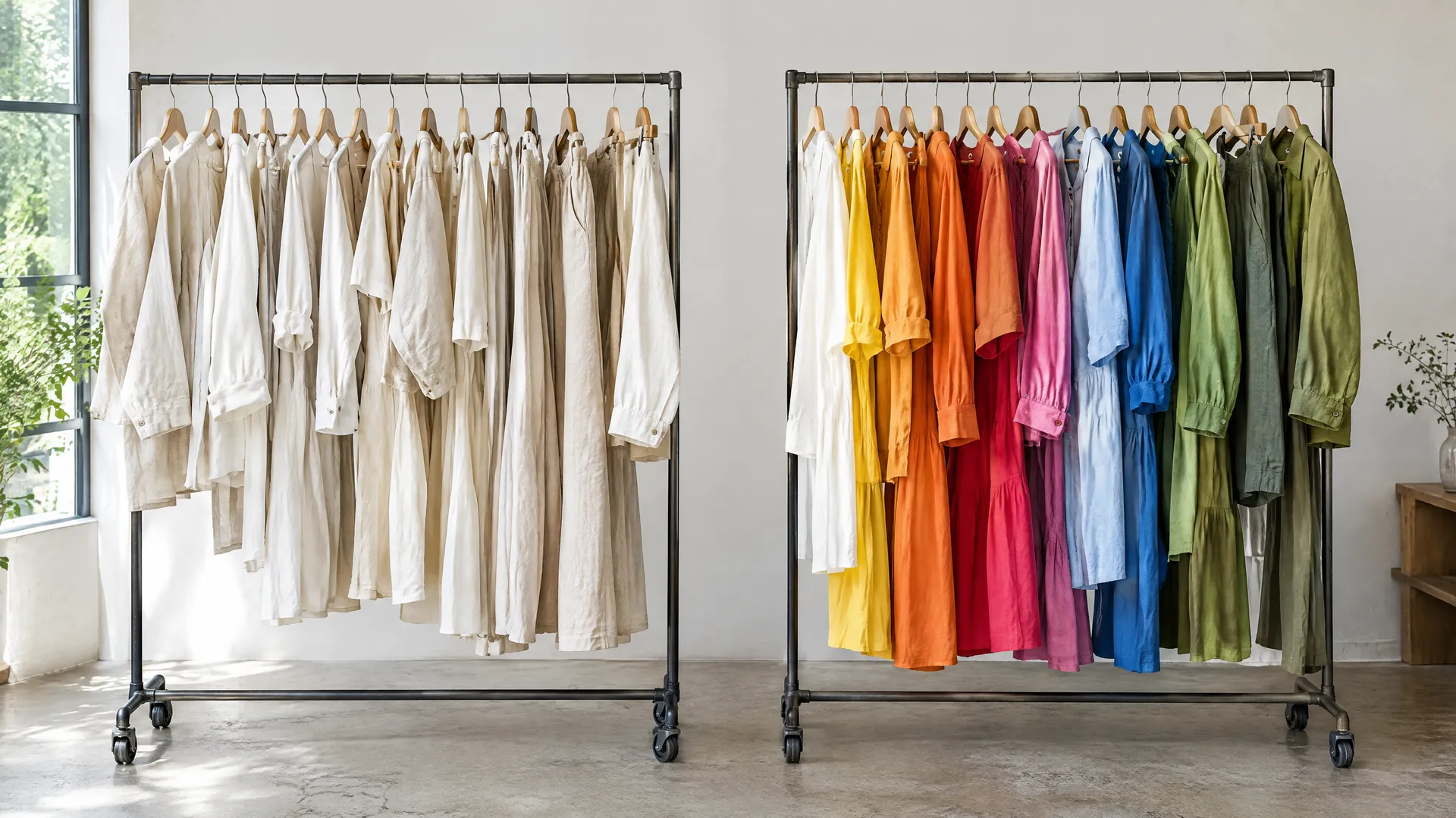
Skip the keyframes
getimg.ai
Add two images
Where the clip starts and where it ends.
Pick a transition
Morph, camera travel, zoom through, slow dissolve, whip pan or flash of light.
Get the clip
4, 5 or 8 seconds, up to 1080p.
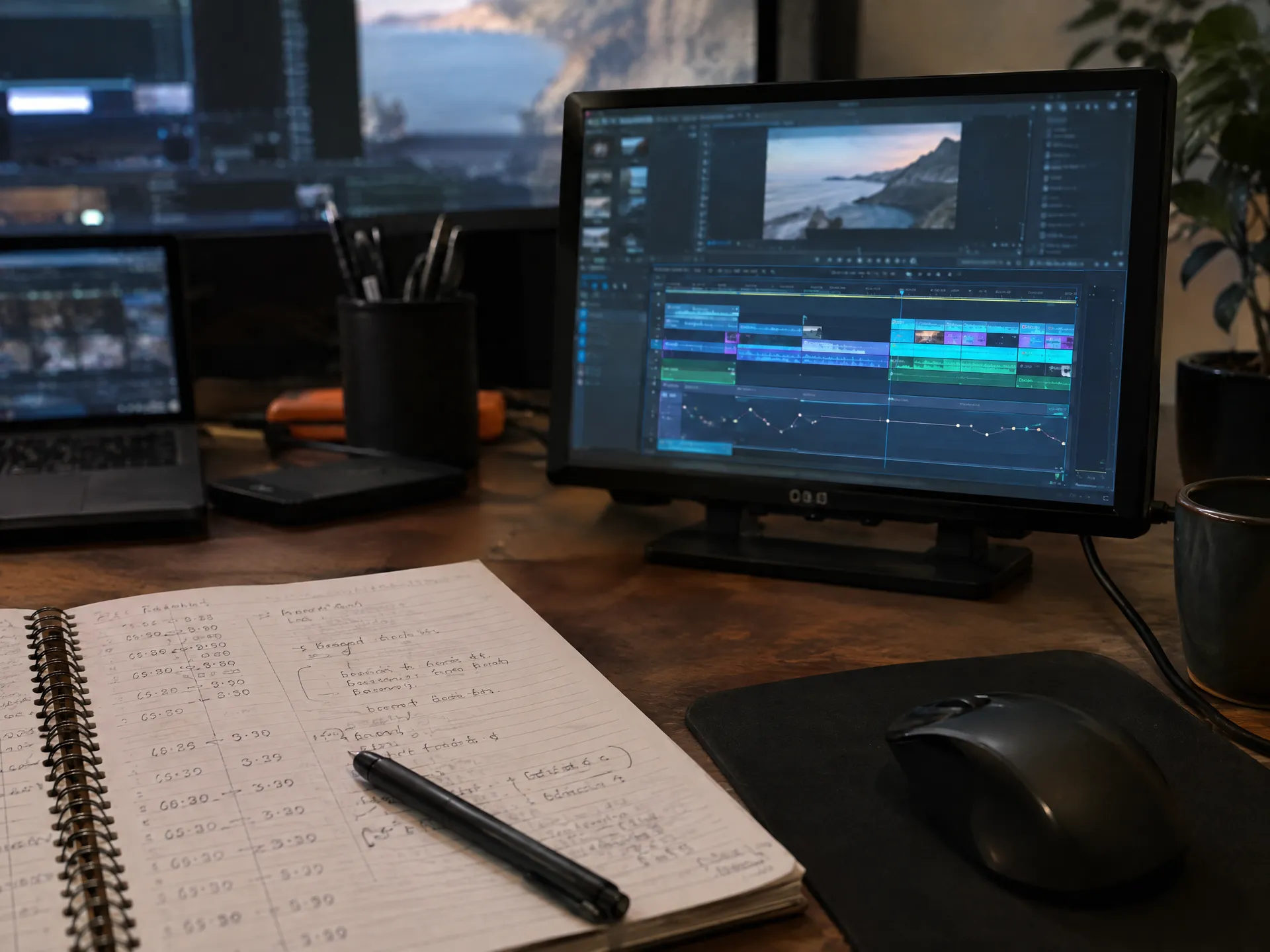
Editing a transition by hand
- Set up layers, masks and keyframes for each change
- Fake the in-between with template crossfades and wipes
- Render and export again for every tweak
- Match the motion to your final image by eye
- Rebuild it for every new format
Get a smoother transition
The two images you pick decide most of the result. These habits make the move between them look intentional.
Frequently asked questions
It's a short video generated between two images. You provide the first and last image, and AI creates the motion that connects them.
getimg.ai picks a video model that can start on one image and end on another, so you don't need to choose one yourself.
Yes. Choose 9:16 for vertical platforms or 16:9 for YouTube, websites and presentations.
No, but results are smoother when the framing is similar. For big jumps between unrelated images, zoom through, whip pan or flash of light work better than morph.
Morph, camera travel, zoom through, slow dissolve, whip pan and flash of light.
4, 5 or 8 seconds, at 480p, 720p or 1080p.
Generate or edit the second image from the first in Create image, for example the same room at night or the same person in a new outfit. Both images then share the framing, which gives the smoothest morph or dissolve.
Yes. All paid plans include commercial rights, subject to our terms and applicable third-party rights. Plans start at $8 a month.
From this image to that one
Add two images, pick a transition and get the clip.