Guide to Video References
Learn how to use image, video, and audio references in AI video generation to control who, what, and which sounds appear in your clip.
What Are Video References
Reference images help the AI understand what should appear during your video, not just at the start or end.
They can guide things like:
- Showing a person or character you want to appear mid-scene
- Including a specific object or product, like a car, camera, or outfit
- Pointing to a place or background you want to use later in the clip.
You can attach more than one reference image at once. The AI studies them while generating, using their details to match people, objects, and environments from your prompt. How many you can attach depends on the model you generate with, and on Auto it follows whichever model Auto picks.
Five models also accept video files as references, not just images: Seedance 2.5, MiniMax H3, MiniMax H3 Max, Wan 3.0, and Kling 4.0. The first four take audio files as references too.
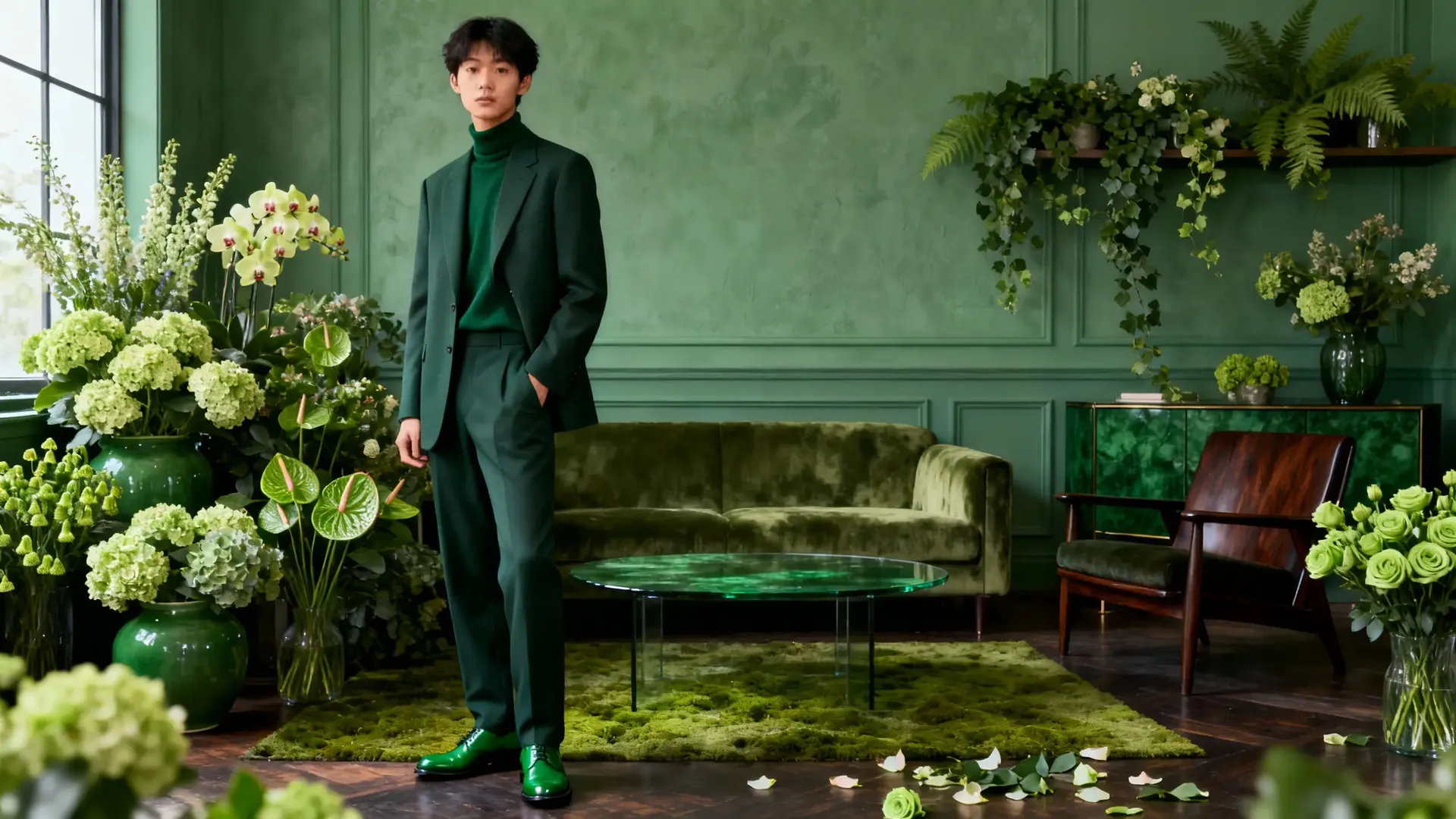

Reference Image 1
Reference Image 2
people from image 1 and 2 meet and shake hands in a green room with flowers
How to Add Video References
You add references by attaching images, then assigning their role.
Step 1. Select Reference Images
First, log into getimg.ai and open the Create video Action (click "Video", then "Create video"). Adding references works just like setting First or Last Frames. Then:
- Click the Reference button in the prompt box.
- Pick existing images or upload new ones.
To remove a reference, hover over its thumbnail and click the X in the top-right corner.
You can’t combine references with First or Last Frame in the same generation: pick one method per video.
Step 2. Write a Prompt
Once you’ve added reference images, you can mention them directly in your text prompt.
For example:
- The person from image 1 walks into the room holding the object from image 2.
- Then, the car from image 3 starts driving past the building from image 4.
- The logo from image 1 appears on the billboard in the background.
The AI links each numbered image to the corresponding element in your prompt.
Step 3. Generate
Adjust the parameters (length, number of variants, aspect ratio, model), and click the arrow next to the prompt box.
Wait a moment for the video to generate: it will include the elements from your selected reference images.
Video and Audio References
On Seedance 2.5, MiniMax H3, MiniMax H3 Max, and Wan 3.0, a reference can be a video file or an audio file, not only a still image. On Kling 4.0, it can be a video file. The AI studies them while generating, the same way it studies reference images.
What You Can Attach
- Up to 3 video references per generation (up to 5 on Kling 4.0)
- Up to 3 audio references per generation (not on Kling 4.0)
- Reference images alongside them, in the same generation. The image limit varies by model: Kling 4.0 takes up to 10, MiniMax H3 up to 9, MiniMax H3 Max up to 2.
How Long a Reference Video Can Be
- MiniMax H3, MiniMax H3 Max, and Wan 3.0: up to 15 seconds per attached file, audio as well as video
- Seedance 2.5: longer clips are fine, a 30-second video attaches without a problem.
- Kling 4.0: up to 30 seconds in total across all attached clips
How to Add Them
- Open the model picker in the bottom-left of the prompt box and choose Seedance 2.5, MiniMax H3, MiniMax H3 Max, Wan 3.0, or Kling 4.0.
- Click the Reference button in the prompt box.
- Upload your video or audio file, or pick one you have already generated. The thumbnails appear in the prompt box next to any images you have attached. You can also hover a video in your gallery, click ⋯, and pick Use as reference in video.
- Write your prompt, then click the arrow next to the prompt box.
Edit a Video You Already Have
Click any video in your gallery or a folder, including one you uploaded, to open it in full view. The prompt box below it already has that video attached as a reference, so you can skip the upload and just describe the change. In the model picker, you can choose from the available models that support videos as references. Click the arrow to generate: the edit comes back as a new video and the original stays untouched.
Video references work on these five models only, and audio references on all of them except Kling 4.0. Every other video model takes reference images. If you can’t attach a clip or a sound file, check which model is selected in the picker.
Now it's time for you to try it. Start small: add a reference or two and see how much more control you get over your videos!
Using the same person, product, or style across several videos? Save it as an Element and add it with @ElementName instead of reattaching the same reference images. See the Guide to Elements.
Frequently Asked Questions
A First Frame locks the exact starting image of your video: the clip begins exactly as that image looks. A Reference Image acts as a guide for the AI to understand what to include (like a character, product, or location) at some point during the video, but it does not dictate the starting camera angle or composition.
No. These are two separate control methods. You cannot combine them in a single generation. If you need the video to start from a specific image, use First Frame. If you want a specific character or object to appear in a new scene, use Reference Images.
It depends on the model. There is no single limit across getimg.ai: each video model sets its own, and on Auto it follows whichever model Auto picks for your prompt. Kling 4.0 takes up to 10 reference images, MiniMax H3 up to 9 and MiniMax H3 Max up to 2, for example. If you need a specific number, choose the model yourself from the model button in the bottom left of the prompt box. Attaching several lets you define the character, the environment and multiple props at once by referencing “image 1,” “image 2,” “image 3,” and so on.
Yes. This is one of the best use cases. By uploading a clear image of a character and referring to them as "the person from image 1," you guide the AI to generate that specific person's likeness throughout the video clip, rather than generating a random person.
Yes, on five models: Seedance 2.5, MiniMax H3, MiniMax H3 Max, Wan 3.0, and Kling 4.0. On the first four you can attach up to 3 video references and up to 3 audio references per generation. Kling 4.0 takes up to 5 video references, 30 seconds in total, and no audio references. All five combine video references with reference images in the same video. Every other video model takes reference images only.
Up to 15 seconds per attached file on MiniMax H3, MiniMax H3 Max and Wan 3.0, and that limit covers audio as well as video: MiniMax H3 will not take a 30-second music track. Seedance 2.5 takes 30 seconds of either, which is why a full-length track fits there and not on the others. On Kling 4.0, which takes video only, the attached clips can run up to 30 seconds in total.
Yes, on Seedance 2.5, MiniMax H3, MiniMax H3 Max, and Wan 3.0. A single generation can use all three reference types at once: up to 3 video references, up to 3 audio references, and reference images alongside them. The image limit varies by model, with MiniMax H3 taking up to 9 and MiniMax H3 Max up to 2. Kling 4.0 mixes video and image references (up to 5 videos and 10 images) but does not take audio.