How to Make UGC Videos with AI
A UGC video is the creator-style clip that has become the default format for social ads: a person on camera talking about a product as if recommending it to a friend. Making one with AI means generating that clip from inputs rather than filming it. You add a few product photos and a photo of the presenter, type the product name and what makes it good, and choose a tone, and the model produces a presenter delivering it. On getimg.ai the UGC video Action does this in one flow.
TL;DR
- AI UGC video generates a creator-style clip of a presenter talking about your product.
- In getimg.ai, open the UGC video Action, add product photos (up to three) and one photo of the presenter, and type the product name and its selling points.
- Choose a tone: casual, excited, review, explainer, or recommending.
- Set the quality (480p, 720p, 1080p) and duration (5s to 25s), then generate.
- Only use a presenter photo of someone who has consented to appear.
What an AI UGC Video Is
User-generated-content style video, a real-seeming person talking to camera, outperforms polished ads on most social feeds because it reads as authentic and personal. The problem for brands is supply: producing UGC means finding creators, briefing them, waiting for footage, and paying per video, which does not scale to the volume of variations that social advertising eats through.
AI UGC video generates the clip from your inputs. You provide the product, a presenter, and the message, and the model produces a presenter delivering that message to camera in the tone you choose. It compresses casting, filming, and editing into a single generation, so a brand can produce presenter-led clips at the pace testing demands. Because these are generated rather than filmed, they come with a responsibility to use them honestly, which the sections below cover.
When to Use It (and When to Film a Real Creator)
AI UGC video fits high-volume, fast-turnaround social content:
- Ad testing at scale, generating many presenter and message variations to find what performs.
- Product launches and promotions, producing presenter clips quickly for a new item or offer.
- Multi-product catalogues, giving many products a talking-presenter video without a shoot each.
- Concepts and previews, showing how a UGC ad could look before commissioning creators.
Filming a real creator still wins when genuine, disclosed authenticity is the whole point: a trusted creator's real experience, a testimonial that must be true, or a partnership where the person's actual endorsement carries the message. AI UGC is for volume, speed, and variation; a real creator is for authentic advocacy. And wherever you use AI-generated presenters, be clear and compliant: do not present a generated clip as a real person's genuine testimonial, and follow the advertising and disclosure rules in your market.
How to Make a UGC Video with AI, Step by Step
Here is the workflow in getimg.ai. Open the UGC video Action to follow along.
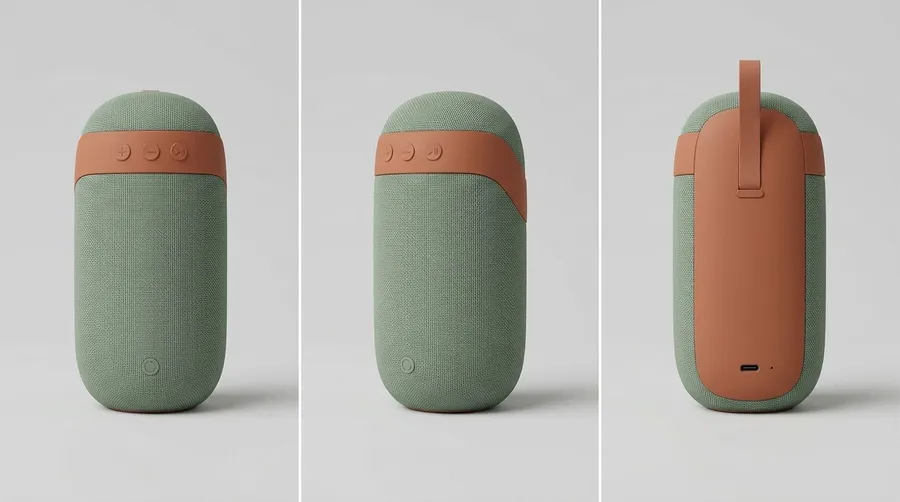
1. Add your product photos
Add up to three photos of the product: different angles, the packaging, and an in-use shot if you have one. These keep the product accurate when it appears in the clip, so clear references matter.
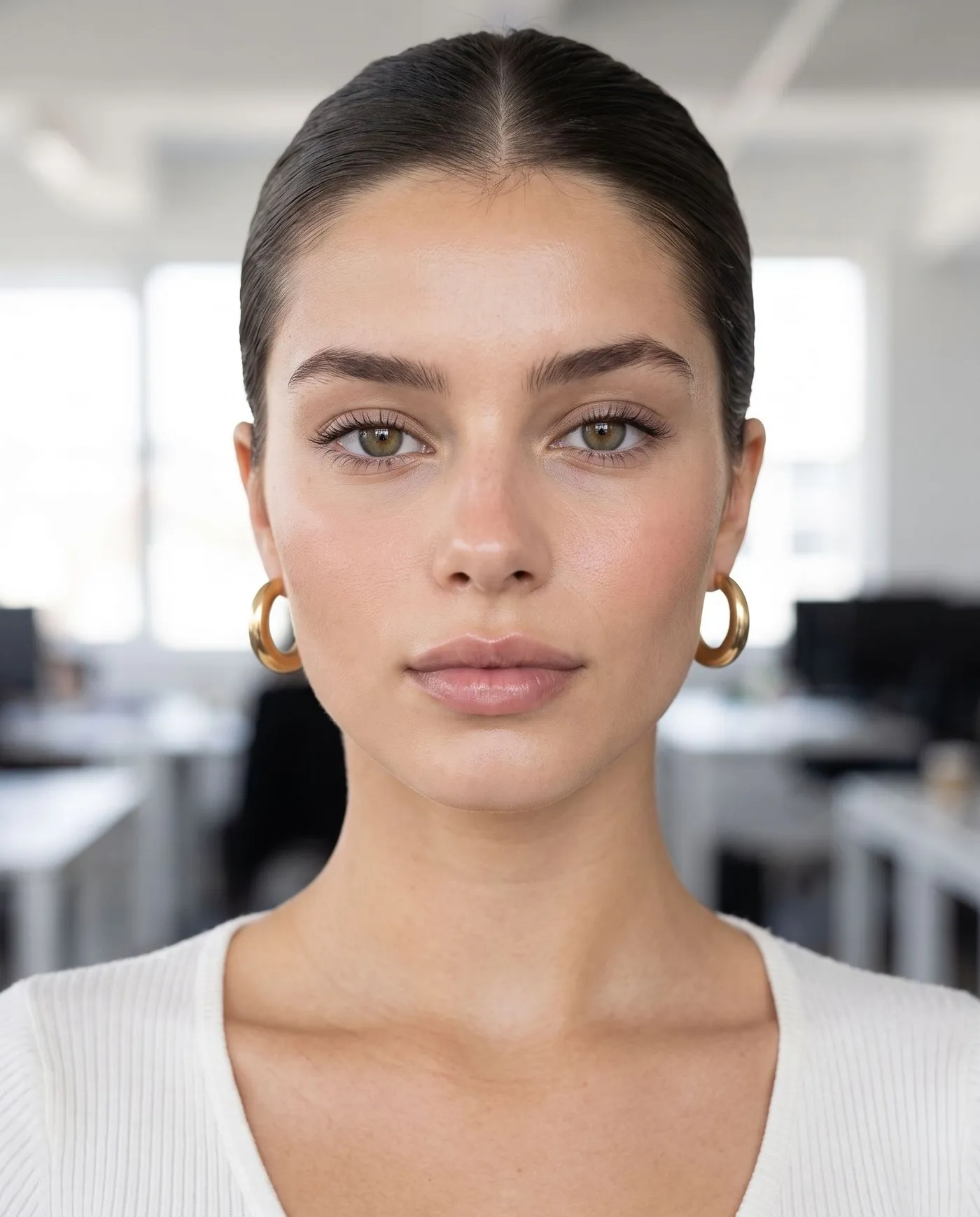
2. Add a photo of the presenter
Add one photo of the person who should be on camera, head and shoulders. Use a photo of someone who has agreed to appear as a presenter; this is a likeness that will speak on camera, so consent is essential.
3. Write the product name and selling points
Type the product name and, in the "what makes it good" field, describe or list its features and benefits. This is the substance the presenter will talk about, so be specific about what the product does and why it matters.
4. Choose the tone
Pick how the presenter should come across: casual for a friendly, everyday feel, excited for high energy, review for a considered opinion, explainer for a clear walkthrough, or recommending for a warm endorsement. The tone shapes the delivery and the script.
5. Set quality and duration, then generate
Choose the resolution (480p, 720p, or 1080p) and the duration (5s, 10s, 15s, 20s, or 25s). Match the length to the platform, shorter for a hook, longer for an explainer. Run the Action and the clip appears in the gallery to the right of the controls.
How to Get a UGC Video That Performs
- Give clear product references. Up to three good photos keep the product accurate on camera. Show it from a couple of angles and in use if you can.
- Be specific about the benefits. The "what makes it good" field is the script's raw material. Concrete, specific selling points produce a more convincing presenter than vague claims.
- Match tone to platform and product. Casual and excited suit fast social feeds; review and explainer suit considered purchases. The right tone does a lot of the persuasion.
- Size the duration to the placement. A 5 to 10 second clip works as a hook or a short ad; 15 to 25 seconds suits an explainer or a fuller pitch.
- Generate variations to test. The strength of a generated workflow is volume. Produce several tone and message versions and let performance data pick the winner.
UGC Video in a Product Content Workflow
UGC video is one part of a product's video and social presence. It pairs naturally with the Product shots Action for still imagery and the Product orbit Action for a 360 view, giving a listing or a campaign a full set of assets.
For anything beyond the preset format, such as a custom scene or motion, the open-ended Create video generator gives full control, and presenter-led clips are a core part of a modern social media content workflow.
The Bottom Line
AI UGC video turns casting, filming, and editing into a single generation: add product photos and a presenter, write the product name and its selling points, choose a tone, and generate. It is built for the volume and speed that social advertising demands, and it comes with a clear responsibility to use consented presenters and to follow the disclosure rules where your ads run.
Open the UGC video Action in getimg.ai, add a product and a presenter photo, and generate a short clip to see the format. Commercial rights are included, subject to our terms and applicable third-party rights.
Frequently Asked Questions
Up to three product photos, one head-and-shoulders photo of the presenter, the product name, and a description of what makes the product good. You then choose a tone and set the quality and duration. The product photos keep the item accurate, and the presenter photo becomes the person on camera.
You choose a tone: casual, excited, review, explainer, or recommending. This shapes both the delivery and the script the presenter uses, so you can match the clip to the platform and the product, from a high-energy hook to a measured review.
Yes. The presenter photo becomes a likeness that speaks on camera, so only use a photo of someone who has consented to appear. Using a person's likeness without permission, or presenting a generated clip as a real person's genuine testimonial, is against our terms and, in many places, against the law.
You can generate clips of 5, 10, 15, 20, or 25 seconds, at 480p, 720p, or 1080p. Shorter clips work as hooks and short ads; longer ones suit explainers and fuller pitches. Match the duration to where the video will run.
Follow the advertising and disclosure rules in your market. Many jurisdictions and platforms require that AI-generated or synthetic media be labelled, especially in advertising. Being clear that a presenter is AI-generated keeps your ads honest and compliant.
Commercial rights are included, subject to our terms and applicable third-party rights. You are responsible for the consent and rights to the presenter's likeness and the product shown.
Related Articles