How to Create Image Transitions in Video with AI
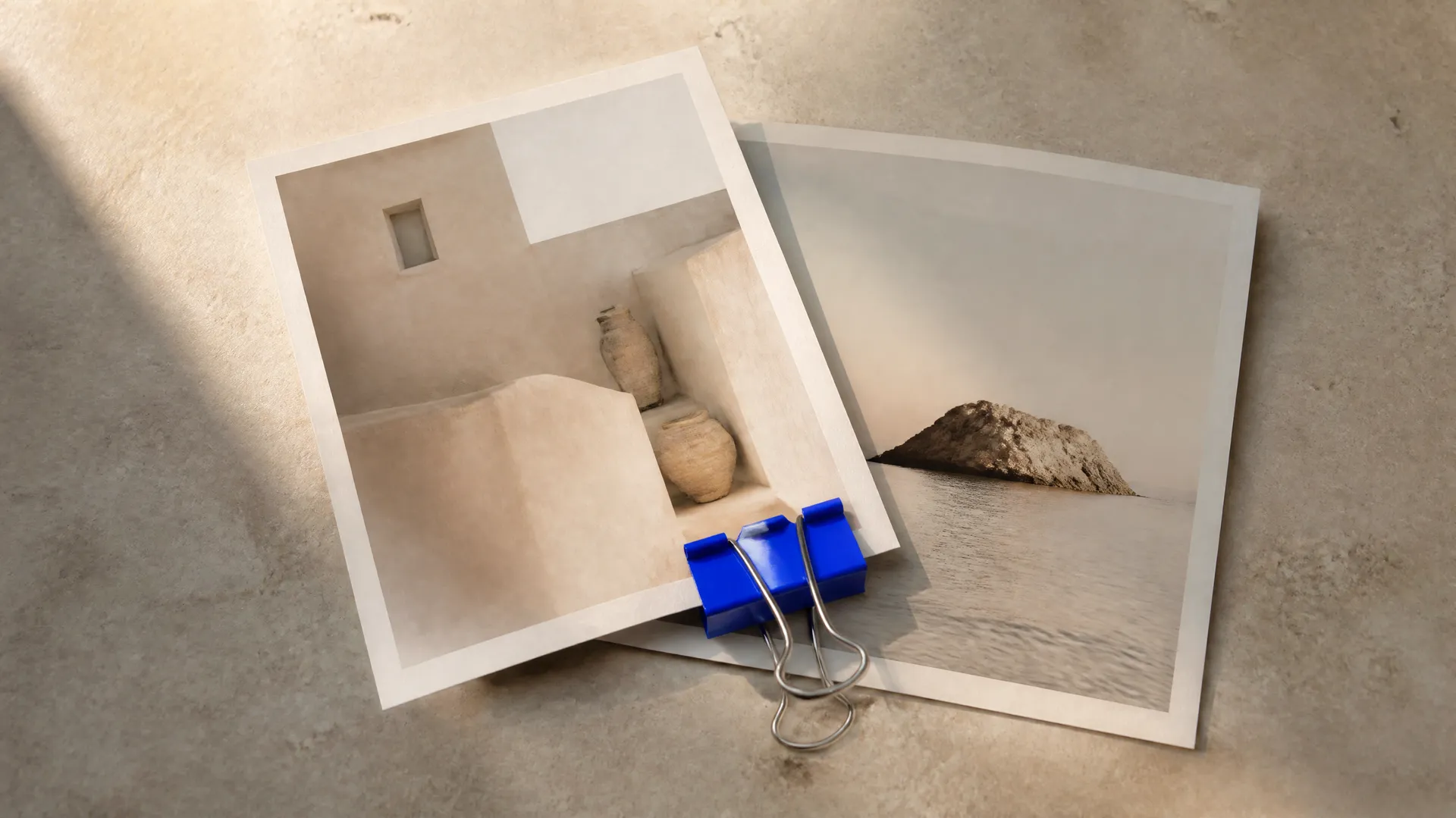
An image transition is a short video clip that travels from one image to another: a morph, a camera move, a dissolve, or a whip pan that carries the viewer from a start frame to an end frame. Creating one with AI means generating that in-between motion automatically. You add the image the clip starts on and the one it ends on, choose a transition style, and the model animates the change. On getimg.ai the Image transition Action does this from two images, so you get the connecting motion without keyframing it by hand.
TL;DR
- An image transition generates a video clip that moves from a first image to a second.
- In getimg.ai, open the Image transition Action, add the start image and the end image, and choose a transition.
- Transitions include morph, camera travel, zoom through, slow dissolve, whip pan, and flash of light.
- Set the quality (480p, 720p, 1080p), aspect ratio, and duration (4s, 5s, or 8s).
- It turns two stills into a single connected clip.
What an AI Image Transition Is
Getting from one shot to another is a craft of its own. A hard cut is simple, but a transition, a morph between two faces, a seamless zoom from a wide to a detail, a whip pan between scenes, adds motion and polish that a cut cannot. Building those by hand means keyframing in an editor, matching motion and timing, and often masking or warping frame by frame, which is skilled and slow.
An AI image transition generates the connecting motion for you. Given a start frame and an end frame, the model invents the in-between, morphing, traveling, or dissolving from one to the other in the style you choose, and outputs it as a finished clip. It is a focused way to produce the kind of transition that used to belong to motion designers, from just two images and a choice.
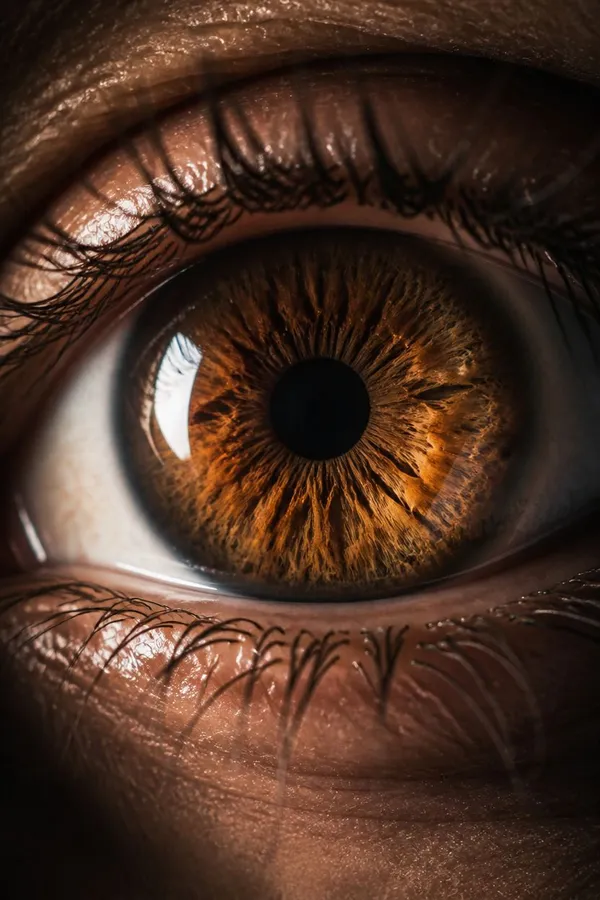
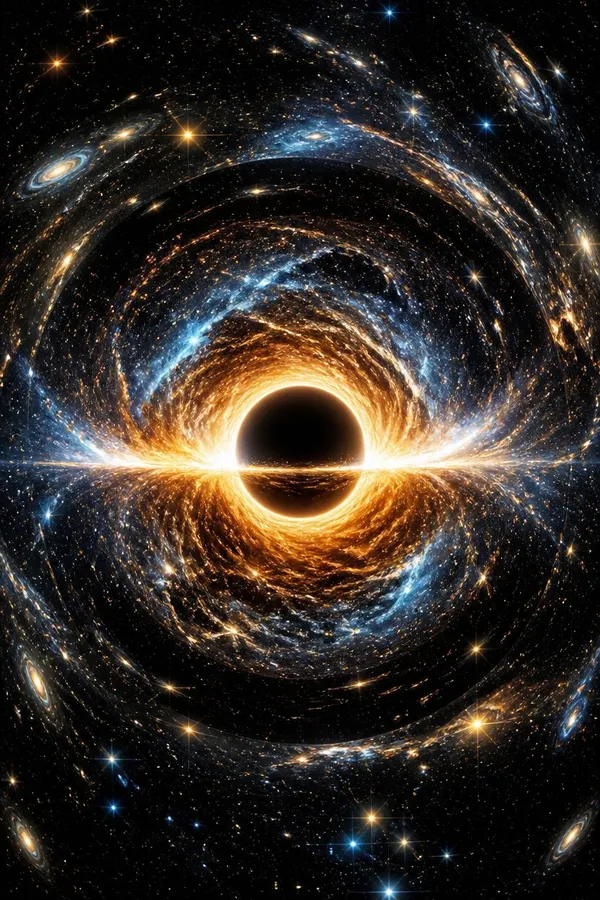
When to Use It (and When to Craft It by Hand)
Image transitions fit anywhere two images should be connected with motion:
- Before-and-after reveals, morphing or dissolving between a start state and an end state.
- Social edits and hooks, using whip pans and zooms to move between scenes with energy.
- Product and concept shifts, transforming one design, colour, or variant into another.
- Slideshows with life, replacing hard cuts between images with animated transitions.
Crafting it by hand still wins when the transition must hit exact beats, sync precisely to music, or integrate with complex surrounding motion graphics that a standalone clip cannot match. AI transitions are ideal for producing strong, ready-made moves between two images fast; a motion designer is for the bespoke, frame-perfect transition inside a larger edit. For most social and marketing needs, the generated transition does the job in one step.
How to Create an Image Transition, Step by Step
Here is the workflow in getimg.ai. Open the Image transition Action to follow along. It takes two images.
1. Add the first image
Add the image the clip should start on. This is the opening frame the transition begins from.
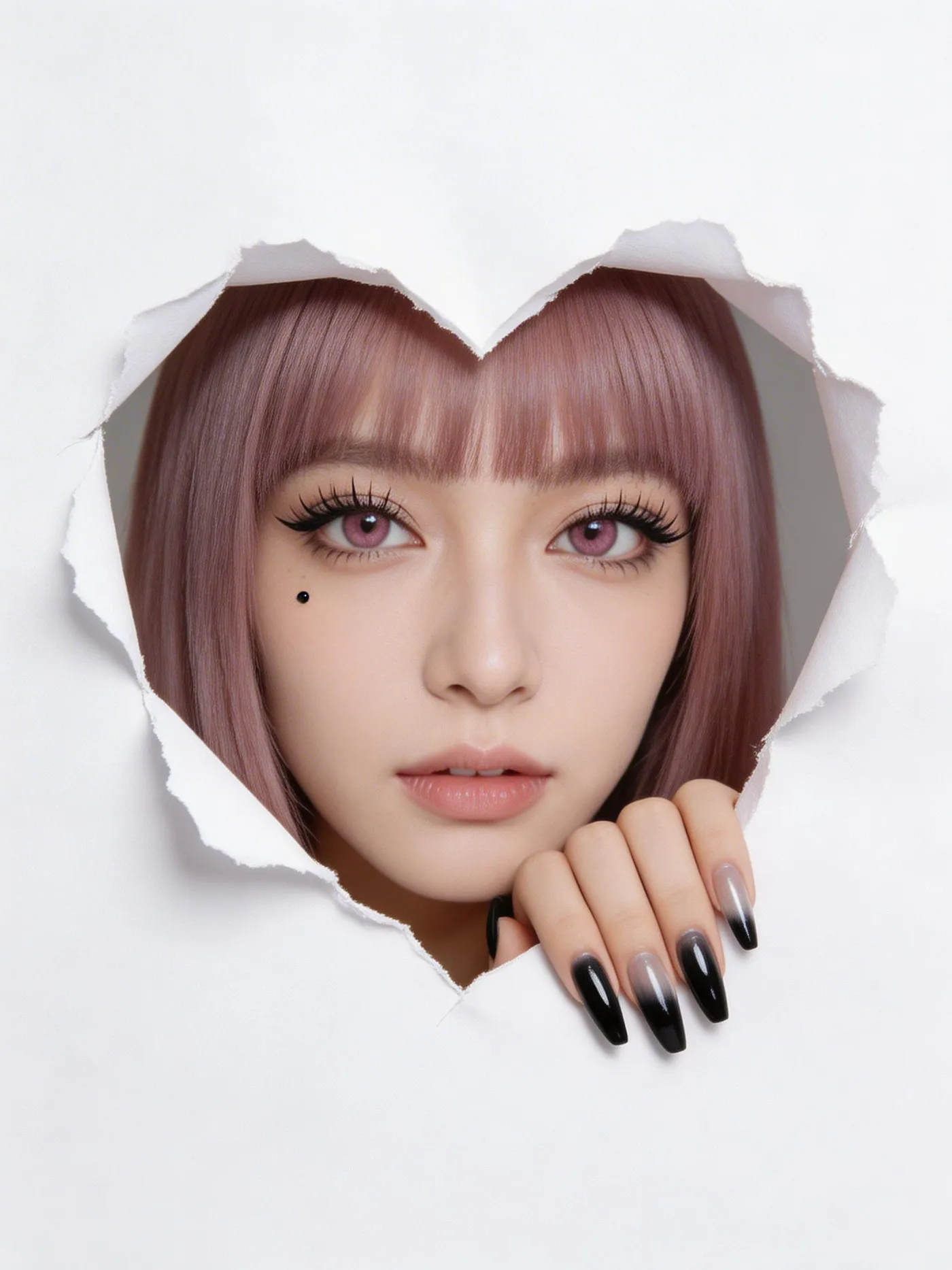
2. Add the second image
Add the image the clip should end on. The relationship between the two frames shapes the result, so a transition between related images (the same subject changing, or two connected scenes) tends to read more purposefully than two unrelated ones.
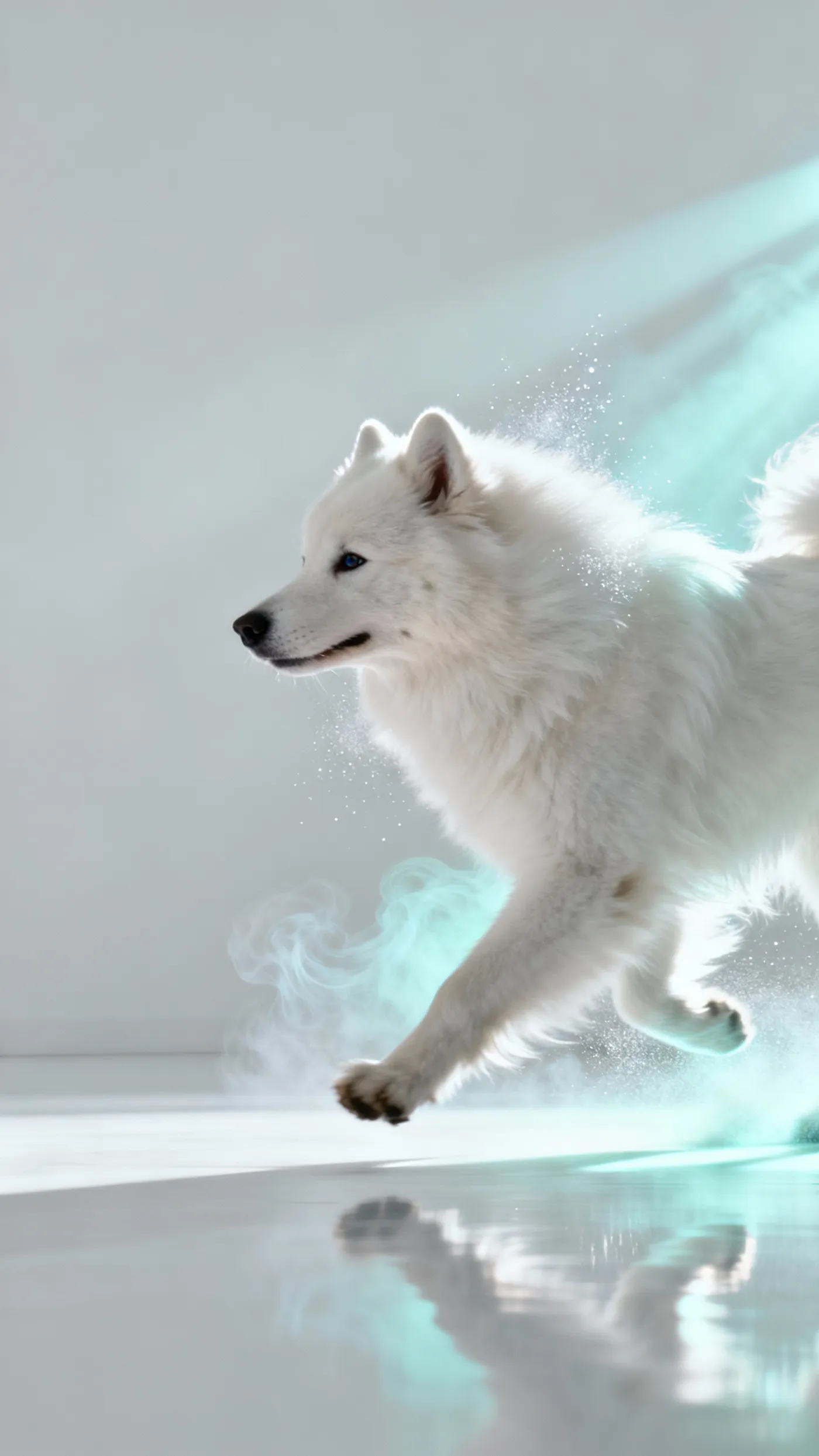
3. Choose the transition
Pick the style: morph to blend one image into the other, camera travel to move through space between them, zoom through to push in from one to the next, slow dissolve for a gentle cross-fade, whip pan for a fast, energetic swipe, or flash of light to cut on a bright burst. Each gives the change a different character.
4. Set quality, aspect ratio, and duration, then generate
Choose the resolution (480p, 720p, or 1080p), an aspect ratio (same as photo, 16:9, 9:16, or 1:1), and the duration (4s, 5s, or 8s). Use the text field to note what should change between the frames. Run the Action and the clip appears in the gallery to the right of the controls.
How to Get a Smooth Transition
- Choose the transition for the relationship. A morph suits two versions of the same subject; a whip pan suits a jump between different scenes; a zoom through suits moving from a wide to a detail. Matching the style to the two frames is what makes it feel intentional.
- Use related frames for morphs. Morphs and dissolves read best when the two images share a composition or subject, so the change flows rather than jars.
- Say what should change. The text field lets you guide the transformation, which helps the model when the difference between the two frames is specific.
- Match the aspect ratio across both frames. Keeping the start and end images to the same shape as your chosen output avoids awkward cropping in the move.
- Pick a duration that suits the move. A whip pan or flash wants a short 4 to 5 seconds; a slow dissolve or camera travel can use the full 8 to breathe.
Transitions Alongside Other Motion Tools
Image transition is one of getimg.ai's ways to turn stills into motion. The Dolly zoom Action animates a single photo with the vertigo effect, while a transition connects two images with a move.
For clips built from a prompt or a single reference, or for stringing several transitions into a longer sequence, the open-ended Create video generator gives full control, and both approaches are part of a broader image-to-video workflow.
The Bottom Line
An AI image transition generates the motion between two images: add a start frame and an end frame, choose a morph, dissolve, whip pan, or zoom, and generate. It produces the kind of polished connecting move that used to require keyframing, from just two stills and a choice, and it reads best when the transition style suits the relationship between the frames.
Open the Image transition Action in getimg.ai, add two related images, and try a morph and a whip pan to compare. Commercial rights are included, subject to our terms and applicable third-party rights.
Frequently Asked Questions
The Image transition Action offers morph, camera travel, zoom through, slow dissolve, whip pan, and flash of light. Morph blends one image into another, camera travel and zoom through move through space between them, slow dissolve is a gentle cross-fade, whip pan is a fast swipe, and flash of light cuts on a bright burst.
Yes. You add the image the clip starts on and the image it ends on, and the model generates the motion between them. Transitions between related images, such as the same subject changing or two connected scenes, tend to read more purposefully than transitions between unrelated frames.
You can generate clips of 4, 5, or 8 seconds at 480p, 720p, or 1080p, in "same as photo," 16:9, 9:16, or 1:1. Fast transitions like a whip pan or flash suit shorter durations, while a slow dissolve or camera travel can use the full length.
Yes. Beyond choosing the transition style, the text field lets you note what should change between the two images, which helps the model when the difference is specific, such as a product transforming into a variant or a scene shifting in a particular way.
Image transition connects two images with a move, generating the motion from a start frame to an end frame. Dolly zoom animates a single photo with the cinematic vertigo effect. Use a transition to travel between two images, and Dolly zoom to add the vertigo move to one.
Commercial rights are included, subject to our terms and applicable third-party rights. Make sure you hold the rights to both images you use.
Related Articles