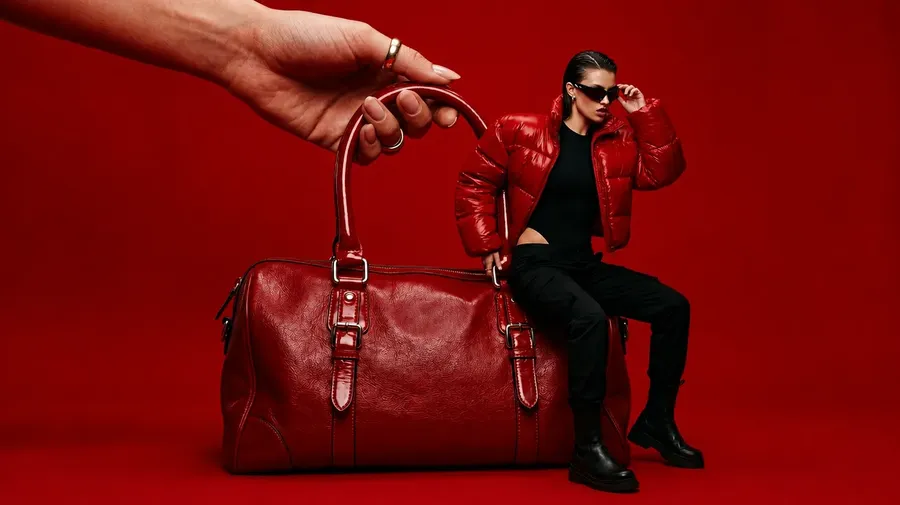
Generate images in a custom AI style
Save any aesthetic as a Style Element and call it back in any prompt with @StyleName. The look stays consistent across every render. No re-uploading reference art, no rewriting style notes.
Every leading image model, one subscription.
Auto mode picks the model best suited to what you described, and your saved style stays consistent across all of them.


Define the look once, apply it everywhere
Style Elements turn a small set of reference images into a reusable visual signature. Name it once and call it in any prompt: on any model, in any session, with any subject.
Right model, same signature
Auto mode picks the model best suited to each prompt: FLUX.2, Seedream 4.5, Nano Banana 2, or GPT Image 2. Your Style Element holds the aesthetic constant whichever one runs the render.
Auto selection

Nano Banana 2
High degree of realism.

GPT Image 2
Excellent prompt following.
Sixteen at a time, all on-aesthetic
Generate one, two, four, eight, or sixteen variations from a single prompt. Every output keeps the same palette, lighting, and finish, even when each one interprets the scene differently.
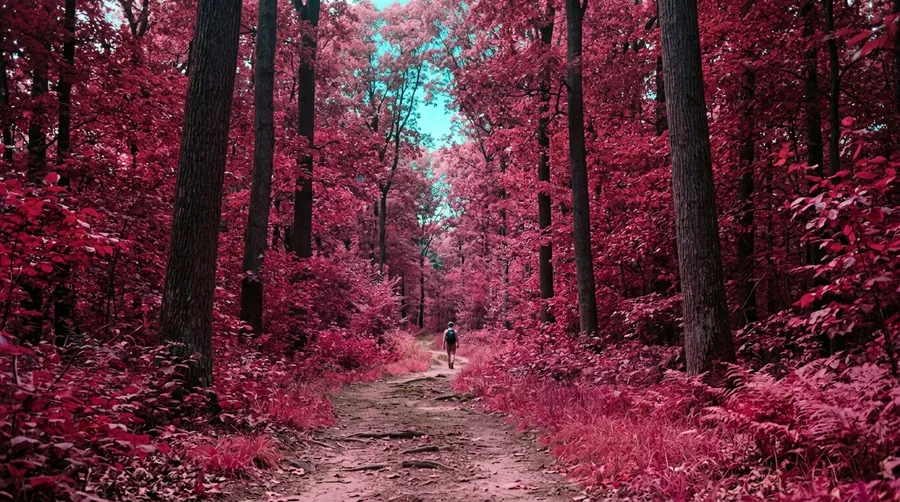
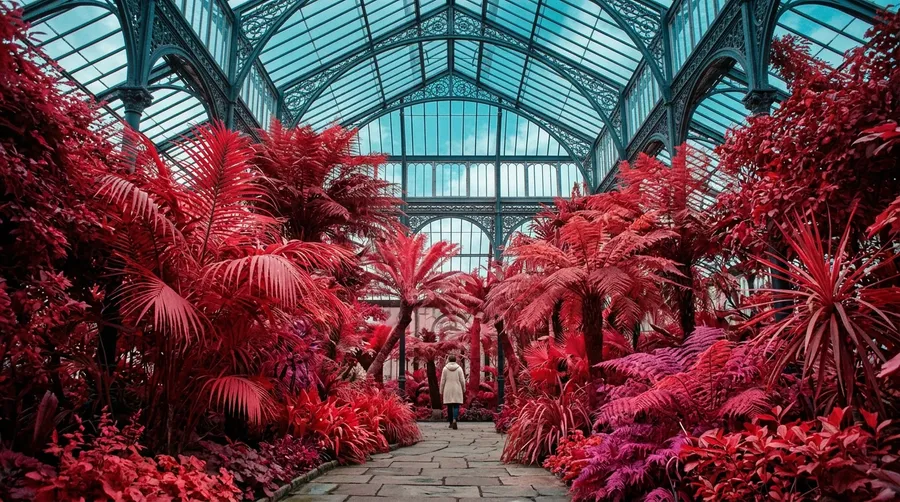
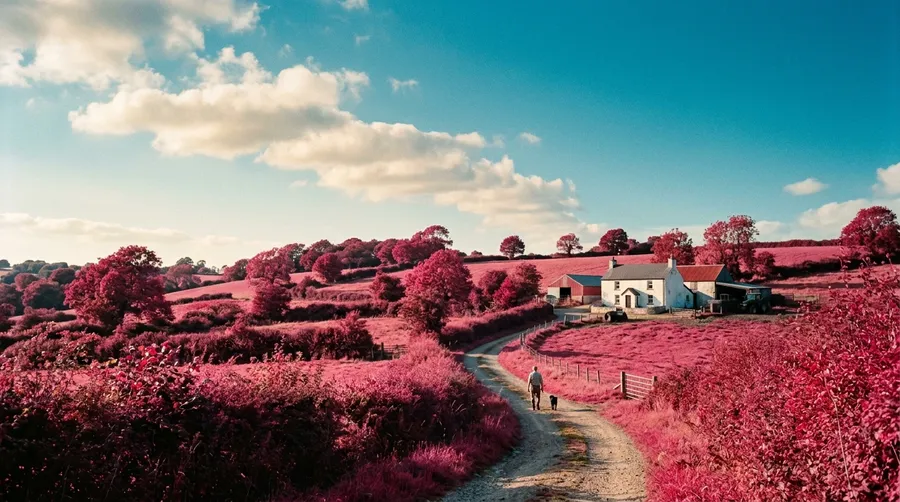
Style stays as subject changes
Swap the subject, switch the scene, change the framing. As long as @StudioGouache stays in the prompt, the aesthetic stays put. Combine it with a Person, Product, or Color Palette Element to hold more variables at once.
Create an Element
-900x505.webp)
Generate images
Download
From reference images to a saved style in three steps
Custom AI Styles take seconds to set up and live in your account from then on. Anyone on your team can reference them by name in any prompt.
1. Upload reference images.
Drop one to twenty images that share the aesthetic you want to keep: your own renders, a moodboard, a brand archive. More images means a more reliable read across different subjects and compositions.
2. Save as a Style Element.
Pick Style as the type, name it (e.g. @VintageMatte), and add a one-line note describing what defines it. The platform reads the set and stores the signature in your account.
3. Call it in any prompt.
Type @ and the autocomplete drops the Element in. The render comes back in your style. No extra setup, no re-uploading the source art, no rewriting the description from scratch.

a desert outpost at dusk with twin suns, @VintageMatte
Where Custom AI Styles do the work
Five places creative teams pull Style Elements every week. One saved aesthetic becomes a hundred consistent assets.
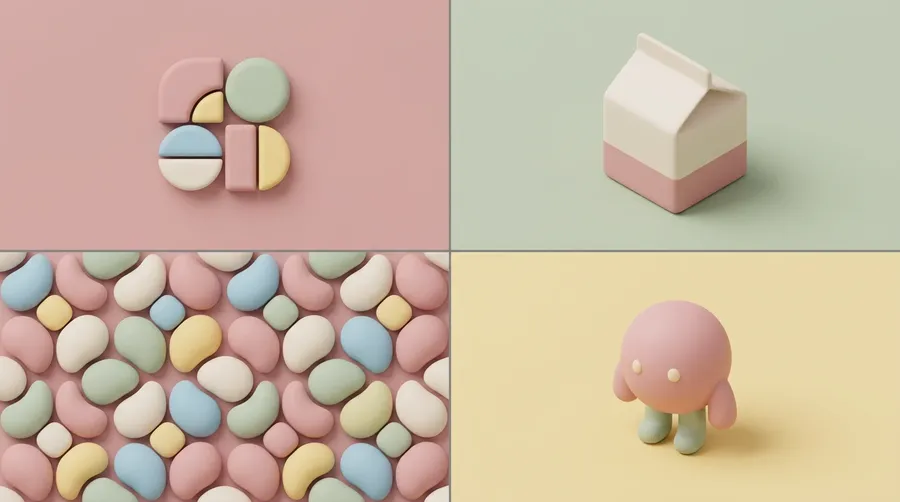
Stack styles with characters, products, and palettes
A Style Element is one of thirteen Element types, and you can reference more than one in the same prompt. Combine @StudioGouache with @Sarah and @SerumBottle and you get a portrait of Sarah holding the product, in your saved aesthetic. One prompt, every variable accounted for.
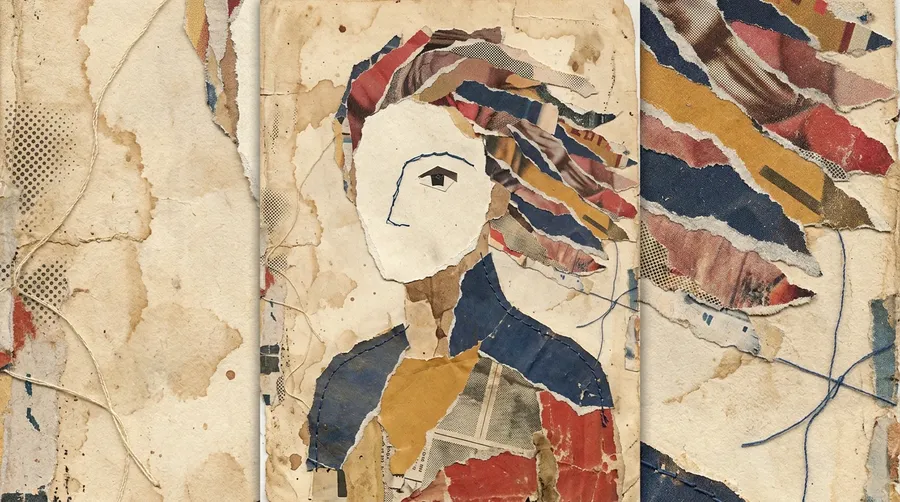
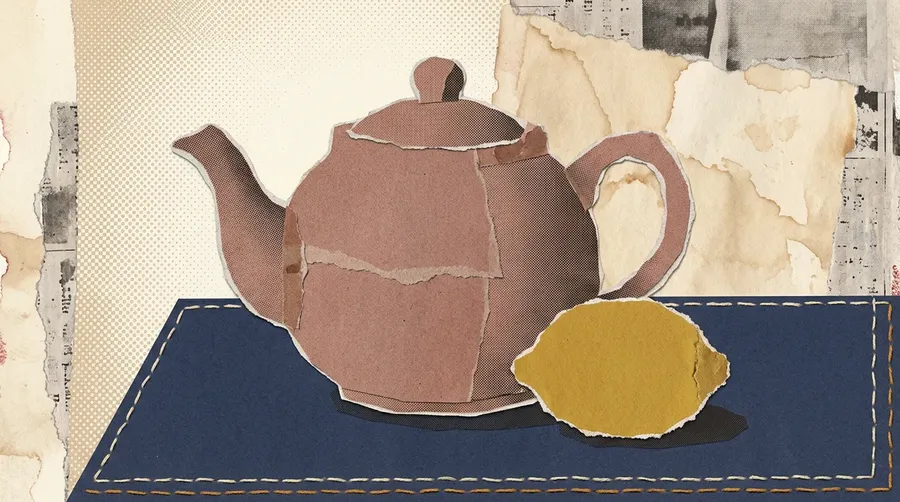
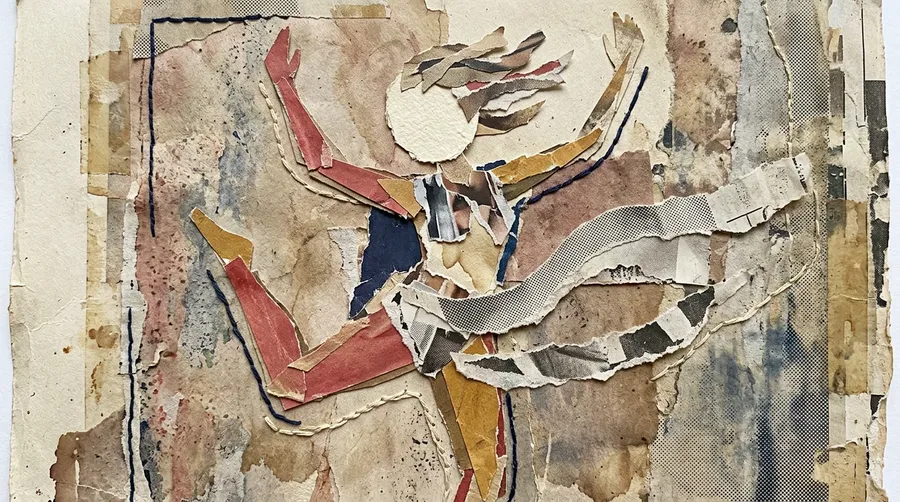
Reference images vs. Style Elements
Reference images guide a single render. They're for a particular pose, a specific setting, a one-off mood. Style Elements go further. They store an aesthetic in your account and bring it into any prompt by name. If the look comes back week after week, save it as an Element and stop re-uploading the same art.
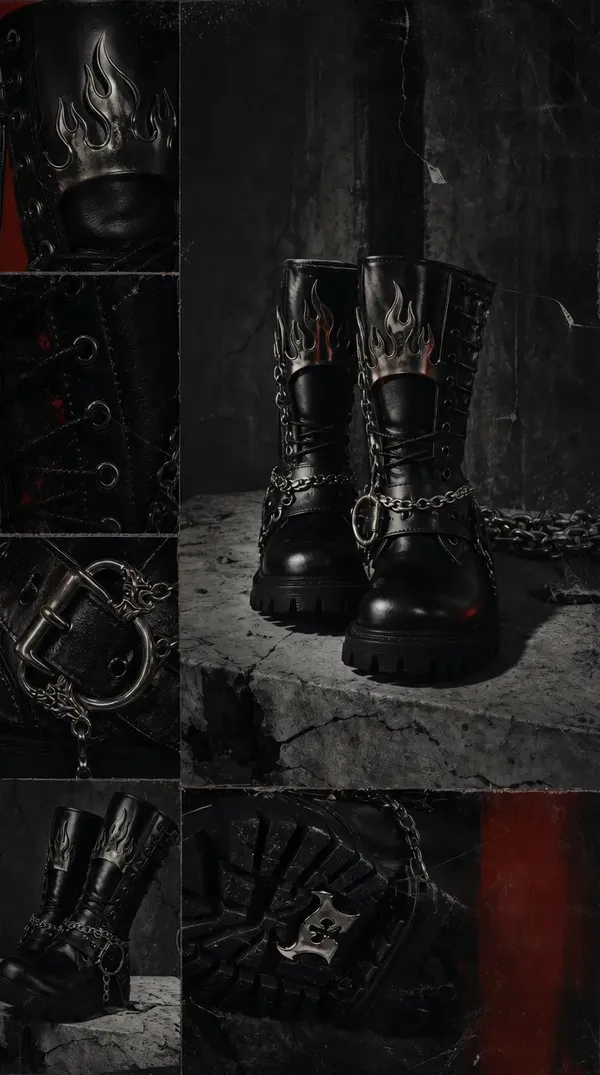
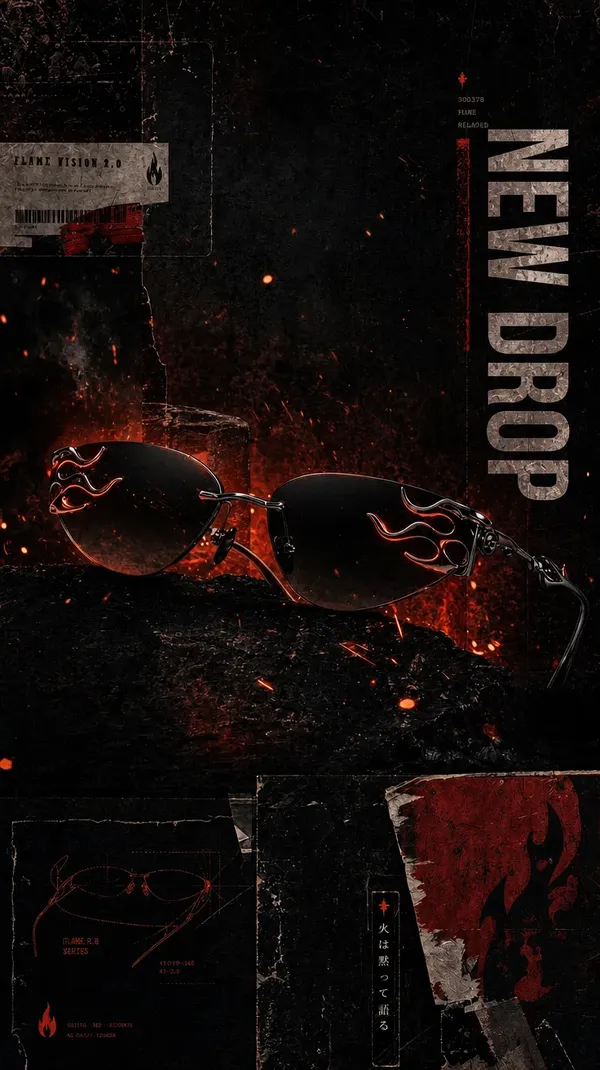
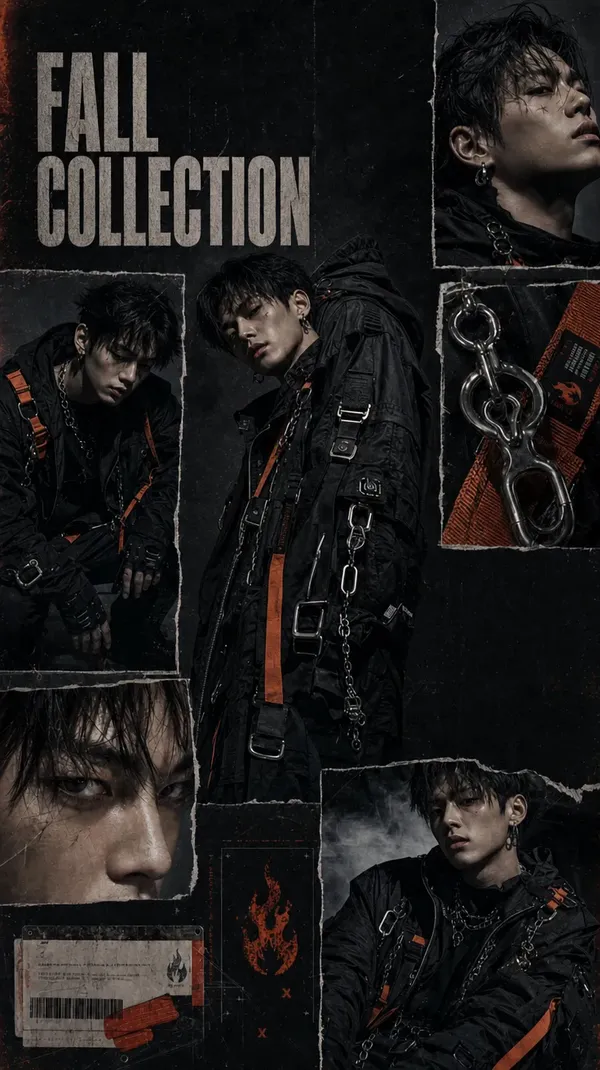
Frequently Asked Questions
A reference image guides one generation and then disappears. A Style Element is saved to your account and called into any prompt by name, across unlimited sessions, on any model, with any subject.
Rule of thumb: if you'll use the look more than once, save it as a Style Element. If it's a one-off brief, use a reference image.
Between one and twenty. One image works if the aesthetic is well-defined and visually consistent. For more nuanced looks, upload eight to twenty images so the AI learns the signature from multiple angles and contexts. Specific lighting, palette, and texture all benefit from a wider set.
You can reference multiple Elements in one prompt. The most common combination is a Style Element paired with a Person, Product, or Color Palette Element. Two Style Elements in the same prompt is supported when you want to blend signatures, though a single Style Element gives the cleanest result.
Yes, on video models that accept reference images, such as Seedance 2.0, Kling O3, Google Veo 3.1, and Wan 3.0. Add your Style Element to the video prompt the same way you would in an image prompt.
On models that only take a First Frame or Last Frame, generate a still in your Style Element first, then pass that image in as the video's First Frame. The aesthetic carries from the image into the video.
Yes, on Core, Plus, and Ultra plans. Style Elements created inside a Team space are visible to every member of that Team. One person sets up the brand aesthetic; everyone else references it by name in their own prompts.
Yes. Auto mode picks the model best suited to each prompt, whether that's FLUX.2, Seedream 4.5, Nano Banana 2, GPT Image 2, or another option in the Content Generator. The referenced Style Element applies on top. The aesthetic carries regardless of which model handles the render.
Stop describing your style in every prompt
Save it once. Reference it forever. Custom AI Styles ship with every paid plan, alongside 34+ leading image and video models in one Content Generator.