AI Image Extender: Uncrop and Expand Photos
Uncrop any photo online
getimg.ai's AI Image Extender uses outpainting to add new content beyond the edges of an existing image while keeping the original pixels unchanged. Upload a photo in Resize Image, choose a larger aspect ratio, select Outpainting, and the AI generates the missing area around your original — turning a portrait into a landscape, a square post into a Story, or a tight crop into extra space around the subject.
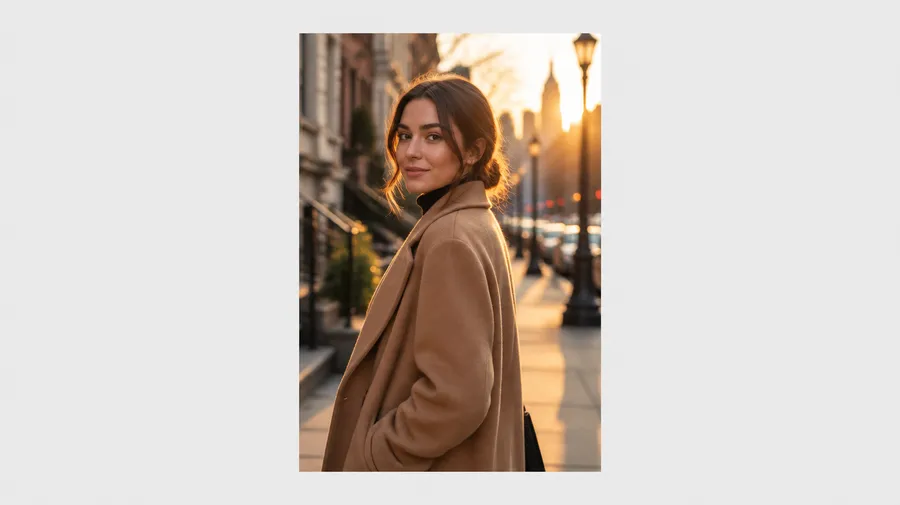
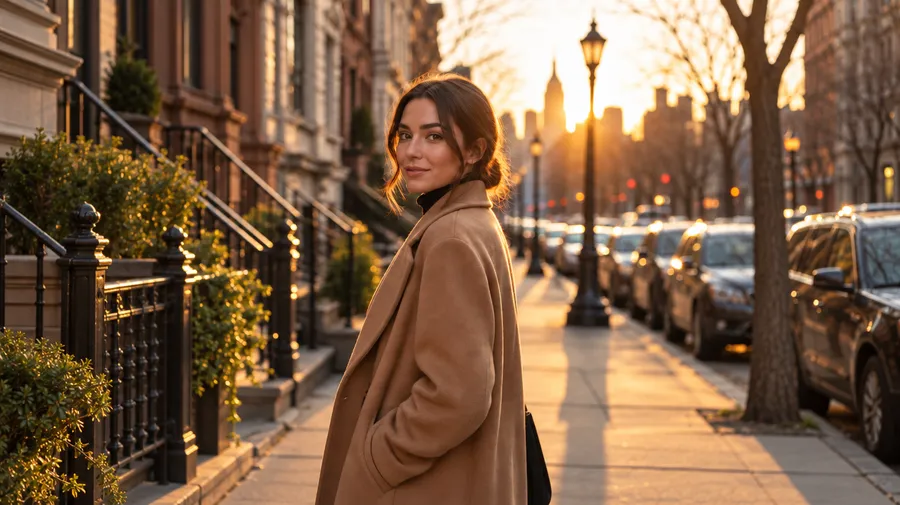
Change the format without cropping the subject
A vertical photo rarely fits a 16:9 banner, and cropping it usually means cutting into the subject. Open the image in Resize Image, pick the aspect ratio you actually need, and select Outpainting: your original stays pixel-for-pixel, and the AI fills the new canvas around it. AI image extension is also known as outpainting — this page covers the everyday uncrop and reformat job, while the Outpainting page covers the technical workflow in more depth.
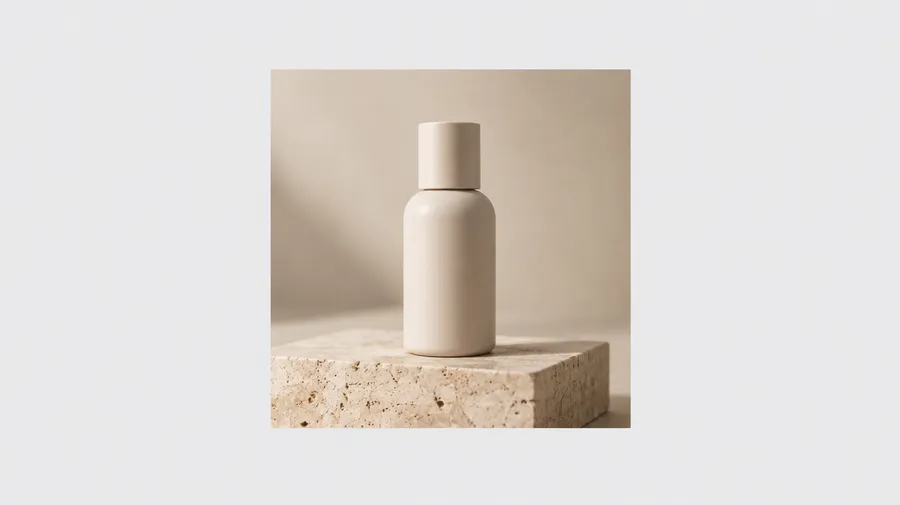
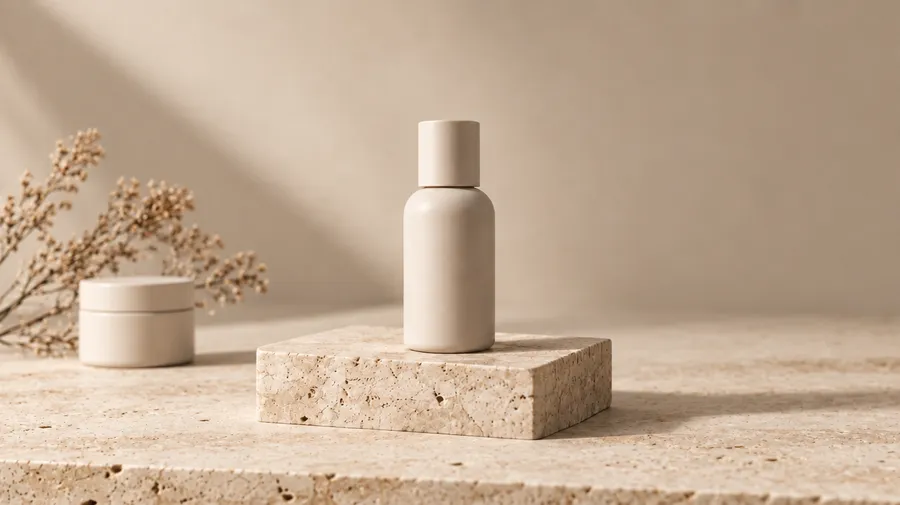
Extend in any direction, original pixels intact
Outpainting generates new areas that follow the source image's style, colors, lighting, and composition — left, right, top, bottom, or all four at once. You can extend an already extended image, though larger expansions and low-resolution or heavily compressed sources may need another generation or an upscale afterwards.
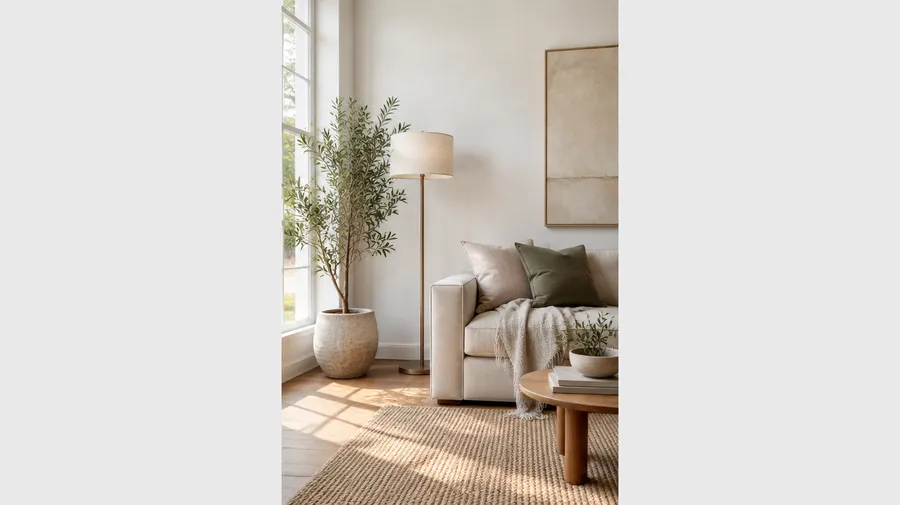
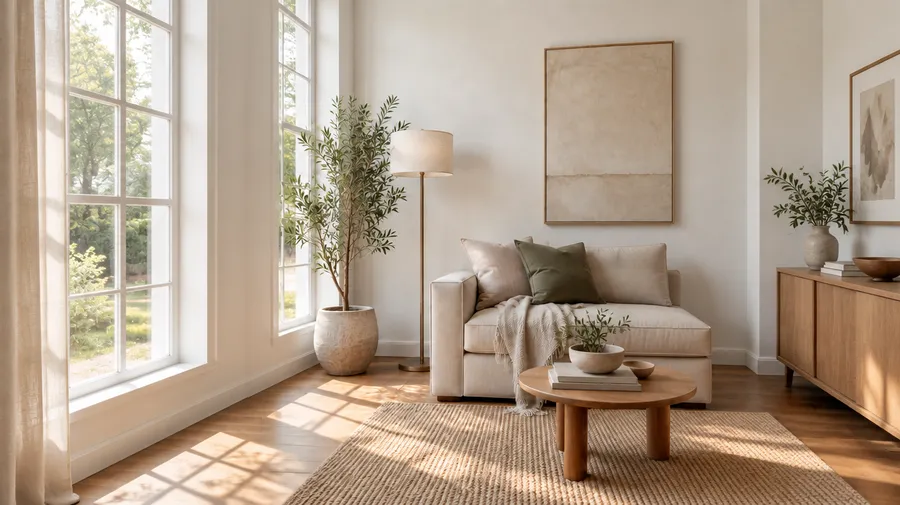
What can you use an AI Image Extender for?
Most extension jobs are format jobs: you have an asset in one shape and need it in another without losing the subject. These are the six that come up most often in production work.
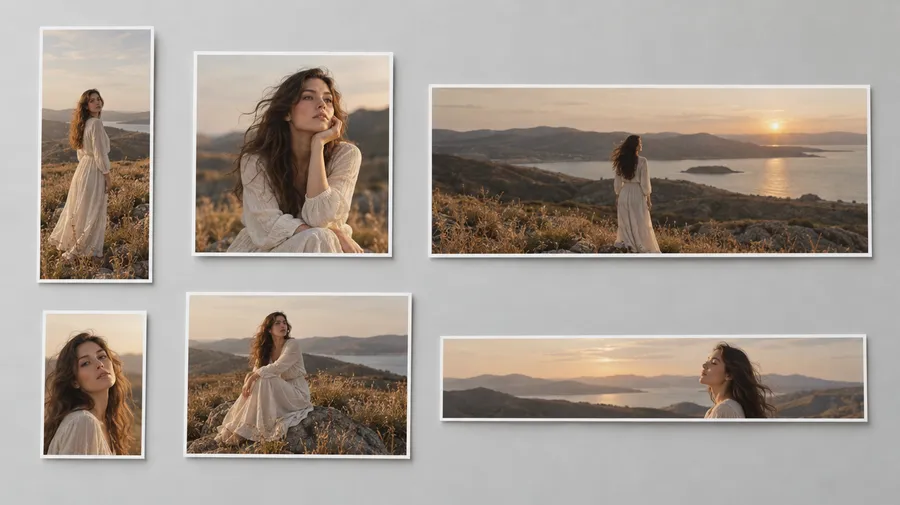
Popular aspect ratios to extend to
Resize Image supports 1:1, 9:16, 16:9, 4:3, 3:4, 3:2, 2:3, 4:5 and 21:9. Here is where each one usually ends up.
Image Extender vs Smart Resize vs Upscaler
Three tools change the shape or size of an image, and they do different jobs. Pick by what you need to keep.
Extender vs Smart Resize
The AI Image Extender runs Outpainting: it keeps your original pixels and adds new canvas around them. Smart Resize regenerates the whole image for the new aspect ratio, so the subject itself can change.
Image Extender (Outpainting)
Original pixels stay unchanged. Only the area around them is generated. Use it when the source has to stay exactly as shot.
Extend a batch of images to one campaign format
Resize Image takes a single image or a batch, and applies the same aspect ratio and Outpainting settings to all of them. Load a set of product shots, pick the campaign ratio once, and get the whole set back in that format.
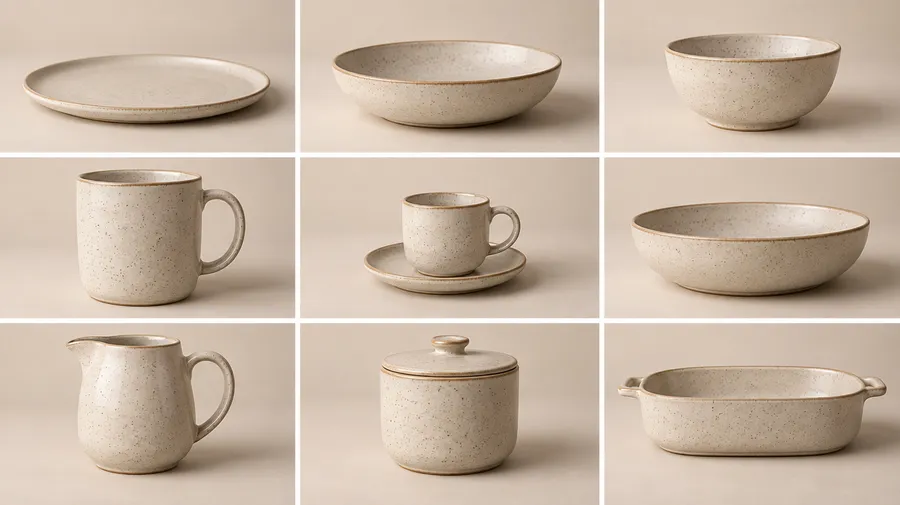
How to get better image extension results
Extension quality tracks the source and the size of the change. Four things help.
Ready to extend your images?
Open Resize Image, choose a new aspect ratio, and run Outpainting.
Frequently Asked Questions
Upload your photo to Resize Image, choose a larger or different aspect ratio, and select Outpainting. No prompt is needed.
The AI generates only the area around your original, so nothing is cropped or removed from what you uploaded. Review the result, then download it or send it to Upscale Image if you need more resolution.
Yes. AI image extension is also known as outpainting. The AI Image Extender is the consumer-facing name for the Outpainting mode in Resize Image: both add new content beyond the edges of an existing image.
If you want the technical and production-workflow view of the same job, see the Outpainting page.
No. In Outpainting mode the original pixels remain unchanged — the AI only generates the new canvas around them.
Edits never overwrite the file you uploaded either. Each generation produces a new version you can keep or discard.
The Image Extender keeps your original image and adds new canvas around it. Smart Resize regenerates the whole image to fit the new aspect ratio, so the subject can be recomposed.
Use the extender when the source must stay exactly as it was; use Smart Resize when a full recomposition is acceptable.
No. Extending adds canvas and visible scene at the same pixel density — it does not add detail to the original area.
If you need more resolution, run Upscale Image afterwards, which increases resolution up to 2x and adds detail.
Resize Image supports 1:1, 9:16, 16:9, 4:3, 3:4, 3:2, 2:3, 4:5 and 21:9.
Moderate changes between neighbouring ratios tend to produce the most consistent extended areas; very large jumps may need a second generation.
Yes. Resize Image accepts a batch of source images and applies the same target ratio and Outpainting mode to all of them.
This is the fastest way to adapt a set of product or campaign photos to one format.
Portraits, product shots, landscapes, screenshots and AI-generated art all work — photographs you took and images you generated on getimg.ai alike.
Results depend on the source: clear, high-resolution images and moderate aspect-ratio changes produce the most consistent extended areas, while low-resolution or heavily compressed sources can look softer around the new canvas.
The extender predicts and generates new areas of the picture based on the existing content — the process known as AI outpainting. It reads the patterns, textures and lighting of your image and aims to continue them across the new canvas.
Everything runs in your browser inside Resize Image, with no local software or GPU required.