Faster. Simpler. Smarter: A Hands-On Look at the New getimg.ai
With getimg.ai 2.0, our main goal is to make creating with AI feel natural again: quick to start and easy to keep going.
Sounds great on paper. But what does it actually look like in use? Let’s walk through it step by step.
Want to try it right away? getimg.ai 2.0 is live and ready to help you make something amazing!
⚡ TL;DR: What's New in getimg.ai 2.0?
- Natural Language Prompting: no more complex keywords. Just describe what you want ("B&W artistic photo of a rose field") or what to fix ("remove the background").
- Smart Prompt Enhancement: we automatically expands short inputs into detailed, polished prompts to improve lighting, texture, and mood.
- Faster Batch Generation: generate up to 16 images at once with unique variations, and queue new batches without waiting for the first to finish.
Create Like a Pro from Day One
With getimg.ai 2.0, you don’t have to “think like an AI.” No model picking, no keyword stacking, no secret formulas.
You type what you want the way you’d say it, and it just works. From image generation ("B&W artistic photo of a rose field") to edits ("remove the background" or "make the photo look vintage & retro").
You can stop overthinking and get straight to making.
Content Generator supports multilingual prompts, so you don't have to stick to English if you don't want to!
Short Prompts, Smarter Results
Speaking of prompting: it used to feel like trial and error.
The new system expands what you write to capture intent: lighting, perspective, mood, and all the little visual details that make results look polished.
If you type:
- Racoon holding a donut.
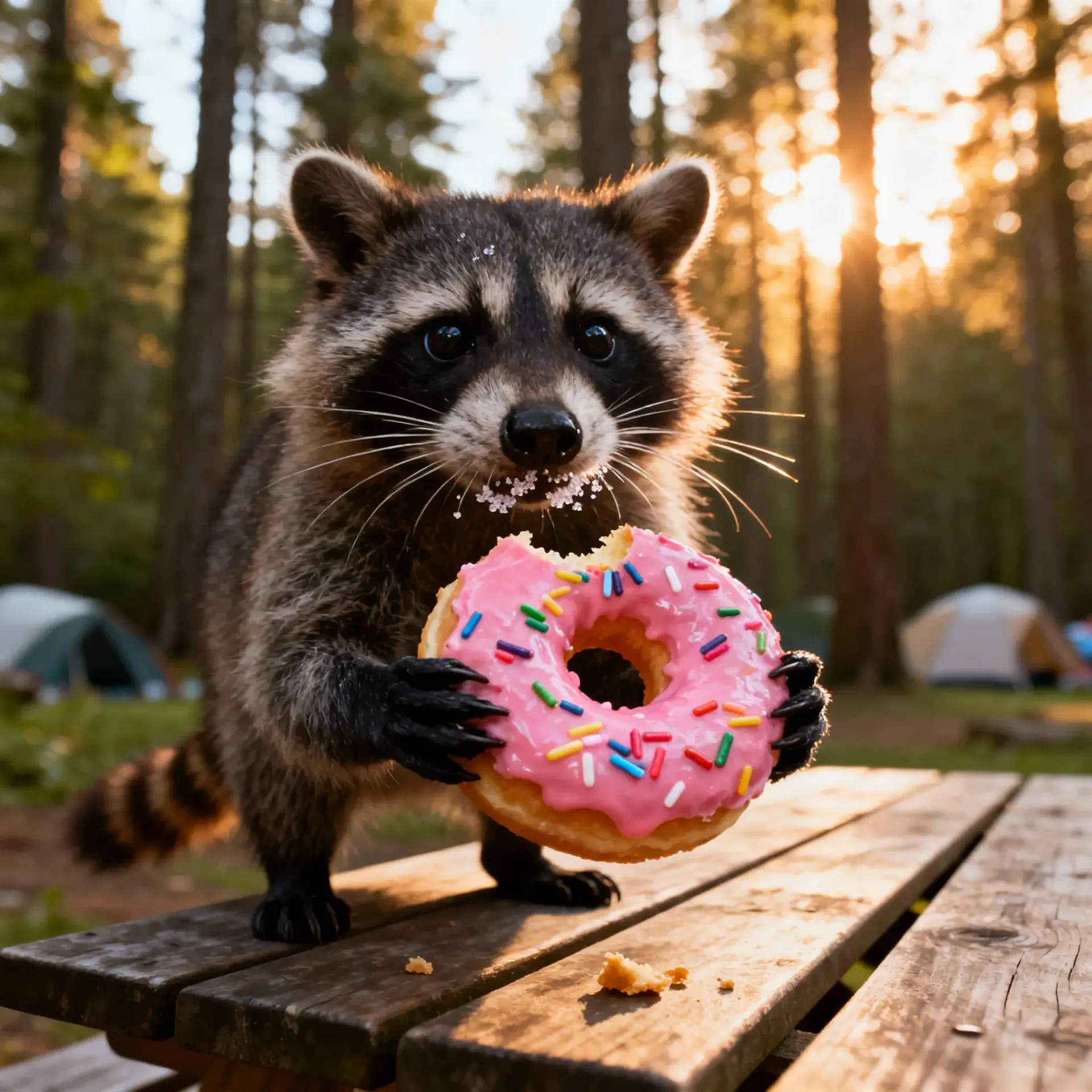
It might enhance it quietly to something like:
- Photograph of a curious raccoon standing on a weathered wooden picnic table, holding a large pink-frosted donut with rainbow sprinkles in its black paws; bright, alert eyes and crisp whiskers, a few sugar crystals clinging to its muzzle; early morning golden hour light filtering through tall pines, warm rim light outlining the raccoon’s fur; soft, creamy bokeh in the forest background with hints of tents and dappled foliage; fine detail on the donut glaze with a slight sheen and a small bite mark; a few crumbs scattered on the table; low, eye-level perspective with the raccoon framed on the rule of thirds; natural, earthy color palette of muted greens and warm ambers; high micro-contrast and realistic film grain; Leica M6 with a 50mm Summilux lens, Kodak Portra 400, shot at f/1.4, shallow depth of field, tack-sharp focus on the raccoon’s eyes and the donut edges, soft falloff toward the tail and background
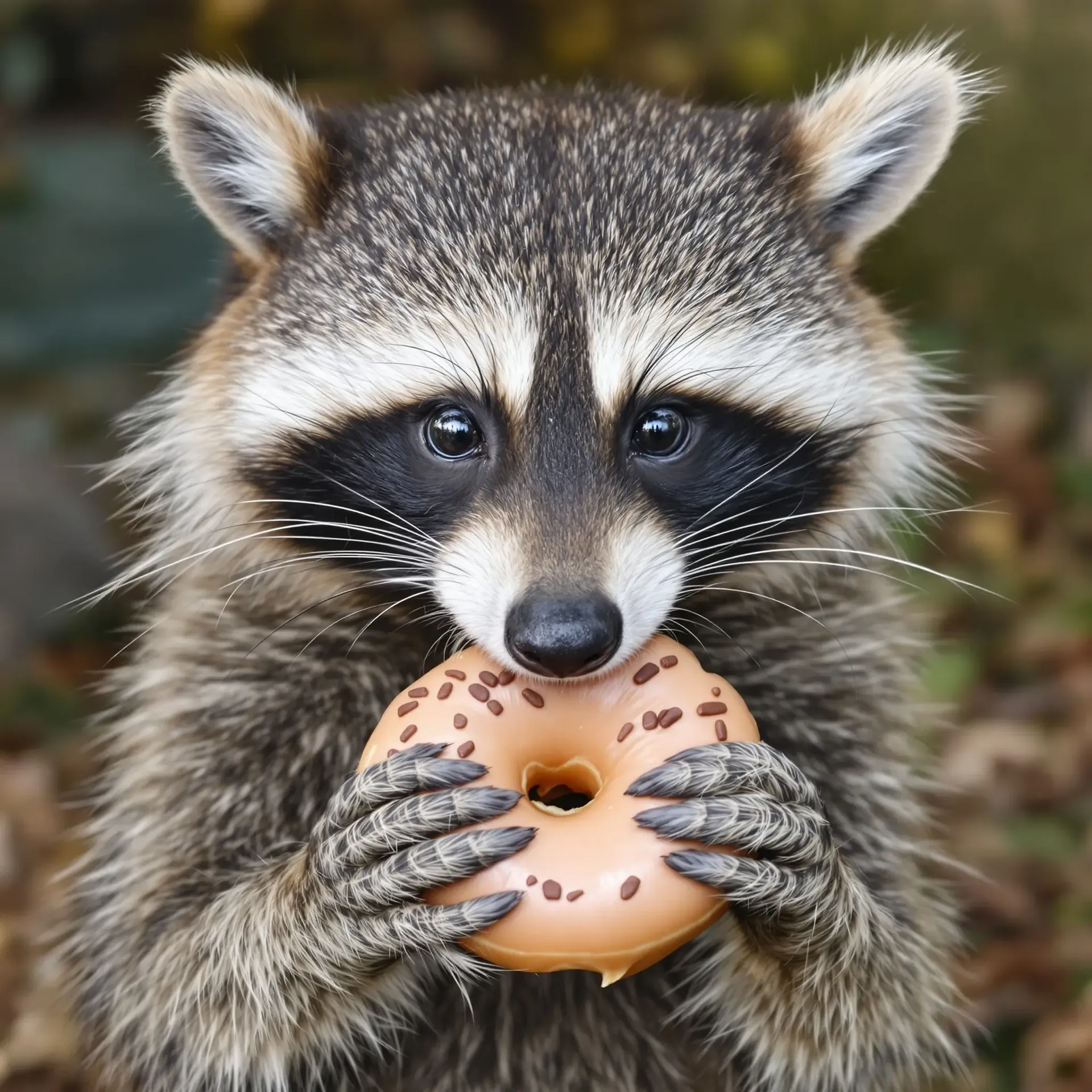
Basic prompt.
Enhanced prompt.
To write a prompt this good yourself, you’d need experience, patience, and a few minutes of tweaking. Here, it takes one line and a few moments.
Ten seconds versus two minutes might not sound huge… until you multiply it by fifty ideas in a day. That’s an hour or more you get back to actually create, not fine-tune.
And if you do know exactly what you want (a specific lens, mood, or lighting setup) you can write it in full. Take a look at our Image Generation Prompt Book if needed.
getimg.ai 2.0 never overrides what you tell it to do; it only helps fill in the blanks.
Generate More, Wait Less
Once you’re happy with your prompt, you can create at full speed.
The generation system was rebuilt to keep you in the flow instead of waiting for progress bars.
You can now:
- Generate up to 16 images at once.
- Start your next batch immediately, even while others are still running.
And a cool detail: every image in a batch is approached a bit differently, so you don’t end up with 16 near-identical results. You get 16 fresh takes on the same concept.
For example, all of these stunning images came from a simple "beautiful landscape" prompt:
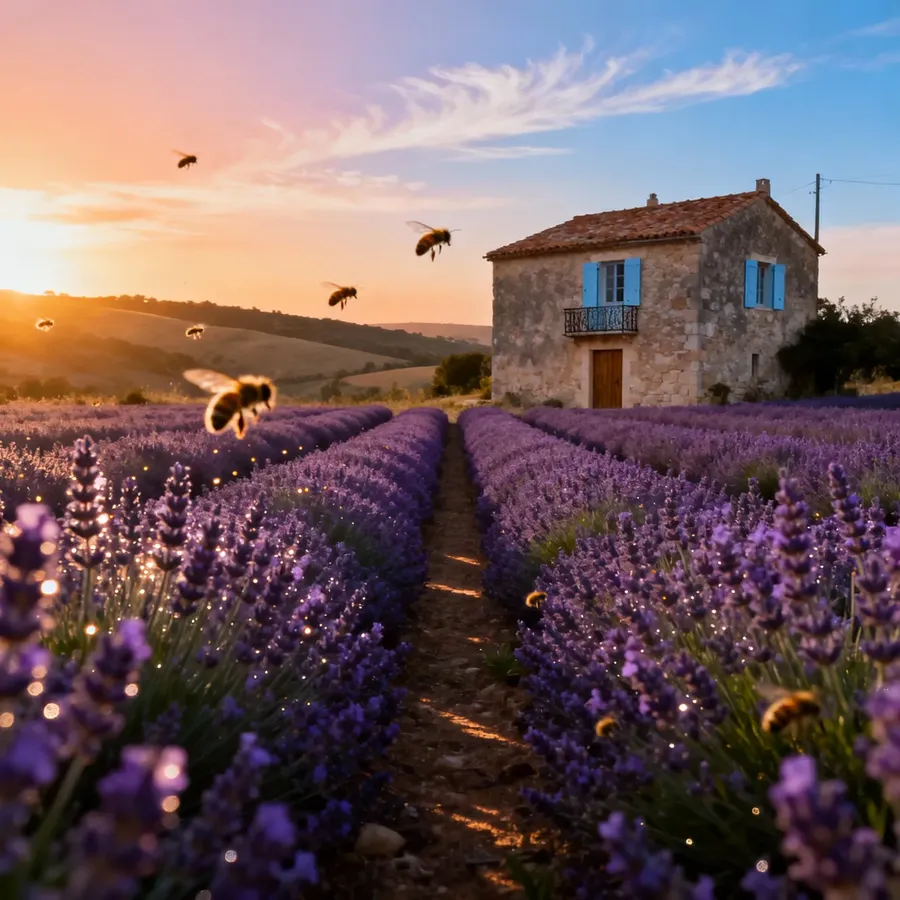
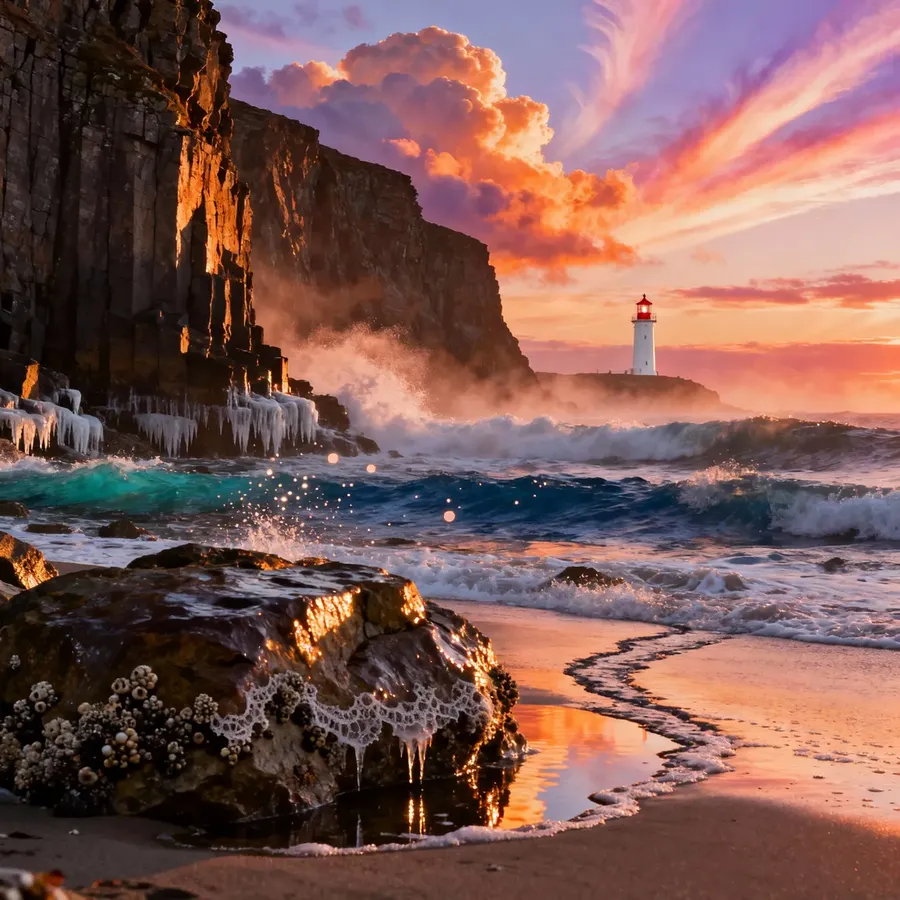
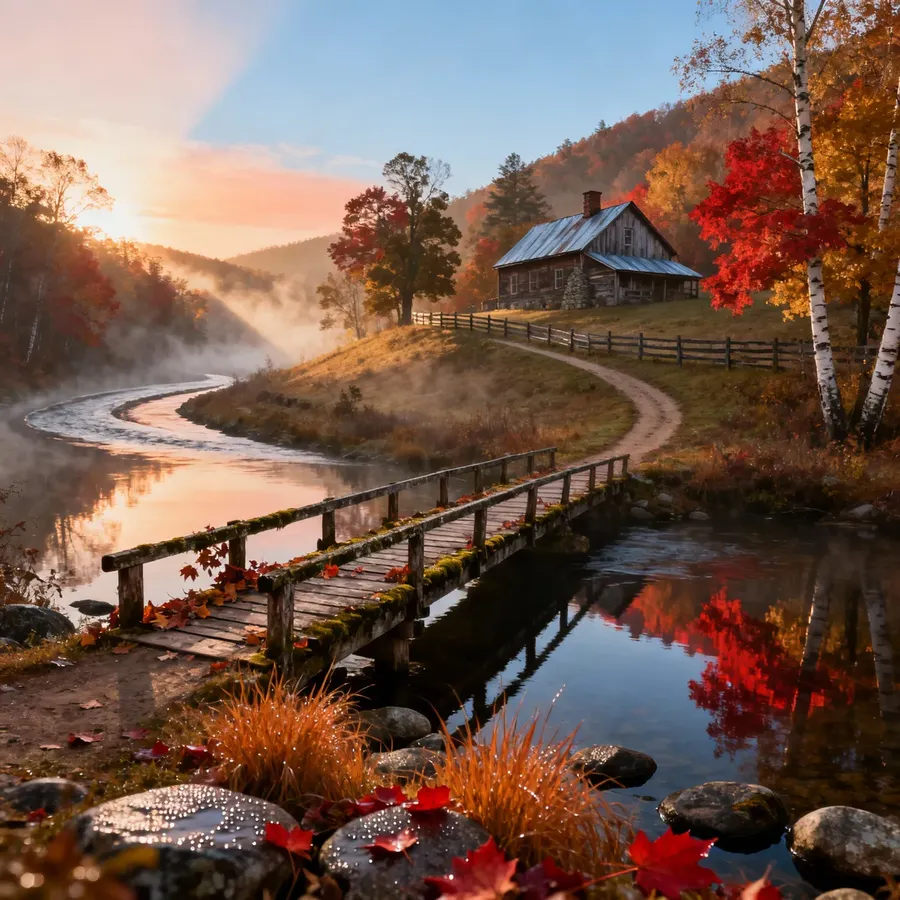
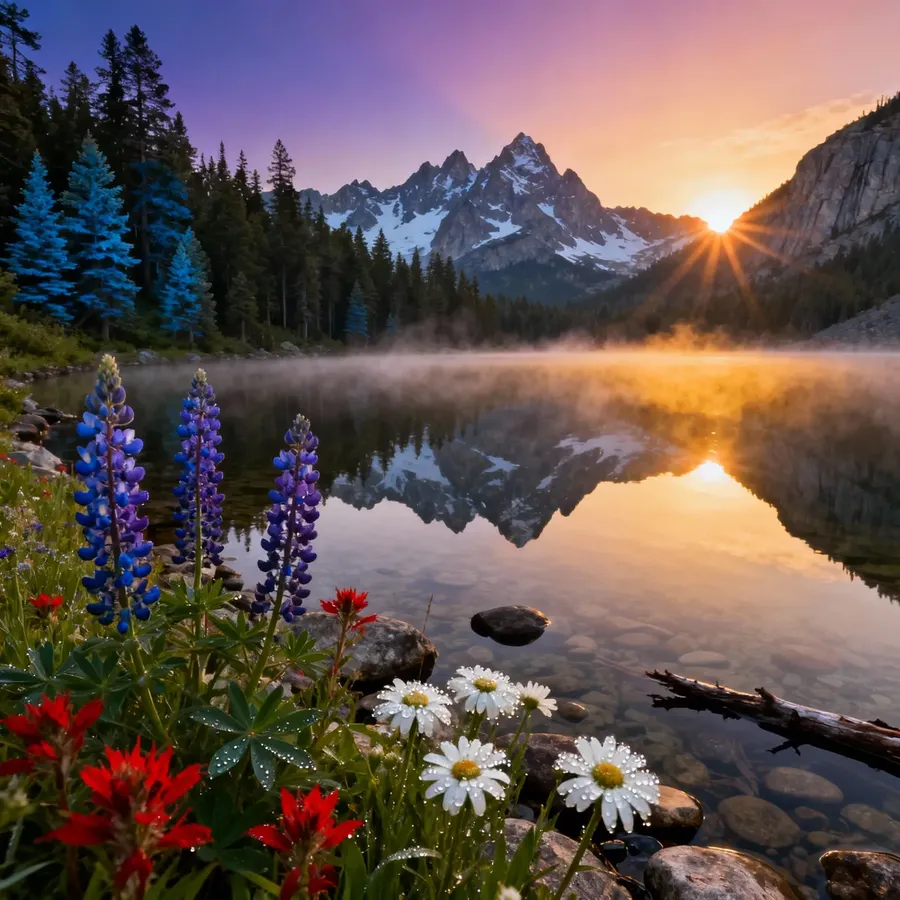
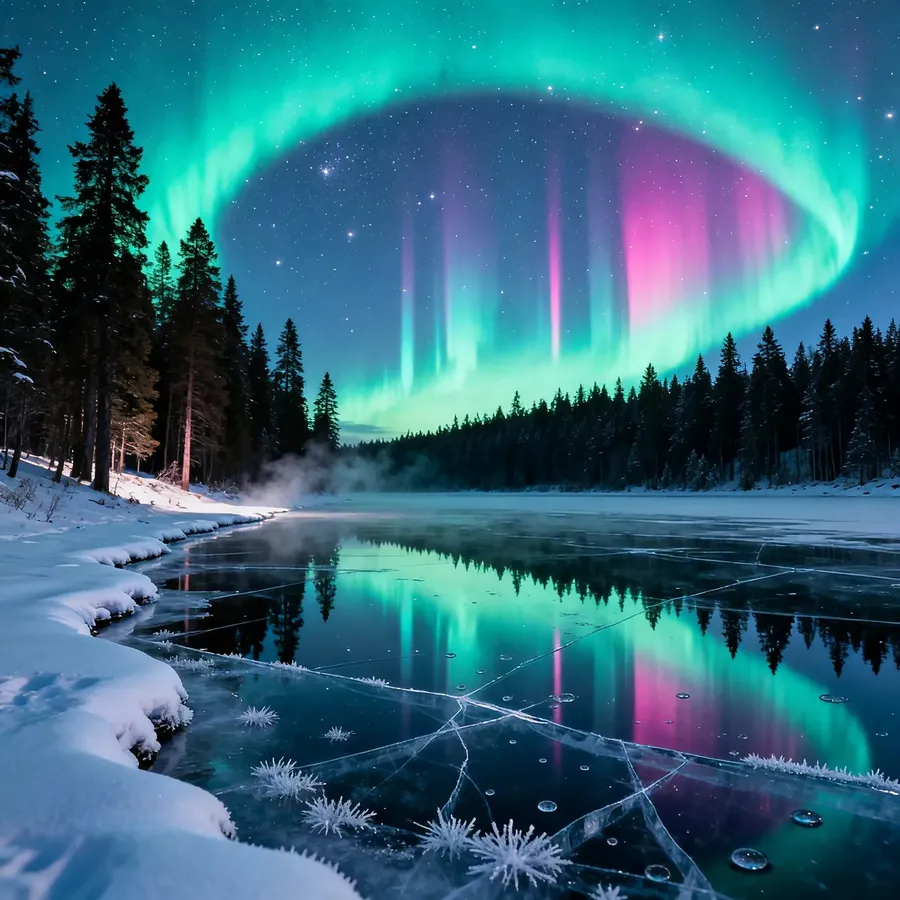
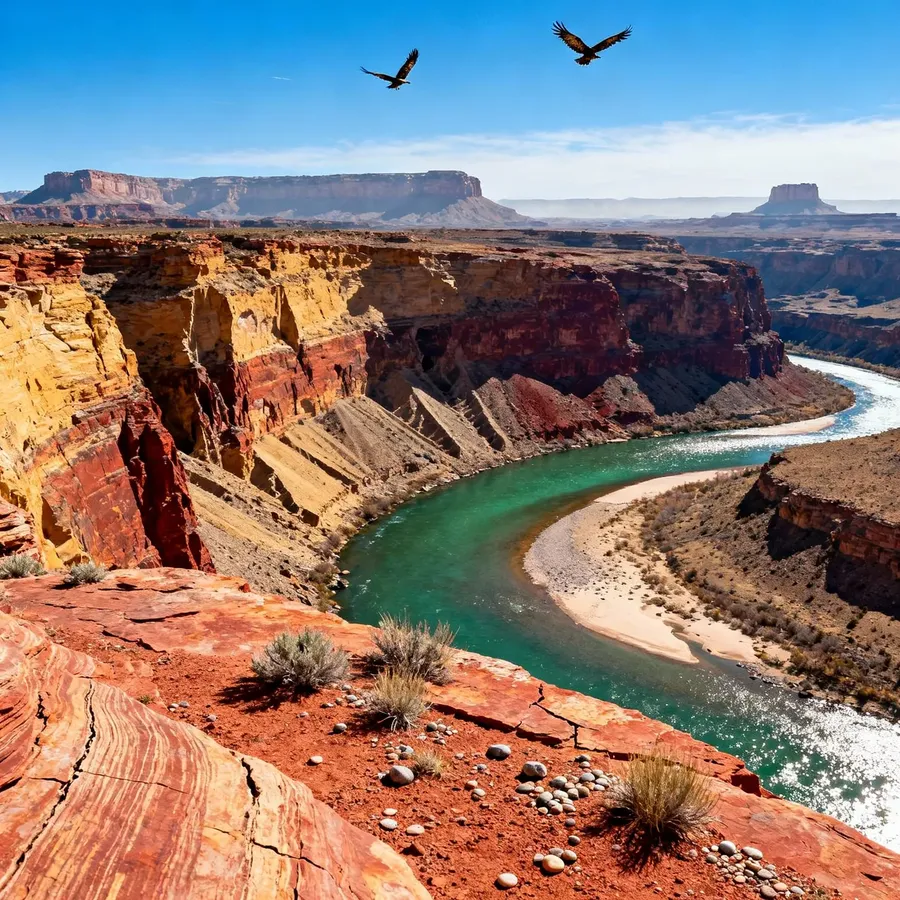
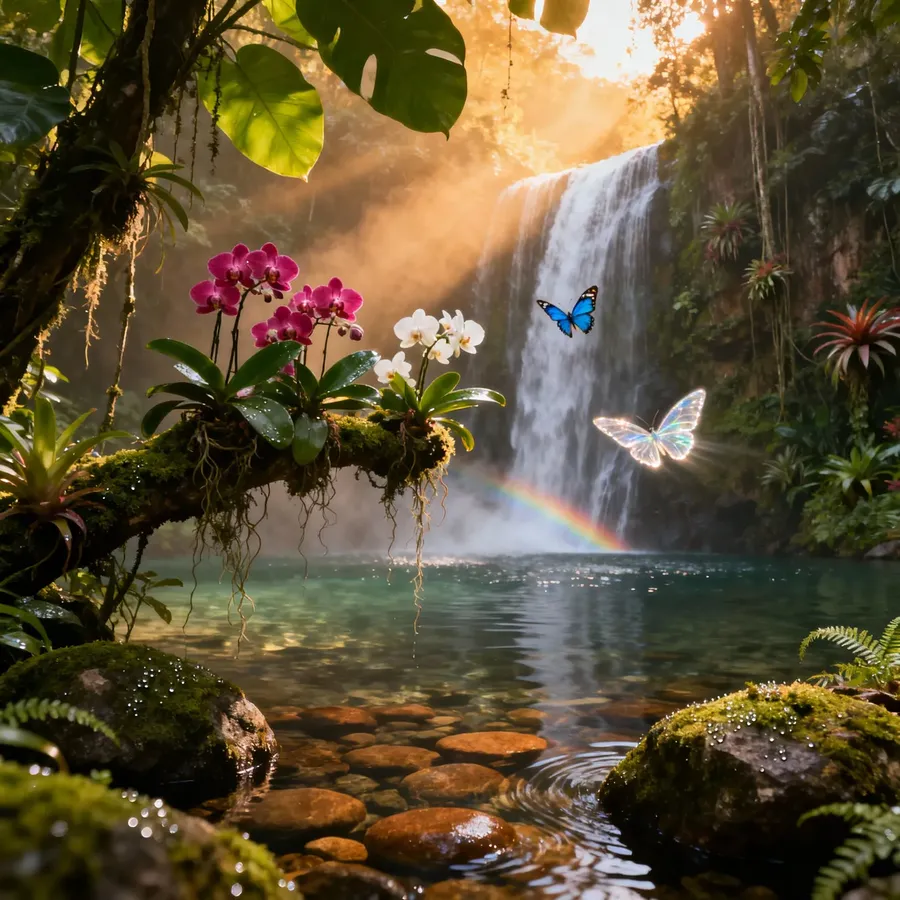
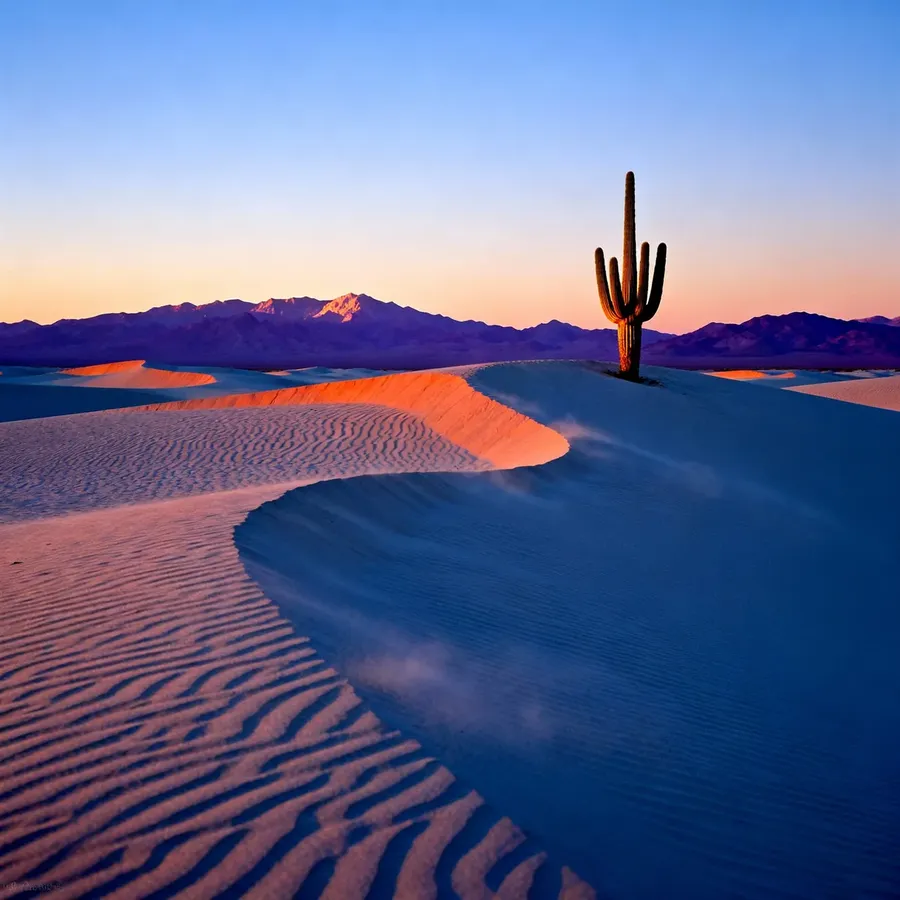
That means you can see more options, spot new directions, and pick what works best, all without rewriting your prompt a dozen times.
So load up a few ideas, grab a coffee, and come back to a whole gallery of ideas waiting for you.
And Yes, You Can Do the Same with Video
You’ve seen those insane AI clips on social media: smooth camera moves, cinematic lighting, perfect color. But when you try it yourself, the results don’t quite land.
Sounds familiar? That’s not on you.
AI video used to be extra tricky: long, technical prompts full of filmmaking jargon, picking from a dozen similar-sounding models, and hoping one of them wouldn’t break halfway through.
Now it’s finally simple. You just describe the scene (what’s happening, how it should feel) and hit generate.
A short prompt like this:
- Noir movie, a lone man in a long coat walking through a dark alley in a rain-soaked city, encountering a scared cat.
Can end up looking like this:
That’s it. No cinematography terms. No model lists. No fine-tuning.
But if you do want more control over the final result, no problem: you can write detailed prompts as well. Check out our Video Generation Prompt Book for inspiration!
What You Can Do With It (Just to Start)
Now that you know how it works, here’s what that looks like in practice.
But remember, these are just starting points: there are hundreds of other ways to use it, and new ones keep showing up every day.
1. Product Photography Without the Studio
Upload your product shot or 3D render. Type:
- Make this look like a luxury product photo.
That’s it. You get a result that looks like it was shot in a studio. No backdrop, no softbox, no editing marathon.
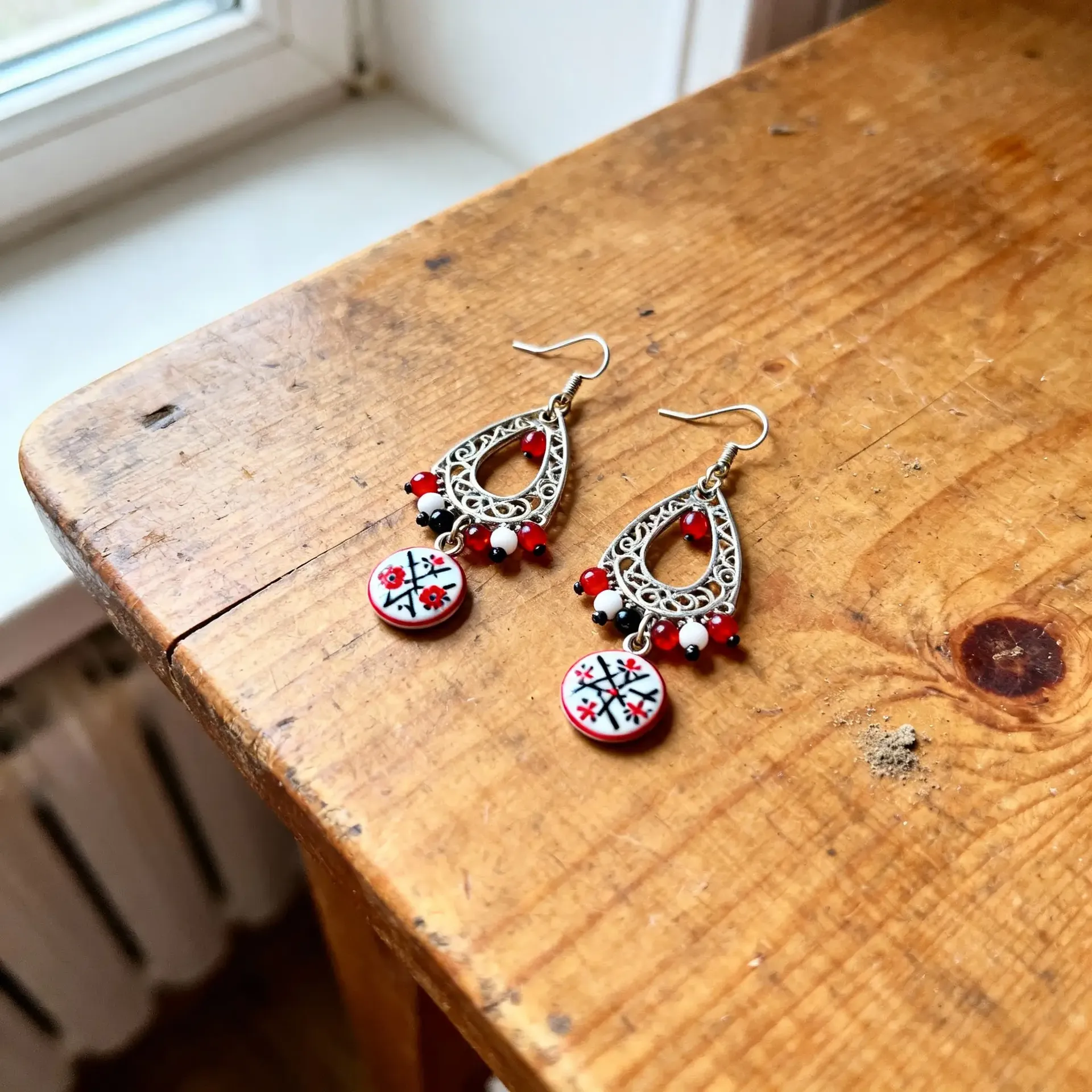

If you’ve ever tried to get the “perfect” lighting setup for product photos, you know how long that can take. Now it’s a one-liner. You save hours (and hundreds of dollars in studio time) while keeping full creative control.
2. Professional Headshots, Instantly
Getting professional headshots used to mean booking a session, spending $500–$1000, and hoping you like how you looked that day.
Even with AI tools, you often had to train a model on dozens of selfies with the same hair and different angles just to get consistent results.
Now? You just upload one good reference photo and write:
- Create a headshot of this person.
Done. The framing, lighting, and realism are handled for you.


It looks like a photographer took it, except you didn’t have to leave the house.
3. Remove or Replace Anything
You don’t need to cut, mask, or select anything. You just say what to do:
- Remove the logo on the box.
- Replace the background with a beach.
- Change the hairstyle to a short bob.
Edits that used to take half an hour now take seconds, and you stay focused on what you’re trying to make, not how to fix it.


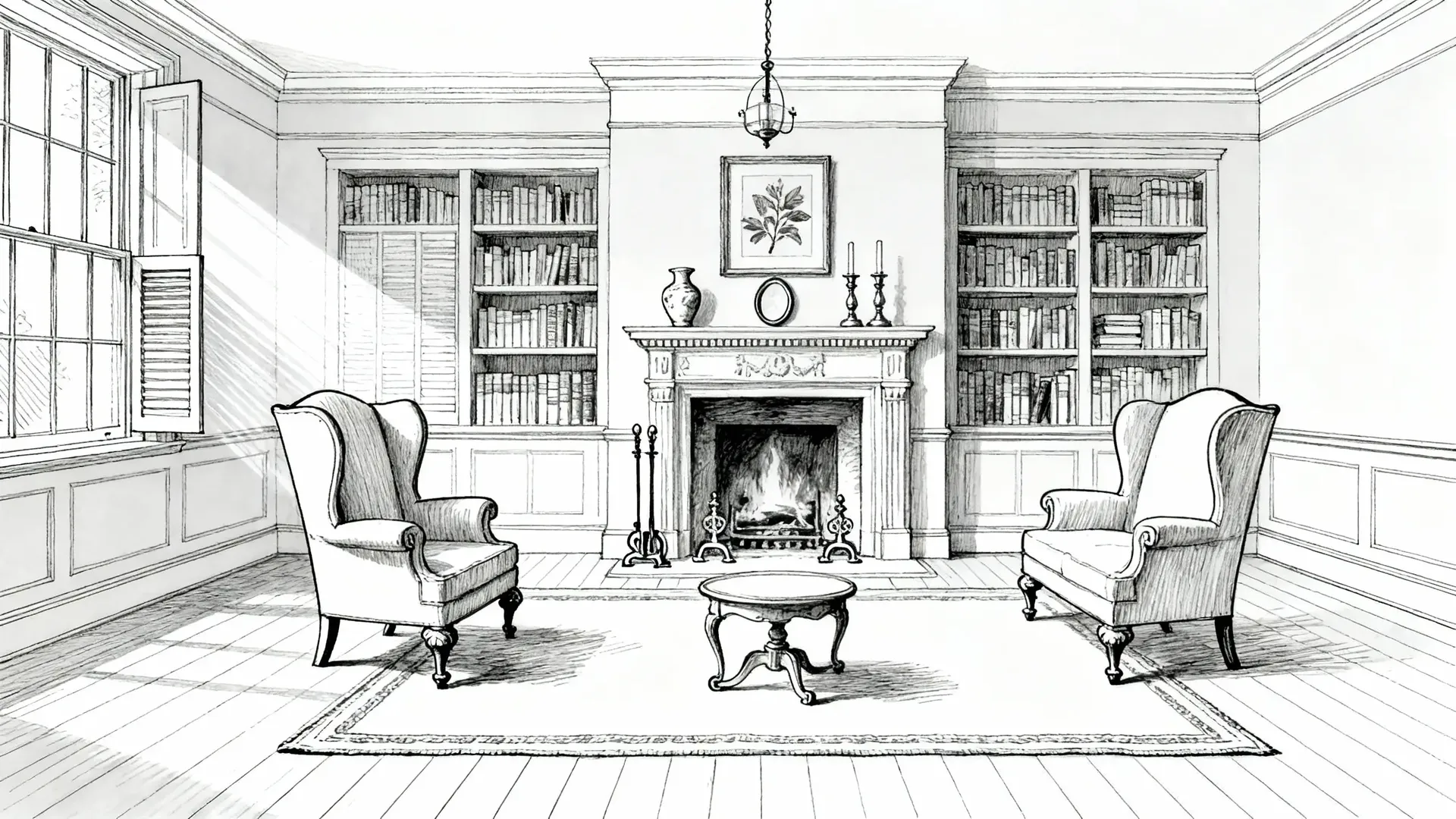
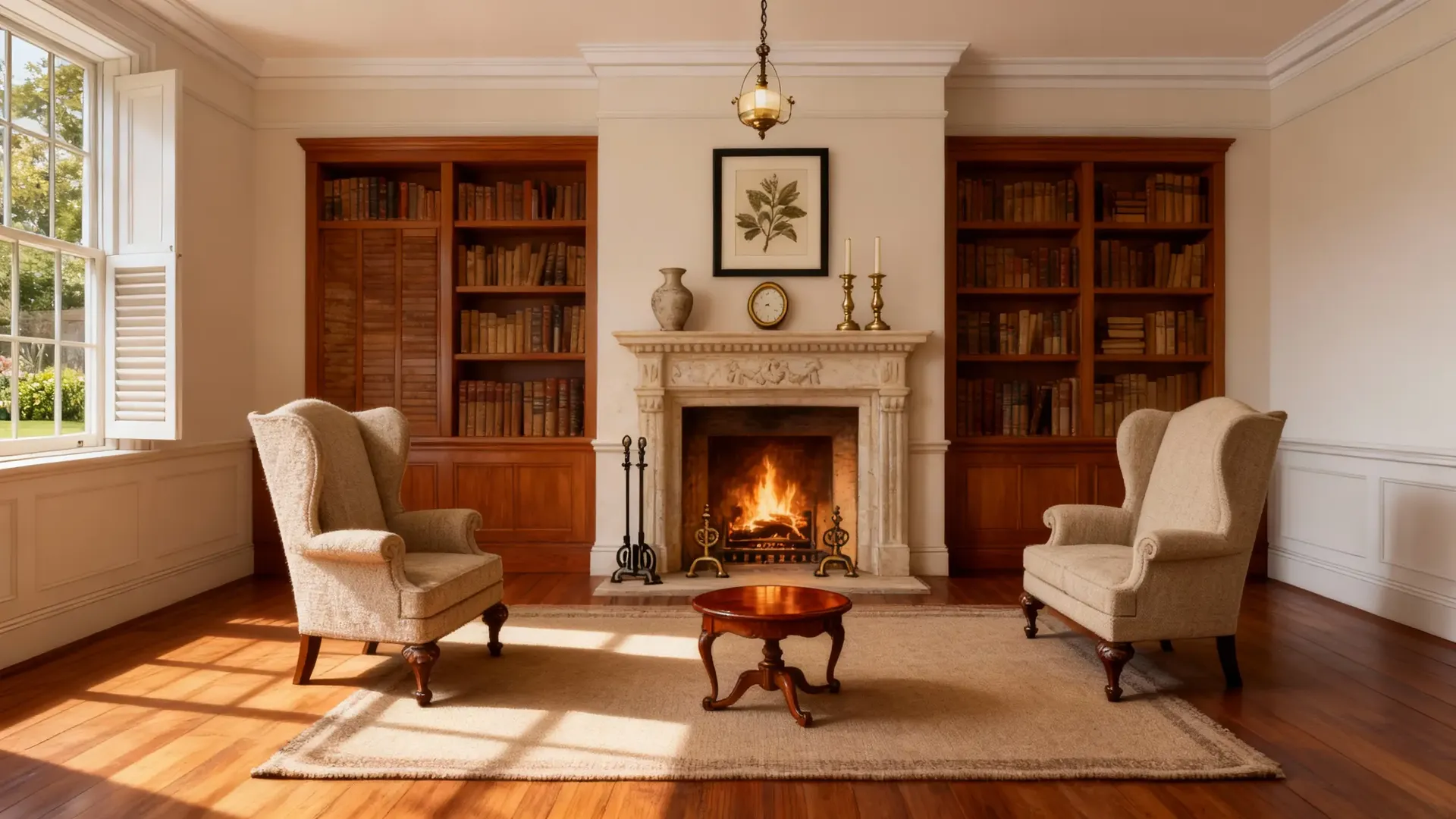
4. From Concept to Realistic Image
Upload a sketch, wireframe, or 3D render. Type:
- Turn this into a realistic architectural photo, daylight, wide angle.
Before, you’d have to render, export, color-grade, and polish in a few different programs to get something client-ready.
Now, one prompt gets you a full-quality image that looks photographed. You can move from idea to presentation in minutes.
5. Restore Old Photos
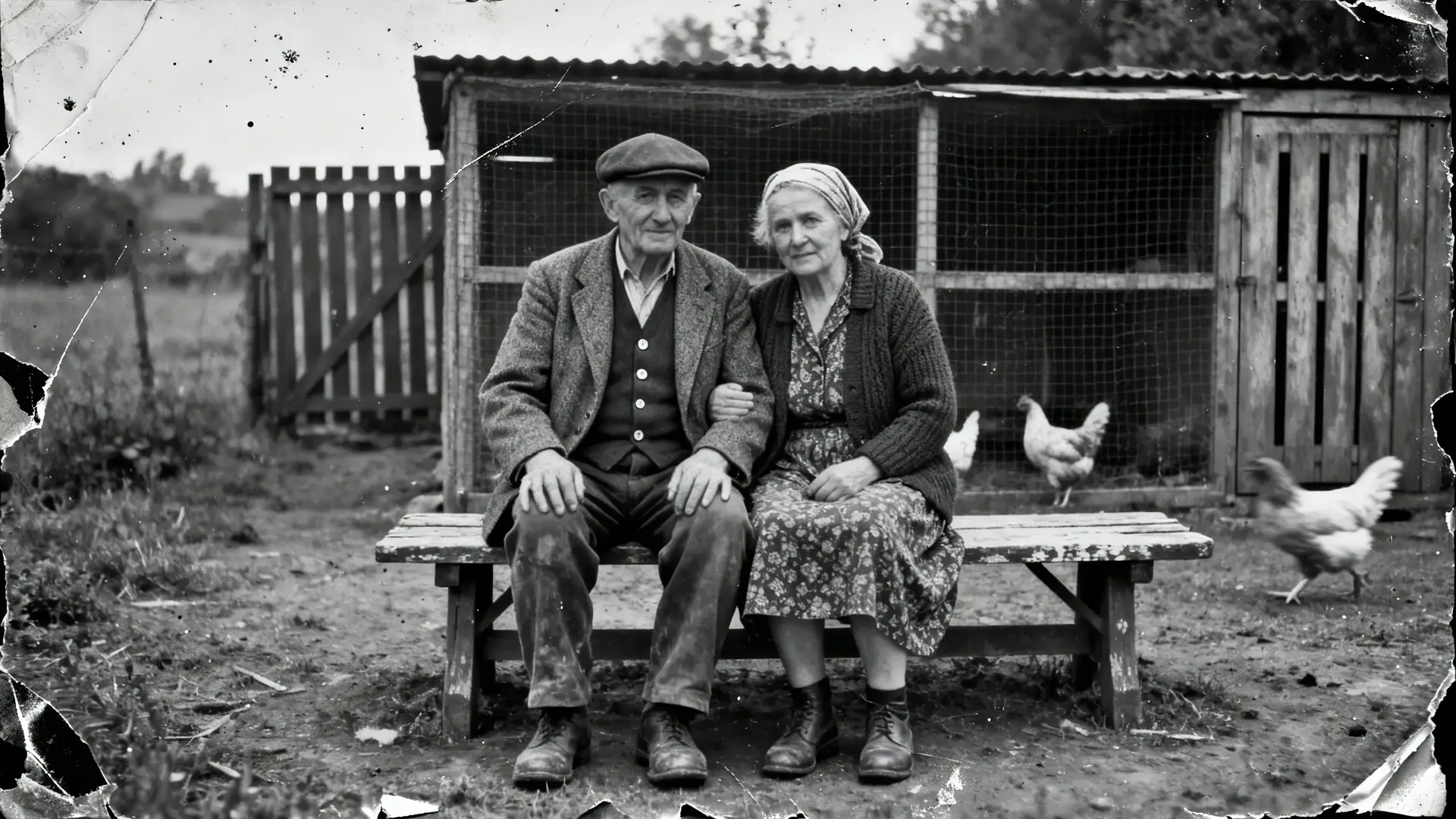
Old or damaged image? All you need to say is:
- Restore this photo.
Photo restoration used to mean learning niche tools or sending it out to a pro. Now you can do it in seconds: no filters, no AI “plastic skin,” just clean, natural restoration.
See our Guide to Restoring Images for more details.
-1920x1080.webp)
Everything in One Place
All of this happens inside one clean workspace. Generating, editing, organizing, even video creation: it all lives together. No tabs, no extra tools, no switching context.
You can keep projects organized in folders, compare results side by side, or queue up new work while others finish. Everything flows together so you can stay focused on what you’re making.
And if you’re creating with others, you can now set up Teams: shared workspaces where everyone can generate, edit, and organize together in real time.
See our Guide to Teams for more details.
For Creators at Every Level
getimg.ai 2.0 meets you where you are.
If you’re new, it helps you get great results right away. If you’re experienced, it helps you move faster and spend more time on ideas that matter.
It’s built for people who just want to make great things with AI, not wrestle with settings.
Go try it. You’ll see what we mean.
-1400x808.webp)