Guide to Restoring Old & Damaged Photos
Restore old or damaged photos in getimg.ai with the Photo restoration Action. Fix scratches, fading, and quality loss, no prompt to write.
How It Works
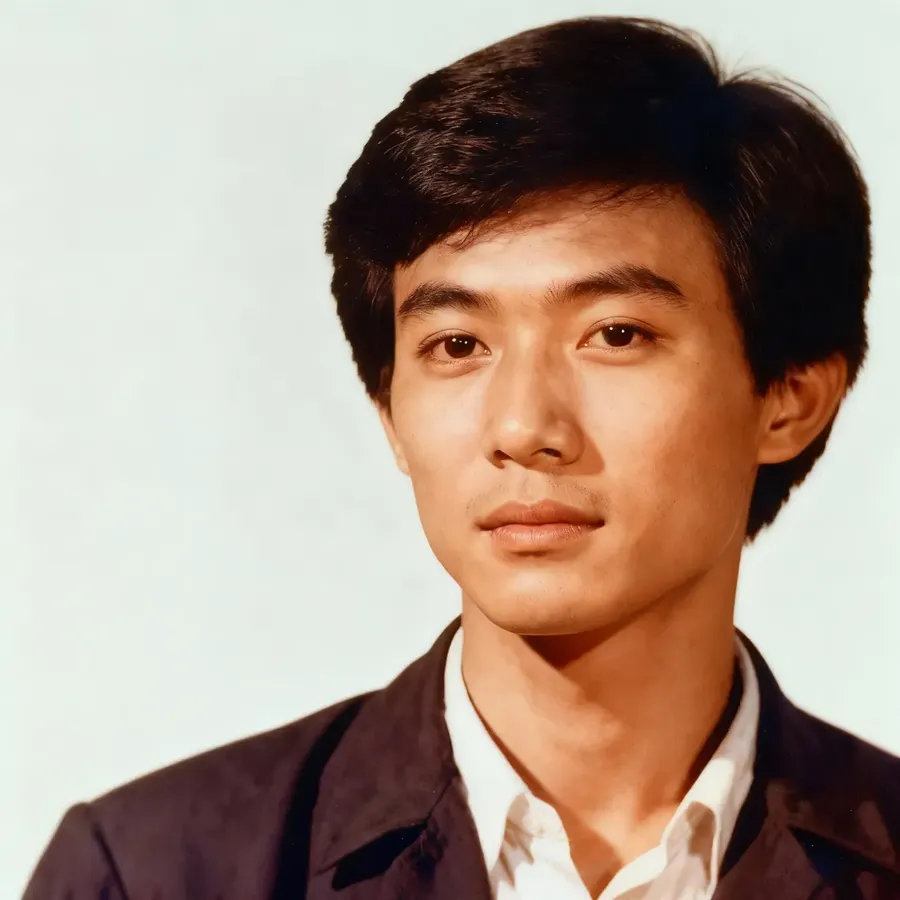
Image restoration brings damaged, faded, or low-quality photos back to their original state.
You can remove scratches, smooth artifacts, sharpen blurry details, and recover natural colors. The Photo restoration Action does all of it for you: add your photo, choose whether to also colorize it, and generate. There is no prompt to write and no manual editing.
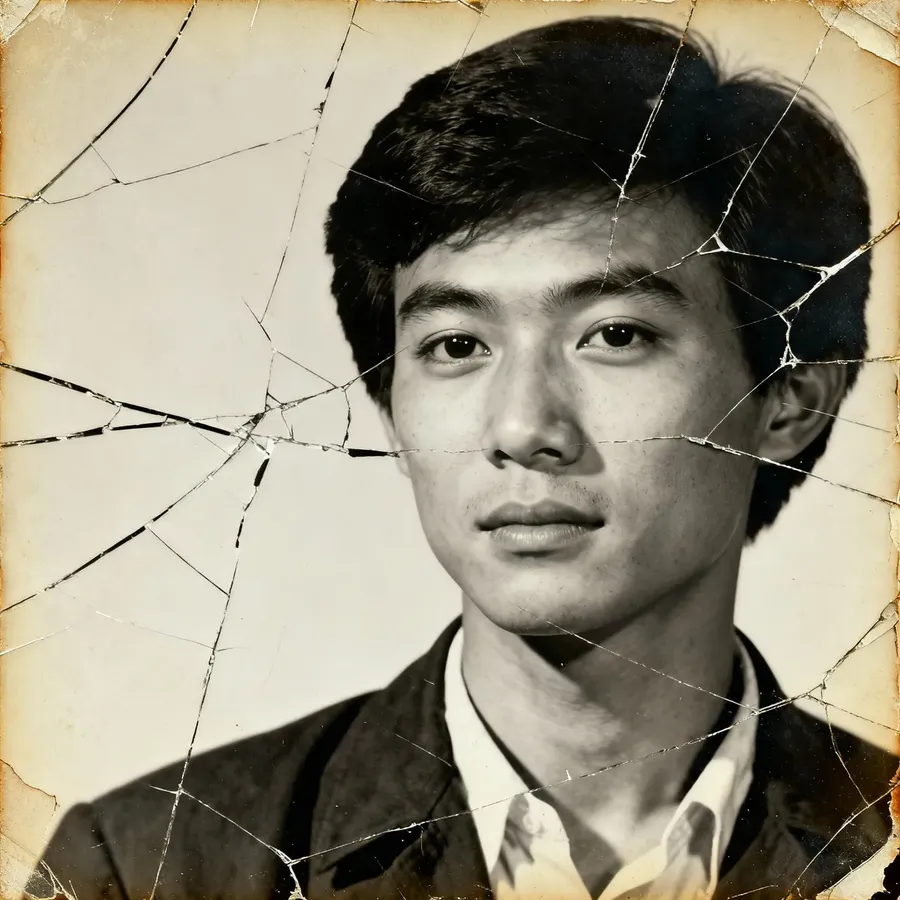
Before
After
Restoring a Photo
Restoring a photo takes three steps, from adding your image to generating the fixed version.
Step 1. Open Photo Restoration and Add Your Photo
Log into getimg.ai and open Photo restoration. Add the photo you want to fix: upload it from your device, or select an image you have already saved in getimg.ai.
Step 2. Choose How to Restore
Pick one of two options: Just restore repairs the photo and keeps its original look, while Restore and colorize repairs it and adds natural color to a black and white or faded image. Then set the output quality to 1K, 2K, or 4K, depending on how large you need the result.
Step 3. Generate
Click Generate to start the restoration.
Your restored version appears as a new image, while the original stays untouched, so you can try the other option whenever you like.
Frequently Asked Questions
No. The Photo restoration Action has no prompt to write. You add your photo, choose just restore or restore and colorize, and generate. That is all it takes to repair scratches, fading, and other damage.
Yes. Choose the Restore and colorize option instead of Just restore. getimg.ai repairs the damage and adds natural color to a black and white or faded photo in the same step.
No. When you run a restoration, getimg.ai generates a completely new image file. Your original uploaded photo stays untouched in your gallery, so your archive is safe even if you try both restoration options.
Photo restoration is designed to fix common issues found in physical prints and old scans, including scratches, dust spots, fading, and blurriness. It can also smooth out artifacts to make low-quality images look crisp and high-resolution.
No. You do not need selection tools or brushes. Add the image and generate, and getimg.ai automatically detects imperfections like scratches or tears and fills them in to match the surrounding content.
You can set the output quality to 1K, 2K, or 4K. Choose a higher resolution when you plan to print the restored photo or use it on a large display.