AI Wallpaper Generator for Phone and Desktop
Match the ratio to your screen, then upscale the version you keep
getimg.ai's AI wallpaper generator turns a text prompt or a visual reference into wallpapers for phones, desktops, laptops and ultrawide screens. Describe the wallpaper, choose a phone or desktop aspect ratio, generate several directions, then resize or upscale the one you want to use. You can also prompt for short on-image text, then review the lettering before you set the final wallpaper.
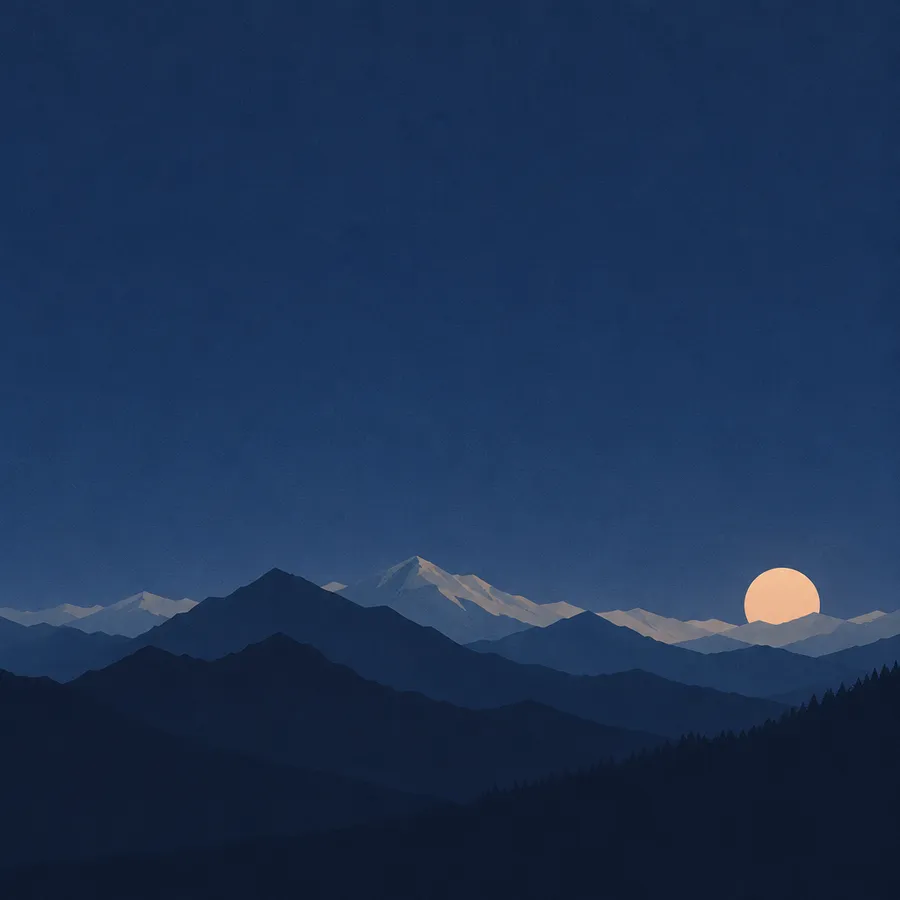
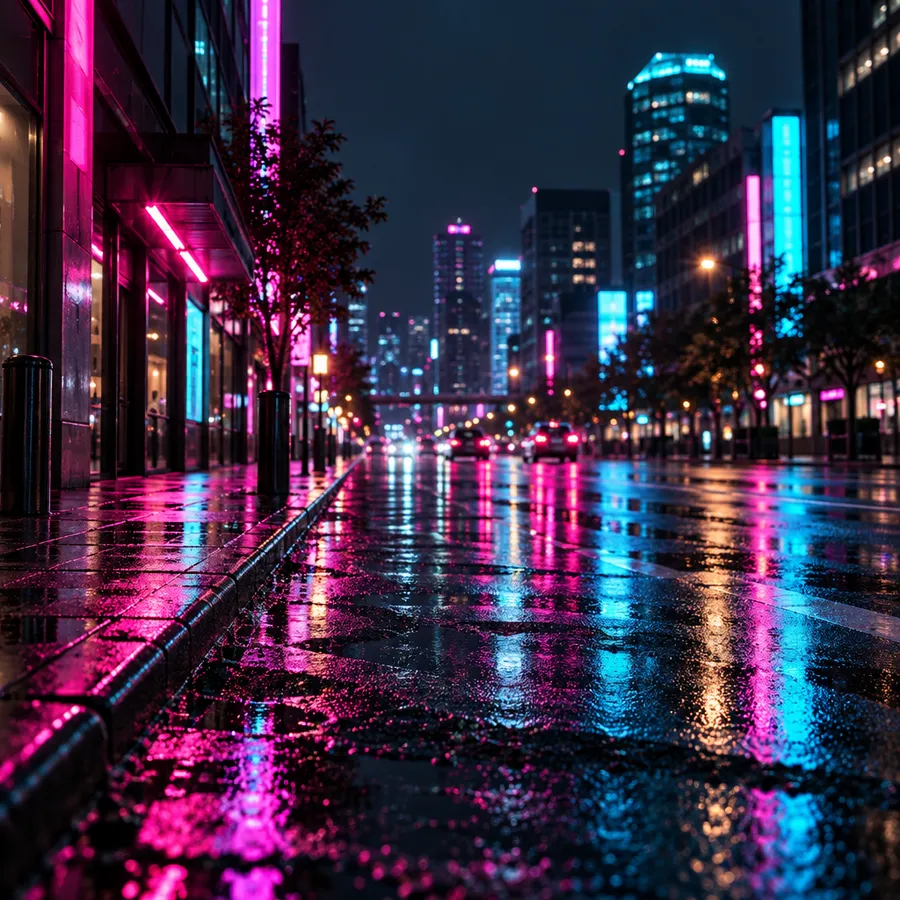
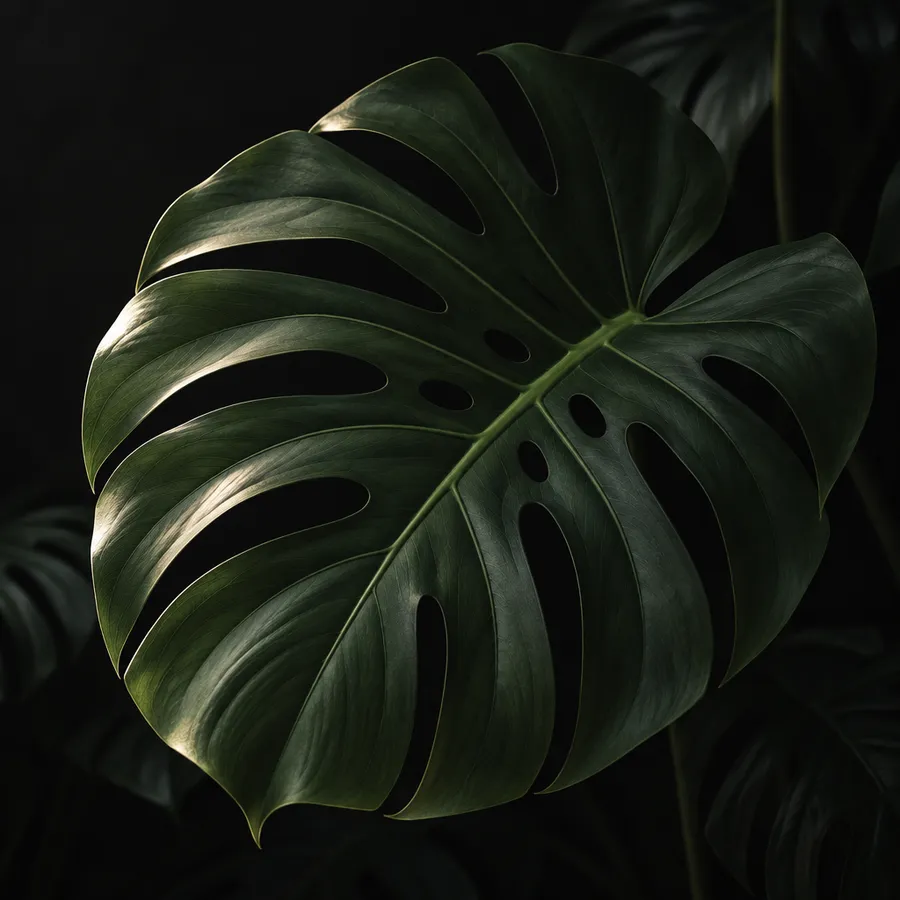
How to make a wallpaper with AI
Five steps from prompt to finished screen.
1. Open Create image
Go to Image, then Create image, and write your prompt in the box. Start here.
2. Describe the wallpaper
Name the subject, the style, the lighting and where the main element should sit in the frame. Attach a reference image if you already have a colour or mood direction.
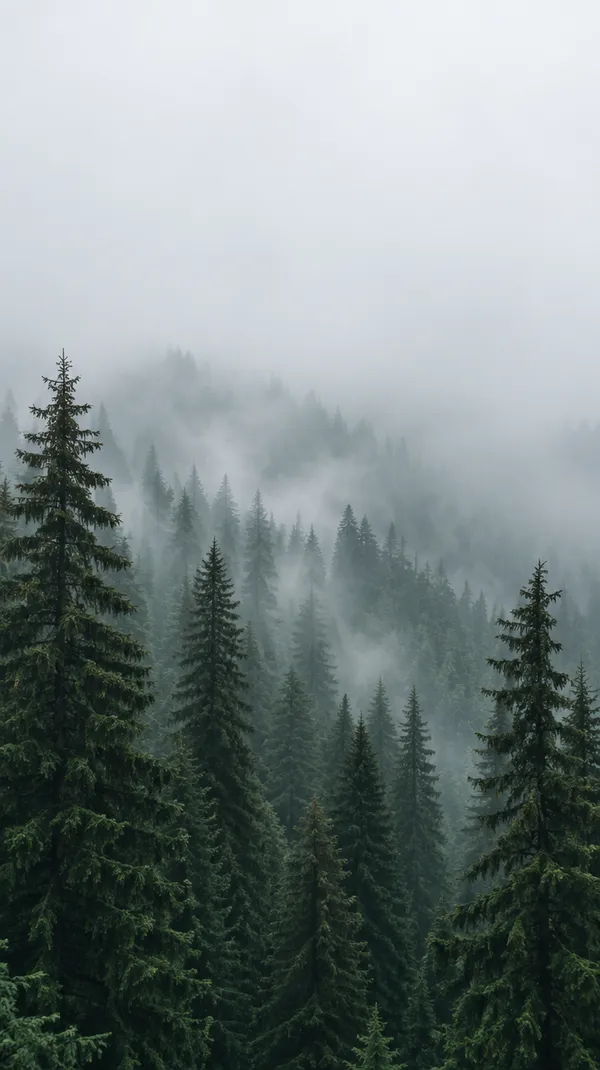
3. Choose an aspect ratio for your screen
Set 9:16 for a phone, 16:9 for a laptop or monitor, 21:9 for ultrawide. Then generate several versions and upscale the one you want to keep.
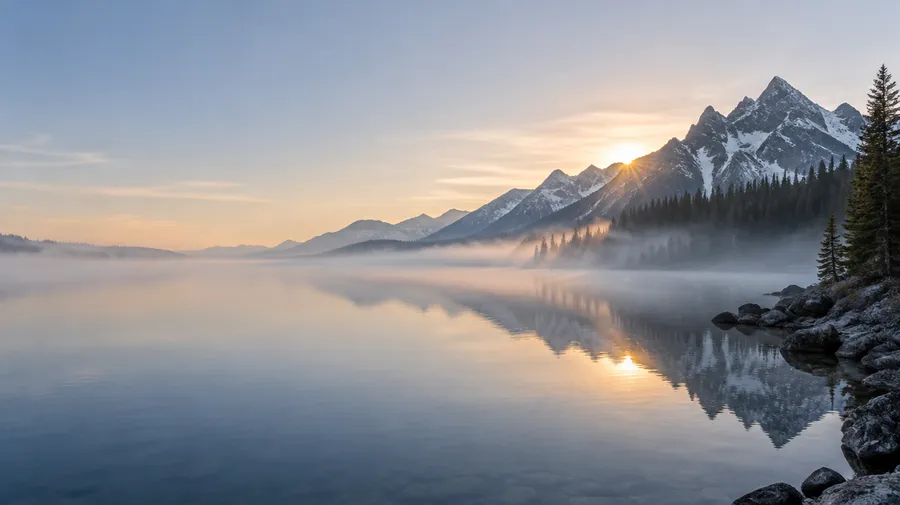
Create several directions before choosing one
The same idea reads very differently as a minimalist graphic, a photographic scene, an abstract gradient, an illustration or a typography-led layout. Generate a batch from one prompt, compare the interpretations side by side, then refine the strongest one instead of settling for the first output.
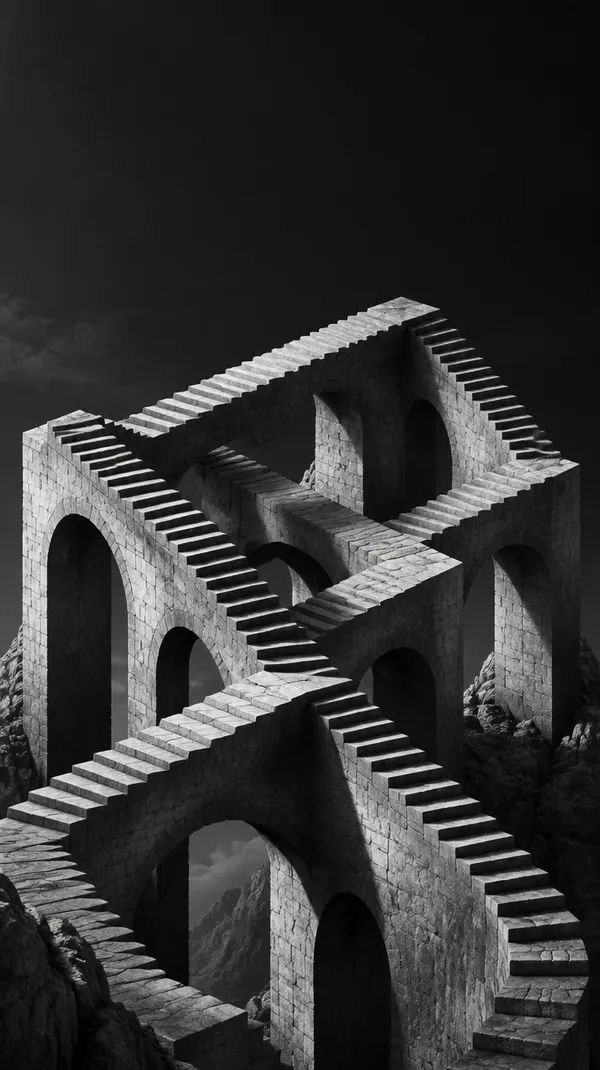
vertical, Escher-like staircase, infinite loop, impossible geometry, stone texture, monochrome, dramatic lighting, surreal, optical illusion, 9:16, high detail, digital art
Choose the right wallpaper format
Aspect ratio decides the shape of the image, not its resolution. Check the screen ratio of the device you are designing for, generate at that shape, then upscale the final image if the display needs more pixels.
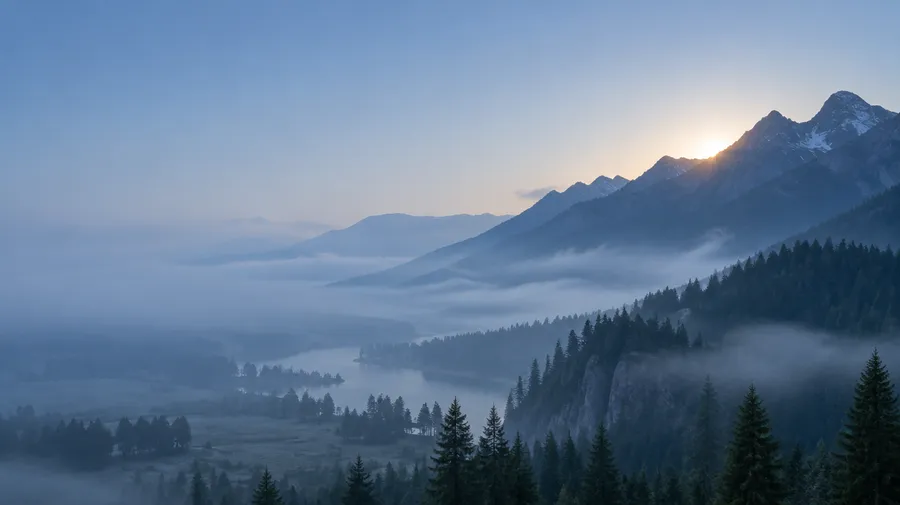
16:9 — desktop and laptop
The standard ratio for most monitors and laptop screens. Generate here first if the wallpaper is for a work machine.
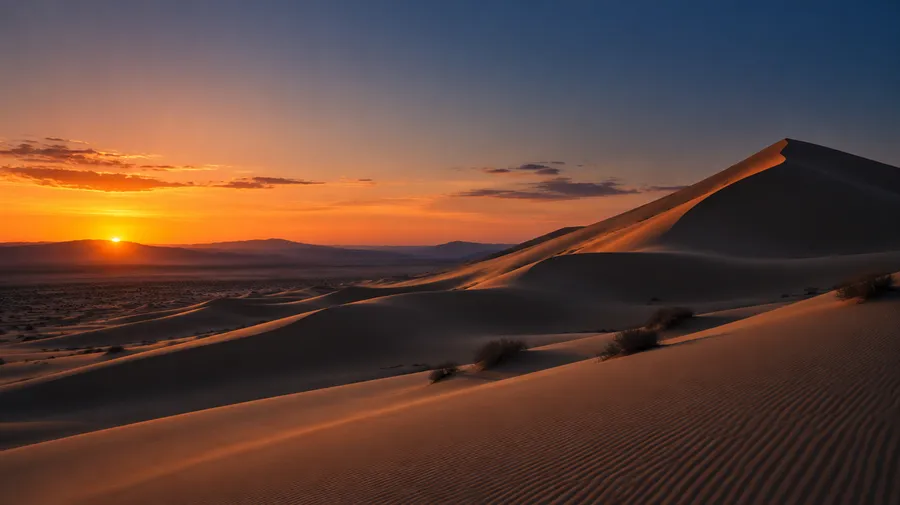
21:9 — ultrawide
For ultrawide monitors. Not every model supports it, so check the ratio options on the model you select before generating.
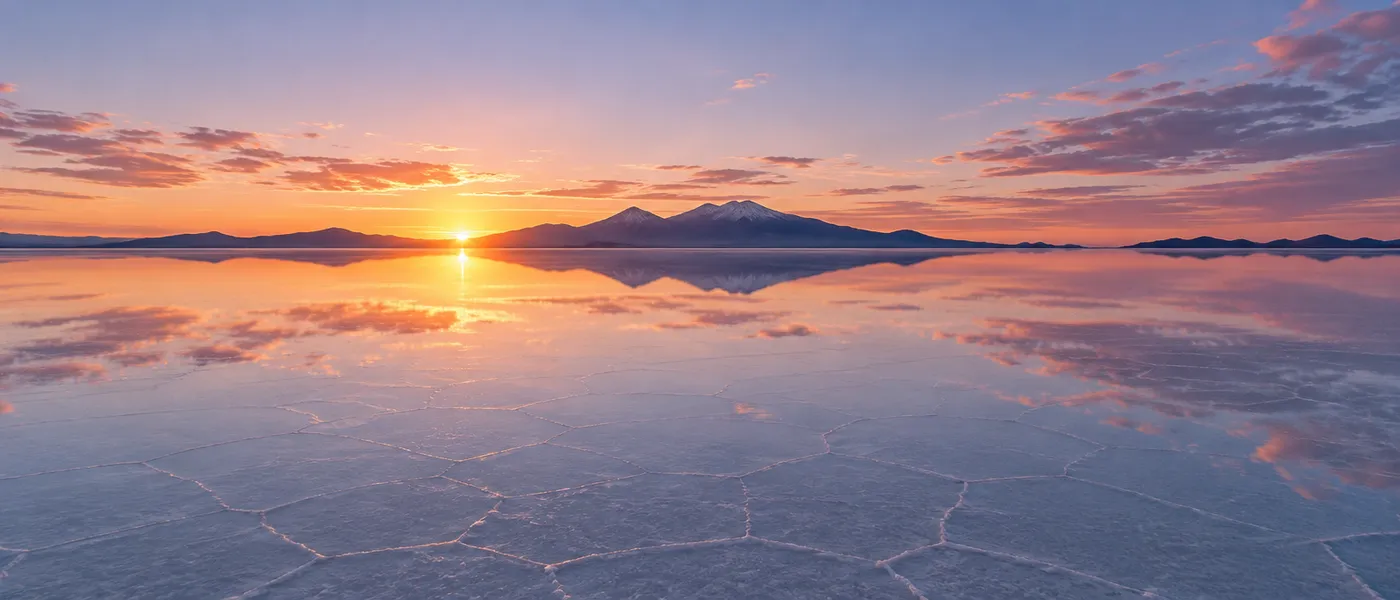
9:16 — phone
The usual starting point for phone lock and home screens. Phone panels differ, so compare the result against your own device.
Compose desktop wallpapers around your icons
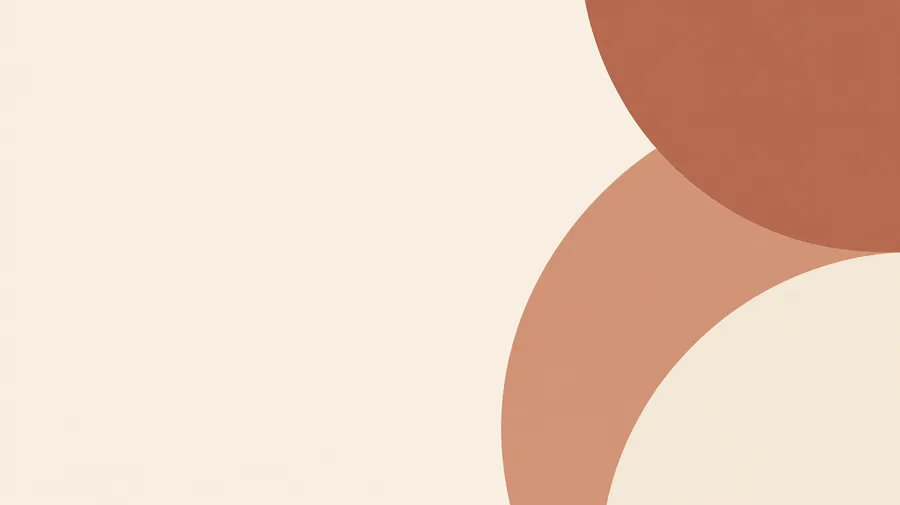
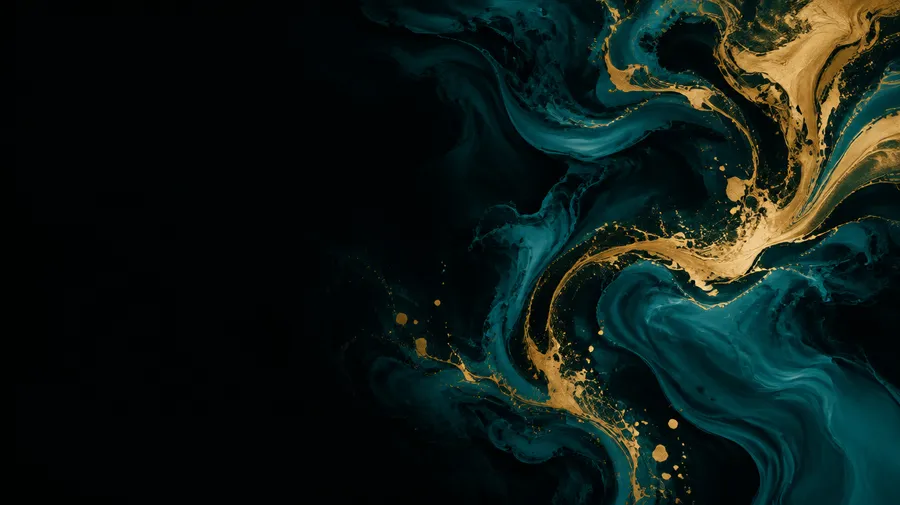
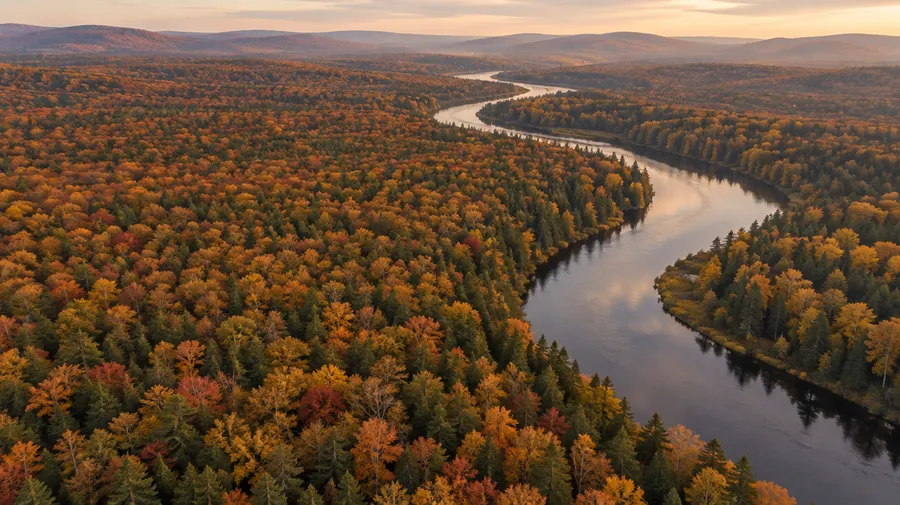
A desktop wallpaper shares the screen with icons, folders, a dock and a menu bar. Ask for calmer areas exactly where that UI sits: "main subject on the right, clean negative space on the left for desktop icons" gives you a background that still works once the desktop is full. Keep the busiest detail away from the corners.
Leave room for the lock screen clock
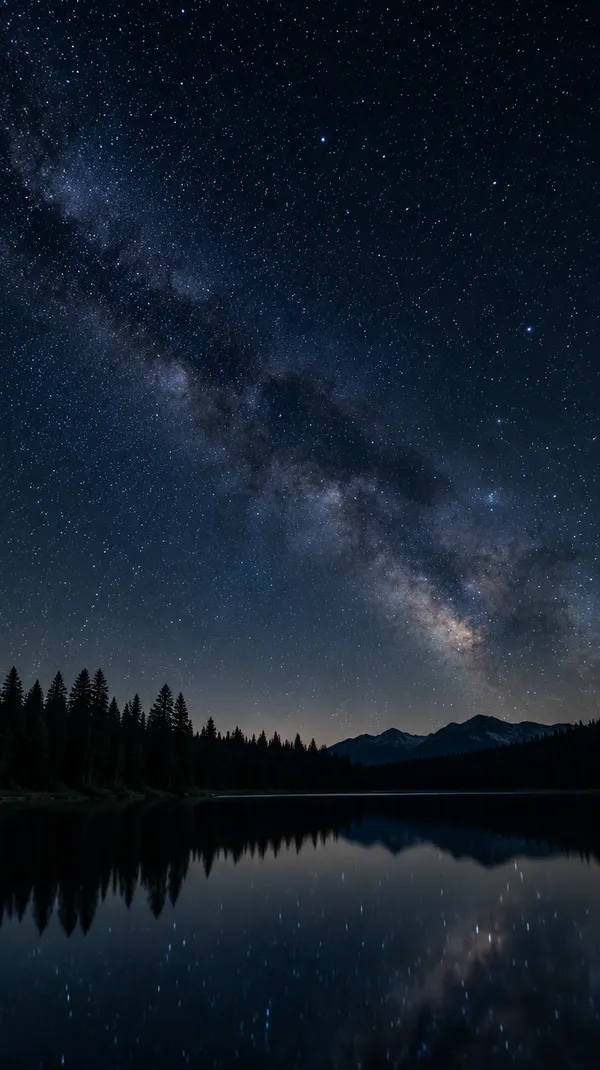
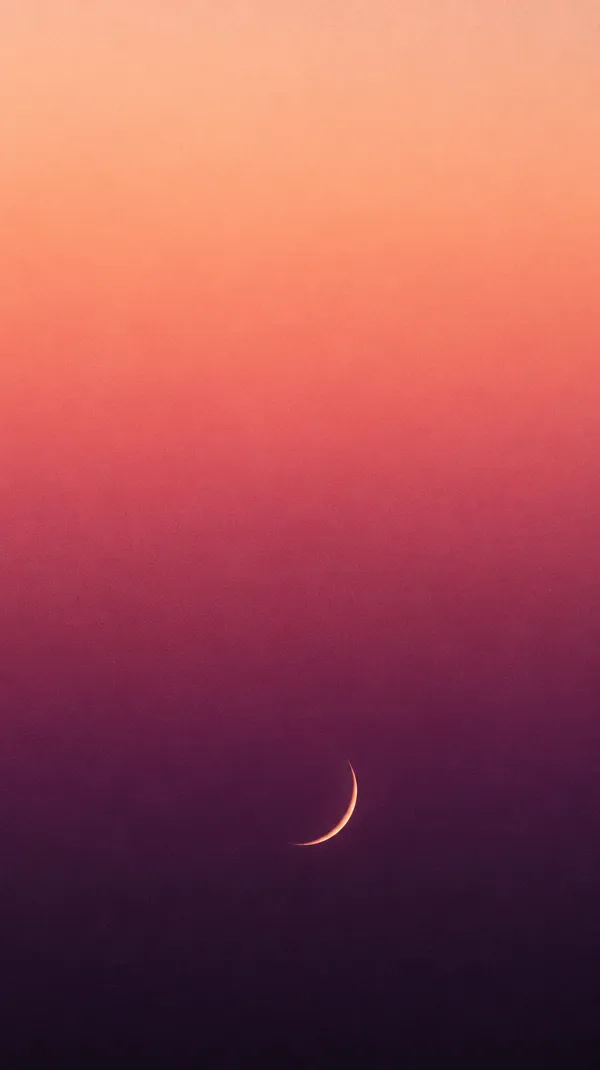
Phone wallpapers sit under a clock, widgets and notification cards, and the home screen adds another row of icons. Prompt for the composition you need: "vertical wallpaper, main subject in the lower third, clean dark space near the top for the lock-screen clock". Check the result on the device before you keep it.
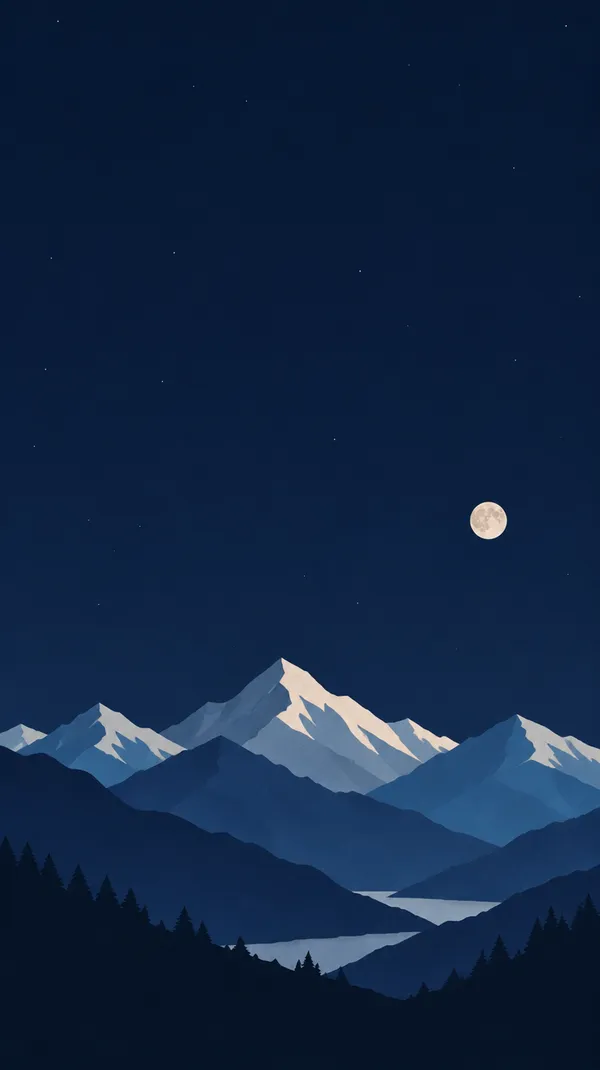
Explore different wallpaper styles
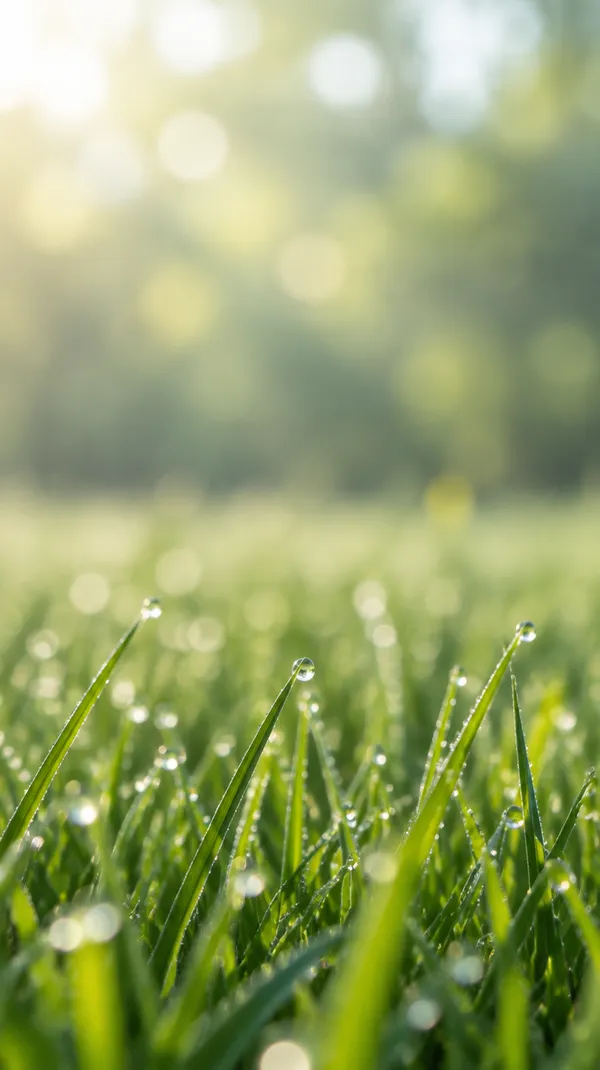
Photorealistic landscapes, abstract gradients, minimal geometry, anime-inspired scenes, pixel art, cyberpunk cities, dark fantasy, watercolour, 3D renders and typography-led layouts all come from the same prompt box. Name the style in the prompt, then adjust the palette and the level of detail until the screen feels right.
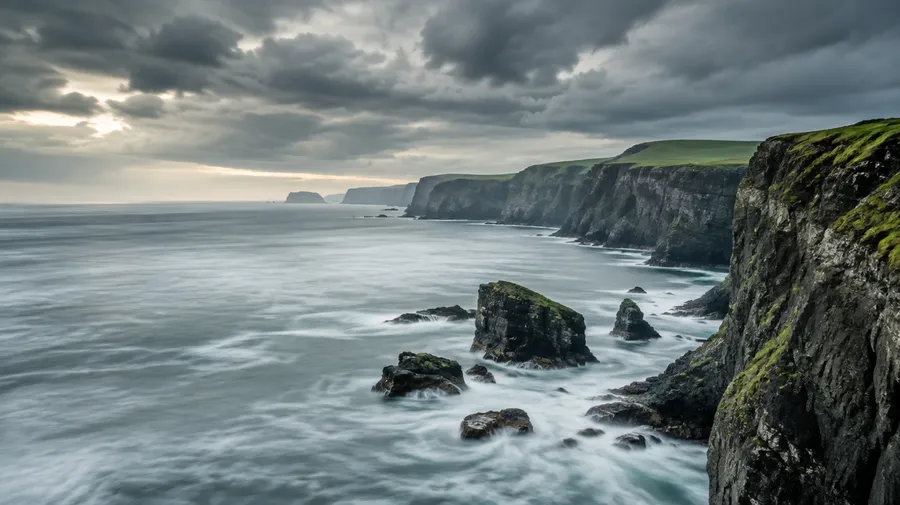
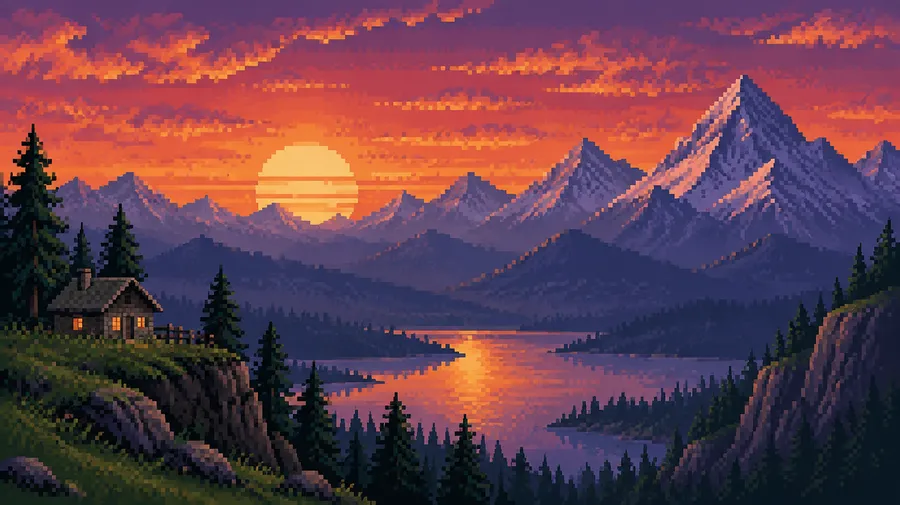
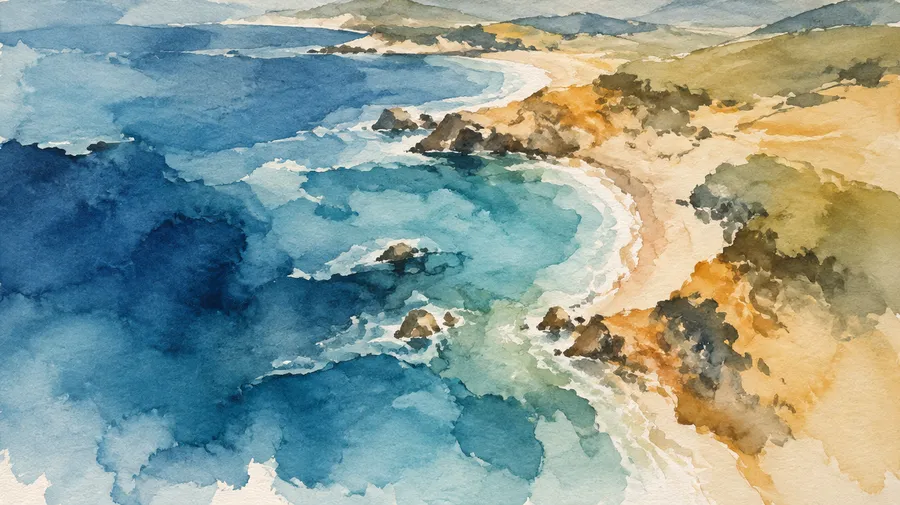
One wallpaper, multiple screens
When a desktop version works, you do not have to start again for your phone. Generate the 16:9 version, then open Resize Image to adapt it to 9:16, or use Outpainting to extend the frame instead of cropping the subject out of it.
You can also work the other way round and start from something you already have: attach a photo, a colour palette or a moodboard as a reference in Create image and build the wallpaper from that direction. The image references guide covers how references steer a generation.
How to get better AI wallpaper results
Most wallpaper problems are composition problems, not prompt problems. Decide which screen the image is for before you write anything, then build the prompt around the interface that will sit on top of it.
Frequently Asked Questions
Open Create image, describe the wallpaper you want, and choose the aspect ratio that matches your screen before generating.
Generate several versions from the same prompt, download the one you prefer, and run it through the Upscaler if the display needs more resolution.
Photorealistic landscapes, abstract gradients, minimal geometry, anime-inspired scenes, pixel art, cyberpunk cities, dark fantasy, watercolour, 3D renders and typography-led designs.
Three prompt tips: name the style and the palette explicitly, say where the subject sits in the frame, and state the level of detail you want. The AI Image Generation Prompt Book has worked examples.
Phone screens differ between models, so check the screen resolution and aspect ratio of your own handset first.
In getimg.ai, start from a vertical ratio such as 9:16, then adapt the result with Resize Image or add resolution with the Upscaler if the file looks soft on the device.
16:9 is the common standard for laptops and monitors. For ultrawide displays, 21:9 is the better match where the model you select supports it.
Aspect ratio is not the same as resolution: generate at the correct shape, then upscale the final image if your display needs more pixels.
Yes. Generate the 16:9 desktop version first, then open Resize Image and adapt the same image to a 9:16 phone format.
If reframing would cut the subject, use Outpainting instead — it keeps the existing image and generates the additional space around it.
Yes, and short text works best — a few words render far more reliably than a long sentence.
Check the spelling and the typography in the generated image before you set it as a wallpaper, especially when the lettering is the main element of the composition. You can fix a flawed version in the Image Editor.
You can leave model selection on Auto and let the platform route your prompt, or pick a model yourself and compare outputs.
Model availability for ratios such as 21:9 varies, so check the image generation models guide if you are generating for an ultrawide screen.
Yes. Attach a photo, an existing visual or a colour palette as a reference in Create image and describe the wallpaper you want built from it.
This is useful when you have a mood or palette in mind but do not want to describe it from scratch. See the image references guide.