AI Shoe Design Generator for Custom Footwear Concepts
Create footwear concepts from a prompt or reference image
Describe a completely new shoe concept or upload an existing footwear image as reference. Explore different silhouettes, colorways, materials and detailing, generate several directions, then refine the strongest design. Generated shoe concepts are visual references rather than CAD models, technical drawings or manufacturing-ready footwear files.
How to design shoe concepts with AI
Three steps from brief to first set of footwear directions.
1. Open Create image
Open the Create image action and start from text, or add an existing shoe photo as a Reference here.
2. Describe the footwear
Name the footwear type and silhouette, then the upper, midsole, outsole, materials, colorway, details and viewing angle.
3. Generate and refine
Generate 1, 2, 4, 8 or 16 versions at once, compare directions, then refine the strongest concept with a follow-up prompt.
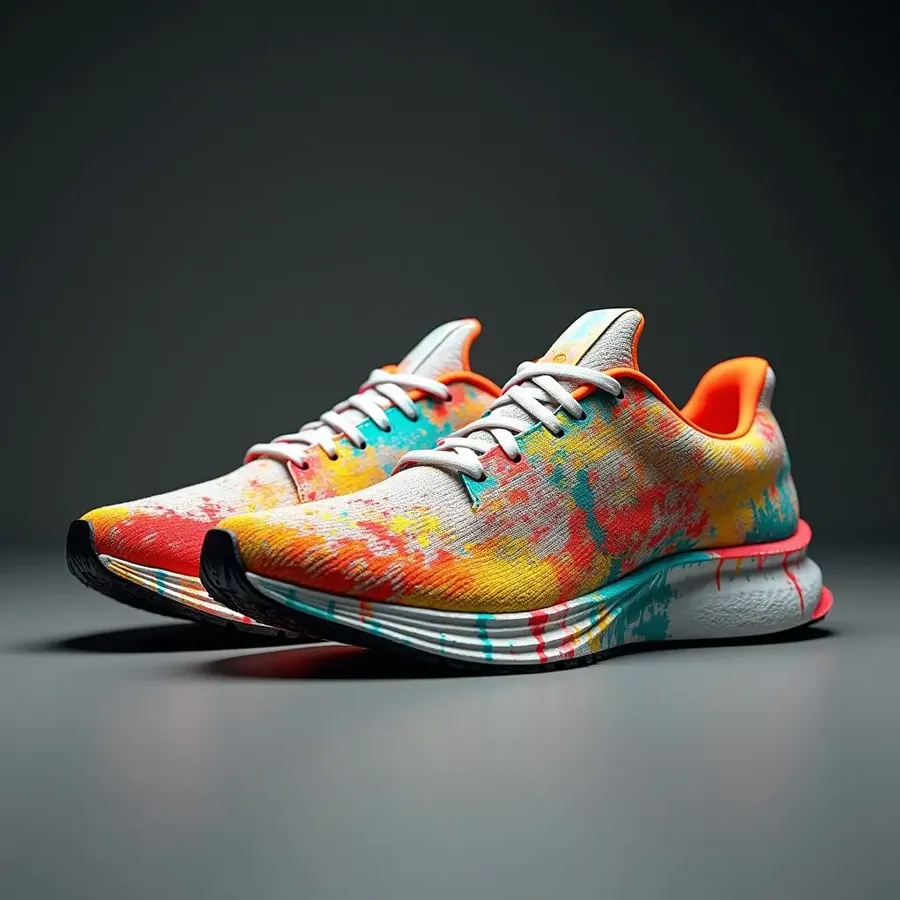
Create shoe concepts from text or from an existing image
Two entry points, one workspace. Start from text when the shoe does not exist yet: describe the footwear type, silhouette, upper, sole, materials and colorway, and generate a set of directions from scratch.
Start from a shoe image when you already have something to work from. Attach a photo as a Reference and explore new colors, materials, details, styling or presentation directions. A single generation accepts up to 10 reference images, and Image-to-Image keeps the original as guidance rather than replacing it.
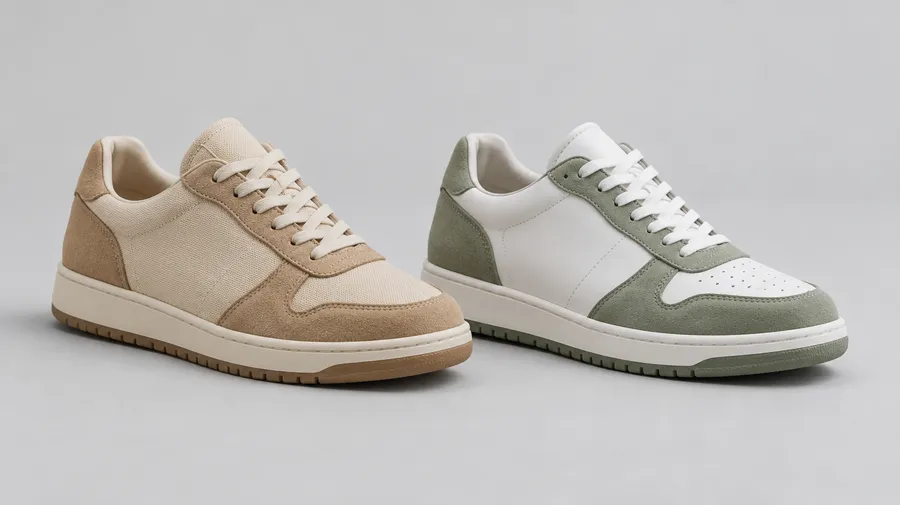
Redesign an existing shoe image with References
Attach a shoe photo, describe the change, and generate a new visual direction: a different colorway, another upper material, new laces, a recolored sole, added or removed decorative detail, or a different product background.
The image references guide covers how References drive object, style, palette, composition and perspective. One qualifier worth knowing: generative editing can alter nearby parts of the shoe, so review the shape and detailing after each edit. This is not a masked panel selection in a design tool.
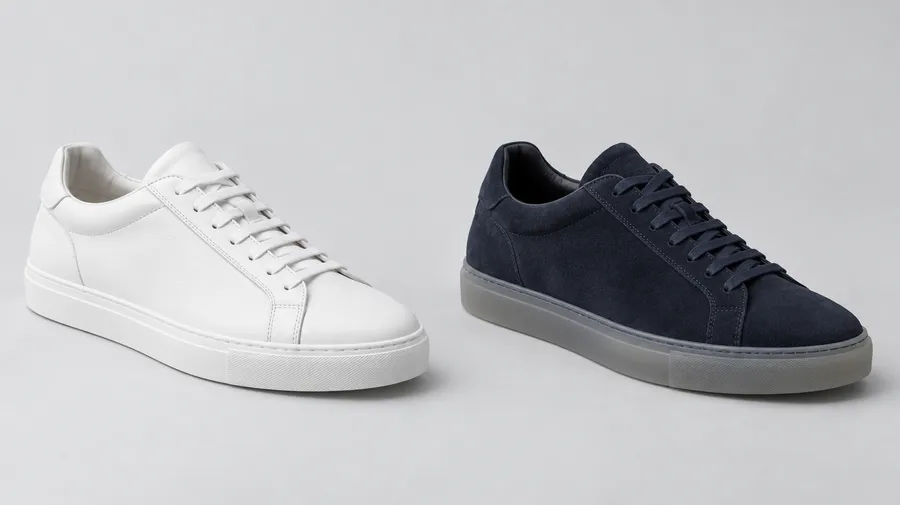
Explore multiple shoe directions before committing to one
Generate several interpretations of the same footwear brief to compare silhouettes, material combinations, colorways and detailing before refining the strongest concept. Create image produces batches of 1, 2, 4, 8 or 16, so an early-stage ideation round takes minutes rather than an afternoon. Every version stays in the same workspace, ready for a follow-up prompt.
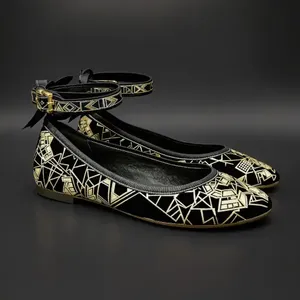
Digital illustration of ankle boots with block heels. Mustard yellow and slate gray cork uppers feature embroidered triangular patterns, fringed leather edges, recycled plastic loop straps, and hand-stitched seams. Muted patina finish highlights cork’s organic texture under soft directional lighting. Dark gray gradient backdrop
Explore different shoe colorways
Same silhouette, different palettes. Use the shoe concept as a Reference, then generate new palette directions while keeping the overall footwear idea recognizable. Compare neutral, seasonal, monochrome and high-contrast colorways before choosing a direction.
Save a palette as a Color Palette Element and call it into any prompt with @ElementName — the Elements guide explains how. References and Elements guide the overall design, but exact panel geometry and color placement can still shift between generated versions.
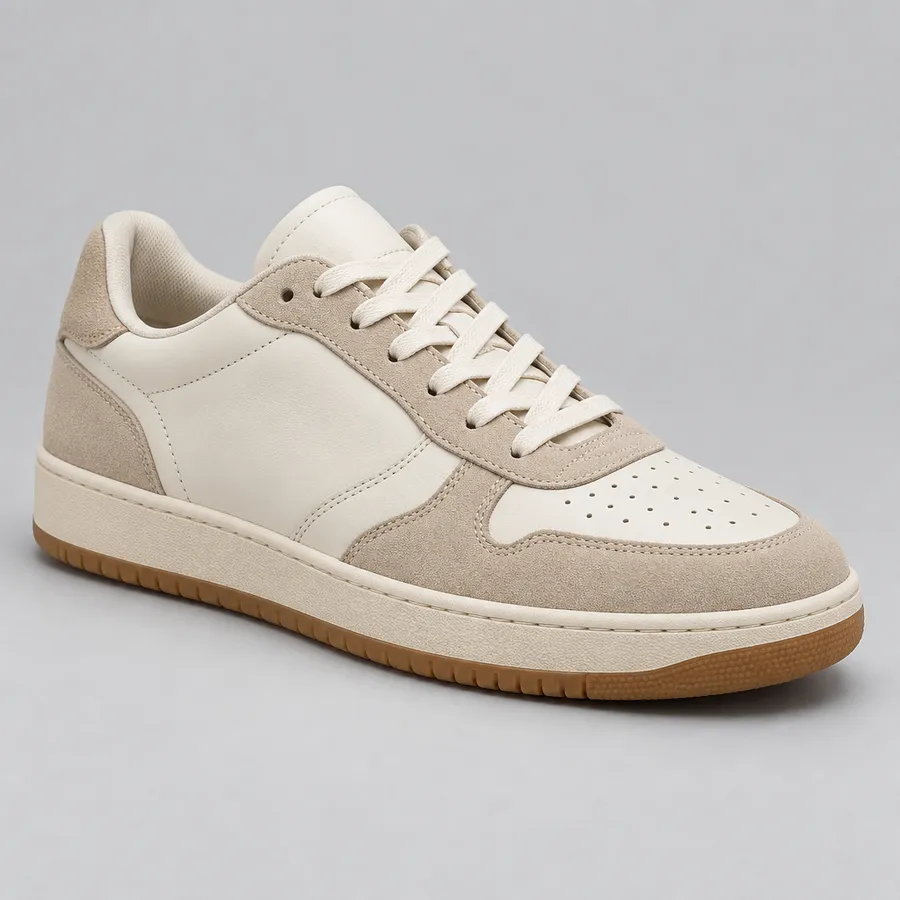
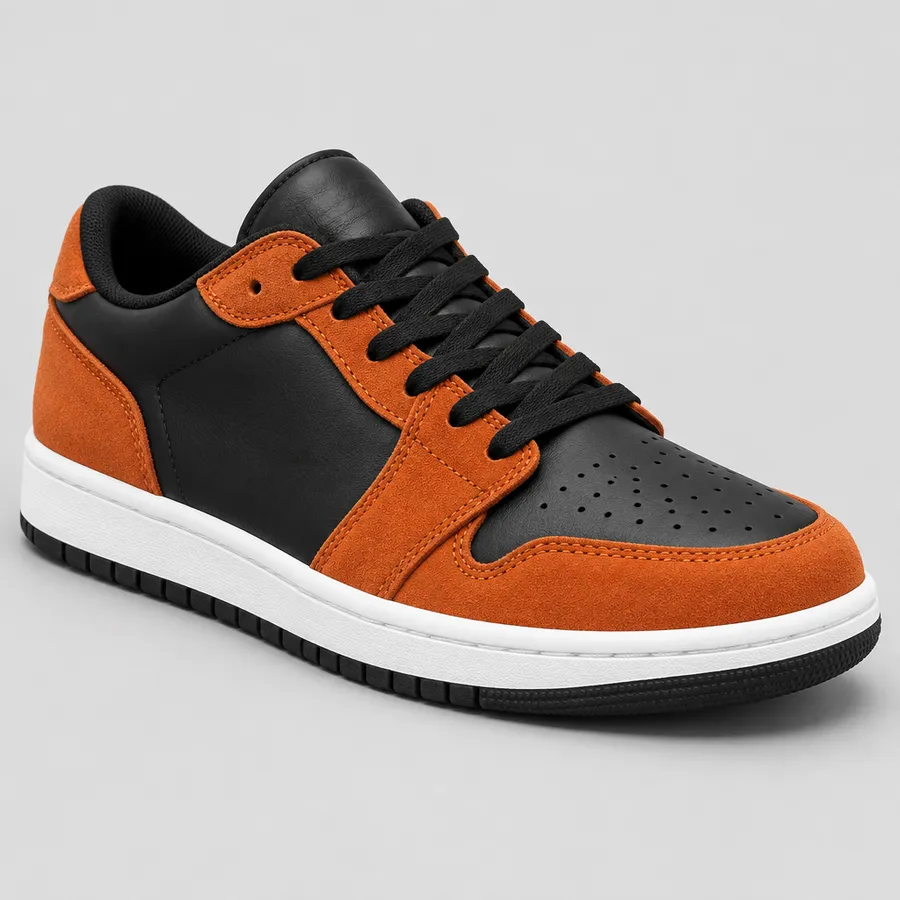
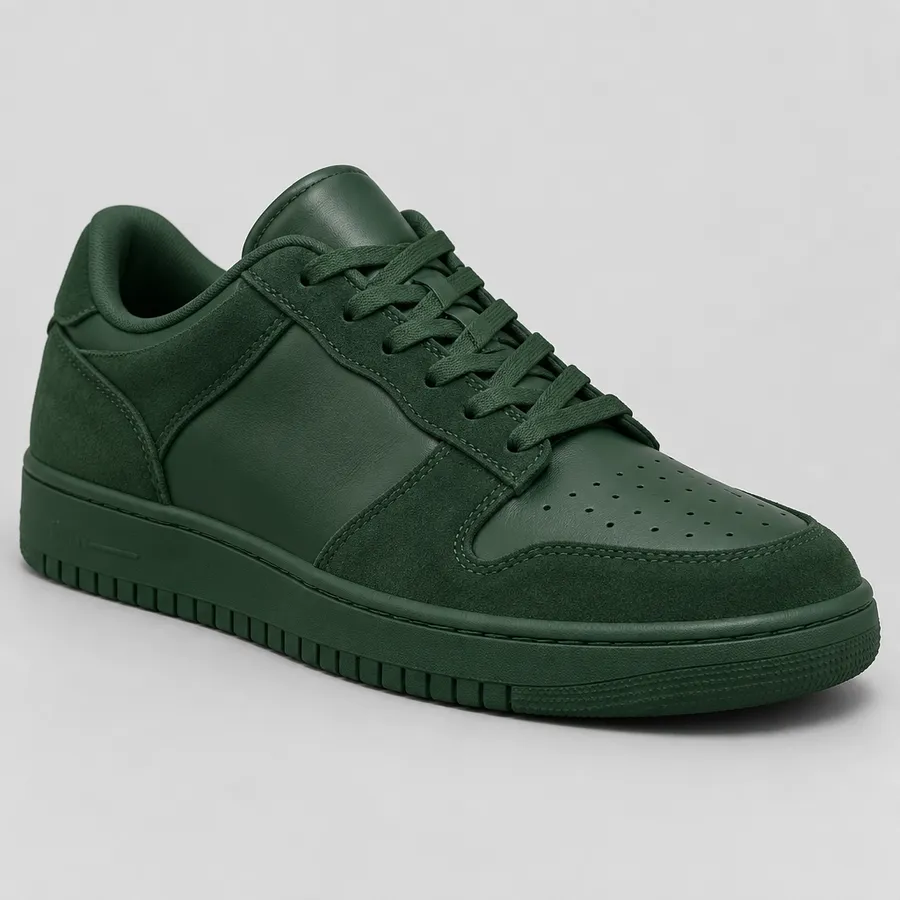
Create custom sneaker concepts with AI
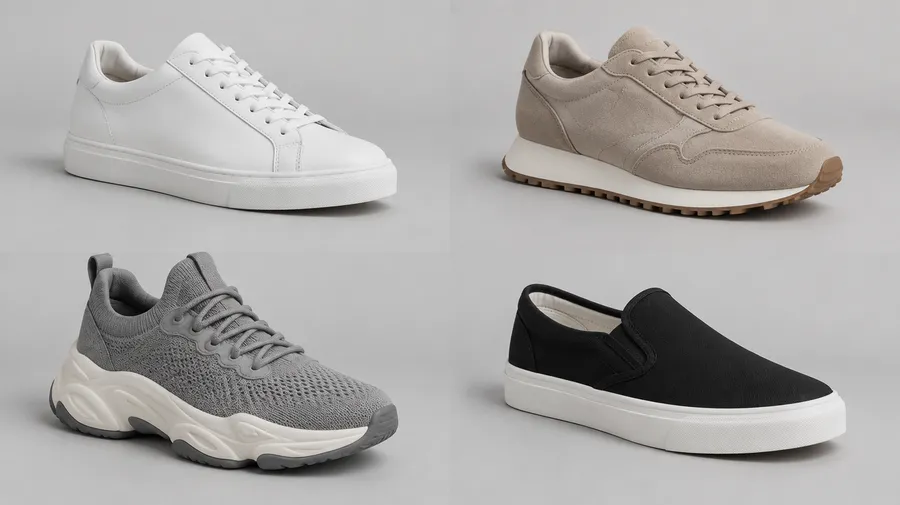
Sneakers are the most prompt-friendly footwear category: low-top, mid-top and high-top silhouettes, retro-running shapes, chunky trainers, court profiles and slip-ons all respond well to component-level description.
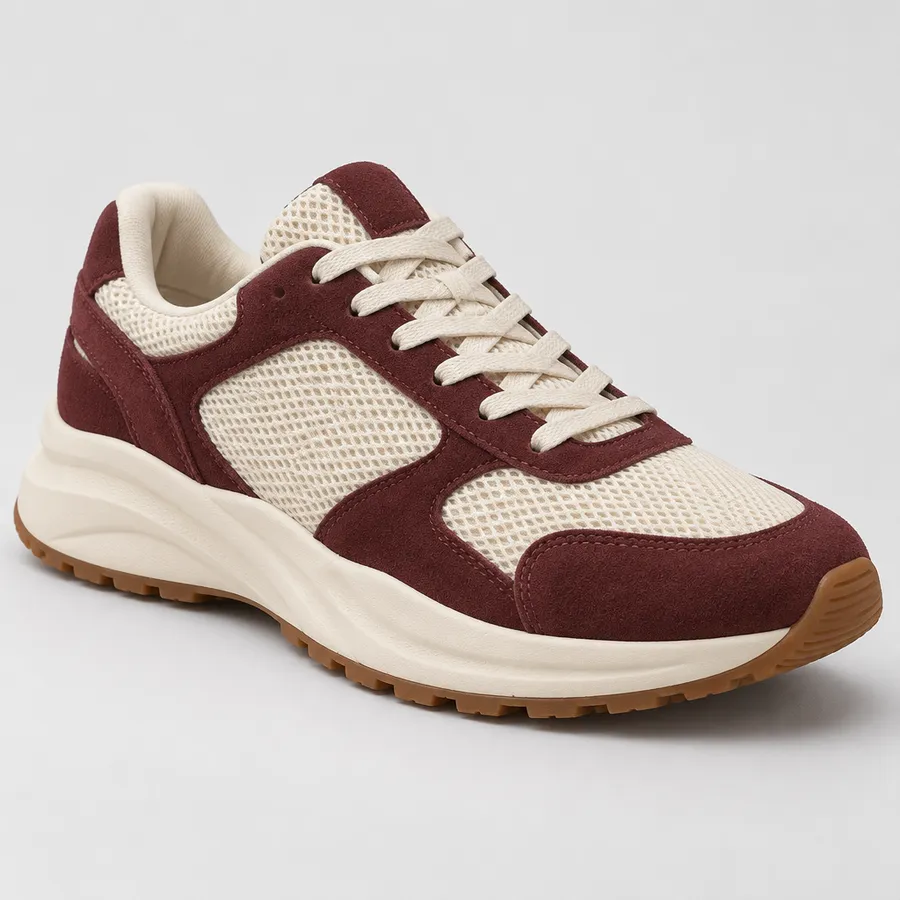
Name the upper panels, the overlays, the midsole profile and the outsole, then add the colorway and the viewing angle. Example: "low-top sneaker concept, curved retro-running silhouette, breathable cream mesh upper, burgundy suede overlays, off-white sculpted midsole, gum outsole, flat woven laces, three-quarter product view, clean studio photography."
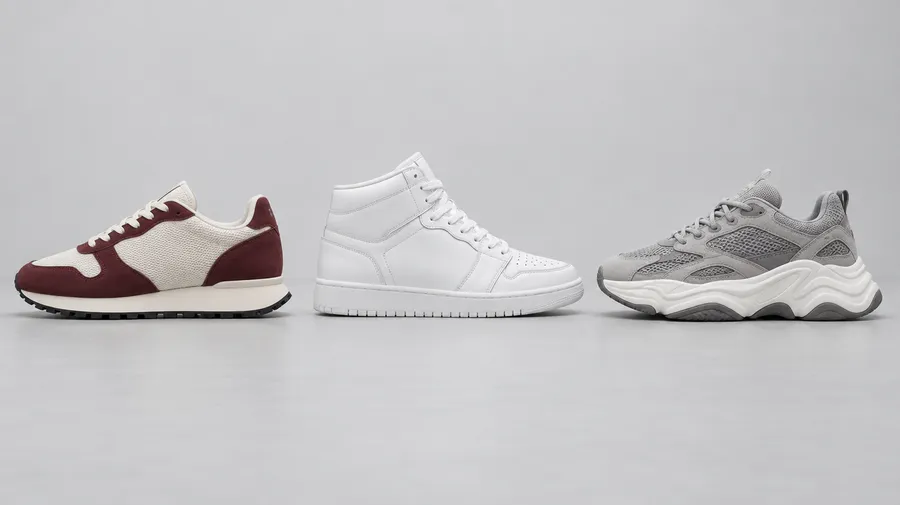
Explore different footwear categories
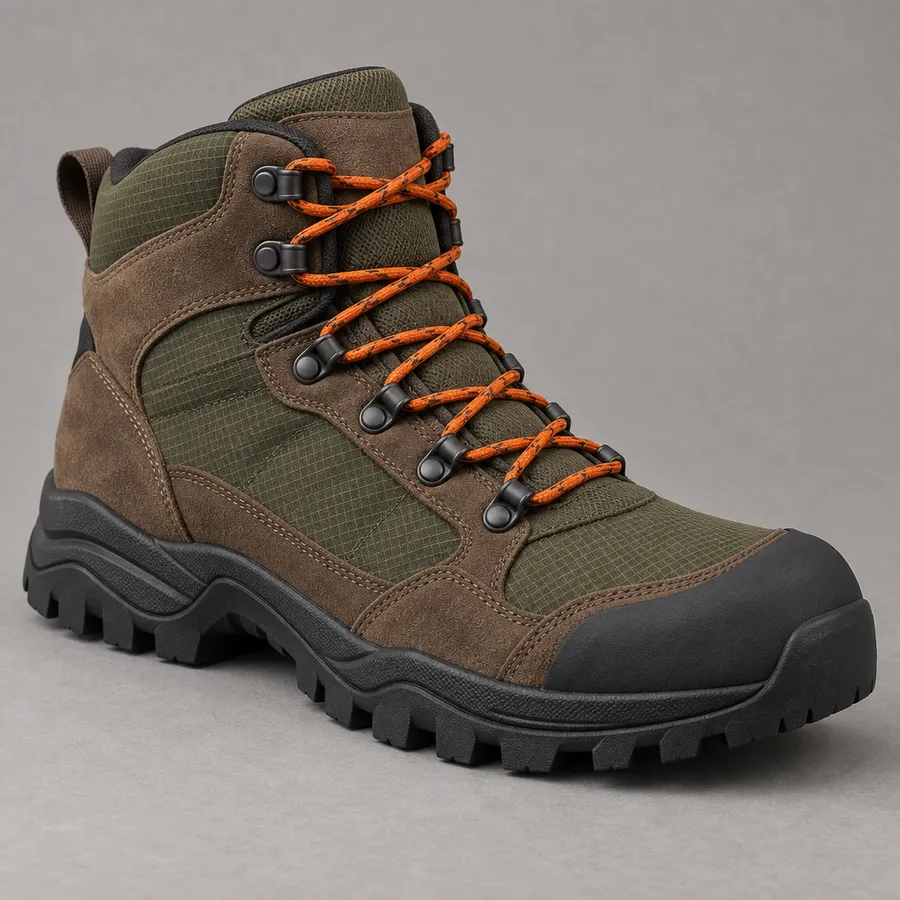
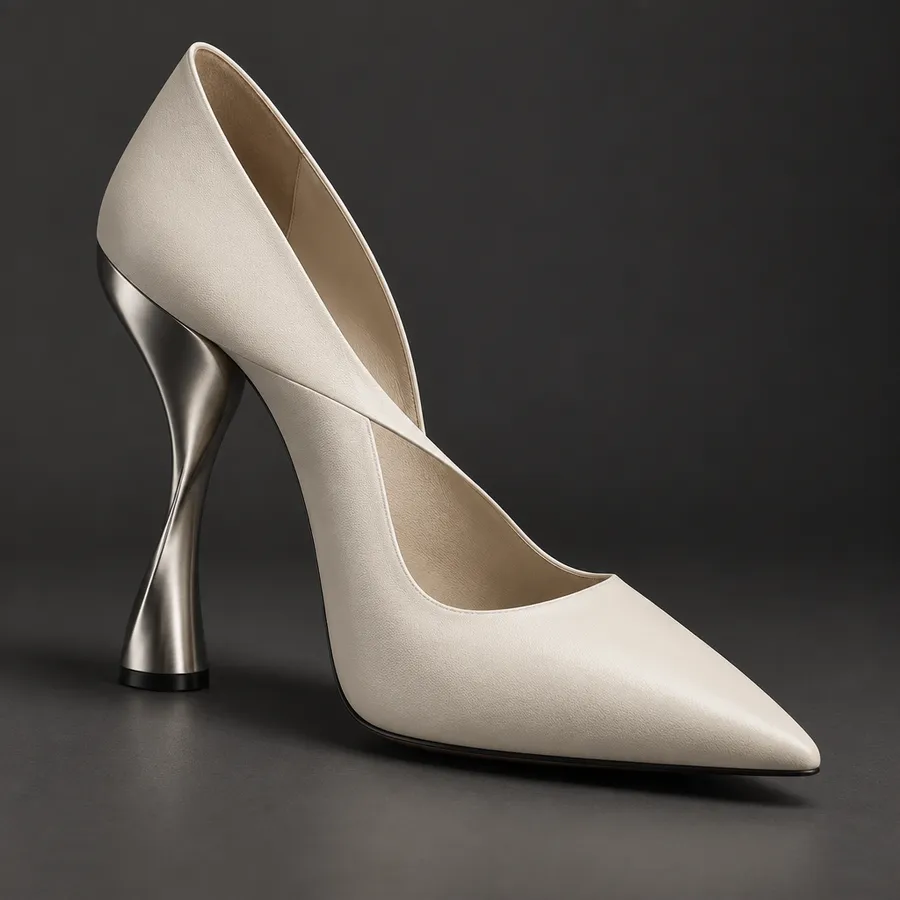
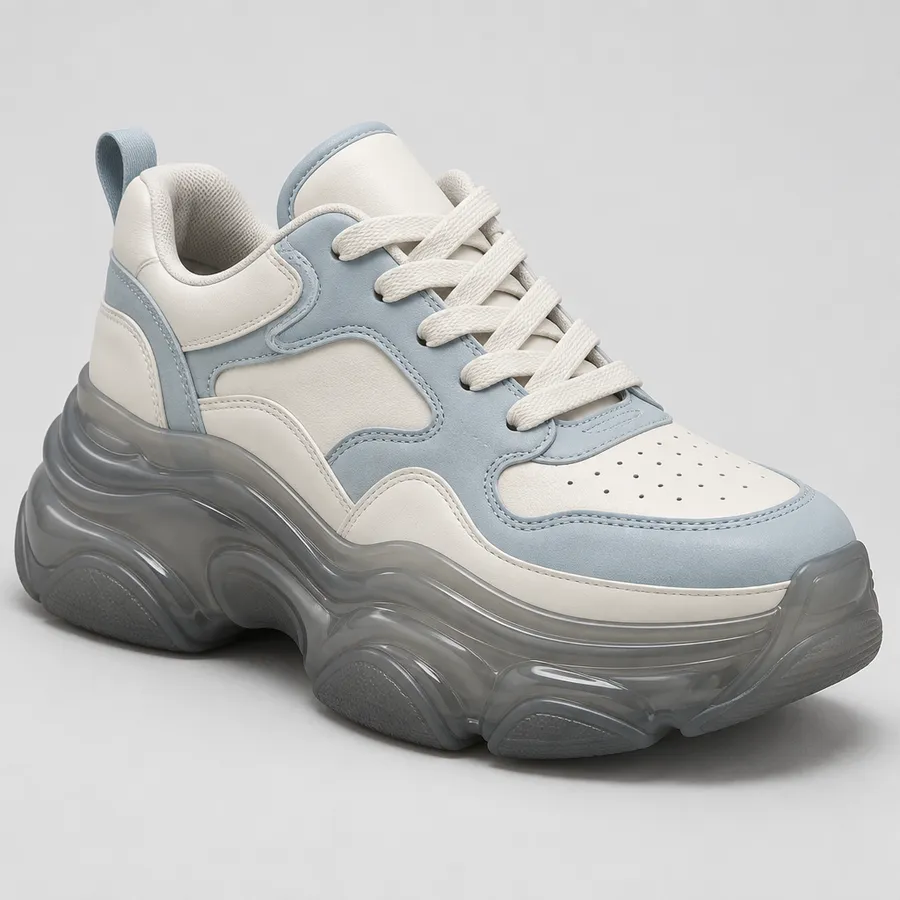
Sneakers, running-shoe concepts, high heels, boots, sandals, loafers, platform shoes, slip-ons, outdoor footwear concepts and avant-garde runway shapes. Each one responds to the same prompt structure: footwear type, silhouette, upper, sole, materials, colorway and viewing angle. For performance categories, treat the output as a visual concept — functional validation still happens in engineering and testing.
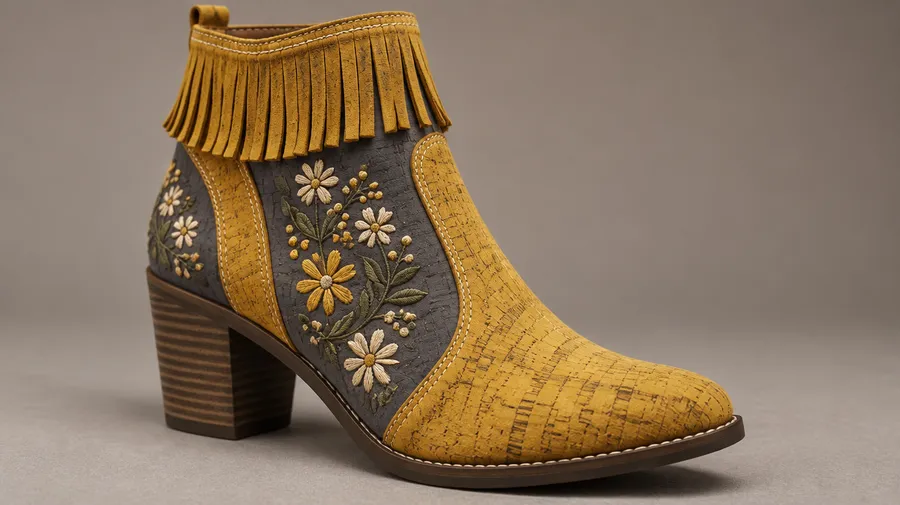
Explore different materials, colors and footwear details
Change the palette, material direction, laces, embroidery, sole treatment, panel styling or graphics through prompts and references. Leather, suede, canvas, mesh, knit textile, rubber, metallic and patent finishes all read differently on the same silhouette. Generate multiple versions when exact placement matters and refine the closest result — References and Elements guide the overall design, but panel geometry and color placement can still shift between versions.
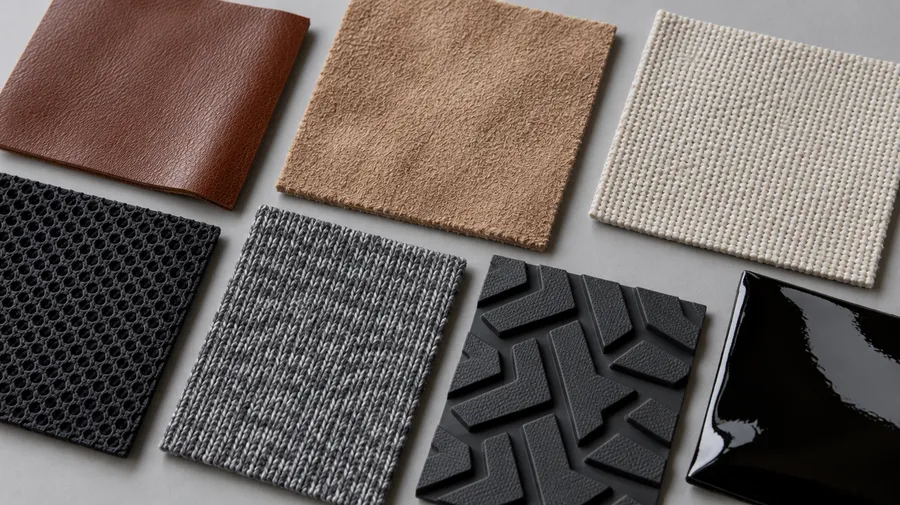
Understand shoe parts and prompt them more precisely
Footwear vocabulary is the difference between "white sneakers with red stitching" and a concept you can actually direct. Name the components, and the generation follows them.
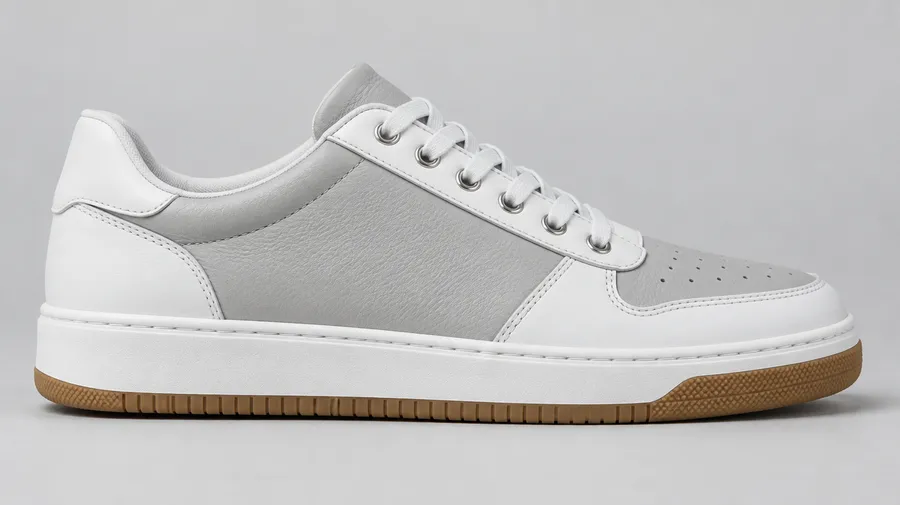
Show the concept from the angle you need
Perspective carries a lot of information in footwear. Side profile reads the silhouette and panel layout. Three-quarter view works best for overall product presentation. Top view shows lacing, tongue and toe design. A close-up carries texture, stitching and embroidery. An outsole-inspired view communicates the sole concept.
One honest qualifier: these are separately generated views, not mechanically linked orthographic drawings of one exact 3D model. Prompting a side view and a top view gives you two images guided toward the same idea — construction between them is not guaranteed to match.
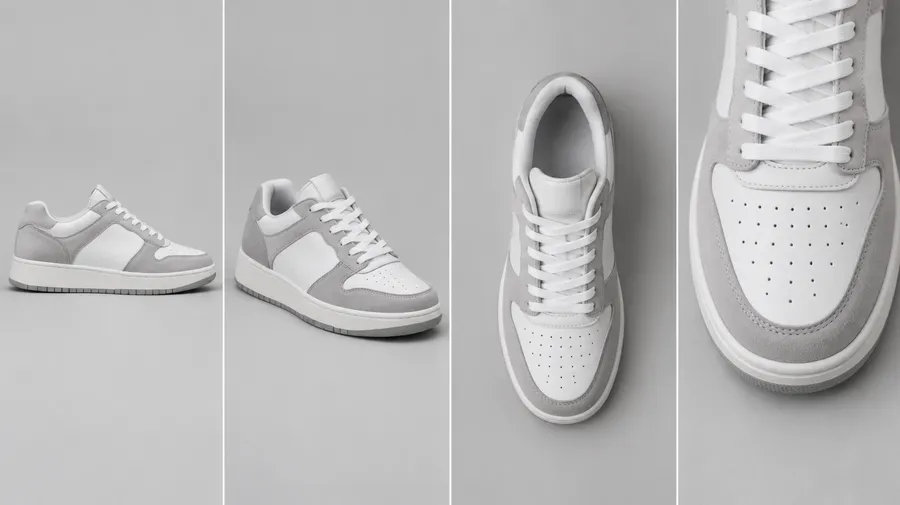
Keep the same shoe concept across multiple visuals
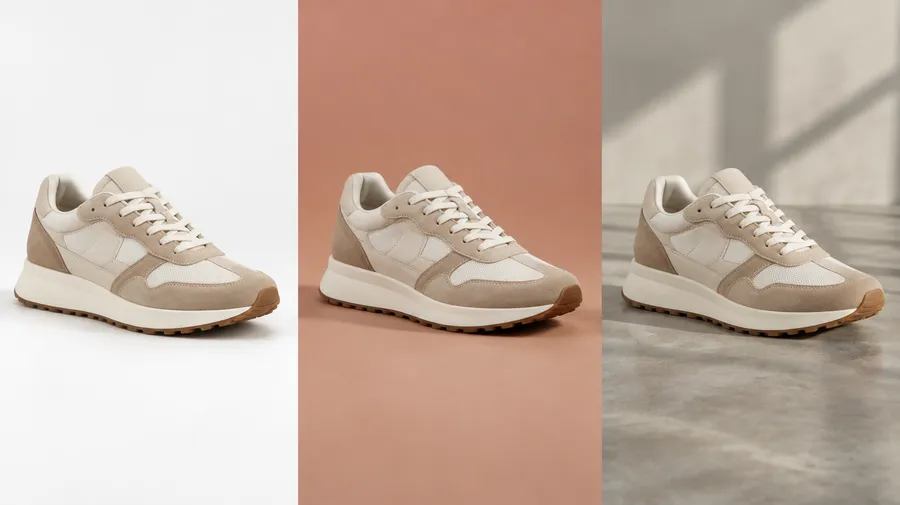
Pick the strongest concept, save it as a Product Element, then reuse it across product shots, background variations, campaign directions and presentation visuals. Product Elements are built for clean product presentation and consistent framing — the same shoe in studio, outdoors, or on a colored backdrop.
Combine it with Color Palette and Texture Elements for a full creative direction: shoe concept + brand palette + material texture. From there, remove the background, resize for each platform, or turn a selected concept into a short motion visual with Image-to-Video. Elements improve consistency, but they do not turn an image concept into an exact 3D product model — geometry and small construction details can still vary.
AI shoe design prompt examples
The formula: footwear type + silhouette + upper materials and panels + midsole and outsole + colorway + details + viewing angle + lighting and background.
Sneakers
Retro-running and minimal lifestyle silhouettes respond well to panel-level description.
Retro running concept
"low-top sneaker concept, curved retro-running silhouette, breathable cream mesh upper, burgundy suede overlays, off-white sculpted midsole, gum outsole, flat woven laces, minimal side panel graphics, three-quarter product view, clean studio photography."
How to get better shoe concept results
Most weak footwear generations come from prompts that describe a mood instead of a product. These six habits fix that.
AI shoe concept vs production-ready footwear design
An AI shoe concept is a generated visual used to explore silhouette, materials, colorways, graphics and presentation direction. It is a 2D image.
Production footwear design is a different discipline: accurate 3D geometry, lasts, patterns and components, fit validation, material specifications and manufacturing documentation. getimg.ai covers the first, not the second. Use generated concepts as visual references during early conversations — manufacturers will still need technical specifications, measurements, materials and production files before a shoe can be made. For existing products you already sell, AI for E-commerce is the better starting point.
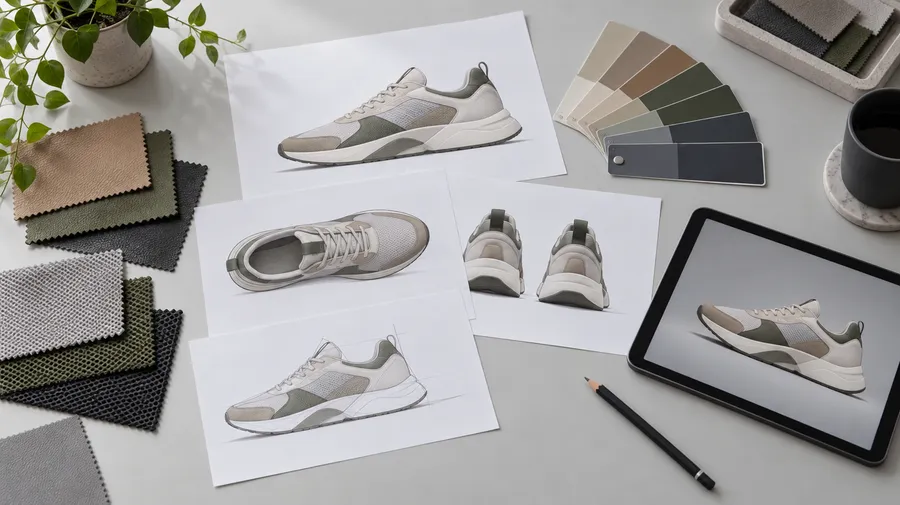
Create polished concept visuals for presentations and portfolios
Describe the silhouette, the upper, the sole and the colorway. Generate several directions, refine the strongest one, and export a product-style concept visual.
Frequently Asked Questions
Open Create image, describe the footwear, and generate. Name the category and silhouette, then the upper, midsole and outsole, two or three materials, a clear colorway and the viewing angle. Generate several versions and refine the closest one with a follow-up prompt. You can also attach an existing shoe photo as a Reference instead of starting from text.
Yes. Attach the shoe photo as a Reference and describe the change — a new colorway, a different upper material, recolored sole, altered laces or a different background. Image-to-Image keeps the original as guidance. Generative editing can alter nearby parts of the shoe, so review the shape and detailing after each edit.
Yes. Use the same shoe concept as a Reference and generate new palette directions while keeping the footwear idea recognizable. A Color Palette Element makes a brand palette reusable across generations. Exact panel geometry and color placement can still shift between versions — this is prompt and reference guidance, not panel-by-panel selection.
Yes. Leather, suede, canvas, mesh, knit textile, rubber, metallic, patent and translucent finishes can all be prompted onto the same silhouette. Texture Elements store a material direction so it can be reused across a series. Expect some variation in how the material lands on smaller panels.
Yes — sneakers, running-shoe concepts, high heels, boots, sandals, loafers, platform shoes, slip-ons, outdoor footwear concepts and avant-garde runway shapes. For performance categories such as running or hiking, treat the result as a visual concept: functional performance depends on engineering and testing that an image cannot represent.
No — the generated result is an image rather than a 3D CAD model. Use it for ideation, visual direction and presentations. Technical 3D development requires dedicated footwear or CAD software.
No. getimg.ai generates 2D footwear concept images. It does not export CAD or STL files, patterns, lasts, grading data or tech packs. Those belong to a dedicated footwear design and engineering workflow.
You can prompt different views — side profile, three-quarter, top-down, close-up — and use References and Elements to guide consistency. Separately generated images are not automatically orthographic views of one exact CAD model, so construction between them is not guaranteed to match. For manufacturing drawings, use dedicated 3D or CAD footwear software.
No. A concept render shows how a shoe could look, not how it would be built. Accurate geometry, lasts, patterns, fit validation, material specifications and manufacturing documentation all sit outside image generation.
Yes, as visual references during early conversations. They communicate silhouette, material direction and colorway far better than a verbal description. Manufacturers will still need technical specifications, measurements, materials and production files before a shoe can be made.
Yes. Save the selected concept as a Product Element and call it into any prompt with @ElementName — the Elements guide walks through it. Elements improve consistency, but they do not turn an image concept into an exact 3D product model, so geometry and small construction details can still vary.
Brand colors work well through a Color Palette Element. Logos are less predictable: generative output can distort an exact mark. For legal brand marks, product labels or precise logo placement, review generated details carefully or add the final branding in a design tool after concept generation.
Yes — use product photos as References or create a Product Element when you need the existing shoe to guide new visual content. For exact commercial product representation, review details carefully, because generative editing can alter the design. AI for E-commerce covers that workflow in more depth.
Yes. Every paid plan includes commercial rights to images created with our image and video generation tools, subject to the usual use restrictions. Concept visuals can go into pitch decks, portfolios, social posts and campaign material.