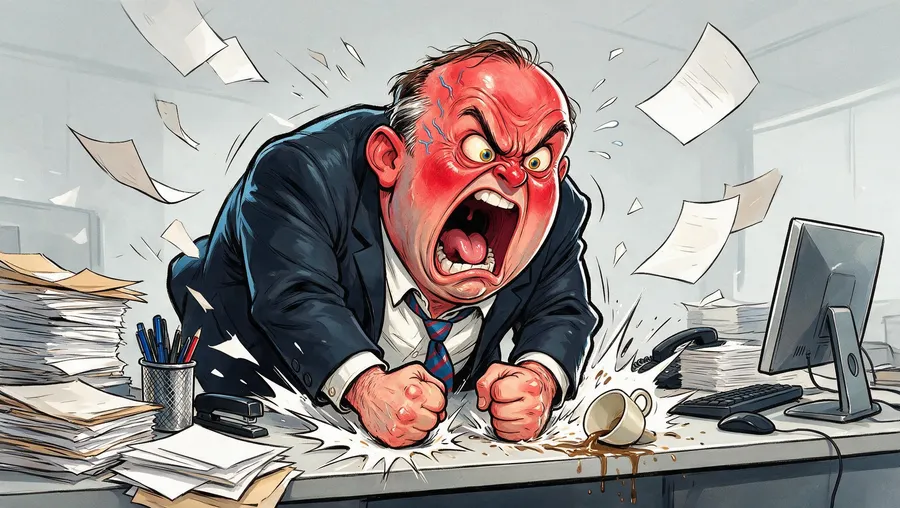
AI Caricature Maker: Create Caricatures from Text or Photos
Turn a photo into a caricature or start from a description
getimg.ai's AI Caricature Maker creates exaggerated portrait illustrations from text prompts or photo references. Emphasize recognizable facial features, expressions, hairstyles, accessories, and personality, from subtle portraits to bold editorial caricatures. A photo Reference guides likeness; your prompt controls what to exaggerate and how strongly.
Access 48+ leading AI models. Pay for one subscription.


Turn a photo into a caricature
Upload a portrait as a Reference, then describe which recognizable features you want to emphasize: a wide smile, prominent glasses, expressive eyebrows, hairstyle, or facial proportions.
The photo guides the person's identity and recognizable traits while the AI exaggerates selected features. Stronger exaggeration can also change smaller facial, hair, or clothing details, so generate several versions when likeness matters. You can attach up to 10 References for guidance on identity, composition, style, and perspective.

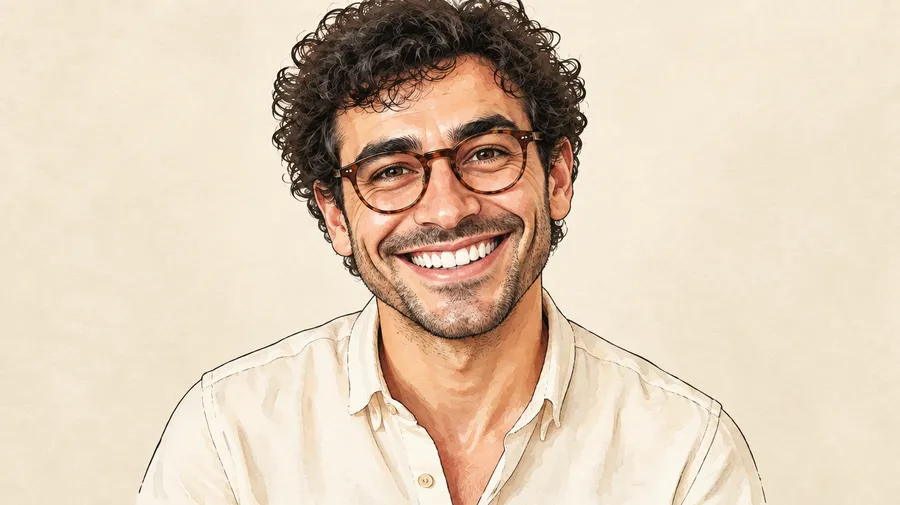
Learn how to generate caricatures using getimg.ai
Guide the likeness. Choose the features. Refine the exaggeration.
1. Log into getimg.ai
Open getimg.ai's Create image generator by clicking here.
2. Describe your caricature
Attach a portrait as a Reference, or describe a subject from scratch. Specify distinctive features, what to exaggerate, exaggeration level, expression, body proportions, style, and background.
3. Generate
Generate several versions and compare likeness, proportions, and expression. Refine one trait at a time; stronger exaggeration can change smaller facial, hair, or clothing details.
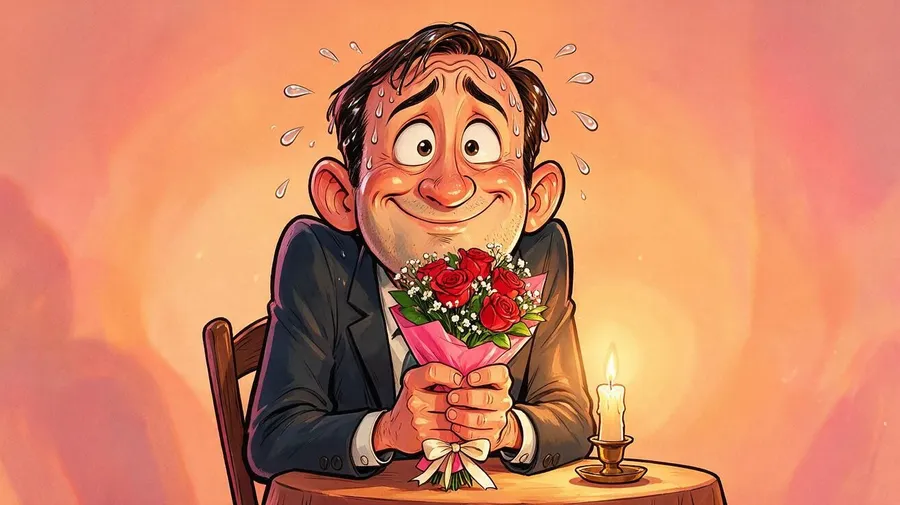
Tell the AI what to exaggerate
Use this formula: subject + distinctive features + what to exaggerate + exaggeration level + expression + body proportions + style + background.
Caricature of the person in image 1, preserve the round glasses and curly hair, exaggerate the wide smile and expressive eyebrows, slightly oversized head, small simplified body, editorial illustration, clean light background.
Subtle caricature portrait of the woman in image 1, gently exaggerate the high cheekbones and large glasses, warm friendly expression, elegant ink-and-watercolor illustration.
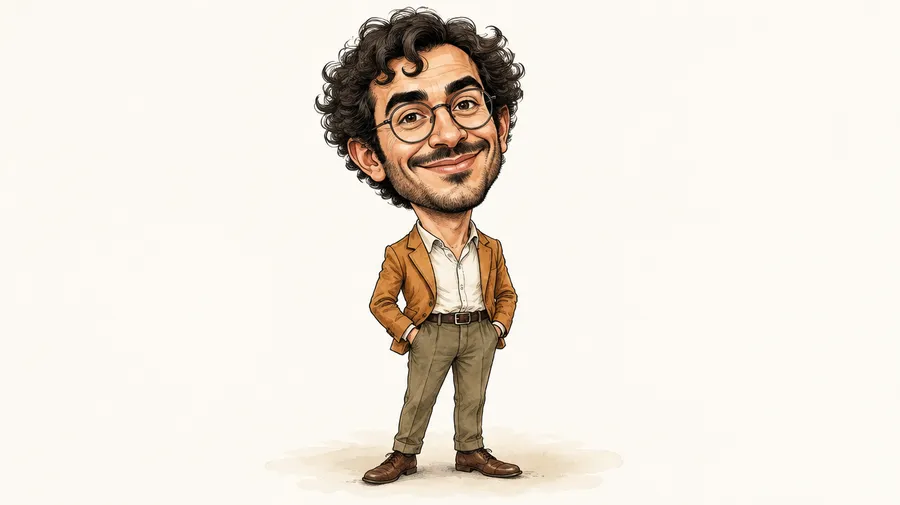
Choose how exaggerated you want it
Ask for subtle and flattering, a light comic treatment, highly exaggerated, or absurd and comedic. Keep the same defining traits in the prompt while changing the exaggeration level.
A slightly oversized head and gently enlarged glasses read differently from a tiny body, towering hair, and a dramatically widened grin. Stronger distortion can reduce likeness; compare versions before choosing.
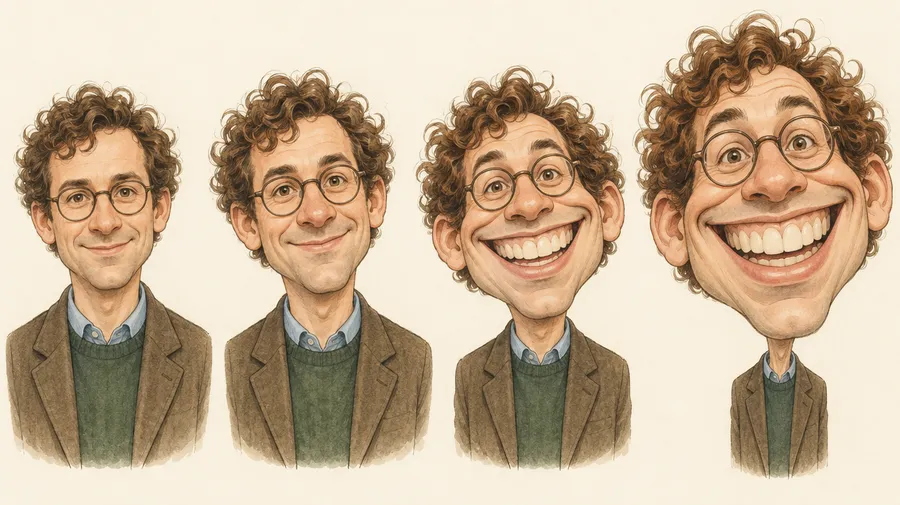
Direct the features that make a caricature recognizable
Name the traits that define your subject: glasses, hairstyle, eyebrows, or smile. Then say which should stay recognizable and which should grow larger. Use body proportions and expression to support the character rather than exaggerating every detail.
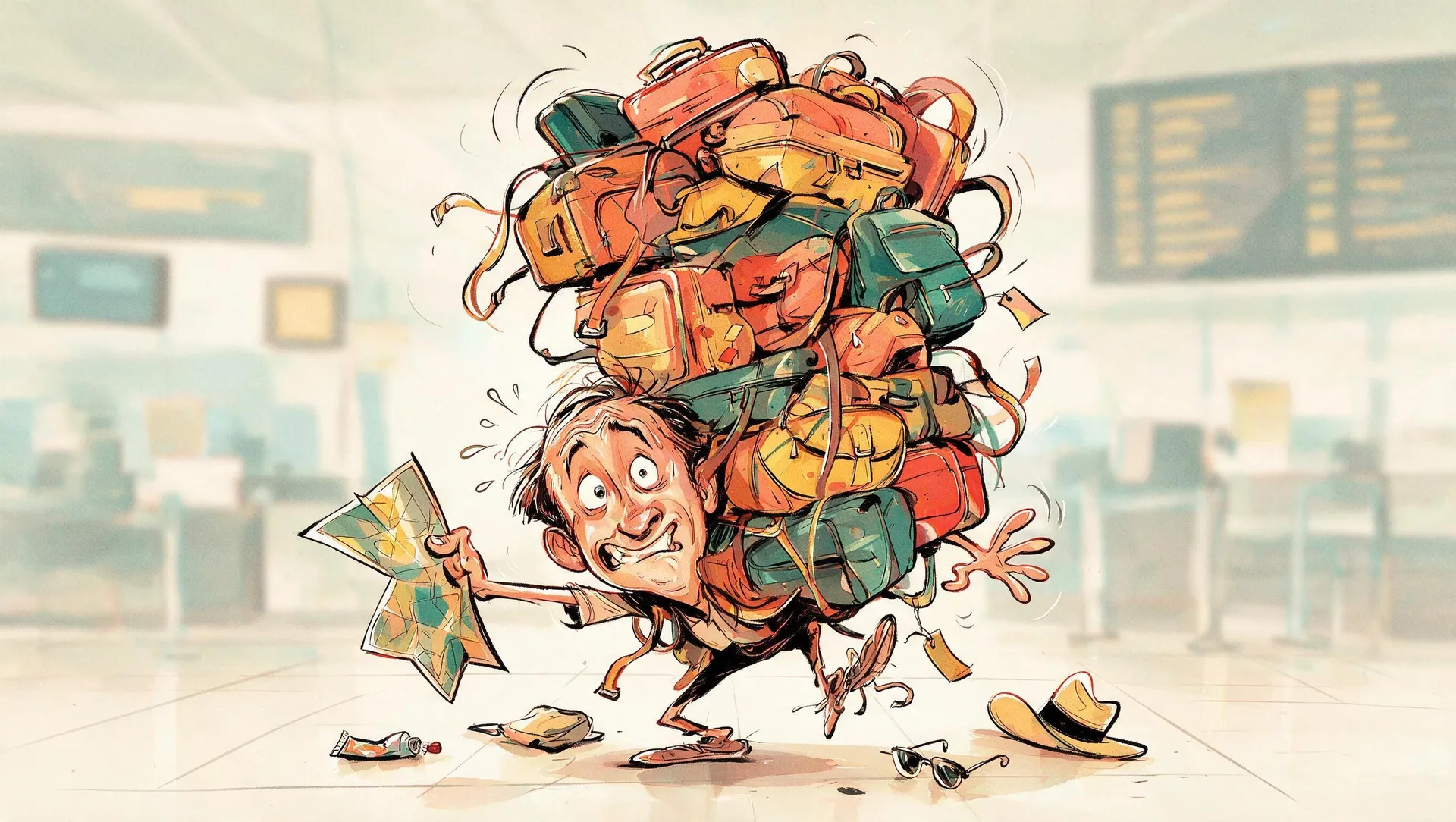
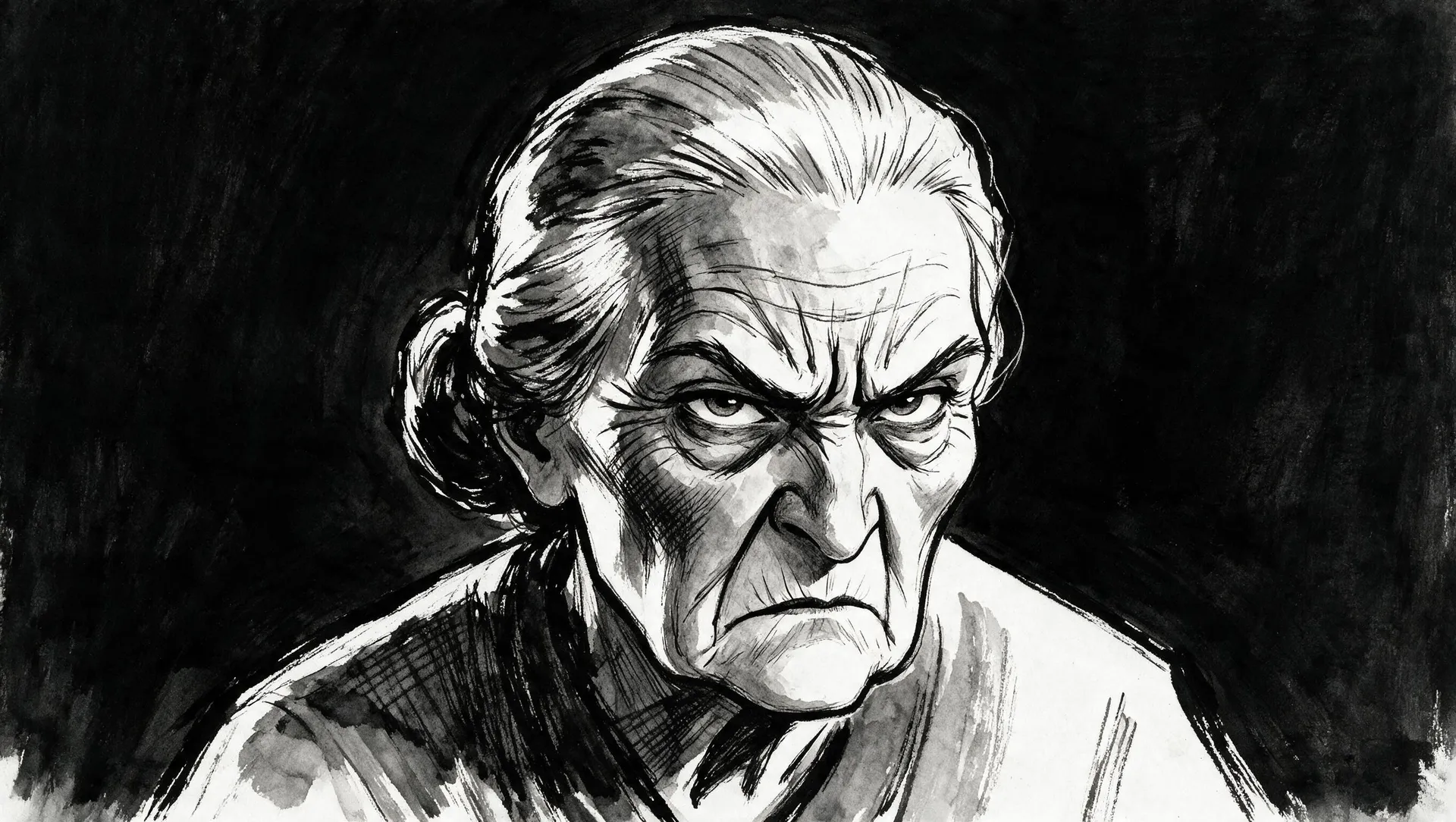
a bold caricature illustration of a frazzled traveler, drawn with classic caricature proportions — an oversized head with wide panicked eyes, disheveled hair, and a strained grimace, set on a small, simplified body buried beneath an absurd stack of overstuffed suitcases, bags, and a map held upside-down
Create expressive portraits for posts, gifts, and client work
Create editorial illustrations, personalized portraits, and campaign character concepts. Refine the chosen result before exporting, and confirm permission to use source photos and recognizable people for your intended use.
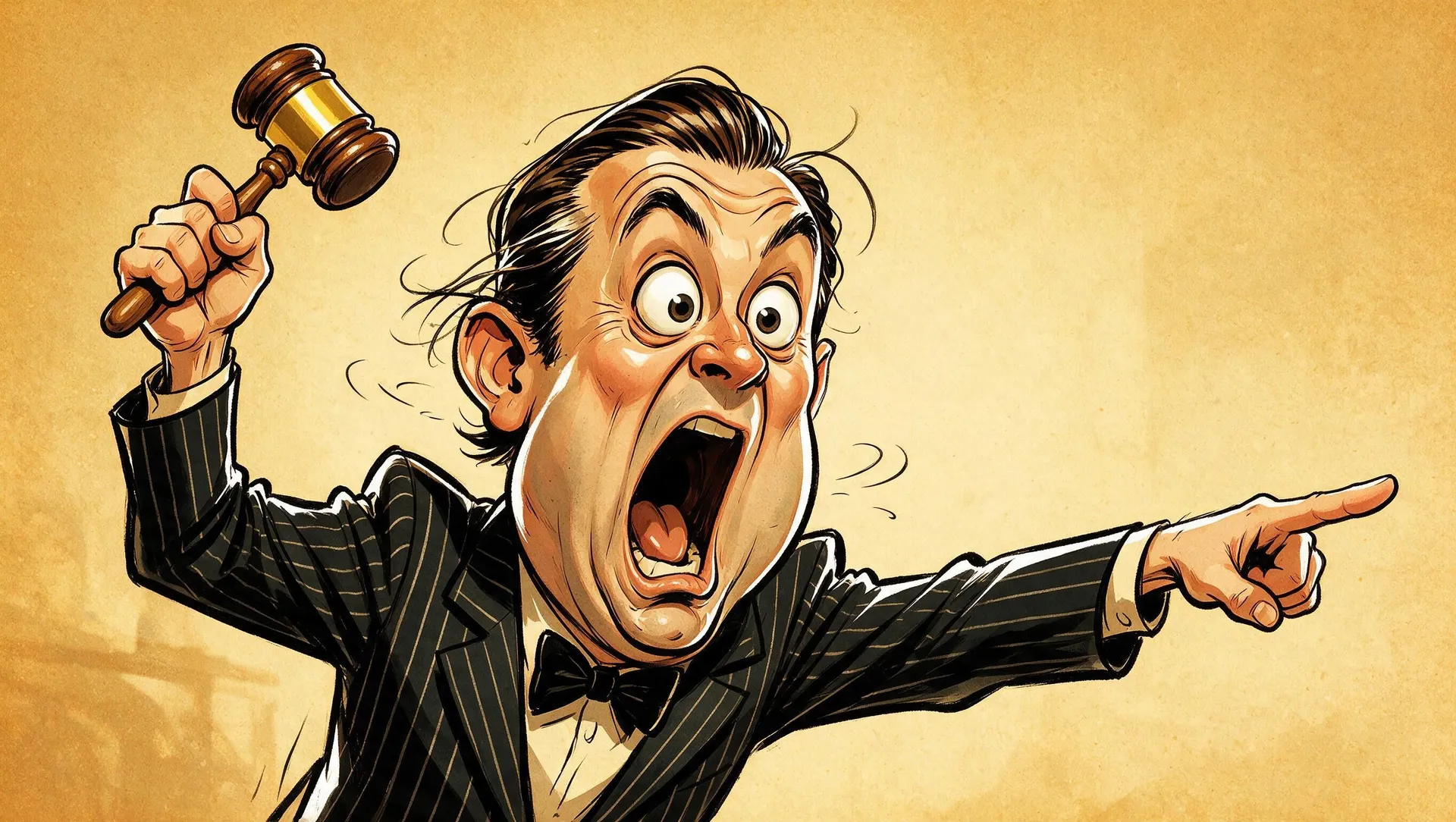
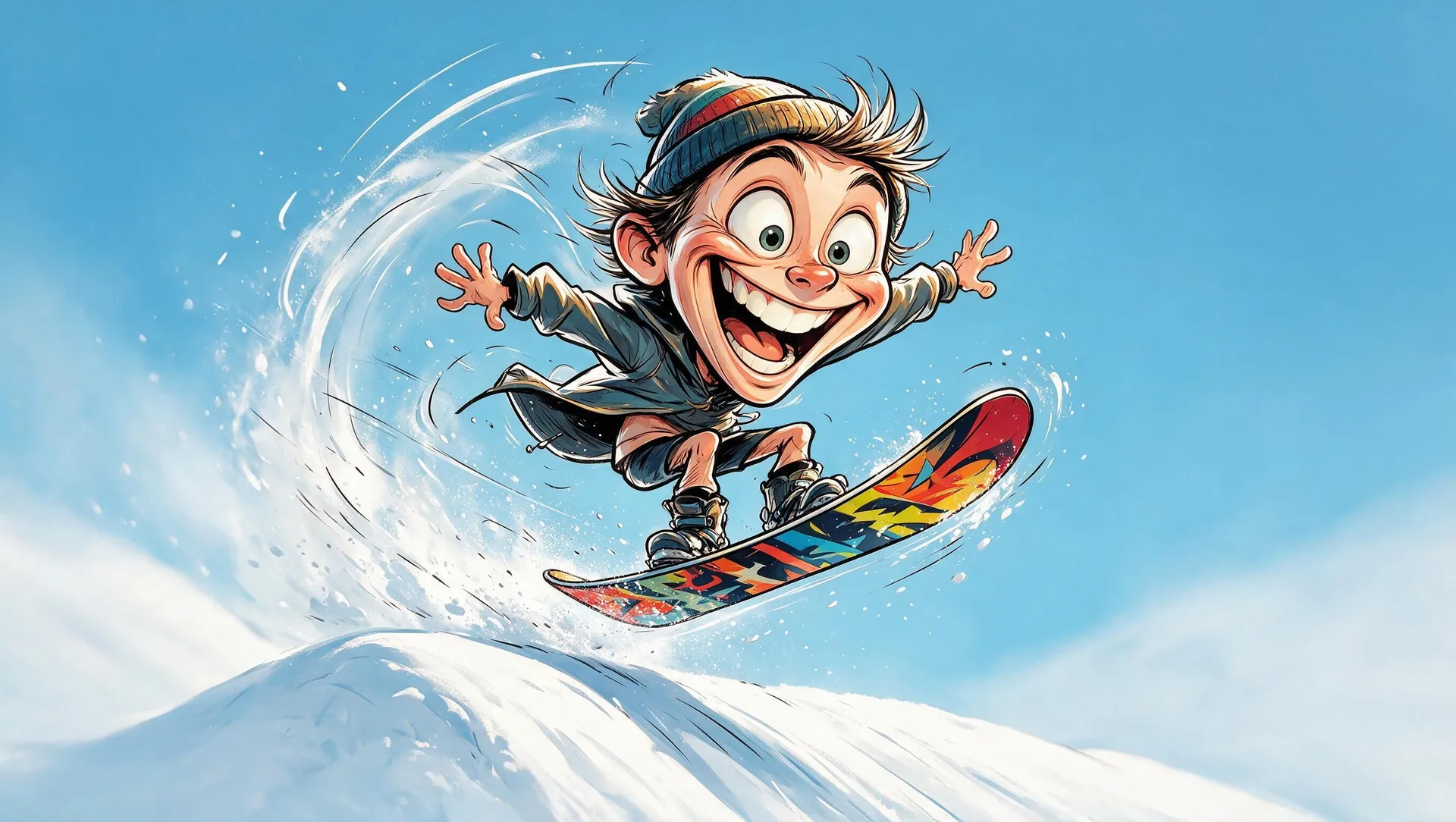
Describe the caricature style you want
Choose editorial caricature, vintage satirical print, ink caricature, watercolor caricature, newspaper cartoon, clean digital cartoon, 3D cartoon caricature, or a minimal exaggerated portrait. Describe line weight, shading, palette, and texture instead of naming a publication.
Create a pet caricature
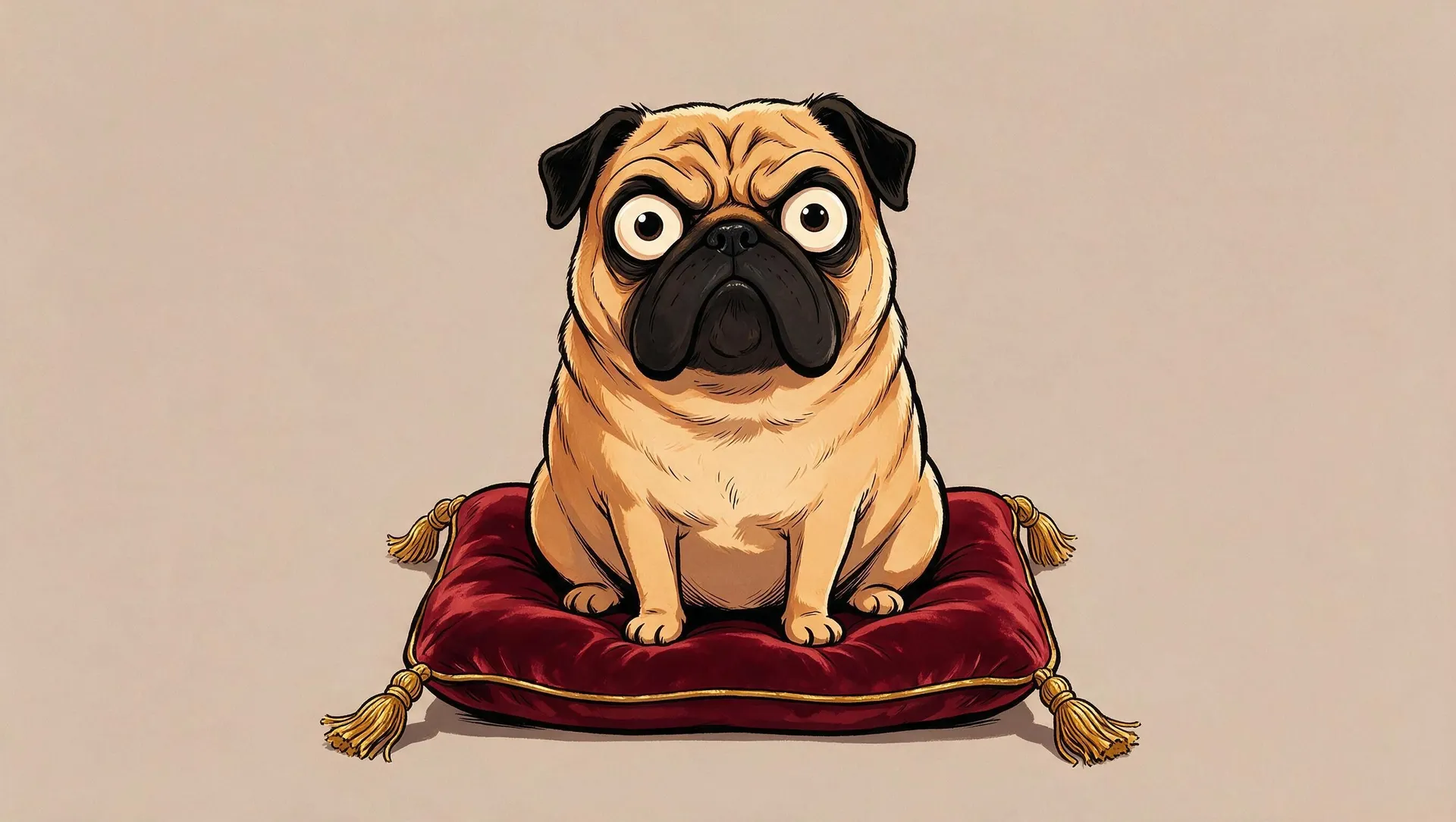
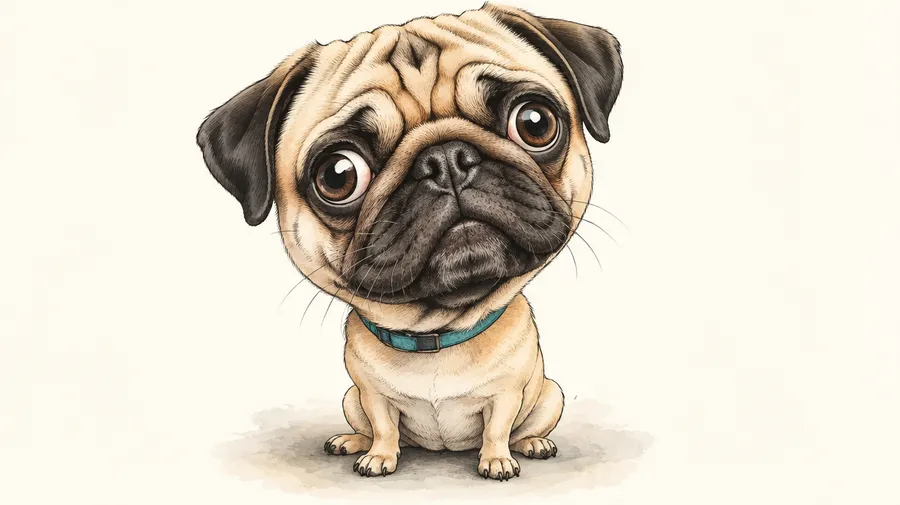
Turn a dog or cat photo into a caricature by emphasizing distinctive ears, eyes, muzzle, fur, or posture. Keep markings and accessories recognizable while selecting just a few features to enlarge.
For a dog caricature from a photo, request oversized ears and an expressive brow. For a cat caricature, try a broad cheek shape, large eyes, and a small simplified body.
Create caricatures of couples, families, and teams
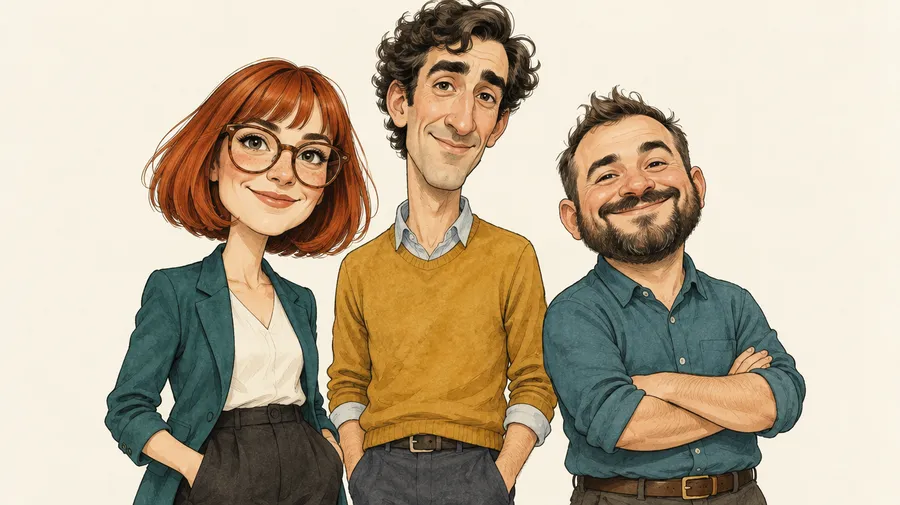
Describe a couple, family, team, wedding group, or coworkers and give each person distinct clothing, placement, and features. Use source photos only with the permissions needed for your intended use.
With more people in one image, individual likeness and small facial details can become less consistent, so simpler compositions usually work better. Check every face and regenerate if someone is missing or their traits have shifted.
Reuse the same person across a caricature series
For recurring portraits, create a Person Element and call it into prompts with @ElementName. Reuse the identity in different situations without repeatedly attaching the same References. A Style Element can guide a consistent visual treatment.
Elements work in image generation and in video models that accept reference images. Exaggerated facial details can still vary between generations, so compare the series for likeness, proportions, and style. See the Elements guide for the workflow.
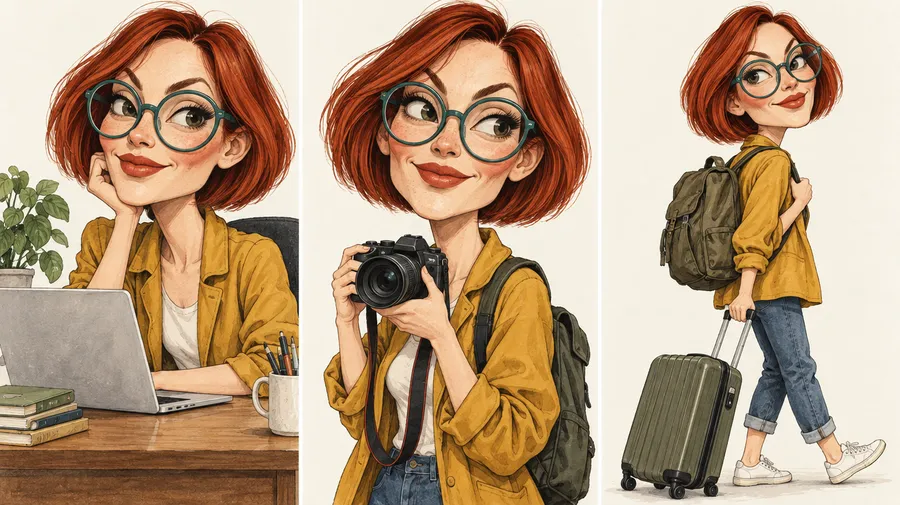
Describe it. Exaggerate it. Download it.
Start with a portrait Reference or describe a subject. Choose the features and exaggeration level, compare versions, and refine your selected caricature for its final use.
Frequently Asked Questions
To create a high-quality caricature using Text to Image AI, describe the subject, distinctive features, what to exaggerate, exaggeration level, expression, body proportions, style, and background. With a photo, state which traits should remain recognizable.
Generate several versions and compare the selected traits. Refine one feature at a time, checking likeness and small details before you export.
Paid getimg.ai plans include commercial usage rights under our Terms for caricatures made with Image Generator and our other features. Commercial licensing does not automatically grant exclusive copyright or rights to third-party material. If your caricature uses third-party photos, recognizable people, trademarks, characters, or other protected material, additional rights may still apply.
Yes. Add a clear portrait as a Reference in Create image, then name the features you want to emphasize. The photo guides your identity and recognizable traits while the AI exaggerates selected features. Stronger exaggeration can change smaller facial, hair, or clothing details, so generate several versions when likeness matters. Your original stays unchanged.
That is up to you, and it is what makes a caricature a caricature. Ask for a "subtle caricature" for a light, flattering touch, or a "heavily exaggerated" one to blow up a big nose, a wide smile, or oversized glasses. Naming the one or two features to emphasize gives you the most control, and you can regenerate to dial the exaggeration up or down until it lands.
Prepare your selected caricature with getimg.ai's upscaler to increase resolution by up to 2×, and use the background remover when you need transparent artwork for apparel, mugs, or stickers. Check pixel dimensions against your final physical print size and the printer’s resolution, color, and file requirements. Upscaling alone does not make a file print-ready. Commercial use remains subject to our Terms and any third-party rights.
A caricature intentionally exaggerates distinctive physical traits. A cartoon portrait stylizes a person without necessarily enlarging specific features. An avatar is a digital representation, often a profile picture, and does not need caricature-like exaggeration.
Yes. Attach a clear dog or cat photo as a Reference. Describe the markings to preserve and the ears, eyes, muzzle, or posture to exaggerate. Compare versions to check recognizable traits.
Yes. Describe couples, families, teams, wedding groups, or coworkers and give each person a clear position and distinguishing features. More people can make individual likeness and small facial details less consistent, so simpler compositions usually work better.
Use a Person Element and reference it with @ElementName for recurring identity without repeatedly attaching the same photos. A Style Element can guide visual consistency. Exaggerated facial details can still change between generations, so review the series.
Yes. Use Background Remover for transparent artwork intended for apparel, mugs, or stickers. Check the cutout edges, final pixel dimensions, physical print size, and your printer’s file and color requirements. Removing a background or upscaling does not automatically make artwork print-ready.