Guide to getimg.ai Features
Discover all the creative AI features available in getimg.ai, from generating and editing to upscaling and restoring.
How It Works
getimg.ai brings all your creative tools together in one place: generate, edit, and enhance images or videos without switching between different apps.
The prompt box on Home and in Create image is where most of the work happens. What getimg.ai does depends on what you write and what you attach. For specialized tasks like upscaling, resizing, or removing a background, the matching action lives under the Image group in the left sidebar.
🧠 Generate New Images
To make a new image, log into getimg.ai, type your prompt in the box (on Home, or in Create image, under the Image group in the sidebar) and click the arrow.
You can write short, natural prompts. They'll still produce high-quality results.
Examples:
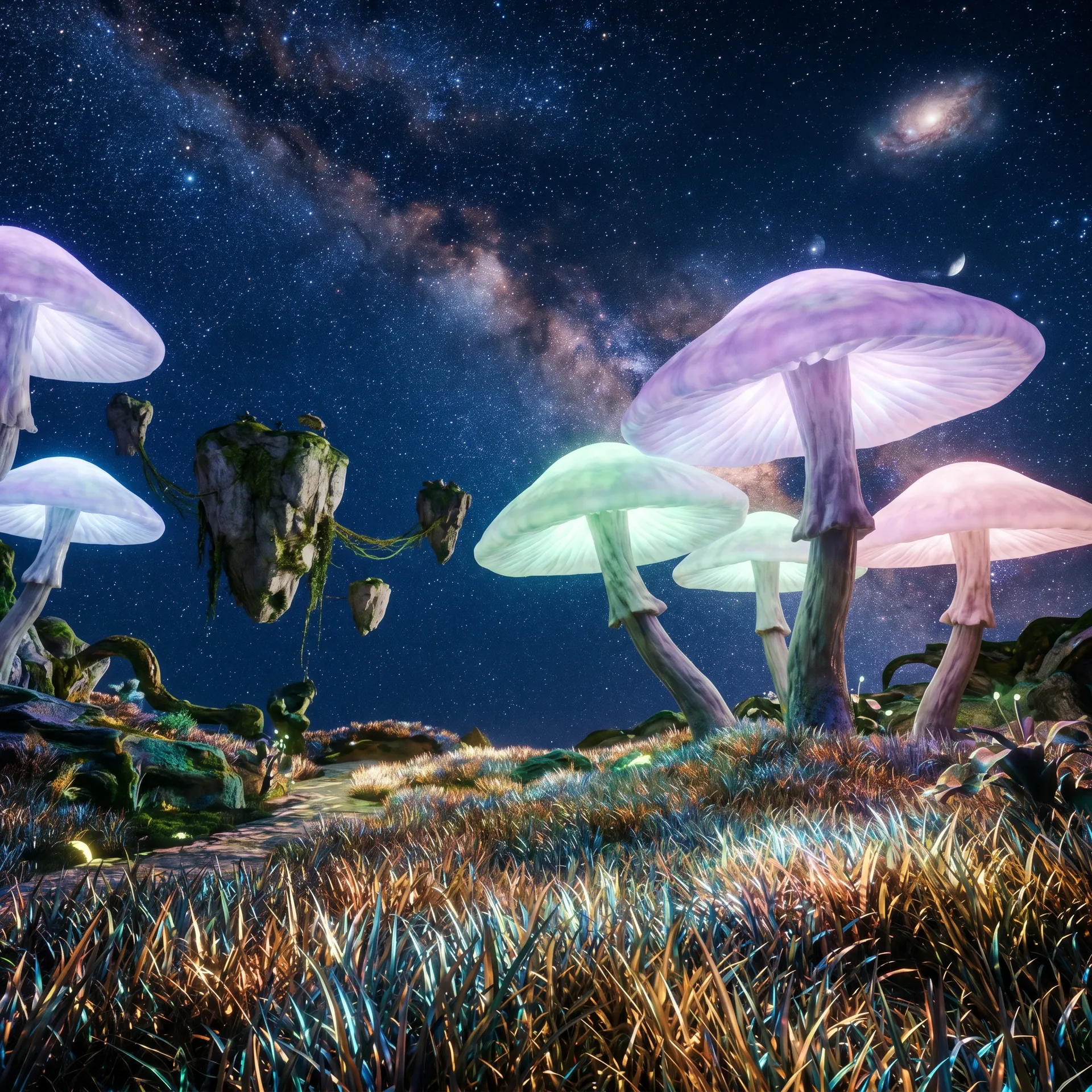
-900x900.webp)
unique, out of this world landscape photo
a narrow alley framed by hanging laundry, but shot upward so fabric becomes abstract color fields
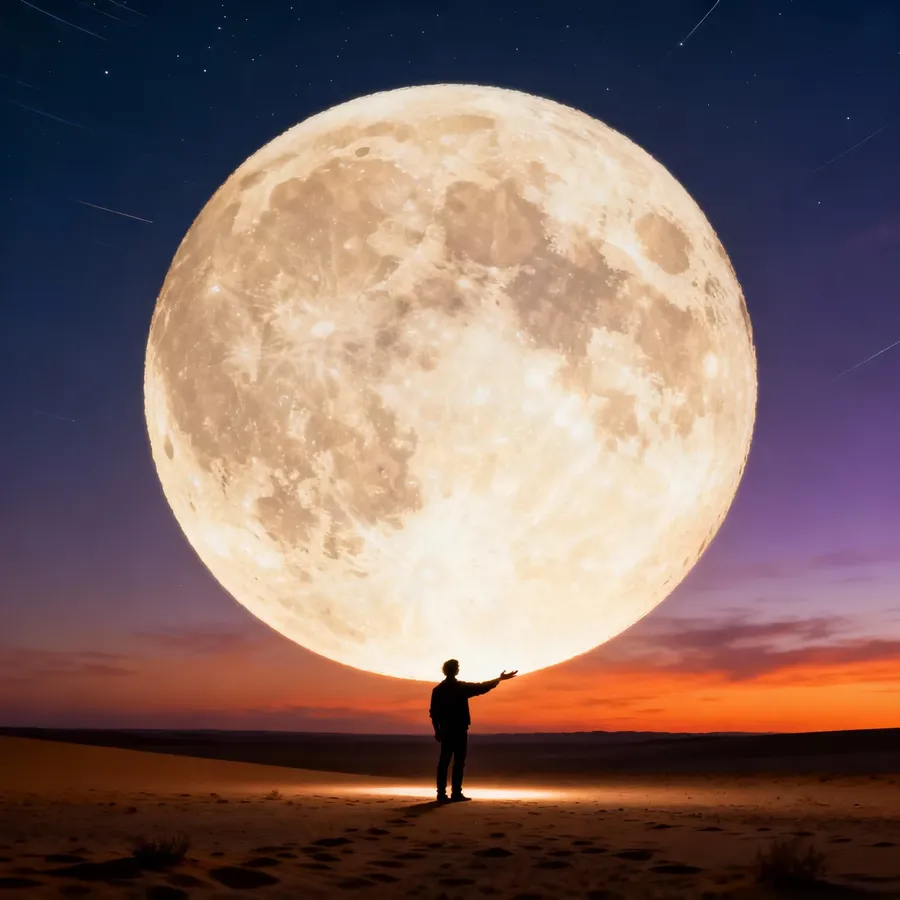
a "forced perspective" shot where a person appears to be holding the moon, cinematic
Even a vague instruction like "gritty, dramatic portrait of a man, unique angle" works great, thanks to automatic prompt enhancement.
Learn more about prompting for images →
🖼️ Use Reference Images
You can attach reference images to guide a generation.
Reference images are best for one-off guidance, like matching a specific look, person, or mood for a single image.
References can help you match a:
- style or look
- person or face
- location or object
- mood or color palette.
If you find yourself using the same references repeatedly, Elements are a better fit. They let you reuse people, products, styles, and other concepts without reattaching images each time.
Example:
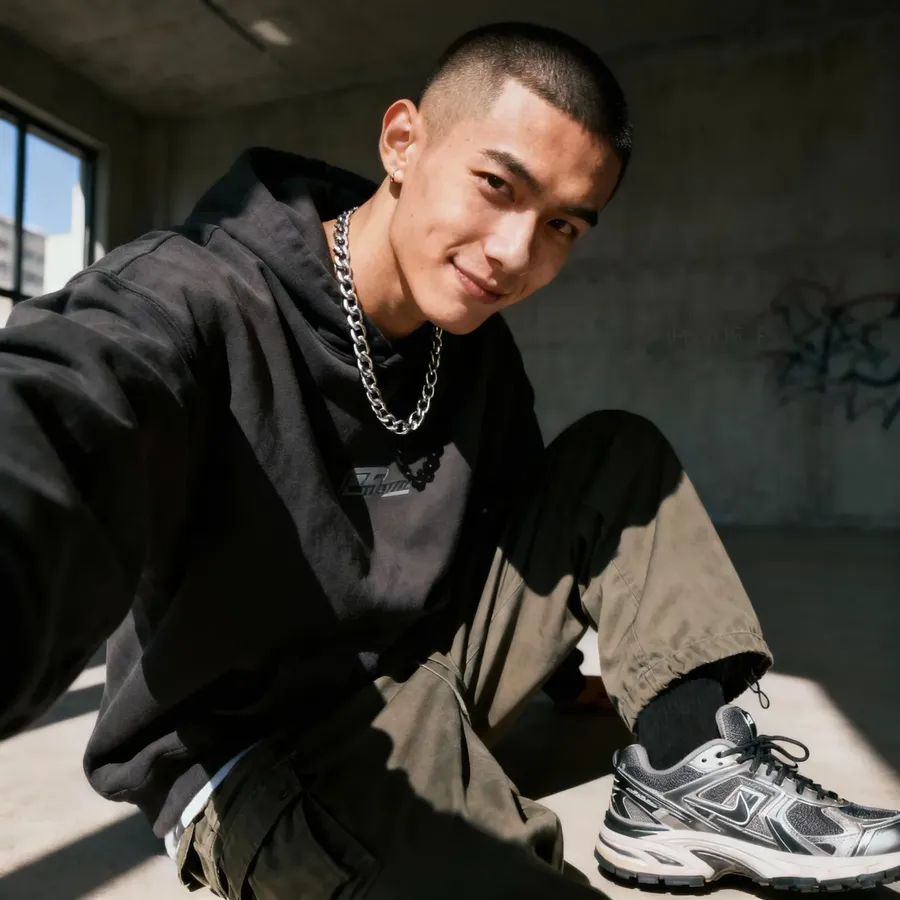
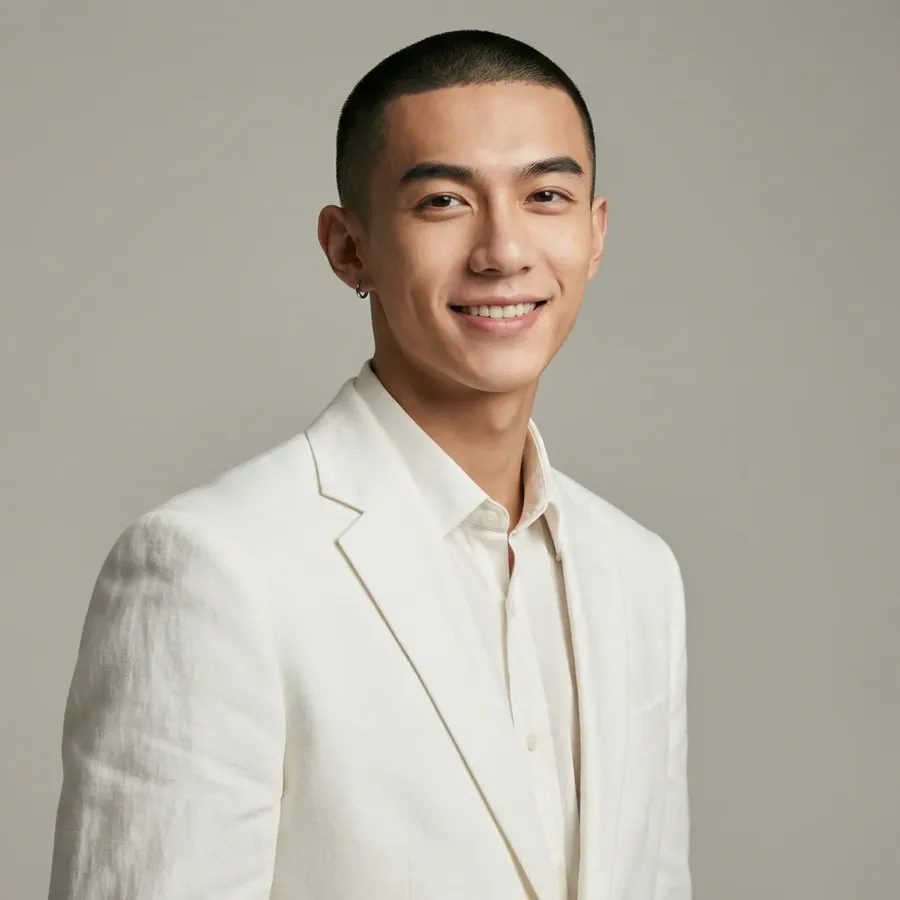
Reference Image
create a modern, relaxed headshot of this man in a white linen suit
To add a reference, click the Reference button in the prompt box, then press Upload file to pick one from your device, or Select existing to choose an image you already have in your gallery.
You can also drag and drop an image straight from your gallery into the prompt box.
Using existing image as a reference (drag and drop).
Learn more about using image references →
🧩 Use Elements
Elements let you reuse people, products, styles, and other visual concepts across images and videos.
Instead of attaching the same reference images every time, you create an Element once and then reference it directly in your prompt using @ElementName.
Examples:
- a candid photo of @Me at the park
- a product photo of @MyPerfume in soft studio lighting
- a portrait in the style of @FilmPhotography.
You can add Elements (that you've previously created) directly from the prompt box using the Elements button, or by typing @ and selecting from your list.
Elements work in Create image and in Create video. For videos, pick a model that accepts reference images, such as Seedance 2.5, Kling 4.0, Kling O3, Google Veo 3.1, or Wan 3.0.
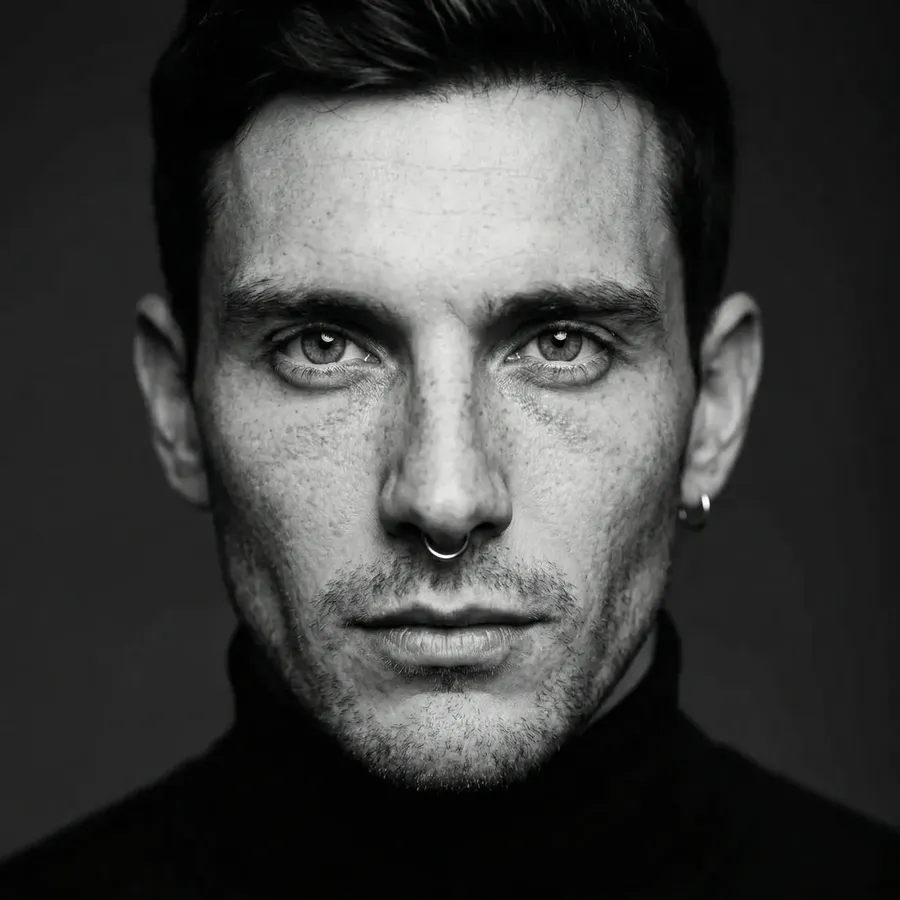
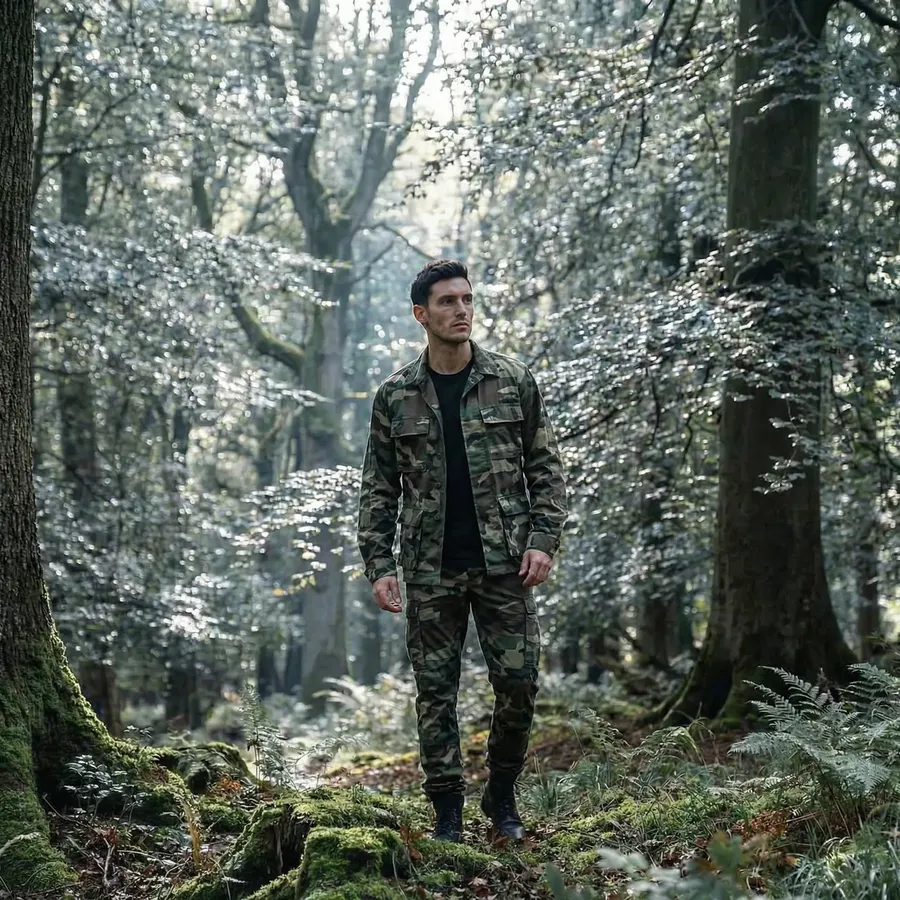
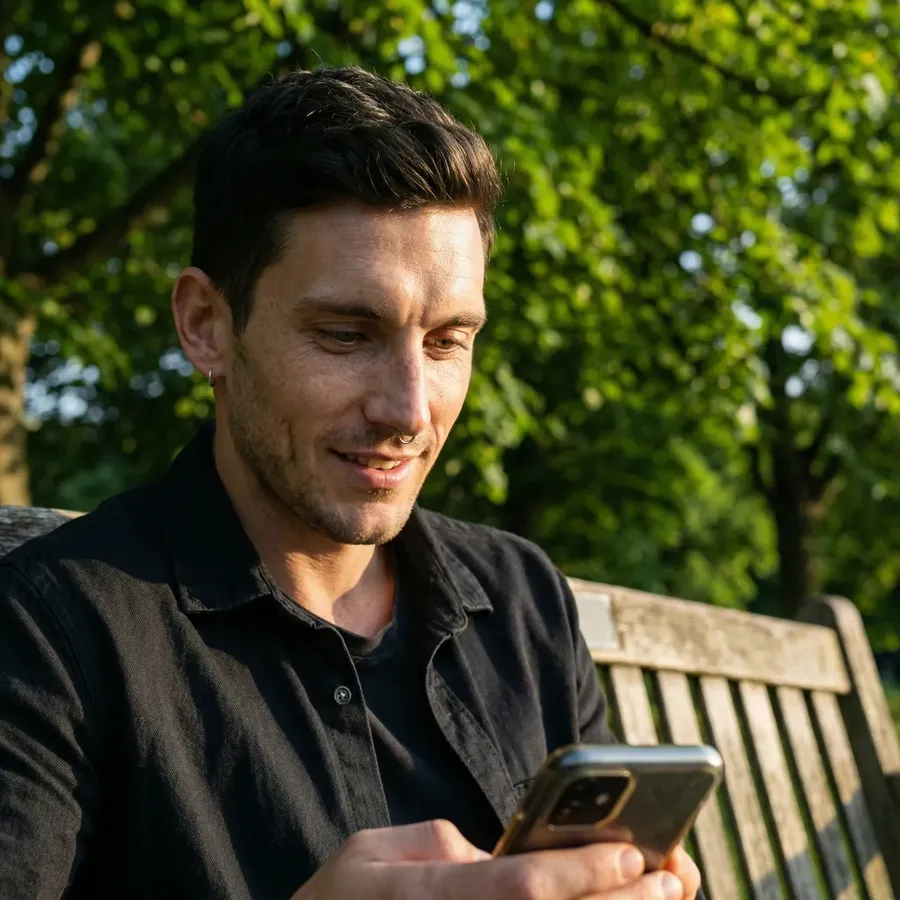
Learn more in the Guide to Elements →
🎬 Generate Videos
Open the Video group in the left sidebar, then click Create video.
Then, describe the motion or scene you want.
Examples:
- a drone shot flying over a forest at sunrise
- person walking through neon city streets in the rain.
If you don't specify, getimg.ai handles movement, transitions, and camera work automatically.
Learn more about prompting for video →
🎞️ Use Frames or References for Video
You can guide your videos with First Frame, Last Frame, or Reference images.
That helps keep characters, lighting, or style consistent across clips.
On Seedance 2.5, MiniMax H3, MiniMax H3 Max and Wan 3.0, a reference can also be a video or an audio file. You can attach up to 3 videos and up to 3 audio files per generation, alongside your reference images. Each attached file can run up to 15 seconds, audio as well as video, except on Seedance 2.5, which takes 30 seconds of either. Kling 4.0 takes video references too: up to 5 clips, 30 seconds in total, alongside up to 10 reference images, but no audio files.
To edit a video you already have, click it to open full view. The prompt box below already has the clip attached as a reference, so you only need to describe the change. In the model picker, you can choose from the available models that support videos as references.
Examples:
- character opens a treasure chest and takes the golden necklace from image 1 from it
- the light turns on, then the character from image 1 walks into the room.
Learn more about video references →
⬆️ Upscale Videos
Open the Video group in the left sidebar, then click Upscale video.
Drop or select a clip, pick a target resolution (1080p or 4K), and choose one of three Topaz upscaling models: Topaz Astra 2, Topaz Proteus, or Topaz Starlight.
You can also start an upscale straight from any video in your gallery: hover the clip, open the three-dot menu, and pick Upscale video. The Action opens with that clip already selected.
Learn more about upscaling videos →
🎵 Generate Music
Create full songs from a text description. Open Create music in the sidebar, under the Audio group, then describe the track: genre, mood, and vocals, or paste exact lyrics, in any language.
Set the length and how many variations you want, then generate. Songs run on Google Lyria 3 Pro and download as .mpeg.
See the Guide to Generating Music and the Guide to Prompting for Music.
🎙️ Generate Speech
Turn a written script into natural spoken audio. Open Create speech in the sidebar, under the Audio group, write your script, and pick a voice.
Direct the delivery with inline cues like [gentle, emotional], change tone and pace anywhere in the script, then generate. Speech downloads as .wav.
See the Guide to Generating Speech.
🔊 Generate Sound Effects
Create original sound effects from a text description. Open Create sound effect in the sidebar, under the Audio group, and describe the sound you want.
Set a length (5, 10, 20, or 30 seconds) and how many variants to compare (1 to 4, set with the + and − icons), then generate. Sound effects download as .mp3.
See the Guide to Generating Sound Effects.
🧰 Edit and Enhance Images
Edit any image directly inside getimg.ai, no separate tools needed.
You can:
- Replace backgrounds
- Modify, add or remove objects
- Change styles, lighting, or colors
- Restore damaged images.
There are two ways to do it:
Option 1: From the Create image prompt box
Add the image you want to edit as a reference, then describe your edit.
Example:
-900x900.webp)
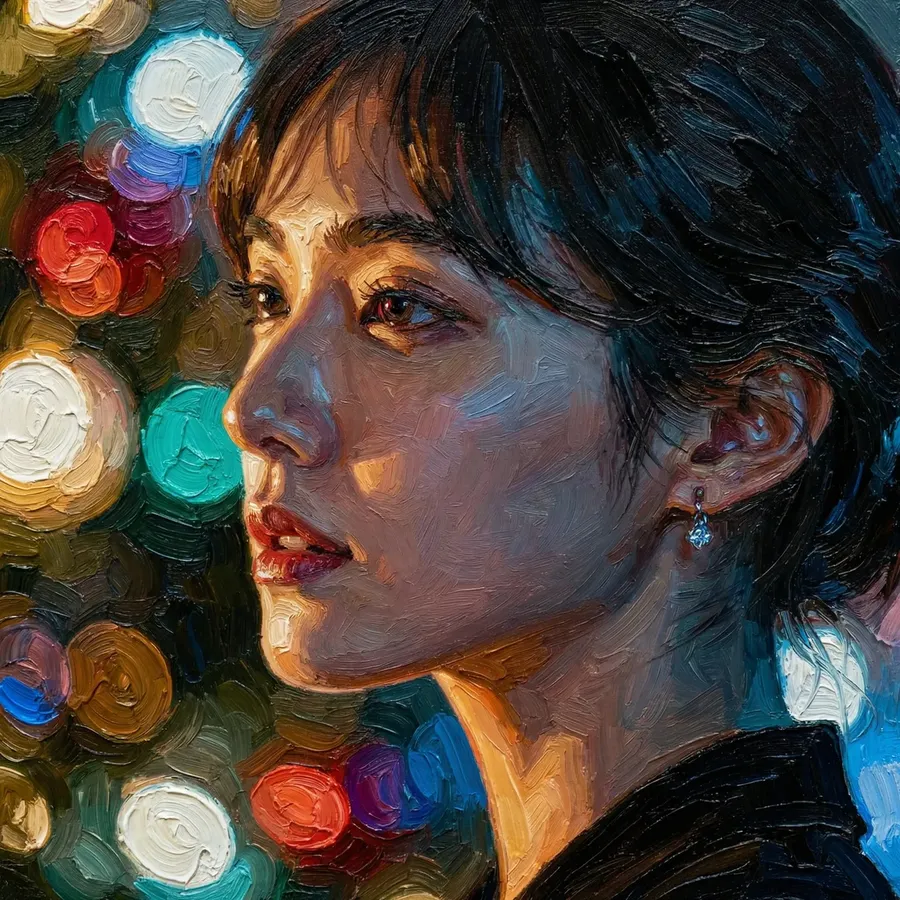
Base Image
change the style to an oil painting with visible brushstrokes
Option 2: From full image view
Click the image to open it. Type your change into the editing prompt box below the image and press the arrow.
Example:
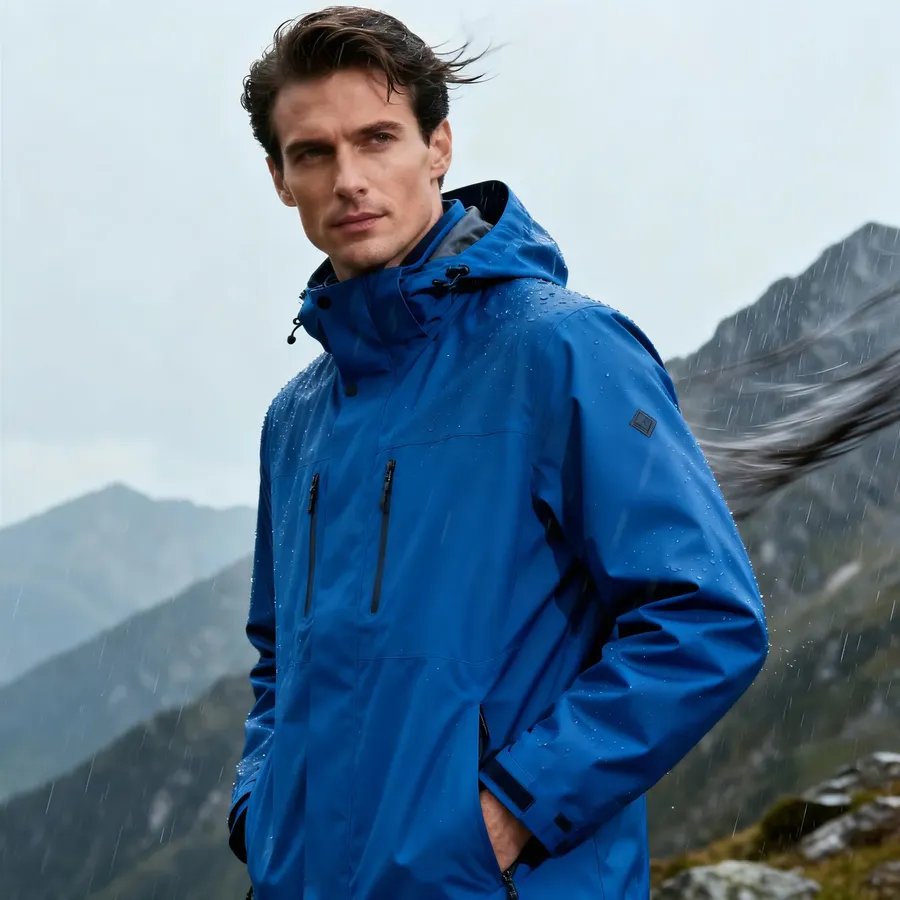
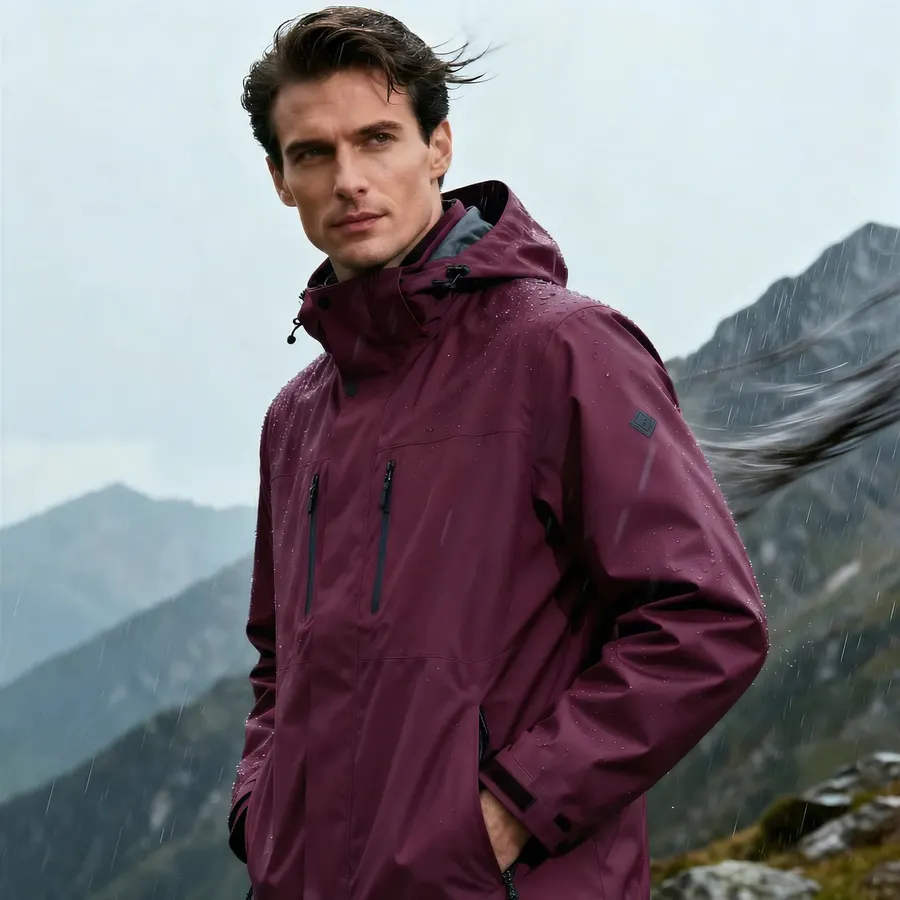
Base Image
make the jacket burgundy
Your original image stays unchanged. Instead, a new version is generated.
For technical tasks, getimg.ai has dedicated Actions under the Image group:
Learn more about image editing →
Just try it yourself! The best way to learn is to explore, and everything you need is in one place.
Frequently Asked Questions
No. getimg.ai brings generation, video creation, and editing into a single app. The prompt box on Home and in Create image handles new generations and edits. Specialized tasks like upscaling, resizing, or removing a background each have their own action in the sidebar, one click away.
Open the Actions section in the left sidebar and pick either Create image or Create video. Each one has its own page with the right options for that type of generation.
You can guide the AI by attaching reference images. Click the Reference button in the prompt box (or drag and drop a file) to attach reference images, as many as your chosen model supports. The AI will use these to match the face, artistic style, color palette, or mood in your new generation. The exact number depends on the model you generate with, and on Auto it follows whichever model Auto picks.
If you have an image in your gallery that you want to use as a reference, you can simply drag and drop it directly into the prompt box. You don't need to download and re-upload it.
Yes. In Create image, upload your image as a reference (or select it from your gallery) and write your editing instruction (e.g., "change the style to an oil painting") to generate a new version.
Each one is its own action in the sidebar: Upscale image, Resize image, and Remove background. Open the one you need under the Image group in the left sidebar, add your image, and press the arrow.
Reference images are best for one-time guidance. Elements are better when you want consistency across many images. You can also combine both in the same prompt.
Yes, when generating video on Seedance 2.5, MiniMax H3, MiniMax H3 Max, Wan 3.0 or Kling 4.0. On the first four a reference can be a video or an audio file rather than a still, up to 3 videos and 3 audio files per generation, and you can combine them with reference images in the same clip. Each attached file can run up to 15 seconds, audio as well as video, except on Seedance 2.5, which takes 30 seconds of either. Kling 4.0 takes up to 5 videos, 30 seconds in total, alongside reference images but no audio files. Every other video model accepts reference images only, and image generation uses image references.