Guide to Using Folders
Folders help you keep your workspace organized, whether you’re working solo or in a team. Here’s how they work and how to make the most of them!
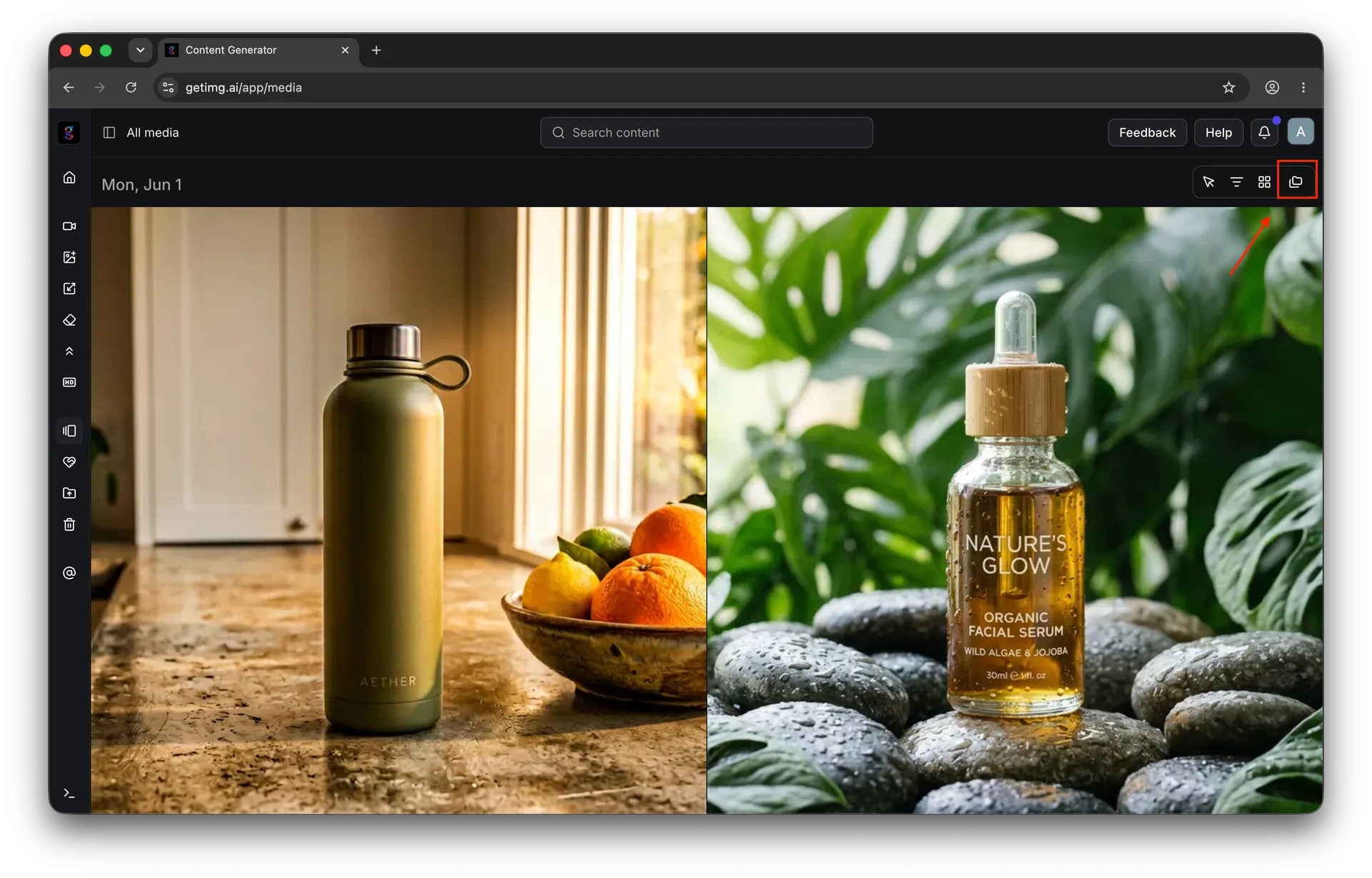
Folders used to sit in the left sidebar. They now live in the gallery toolbar, in the top right corner of any action or content view: click the folder icon to slide out the folder sidebar on the right. Folders aren’t visible on mobile, so open getimg.ai on desktop to view and manage them.
🗂️ What Folders Are For
Folders are incredibly flexible. You can use them to:
- Separate different projects or campaigns
- Keep styles or themes together (e.g. portraits, 3D renders, social media)
- Group content by client, platform, or department.
You can create as many folders as you want, but having a consistent naming system (like “ClientName Campaign”) will save you from confusion later.
Open your folders from the gallery toolbar in the top right corner of any action or content view: click the folder icon to slide out the folder sidebar on the right. A single image can be assigned to more than one folder.
👥 Team Folders
Working with others? Folders are shared by everyone in the Team.
Any Team member can create, rename, or delete them, and everyone instantly sees the changes.
➕ Creating a Folder
To create a new folder:
- Click the folder icon in the gallery toolbar (top right corner of the workspace) to open the folder sidebar.
- Click New Folder.
- Give it a name right away (recommended), or rename it later.
- To open the folder, click its name in the folder sidebar. You’ll see all images and videos inside it.
✏️ Renaming a Folder
To change the name of a folder:
- Open the folder sidebar (folder icon in the gallery toolbar).
- Click on the folder you want to rename, and then on the three dots (...).
- Choose “Rename folder”.
- Type the new name and press Enter to confirm.
🗑️ Deleting a Folder
To delete a folder:
- Open the folder sidebar (folder icon in the gallery toolbar).
- Click the folder you want to delete, then click the three dots (...).
- Select “Delete folder” and confirm your choice.
Deleting a folder doesn’t delete the content inside. All images and videos remain safe in your All media tab (and in other folders, if assigned to more than one).
📦 Moving Images or Videos Between Folders
You can move content in a few ways:
- Many at once: in the gallery toolbar (top right corner), turn on Select, pick the images and videos you want, then choose Move to folder.
- From the image menu: click the three dots on an image → choose Manage folders → pick your target folder.
- From full view: open the image, click the folder icon on the left of the details panel, and select Manage folders.
In the Manage folders popup, you can:
- Assign an image to one or more folders
- Unassign it from a folder.
Quick Tips
- Keep your naming structure consistent: it’ll make navigating folders much easier later.
- Review your folders every so often to keep them tidy.
- Combine folders with the filter (Me vs. Team) in the gallery toolbar for even better organization.
That’s it! Once you get used to folders, your workspace will stay clean and intuitive: no more lost files or “where did that go?” moments.
Frequently Asked Questions
Can't find your folders? They moved from the left sidebar to the gallery toolbar in the top right corner of any action or content view.
Click the folder icon to slide out the folder sidebar on the right. Folders aren’t visible on mobile, so open getimg.ai on desktop to view and manage them.
No. Deleting a folder only removes the folder itself, not the content. All your images and videos remain safe in your "All media" library (and in any other folders they were assigned to).
It’s simple: just open the folder you want to use before you start generating. Any new images or videos you create while that folder is active will be saved there automatically, so you don’t have to move them later.
Yes. You can assign a single image or video to as many folders as you need. This is great for organizing assets that fit into multiple categories, like having the same image in a "Social Media" folder and a "Client X" folder at the same time.
If you’re working in a Team, folders are shared. Everyone on the team can see, rename, or manage the folders you create, which keeps everyone on the same page for collaborative projects.
Two options. To move several at once, turn on Select in the gallery toolbar, pick the items, and choose Move to folder. To move a single item, click the three dots on the image, choose “Manage folders”, and check the folders you want.