Guide to Restyling Images
Restyle any image in getimg.ai: turn photos into paintings, sketches, or 3D renders, or make stylized art look photorealistic.
How It Works
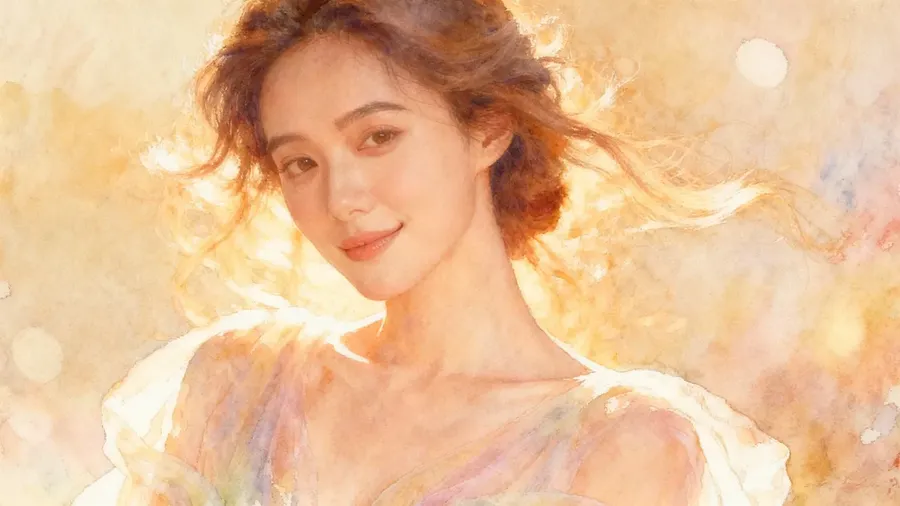
With restyling, you can instantly transform your image’s look. From photo to painting, or from sketch to photorealism, all it takes is a single prompt.
There are two easy ways to do it:
- Editing from the full image view
- Using the Create image prompt box.
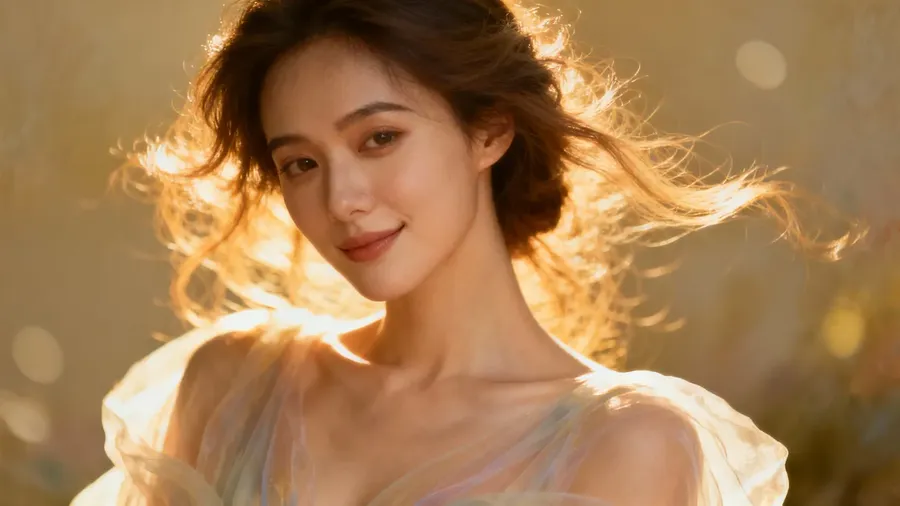
Before
After
New to editing? Start with the Image Editing Basics Guide.
Option 1. Restyle from Full Image View
Simply log into getimg.ai and:
- Click an image in your gallery (e.g., All media, Uploads, a folder) to open it in full view.
- In the prompt box below, describe the transformation.
Examples:
change the style to watercolor
make this 3D model look like a real photo
turn this photo into a hand-drawn comic illustration.
Then, click the arrow to apply the change.
Your original stays untouched: the restyled version will appear separately.
Option 2. Restyle Using the Create image Prompt Box
- Open "Image", then "Create image" from Actions in the sidebar.
- Click the Reference button in the prompt box and press Upload file or Select existing. You can also drag and drop an image straight from your gallery into the prompt box, or hover an image in your gallery, click ⋯, and pick Use as reference.
- In the prompt box, describe the new style you want.
Examples:
turn this into an oil painting
convert this photo to a 3D render, same composition
make this cartoon illustration look photorealistic.
Click the arrow to generate your new version.
Restyling works both ways: from realistic to artistic, or artistic to real. Try different directions and see how the same image transforms across styles and mediums.
Frequently Asked Questions
To get the best results, use active transformation verbs. Start your prompt with phrases like "turn this into," "change the style to," or "make this look like." For example: "Turn this photo into an oil painting" or "Make this 3D model look like a real photo."
Yes. Restyling works in both directions. You can turn a realistic photo into art (like a watercolor or comic), but you can also upload a drawing, 3D render, or cartoon and use a prompt like "make this illustration look photorealistic" to generate a life-like version of your concept.
Generally, no. The goal of restyling is to change the texture, lighting, and medium (the "look") while preserving the original subject, pose, and composition. However, significant style changes (like "abstract cubism") may naturally alter the shapes within the image more than a subtle style change would.
No. When you apply a new style, getimg.ai generates a completely new image file. Your original photo or sketch remains untouched in your gallery, allowing you to generate multiple different artistic variations from the same source image.