Guide to Adding Objects and People to Images
Learn how to add new objects, people, or other elements to your images in getimg.ai using short, natural edit prompts.
How It Works
You can add new elements (like people, objects, or decor) to any image right inside getimg.ai.
There are two ways to do it:
- Using the Create image prompt box (great for uploaded or already generated images).
- Editing from the full image view (handy when you’re working on an existing image).
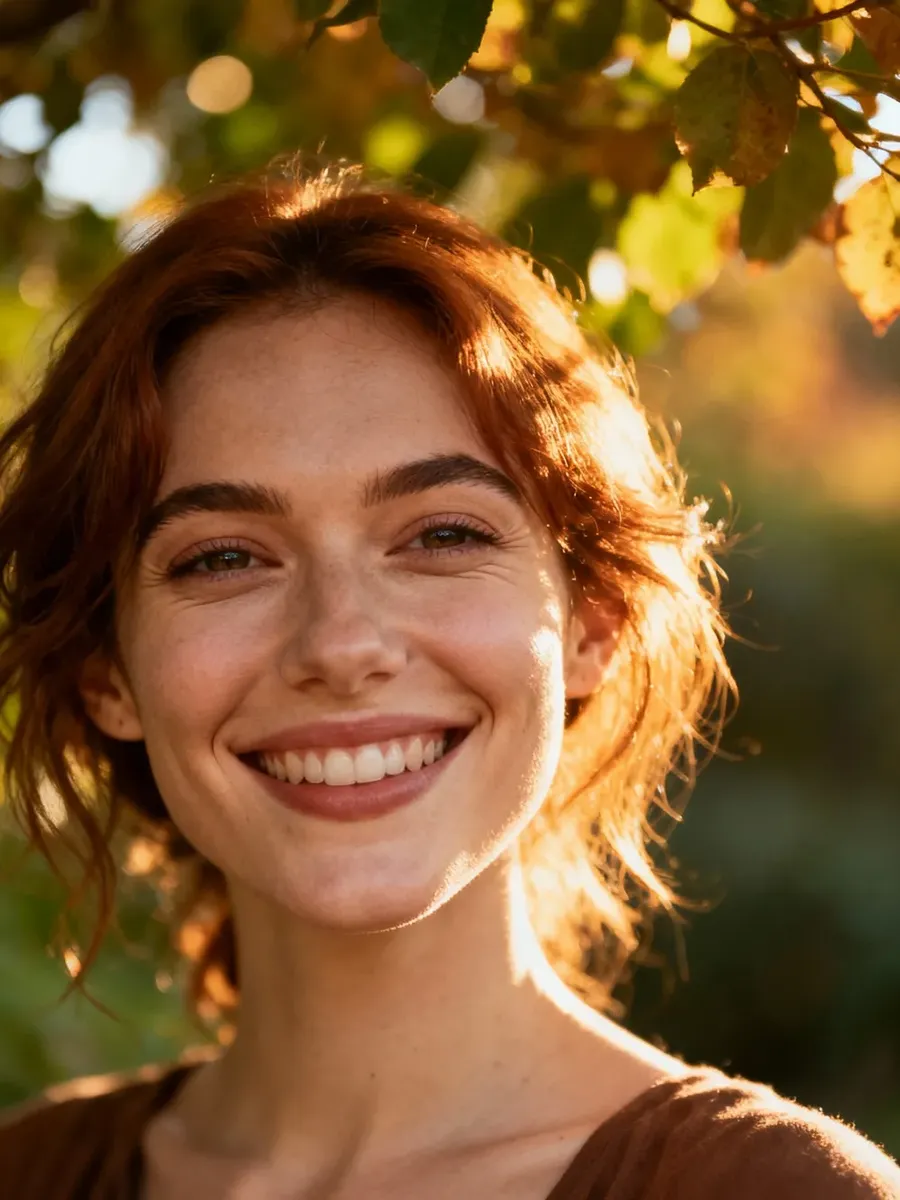
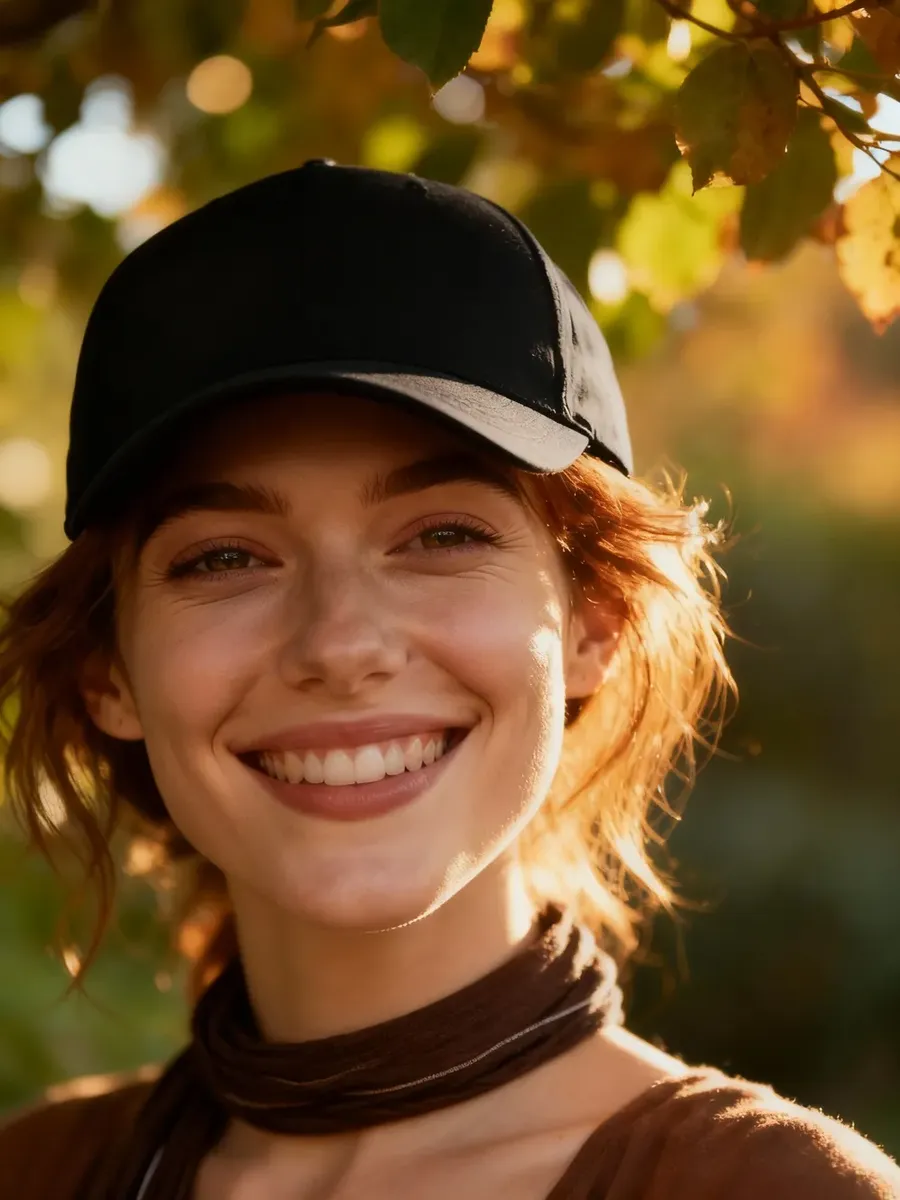
Before
After
New to editing? Start with the Image Editing Basics Guide.
Option 1. Edit from Full Image View
Perfect for adding objects to an image you’re already viewing.
- Log into getimg.ai and click an image in your gallery (e.g., in All media, Uploads, a folder) to open it in full view.
- Use the prompt box below the image to describe your edit. Examples:
- add a lamp on the nightstand beside the bed
- add a bird flying in the sky above the mountains
- Click the arrow in the prompt box to create your new version.
Your original image will remain unchanged: the new one appears as a separate result.
Option 2. Edit Using the Create image Prompt Box
All you need to do is:
- Open "Image", and then "Create image" from Actions in the sidebar.
- Click the Reference button in the prompt box and press Upload file or Select existing. You can also drag and drop an image straight from your gallery into the prompt box, or hover an image in your gallery, click ⋯, and pick Use as reference.
- In the prompt box, describe what you want to add. Examples:
- add a red umbrella on the ground, preserve everything else
- add a person reading a book on the bench
- add a steaming cup of coffee next to the laptop
- Click the arrow in the prompt box to generate the edit.
That’s it! Try adding a few details and see how naturally they blend into your image.
Frequently Asked Questions
You can control the placement using simple prepositions in your prompt. Be specific about the location relative to other items in the image, such as "on the nightstand," "beside the bed," "in the sky," or "next to the laptop."
Yes. The AI analyzes the lighting, shadows, perspective, and style of your original image. When it adds a new element, it automatically adjusts that object's shadows and colors to blend naturally with the existing environment.
Yes. You don't need to do one edit at a time. You can describe multiple additions in a single prompt, such as: "Add a lamp on the table and place a rug on the floor."
No. As with all editing features in getimg.ai, adding an element generates a completely new image file. Your original image remains untouched in your gallery, allowing you to try different variations safely.