Guide to Removing Objects or People From Images
Quickly remove unwanted people or objects from any image in getimg.ai, whether it’s your own photo or something you generated.
How It Works
You can remove distractions like people, cars, or clutter right inside getimg.ai. There are two simple ways to do it:
- Editing from the full image view: for any image in your gallery (including All media, Uploads, folders).
- Using the Create image prompt box: for existing images and new uploads.
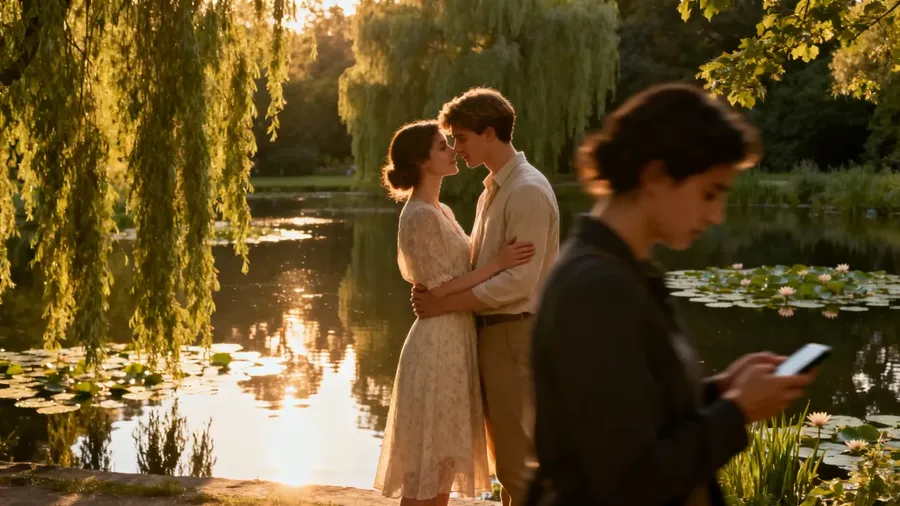
Before
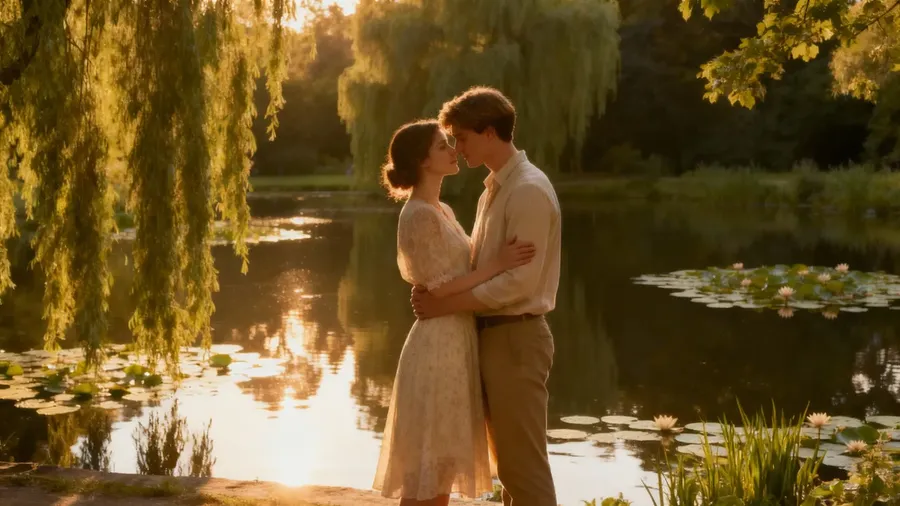
After
New to editing? Check out the Image Editing Basics Guide first.
Option 1. Edit from Full Image View
This works great for images you’ve already generated or uploaded earlier. Simply log into getimg.ai and:
- Click an image in your gallery (All media, Uploads, a folder, or the Create image gallery) to open it in full view.
- Use the prompt box below the image to describe your edit.
Examples:
remove the tree in the center
remove the text on the sign, keep the rest the same
When you're ready, press the arrow in the prompt box to apply your edit.
Your original image stays safe: the edited version is created as a new one.
Option 2. Edit Using the Create image Prompt Box
This is the easiest method if you’re working with an image from your device.
- Open "Image", and then "Create image" from Actions in the sidebar.
- Click the Reference button in the prompt box and press Upload file or Select existing. You can also drag and drop an image straight from your gallery into the prompt box, or hover an image in your gallery, click ⋯, and pick Use as reference.
- In the prompt box, describe what you want to remove.
Examples:
remove the photobombing man in the background
remove the parked car, preserve everything else
Then, click the arrow in the prompt box to generate the edit.
That’s it! Whether it’s a stray person or an unwanted object, a short prompt is all it takes to clean up your image.
Frequently Asked Questions
No. You do not need to manually highlight or mask the area. Simply describe what you want to remove in the prompt box (e.g., "remove the parked car"), and the AI will automatically detect the object and erase it.
The AI analyzes the surrounding pixels and "inpaints" the empty space to match the background. Whether it's a wall, a landscape, or a pattern, the system fills the gap so it looks like the object was never there.
Yes. This is a common use case. You can write a prompt like "remove the text on the sign" or "remove the date stamp," and the AI will erase the text while reconstructing the surface behind it.