Guide to Changing or Swapping Backgrounds
Learn how to change or swap backgrounds in getimg.ai. Place your subject in any new setting with a simple prompt.
How It Works
Changing a background in getimg.ai takes just one line of text. You can do it in two ways:
- Create image prompt box: for new uploads or existing images.
- Full image view: for editing something you’ve already generated or uploaded.
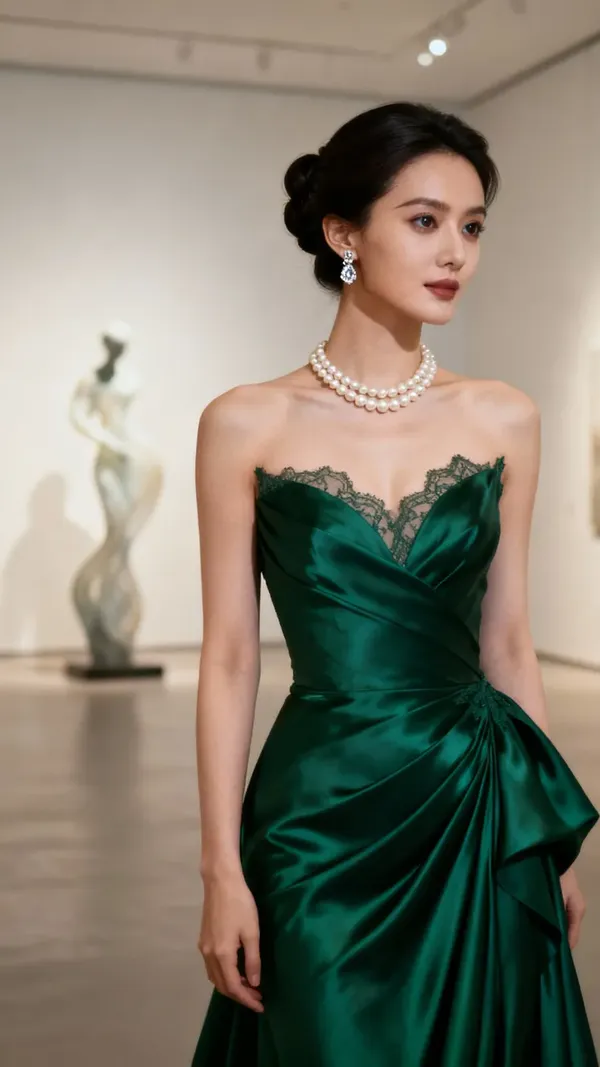

Before
After
New to editing? Start with the Image Editing Basics Guide.
Option 1. Change Background from Full Image View
All you need to do is log into getimg.ai and:
- Click an image in your gallery (e.g., All media, Uploads, a folder) to open it in full view.
- Use the prompt box below the image to describe the new background.
Examples:
place this person in front of a modern office building
change the landscape to a snowy mountain scene
swap the background for a vibrant city at night.
When you're done, press the arrow in the prompt box to apply the edit.
Your original stays untouched: a new image is created with the updated background.
Option 2. Change Background Using the Create image Prompt Box
- Open "Image", then "Create image" from Actions in the sidebar.
- Click the Reference button in the prompt box and press Upload file or Select existing. You can also drag and drop an image straight from your gallery into the prompt box, or hover an image in your gallery, click ⋯, and pick Use as reference.
- In the prompt box, describe the background you want.
Examples:
replace the background with a beach at sunset
change the background to night, preserve the location
put the product in a luxury studio setting
change the background to a cozy living room.
Then, click the arrow to generate.
Try moving between indoor and outdoor scenes, day and night lighting, or different locations to see how easily your subject adapts!
Frequently Asked Questions
No. You do not need to create a transparent image first. The AI handles the entire process in one step. simply describe the new setting in your prompt (e.g., "change the background to a beach"), and the system will replace the current background while keeping your subject in place.
To get the best results, use clear, active action verbs. Words like "change," "swap," "replace," "place," or "put" work best. For example: "Swap the background for a vibrant city at night" or "Place this person in front of a modern office building."
Yes, this is a popular use case for e-commerce. You can upload a simple photo of your product and use a prompt like "put the product in a luxury studio setting" or "change the background to a marble table" to create professional marketing assets without a physical photoshoot.
Ideally, yes. To make the image look realistic, the AI not only changes the background but may also subtly adjust the lighting and reflections on your subject to match the new environment (e.g., adding warm hues if you place a subject in a sunset scene).
No. Just like with other editing tools in getimg.ai, swapping a background generates a completely new image file. Your original photo remains untouched in your gallery, allowing you to generate multiple different background variations from the same source.