getimg.ai's AI Architecture & Interior Design Prompt Book
A practical guide to using getimg.ai for architecture and interiors, from quick edits to full concept generation.
AI Prompts for Architects & Interior Designers
We put together this prompt book for architects and interior designers who want to get more done without spending hours on “just one more option.”
A note on prompt wording: prompts such as “preserve everything else” tell the model what to prioritize, but generated edits can still introduce unintended changes. Review geometry, scale, products, materials, text, and other project-critical details before using the output professionally.
Log into getimg.ai, pick a prompt, and try it on a real project.
How it works (images)
You can:
- Edit a room image with text (move/remove/swap/change finishes)
- Use Elements or references for consistency
Use reference images for one-off guidance. Use Elements when you want reusable ingredients like Lighting, Texture, Color Palette, Composition, Style, Product, or Place across many images and projects. - Generate from text (rooms, exteriors, landscaping, furniture concepts).
Quick tip: build an Elements kit for your studio style
If you iterate a lot, create a few Elements once and reuse them across projects:
- Lighting: your go-to daylight, moody evening, gallery spotlight
- Texture: textures you keep reusing, like oak, travertine, microcement, linen, walnut veneer
- Color Palette: your brand palette or a client palette
- Place: a specific room(s) or houses you keep revisiting
- Product / Object: specific fixtures or furniture pieces you place often
- Sketch: for a consistent sketch look in early concept rounds.
How it works (video)
You can use existing images as:
- a first frame
- a first + last frame
- or references (style, furniture, materials)
This lets you create things like room showcases, before/after reveals, timelapses, and style transitions.
You can generate any number of images from 1 to 16 per batch. If your prompt says “Create 8 options”, make sure you also set number of variations to 8. The batch control is a + / − stepper starting at 1, so any count up to 16 works, not only 1, 2, 4, 8 and 16.
Product + Specification
Place a product into a real room
What it’s for
Visualize a specific product in an existing space (rug, lamp, chair, faucet, art).
What you upload
Option A (best for accuracy):
- Room photo (Image 1)
- Product photo(s) (Image 2, Image 3, etc.)
Option B (text-only product):
- Room photo (Image 1)
Option C (fast for repeat use): Product Element
- Room photo (Image 1)
- Create an Object Element once for the item you use often
Copy-paste prompt (with product reference images) template
Place the [PRODUCT] from Image 2 into the space in Image 1 at [LOCATION]
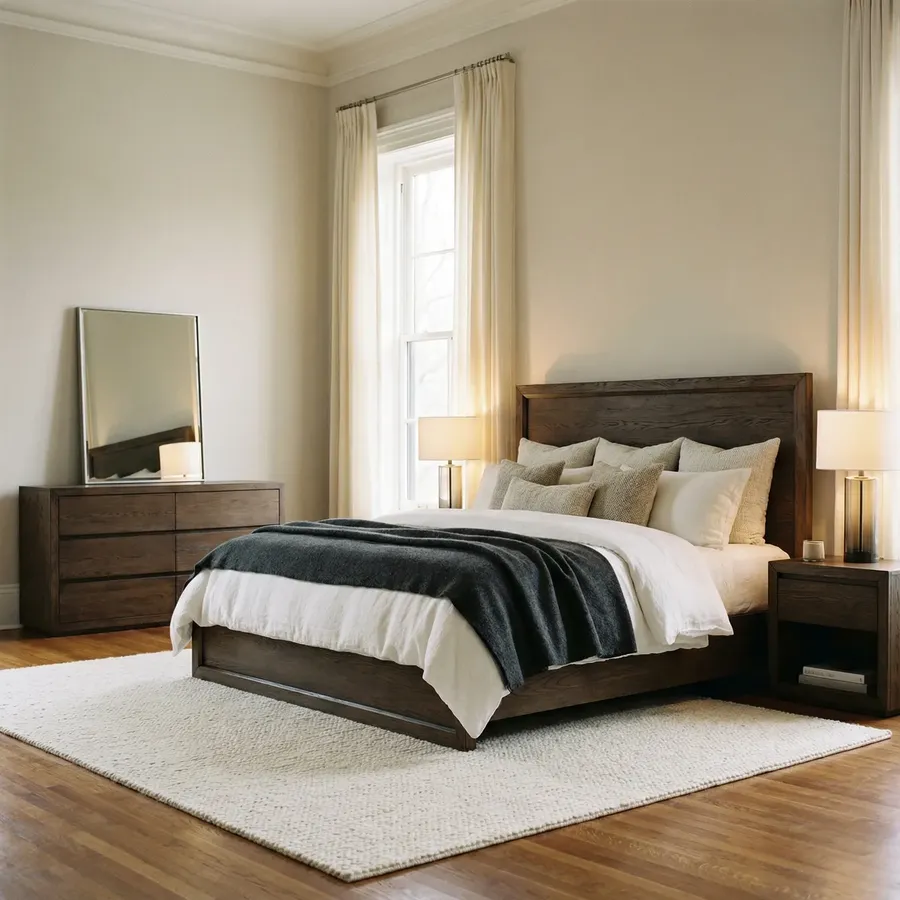
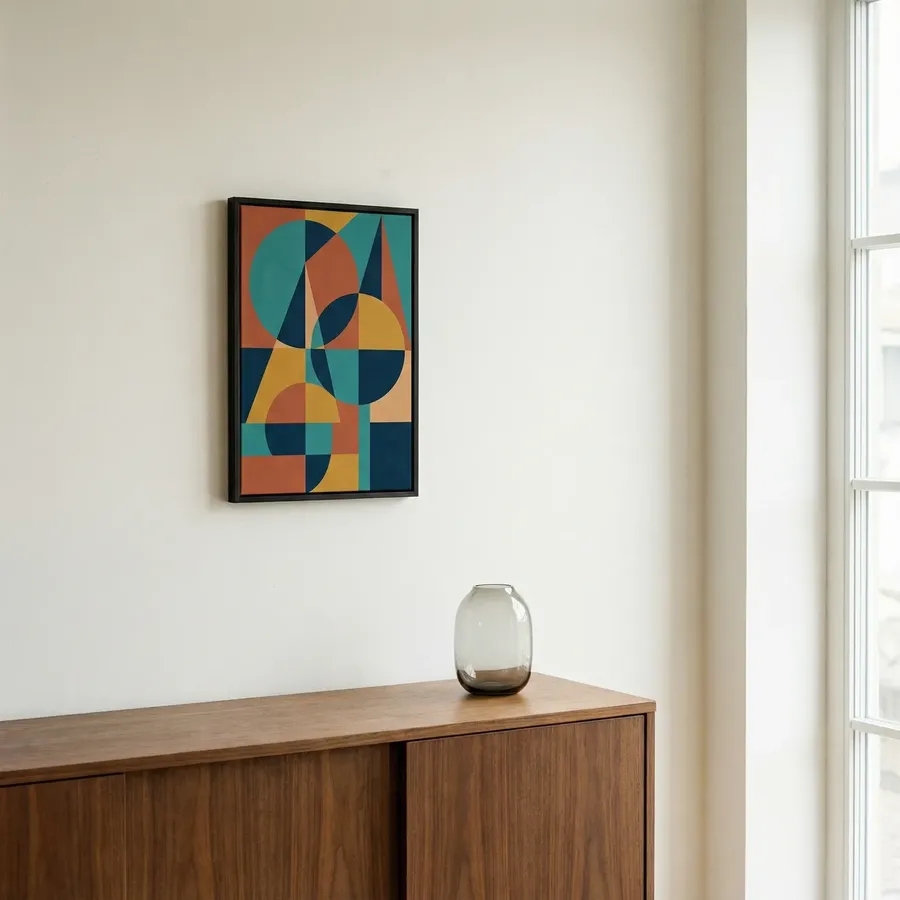
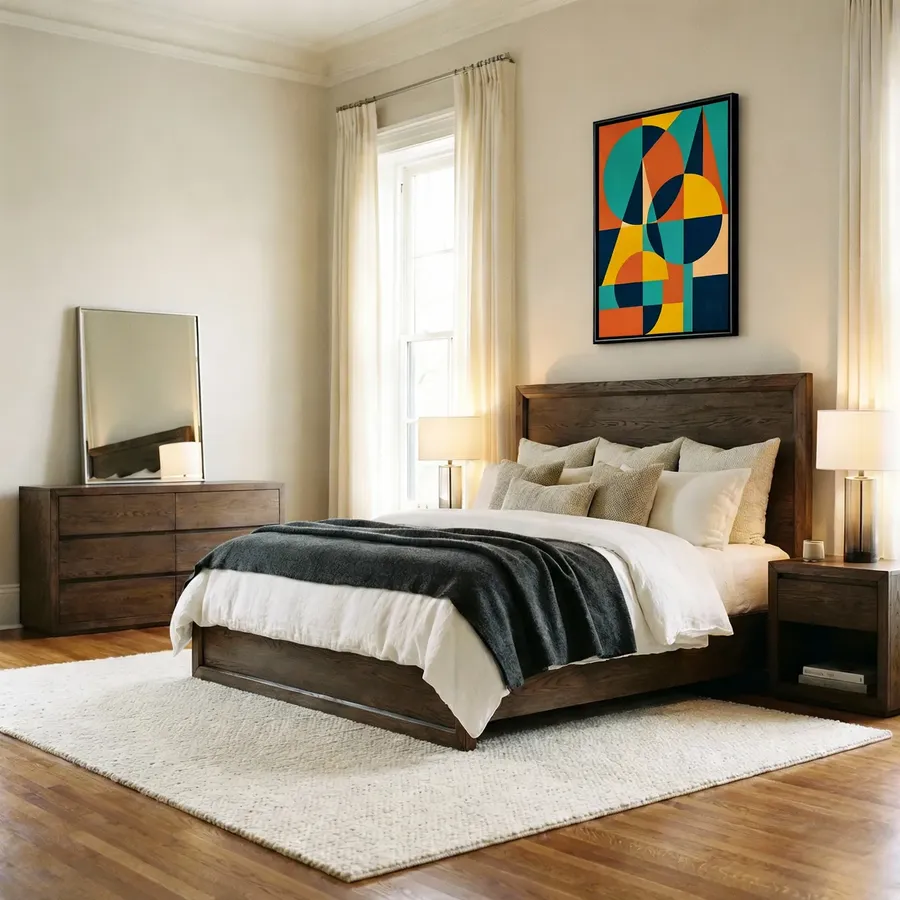
Image 1
Image 2
Place the painting from Image 2 into the space in Image 1 at the wall above the bed
Example with multiple products:
Place the sofa from Image 2 and the floor lamp from Image 3 into the space in Image 1. Put the sofa against the wall under the artwork, and place the lamp to the left of the sofa
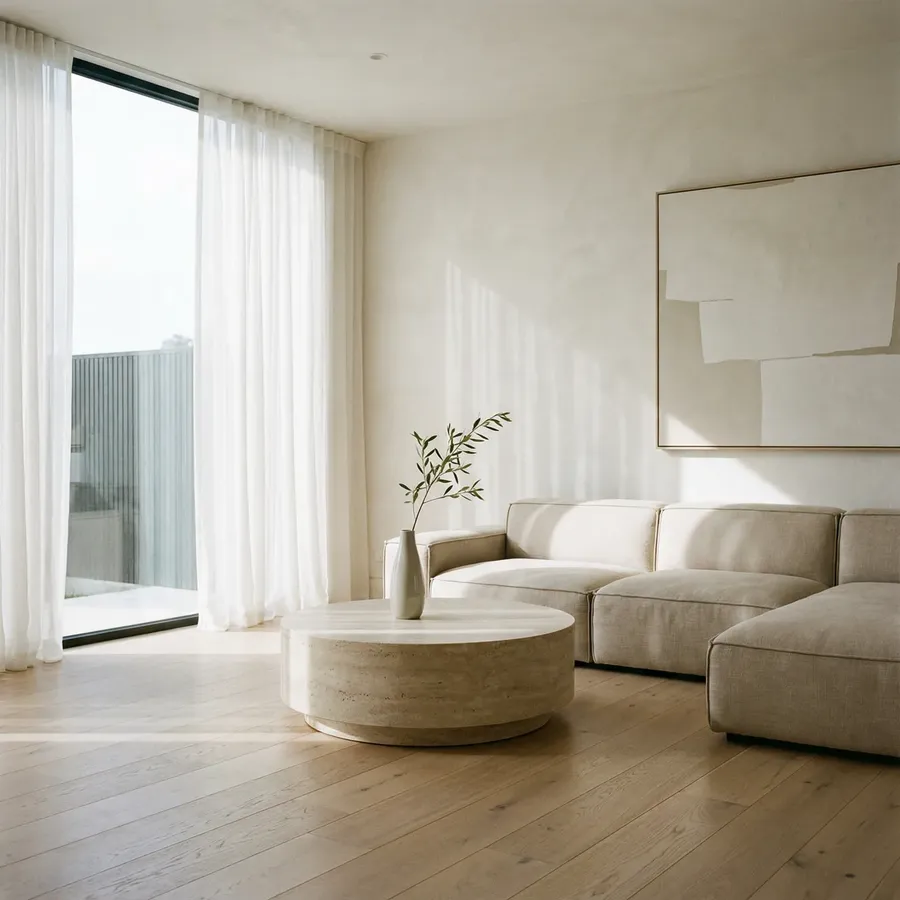
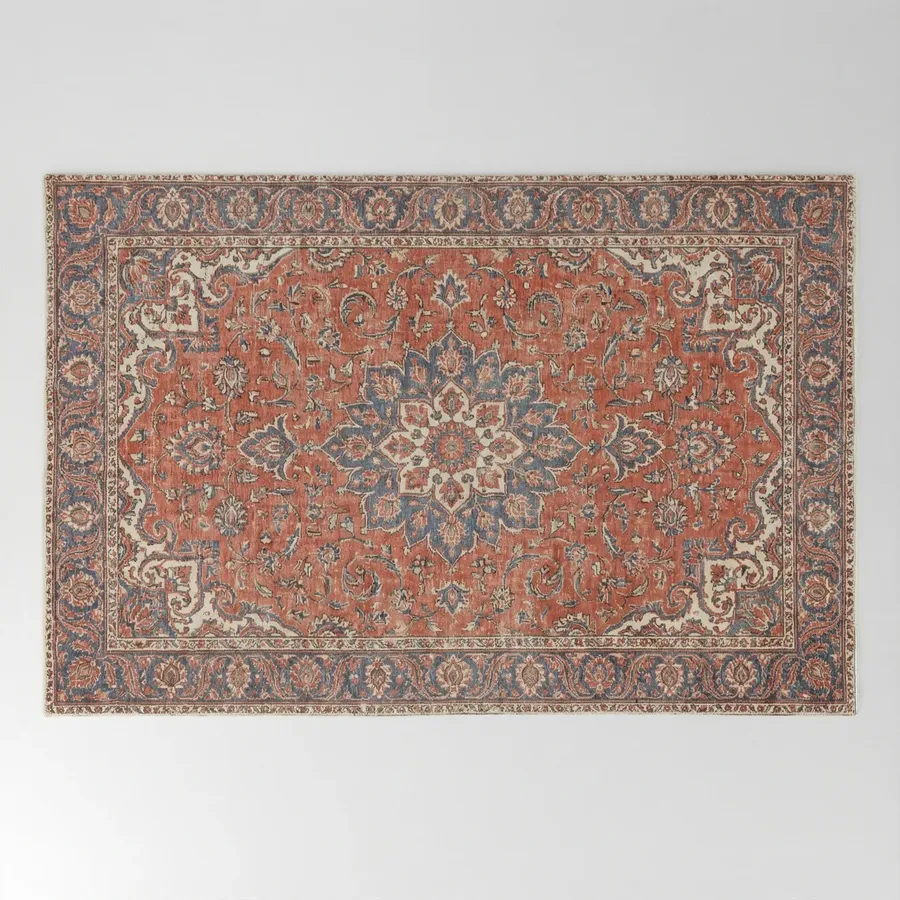
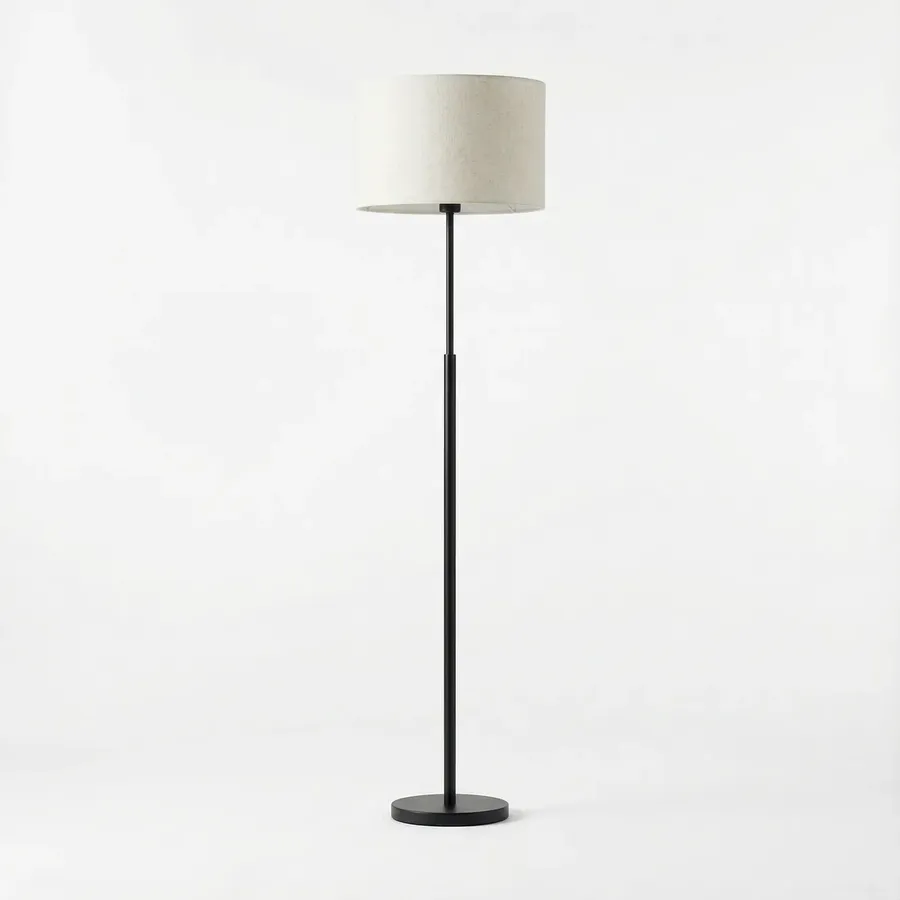
Image 1
Image 2
Image 3
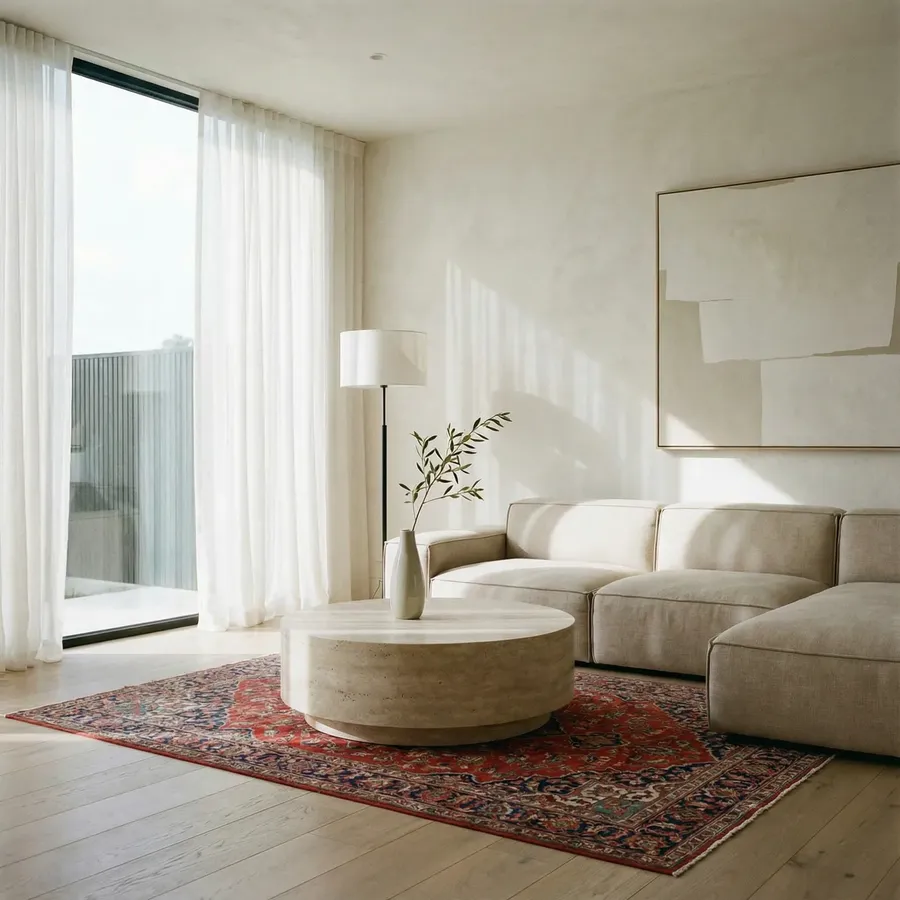
Place the rug from Image 2 under the coffee table in Image 1. Place the floor lamp from Image 3 next to the sofa on the right side. Match scale and perspective. Preserve everything else
Copy-paste prompt (text-only product, no product image) template
Add a [DETAILED PRODUCT DESCRIPTION] to the space in Image 1 at [LOCATION]. Match the room style and lighting
-900x900.webp)
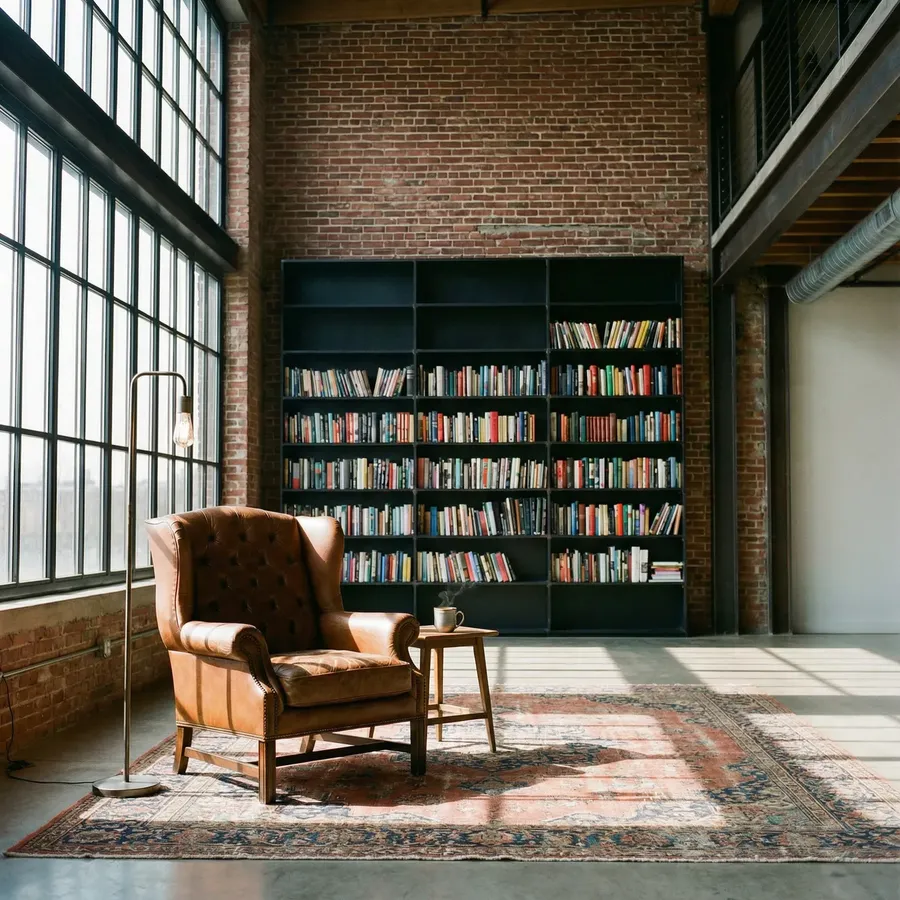
Image 1
Add a large, distressed vintage Persian rug with faded terracotta and navy blue tones to the space in Image 1 underneath the leather wingback chair and side table.
Quick tips
- Use a clean product photo if possible
- Be specific about placement (under coffee table, centered on wall, etc.).
Replace an existing item with a new one
What it’s for
Swap the current sofa for a different sofa, or swap the dining table, bed, lighting, etc.
What you upload
Option A (swap with reference):
- Room photo (Image 1)
- New item photo(s) (Image 2, Image 3, etc.)
Option B (swap with text only):
- Room photo (Image 1)
Copy-paste prompt (with new item reference) template
Replace the [EXISTING ITEM] in Image 1 with the [NEW ITEM] from Image 2. Preserve everything else.
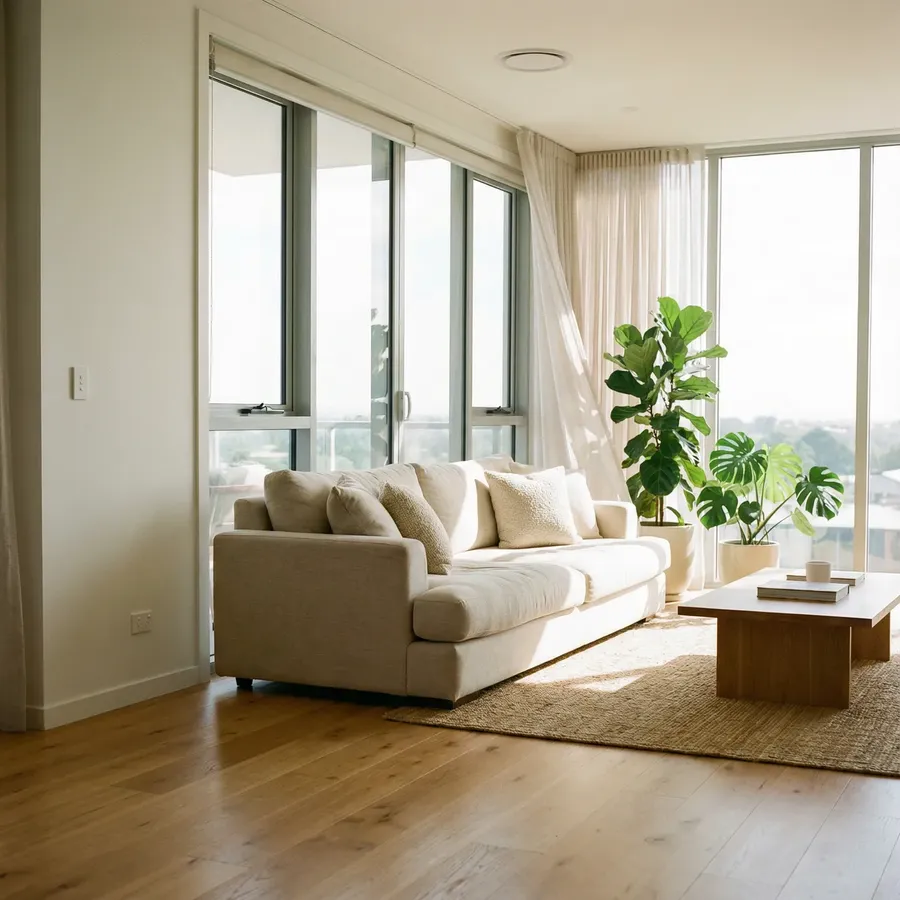
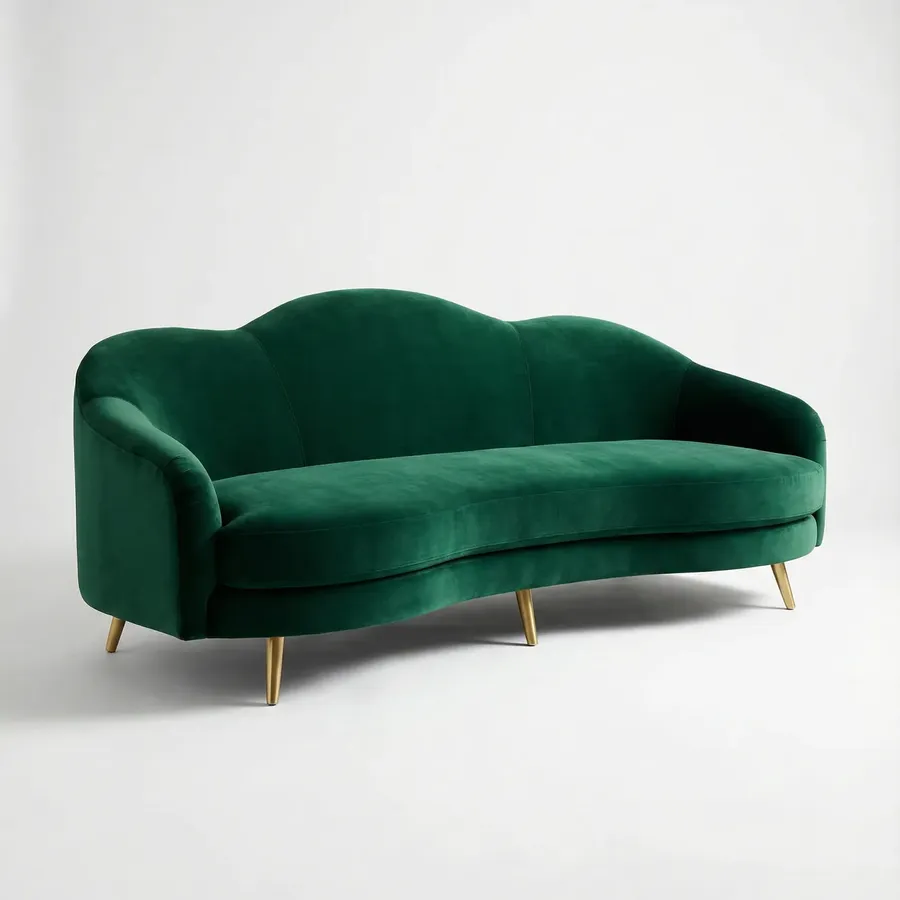
Image 1
Image 2
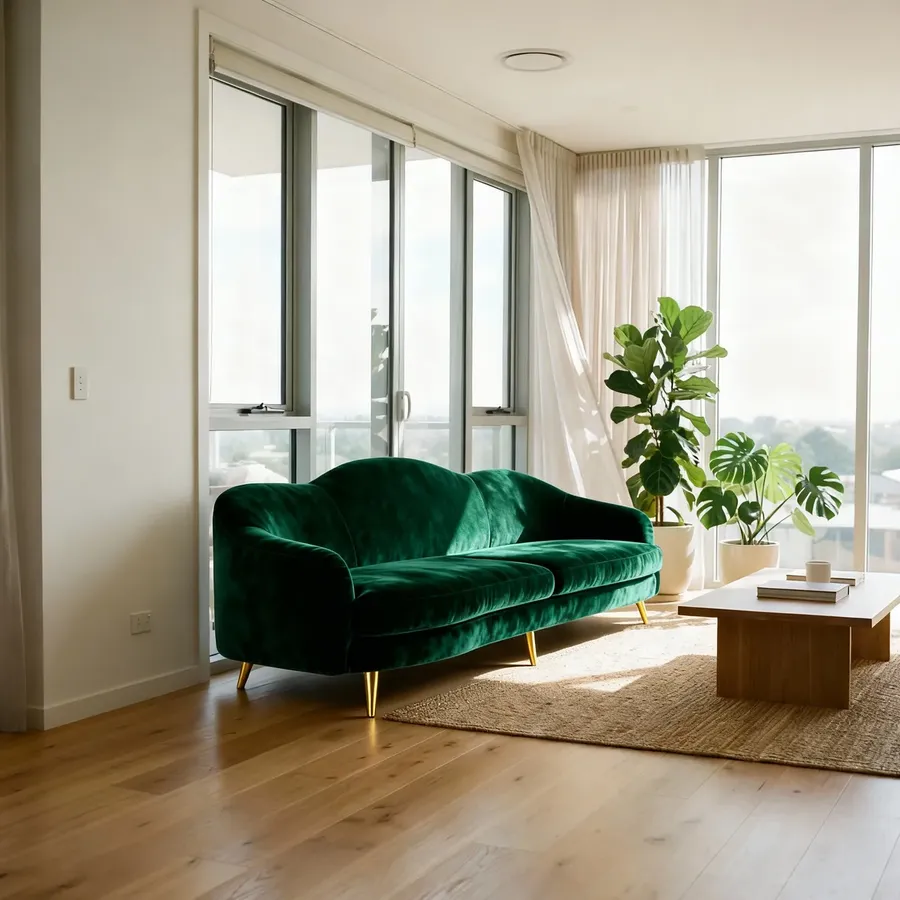
Replace the sofa in Image 1 with the sofa from Image 2.
Copy-paste prompt (text-only swap) template
Replace the [EXISTING ITEM] in Image 1 with a [DETAILED DESCRIPTION OF NEW ITEM]
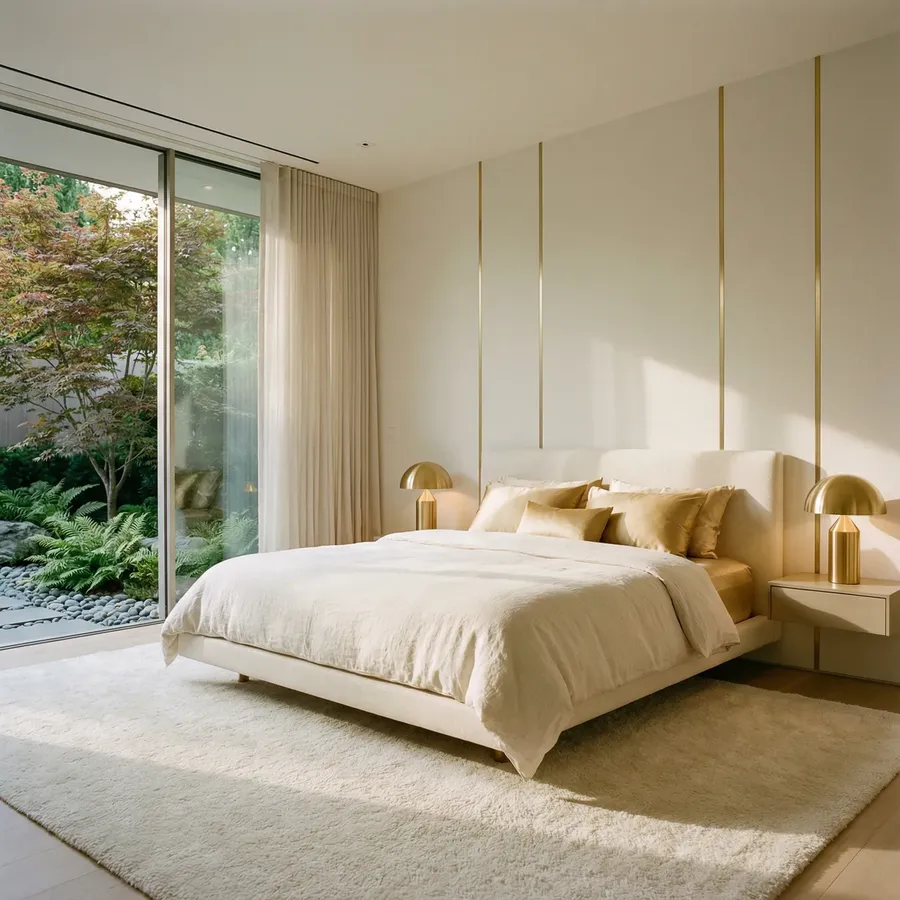
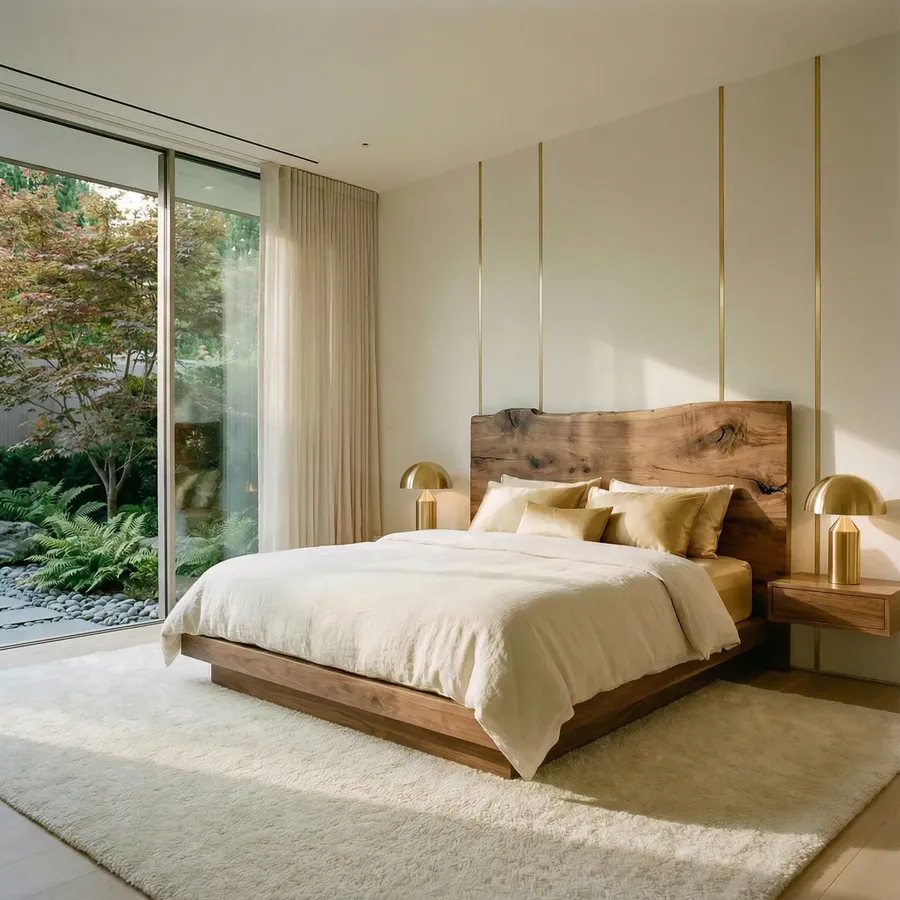
Image 1
Replace the cream upholstered bed in Image 1 with a heavy, solid walnut platform bed featuring a raw, live-edge wooden headboard with visible natural grain and knots.
Quick tips
- You can swap multiple items at once.
Add built-in storage
What it’s for
Make the space more functional and premium.
What you upload
Room photo
Copy-paste prompt template
Add built-in storage in [location].
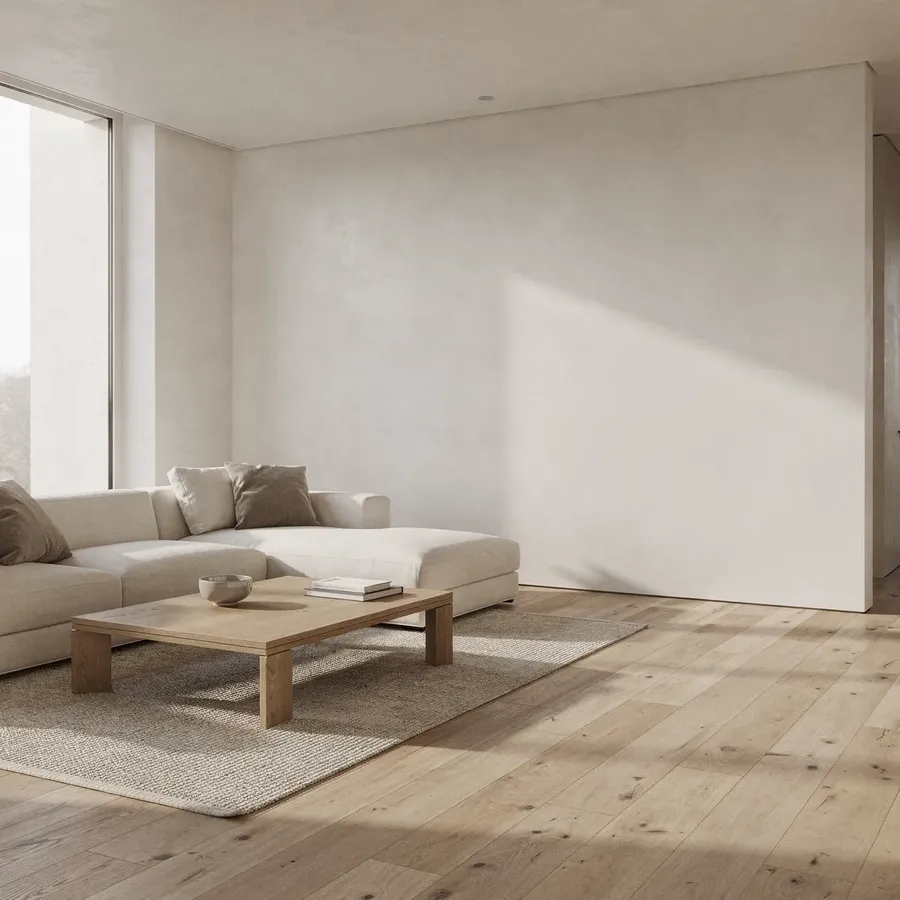
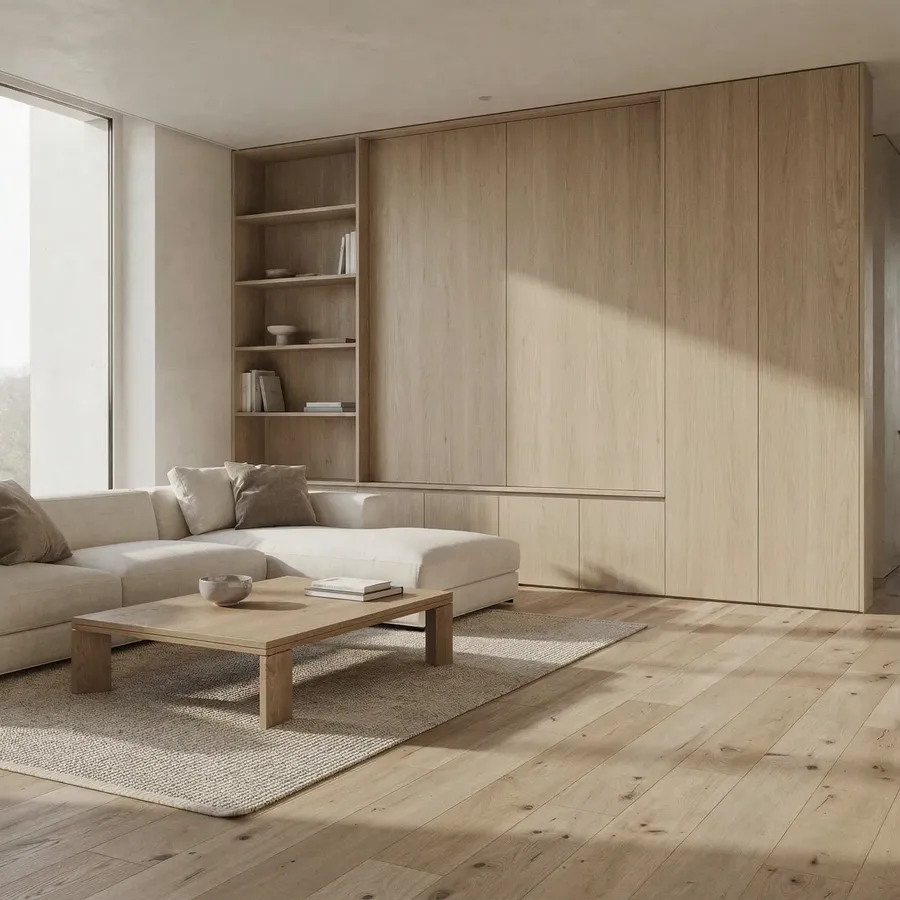
Image 1
Add built-in storage on the empty wall: minimal, light oak, flush panels, with a mix of closed cabinets and open shelves. Preserve everything else
Quick tips
- Specify style: “light oak”, “warm white”, “flush panels”.
Show one product in multiple finishes
What it’s for
Same cabinet, different hardware finishes. Same chair, different wood stains.
What you upload
Room photo or product image
Optional:
Finish references (metal finish photos, wood stains, fabric swatches)
Copy-paste prompt template
Create 4 versions of this scene with [ITEM] in these finishes: [finish 1], [finish 2], [finish 3], [finish 4]
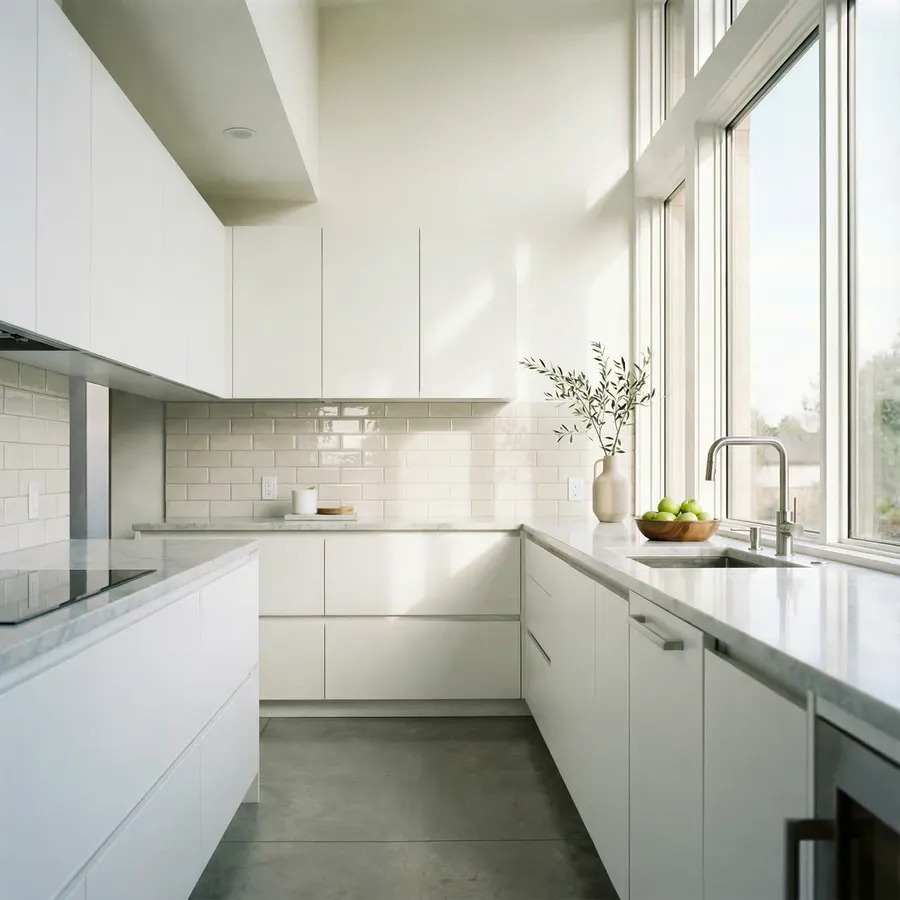
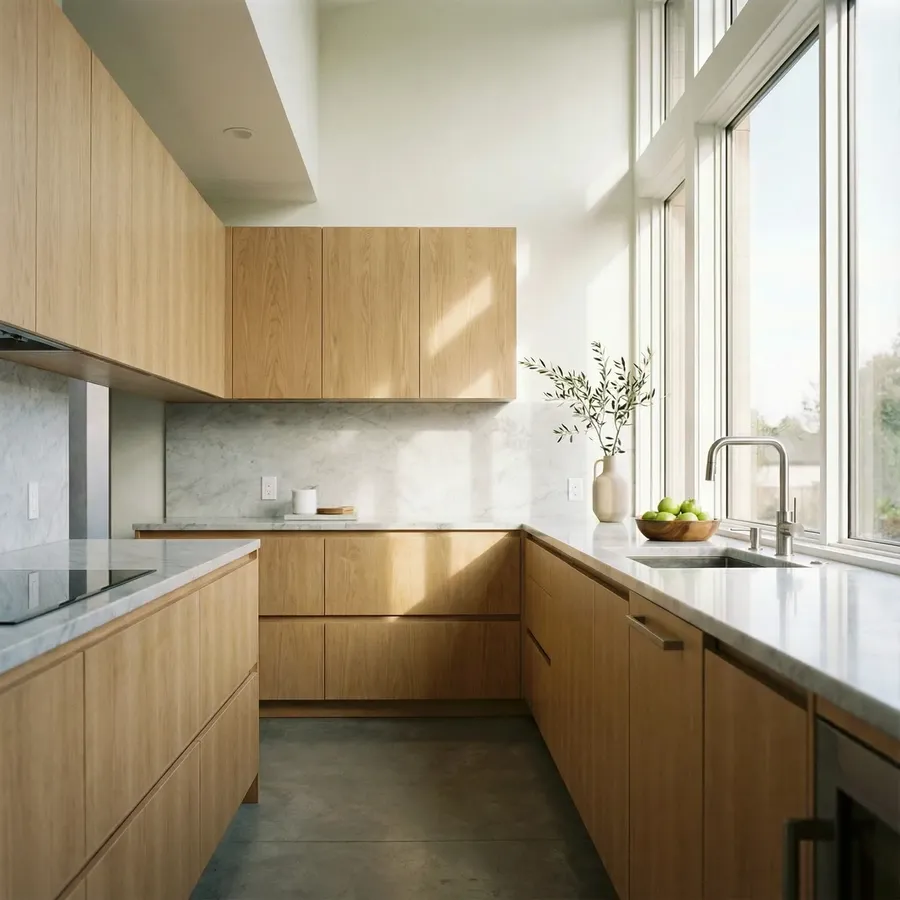
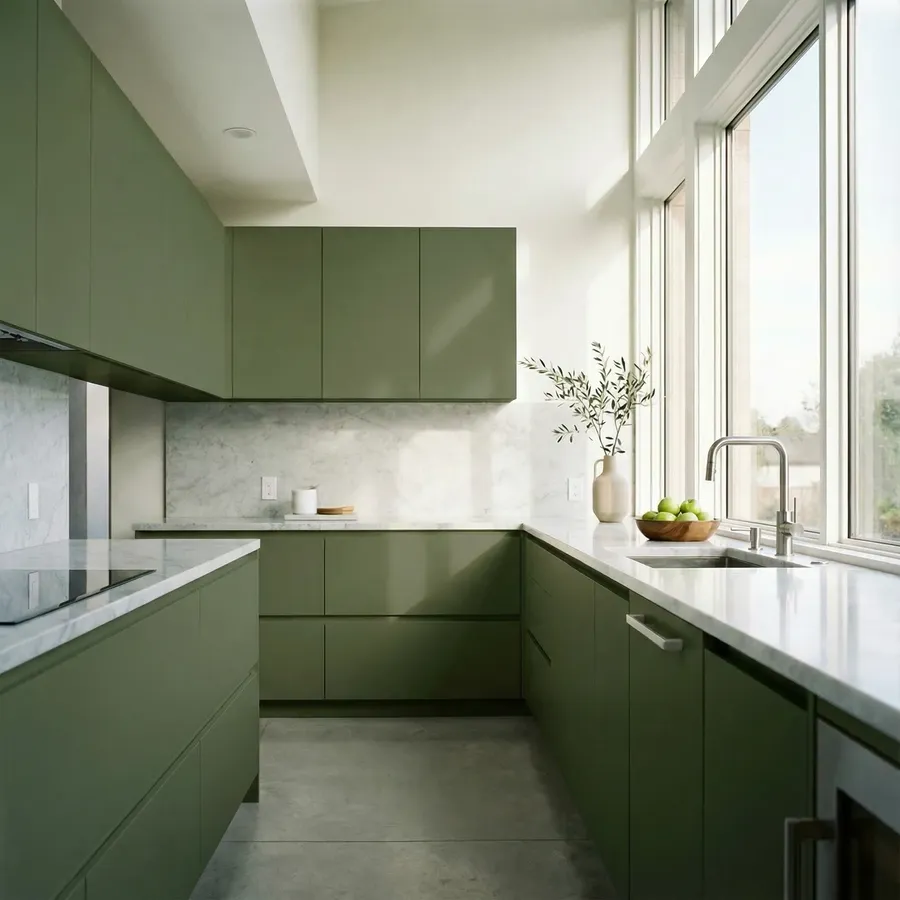
Image 1
Create 2 versions of this kitchen. Change only the cabinet color: warm light oak, deep olive.
Quick tips
- Keep finishes short and specific: “brushed brass”, “chrome”, “matte black”.
Colors + Materials
Change wall color
What it’s for
Fast paint studies without redesigning the entire room.
What you upload
Option A:
- Room photo
Option B:
- Room photo
- Paint swatch / color reference image
Copy-paste prompt template
Change the wall color to [COLOR]
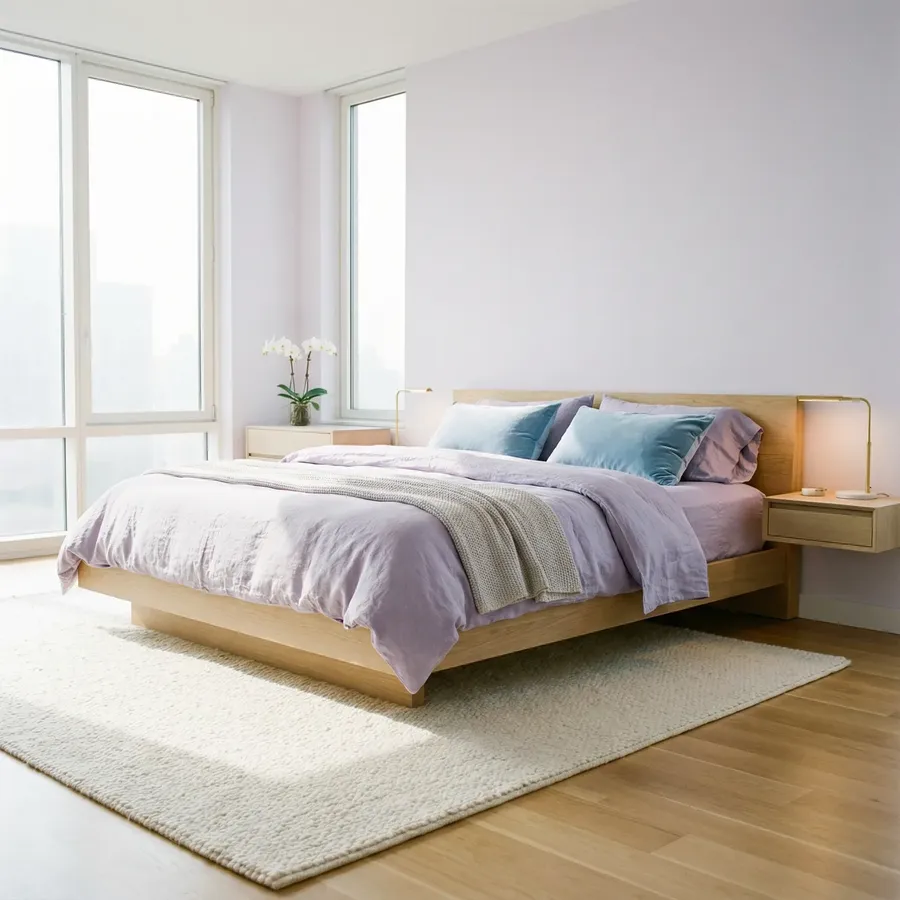
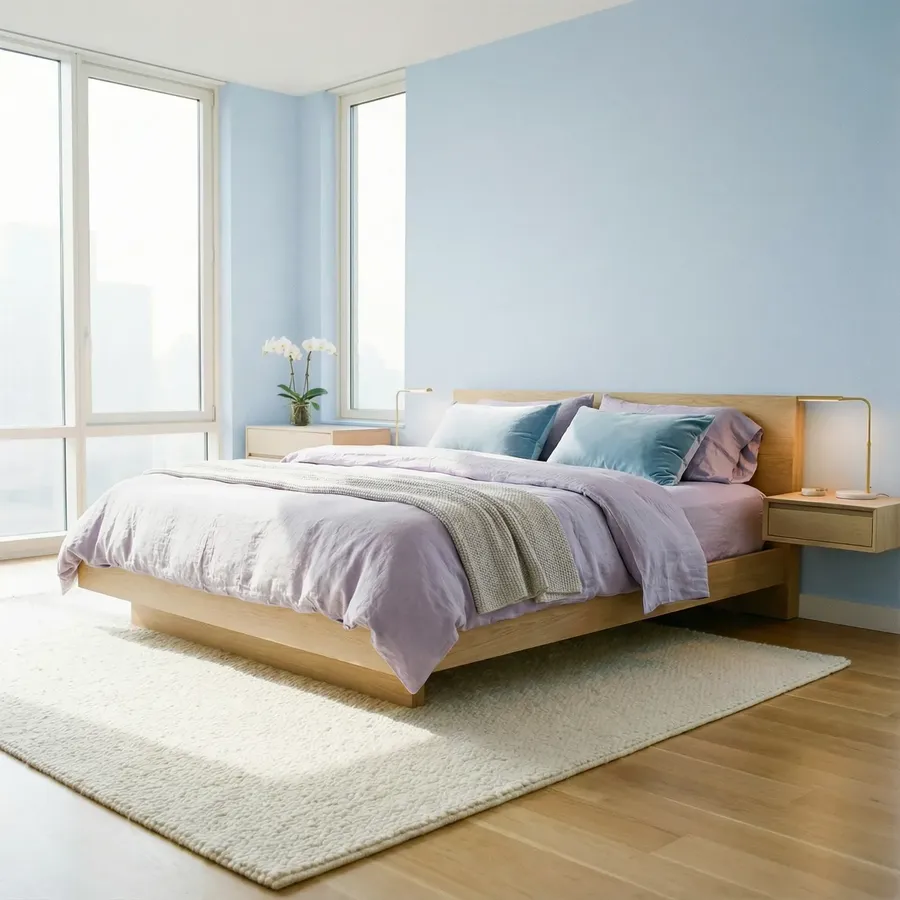
Image 1
Change the wall color to blue
Reference-based prompt template
Change the wall color to match the paint swatch in Image 2
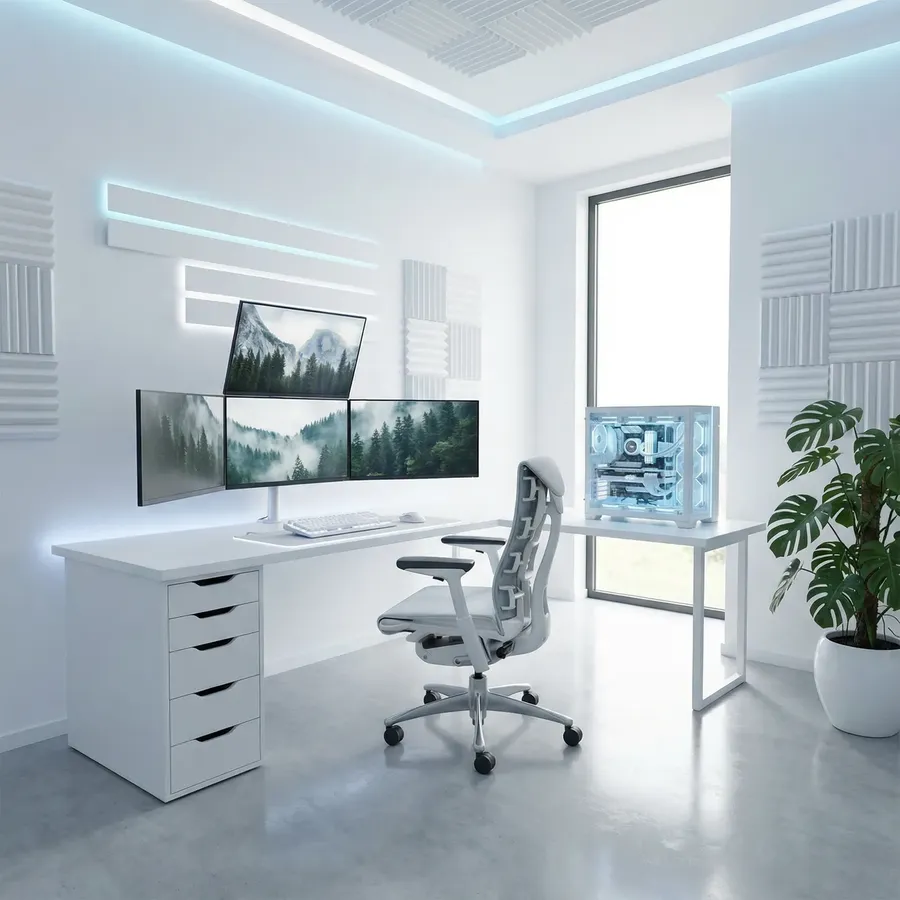

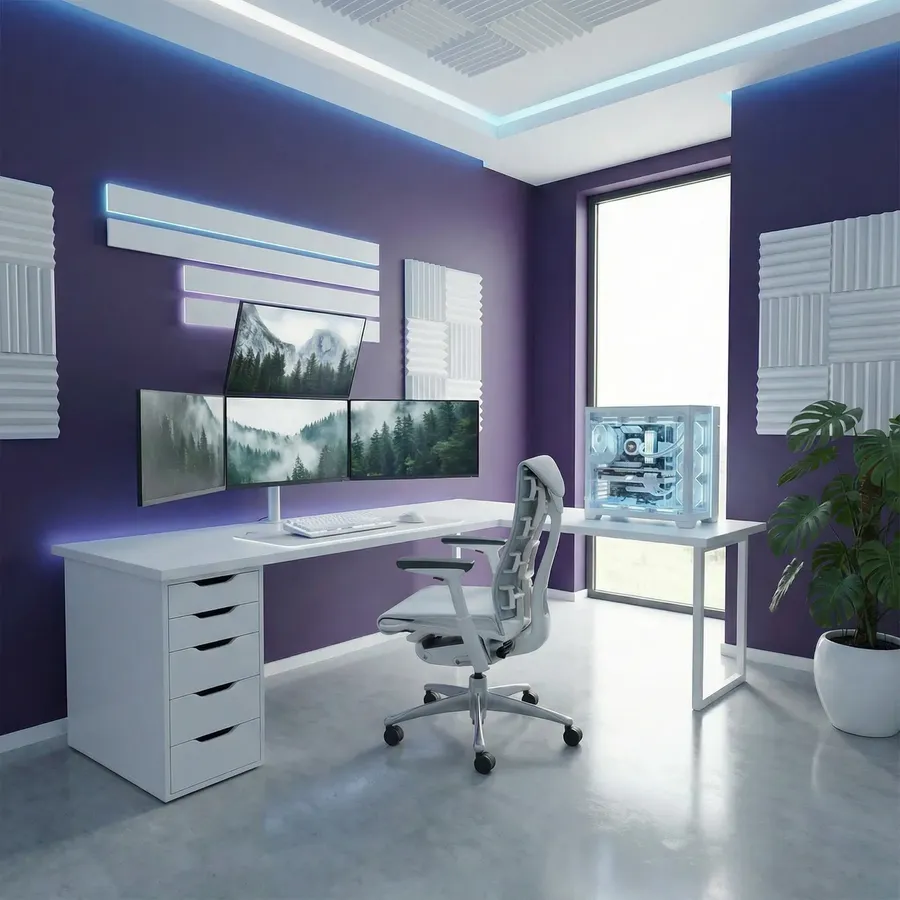
Image 1
Image 2
Change the wall color to match the paint swatch in Image 2
Quick tips
- For variation rounds: “Create 8 versions with wall colors: [list 8]”.
- For consistent palettes across a project, create a Color Palette Element (from swatches or brand materials) and reuse it.
Change flooring
What it’s for
Try wood, tile, concrete, stone, carpet quickly.
What you upload
Option A:
- Room photo
Option B:
- Room photo
- Flooring reference image (wood plank photo, tile sample, carpet sample)
Copy-paste prompt template
Change the flooring to [MATERIAL]
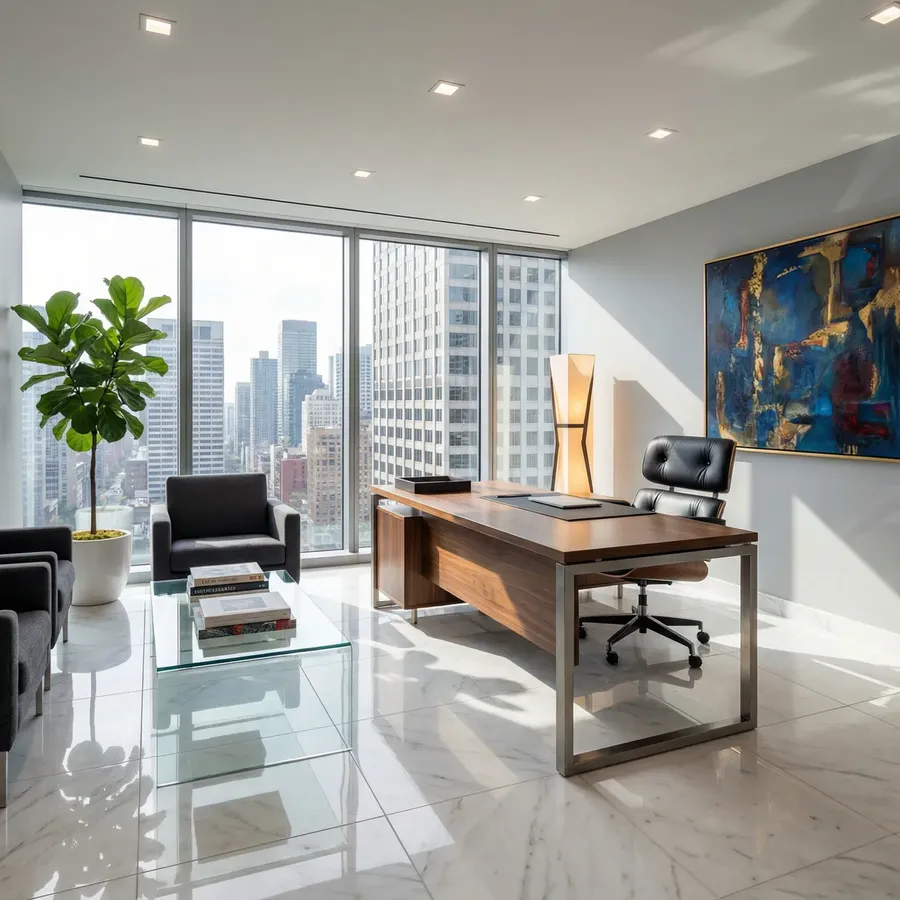
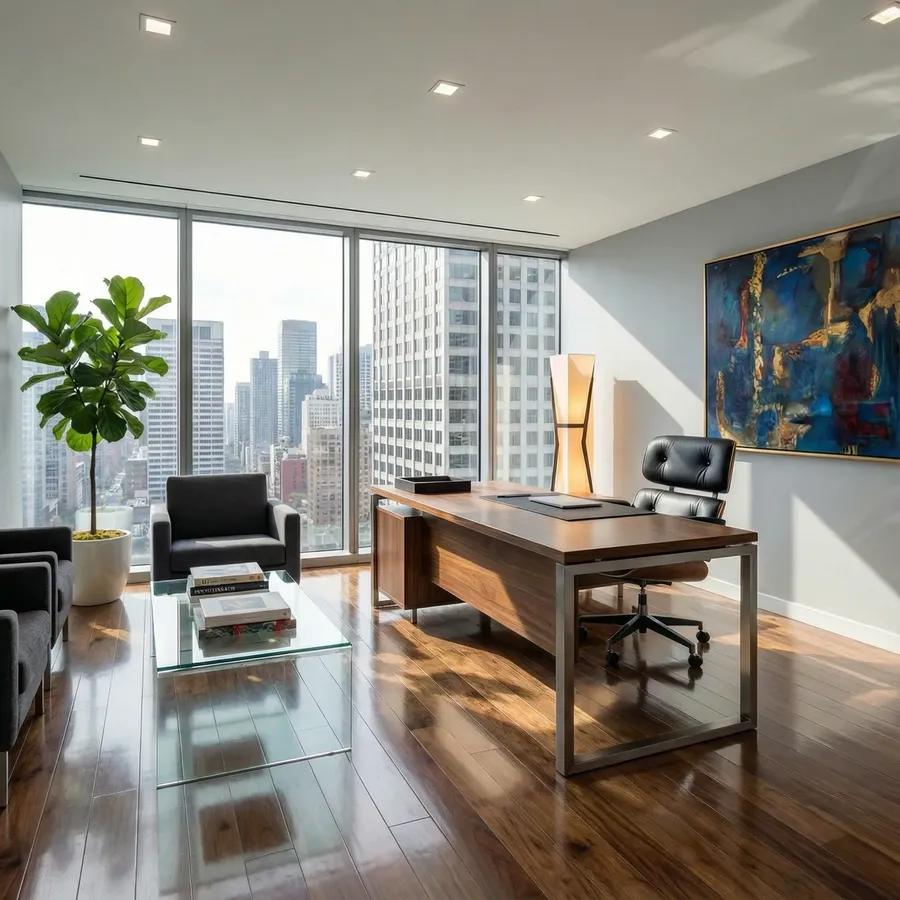
Image 1
Change the flooring to classic dark wood
Reference-based prompt template
Change the flooring to match the flooring material in Image 2
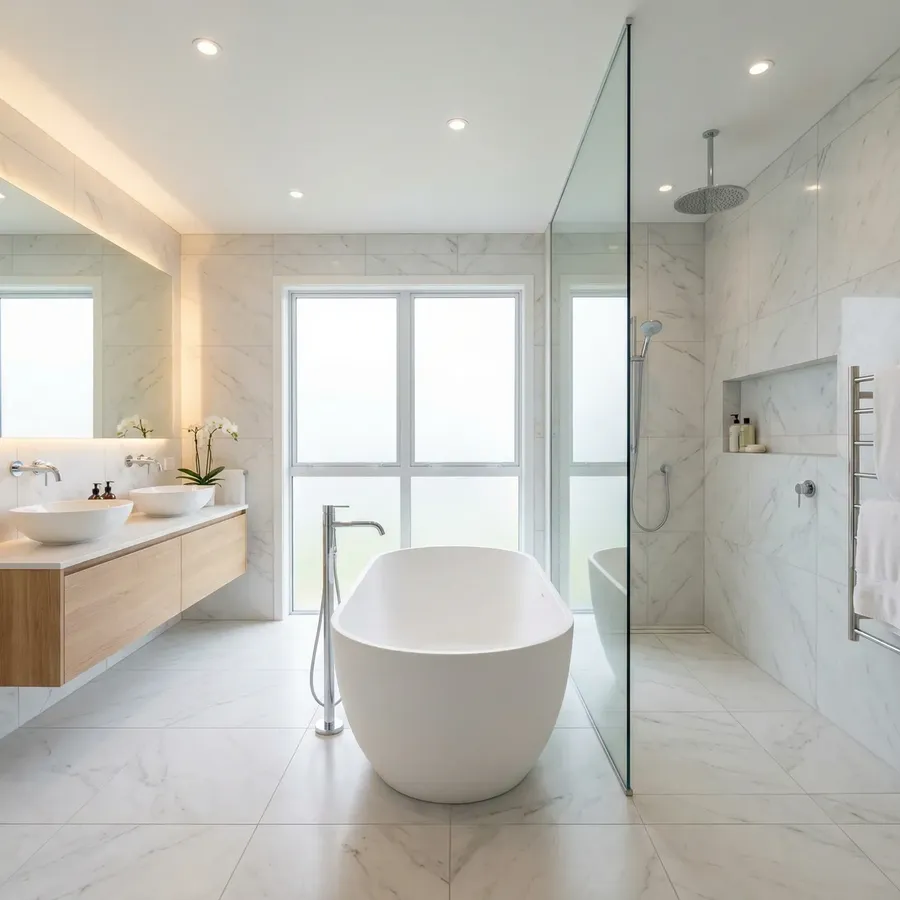
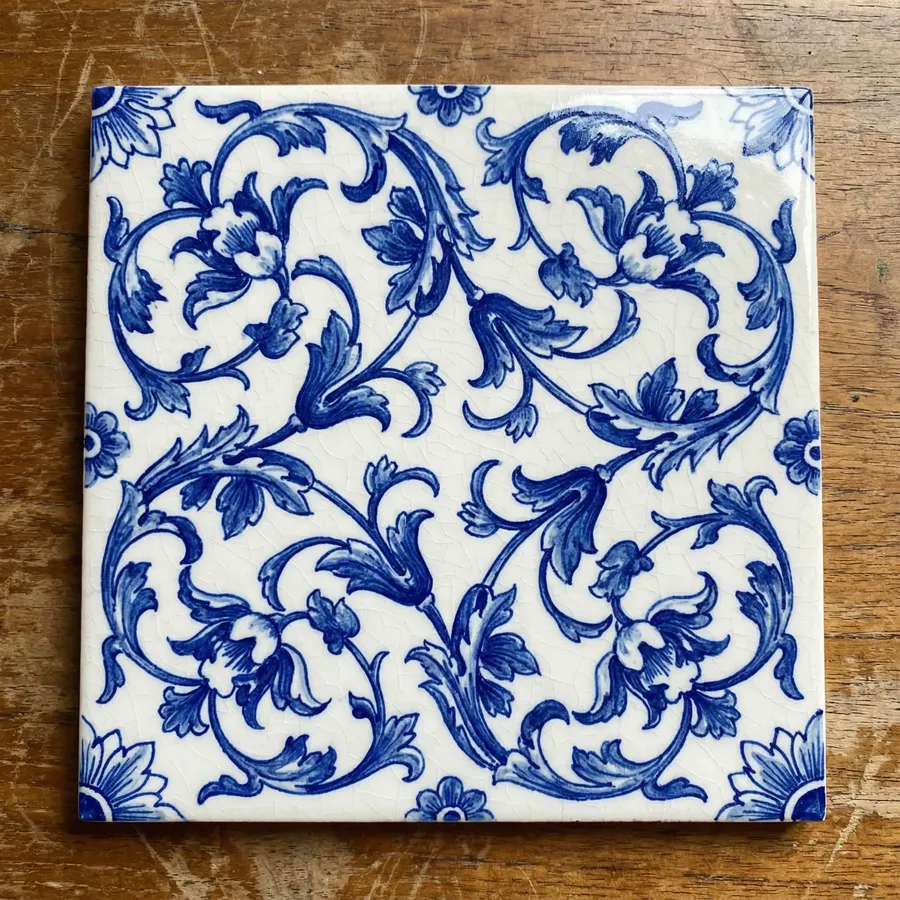
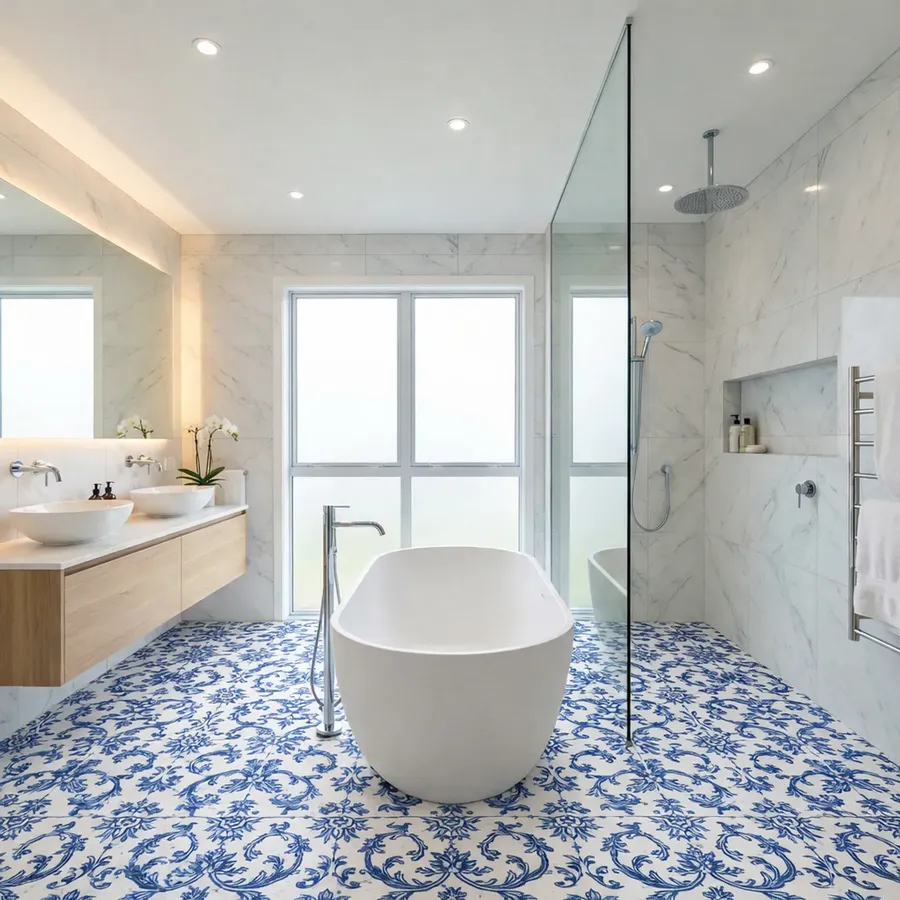
Image 1
Image 2
Change the flooring to match the exact tile pattern in Image 2
Quick tips
- Mention format if needed: “wide plank”, “large format tile”.
Change upholstery or furniture material
What it’s for
Try fabrics and textures quickly.
What you upload
Option A:
- Room/furniture photo
Option B:
- Room/furniture photo
- Fabric swatch reference image
Copy-paste prompt template
Change the [SOFA/CHAIR] upholstery to [MATERIAL]
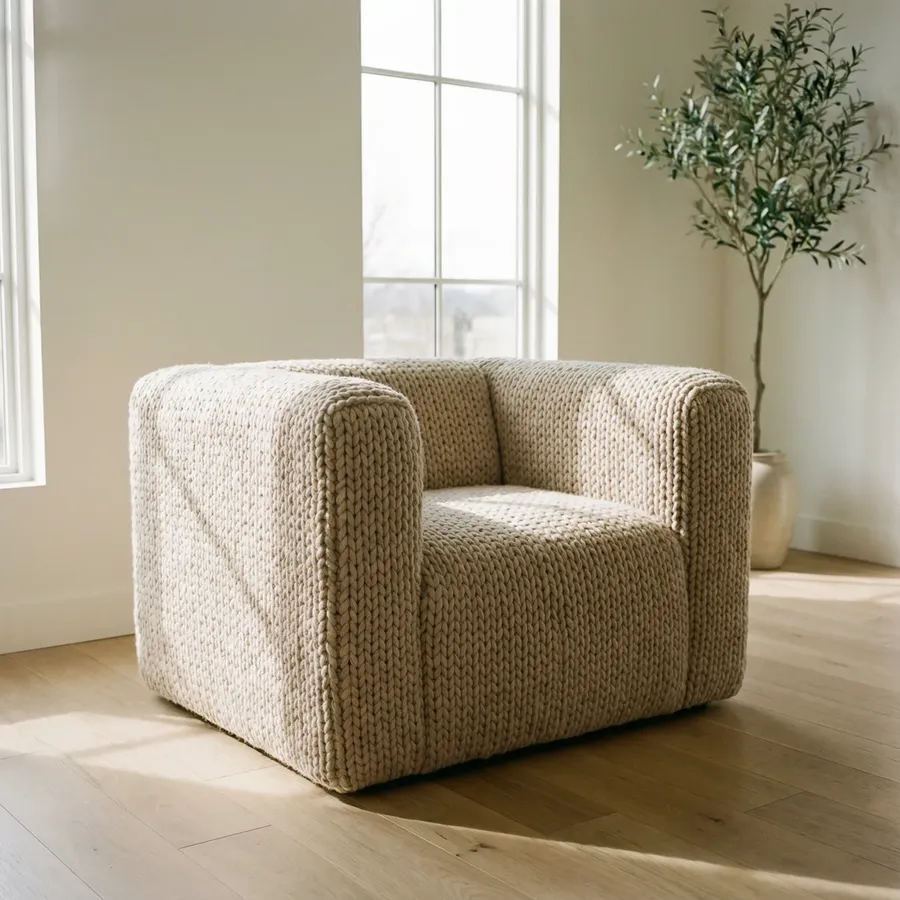
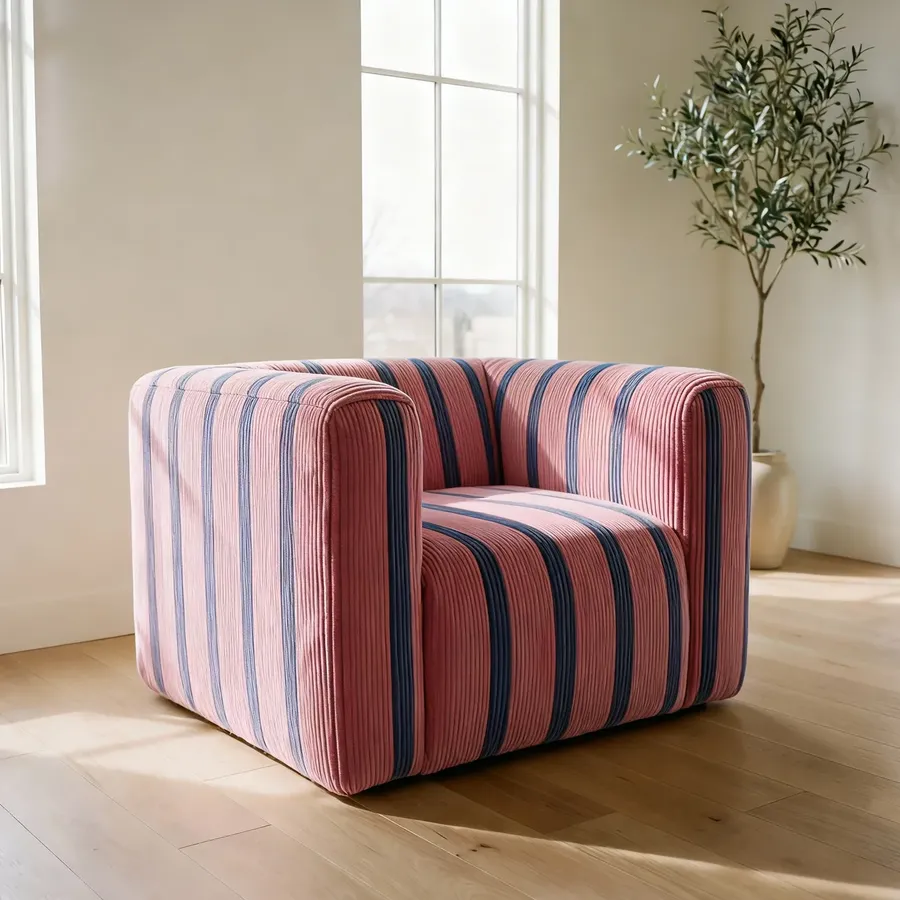
Image 1
Change the chair upholstery to pink and blue striped corduroy
Reference-based prompt template
Change the [SOFA/CHAIR] upholstery to match the fabric in Image 2
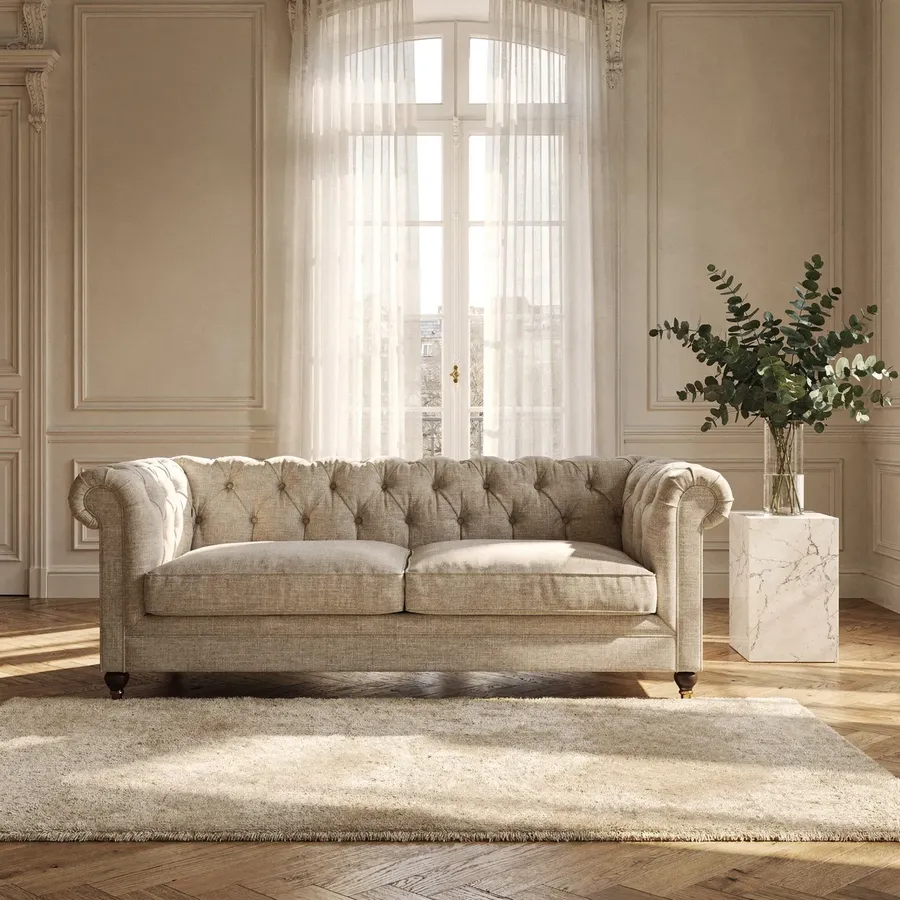

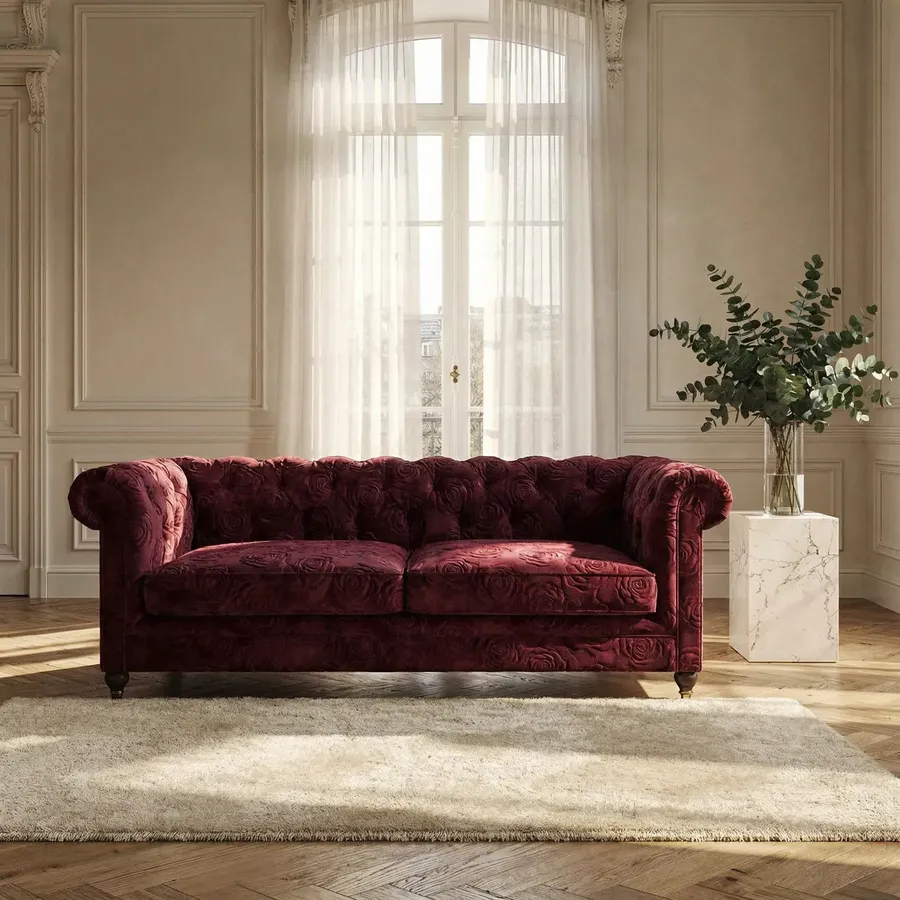
Image 1
Image 2
Change the sofa upholstery to match the fabric in Image 2
Quick tips
- Good material words: “bouclé”, “linen”, “velvet”, “leather”, “woven texture”.
- If you reuse the same finish often, save it as a Texture Element and reference it like
@WalnutVeneerTextureor@BoucleTexture.
Move + Remove + Clean Up
Remove an object
What it’s for
Get rid of the TV, extra chair, clutter, cables, etc.
What you upload
Room photo
Copy-paste prompt
Remove the [OBJECT]. Preserve everything else
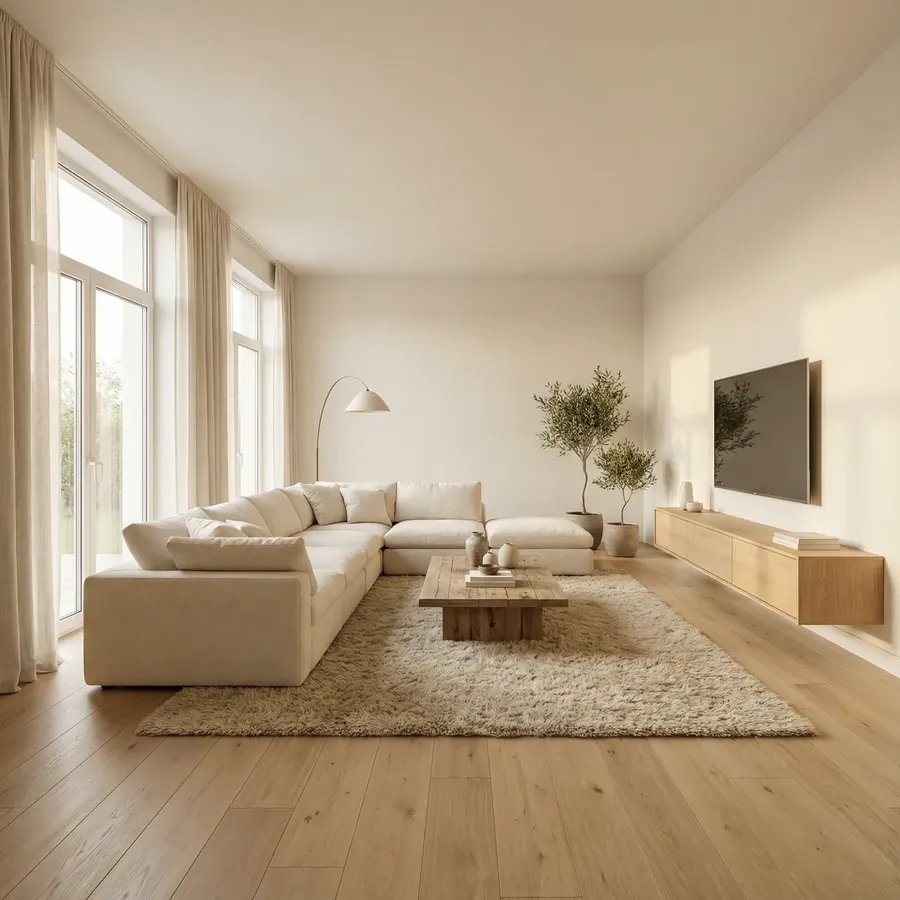
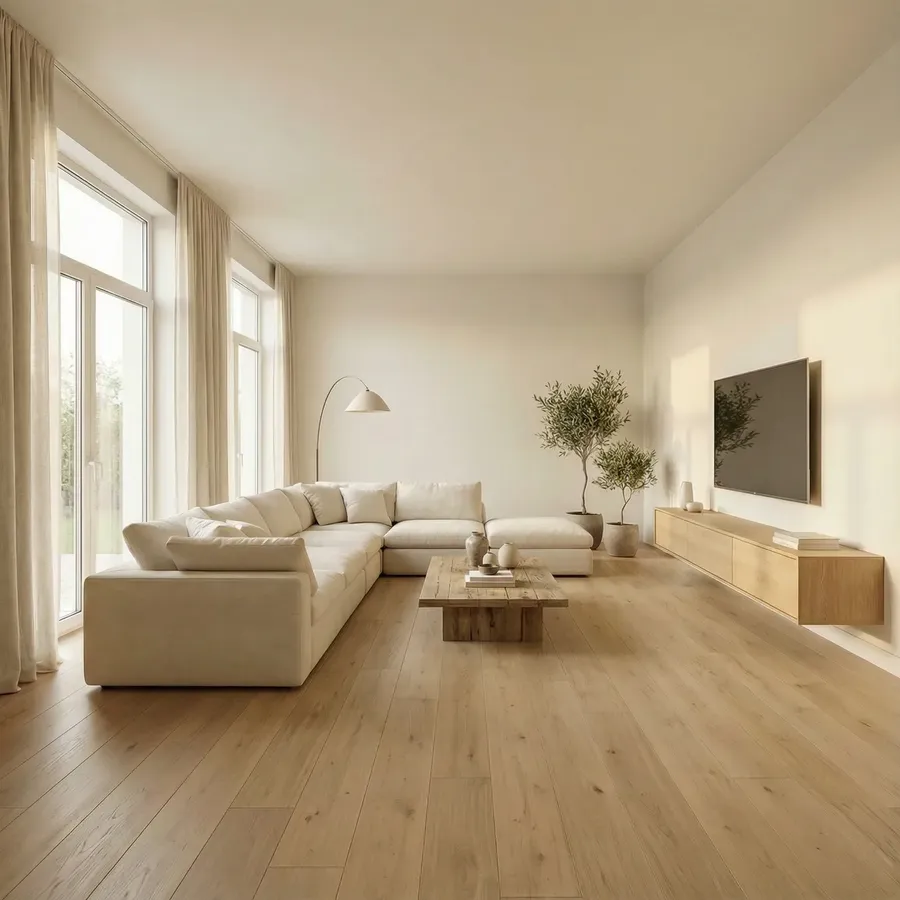
Image 1
Remove the rug. Preserve everything else
Quick tips
- For multiple things: “Remove [list]. Preserve everything else.”
Move furniture to a specific spot
What it’s for
Quick layout tests: move sofa, rotate bed, move dining table.
What you upload
Room photo
Copy-paste prompt template
Move the [OBJECT] to [NEW LOCATION]. Preserve everything else
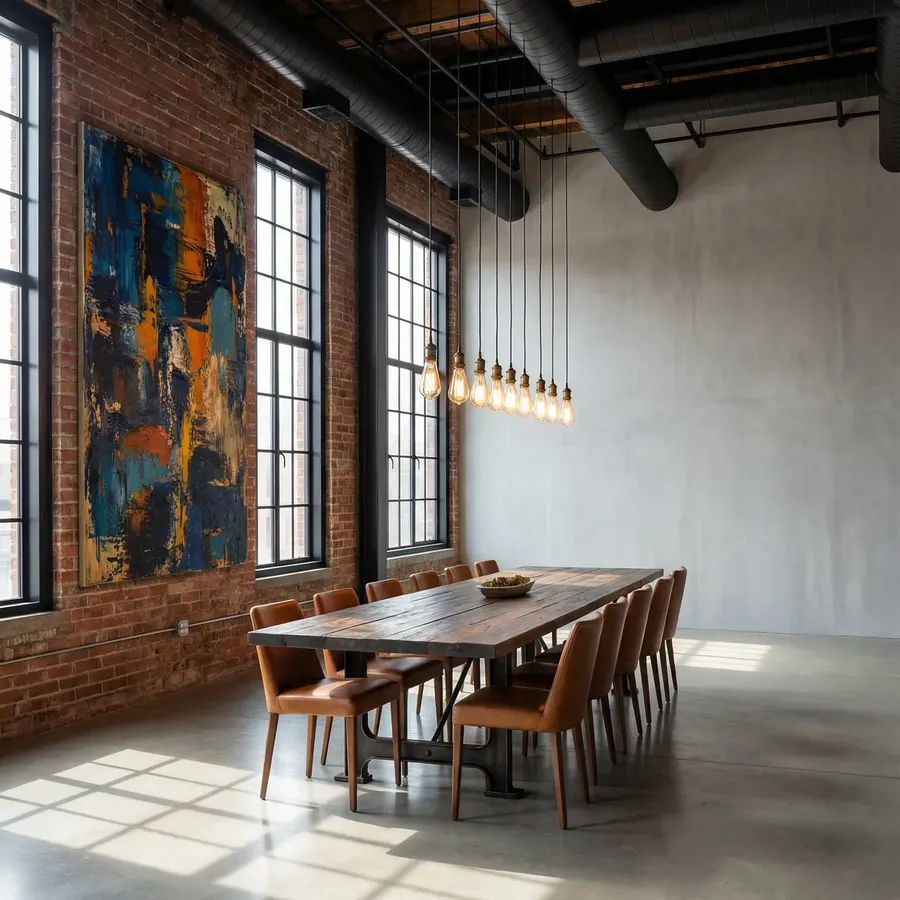
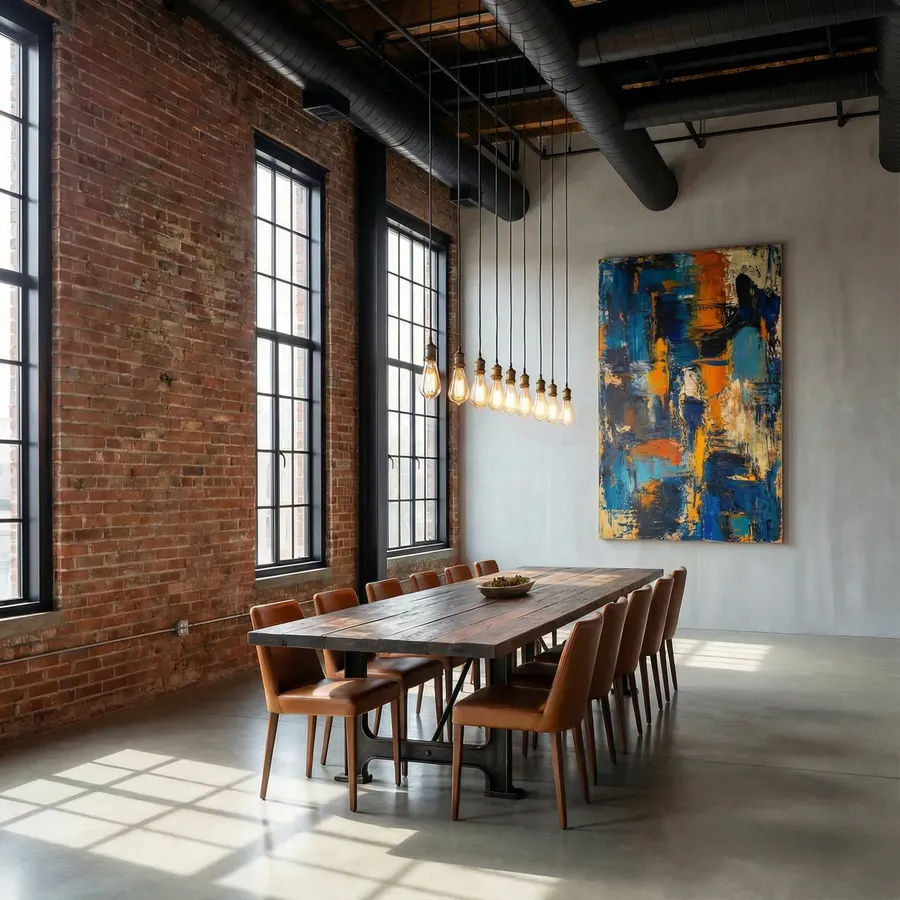
Image 1
Move the painting to concrete wall. Preserve everything else
Quick tips
- Be precise: “centered under the window”, “aligned with rug”
- If it’s a rotation: “Rotate the sofa to face the fireplace”.
Remove all decor (keep furniture)
What it’s for
Make a room calm and minimal without changing layout.
What you upload
Room photo
Copy-paste prompt template
Remove all decor: pillows, throws, plants, art, accessories. Keep furniture and architecture
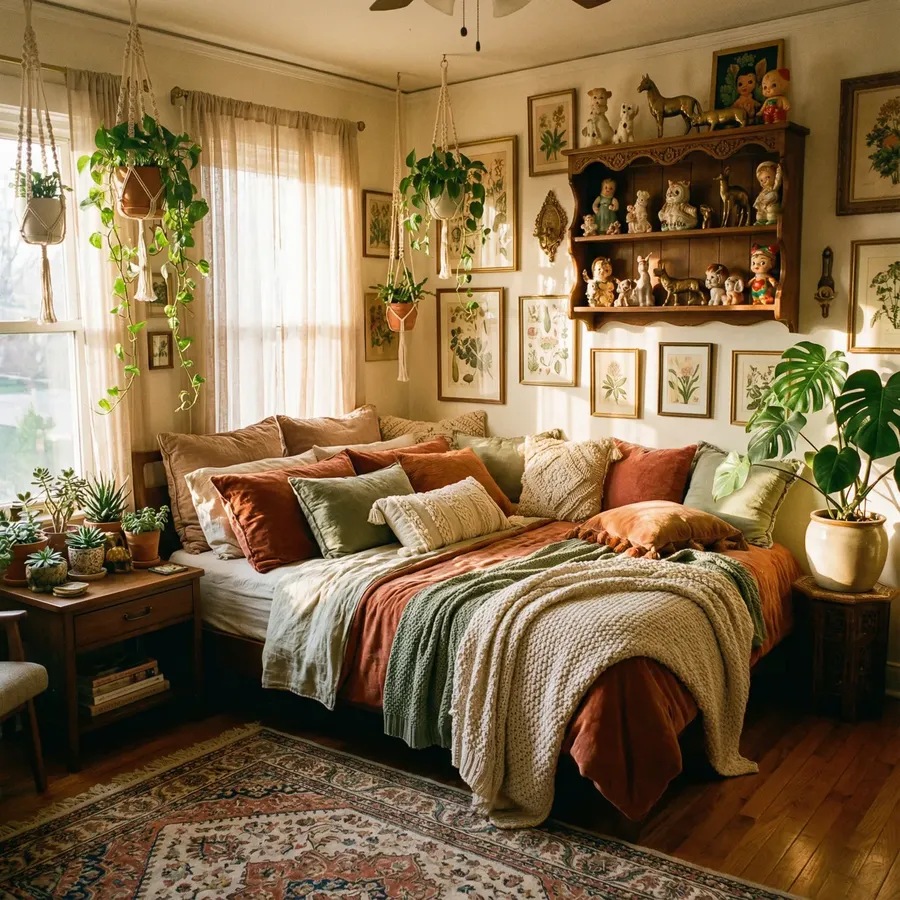
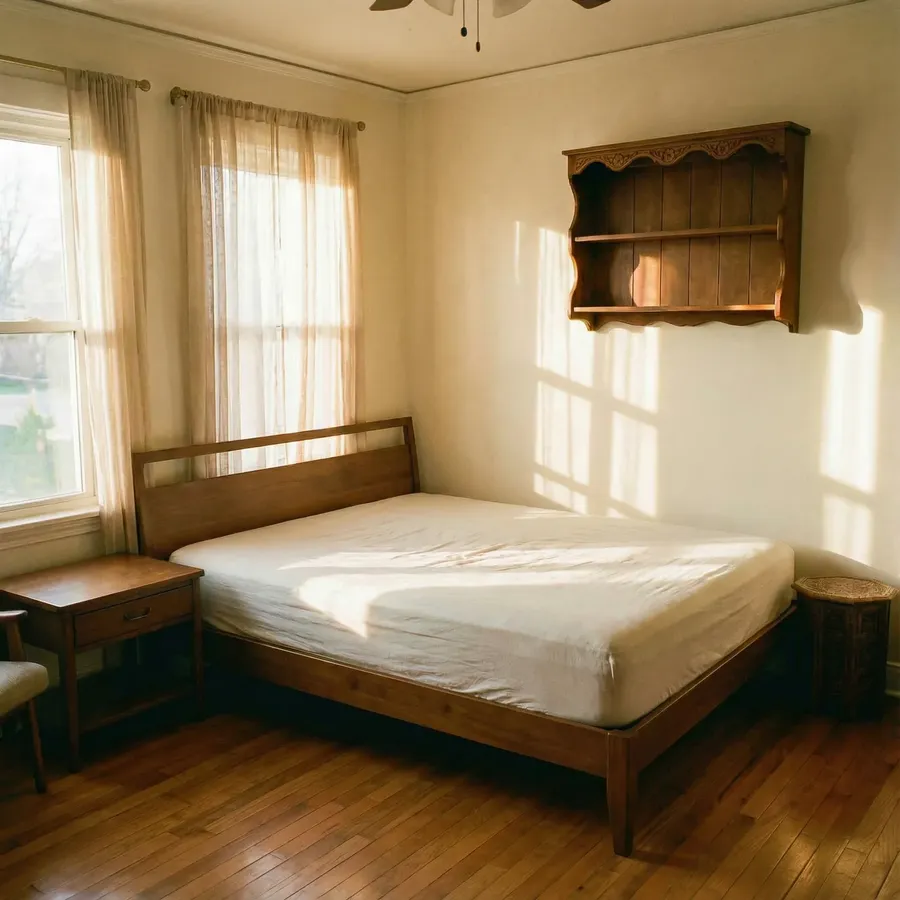
Image 1
Remove all decor: pillows, throws, plants, art, accessories. Keep furniture and architecture
Quick tips
- Great for “resetting” a space before restyling.
Empty the room completely
What it’s for
Real estate listings, renovation planning, a blank canvas.
What you upload
Room photo
Copy-paste prompt template
Remove all furniture and decor. Leave an empty, clean room.
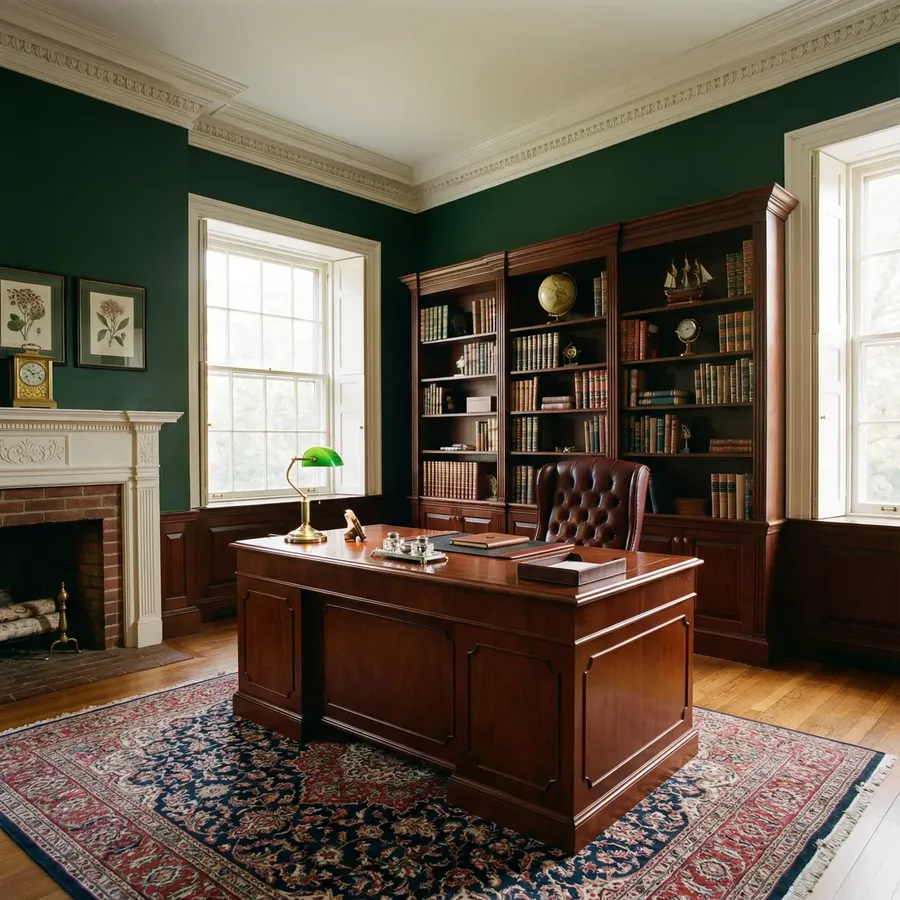
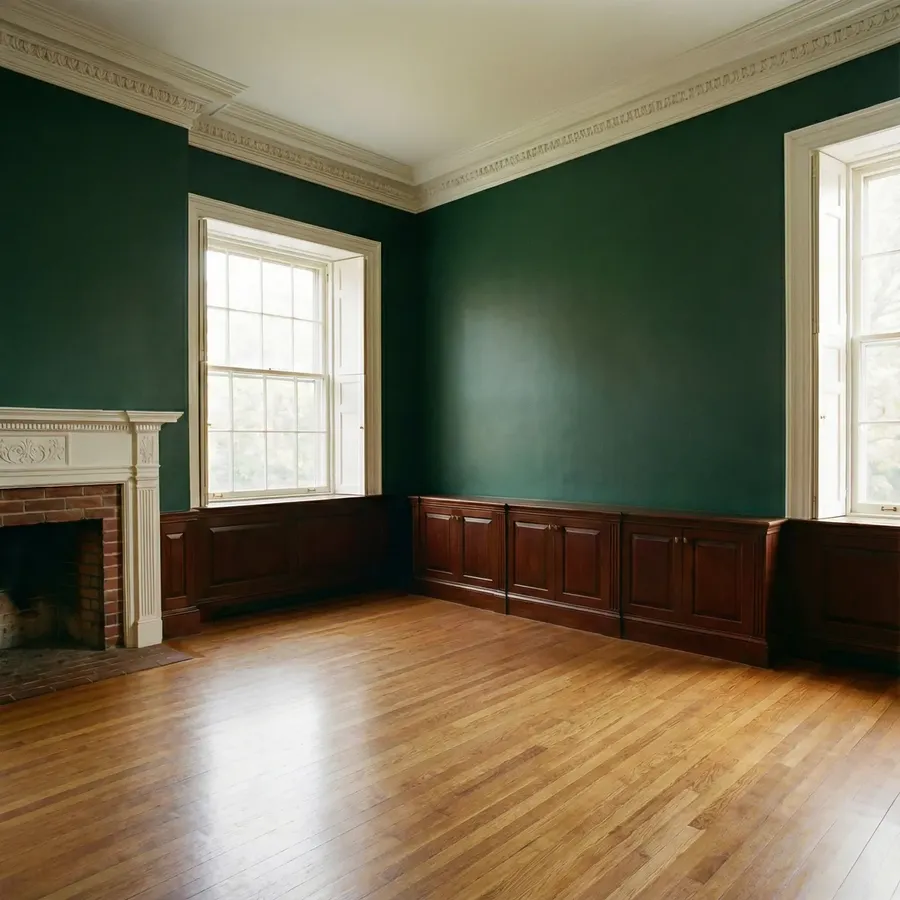
Image 1
Remove all furniture and decor. Leave an empty, clean room.
Quick tips
- If you want built-ins kept: “Keep built-in cabinetry”.
Clean up a listing photo (declutter + light staging)
What it’s for
Turn a messy photo into something you can actually post.
What you upload
Room photo
Copy-paste prompt template
Remove clutter and personal items. Make the room clean and lightly staged. Preserve everything else
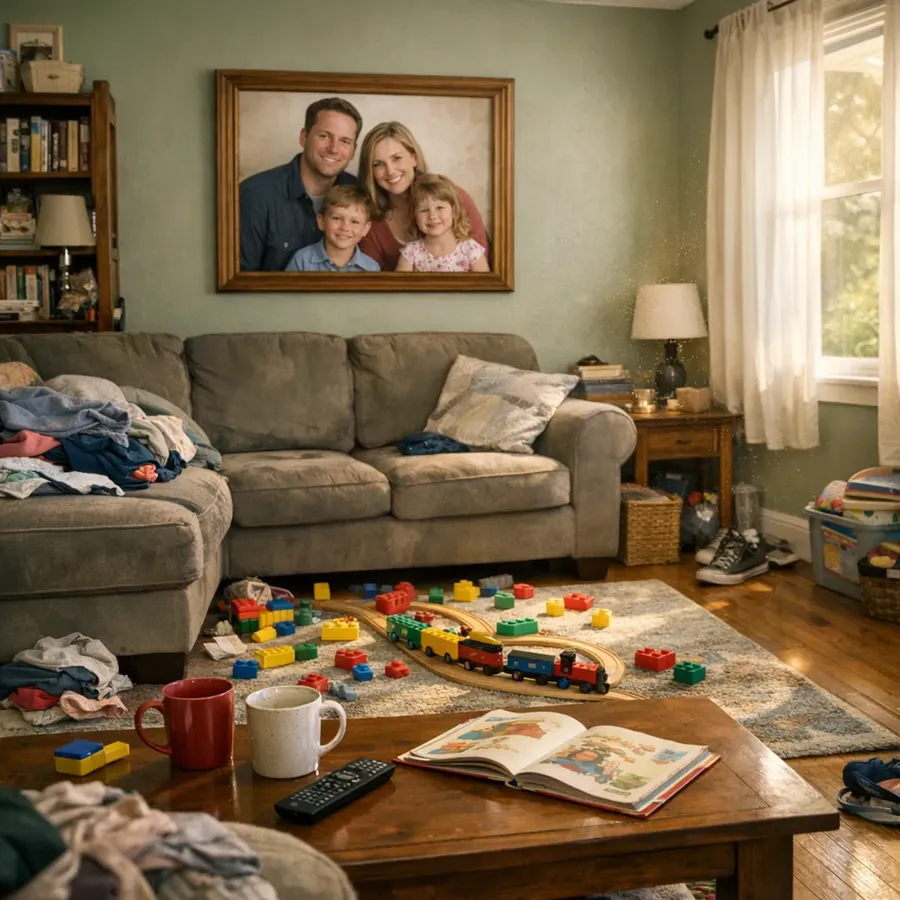
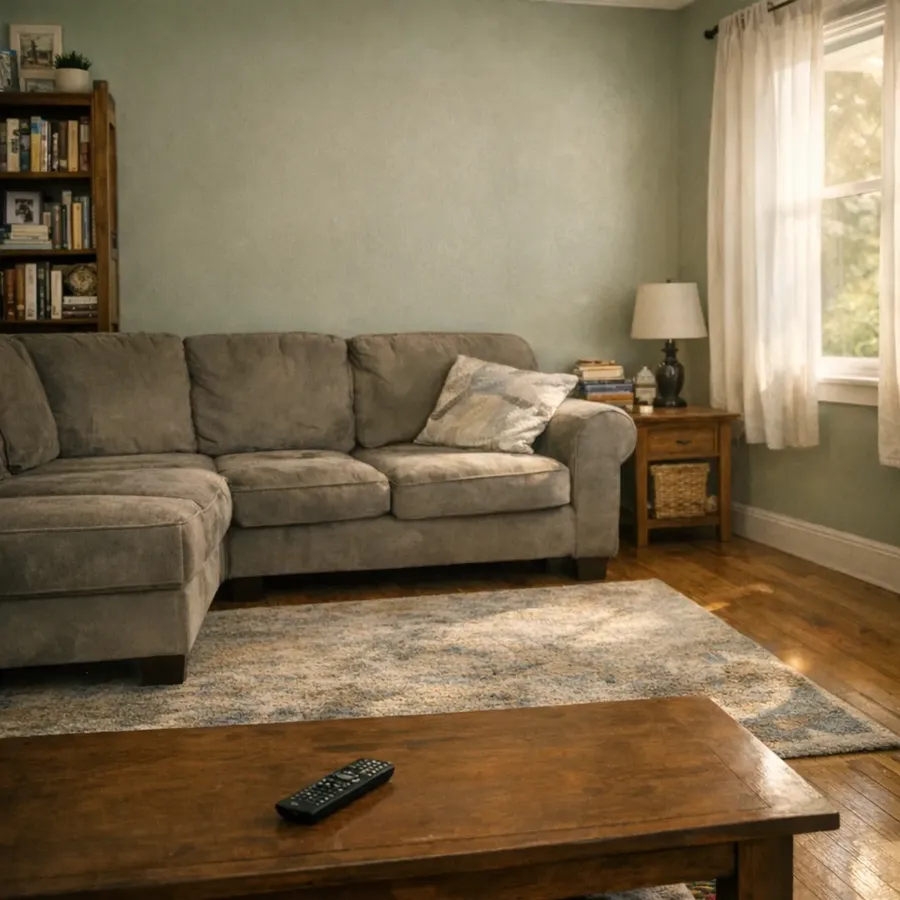
Image 1
Remove clutter and personal items. Make the room clean and lightly staged. Preserve everything else
Style + Concept Options
Restyle the room (same architecture)
What it’s for
Show different design directions quickly.
What you upload
Option A:
- Room photo
Option B:
- Room photo
- Style reference image (a mood shot, or an interior you want to match)
Copy-paste prompt template
Restyle this room in [STYLE]
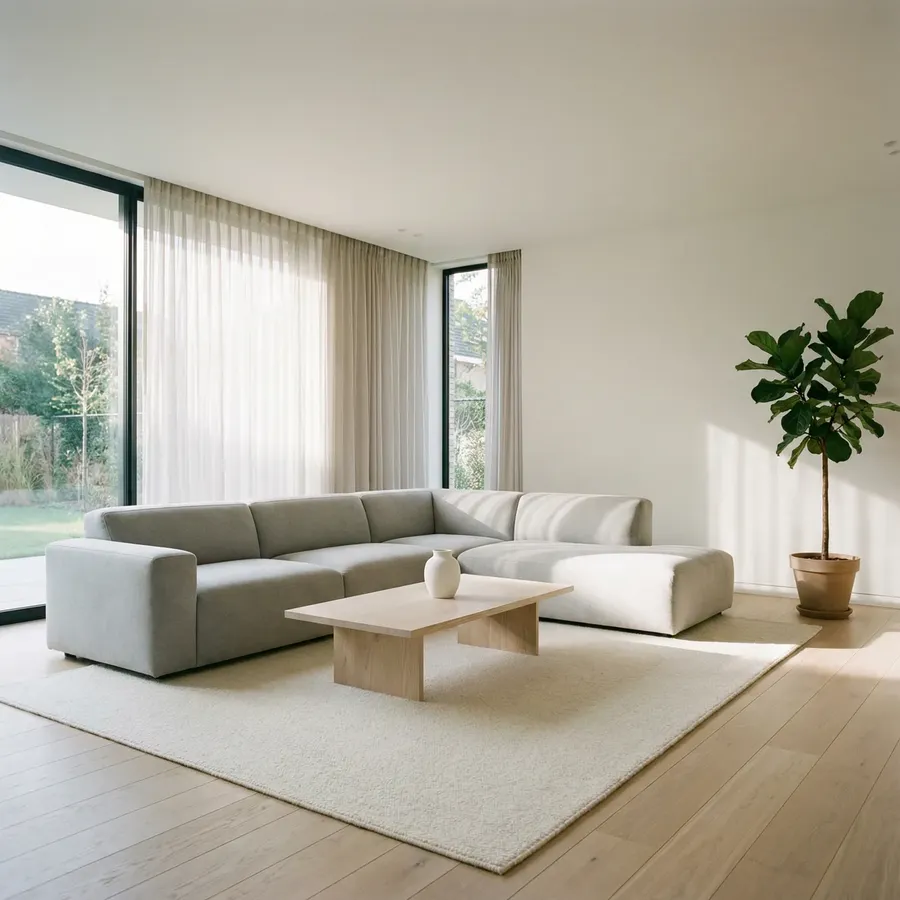
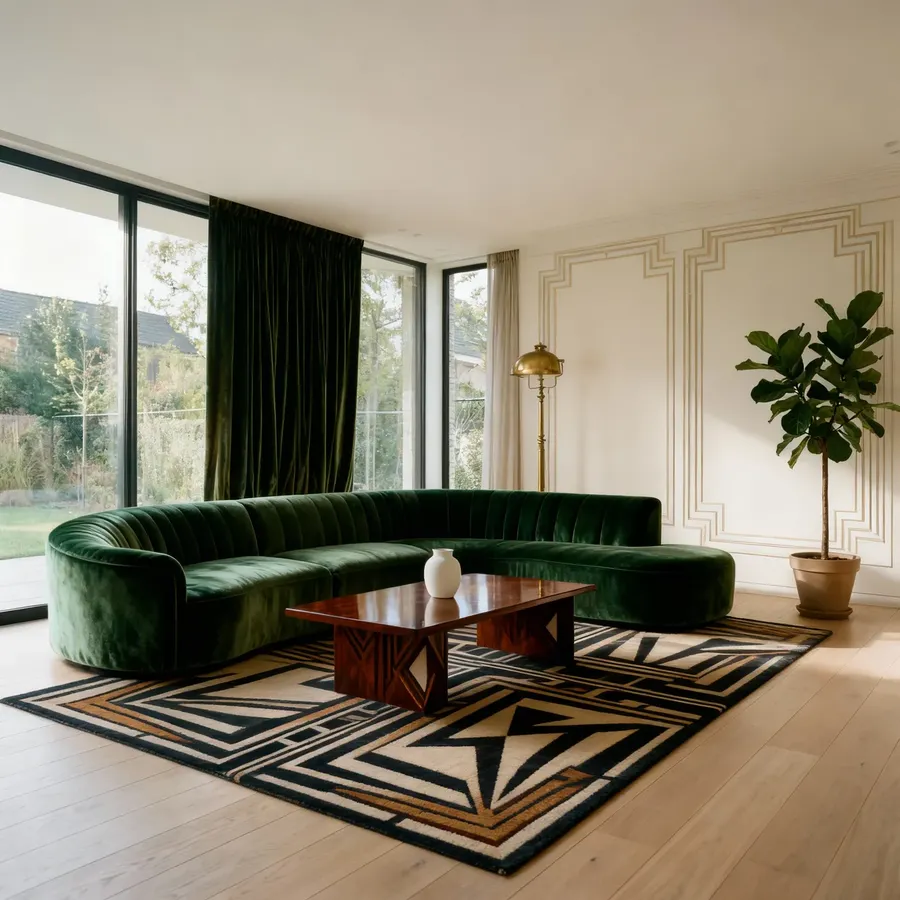
Image 1
Restyle this room in vintage 1930s style
Reference-based prompt template
Change the decor and furniture in the room in Image 1 to match the style in Image 2
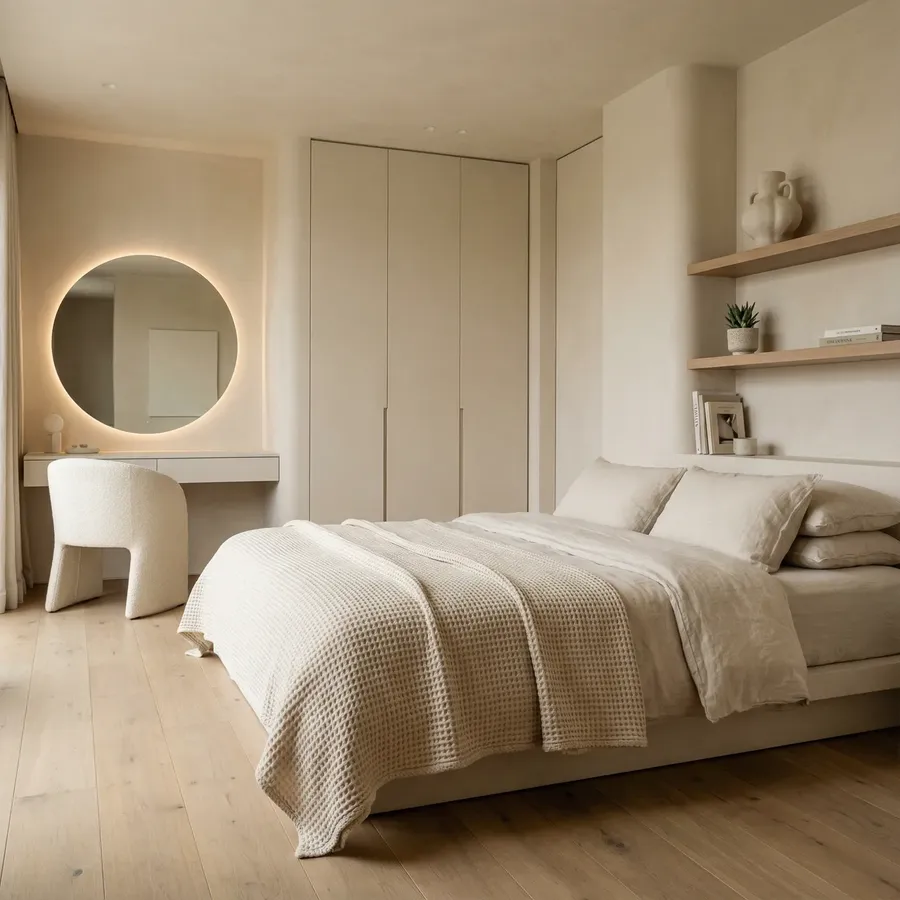
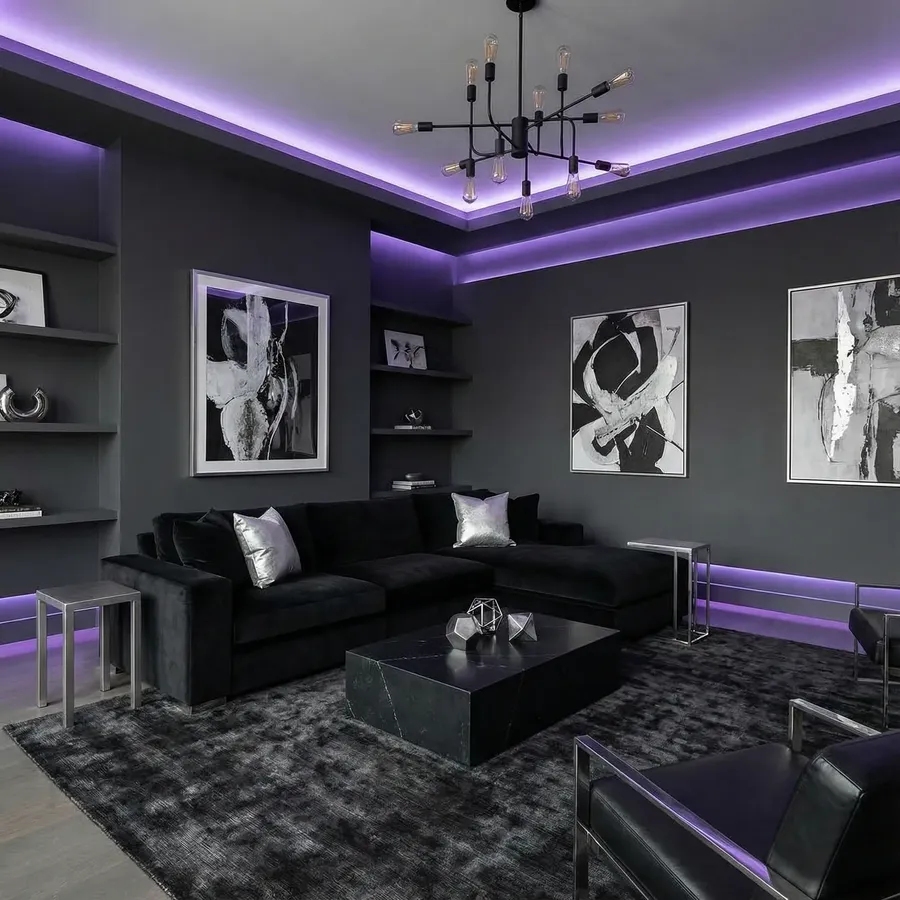
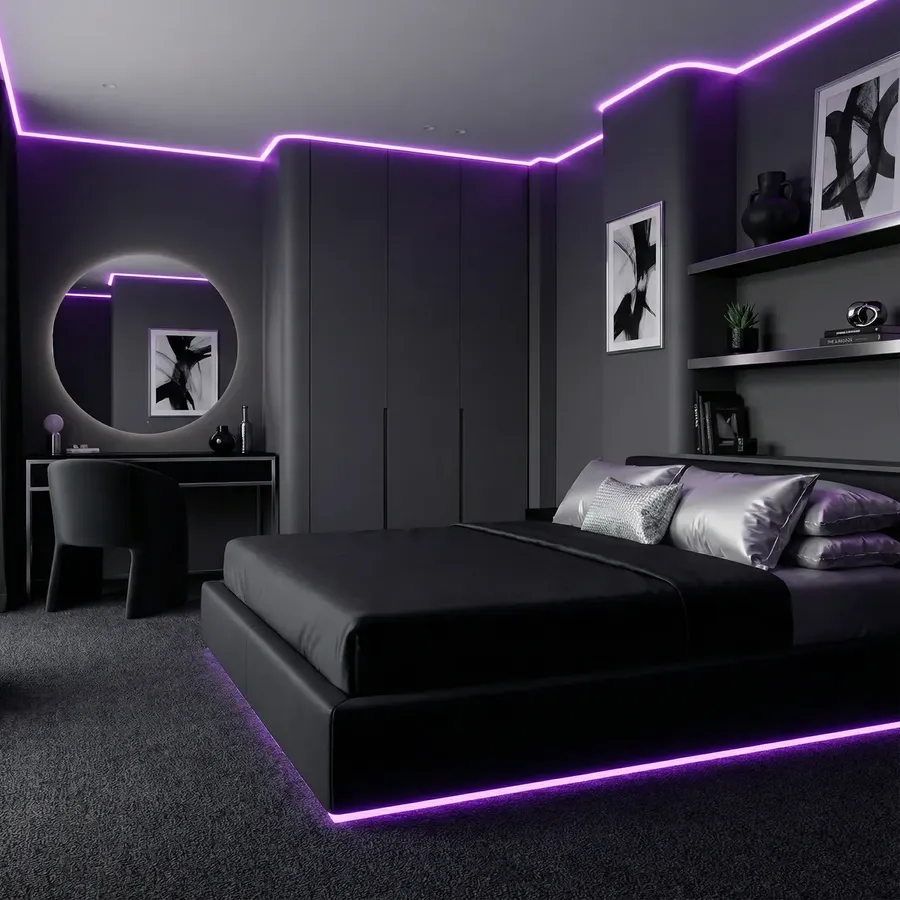
Image 1
Image 2
Change the decor and furniture in the room in Image 1 to match the style in Image 2
Quick tips
- Style examples: Warm Modern, Japandi, Scandinavian, Mediterranean, Mid-century
- You can do it in batches: “Create 4 variations of this room in the following styles: [list].”
Decor-only refresh (keep furniture)
What it’s for
Update the vibe without changing furniture choices.
What you upload
Option A:
- Room photo
Option B:
- Room photo
- Decor reference image (moodboard, styled interior, photo of another room in the house)
Copy-paste prompt template
Keep all furniture exactly the same. Change only decor: rug, pillows, art, plants, and accessories. Style: [STYLE]
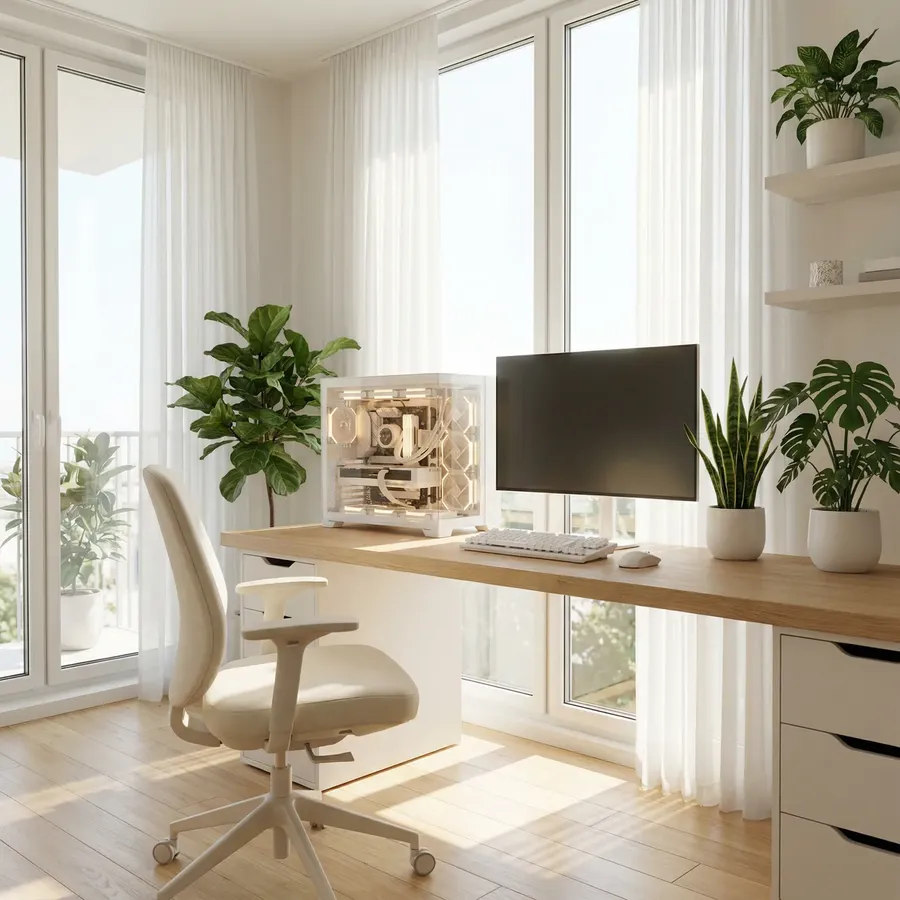
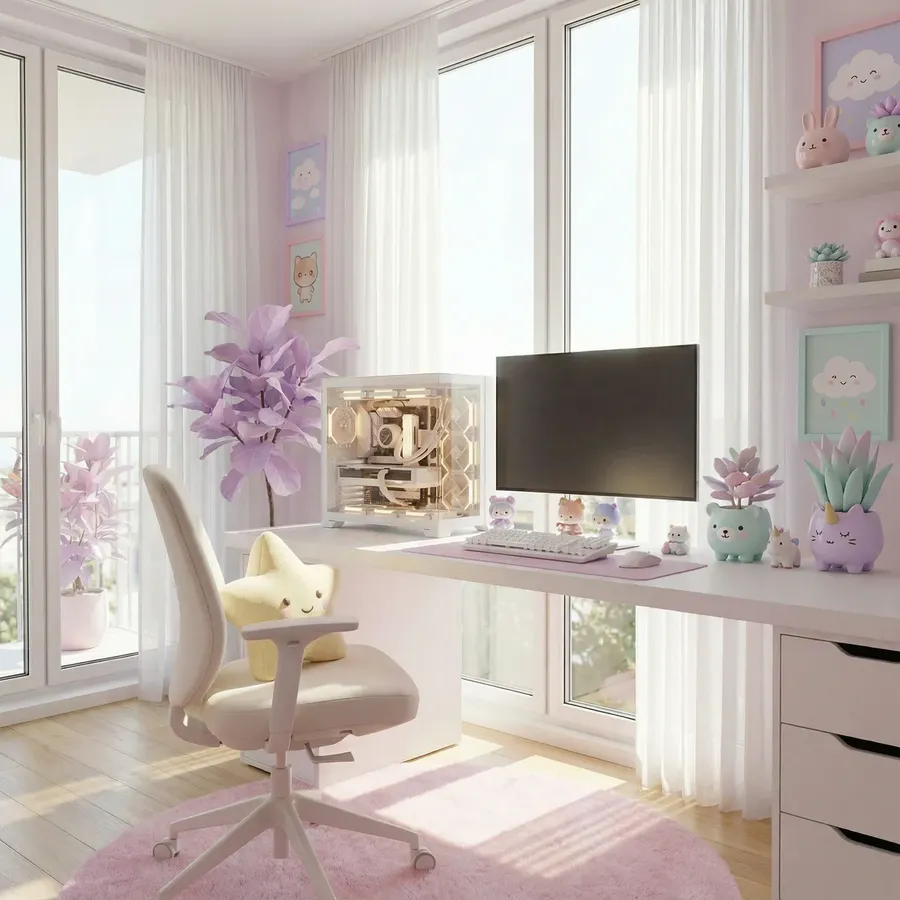
Image 1
Keep all furniture exactly the same. Change only decor: rug, pillows, art, plants, and accessories. Style: pastel kawaii
Reference-based prompt template
Keep all furniture exactly the same. Change only decor to match Image 2
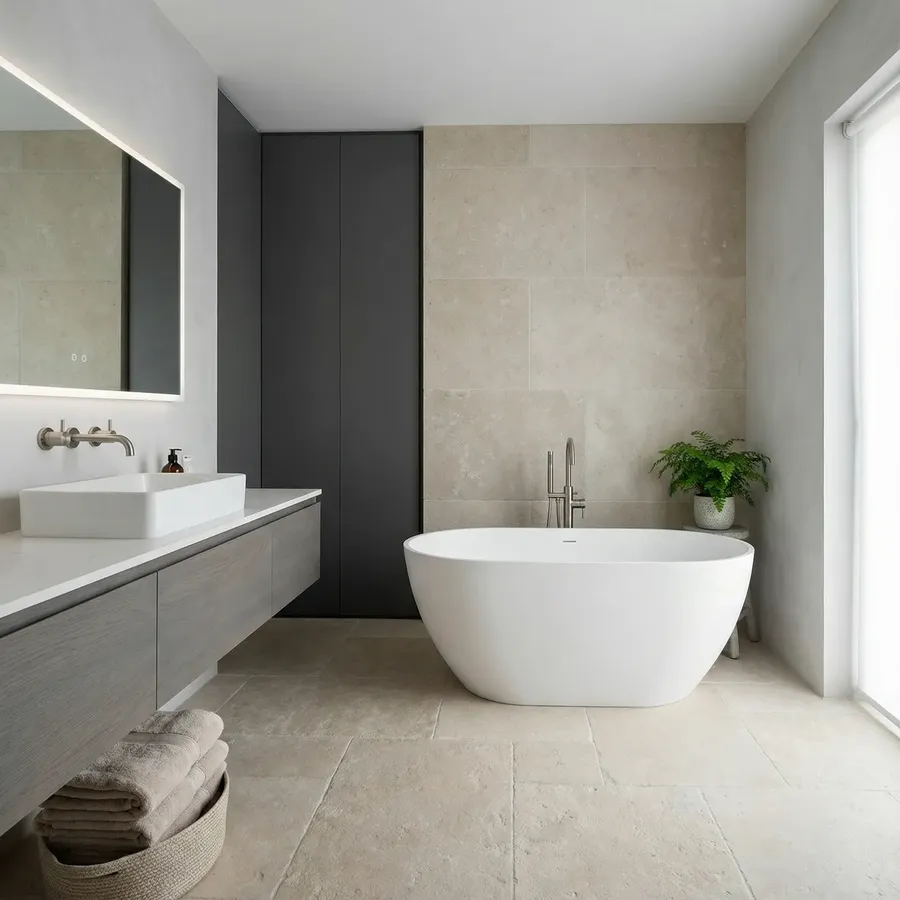
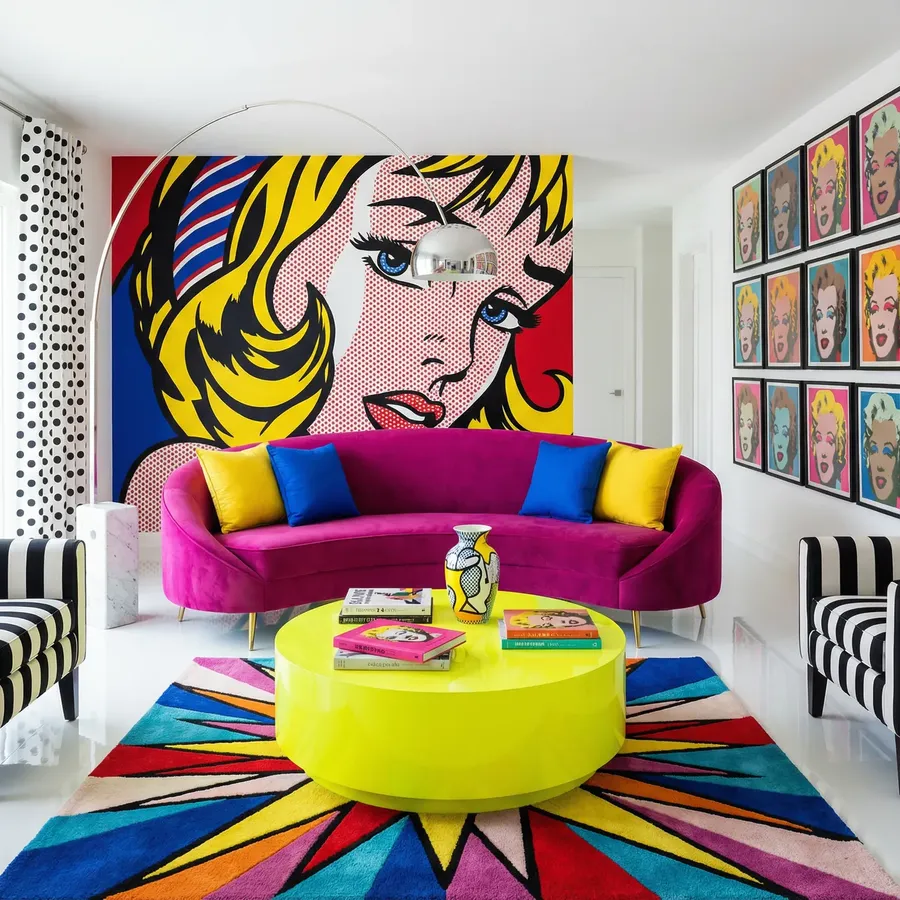
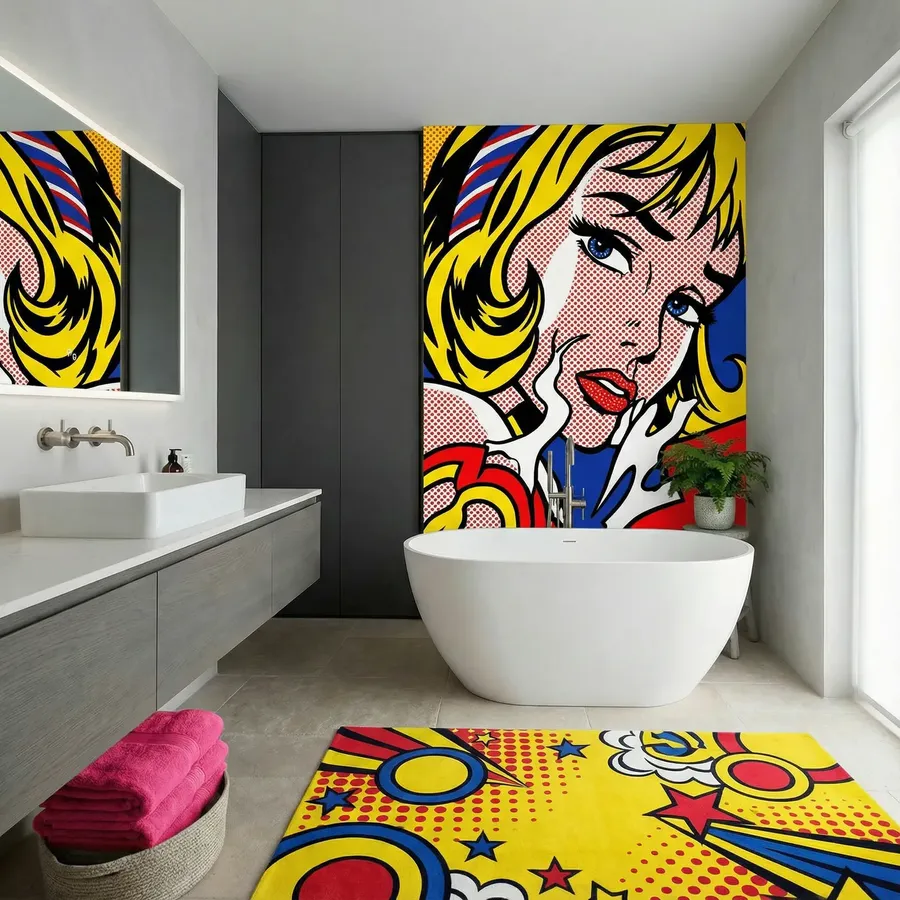
Image 1
Image 2
Keep all furniture exactly the same. Change only decor to match Image 2
Quick tips
- Great for “soft refresh” proposals (or making one room fit the style of another).
Kitchen + Bathroom
Kitchen refresh without changing layout
What it’s for
Show transformation without moving plumbing or walls.
What you upload
Kitchen photo
Copy-paste prompt template
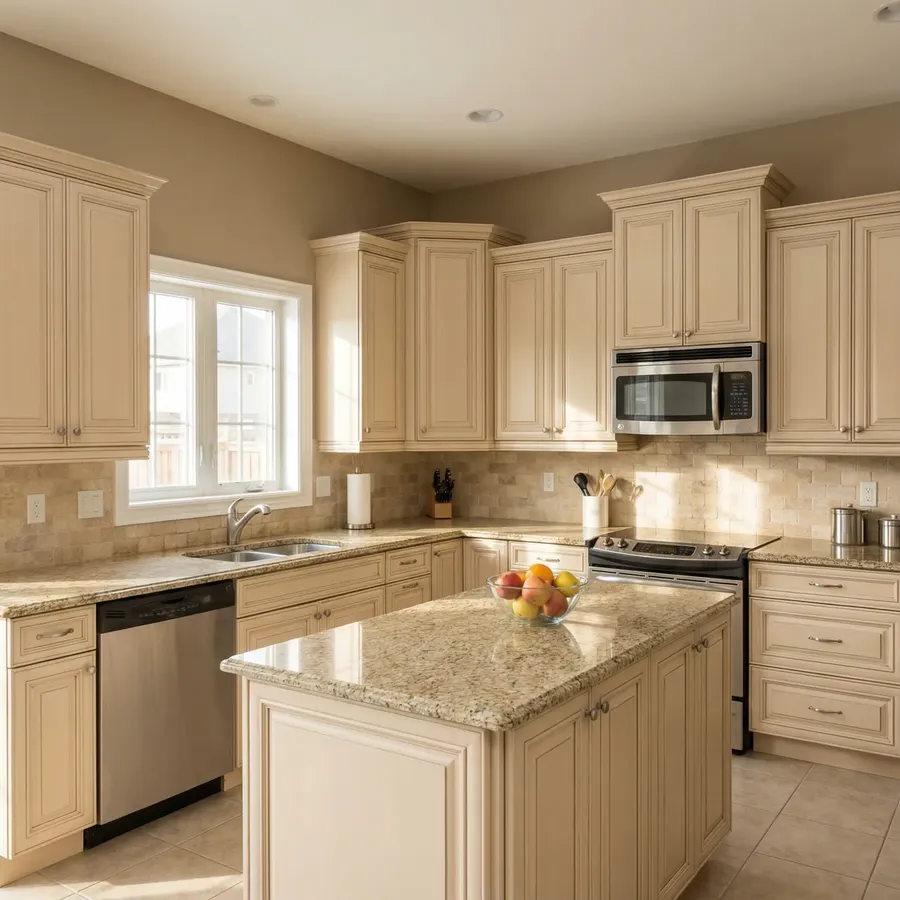
Update this kitchen to a [STYLE] style with [MATERIAL/COLOR] cabinets and [MATERIAL/COLOR] countertops. Preserve layout and appliances.
-900x900.webp)
Image 1
Update this kitchen to a modern moody style: deep burgundy cabinets, light stone countertops, slab backsplash, warm brass hardware, matte black faucet. Preserve layout and appliances.
Quick tips
- Works best one-by-one: pick best result, then refine.
Bathroom refresh without changing layout
What it’s for
New finishes, fixtures, and vibe.
What you upload
Bathroom photo
Copy-paste prompt template
Update this bathroom with [ELEMENTS, e.g.: microcement walls, a floating vanity, and warm brass fixtures]. Preserve layout.
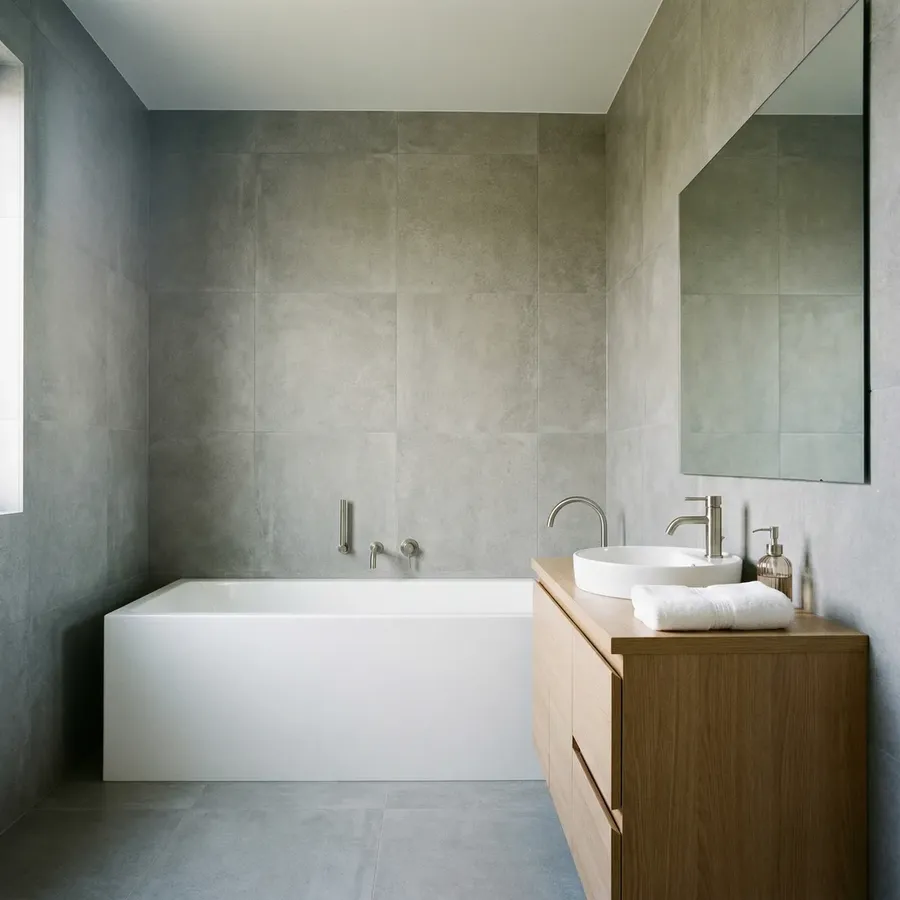
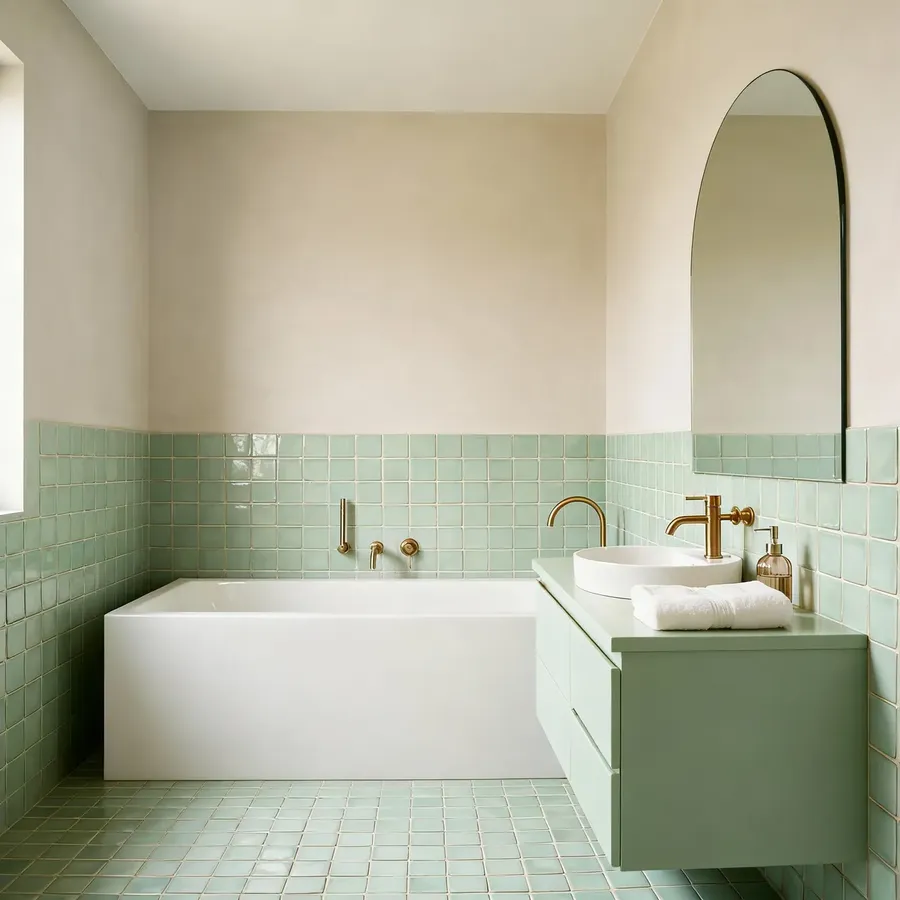
Image 1
Update this bathroom to a modern Mediterranean style: handmade zellige-style tiles in pale green, plaster-look walls, arched mirror, warm brass fixtures, floating pale green vanity. Preserve layout.
Quick tips
- For options, do 4 or 8 variations with different tile styles.
Exterior + Landscaping
Facade refresh
What it’s for
Try materials, colors, and architectural character.
What you upload
Exterior photo
Copy-paste prompt template
Change the facade to [MATERIAL]. Preserve the architecture and proportions
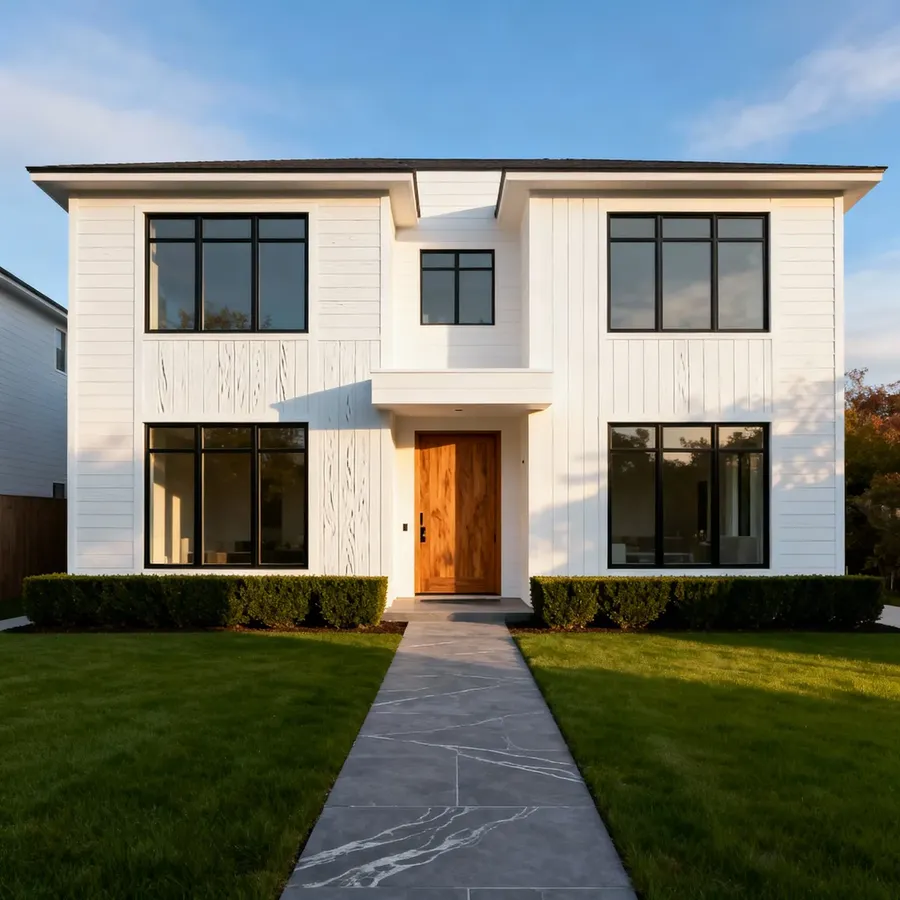
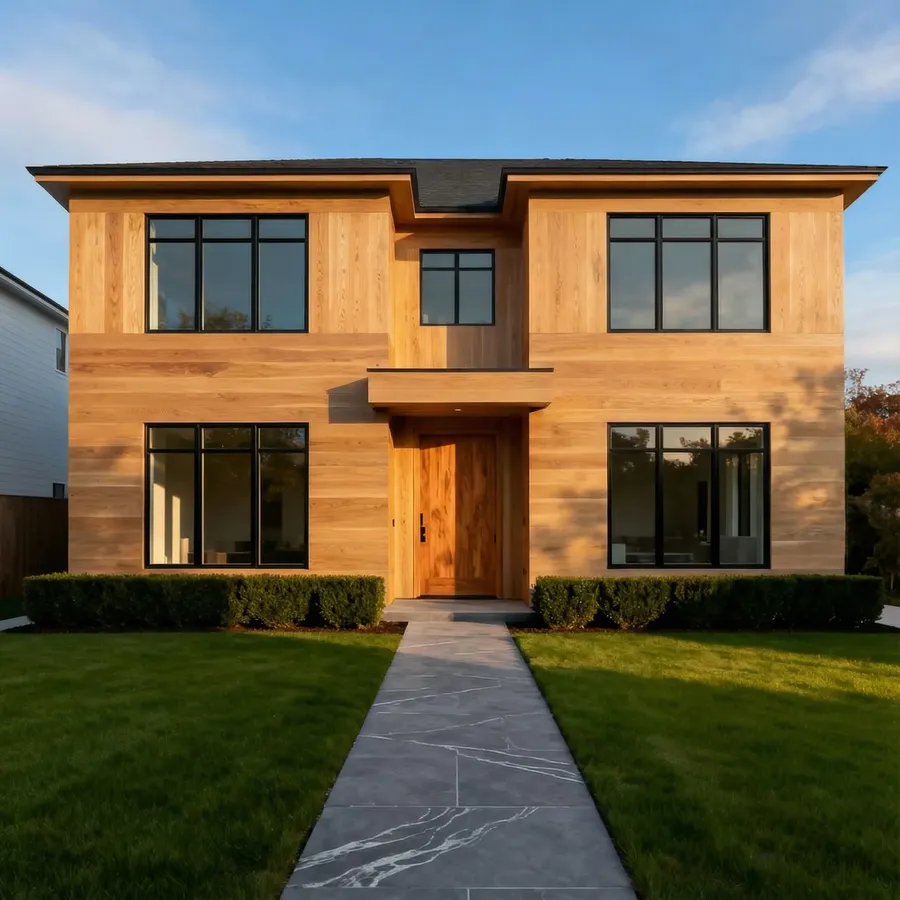
Image 1
Change the facade to wide natural oak panels. Preserve the architecture and proportions
Quick tips
- Material examples: light stucco, brick, natural stone, charred wood.
Landscaping concepts
What it’s for
Front yard, back yard, or patio ideas.
What you upload
Exterior photo
Copy-paste prompt template
Create [NUMBER] landscaping concepts: [STYLE LIST]. Preserve the house
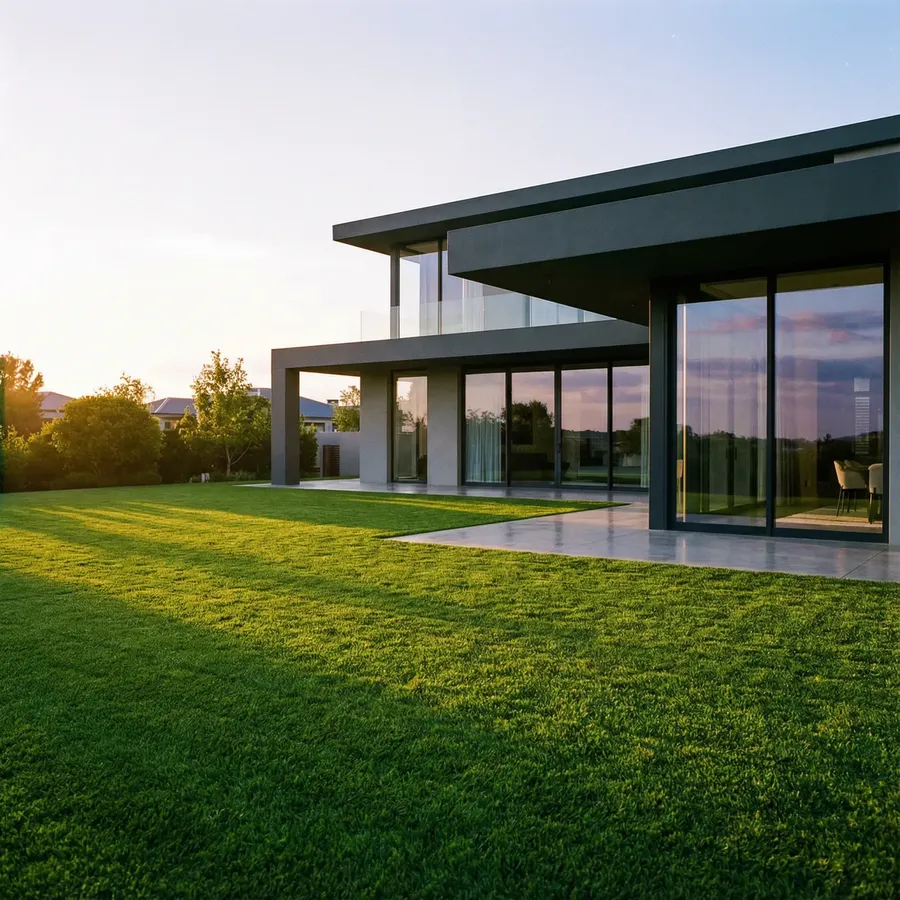
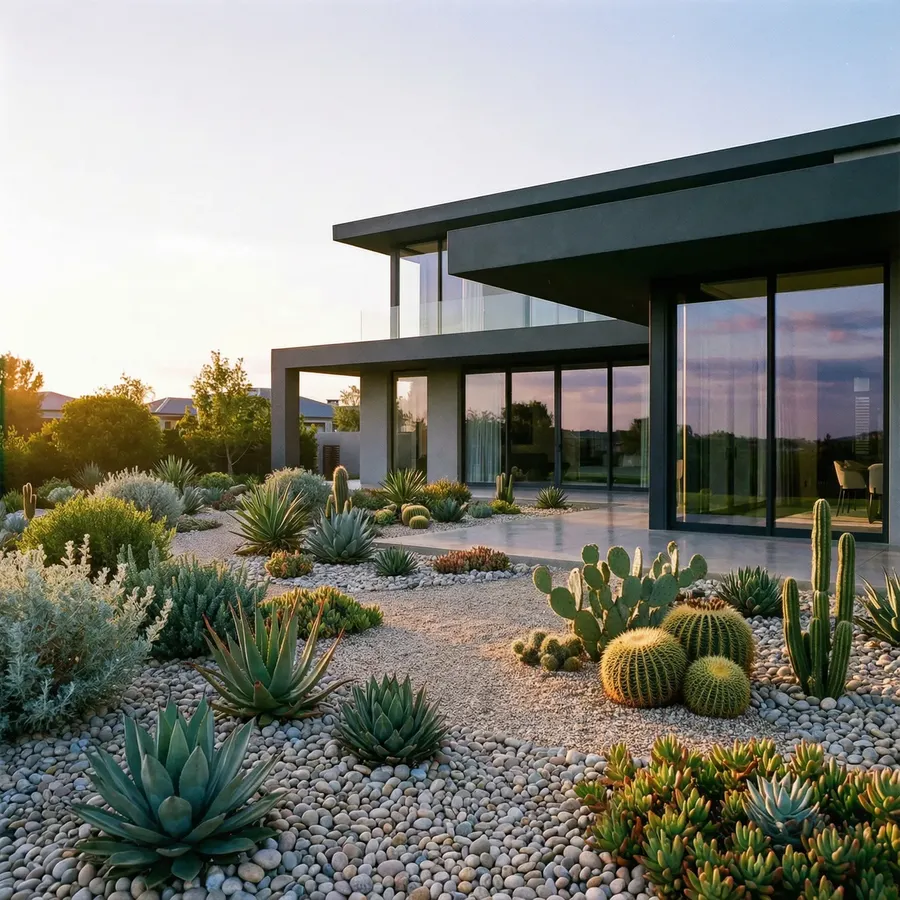
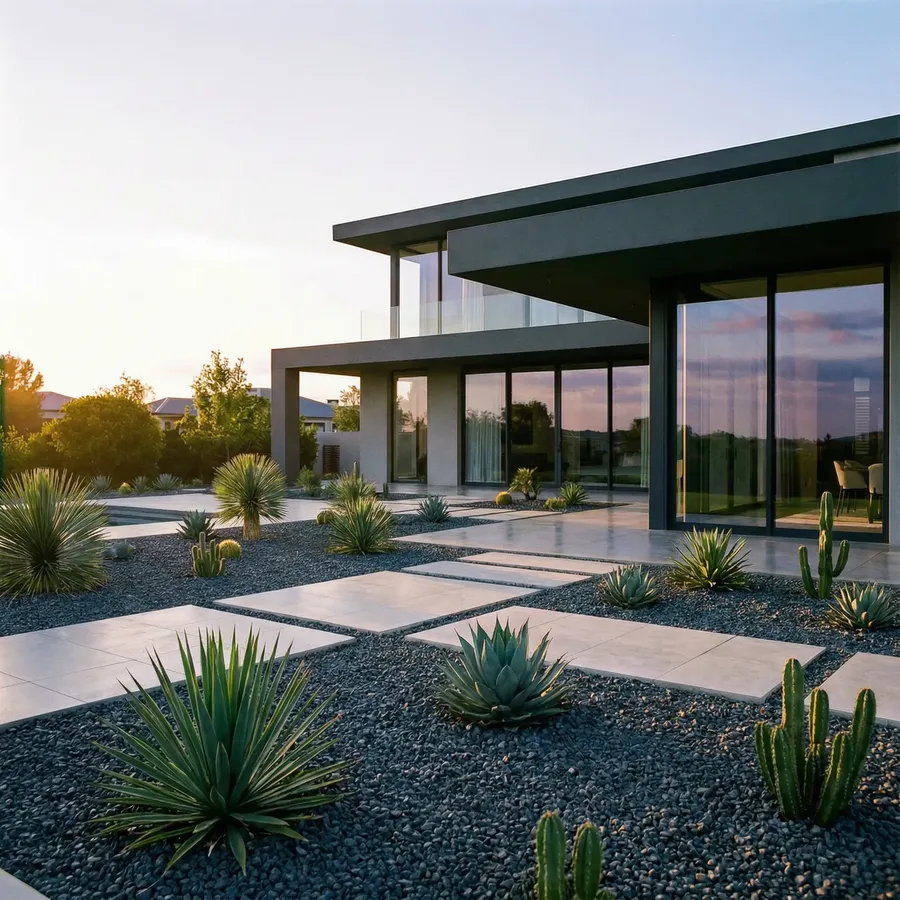
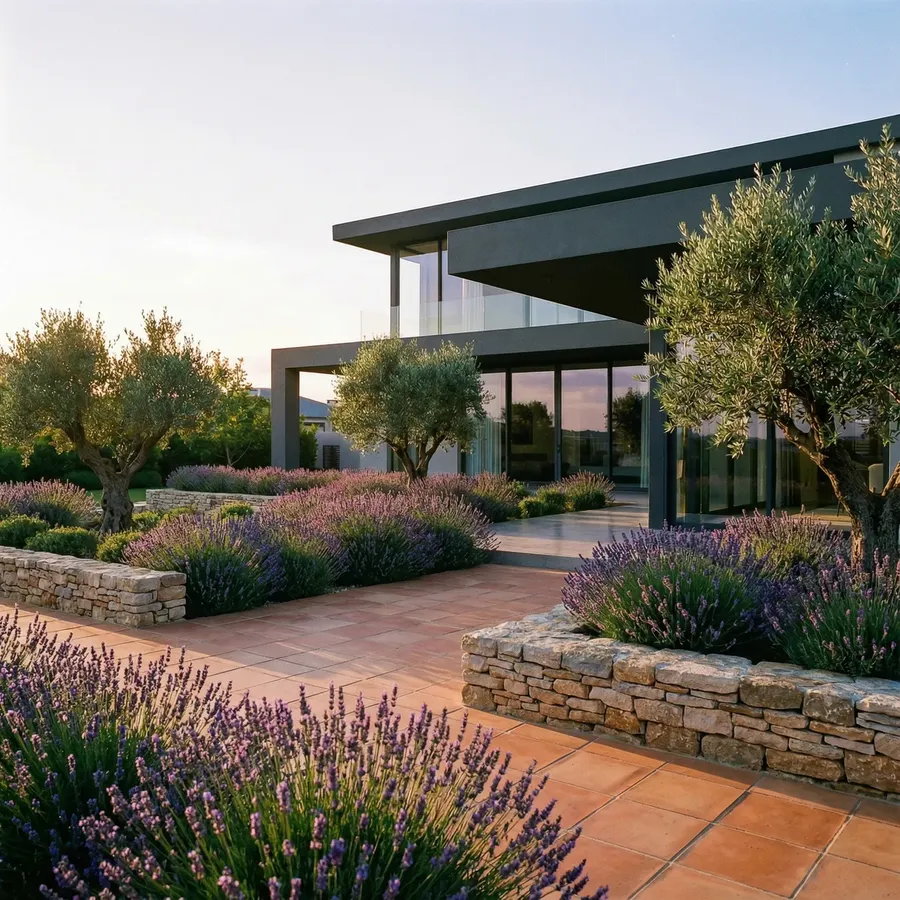
Image 1
Create 3 landscaping concepts: modern minimal, drought-tolerant, Mediterranean. Preserve the house
Quick tips
- Mention climate if needed: “for a dry climate”, “for a temperate climate”.
Architectural Sketch/3D Render to Photo
Sketch to photoreal
What it’s for
Make early ideas feel real for clients.
What you upload
Sketch
Copy-paste prompt template
Turn this sketch into a photorealistic image. Keep proportions and layout
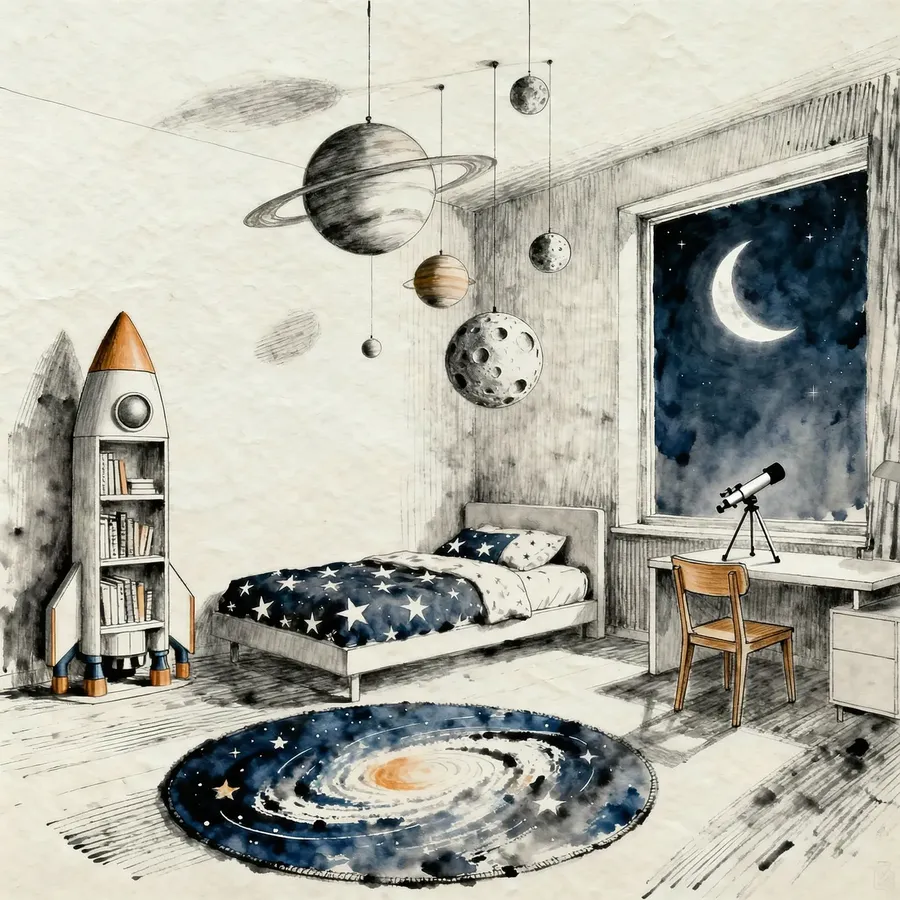
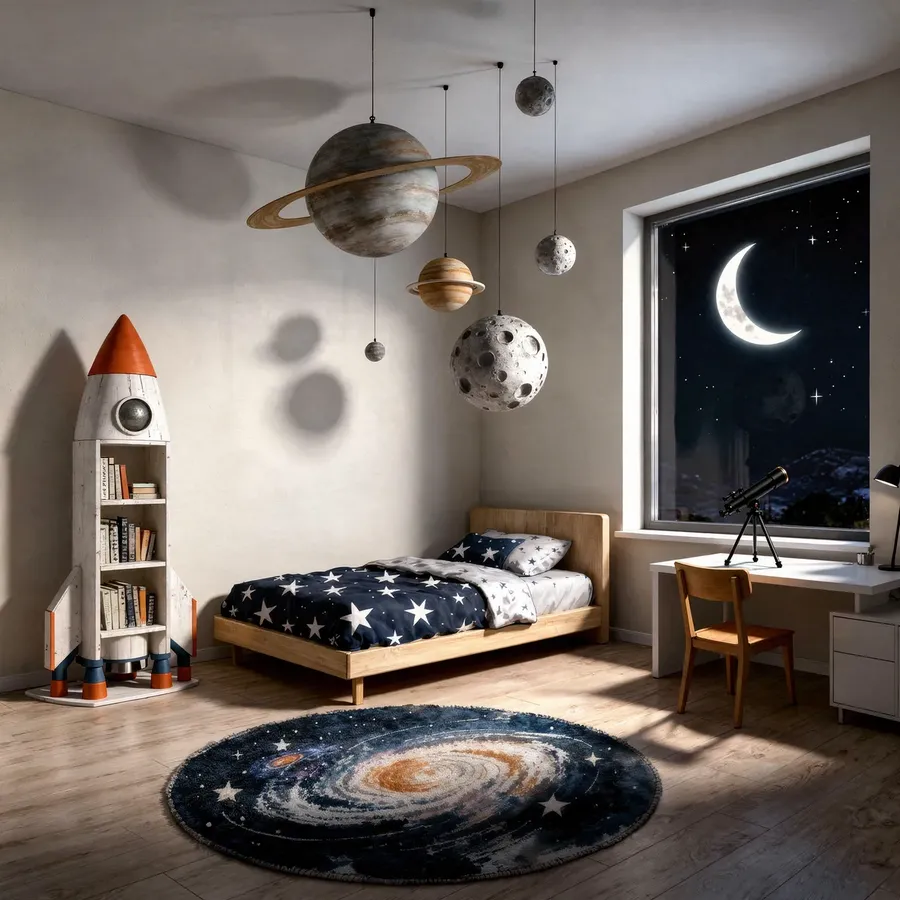
Image 1
Turn this sketch into a photorealistic image. Keep proportions and layout
Quick tips
- You can add style: “Warm modern, natural materials.”
Render to “architectural photo”
What it’s for
Make a 3D render feel like a real photo.
What you upload
Render
Copy-paste prompt template
Turn this render into a photorealistic architectural photo with realistic materials and lighting
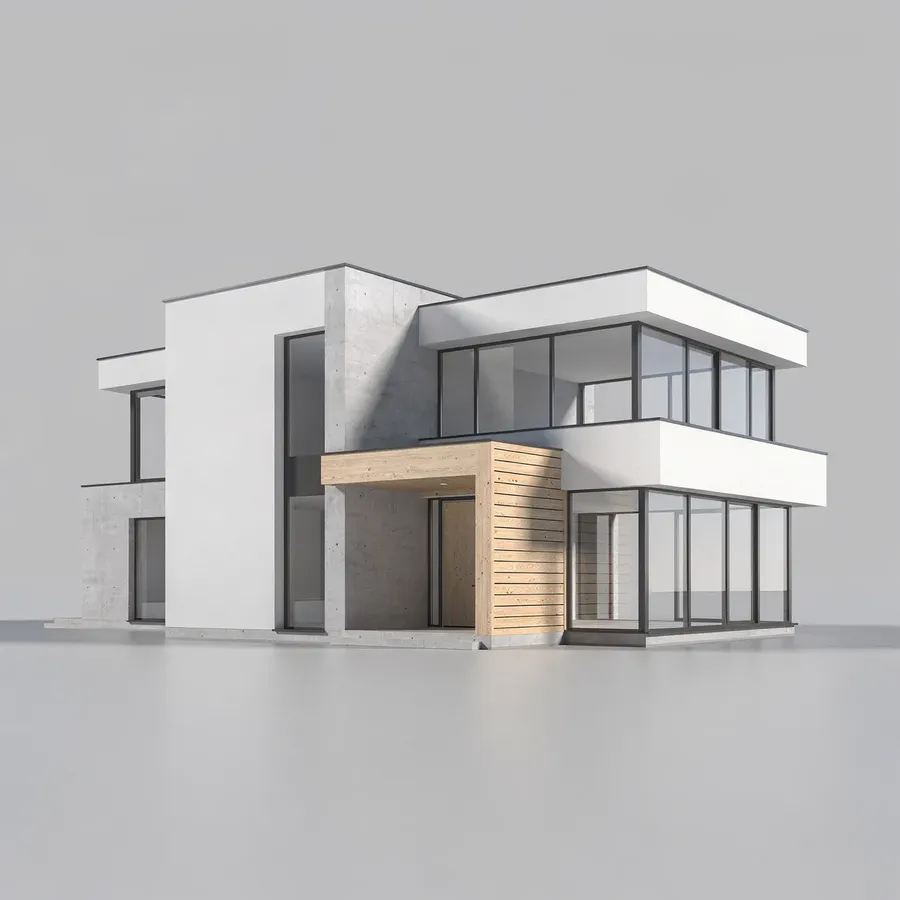
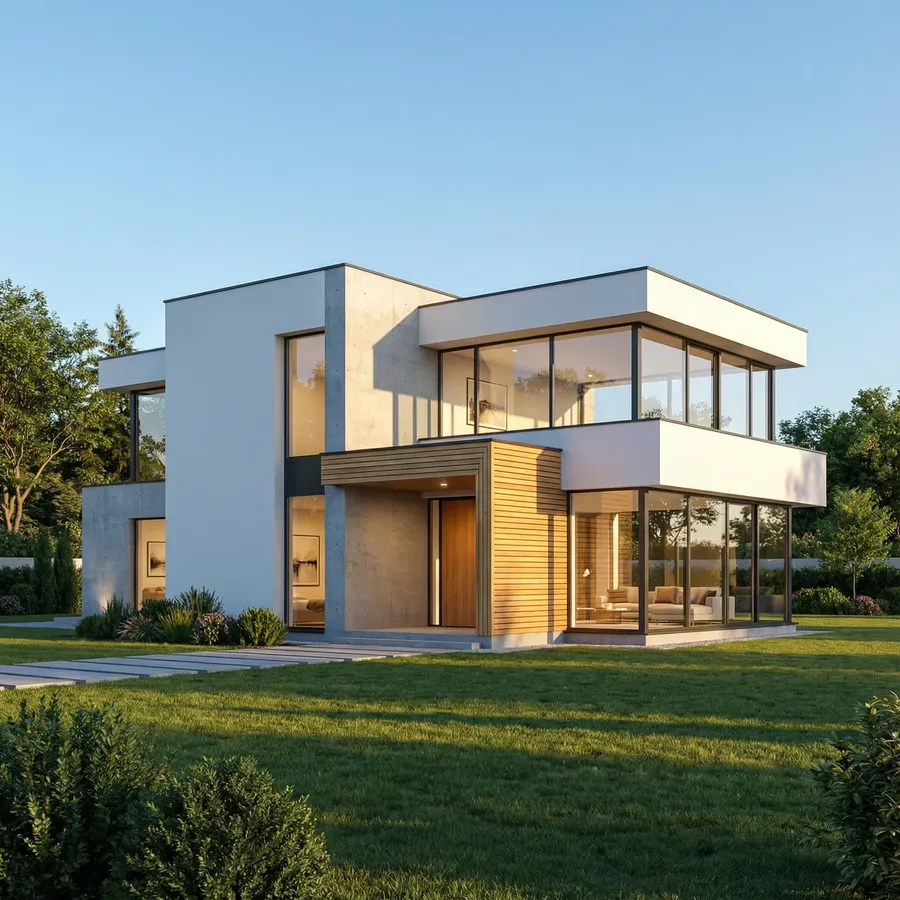
Image 1
Turn this render into a photorealistic architectural photo with realistic landscaping and lighting
Quick tips
- If it’s a facade render, add: “realistic landscaping.”
Text-Only Architecture & Interior Design Image Generation
Room with a clear layout
What it’s for
Create interior concepts that already feel like a real design proposal.
Copy-paste prompt template
Photorealistic [ROOM TYPE], [SIZE]. Style: [STYLE]. Materials: [2–4 materials]. Furniture and layout: [describe key furniture + placement]. Lighting: [time of day]. Camera: [wide angle / eye level]
Example
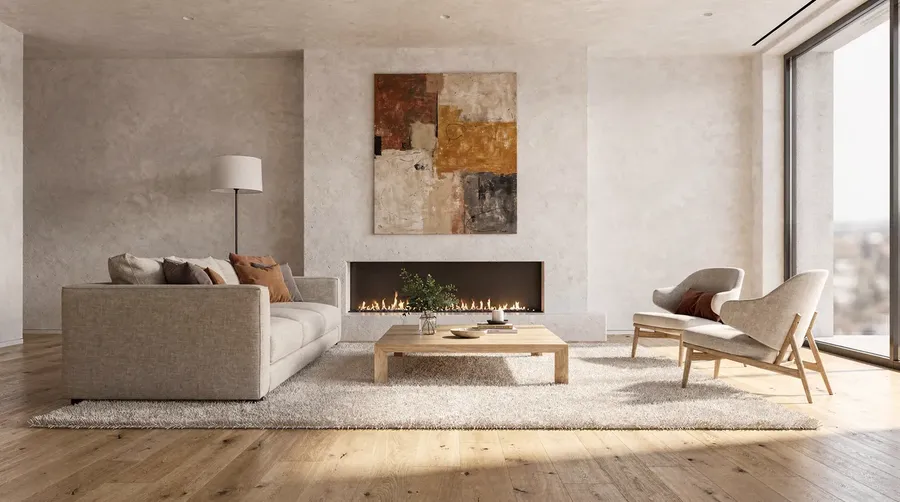
Photorealistic living room, medium-sized. Style: warm modern. Materials: light oak floor, off-white plaster walls, linen upholstery, travertine. Furniture and layout: a low beige sofa, a minimalist fireplace wall, a large neutral rug under the sofa and coffee table, two accent chairs near the window, a floor lamp behind the sofa, and a large artwork above the sofa. Lighting: soft daylight. Camera: wide angle, eye level
Quick tips
- Include placement cues like “centered,” “near the window,” “against the wall.”
Exterior house concept
What it’s for
Architecture concepts, facade direction, marketing visuals.
Copy-paste prompt template
Photorealistic exterior of a [HOUSE TYPE] in [STYLE]. Materials: [materials]. Details: [window style, roof type, entry design]. Setting: [urban/forest/coastal]. Lighting: [golden hour/daylight]. Include landscaping
Example
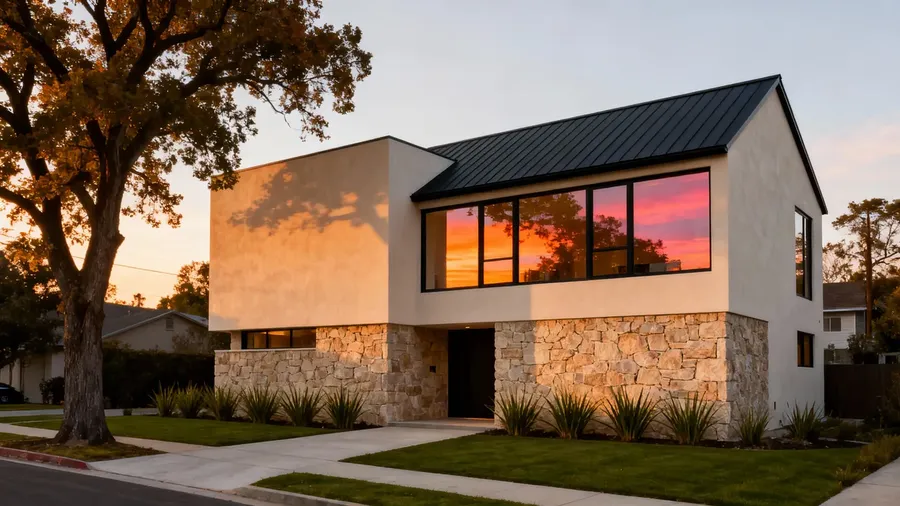
Photorealistic exterior of a modern single-family house. Materials: light stucco, natural stone base, black aluminum windows, standing seam metal roof. Details: large floor-to-ceiling windows, recessed entry, simple volumes. Setting: suburban street with mature trees. Lighting: golden hour. Include minimalist landscaping
Landscaping concepts
What it’s for
Quick landscape directions without needing a real site photo.
Copy-paste prompt template
Photorealistic landscape design for a [front yard/backyard]. Style: [style]. Climate: [dry/temperate/coastal]. Include: [patio/pergola/pathway/lighting]. Planting: [keywords]
Example
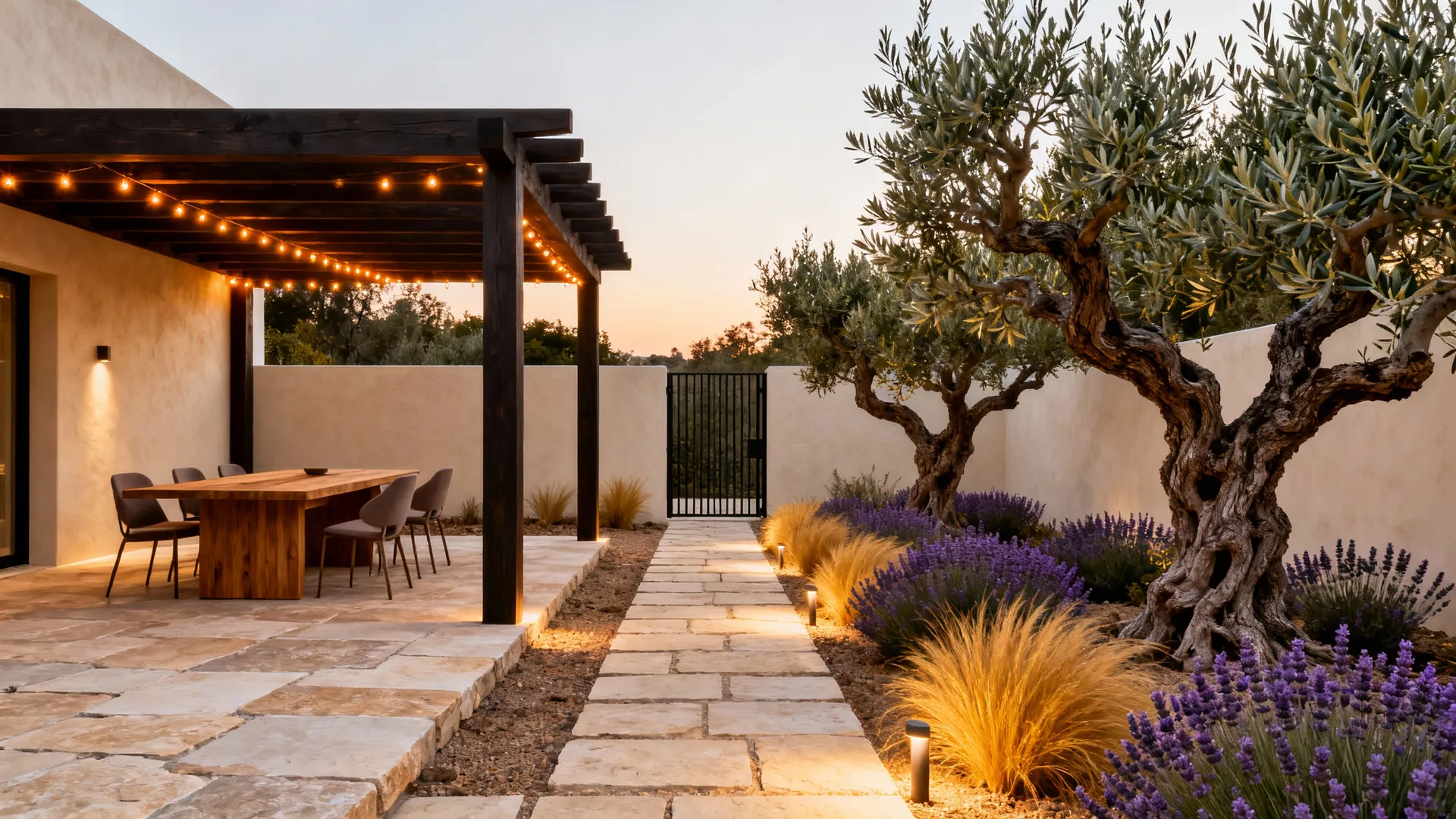
Photorealistic landscape design for a gated backyard. Style: modern Mediterranean. Climate: dry. Include a stone patio with pergola, outdoor dining, warm lighting, and a simple pathway. Planting: olive trees, lavender, ornamental grasses, drought-tolerant shrubs
Furniture concepts
What it’s for
Custom furniture ideation, product concepts, client-specific built-ins.
Copy-paste prompt template
Photorealistic furniture design: [ITEM]. Style: [style]. Materials: [materials]. Details: [shape, proportions, legs/handles]. View: [front/side/3/4]. Background: clean studio
Example
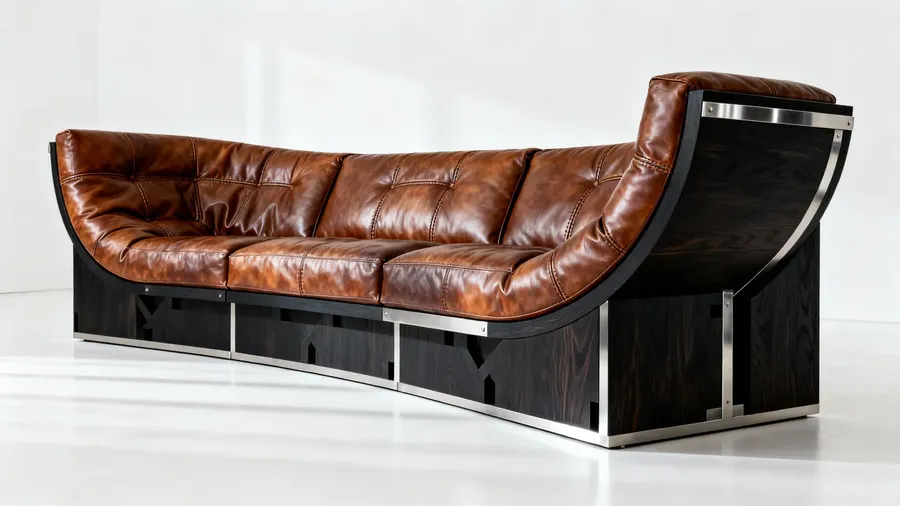
Photorealistic furniture design: sculptural lounge sofa. Style: contemporary gallery piece. Materials: blackened oak frame, saddle leather seat, brushed stainless steel connectors. Details: bold curved silhouette, visible joinery, generous proportions. View: 3/4. Background: clean studio.
For more prompting tricks, check out our AI Image Prompt Book.
Architecture & Interior Design AI Videos
Think of AI video as a quick finishing touch for your best images. A little motion goes a long way in presentations, social media posts, and listings.
Cinematic "parallax reveal"
What it’s for
A premium-looking room showcase that feels like a real camera move.
What you upload
Interior image (as a First Frame or Reference Image)
Copy-paste prompt template
The camera performs a slow parallax move, sliding laterally to the right while gently dollying forward into the room.
-900x502.webp)
Reference Image
Wide cinematic shot, a minimalist living room featuring a curved beige sofa, a low stone coffee table, and a potted olive tree beside an arching floor lamp. The camera performs a slow parallax move, sliding laterally to the right while gently dollying forward into the room. Warm golden hour sunlight streams through floor-to-ceiling windows with sheer curtains, highlighting floating dust motes and the rich textures of a plush rug and wooden floor. Ambient noise: the faint, peaceful sound of a quiet room. A calm, soothing voice says, "Warm light, natural textures, and clean lines. Designed for quiet comfort and everyday living." while classical music plays in the background. High-end interior design aesthetic, serene and stable perspective with soft golden lighting.
Day-to-night transition
What it’s for
Show lighting mood and atmosphere.
What you upload
Interior image (as a First Frame or Reference Image)
Copy-paste prompt template
Create a smooth day-to-night transition of this room.
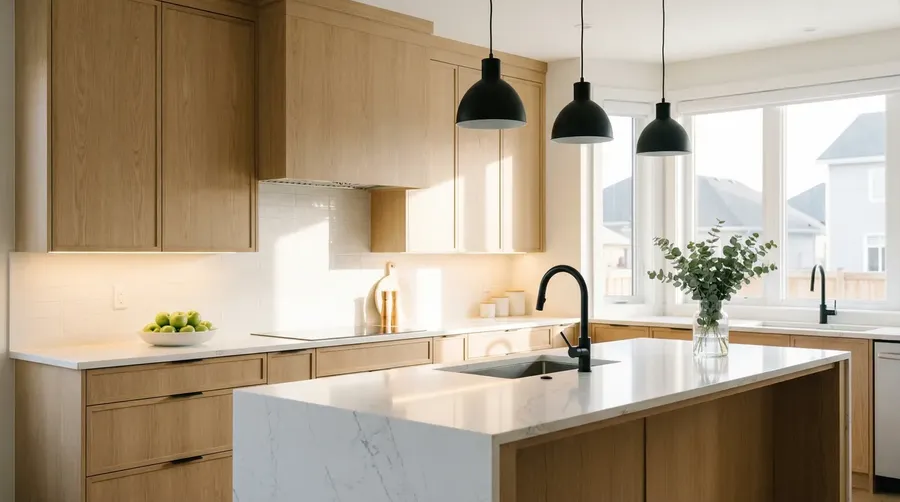
First Frame
Day-to-night transition of this kitchen. Transition through three stages: bright daylight → warm evening → soft night ambient. Turn on pendants and under-cabinet lighting gradually. Keep it realistic. Add subtle ambient audio and a voiceover: ‘Daylight to evening. The same space, three moods, one consistent design.’
Material / color variants timelapse
What it’s for
Show multiple finish directions for one item in the same room. Great for quick client decisions.
What you upload
Interior (or exterior) image (as a First Frame)
Copy-paste prompt template
Timelapse video where only the [ITEM] changes through [NUMBER] material/color variants while everything else stays exactly the same. Keep the camera fixed and realistic.
Step 1: [MATERIAL / COLOR]
Step 2: [MATERIAL / COLOR]
Step 3: [MATERIAL / COLOR]
Step 4: [MATERIAL / COLOR]
(...)
Preserve everything else.
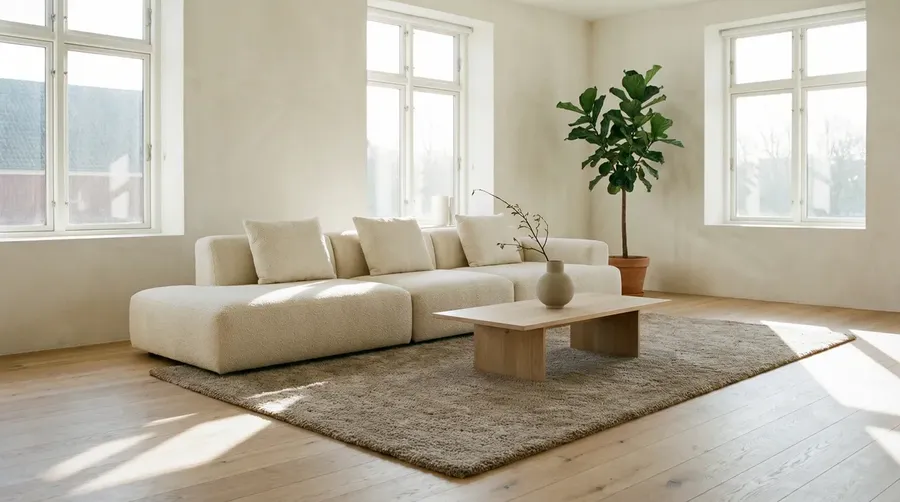
First Frame
Timelapse video where only the sofa upholstery changes in 4 smooth steps while everything else stays exactly the same. Keep the camera fixed and realistic. Step 1: beige linen Step 2: olive green velvet Step 3: cognac leather Step 4: light grey bouclé. Preserve everything else. Add subtle ambient audio and a voiceover: ‘Same layout. Four upholstery directions. Pick the one that fits best.’
Quick tips
- Pick something central to the shot (sofa, cabinets, rug, facade finish)
- Make the options clearly different, so the change reads instantly
- Keep the number of variants/steps realistic for the video length you chose.
Reveal video (empty room → furnished)
What it’s for
A clean before/after reveal for clients, real estate, and social posts.
What you upload
- Empty room photo as the First Frame
- Furnished final version as the Last Frame
Copy-paste prompt template
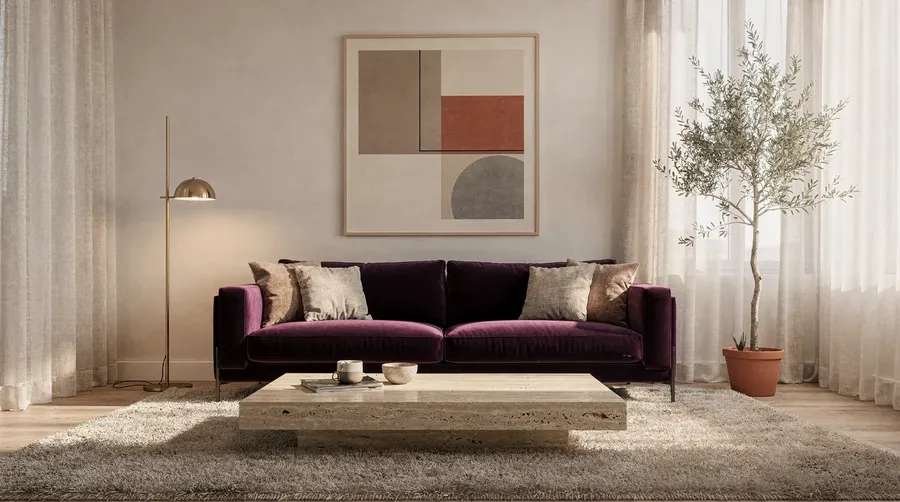
Create a smooth reveal video that transitions from Image 1 (empty room) to Image 2 (furnished room). Keep the camera fixed and the transformation realistic.
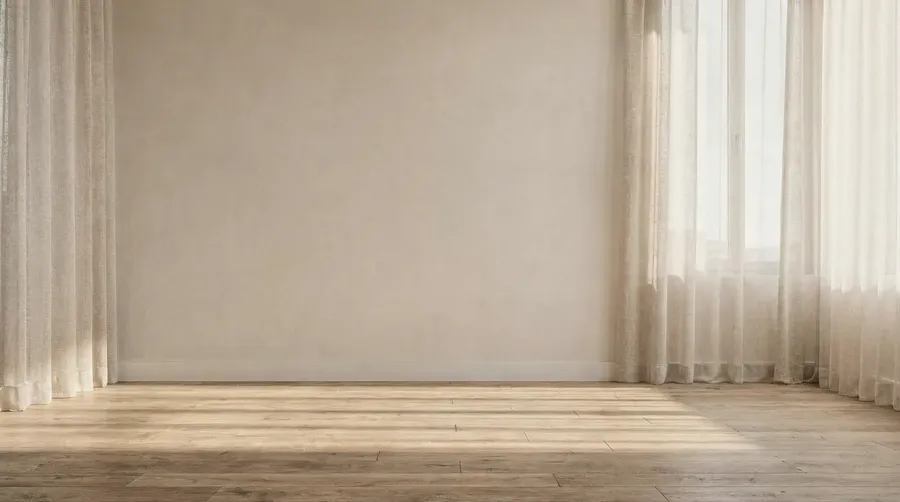
First Frame
Last Frame
Before and after video that transitions from Image 1 (empty room) to Image 2 (furnished room). Keep the camera fixed. Make the transformation smooth and realistic. Add subtle ambient audio and voiceover: ‘From empty shell to finished space. Same room, ready for living.’
Quick tips
- This works best when both images have the same camera angle.
Need more ideas? Check out our AI Video Prompt Book.
Try it now
Log into getimg.ai, pick a prompt from this Interior Design & Architecture Prompt Book, and run it on a real project image.
Start small (one change), then build up: materials → furniture → styling → full direction.
If you’re working with a team, use Teams feature to keep everything in one place. It’s great for sharing references, comparing versions, and getting quick feedback without messy back-and-forth.
And if you're also creating images and videos for other purposes, check out these prompt books:
Frequently Asked Questions
It’s a practical prompt library for getimg.ai, made for architects and interior designers. It covers everyday workflows like material tests, staging, product placement, quick iterations, and before/after concepts.
Our AI tool for architecture & interior design allows you to:
🟣 edit room photos and 3D renders with text instructions
🟣 test materials like paint, flooring, tile, stone, and fabrics
🟣 place furniture and products into a real space using reference images
🟣 generate rooms, houses, landscaping, and furniture concepts from text
🟣 create short videos like reveals, walkthroughs, and day-to-night transitions.
No. A clean, well-lit photo helps, but you can also work with phone photos, rough renders, and sketches. If you want more accurate product placement, use a clearer reference image for the product.
Yes. You can upload one or more references, like:
🟣 a room photo + sofa + lamp + rug
🟣 a kitchen photo + countertop slab + backsplash tile + hardware finish
🟣 a room photo + paint swatch + flooring sample.
If you reuse the same materials, lighting, or style often, you can also create Elements (like Texture, Lighting, Color Palette, Style, Product, Place, or Composition) and reference them in prompts with @ElementName.
Yes. You can generate rooms, houses, landscaping, and furniture from scratch using text prompts. It’s best for early concepting and mood exploration. For real projects, uploading a room image or references usually gives more control.
Yes. It’s especially useful for:
🟣 decluttering
🟣 removing personal items
🟣 emptying rooms
🟣 light staging
🟣 creating before/after reveals.
Yes. You can convert sketches into realistic images, or make 3D renders look more like photos with improved materials and lighting.
Yes, you can use it to quickly generate:
🟣 style directions
🟣 material palettes
🟣 staging options
🟣 before/after concepts
🟣 short videos for mood and storytelling.
Yes, on a paid plan you can use the images and videos you generate commercially. The free plan is for personal use only.
The most useful Element types for interiors are Texture, Lighting, Color Palette, Style, Composition, Place, Product, and Object. Use them to reuse finishes, lighting setups, brand palettes, framing, and specific products across many images.