Guide to Video Reference Images
Learn how to use reference images in video generation to show the AI which people, objects, or places to include during your clip.
What Are Video References
Reference images help the AI understand what should appear during your video, not just at the start or end.
They can guide things like:
- Showing a person or character you want to appear mid-scene
- Including a specific object or product, like a car, camera, or outfit
- Pointing to a place or background you want to use later in the clip.
You can attach up to 10 reference images at once. The AI studies them while generating, using their details to match people, objects, and environments from your prompt.
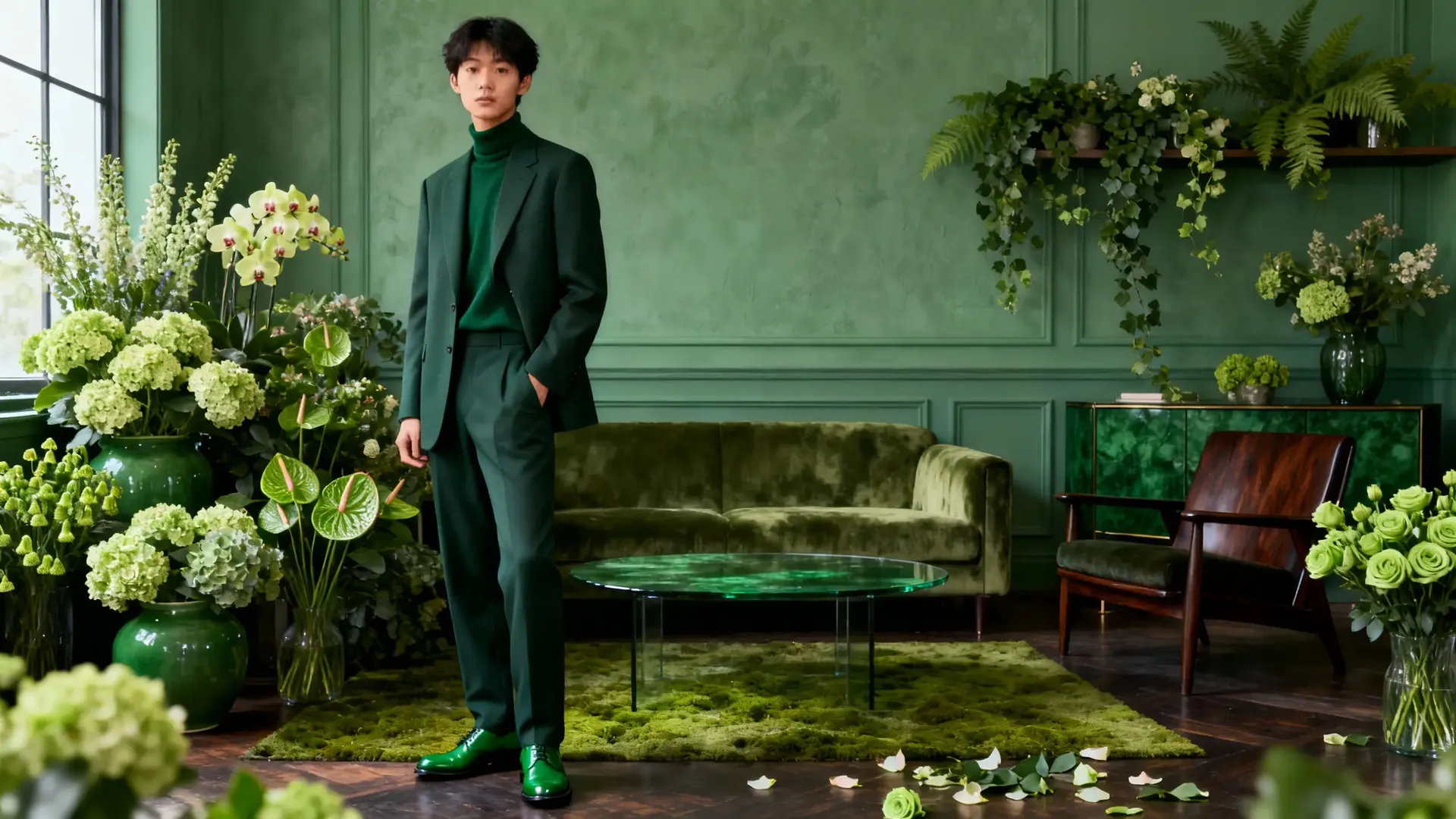
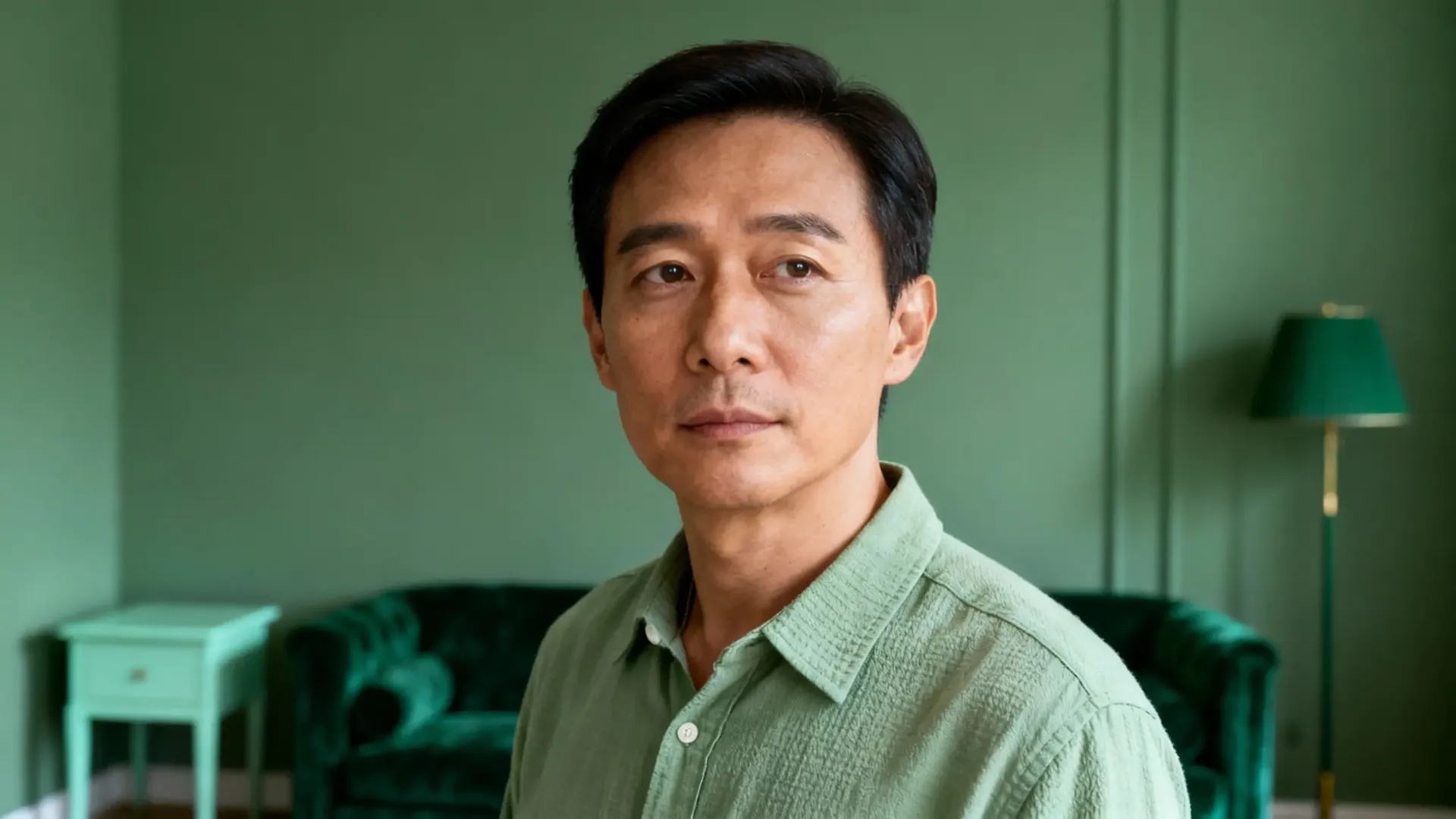
Reference Image 1
Reference Image 2
people from image 1 and 2 meet and shake hands in a green room with flowers
How to Add Video References
You add references by attaching images, then assigning their role.
Step 1. Select Reference Images
First, log into getimg.ai and open the Create video Action (click "Video", then "Create video"). Adding references works just like setting First or Last Frames. Then:
- Click the Reference button in the prompt box.
- Pick existing images or upload new ones.
To remove a reference, hover over its thumbnail and click the X in the top-right corner.
You can’t combine references with First or Last Frame in the same generation: pick one method per video.
Step 2. Write a Prompt
Once you’ve added reference images, you can mention them directly in your text prompt.
For example:
- The person from image 1 walks into the room holding the object from image 2.
- Then, the car from image 3 starts driving past the building from image 4.
- The logo from image 1 appears on the billboard in the background.
The AI links each numbered image to the corresponding element in your prompt.
Step 3. Generate
Adjust the parameters (length, number of variants, aspect ratio, model), and click the arrow next to the prompt box.
Wait a moment for the video to generate: it will include the elements from your selected reference images.
Now it's time for you to try it. Start small: add a reference or two and see how much more control you get over your videos!
Frequently Asked Questions
A First Frame locks the exact starting image of your video: the clip begins exactly as that image looks. A Reference Image acts as a guide for the AI to understand what to include (like a character, product, or location) at some point during the video, but it does not dictate the starting camera angle or composition.
No. These are two separate control methods. You cannot combine them in a single generation. If you need the video to start from a specific image, use First Frame. If you want a specific character or object to appear in a new scene, use Reference Images.
You can attach up to 10 reference images at once. This allows for complex scenes where you can define the character, the environment, and multiple props simultaneously by referencing "image 1," "image 2," "image 3," and so on.
Yes. This is one of the best use cases. By uploading a clear image of a character and referring to them as "the person from image 1," you guide the AI to generate that specific person's likeness throughout the video clip, rather than generating a random person.